Automating your email and SMS communications helps you save time and keep your contacts and customers engaged through a predetermined series of messages. You select the trigger, choose the timing between messages, and customize your message content. Our pre-built templates help you get messages out the door quickly, but are flexible; send a simple message or a complex series to meet your needs. They're also compatible with ecommerce platforms like Shopify, Squarespace, Wix, and WooCommerce, and invoice platforms like Xero. You're not just limited to sending content either! Automation paths can also be used to manage and segment your contacts by setting up triggers to update contact information, apply tags, and update lists, too.
 | Be a better marketer: If you're on the fence about using our Automation Path Builder, check out Digital Marketing Automation Services That Grow Your Business. |
 | Did you know? When you create a new Constant Contact account, a Sign-up Landing Page and welcome automation are created for you and ready for you to customize and activate! Learn more. |
Automation is a time-saver, especially when you find yourself sending the same content over and over. Automated emails and SMS messages are triggered to send based on calendar dates and actions taken by your contacts. All you need to do is decide how you want the automation to trigger and then create or copy the content you want to send. For example:
The idea of automating your content can feel overwhelming, but it's totally fine to start small and build over time as your confidence grows and your organization's needs change. Selecting a template is the quickest option to get started, but you can customize the path steps and build your own path from scratch too.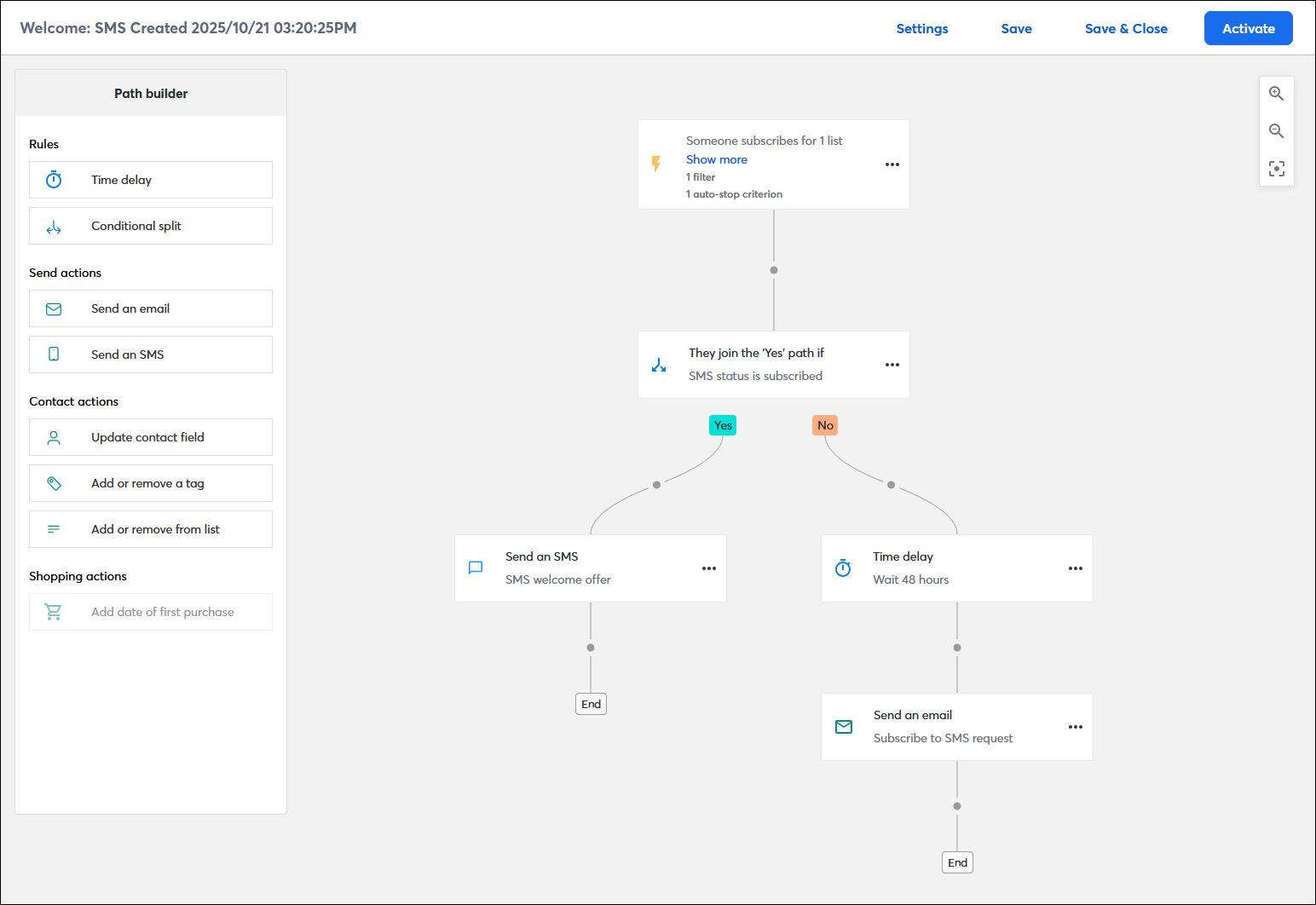
Our Automation Path Builder combines email and SMS with automation so you can get the right content to the right contacts at the right time, for both new and existing contacts. However, the features available to you depend on your email and SMS plans. Here's everything you need to get your account set up with the Automation Path Builder:
What you can do with the Automation Path Builder depends on your email plan. Customers on the free trial or in the Lite plan can create unlimited drafts, but can only have one active automation. Customers in our Standard plan can have up to three active automations. Customers on Trial, Lite, or Standard plans have limited reporting, must enable SMS marketing as an add-on and register for it, can't use ecommerce templates or ecommerce-related steps within an automation, and can't build a custom automation. Customers on our Premium plan have full access to all automation features and have SMS marketing included, but have to register for it. Here's what you need to check your email plan and get started with your first automation:
When you have SMS marketing enabled, you can choose to build paths just for your SMS contacts, just for your email contacts, or include both email and SMS steps within the same path. You can also invite any email contacts who haven't yet opted in to SMS marketing to do so! Before you can send automated SMS messages, you first have to register your account for SMS marketing. Customers on the Lite or Standard plan must enable the SMS marketing add-on and register, while customers on the Premium plan only have to register:
If you are on the Premium email plan and using an ecommerce platform, syncing it to your Constant Contact account opens the door for triggering automations based on your contacts' shopping behavior, including sending abandoned cart emails and SMS messages:
If you are on the Premium email plan and using Xero to manage your invoices, syncing it to your Constant Contact account lets you trigger automations based on invoice activity:
Each pre-built template available in the Automation Path Builder has a trigger already selected and a basic path already mapped out so that you can get started more quickly. The custom path template lets you select the trigger first and then build out your path from there. The trigger can even be changed if you find your path is taking you in another direction than you intended. Premium plan users can add auto-stop criteria that automatically prevents contacts from moving forward on a path based on the criteria you select. Premium plan users can also create a filter that gives more control over when a contact starts your path because they have to satisfy both the trigger and the filter criteria first.
 | Important: Before a contact can start an automation path, they must meet the criteria for the trigger, including any trigger filters. For example, only new sign-ups can trigger your welcome path, but existing customers can trigger a date-based automation if they have a birthdate, anniversary date, or date-based custom field on file, or they can trigger an automation based on their engagement with your email content, or trigger an ecommerce automation with their purchase activity. You can trigger a path for a contact by moving them onto a specific list. |
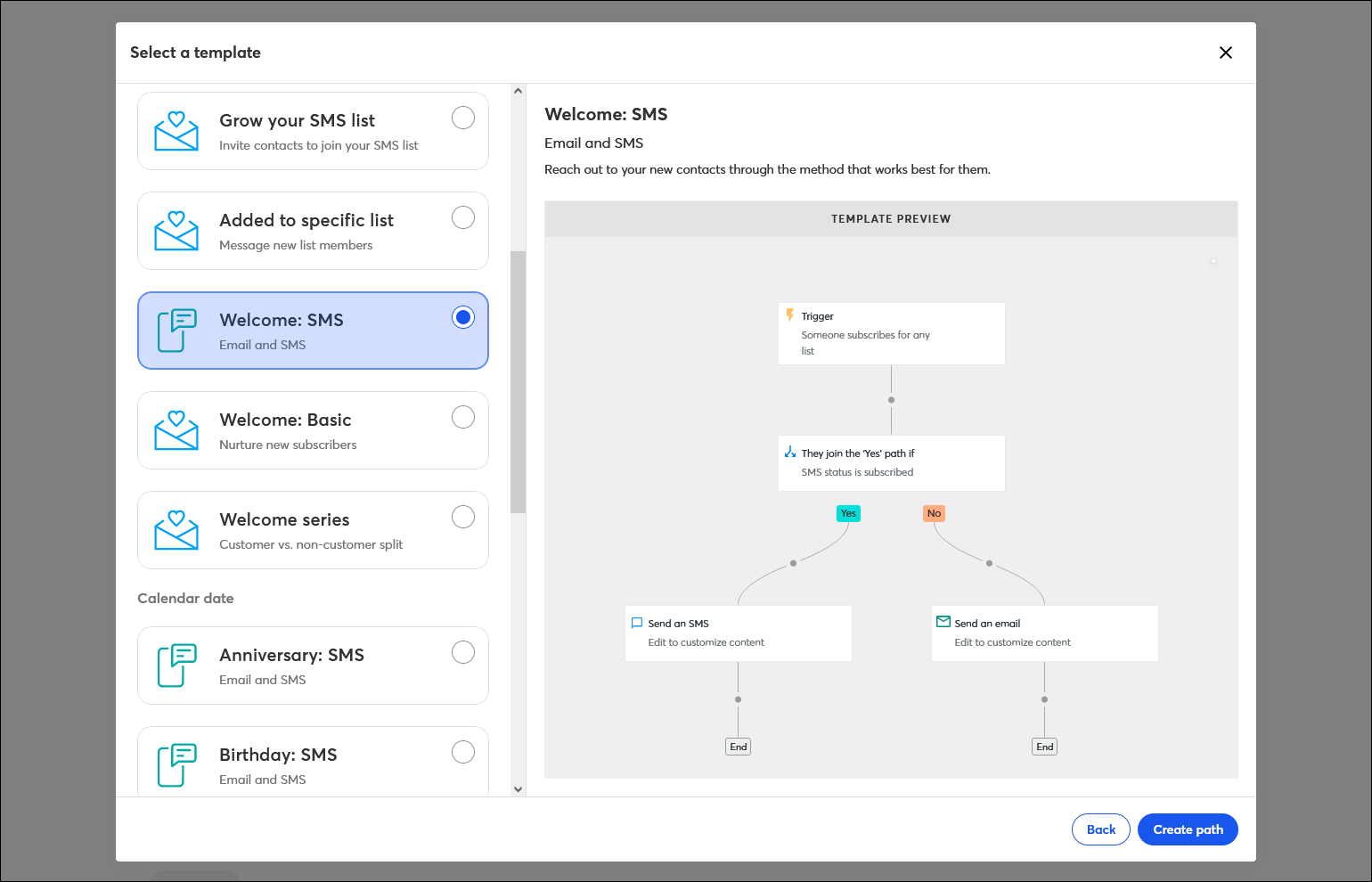
It's easy to get started with a pre-built template that's designed to accomplish a specific task and already includes a specific trigger. The template can be used as-is, or you can further build out more complex paths with multiple email or SMS messages, time delays, and conditional splits (see below). You can even change the trigger if it's not quite right.
 | Join the conversation: If you have questions about using automation for your specific industry, check out our Community to discuss your specic needs and get ideas for solving them! |
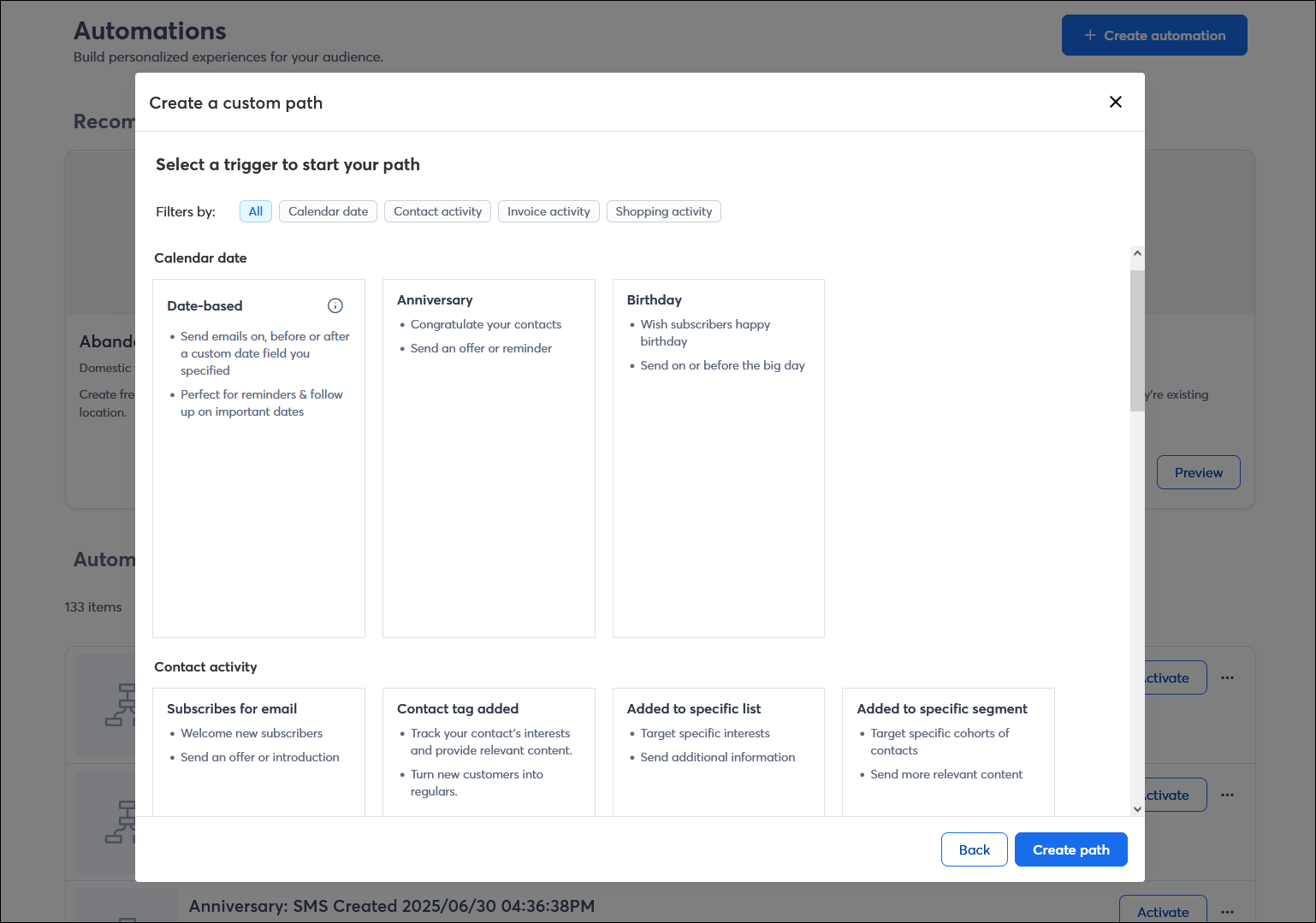
Our custom template gives you even more flexibility—just choose a trigger and then create the rest of the path yourself to fit your objective. The trigger can even be changed if you change your mind!
 | Want professional help? If you're looking for a dedicated Marketing Advisor to help you manage your automations and advise you on adjusting your triggers, Constant Contact has you covered! From monthly coaching to fully hands-off, do-it-for-me services, find out what service is right for you. |
Automated emails and SMS messages always start with a trigger and include at least one message, but the rest is up to you! The Automation Path Builder lets you drag in different actions and rules; then you just have to customize them a bit. If you need to change things, steps can be dragged to different locations or deleted. Each automation path can have up to 50 steps, but start small and see how you feel! If you see opportunity to do more with your automation, you can always edit it to add or remove steps, and if your path isn't working, you can always create a new one to try something different.
The send action steps in your path let you share information with your contacts when they meet the criteria for the step. Your path can include a single action, a mix of both actions, and you can use an action more than once:
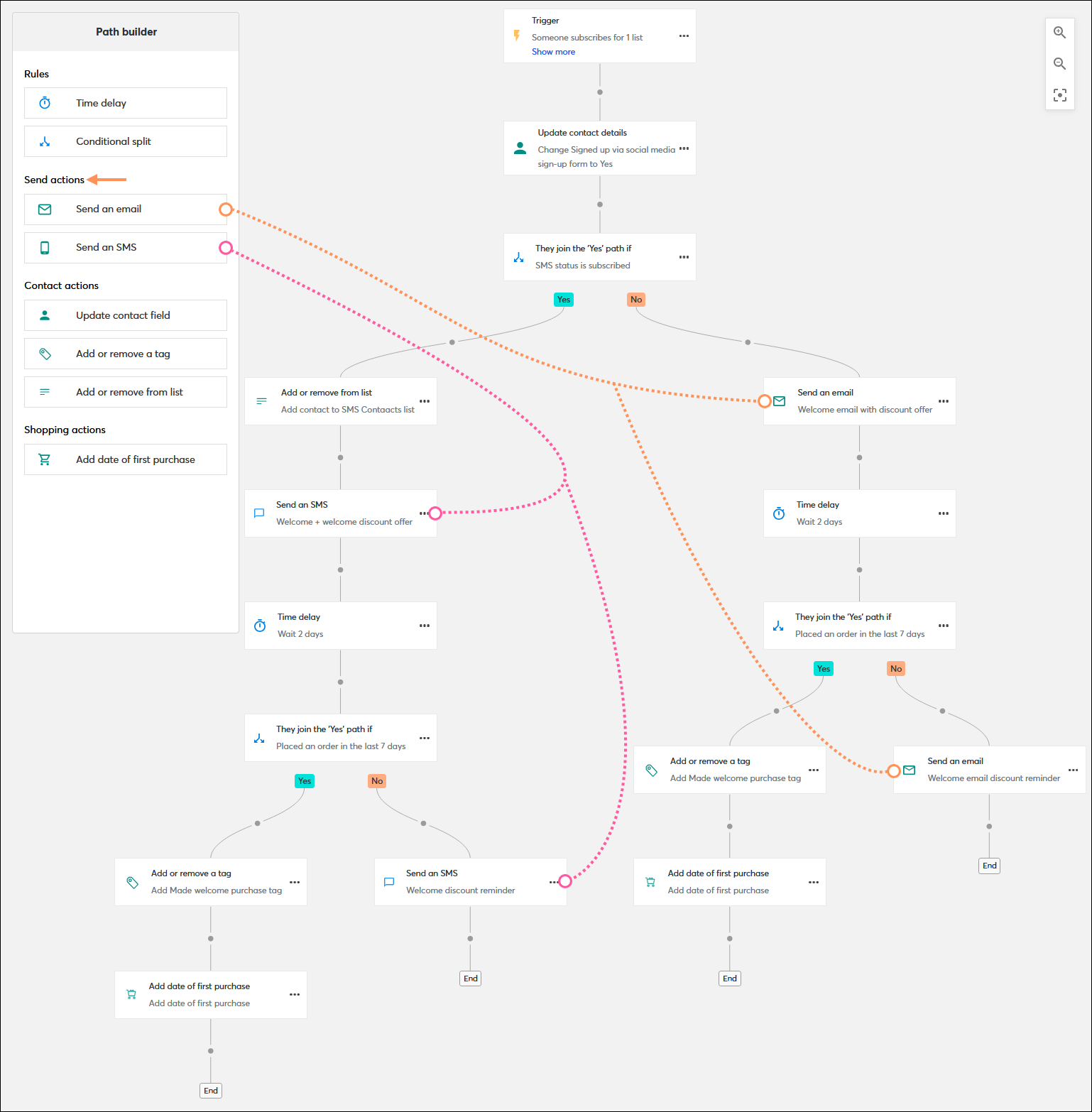
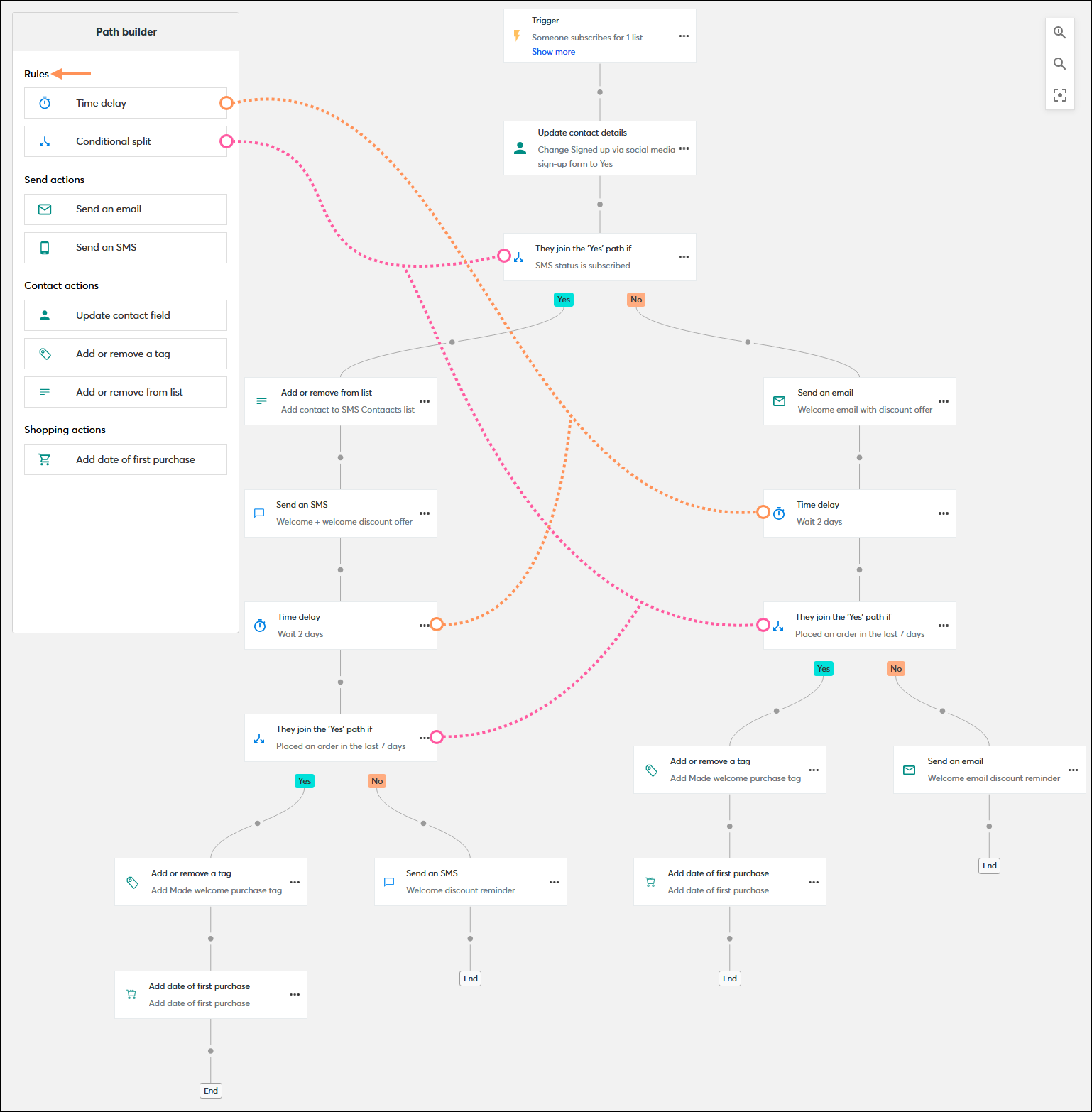
The rule steps in your path let you set the timing between actions and define what happens to contacts when they meet, or don't meet, the criteria to continue along your path. Your path can include a single action, a mix of both actions, and you can use an action more than once:
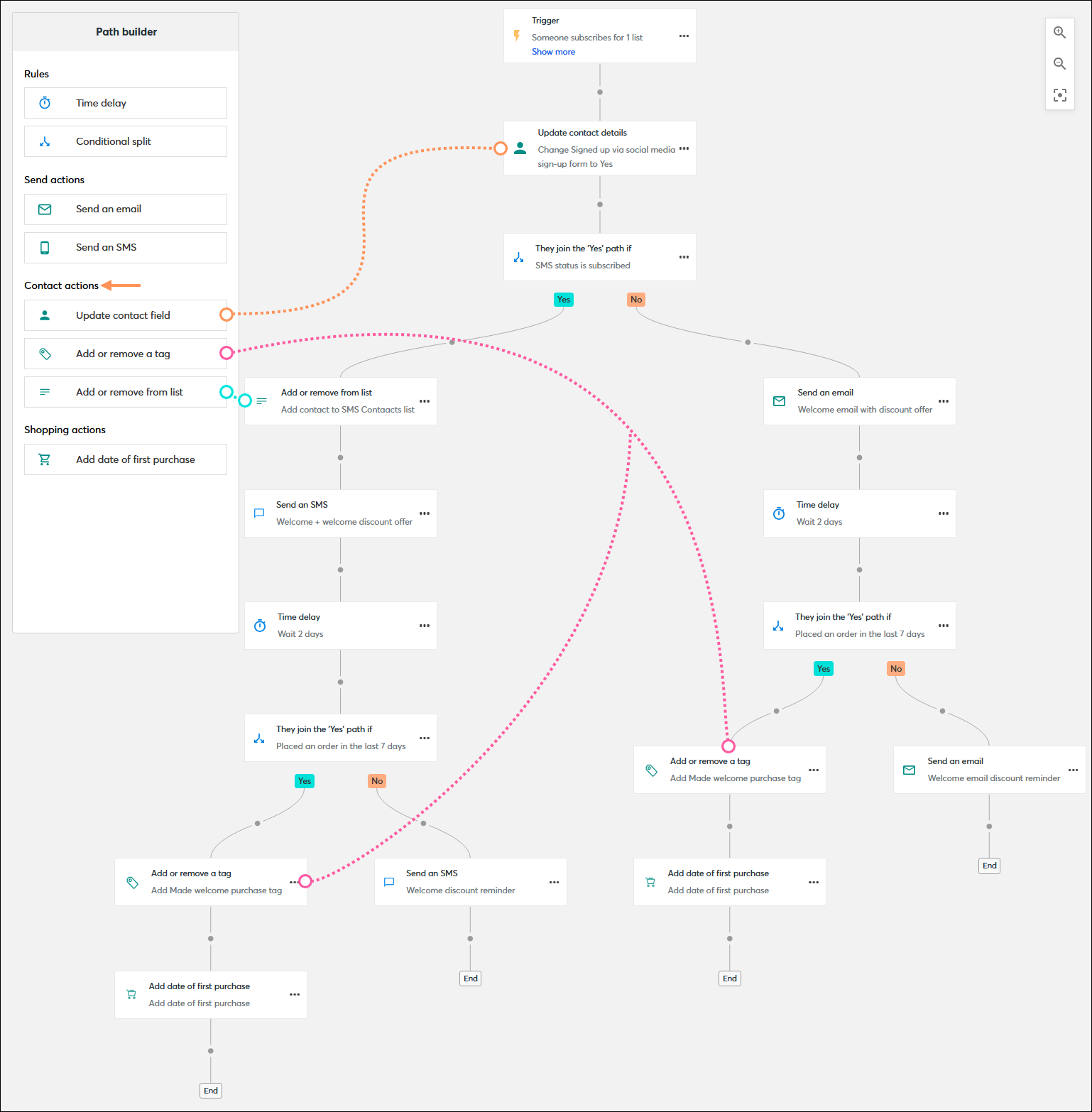
The contact action steps in your path let you update individual contacts who meet the criteria for the step with contact details, custom fields, and tags. Your path can include a single action, a mix of both actions, and you can use an action more than once:
 | Upgrade your plan: Only customers in the Premium email plan are able to add shopping actions into their path. If you want to incorporate ecommerce into your automations, consider upgrading your email plan. |
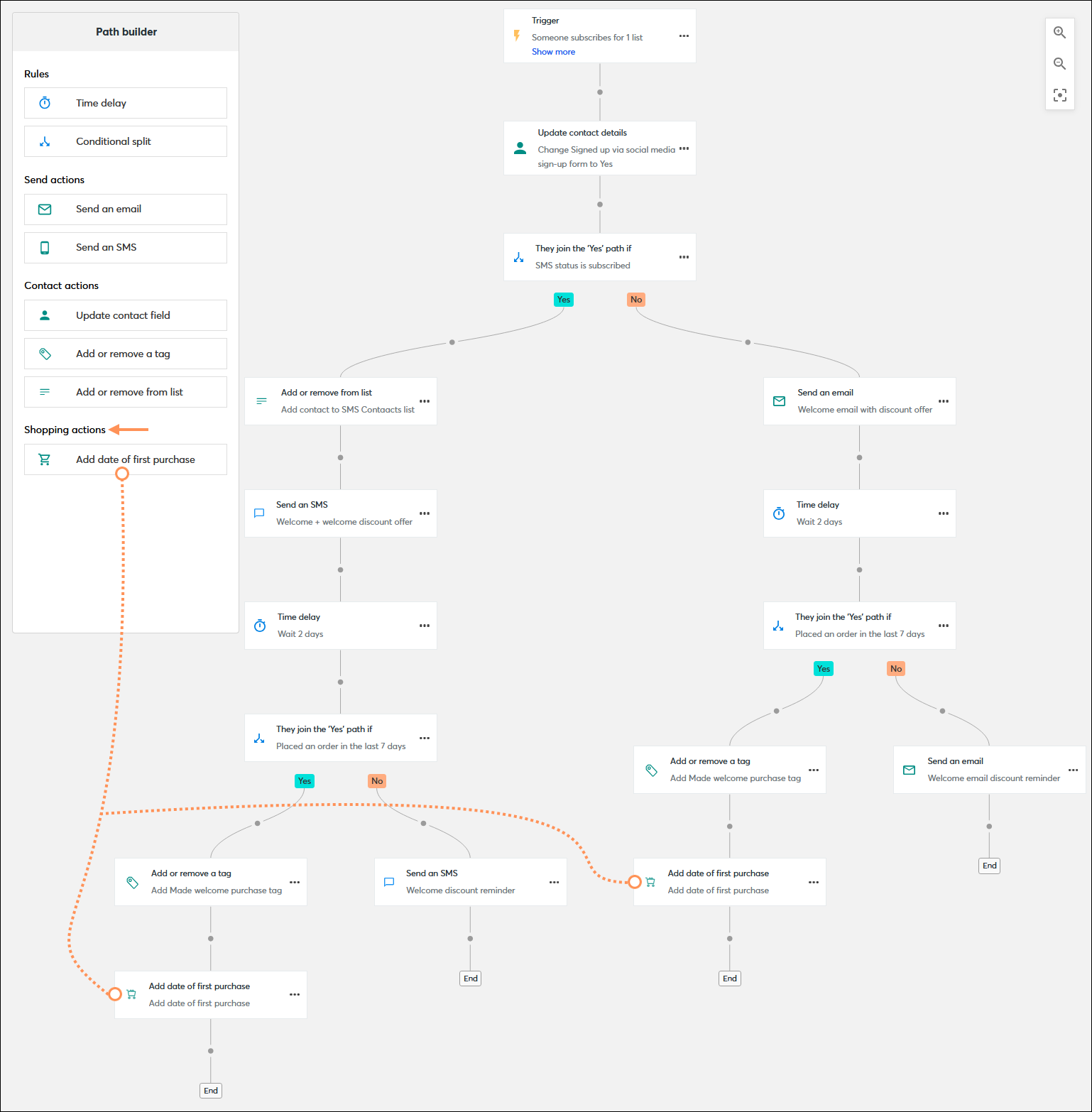
The shopping action steps in your path are compatible with Shopify, Squarespace, Wix, and WooCommerce. They let you bring in information from the ecommerce platform and add it as a custom field. Your path can include a single action, and you can use an action more than once:
Automated email and SMS messages are used over and over again, and many people see the same content. The messages you send should be "evergreen," which won't easily go out of date. Your content can range from a simple greeting to providing an incentive, like a coupon or discount code, or include a call-to-action to drive traffic to a webpage, social media profile, or to a product in your ecommerce store. Emails provide enough space for the most content flexibility, and SMS messages have a higher likelihood of being read and engaged with. If you need help getting started, both the email and SMS editors include the AI Content Generator!
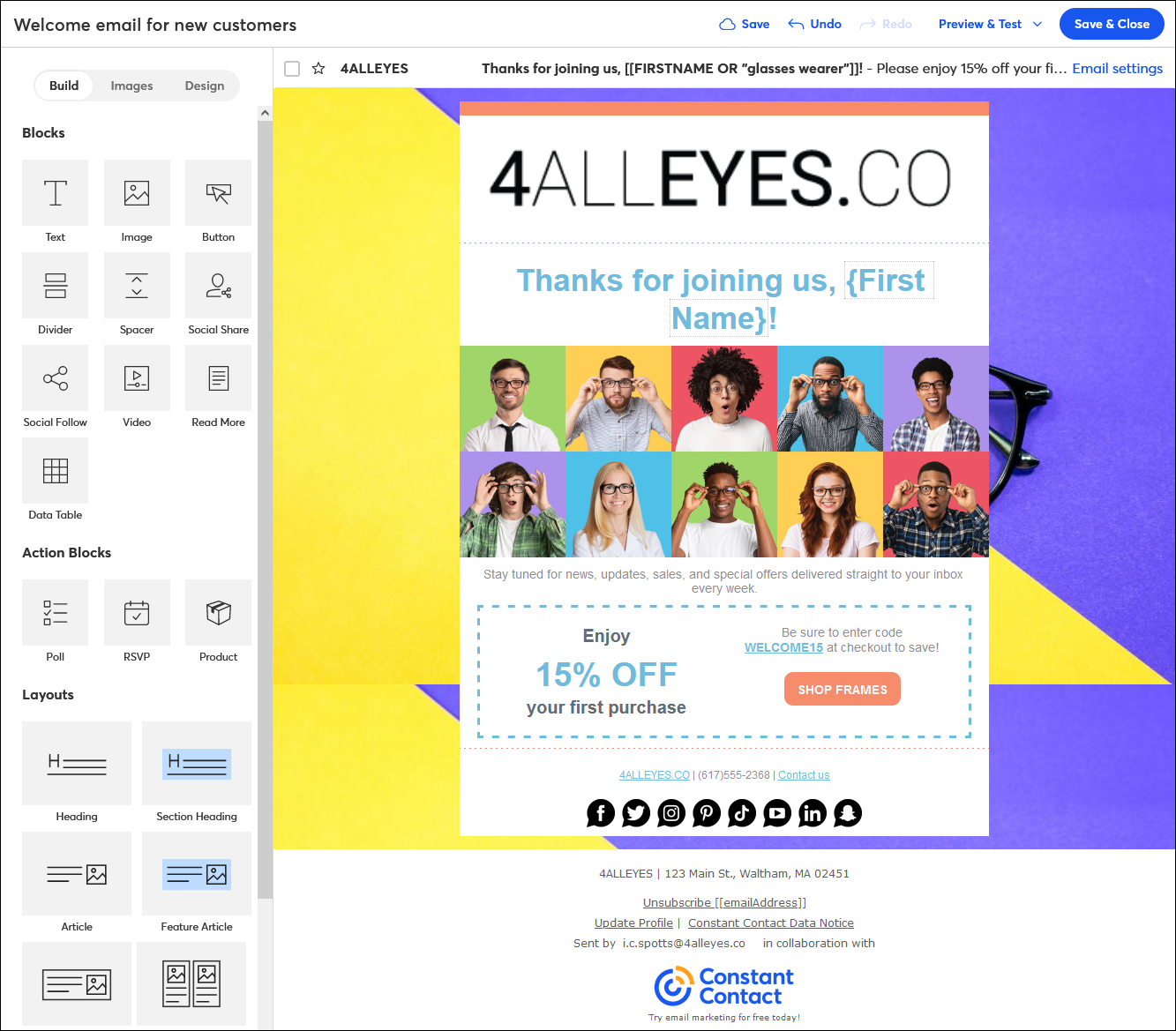
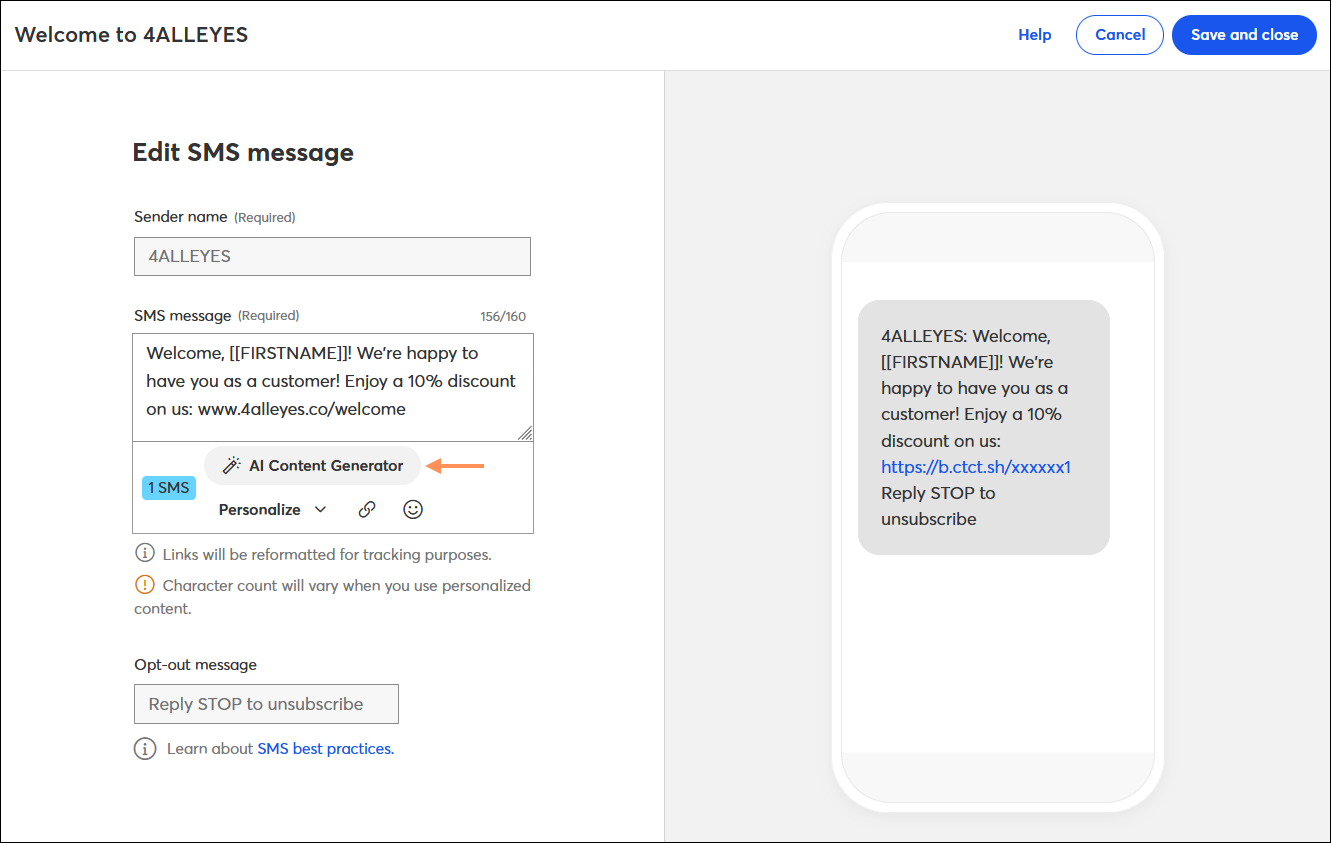
 | Design tip: Worried about being able to personalize your message? The email editor lets you add contact details and customer fields to your message, and the SMS editor lets you add the first name for your contacts. |
| Important: Your contacts can't start triggering your automation until your automation is activated! |
When you've finished adding all the steps and your message content is ready, it's time to activate your path. When you activate, every time a contact performs the trigger action or when you reach the specified date, the message is sent. If you need to make changes later, all you have to do is edit your communication. When reactivated, all future communications that are sent include your edits.
| Did you know? If you want to test your automation, you can use your own information to trigger it. For example, make sure you're not already a contact and then sign-up through your sign-up form to receive your welcome email or SMS message. |
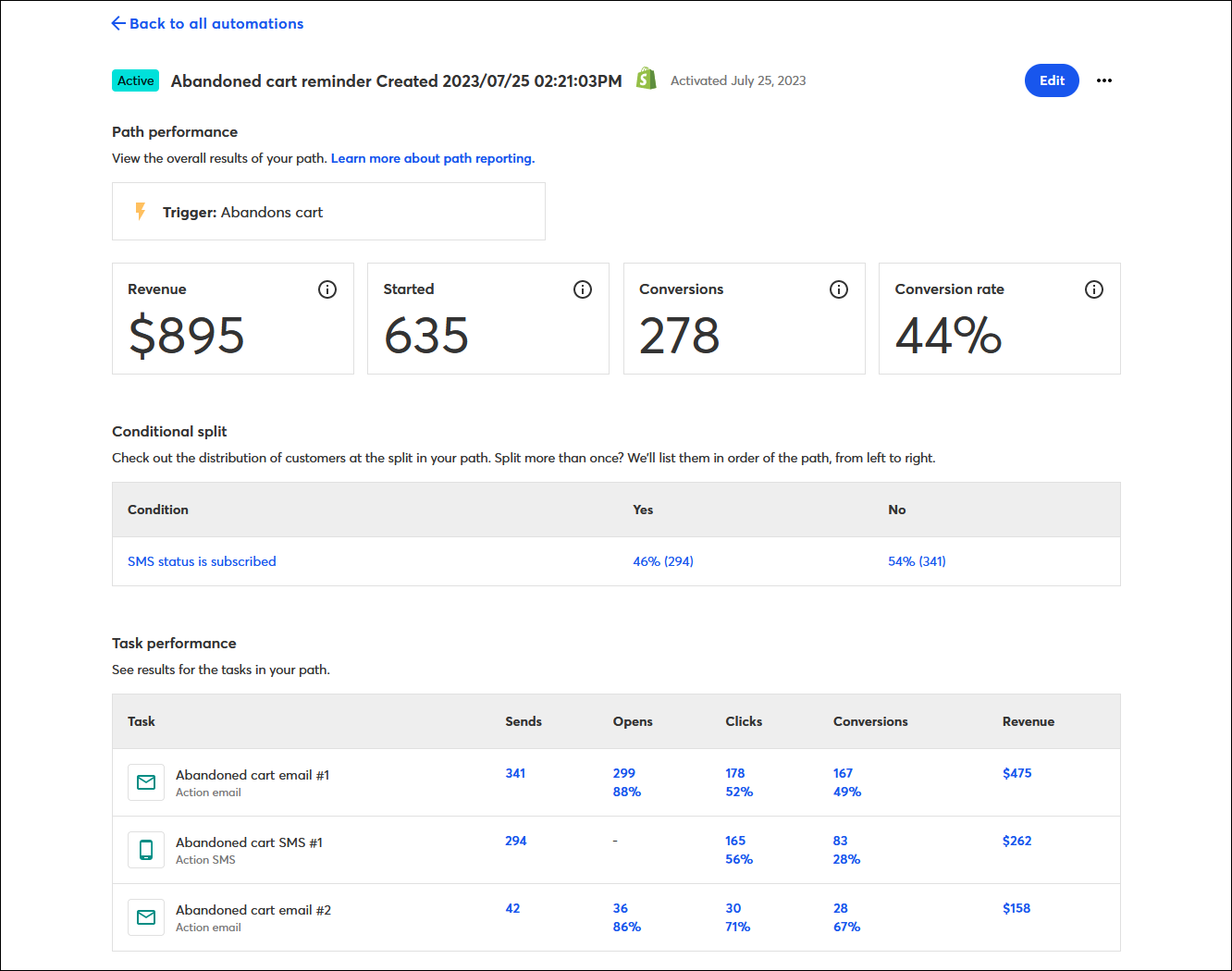
Once your path is activated and your messages start sending, you begin to gather reporting data to help you understand how it's performing. Your reporting includes the standard information on the number of sends, opens, and clicks for your emails and SMS messages, but also includes the distribution of customers for each conditional split, and ecommerce revenue if you're using Shopify, Squarespace, Wix, or WooCommerce.
| Upgrade your plan: Only customers in the Premium have access to the full automation reporting features. If you want to view the full task performance for an automation or export your reporting, consider upgrading your email plan. |
Copyright © 2026 · All Rights Reserved · Constant Contact · Privacy Center