For US Customers:
 | Important: Our SMS marketing tools are only available to US customers (excluding Puerto Rico and the US Virgin Islands) with a valid 9-digit Tax ID Number (TIN), or an Employer ID Number (EIN) for businesses assigned by the IRS. Sole proprietors who are the only employee do not need to enter Employer ID Number (EIN). Contacts with phone numbers from Puerto Rico can join your list and receive text messages. Learn more. |
For Australian Customers:
| Important: Our SMS marketing tools are only available to Australian customers with a valid 11-digit Tax ID Number (ABN). Learn more. |
After adding the SMS add-on to your Constant Contact email plan, you need to register your account for an SMS phone number. Once registered, you can start engaging your contacts through text messages.
 |
Tip: All Constant Contact customers can preview the SMS feature, whether or not you have the add-on. Draft your messages and prepare your campaigns. Then, when you’re ready, purchase the SMS add-on and complete the registration to send them. Learn more.
|
To get started, you need a few key pieces of information—your business Tax ID number (like an EIN in the US or ABN in Australia), a link to your website or online presence, and an online terms and conditions page and privacy policy page. Another critical factor is the email address associated with your Constant Contact account profile; you cannot use a free email provider, such as @gmail.com or @yahoo.com. The email address should be tied to your brand.
Fill out the registration form to submit your information, and we’ll review your application for approval. The approval process can take up to 7-10 business days.
Getting started
You need to be a US or Australian customer. When you go through the registration process, there are a few things that are required:
For US Customers
- You need a valid EIN (Employer ID Number) for most SMS plans. Sole proprietors without an EIN can register for SMS, but are limited in the number of messages they send. EINs aren't just for corporations, nonprofit organizations, or partnerships. Sole proprietors are also eligible to apply for an EIN. Learn more.
- Your organization must be registered with the state where you conduct business. Our SMS messaging provider checks your SMS registration information against official state and federal databases. If the information you enter for your SMS registration doesn't match these databases, your registration can be rejected. Learn more.
- Note: Texas state's telemarketing regulations are expanding to include text messages. If your business is located in Texas or sends marketing texts to Texas residents, you might need to take action. Learn more.
- You need a valid website or Facebook Business page. The website or Facebook Business page is linked in the response message when your SMS contacts reply "Help." Your website can't be a Constant Contact landing page. Learn more.
- You need a valid way of capturing SMS opt-ins. Once your registration is approved, we automatically create an SMS-enabled Sign-up Landing Page that you can start sharing immediately. This landing page is required and can't be deleted, but you can also create and customize additional sign-up landing pages. Learn more.
- You need a privacy policy. You can upload your own or create one during the registration process. This is linked in your Sign-up Landing Page for collecting new SMS subscribers. Learn more.
- You need mobile terms and conditions / terms of service (T&C/TOS). You can upload your own or create one during the registration process. This is linked in your Sign-up Landing Page for collecting new SMS subscribers. Learn more.
- You need to provide sample SMS message content. This helps us understand how your organization will be using SMS marketing.
| Important: Newly created EIN numbers can take between two weeks and 90 days to populate in the IRS database referenced by The Campaign Registry (TCR), the third-party that helps mobile carriers verify SMS marketing traffic from business phone numbers. It's a good idea to wait at least 7-10 business days after receiving your new EIN before registering for SMS to prevent a failed registration while your EIN is still being updated in the IRS database. Learn more. |
For Australian Customers
- You need a valid ABN (Australian Business Number). Learn more.
- You need a valid website or social media page. The website or social page is linked in the response message when your SMS contacts reply "Help." Your website can't be a Constant Contact landing page. Learn more.
- You need a valid way of capturing SMS opt-ins. Once your registration is approved, we automatically create an SMS-enabled Sign-up Landing Page that you can start sharing immediately. This landing page is required and can't be deleted, but you can also create and customize additional sign-up landing pages. Learn more.
- You need a privacy policy. You can upload your own or create one during the registration process. This is linked in your Sign-up Landing Page for collecting new SMS subscribers. Learn more.
- You need mobile terms and conditions / terms of service (T&C/TOS). You can upload your own or create one during the registration process. This is linked in your Sign-up Landing Page for collecting new SMS subscribers. Learn more.
- You need to provide sample SMS message content. This helps us understand how your organization will be using SMS marketing.
Registering your organization for SMS
 | Save time: If you host your privacy policy and terms and conditions documents online, make sure you have the URLs handy. If you have documents that need to be hosted online, you can upload them to your Library and then copy the URLs generated for them. If you don't yet have these documents, you can generate them when you register (see step 7). |
Before you can start sending SMS messages to your contacts, you have to submit your organization for approval. Once approved, you're assigned a dedicated SMS phone number for sending SMS messages. This number cannot be changed.
Note: Your personal phone number will not be used as the dedicated SMS phone number for sending SMS messages. We will assign you a 10-digit number in the US and an 11-digit number in Australia for sending these messages.
As you register, your progress is saved so you can pause and come back as needed. The information that you submit can't be changed once your registration is approved.
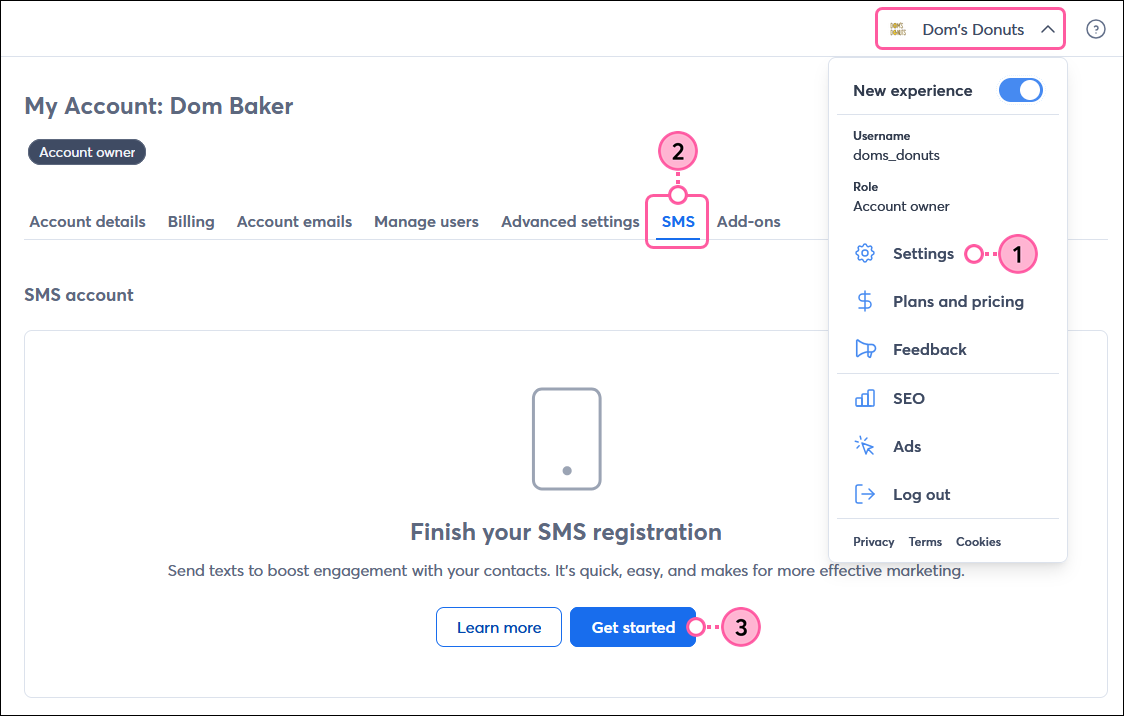
- Click the profile name in the upper right and select Settings from the drop-down menu.
- Click the SMS tab.
- In the SMS account section, click Get started.
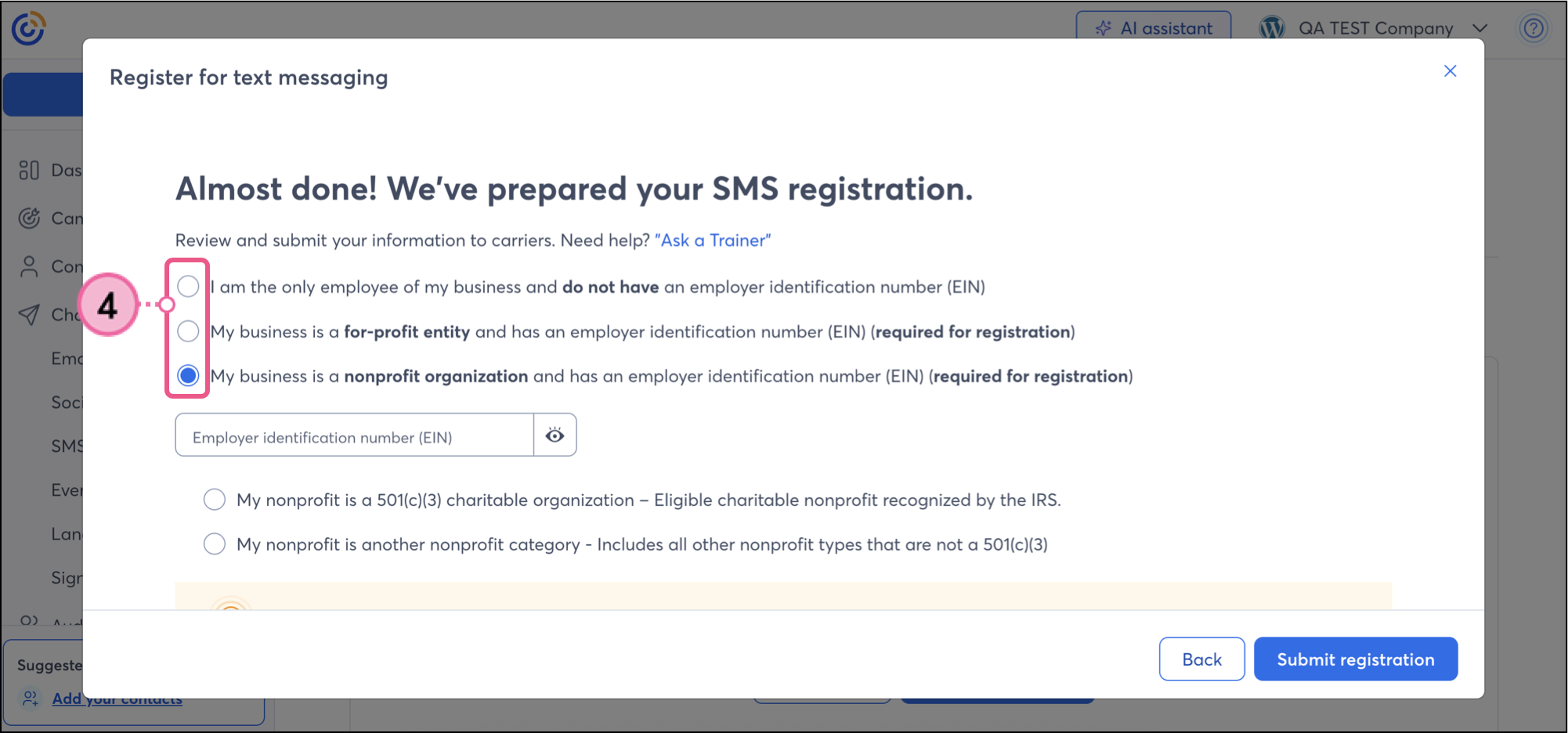
- Choose your business type:
US Customers, choose from the following:
- I am the only employee of my business and do not have an employer identification number (EIN), or
- My business is a for-profit entity and has an employer identification number (EIN) (required for registration), or
- My business is a nonprofit organization and has an employer identification number (EIN) (required for registration)
If you select the nonprofit organization option, you will then choose one of the following:
- My nonprofit is a 501(c)(3) charitable organization - Eligible charitable nonprofit recognized by the IRS.
- My nonprofit is another nonprofit category - Includes all other nonprofit types that are not a 501(c)(3)
Note: Sole proprietors without an EIN can register for SMS without one, but are limited in the number of messages they send. EINs aren't just for corporations, nonprofit organizations, or partnerships. Sole proprietors are also eligible to apply for an EIN. Learn more.
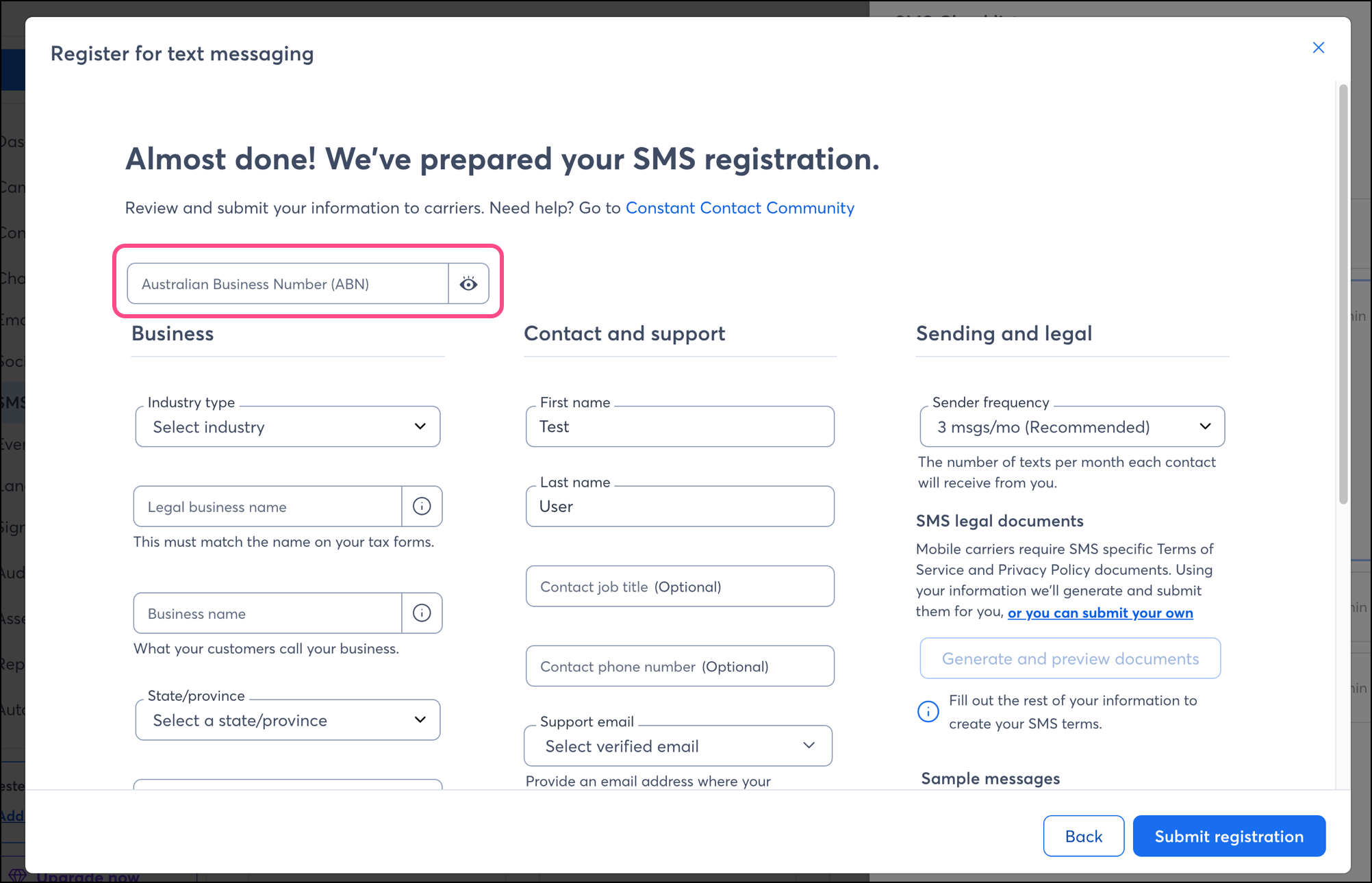
Australian customers, enter the following:
- You will only see one business type option; enter your ABN number in the Australian Business Number (ABN) field. (required for registration)
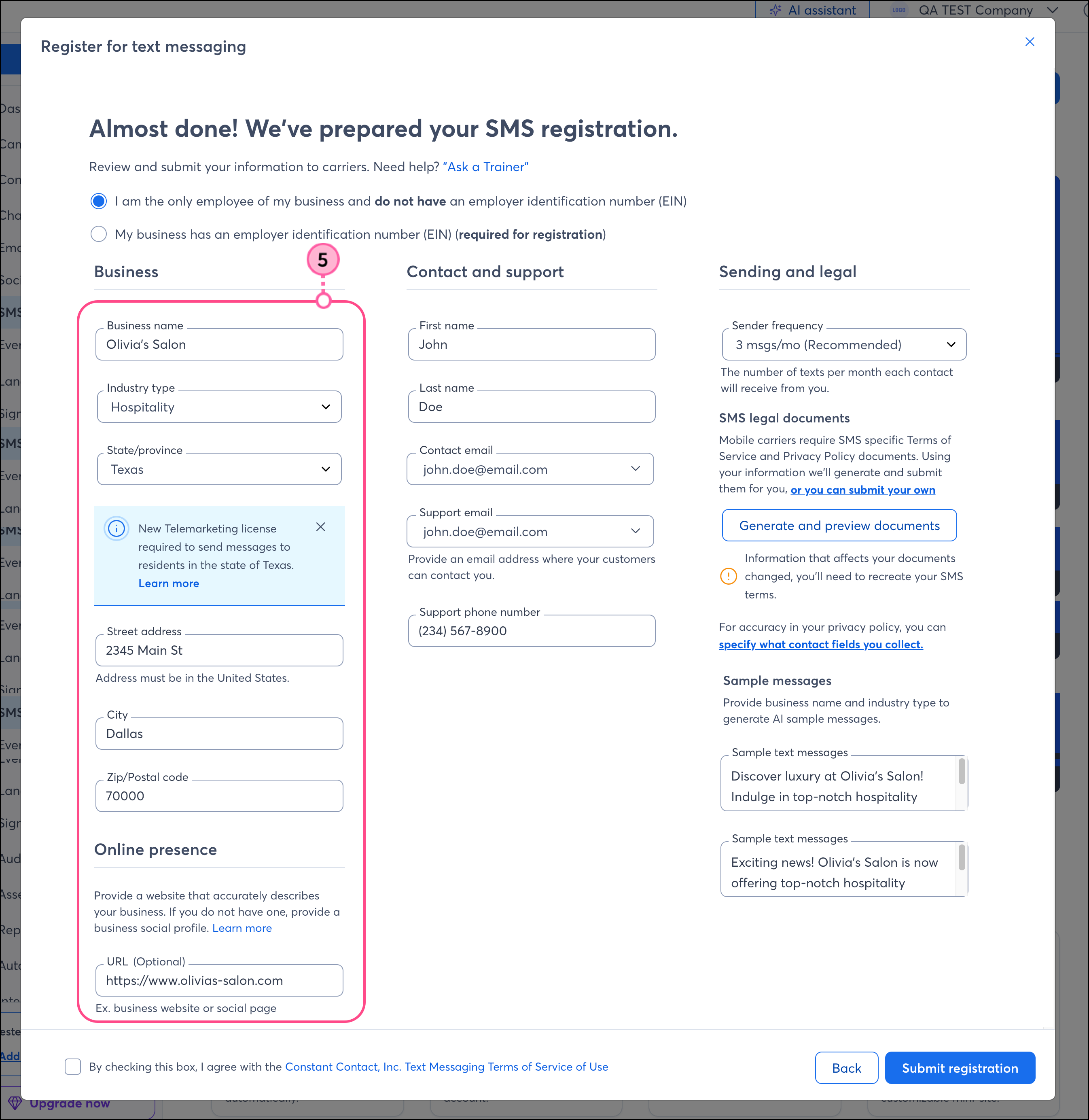
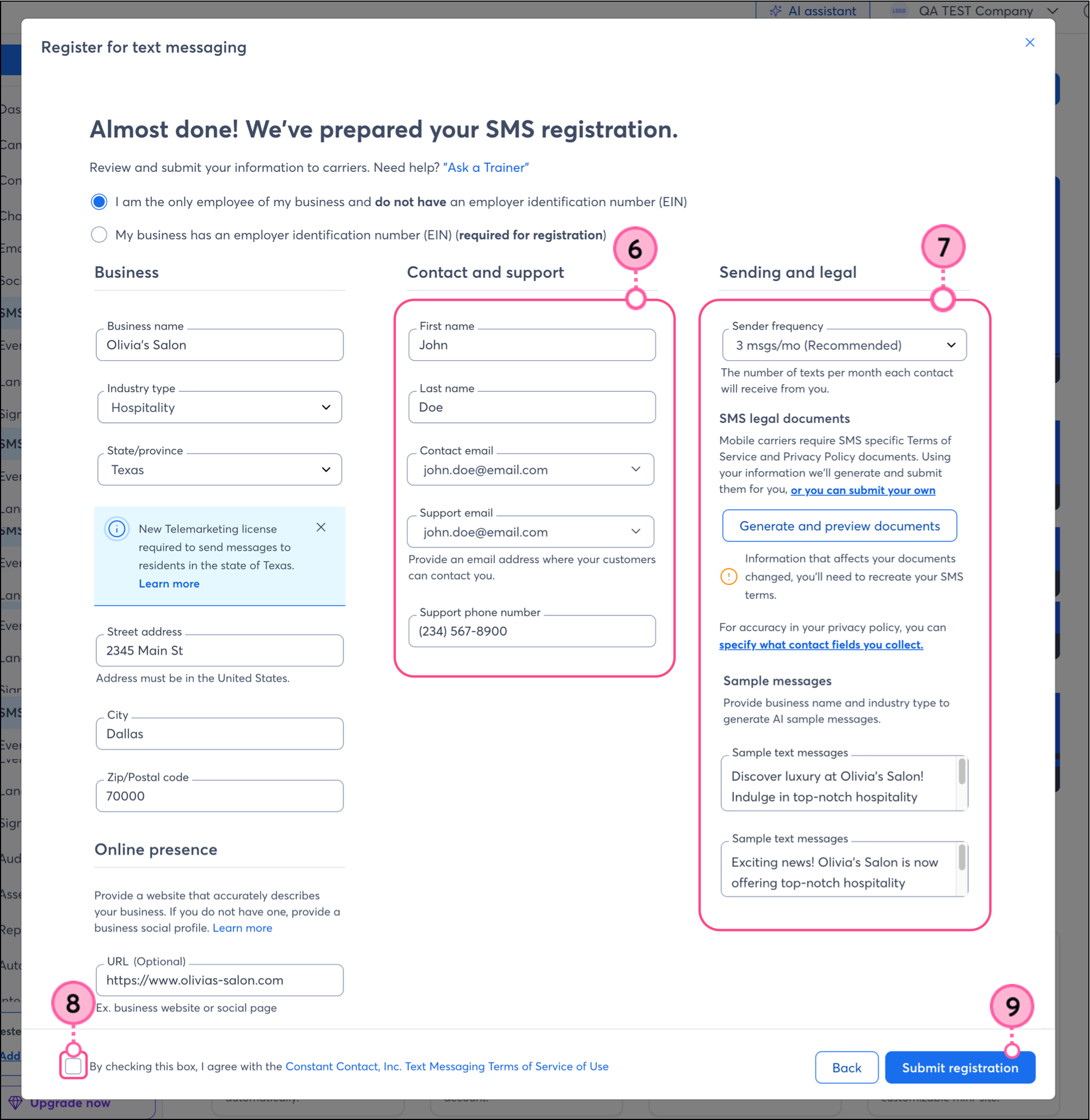
- Fill in your organization's Business details. All fields are required, and different fields will display depending on whether you have an EIN.
Important: Have a recent tax form handy to help prevent errors. Registrations are checked by our SMS messaging provider against official databases. If the information you enter doesn't match, your registration can be rejected. If you have an EIN or an ABN and you register without it, your registration can also be rejected. Learn more.
- (EIN only) Your EIN is used for registration purposes only and isn't visible or shared with your contacts.
- (EIN only) Enter your Legal business name exactly as it's registered with the state where you operate.
- Your Business name can be different from your legal business name because it appears in each of your text messages and contributes to the character count, so it's best if it's short and easily recognizable.
- Select your Industry type from the drop-down menu.
- Enter your physical address.
Note: Texas state's telemarketing regulations are expanding to include text messages. If your business is located in Texas or sends marketing texts to Texas residents, you might need to take action. Learn more.
- Enter your official website or Facebook Business page URL, including the "https://" that precedes the "www" in the address. For example:
https://www.oliviassalon.com
Note: For Australian customers, you can enter a website URL or a social profile.
- Enter your Contact & support info. These options are the same whether you have an EIN or not. This information will be provided to your contacts when they reply “HELP” to one of your SMS messages. Our partner, The Campaign Registry (TCR), requires this.
- Enter the First name and Last name of your support contact.
- Select a verified email address from the drop-down menu as your Contact email (for registration purposes) and Support email (for your contacts/customers to reach you). If you need to verify a new email address, click "Add new email" at the bottom of the drop-down menu. The email address cannot use a free domain, like @gmail or @yahoo, and must be tied to your brand.
- Your Support phone number can be a business or personal number where your contacts can reach you if they need help.
- Customize the Sending & legal information. These options are the same whether you have an EIN or not.
- Select the number of text messages that each contact can expect to receive from you per month from the Sender frequency drop-down menu.
- Add your Terms of Service and Privacy Policy documents:
- I have my own documents - Click "or you can submit your own" if you have your own privacy policy and terms and conditions documents hosted online or uploaded to your Constant Contact library. Paste the URLs for your documents into the fields or click the cloud icon if you have documents you want to upload into your Library or to choose a document that already exists in your Library.
- I don't have documents yet - Click the Generate and preview documents button to create a privacy policy and terms and conditions. You can download and update the documents if you'd like to make further customizations to them.
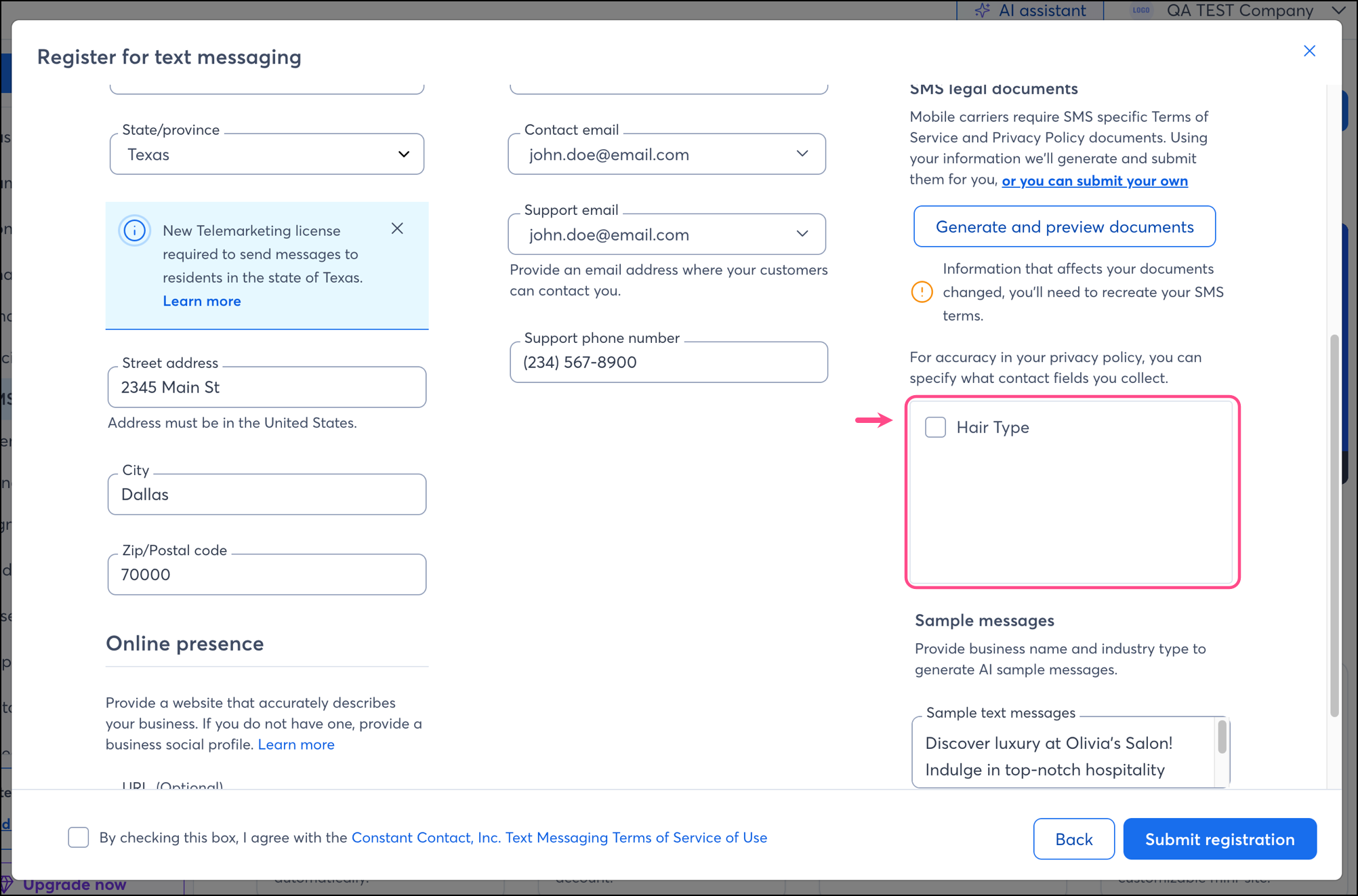
- You can select custom contact fields for more accurate Terms and Privacy Policy documentation. These fields will be incorporated into your documents, such as within the "Information we collect from you" section. Select the checkbox next to the custom field you'd like to incorporate into your documents.
- We automatically generate Sample messages for you with AI to get you started, and you can customize both messages with the kind of content you plan on sending. This helps us understand how your organization will be using SMS marketing.
- Review Constant Contact’s text messaging terms and conditions and check the box to agree to the terms.
- Click the Submit registration button.
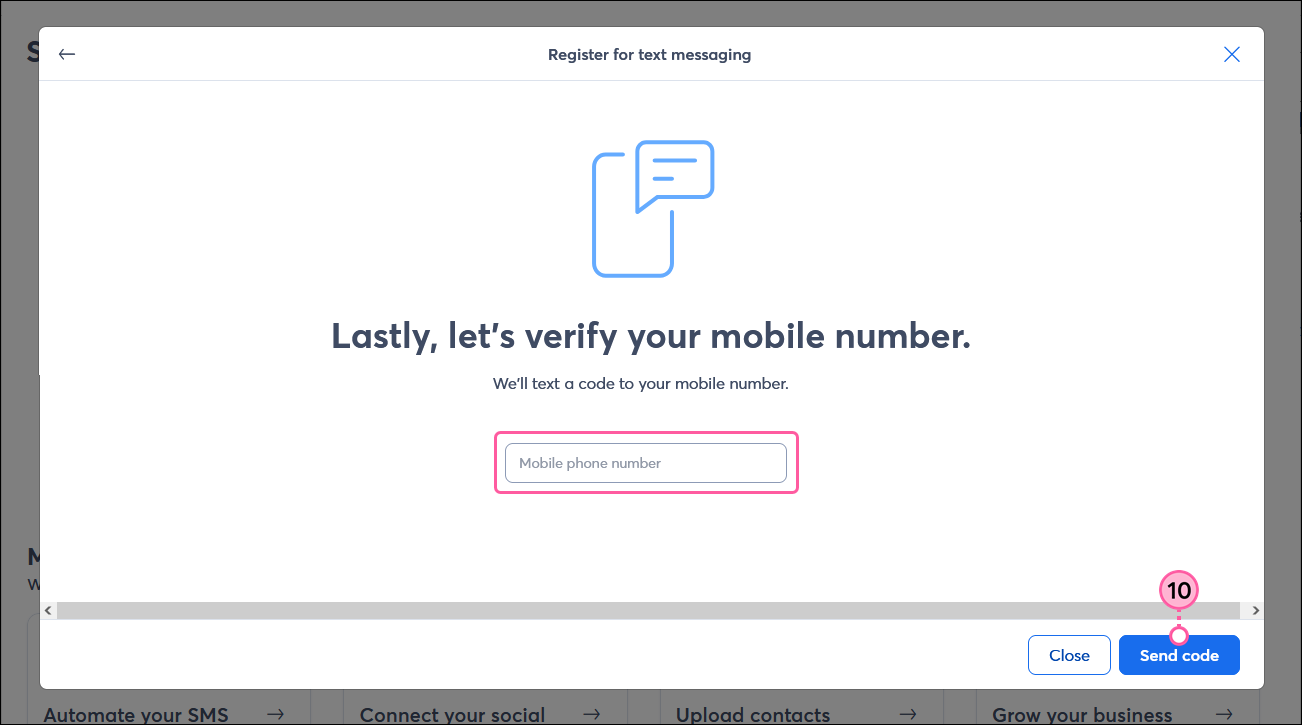
Note: If you don't have an EIN, you'll also need to verify your mobile number.
- If you don’t have an EIN and are registering for SMS marketing as a sole proprietor, you also need to verify your mobile number. Enter your mobile number and click the Send code button, then complete the verification on your mobile device. The number you verify must be a mobile number and can’t be an internet-based or VoIP number.
Your registration has been submitted, and the approval process usually takes 7-10 business days. To check the status of your registration, return to the SMS account section on the SMS tab in My Account. Once your registration is approved, you can access an SMS-enabled Sign-up Landing Page or create your own sign-up landing page. Share this page with contacts to allow them to provide their mobile numbers and give you consent to send them SMS messages.
| Important: If you register without an EIN and later obtain one, or if any of your organization's information changes, you can remove the current SMS registration from your account and re-register with the updated information. |
Taking the next steps after your registration is approved
- Grow your SMS list - Be sure to share your SMS-enabled Sign-up Landing Page to begin collecting consent from your contacts to send them text messages. If you already have SMS consent from contacts, you can import them into your account. Keep in mind that contacts have to double-opt in. After they sign up on your SMS-enabled Sign-up landing page, they will receive an enrollment SMS message. Contacts have to reply “YES” to the text message to fully opt in as one of your SMS contacts.
- Create and send SMS messaging content - Once you have SMS consent from your contacts, you can send SMS marketing messages to them. We even have an AI Content Generator to help you out!
- Automate your SMS messages - Automation paths let you select a trigger and then create emails and SMS messages ahead of time. When your contacts meet the criteria for your trigger, they start your path and start receiving your content.
- Check your reporting - After you start sending SMS messages, your reporting helps you understand how your messages are performing. If your messages are seeing high engagement, keep doing what you're doing! If engagement is low, it's time to consider whether you're sending the right content to your contacts.
- Learn about SMS best practices - When you start sending your SMS marketing messages, you’ll need to be aware of some rules. Be mindful of quiet hours, prohibited content, and other important regulations.
Any links we provide from non-Constant Contact sites or information about non-Constant Contact products or services are provided as a courtesy and should not be construed as an endorsement by Constant Contact.
Within your dashboard, you can get a snapshot of your current performance and see recommendations that are dynamic and personalized just for you. You'll also see a new navigation menu with refreshed menu options for smarter navigation.
Your dashboard provides a personalized snapshot of your current performance and dynamic recommendations tailored just for you. Additionally, a new navigation menu offers refreshed options for smarter navigation.
How long does it take?
The approval process can take 7 - 10 days.
Note: For US customers, it can take The Campaign Registry (TCR), the third-party that helps mobile carriers verify SMS marketing traffic from business phone numbers, between two weeks and 90 days to populate the IRS database with newly created EIN numbers. Therefore, it's a good idea to wait at least 7-10 business days after receiving your new EIN before registering for SMS, to prevent a failed registration due to your EIN not yet being updated in the IRS database.
What if your registration is rejected?
After you submit the registration for SMS, your registration information is checked by our SMS messaging provider against official databases. If the information you entered doesn't match, your registration may be rejected.
When your registration is rejected, a banner appears on both the SMS tab in your account settings and on the SMS dashboard. To resolve the error, you have to resubmit the SMS registration.
Read this article to learn the reasons a registration may fail and how to fix it.
Summarizing the process
Here's a summary of what you’ll need. Make sure you have the following:
- A valid 9-digit Tax ID Number (TIN) or an Employer ID Number (EIN) for businesses, for US customers
- A valid 11-digit Australian Business Number (ABN) for Australian customers
- The SMS add-on added to your account
- A website or Facebook Business page. It cannot be a Constant Contact landing page (for Australian customers, a social profile link will satisfy the requirement)
- A privacy policy that is accessible online (you can host documents using your Constant Contact account library)
- Mobile terms and conditions/terms of service (T&C/TOS) that are accessible online
- Sample SMS messages to give us an idea of the type of messages you’ll be sending (we can also generate some of these for you during registration)
Here’s a recap of the process:
- Add the SMS add-on to your Constant Contact account.
- Complete the online registration form to apply for an SMS messaging number.
- Wait 7 - 10 days for approval.
- Once approved, use the SMS enabled Sign-up landing page generated for you to receive consent from your contacts, or create your own Sign-up landing page.
- Remind those contacts to complete double-opt in (replying to the SMS enrollment message they receive after filling out the form).
- Begin building your lists and creating SMS marketing campaigns!
Any links we provide from non-Constant Contact sites or information about non-Constant Contact products or services are provided as a courtesy and should not be construed as an endorsement by Constant Contact