We're making it easier to get around Constant Contact with a brand new left navigation. Not all accounts have that change yet, so if your navigation looks different from our articles, that's why–but everything from the top can now be found on the left!

Email and Digital Marketing
How can we help you?
Search our help articles, video tutorials, and quickstart guides

You've got this. You've got us. Search our Knowledge Base to quickly find answers to your questions.

Change to a different email plan

Article: 000005946
Updated: October 28, 2025

Upgrade or downgrade the email plan in your Constant Contact account


As your marketing needs evolve, you have the flexibility to change your email plan to meet those needs. The Plans and pricing page lets you see the different email plan options available to you and compare the costs and features within each plan. If you need additional features or want to get rid of some you aren't using to save money, you can upgrade or downgrade your email plan at any time. Whichever plan you choose, you always have access to our world-class support!


exclamation point iconImportant: Your monthly bill is based on a combination of your email plan and the number of contacts in your account. Changing your email plan doesn't affect your contact tier. Learn more about how billing works.


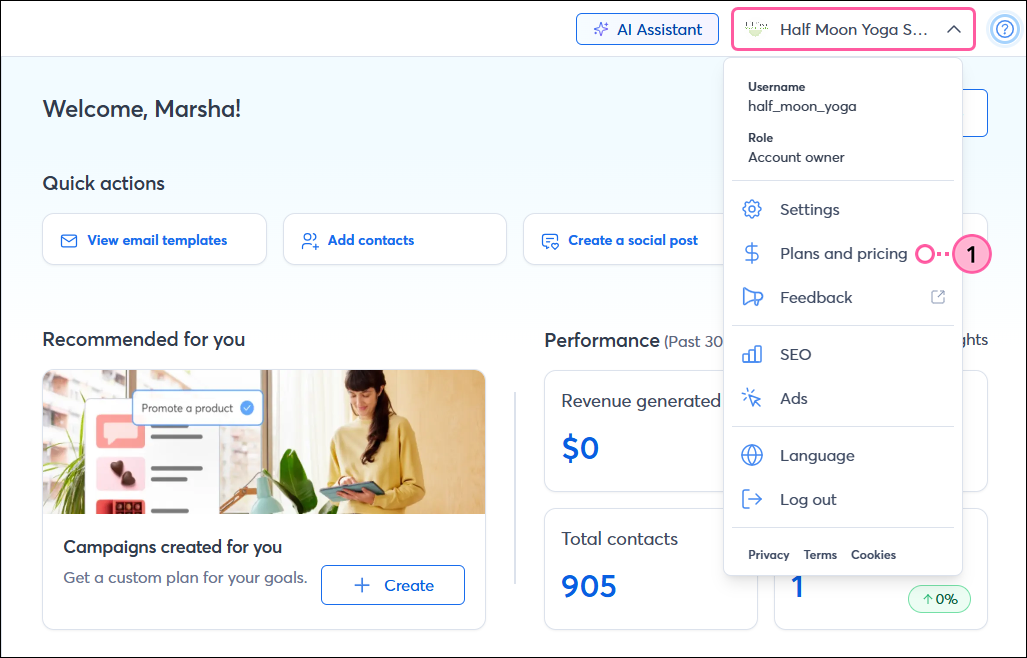
  1. Click the profile name in the upper right and select Plans and pricing.

    Profile drop-down menu expanded with Plans & Pricing option selected

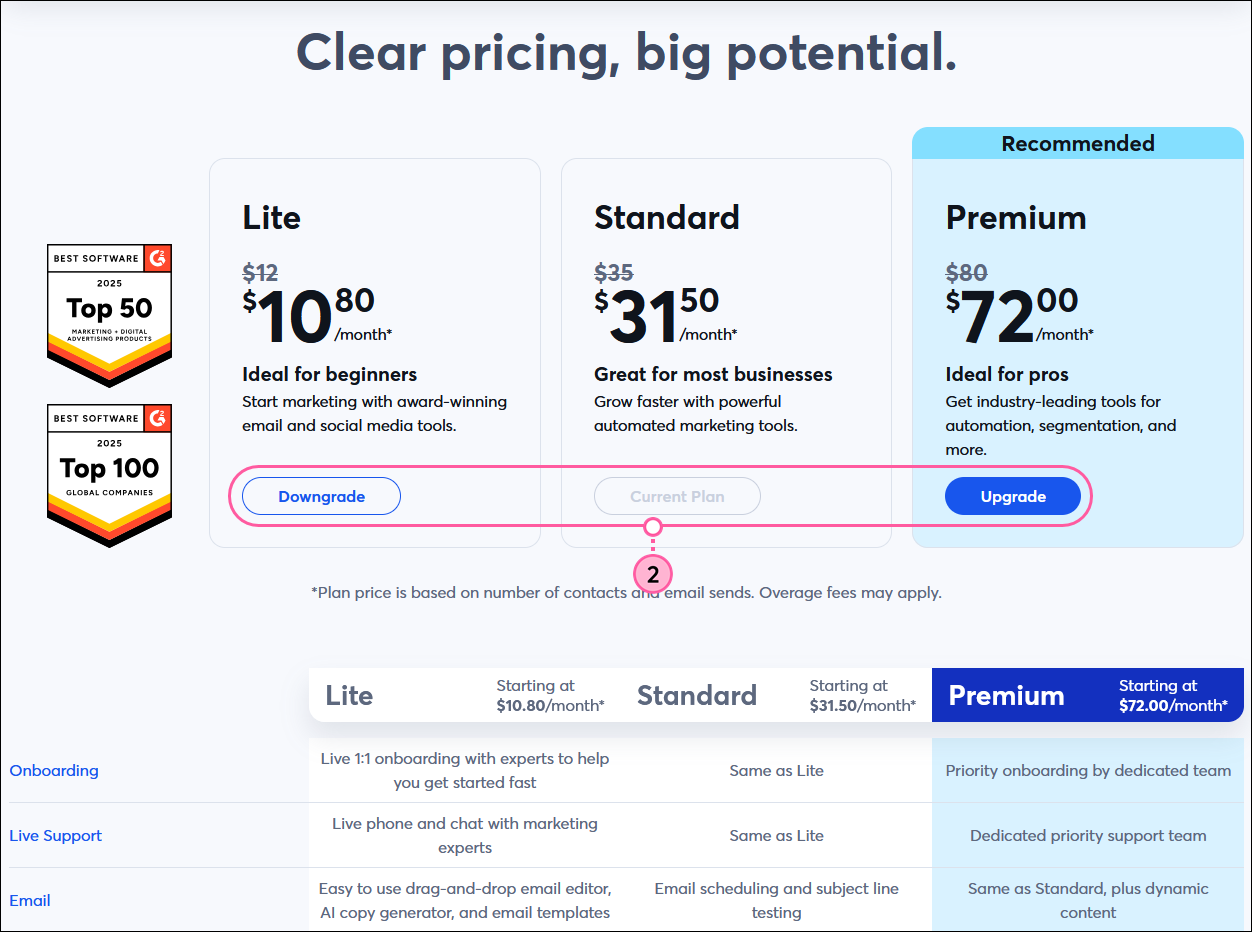
  2. Depending on which email plan you currently have and which plan you want to switch to, click either the Downgrade or Upgrade button. From this page, you can compare all the features available in each plan to see how they’ll change when you upgrade or downgrade.
    Note: The plan names in your account may differ from what's shown below.
    Important: Not seeing the option to downgrade or compare plans? Please contact our Support team for assistance.

    Plans & Pricing page with Downgrade and Upgrade Now buttons

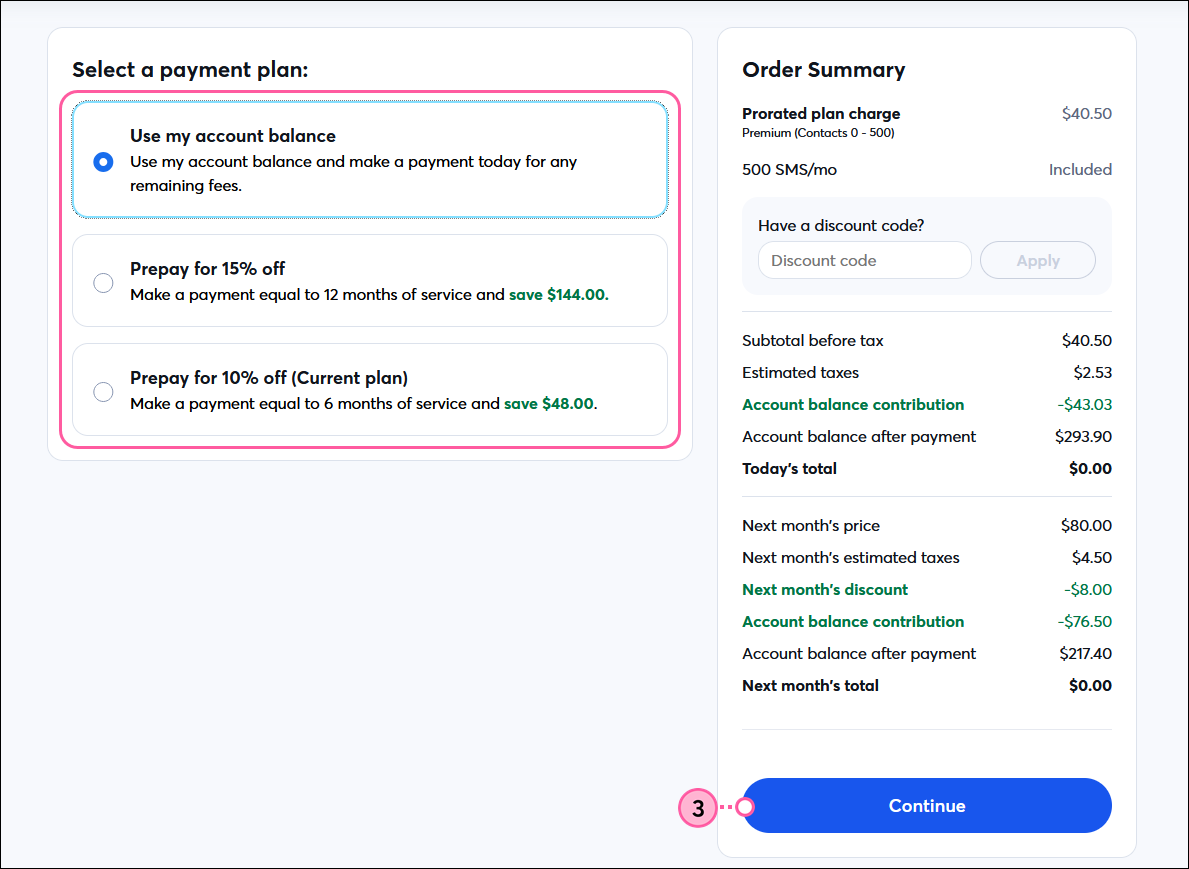
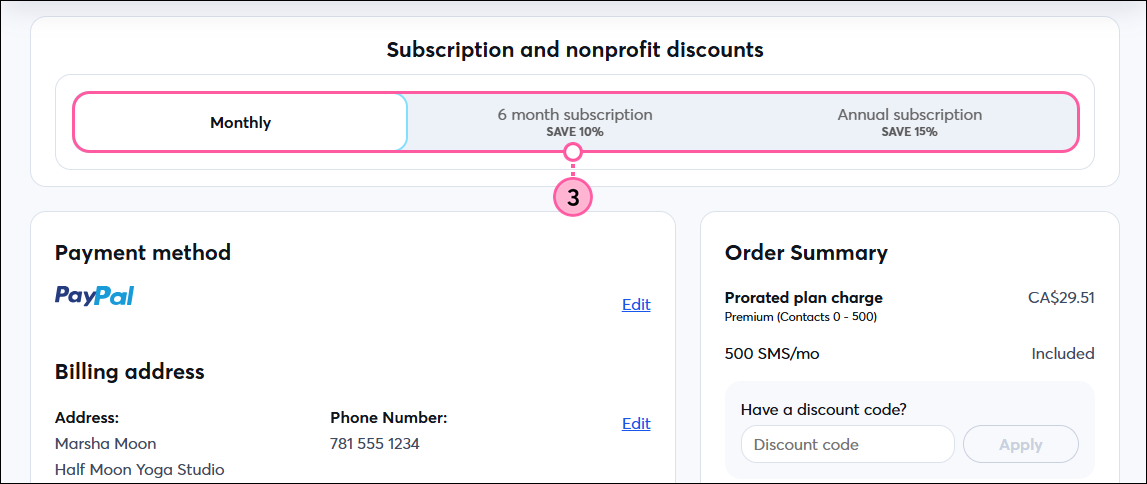
  3. Choose if you want to pay monthly or prepay to receive a discount. Then click Continue.

    Payment Plan page with Payment Plan options, Selection Summary, and Next button

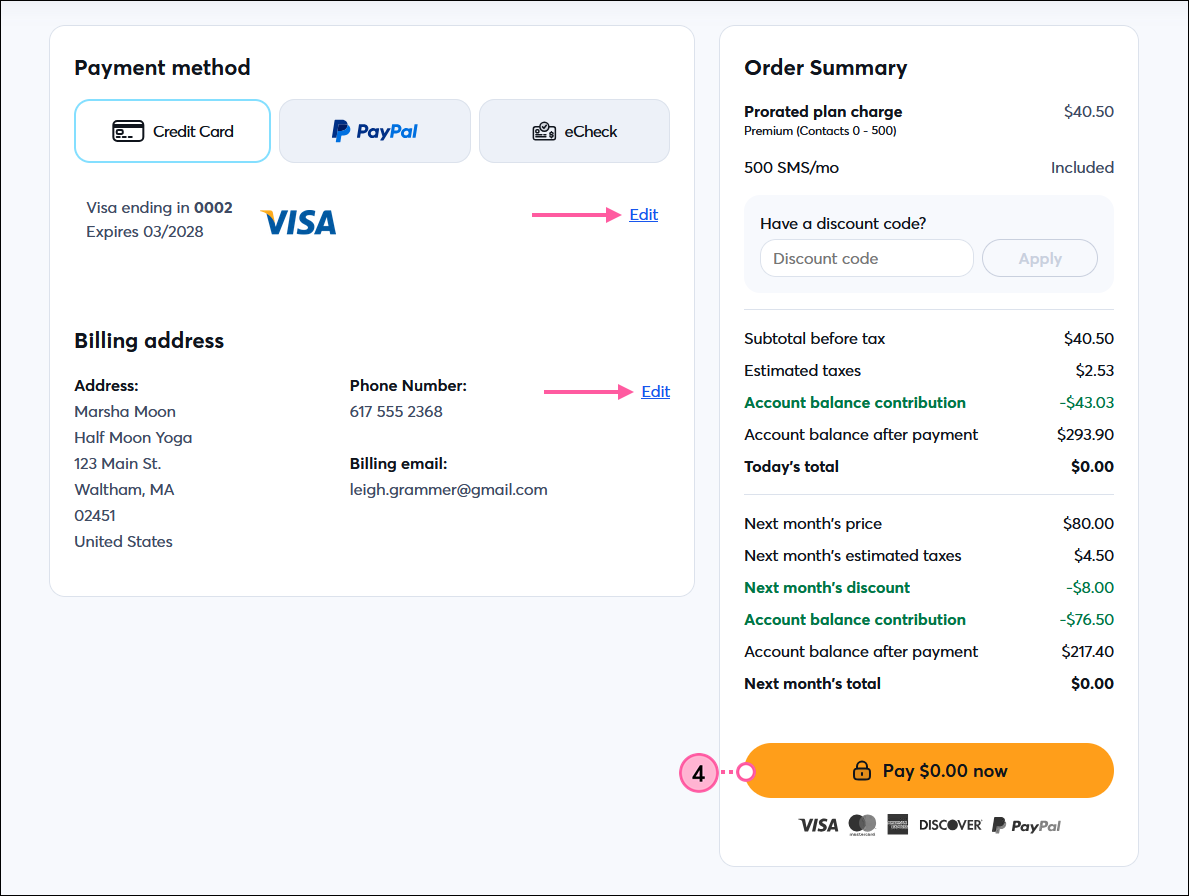
  4. Review the summary and edit the payment method or billing address if needed. Then click the Pay now button to begin processing your payment.

    Verification page with Plan overview, Billing Address section, Payment Method section, and Pay Now button
     

After you make a change to your account, it's a good idea to print the latest invoice for your records.


Questions?

Ask the Community

Did this article answer your question?


Constant Contact Logo

Copyright © 2025 · All Rights Reserved · Constant Contact · Privacy Center