Email and Digital Marketing
How can we help you?
Search our help articles, video tutorials, and quickstart guides

You've got this. You've got us. Search our Knowledge Base to quickly find answers to your questions.

Understanding the different contact sources

Article: 000018759
Updated: September 25, 2025

Figure out which sign-up tools your new contacts are coming from to leverage that information for better list growth

We offer many tools to help you add contacts and grow your list! Knowing where your contacts come from - your "contact sources" - can help you refine your marketing strategy. By understanding which channels are most effective, you can focus your energy on the platforms that bring you the most valuable contacts and improve engagement. 


Contact sources

  • Added by You - Contacts typed in manually, copied and pasted, uploaded from a spreadsheet, or imported from an external program like Gmail or Outlook.
  • Banner Form - Contacts who signed up via a Banner Sign-up Form, embedded on your website.
  • BigCommerce - Contacts added through our BigCommerce contact sync.
  • Bookings - Contacts added through Booking apps available through our Zapier integration.
  • Builder - Contacts added through the sign-up form included in a website built with our Website Builder.
  • Builder Shoppable LP - Contacts who joined your list when they purchased something through your Shoppable Landing Page.
  • Coupon - Contacts who joined your list when they claimed an offer through a Coupon Action Block in your email.
  • Donation - Contacts who joined your list when they made a donation through a Donation Action Block in your email.
  • eBay - Contacts added through our eBay contacts sync.
  • Etsy - Contacts added through our Etsy contact sync.
  • Event - Contacts who joined your mailing list registering for your Event through your Event Registration Form. The feature must be enabled through the Event Basics section of your Event.
  • Eventbrite - Contacts added through our Eventbrite contact sync.
  • Facebook Join My List - Contacts who signed up for your mailing list through the Facebook Join My Mailing List app.
  • Facebook Lead Ad - Contacts added through a Facebook and Instagram Lead Ad created through Constant Contact.
  • Flyout Form - Contacts who signed up via a Flyout Sign-up Form, embedded on your website.
  • Google - Contacts added through our Google Contacts sync.
  • Inline Form - Contacts who signed up via an Inline Sign-up Form, embedded on your website.
  • ListBuilder Android App - Contacts who signed up through our ListBuilder app on an Android tablet.
  • ListBuilder iOS App - Contacts who signed up through our ListBuilder app on an iPad.
  • Magento - Contacts added via our Magento integration.
  • Mindbody - Contacts added through our Mindbody contact sync.
  • Office 365 - Contacts added via our Outlook 365 integration.
  • Other App - Contacts added to your list through various third-party integrations available on the Integrations tab, including the WordPress Plugin. 
  • Pop-up Form - Contacts who signed up via a Pop-up Sign-up Form, embedded on your website.
  • RSVP - Contacts who joined your list through an RSVP Action Block in your email.
  • Salesforce - CRM - Contacts added to your list through our Salesforce sync.
  • SaveLocal - Contacts who joined your list through a SaveLocal campaign. (This campaign type has been retired.)
  • Setmore - Contacts added to your list via our Setmore integration.
  • Shipstation - Contacts added to your list via our Shipstation integration.
  • Shopify - Contacts who joined your list through our Shopify contact sync.
  • Signup Form LP - Contacts who joined your list through the sign-up form in your Lead Generation Landing Page.
  • Site owner - Contacts typed in manually, copied and pasted, uploaded from a spreadsheet, or imported from an external program like Gmail or Outlook.
  • Social Campaign - Contacts who joined your list through a legacy Social Campaign (This campaign type has been retired and replaced with Social Posts.)
  • Square - Contacts added to your list via our Square integration.
  • Squarespace - Contacts added to your list via our Squarespace integration.
  • Stripe - Contacts added to your list via our Stripe integration.
  • Survey - Contacts who joined your list after completing a Legacy Survey.
  • SurveyMonkey - Contacts added to your account through our SurveyMonkey contact sync.
  • System - Contacts created before 2012 or contacts who had multiple email addresses and were split into individual contacts.
  • Text to Join - (formerly Text to Sign-up) Contacts who joined your list through our Text to Join feature.
  • Website Signup Form - Contacts added through the legacy landing-page sign-up form. (This has been replaced with the Lead Generation Sign-up Form.)
  • Wix - Contacts added to your list via our Wix integration.
  • WooCommerce - Contacts added to your list through our WooCommerce contact sync.
  • Xero - Contacts added to your list through our Xero integration.


How to view your contact sources

The All contacts table includes a column for "Source."
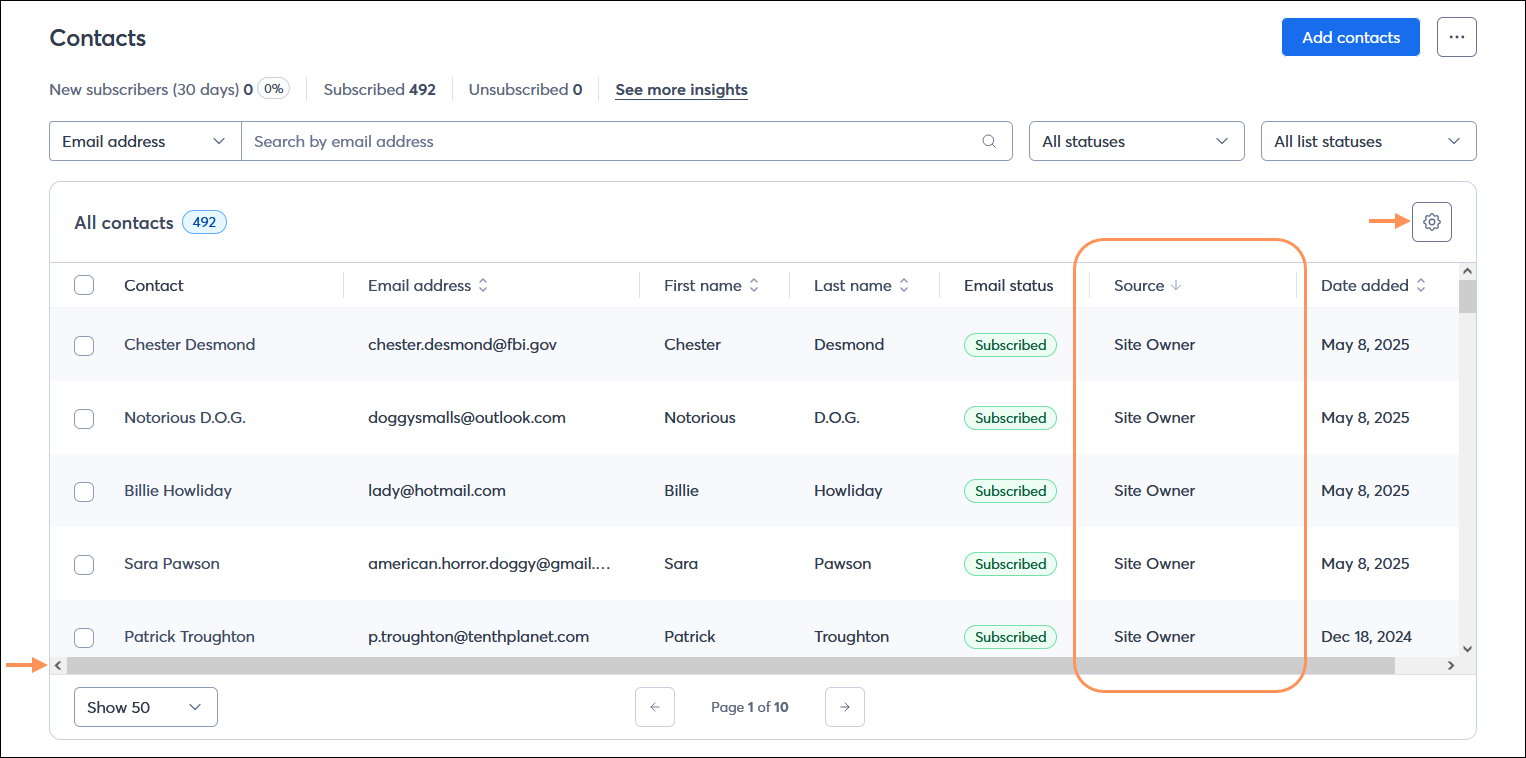
All contacts table with Source column and scrollbar, and Settings (gear icon) button

If you don't see the "Source" column:

  • Make sure to use the scroll bar at the bottom of the table until the column is visible.
  • Click the gear icon on the upper right-hand corner of the table to add the column to the table.


How to use your contact sources

Once you know where your contacts are coming from, you can create a smarter marketing strategy. Here's what to do next: 

  • Focus on what works: If you see that your Pop-up Form is your top contact source, double down on that strategy. Consider creating more pop-ups for different pages on your site or A/B testing different designs to maximize sign-ups.
  • Optimize underperforming channels: If you're getting few sign-ups from your Inline form, don't give up! Try moving its location on your website to a more prominent spot or updating the design and call-to-action to make it stand out. 
  • Tailor your messaging: If many of your contacts come from your Shopify sync, you know they are customers. You can create a segment of these contacts and send them a targeted email campaign with a special offer or a "thank you for your purchase" message.
  • Analyze your audience: A high number of Event contacts suggests your audience is interested in live events. Use this insight to plan more in-person or virtual events in the future. 


Questions?

Ask the Community

Did this article answer your question?


Constant Contact Logo

Copyright © 2026 · All Rights Reserved · Constant Contact · Privacy Center