| Tip: Are you looking for information about Constant Contact’s Email and Digital Marketing product? This article is for Constant Contact’s Lead Gen & CRM product. Head on over to the Email and Digital Marketing articles by clicking here. Not sure what the difference is? Read this article. |
LinkedIn has the potential to be one of the most important communication channels for your company. Lead Gen & CRM provides the tools you need to disseminate your LinkedIn messages, helping you generate quality leads in the process. This article will detail how to create and schedule LinkedIn posts in Lead Gen & CRM.
| Administrators | ✓ | |
| Company Managers | ✓ | |
| Marketing Managers | ✓ | |
| Sales Managers | ||
| Salespersons | ||
| Jr. Salespersons |
Before you can create LinkedIn posts from your Lead Gen & CRM account, you'll need to connect your LinkedIn account to Lead Gen & CRM in Settings. Read this to learn more about connecting your LinkedIn account to Lead Gen & CRM.
To create and publish LinkedIn posts to your connected LinkedIn account through Lead Gen & CRM, do the following:
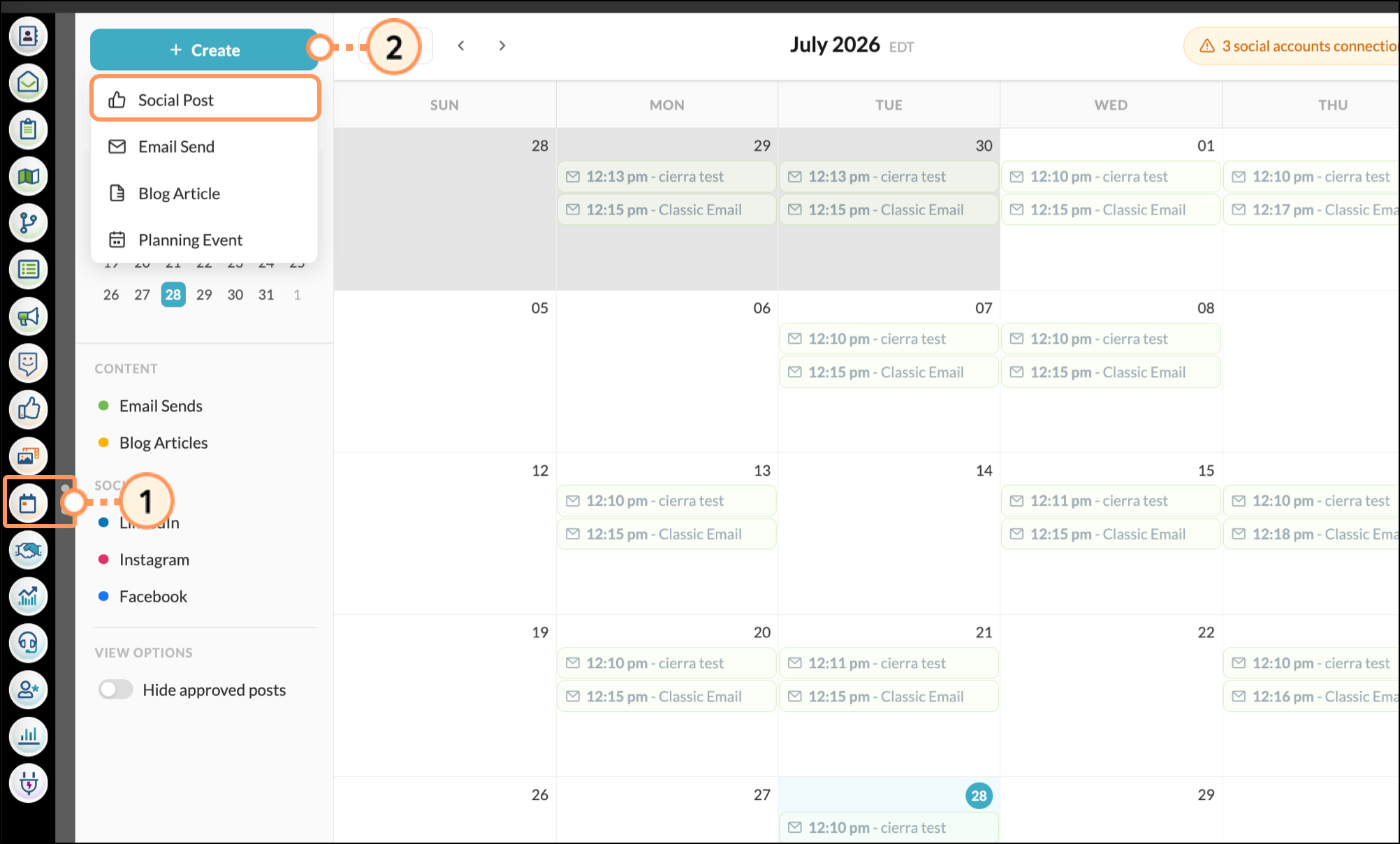
 Media you want in your post.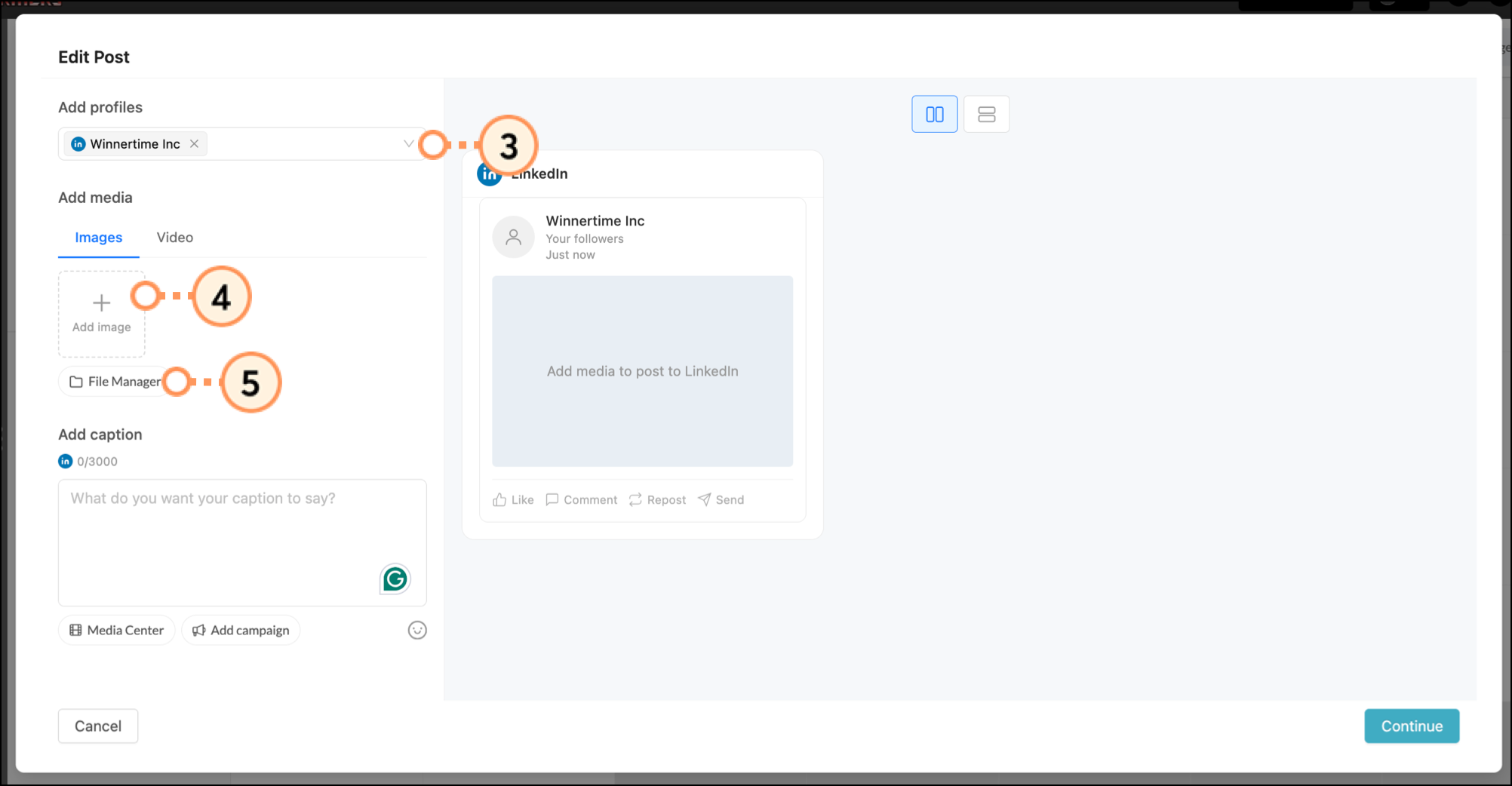
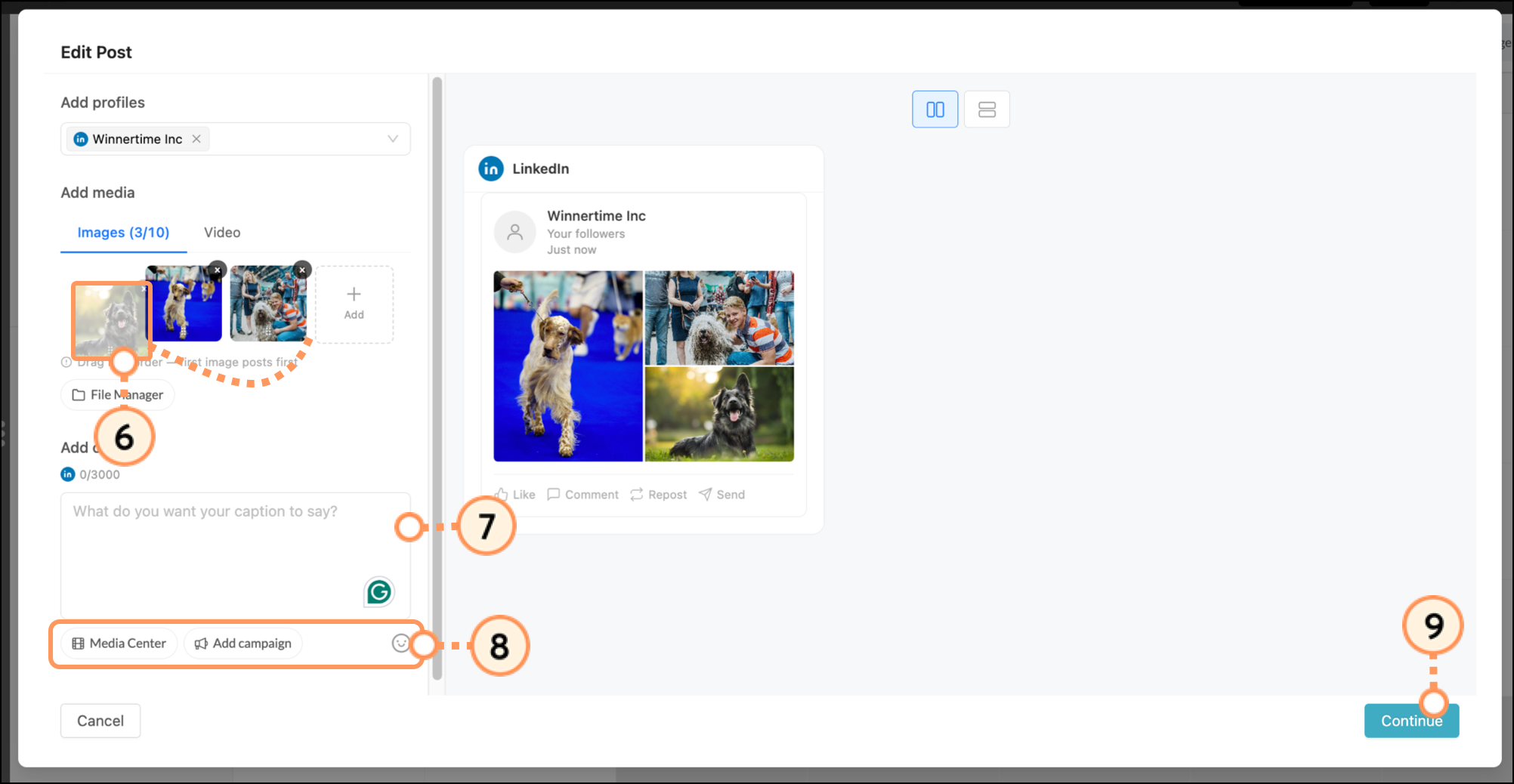
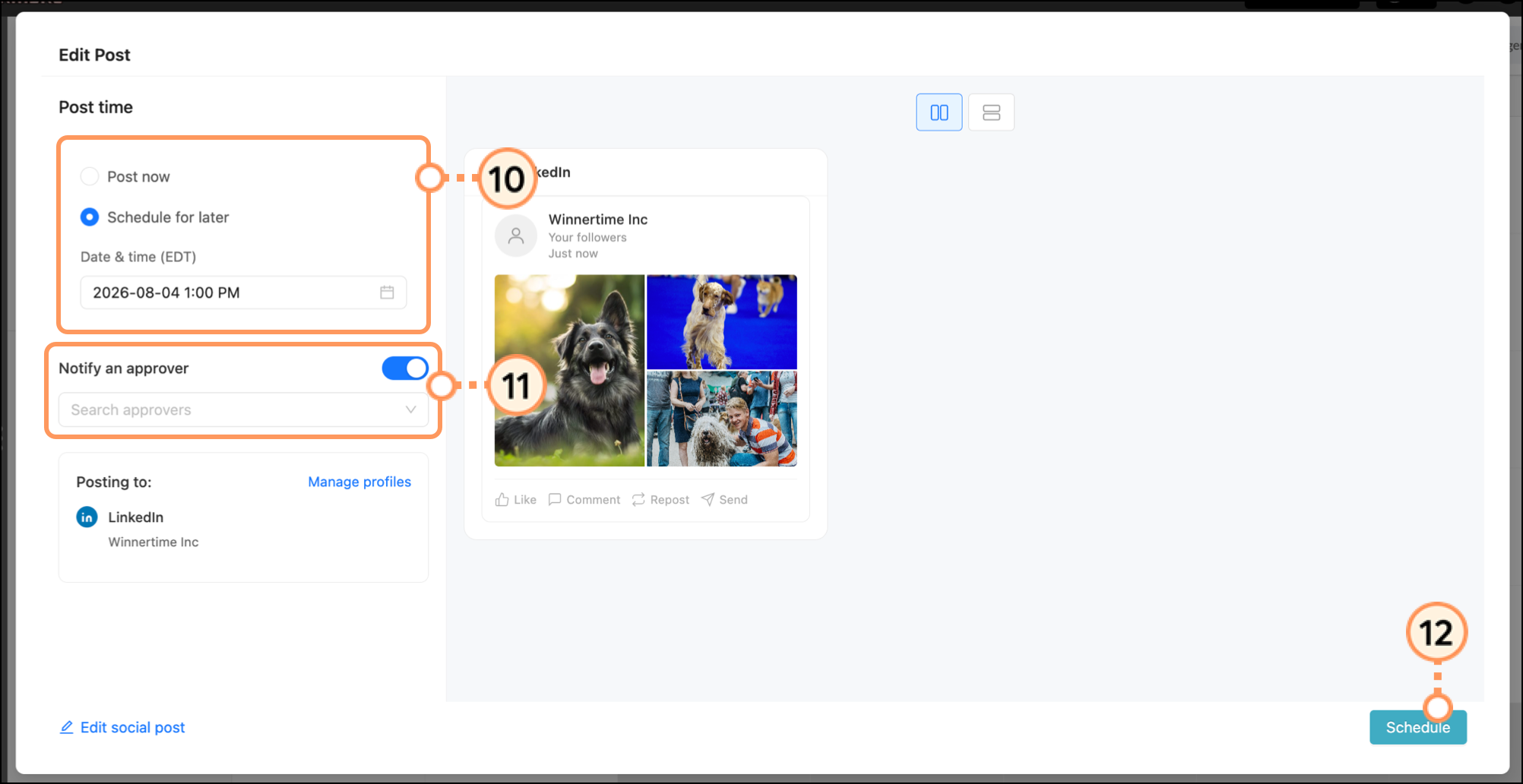
To edit, reschedule, copy, or delete a scheduled social post, return to the Content Calendar and click on the social post. Read this to learn more about modifying or deleting scheduled posts.
If needed, you can duplicate your post across social platforms by selecting as many connected profiles as you'd like.
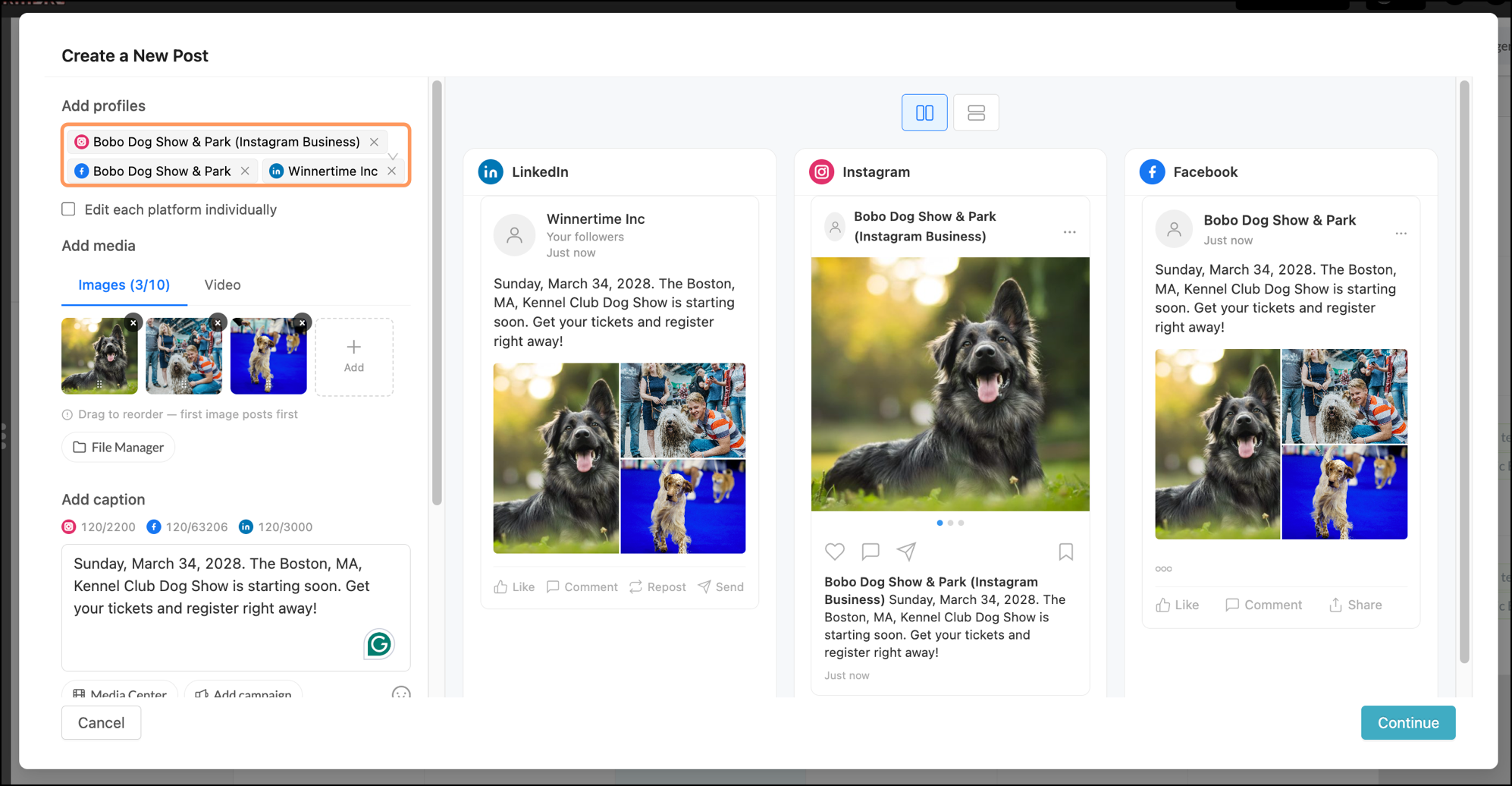
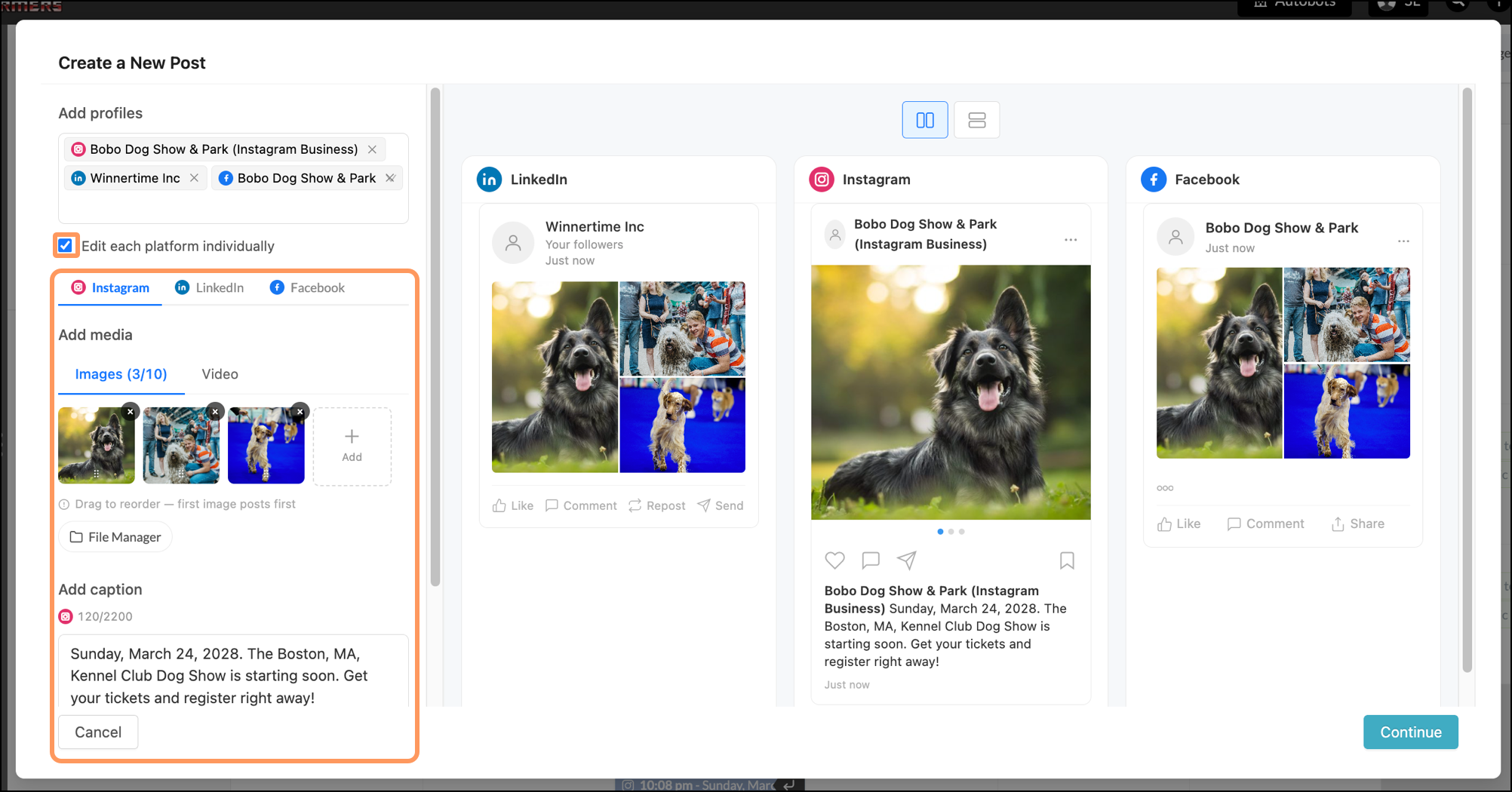
Make each post the same, complete with the same set of images and the same caption, or check the box to edit each platform individually. This helps if you want, for example, one set of images and one caption for your Instagram profile(s), a different set of images/caption for your Facebook page(s), and a different set of images/caption for your LinkedIn profile(s).
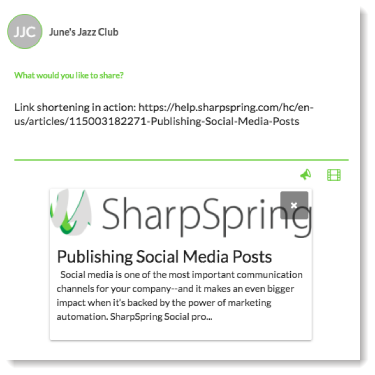
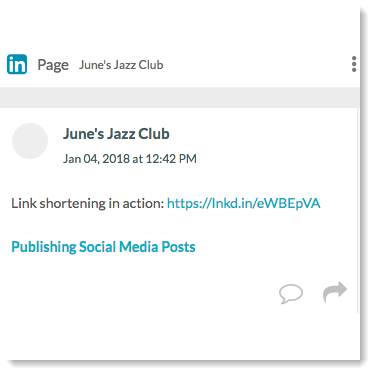
LinkedIn automatically shortens all web links longer than 26 characters. This is done to make posts easier to read and provides more room to add text. The links will not appear shortened in Lead Gen & CRM when you are creating the post, but will be automatically shortened when the post is published to your actual LinkedIn account.
| Before URL Shortening: | After URL Shortening: |
|
|
|
You can tie a link within a social post to a campaign to see which leads are interacting with your social media posts. Social Media Tracking must be enabled on a campaign's settings page to add campaign tracking to a social post.
Once the campaign-attributed social post is submitted and published, the link in your post will automatically generate a UTM parameter behind the scenes. These UTM codes cannot be edited. The UTM codes can be viewed once you schedule the post and view it in the Content Calendar.
If you have multiple UTM codes tied to multiple campaigns, then they will be evaluated in the following order:
Associating posts with campaigns requires both a campaign and social posts.
To create a campaign that can be tied to a LinkedIn post, create or edit a campaign:
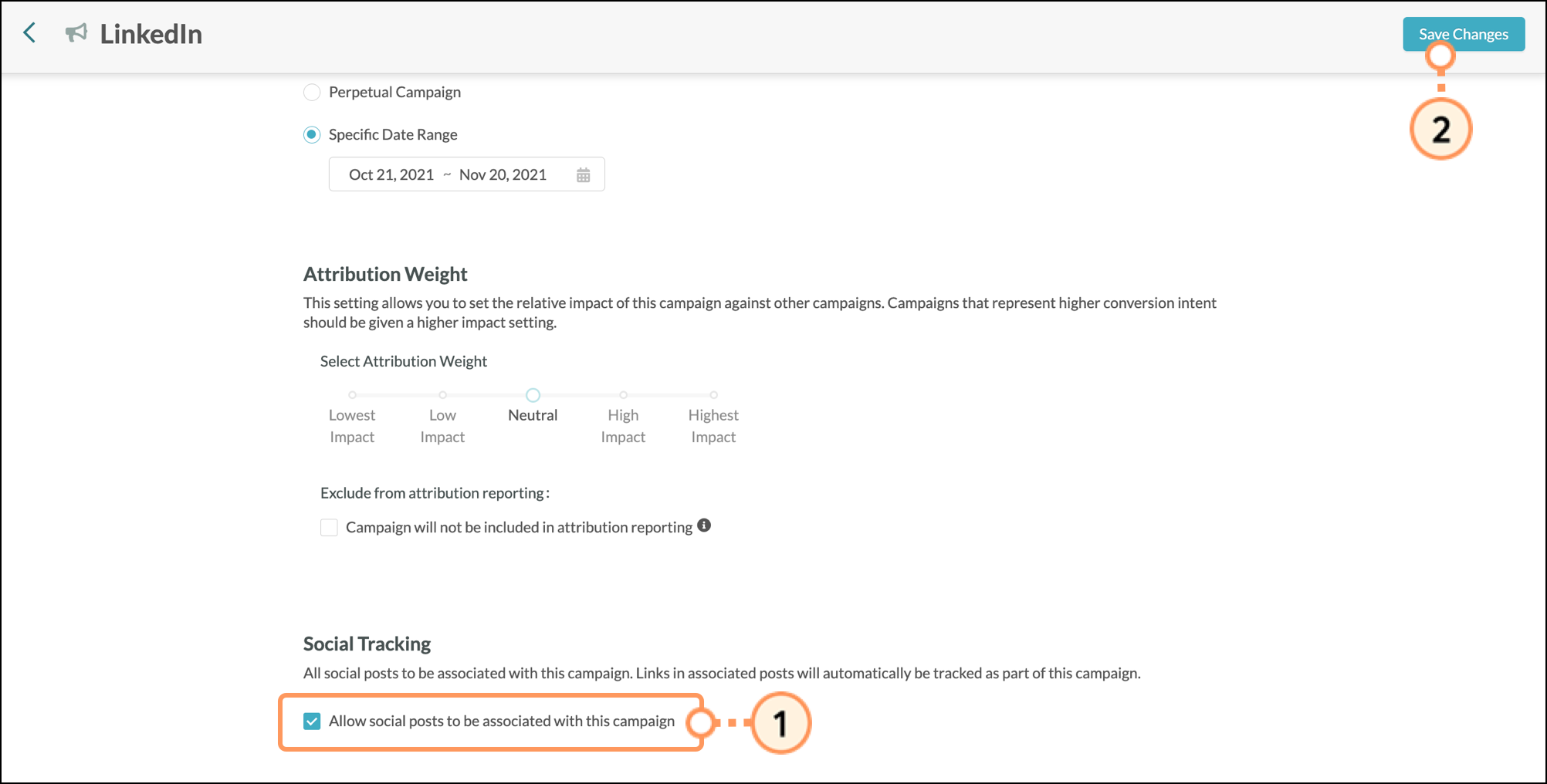
To attribute a LinkedIn post to a campaign, do the following:
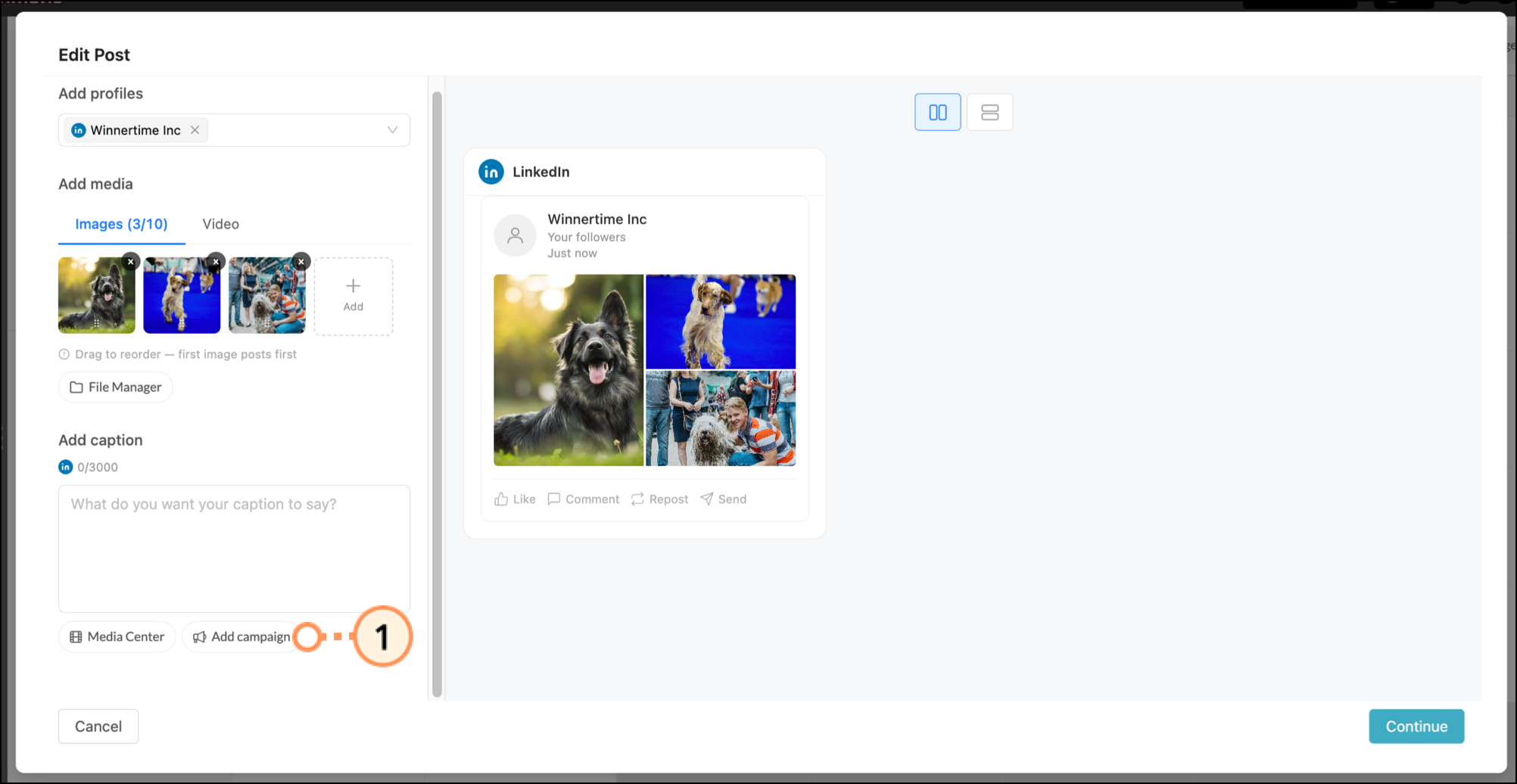
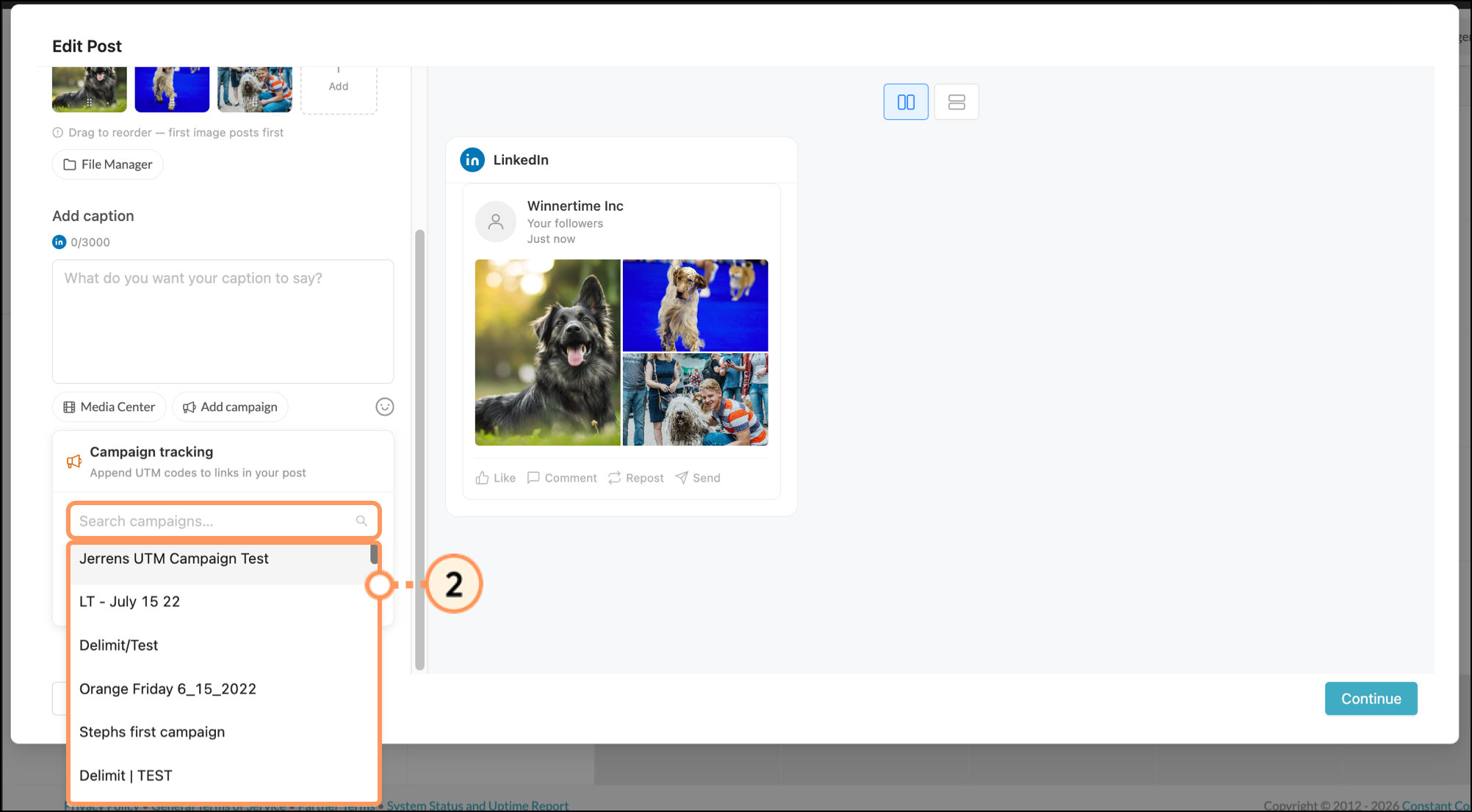
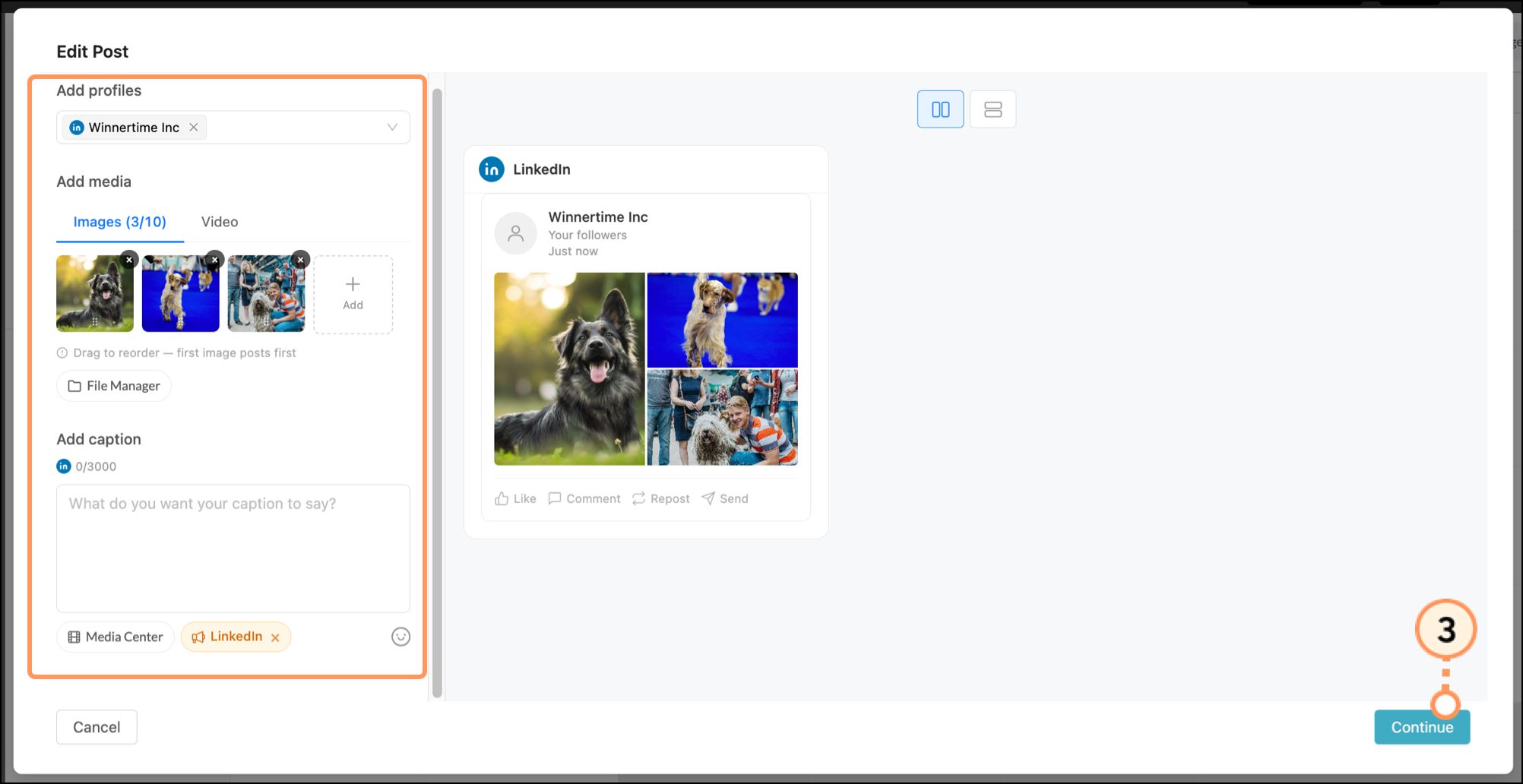
Lead Gen & CRM has a set list of supported file types for uploading to the Media Center. However, LinkedIn only allows certain file types to be posted.
When posting to social media, if you try to upload an unsupported file type or use a Media Center asset that is unsupported by social media platforms, the post fails outright.
This means that even though you can upload a .ZIP file as a Media Center asset, you cannot post that file to social media.
| LinkedIn Supported File Types | ||
|
• .ASF | • .MP4 | • .VP8 |
|
• .AVI | • .MPEG1 | • .VP9 |
|
• .FLV | • .MPEG4 | • .WEBM |
|
• .GIF | • .MKV | • .WMV2 |
|
• H264/AVC | • .PNG | • .WMV3 |
| • .JPG |
• .QT | |
Copyright © 2026 · All Rights Reserved · Constant Contact · Privacy Center