 | Tip: Are you looking for information about Constant Contact’s Email and Digital Marketing product? This article is for Constant Contact’s Lead Gen & CRM product. Head on over to the Email and Digital Marketing articles by clicking here. Not sure what the difference is? Read this article. |
In Lead Gen & CRM, you can schedule, copy, and edit your social posts all in one location, so you can execute your social media plan flawlessly. Once your account is set up, you can create social listening feeds to monitor and track social media activity without leaving Lead Gen & CRM. Learn more about social listening.
| Administrators | ✓ | |
| Company Managers | ✓ | |
| Marketing Managers | ✓ | |
| Sales Managers | ||
| Salespersons | ||
| Jr. Salespersons |
Before you can create social posts from your Lead Gen & CRM account, you'll need to connect your Instagram, Facebook, and/or LinkedIn account(s) to Lead Gen & CRM in Settings.
Then, click the + Create button in the Content Calendar to post to your social media page from Lead Gen & CRM. Learn more about social posting in Lead Gen:
You can also refer to Content Calendar Overview to learn more about the Content Calendar section.
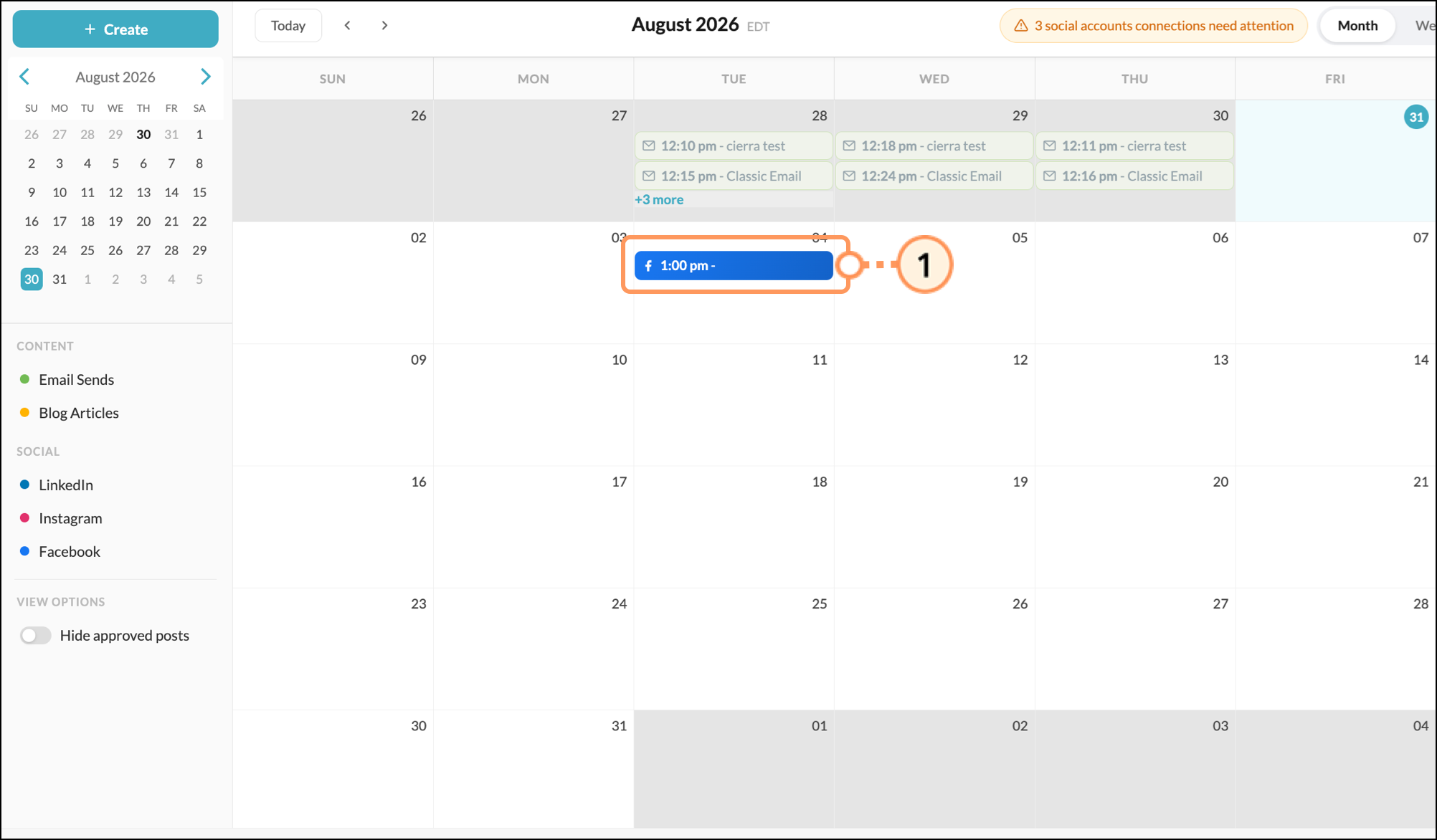
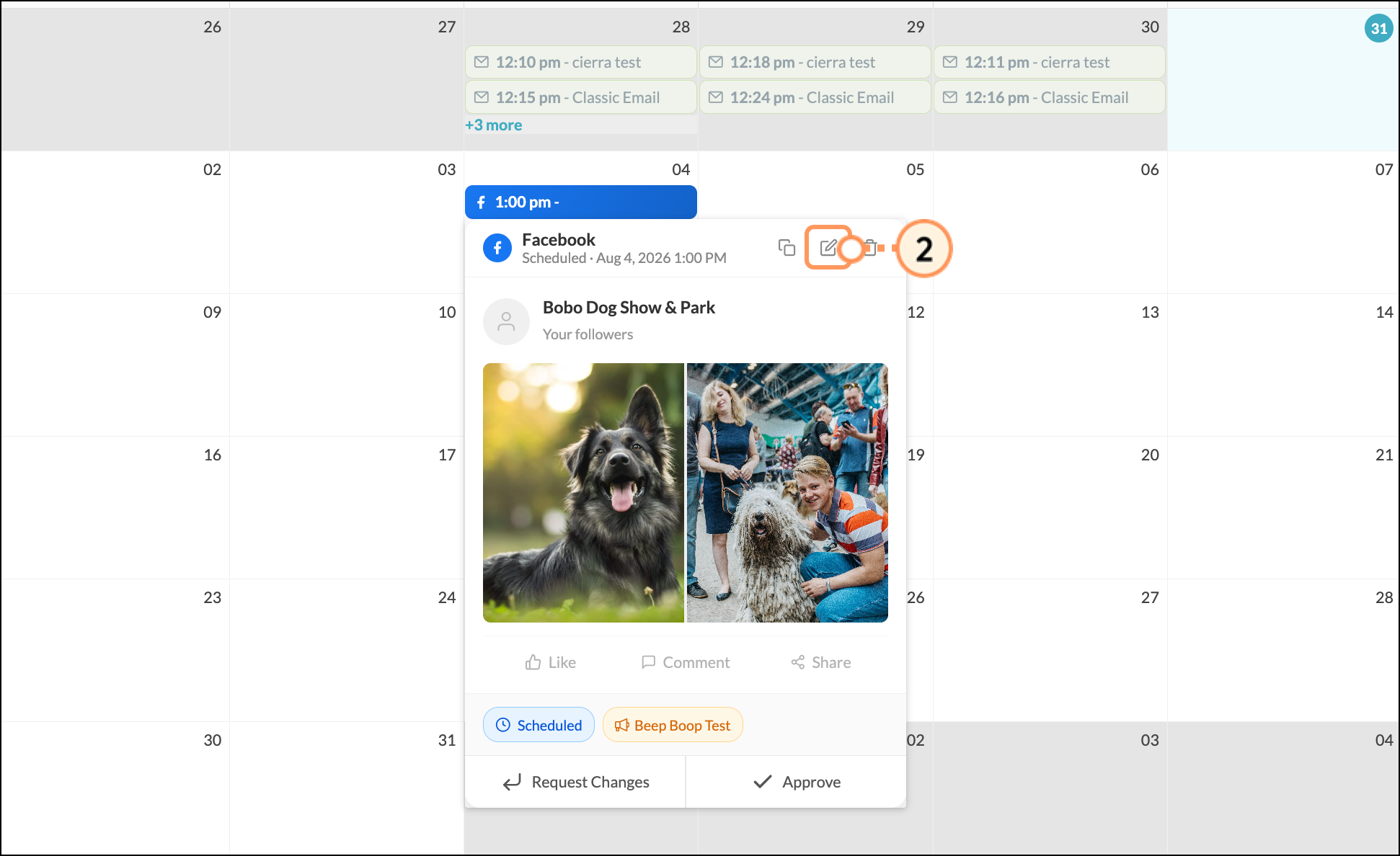
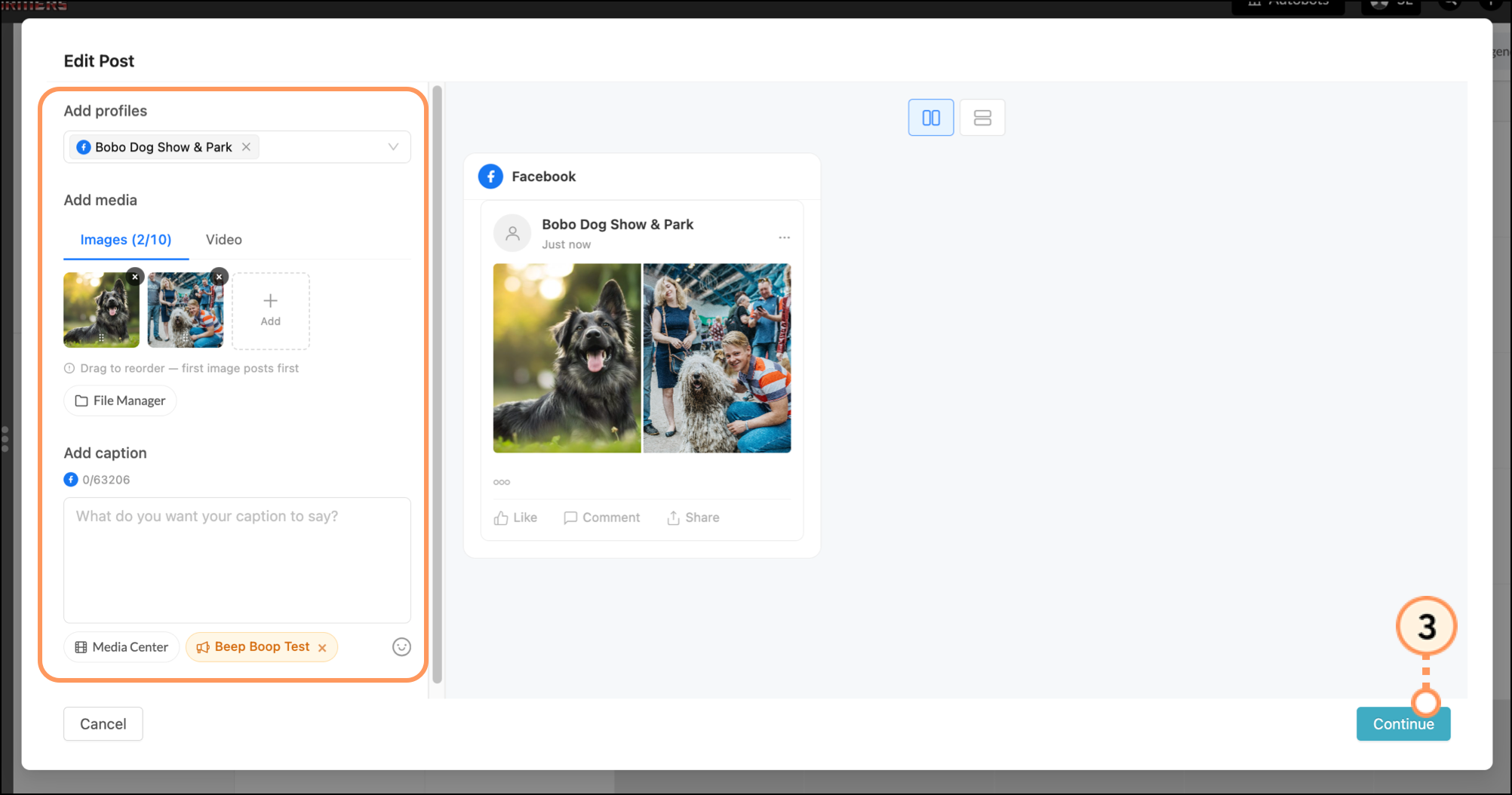
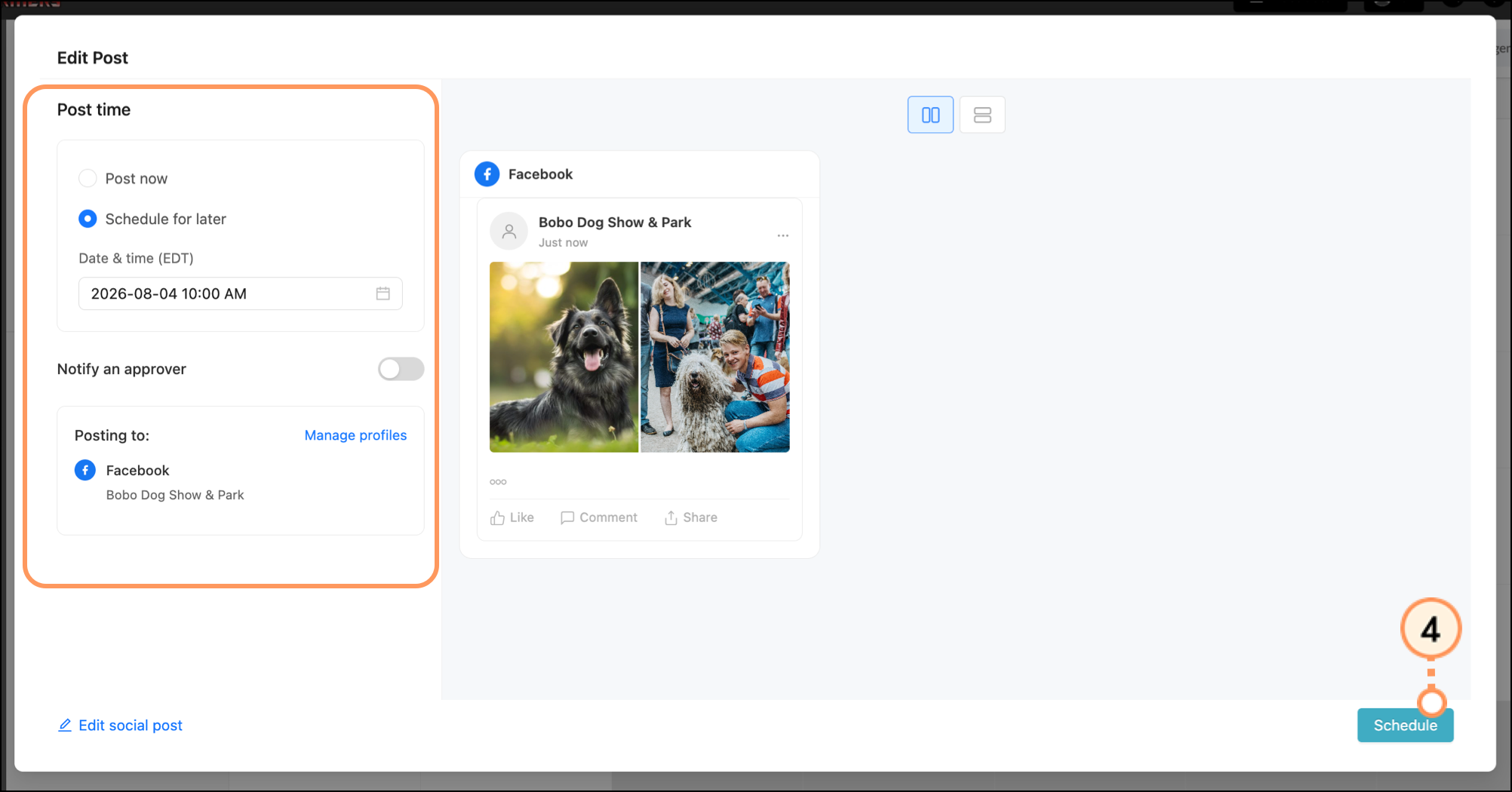
You can edit a scheduled post in the Content Calendar. Change the images in the post, the order of the images, the caption, the campaign, and more:
You can duplicate a social post and use it to create new posts:
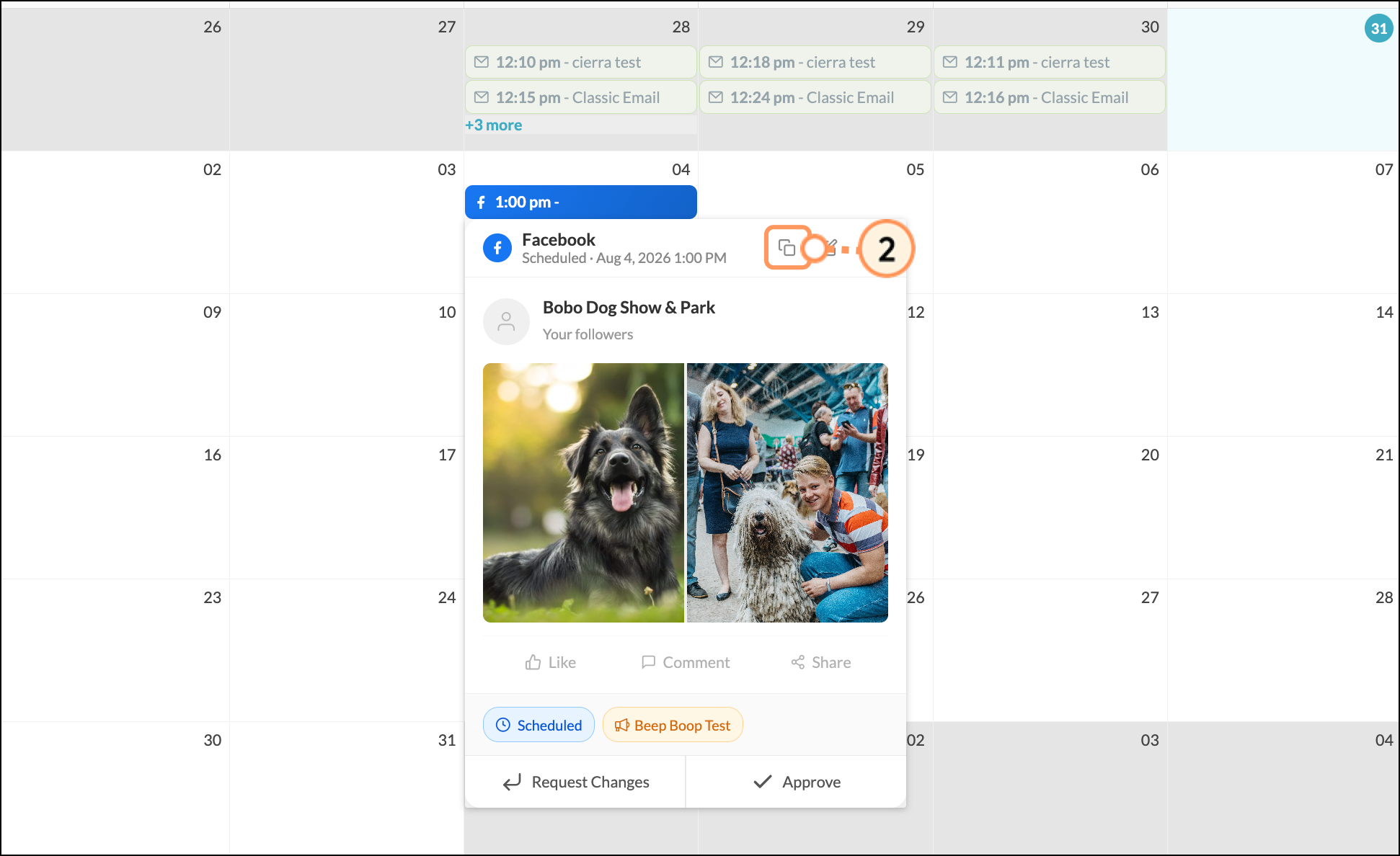
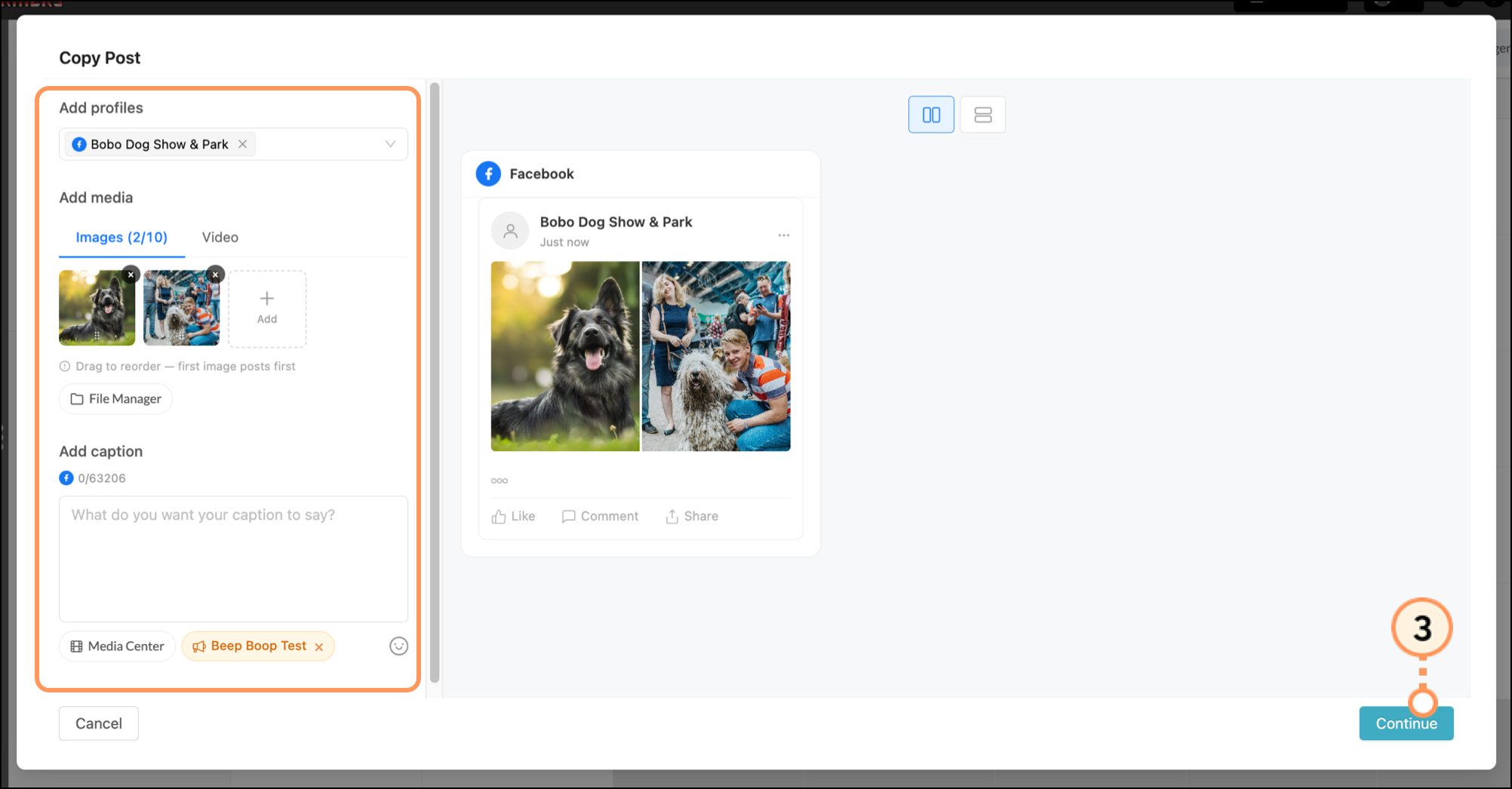
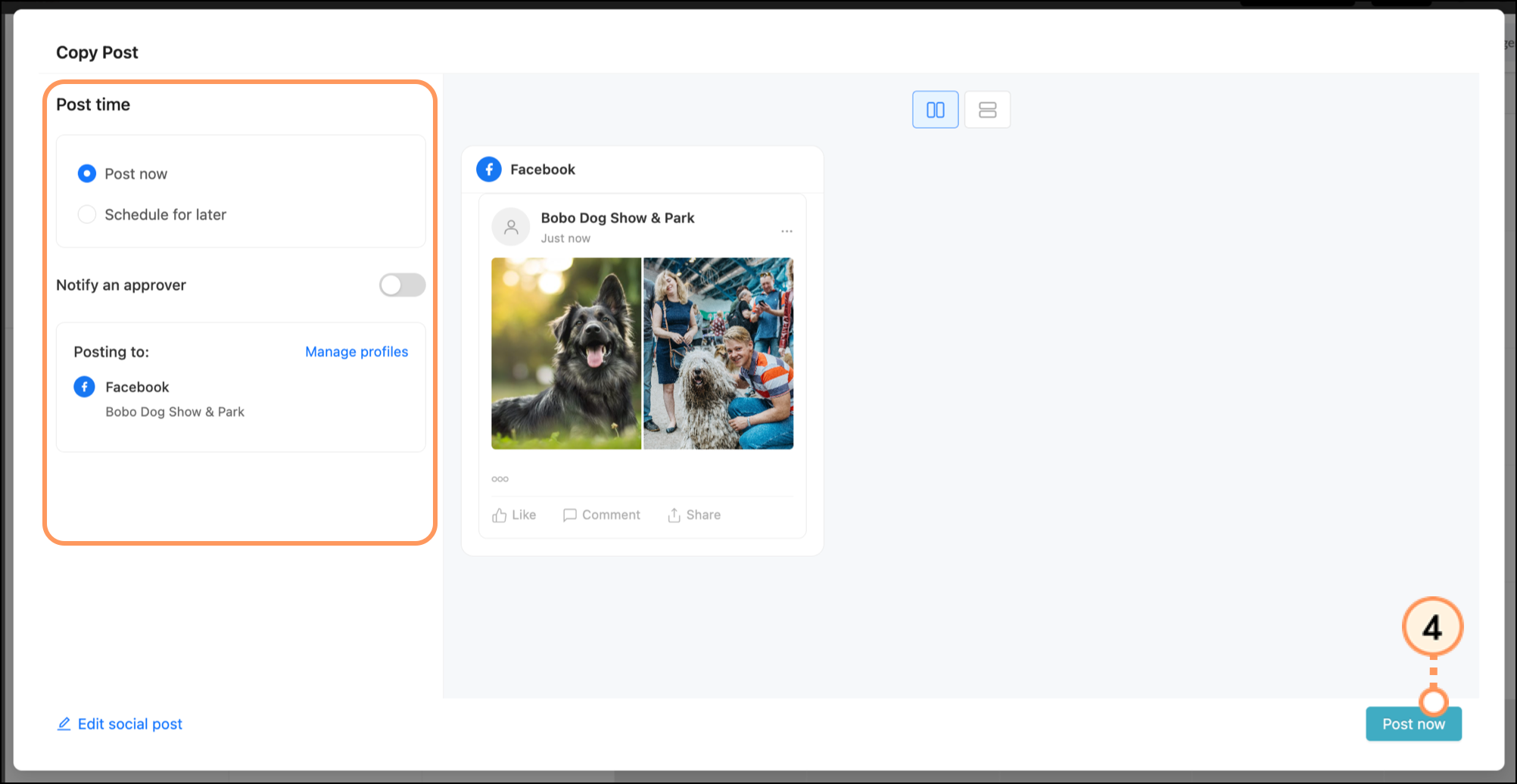
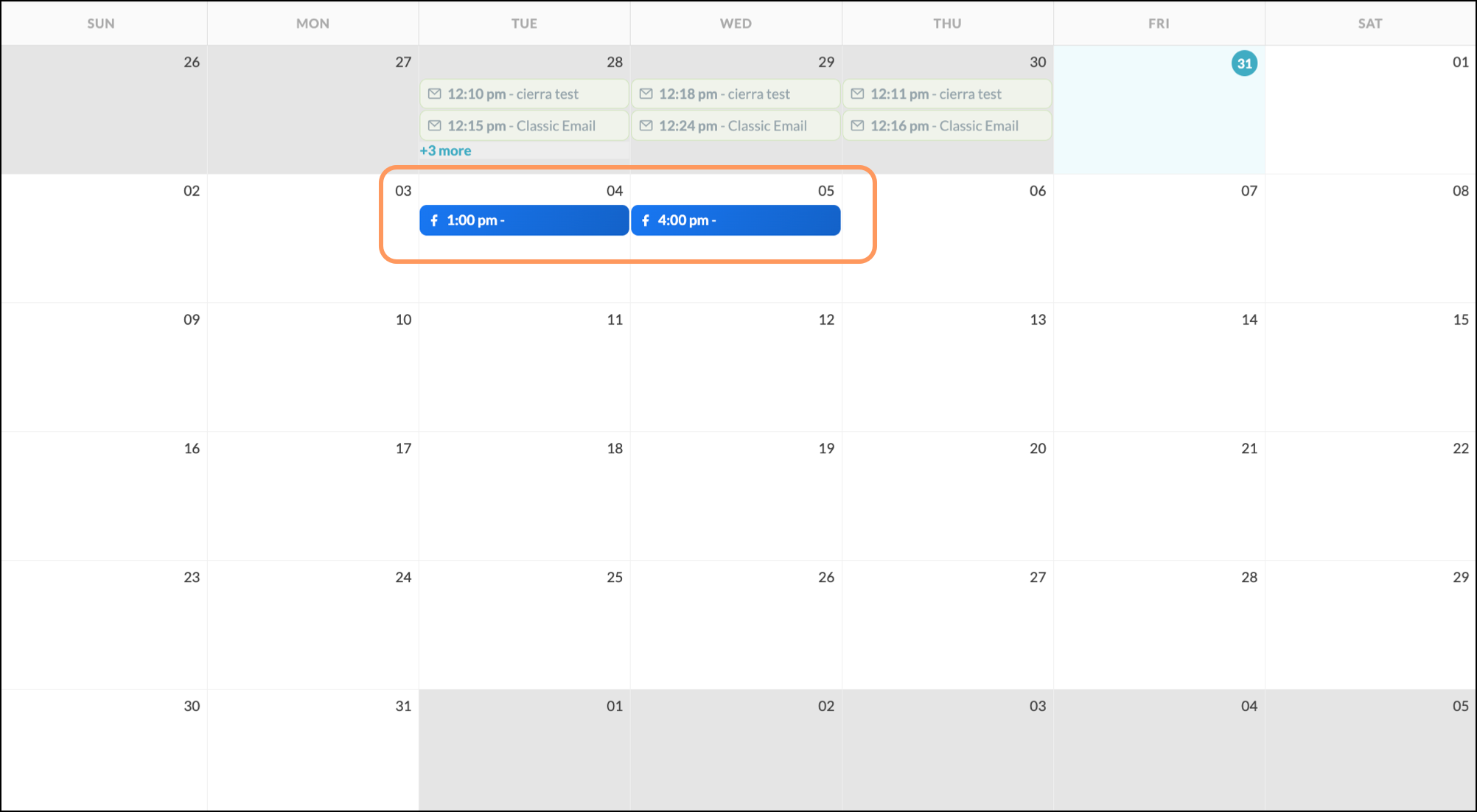
You will see the new social post created from a copy of the initial post:
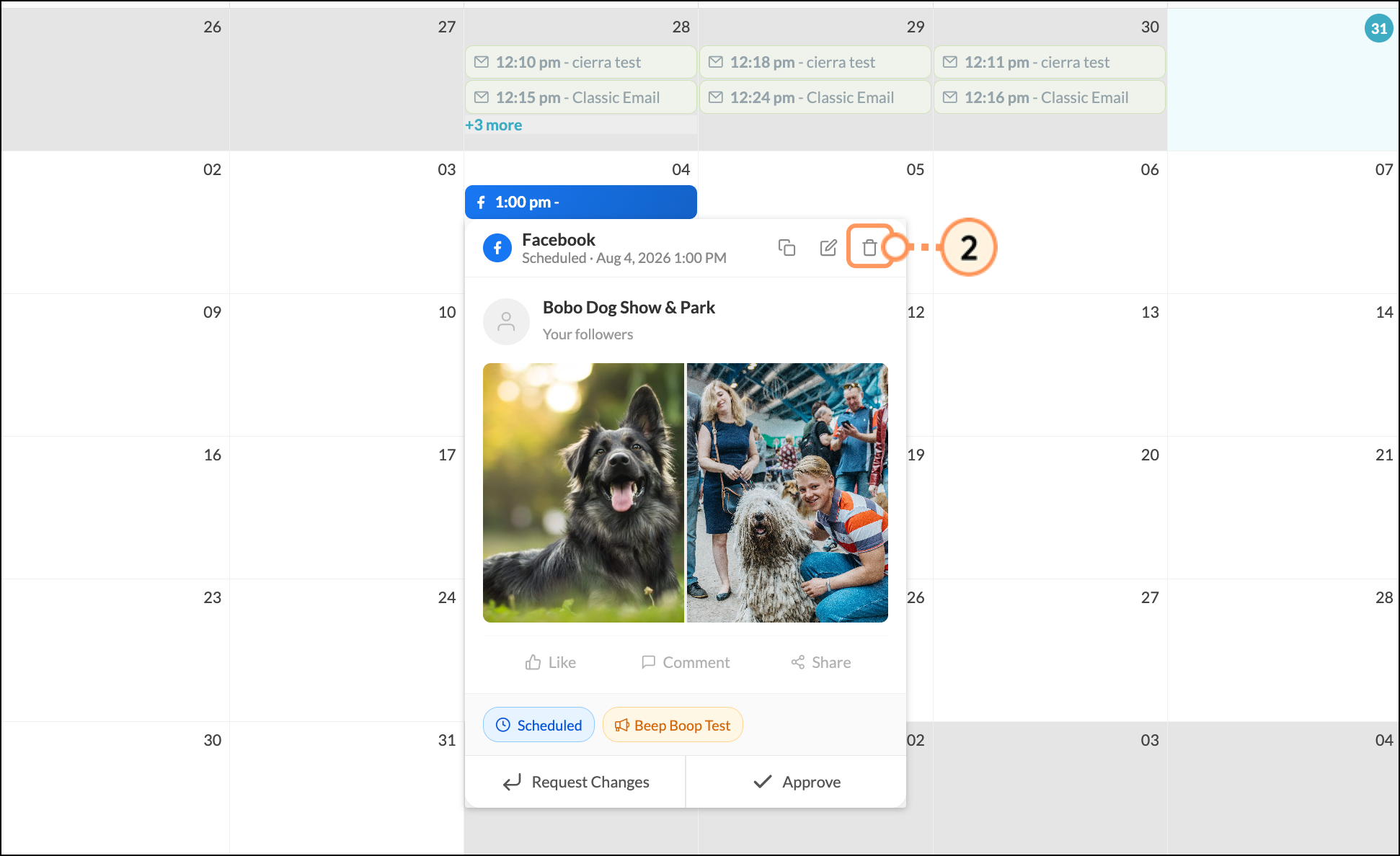
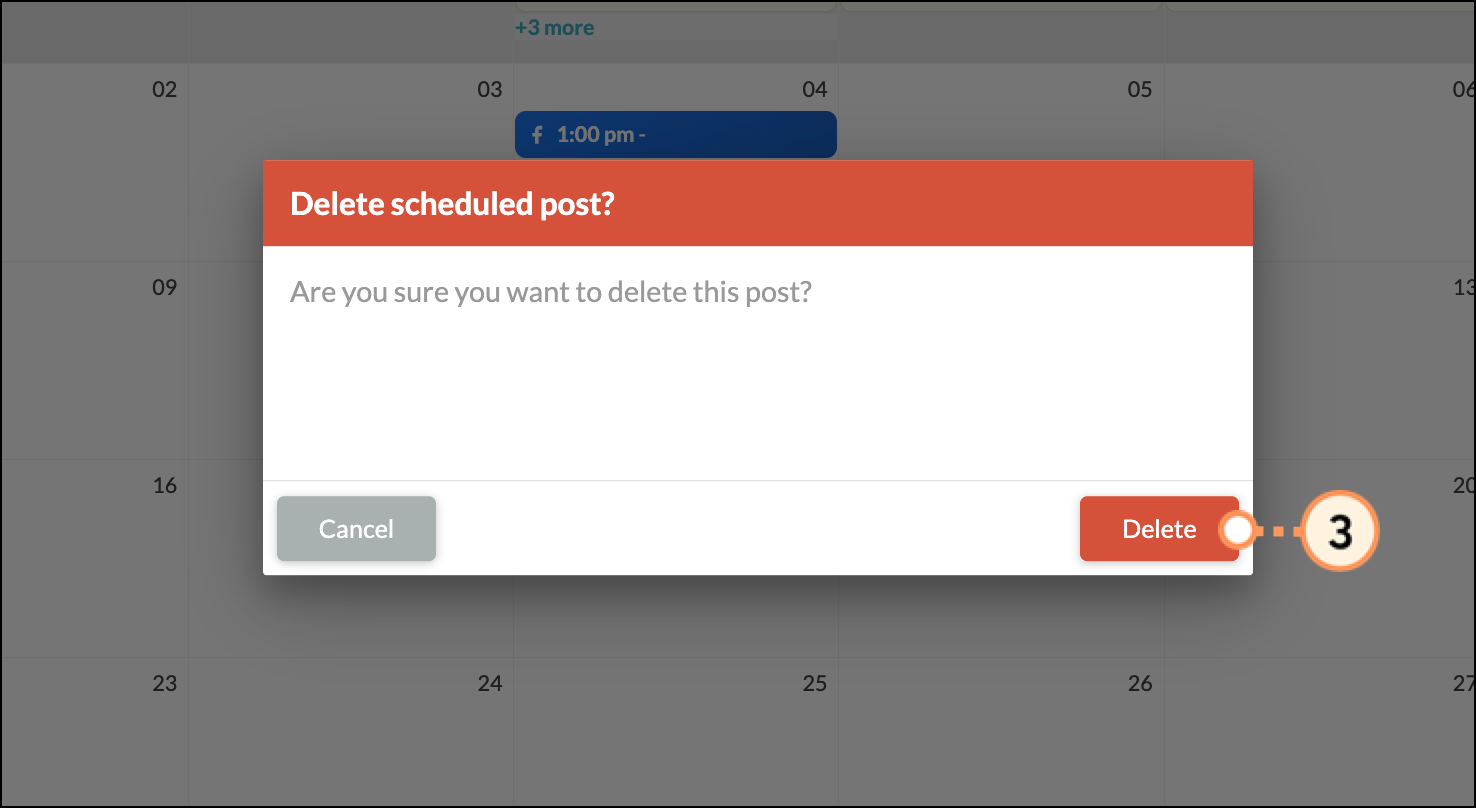
To delete a social post:
Copyright © 2026 · All Rights Reserved · Constant Contact · Privacy Center