Email and Digital Marketing
How can we help you?
Search our help articles, video tutorials, and quickstart guides

You've got this. You've got us. Search our Knowledge Base to quickly find answers to your questions.

Schedule and send an email

Article: 000005824
Updated: June 23, 2026

Schedule an email to send to contacts now or at a later date

Email Plus IconReview your plan: Some features, such as scheduling for later and resending to non-openers, are not available in all Constant Contact plans. If you don’t have full access, you may need to upgrade your plan.


Once you've finished customizing your email and have given it a preview to check for content and design errors, it's time to send it to your contacts. You can choose to send it immediately or schedule it for a future date and time, up to a year in advance. If you add more contacts to your list before the scheduled date, they'll also receive your email!


Light Bulb IconTip: Don’t forget to check for errors and send a test version of your email for proofreading before sending it to your contacts!


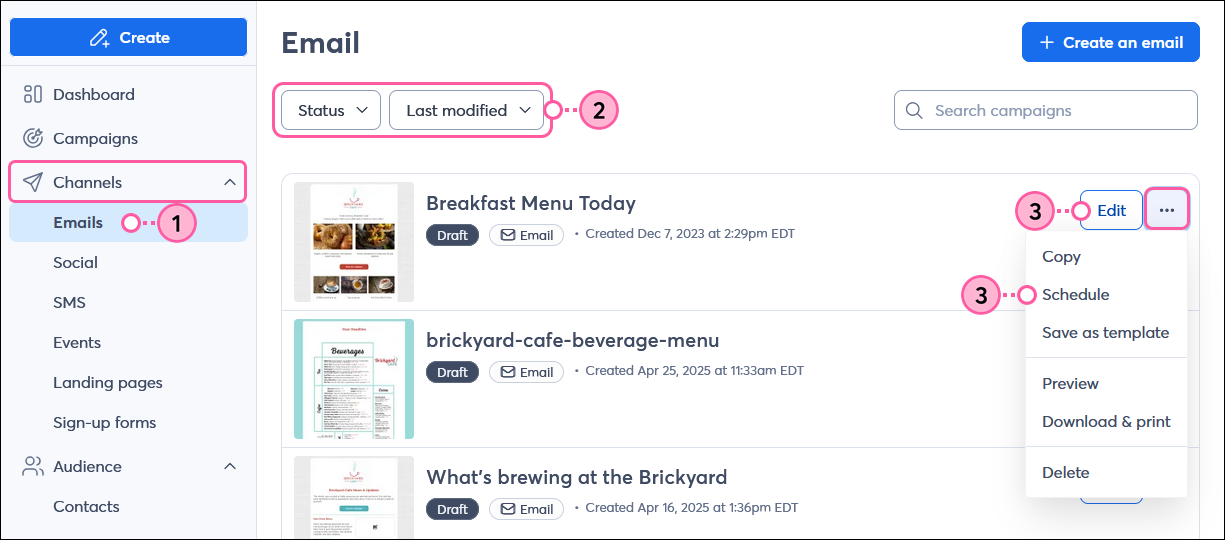
  1. In the left-hand menu, click Channels > Emails. If you’re currently working on your email, skip to step 4.
  2. (Optional) Use the filters to help narrow your search.
  3. If you want to make any edits or review your email one more time before scheduling, click Edit. If you’re ready to schedule to send, click the three dots, select Schedule, then skip to step 5.

    Marketing channels menu expanded and Email option selected, Email dashboard with Status drop-down menu and Draft option selected, and email draft menu expanded and Schedule option selected

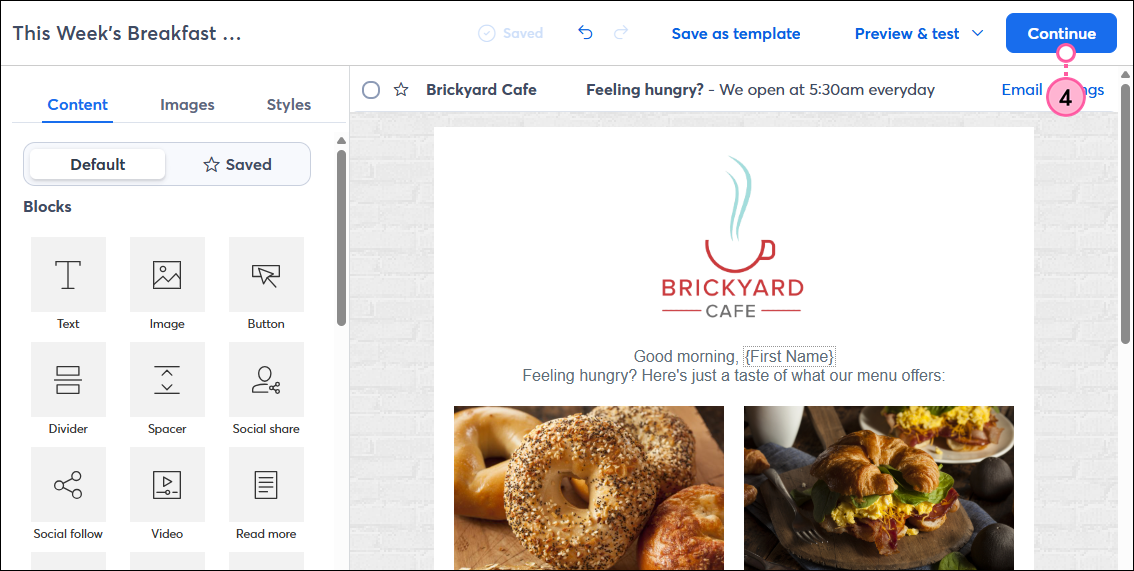
  4. When you're ready to schedule your email, click the Continue button.

    Email editor with Continue button

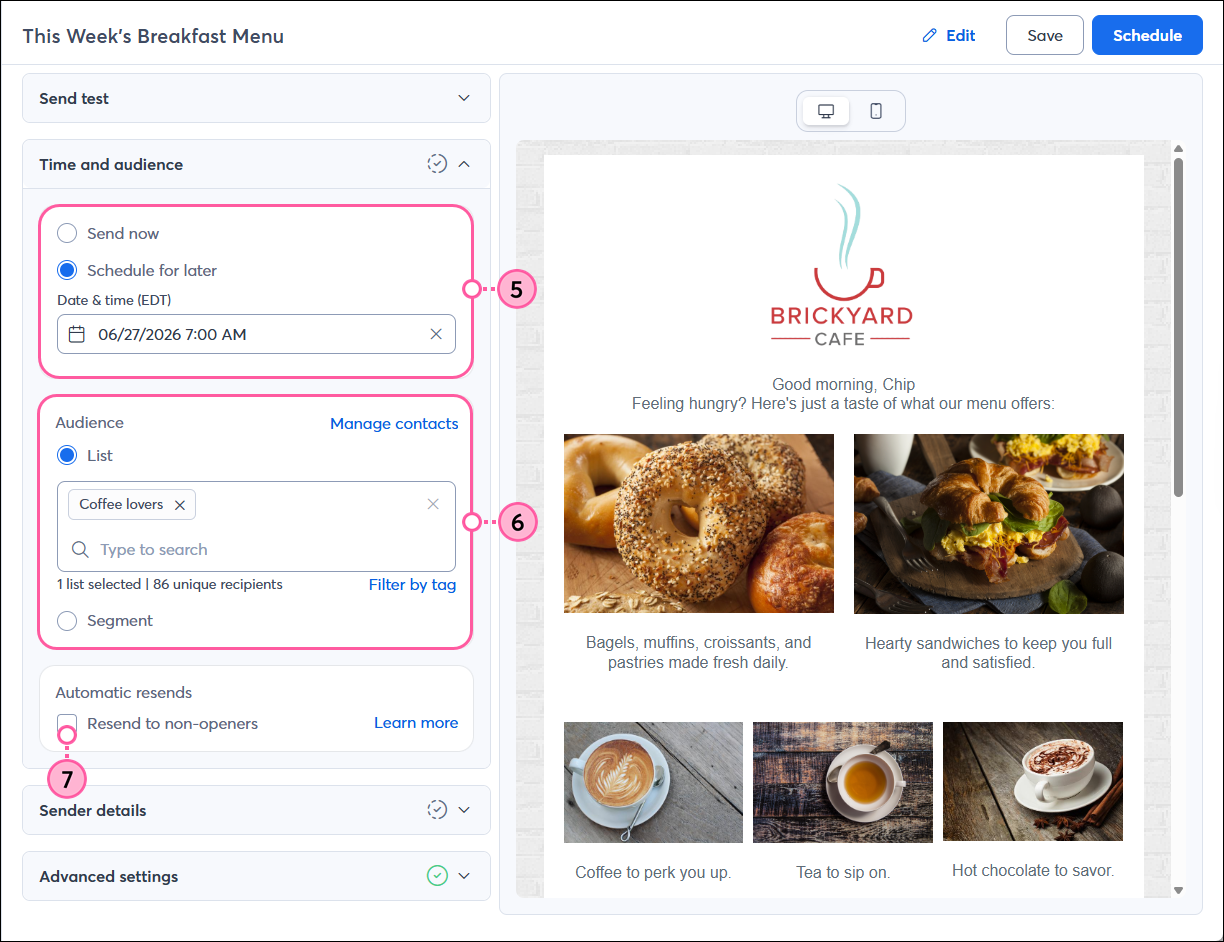
  5. Choose when you want to send:
    • Send now - To immediately begin sending your email. Please note that an email may take up to 30 minutes to send, depending on the size of your list. To prevent any accidental sends, you're prompted to confirm your selection.
    • Schedule for later - To enter a future date and time to send your email, up to a year in advance. 
  6. Select the recipients for your email:
    • Lists - Select a list or multiple lists. Don't worry - if a contact is on more than one list, they only receive the email once. If you need to add contacts to a list or create a new list, click the "Manage contacts" link and return to the schedule page when you're ready.
    • Segment - Select a segment to send to contacts with shared interests or behaviors. The segment automatically refreshes when your email is sent, ensuring you're only sending to contacts who currently meet your segment criteria. Click “Manage contacts” to create a new segment or edit an existing segment, and return to the schedule page when you're ready.
  7. (Optional) Check the box to automatically resend your email to those who don't open it.  
    Light bulb iconTip: Looking to have this email resent to new contacts on a regular basis? Consider setting up an automation!

    Email schedule page with Time and Audience sections

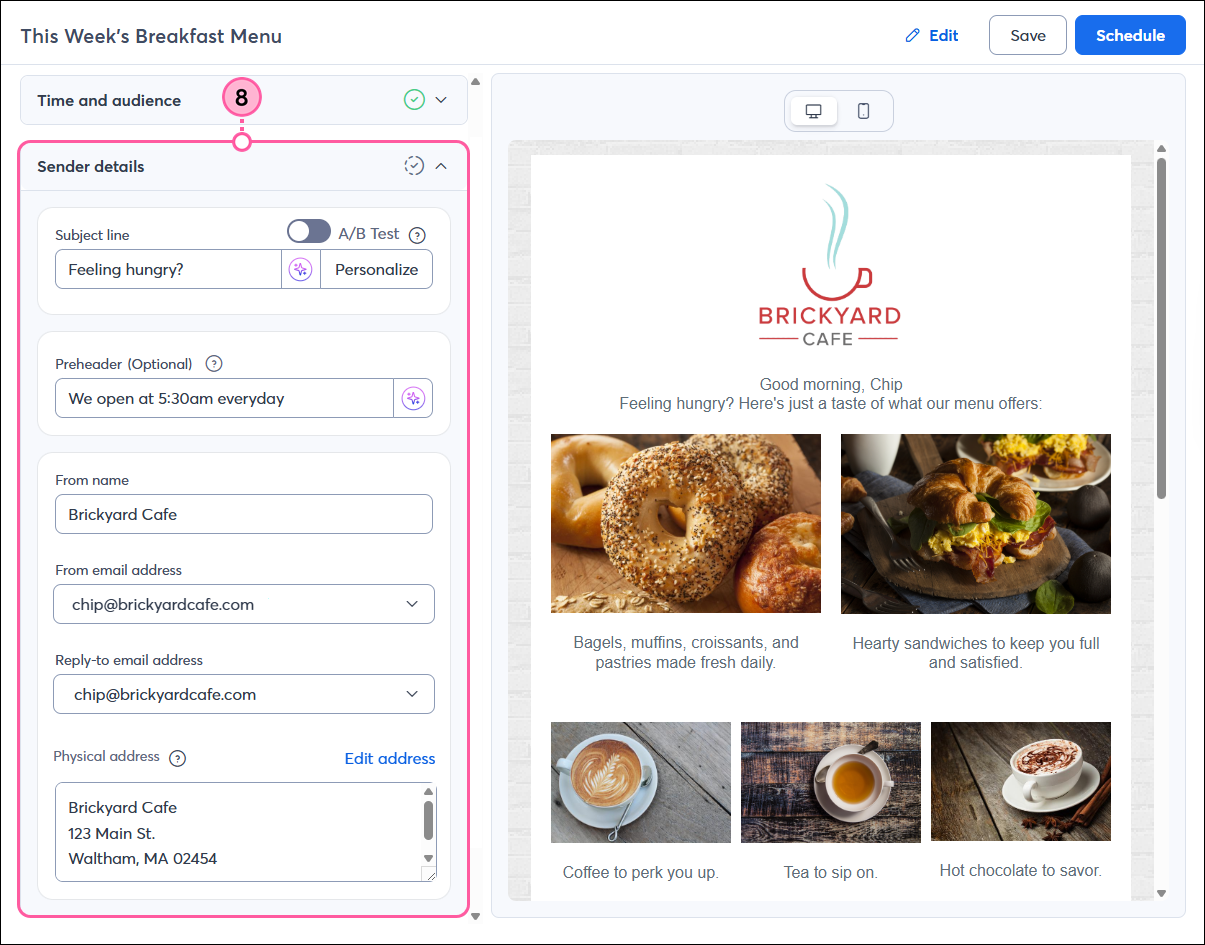
  8. Click to expand the Sender details section to review and update your:
    • Subject line - This is the first thing your contacts see and can be what makes them decide to open your email or not. Consider personalizing your subject line or adding an emoji to give it more impact!
      Light bulb iconTip: Depending on your email plan, you can click the sparkle icon to get some subject line suggestions, or A/B test two different subject lines to see which performs better.
    • Preheader - This supports your subject line. Depending on your email plan, you can click the sparkle icon to get some preheader suggestions.
    • From name - This should be a name your contacts will recognize, whether it's your organization's name, your personal name, or a combination of both.
    • From email address - This helps your contacts' email clients determine whether your emails are valid or should be sent to the spam folder. We recommend using a custom domain to best represent your organization. If you need to add a new email address to use, select "Add another email" from the drop-down to verify it
      Exclamation point iconImportant: Due to industry email authentication requirements, your “From” email address may be rewritten using our shared ccsend.com domain if you don’t have your own domain or haven’t self-authenticated it. This ensures your emails continue to be delivered to your contacts. 
    • Reply-to email address - This receives replies from your contacts when they want to respond to your email.  Make sure it's an email account that you check regularly.
    • Physical address. This displays in your email footer and is legally required to comply with the CAN-SPAM Act. If you don’t have a physical location, you can use a valid PO box. If you need to change the address, click Edit address.

      Email schedule page with Sender Details section

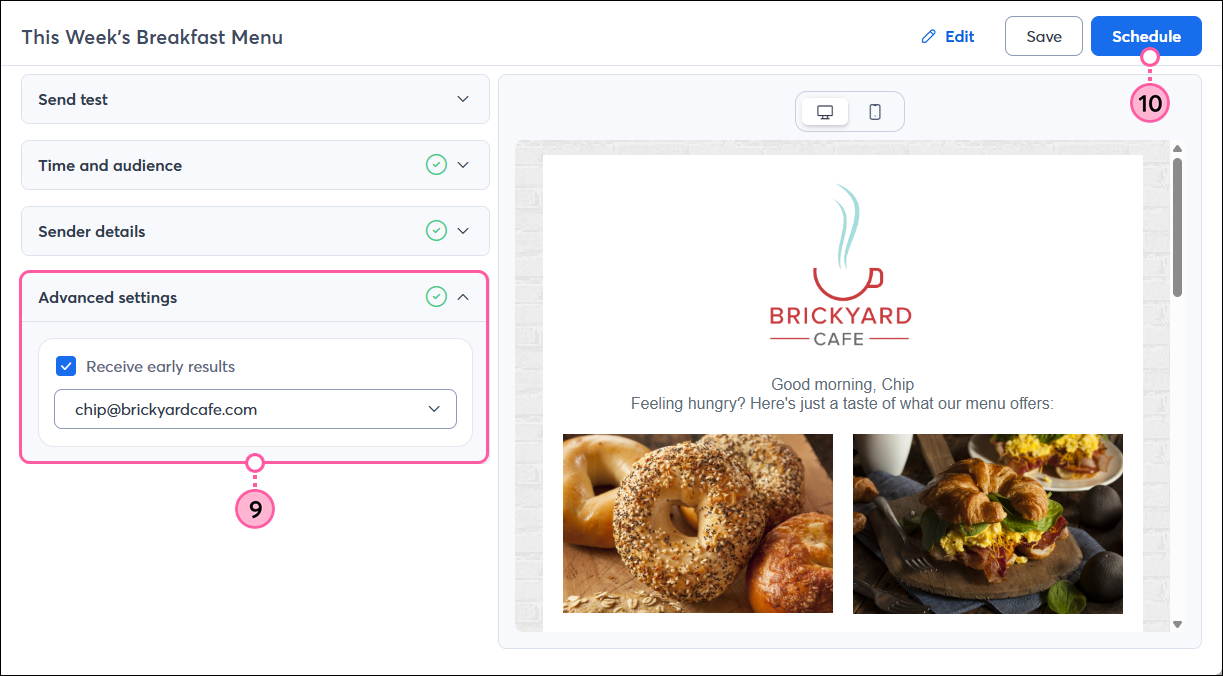
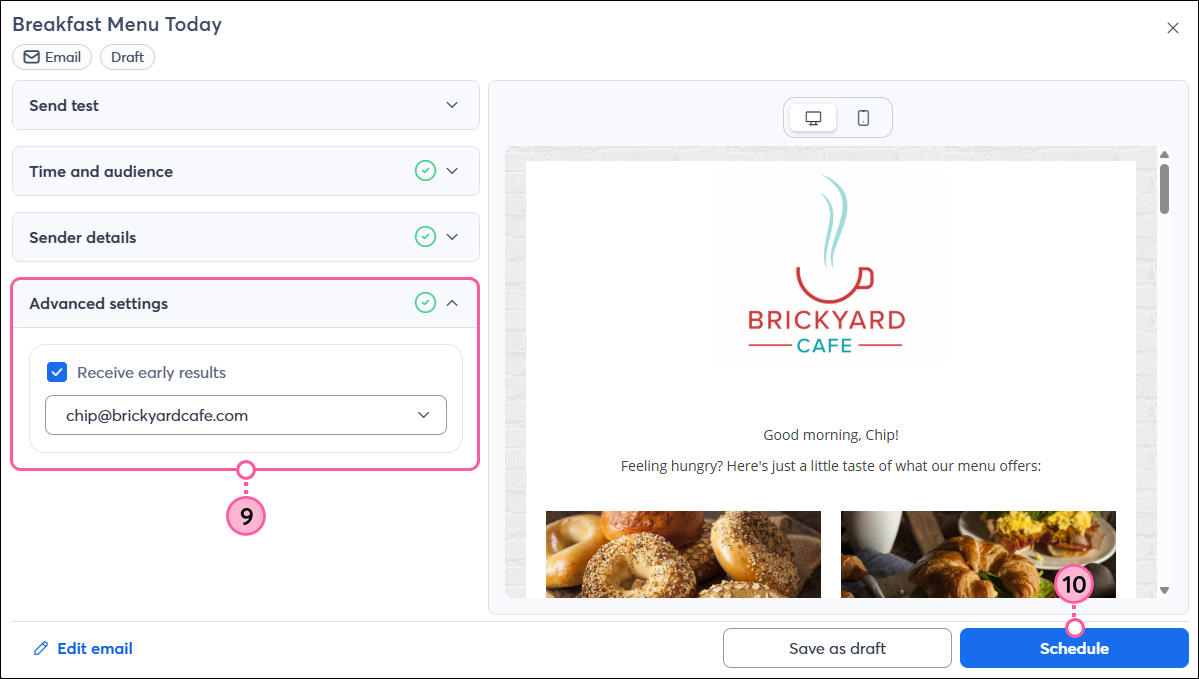
  9. (Optional) In the Advanced settings section, check the box and select a verified email address to receive the early results email. This tells you how your email performed in the first 48 hours after it was sent. 
  10. Click the Send now or Schedule button, either in the upper-right or lower-right corner of the screen.

    Note: You can click the Save or Save as draft button if you're not ready to schedule your campaign. This will retain your email content, audience, sender details, and advanced settings selections. 

    Email schedule page with Advanced Settings section and Schedule button in top-rightEmail schedule page with Advanced Settings section and Schedule button in lower-right
      
     
Megaphone IconBe a better marketer: Help extend the reach of your email by sharing it on your social media pages!


Once your email has been sent, give your contacts time to open it, then check the results to see how it's performing.

If a contact tells you they aren't receiving your email and they aren't on your bounce list, ask them to check their spam folder. If the email isn't in the spam folder, you can have your contact add your "From" email address to their email account or security program. There are also some role email addresses that Constant Contact never sends to.


Questions?

Ask the Community

Did this article answer your question?


Constant Contact Logo

Copyright © 2026 · All Rights Reserved · Constant Contact · Privacy Center