Email and Digital Marketing
How can we help you?
Search our help articles, video tutorials, and quickstart guides

You've got this. You've got us. Search our Knowledge Base to quickly find answers to your questions.

Filter your contacts by tags when sending an email

Article: 000017873
Updated: June 23, 2026

Send your email to a subgroup of contacts by selecting or excluding tagged contacts

Segmentation helps you group contacts based on their behavior, interests, or shared information. When your contacts are organized into defined groups, it's easier to create targeted email content that appeals to them.

Tags are labels you can apply to contacts across different lists, so you can create a segment without moving the contacts off the list they're currently on. When you're ready to schedule your email, you can select multiple lists and send it directly to the tagged contacts, or exclude them.


Narrow your contacts by tag when sending an email

While scheduling your email:

  1. In the Audience section, select the lists you want to send to.
  2. Click the "Filter by tag" link.
    Note: The link is only visible if you have already created tags or are sending to 10,000 contacts or fewer (see below).

    Email schedule page with Time and audience section expanded, Audience section with List option selected and lists, and Filter by tag option

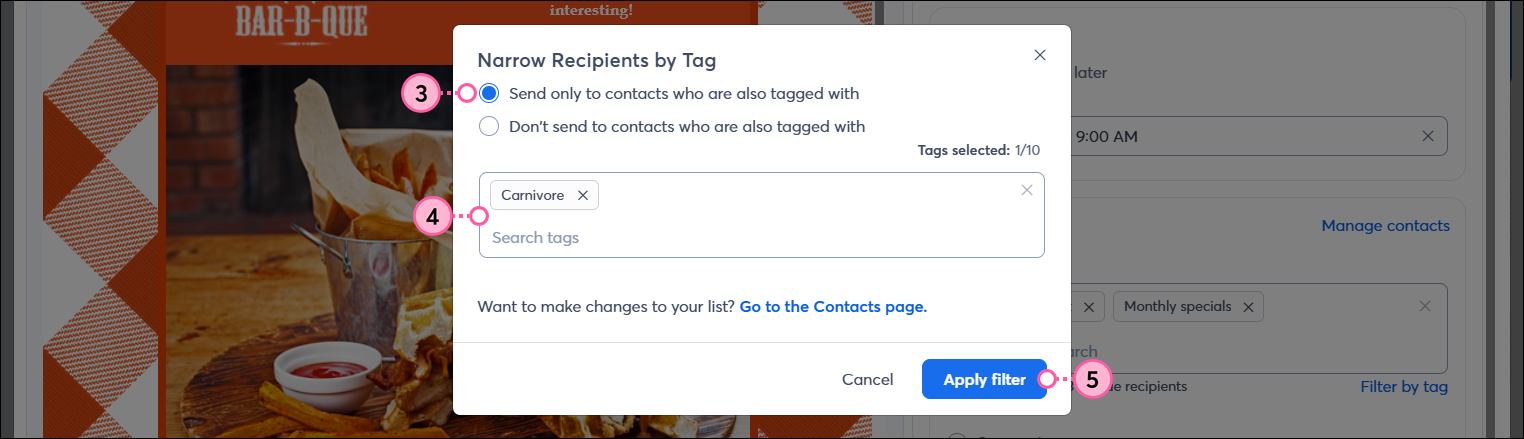
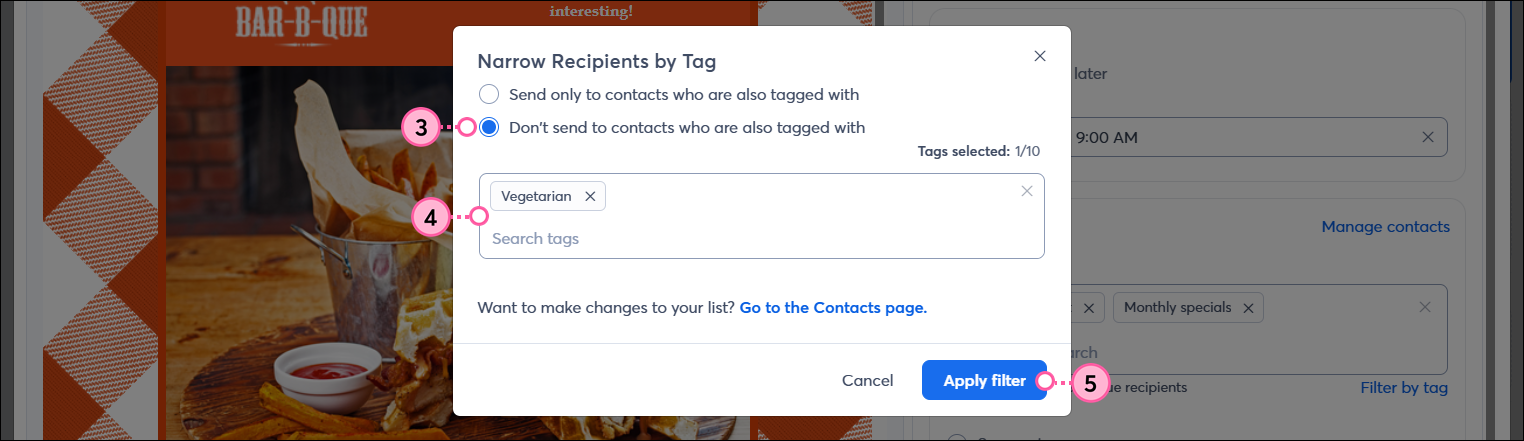
  3. Choose how you want to narrow by tag:
  • Send only to contacts who are also tagged with - This option sends your email only to the contacts on your selected lists who have been tagged with your selected tags. 
  • Don't send to contacts who are also tagged with - This option excludes the contacts on your selected lists from receiving your email if they have been tagged with your selected tags. 
  1. Select the tags you want to send to or exclude.
  2. Click the Apply filter button. You can edit or remove the tag filter up until you send the email.

    Narrow Recipients by Tag overlay with Send only to contacts who are also tagged with option selected, tag selected, and Apply filter buttonNarrow Recipients by Tag overlay with Don't send to contacts who are also tagged with option selected, tag selected, and Apply filter button
    In this example, the email about a chicken sandwich will only be sent to contacts on the Seasonal Menu and Specials list who are tagged as carnivores.In this example, the email about a chicken sandwich will be sent to everyone on the Seasonal Menu and Specials list unless they are tagged as vegetarians.


After you send your email, give your contacts a little time to open it, and then check your reporting on the Email Details page.


Sending an email to tagged contacts in accounts with over 10,000 contacts

If you have over 10,000 contacts, the tag feature isn't available when you schedule your email, but you can segment your contacts by tag and then send to the segment instead. You still have the same flexibility to include all the contacts with a tag or to exclude them:


Questions?

Ask the Community

Did this article answer your question?


Constant Contact Logo

Copyright © 2026 · All Rights Reserved · Constant Contact · Privacy Center