Email and Digital Marketing
How can we help you?
Search our help articles, video tutorials, and quickstart guides

You've got this. You've got us. Search our Knowledge Base to quickly find answers to your questions.

View subscriber and engagement insights for your contacts

Article: 000036880
Updated: October 2, 2025

See a breakdown of your contact growth and unsubscribes, and how often they open and click links in your emails, to help you better understand your contacts

Knowing a little bit about your contacts can help you create and share personalized content with them. Use your insights to better engage with your contacts through email marketing. The more targeted your content is, the better your email open rates will become!

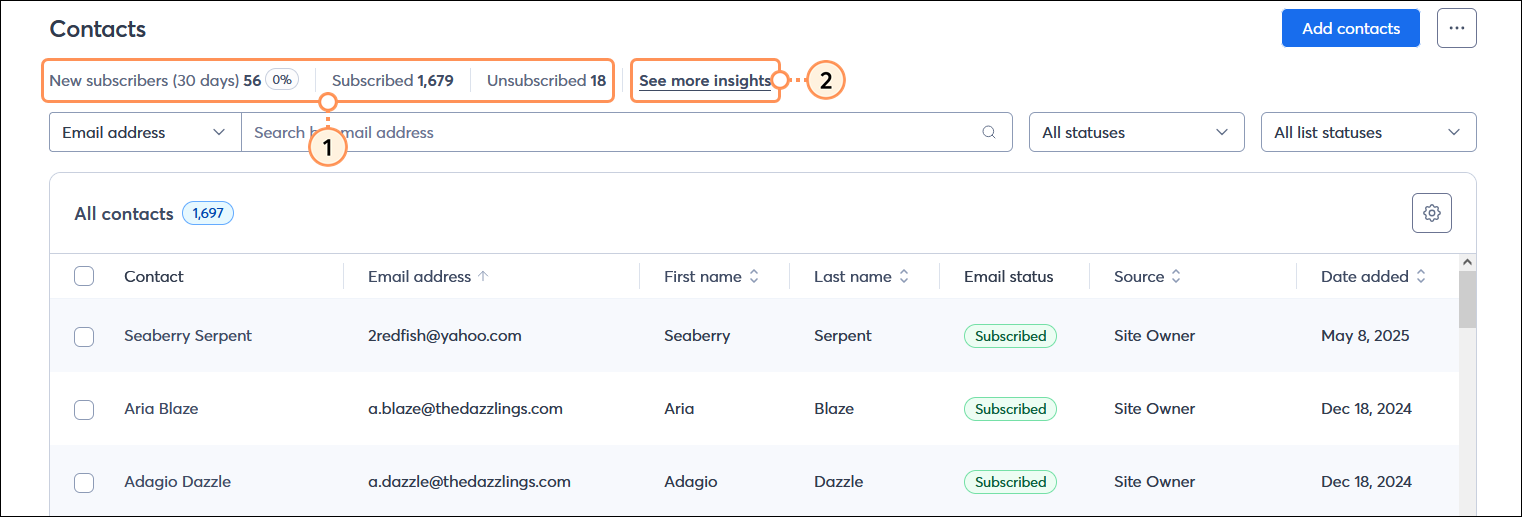
  1. Open the All contacts table and review the insights just above the search field:
  • New subscribers (30 days) - The total number of contacts added to your account within the last 30 days. 
  • Subscribed - The total number of subscribed contacts in your account to which you can actively send emails. 
  • Unsubscribed - The total number of contacts that opted out of receiving your emails during the entire lifespan of the account. 
  1. Click "See more insights" to review additional subscriber and email marketing engagement information.

    All contacts table with New subscribers (30 days), Subscribed, and Unsubscribed statistics, and See more insights link

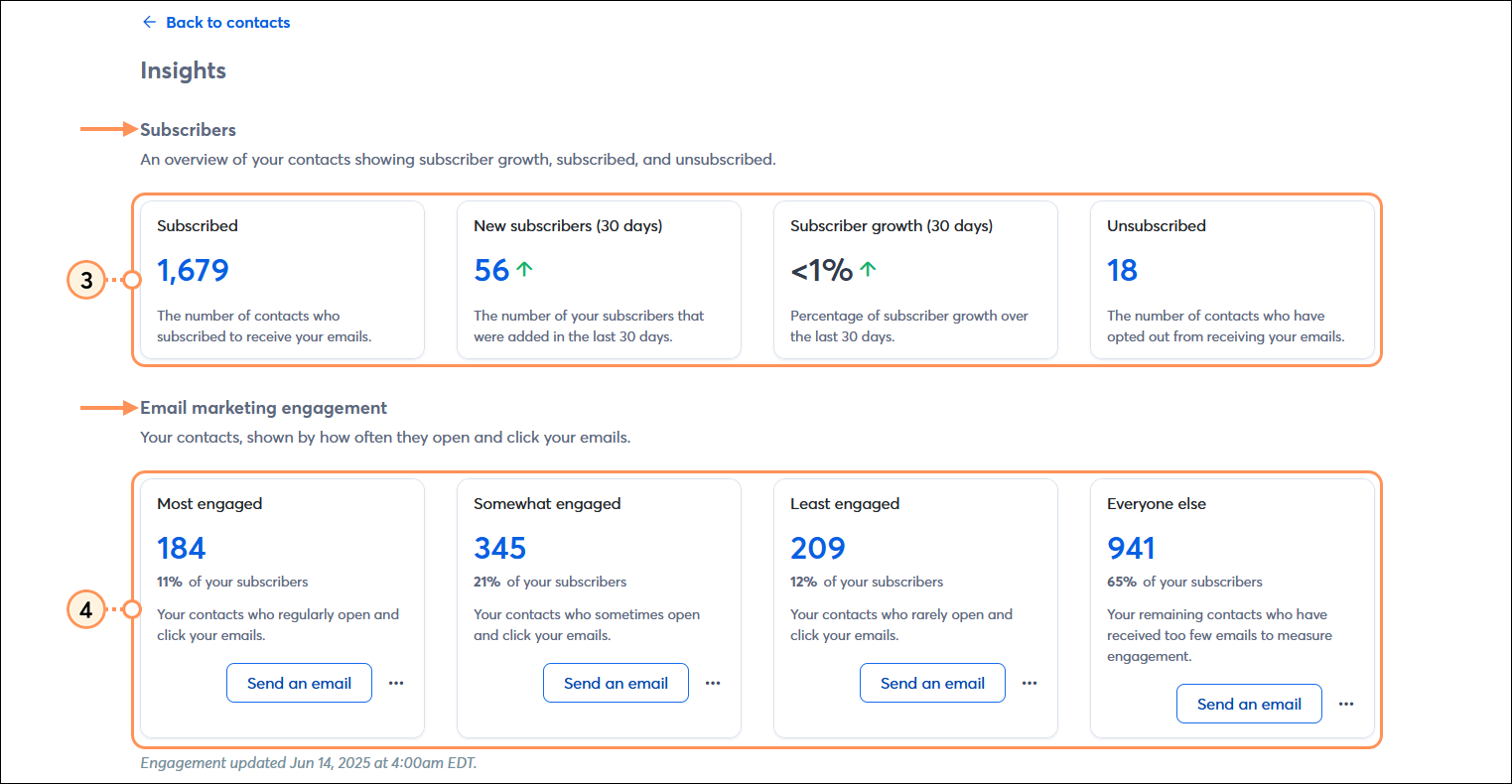
  2. Review the Subscribers section:
  • Subscribed - The total number of subscribed contacts in your account to whom you can actively send emails. Click the hyperlinked number to view the complete list of active contacts.
  • New subscribers (30 days) - The total number of contacts added to your account within the last 30 days. Click the hyperlinked number to see the list of new contacts. (You can then click the Save as Segment button to create a segment and send targeted emails to it.)
  • Subscriber growth (30 days) - The percentage of contacts that subscribed to your lists in the past 30 days.
  • Unsubscribed - The total number of contacts that have opted out of your mailing list within 30 days. Click the hyperlinked number to view the complete list of unsubscribed contacts.
  1. Scroll down to the Email marketing engagement section. Click the hyperlinked number for any engagement to see the list of specific contacts. You can also click Send an email to send a targeted email to each group of contacts.
  • Most engaged - The total number and percentage of contacts regularly opening your emails and clicking the buttons or links.
  • Somewhat engaged - The total number and percentage of contacts that sometimes open your emails and click the buttons or links.
  • Least engaged - The total number and percentage of contacts who rarely open your emails or click the buttons and links.
  • Everyone Else - The total number and percentage of contacts you either don't send to often or don't open your emails.

    Insights page, Subscribers section, and Email marketing engagement section with Send an email buttons

Now that you know how engaged your contacts are, you can send more targeted content to the contacts with the highest engagement to reward them, to the somewhat engaged contacts to boost their engagement, or to re-engage your contacts with the lowest engagement. These segments automatically refresh to ensure you're always sending to the most current group of contacts that fit the engagement criteria!


Light Bulb IconDid you know? Segmentation helps you get the right content in front of the right contacts, and when you take the time to customize your content for a targeted audience, your open and engagement rates improve! We've got the tools to segment your contacts in a way that makes sense for your organization and for your list size.


Questions?

Ask the Community

Did this article answer your question?


Constant Contact Logo

Copyright © 2026 · All Rights Reserved · Constant Contact · Privacy Center