Email and Digital Marketing
How can we help you?
Search our help articles, video tutorials, and quickstart guides

You've got this. You've got us. Search our Knowledge Base to quickly find answers to your questions.

Review a contact's email engagement activity

Article: 000033142
Updated: November 21, 2025

See how a contact has engaged with your emails so you can reward active subscribers and re-engage with inactive subscribers

Understanding contact engagement as a whole is important, but the details matter too! The contact record for each contact shows you how your contact engaged with every email you send. Once you know how a contact is engaging with you, you can reward your most active contacts and try re-engaging with your least active contacts.


Light Bulb IconDid you know? You can review engagement reporting by clicking the "See more insights" link on the Contacts page, and our segmentation tools can help you find your contacts by engagement so you can send targeted messaging to them.  


View the activity

Engagement data displays for the last five years or last 100 emails/20 SMS messages, whichever limit you reach first.

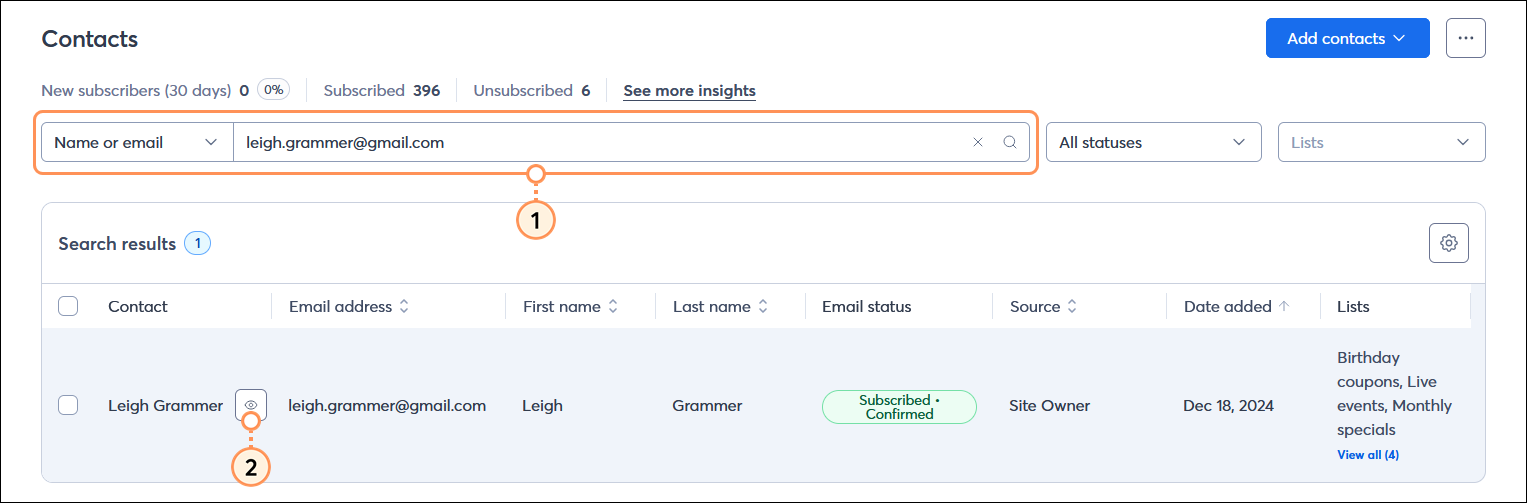
  1. From the All contacts table, search for the contact you want to view.
  2. Place your cursor over the contact's name and click the Preview (eye icon) button.
    Note: Clicking the contact's name brings you directly into their contact record (see step 5).

    Contacts page with All contacts table and Search field, search results with contact and Preview button displayed

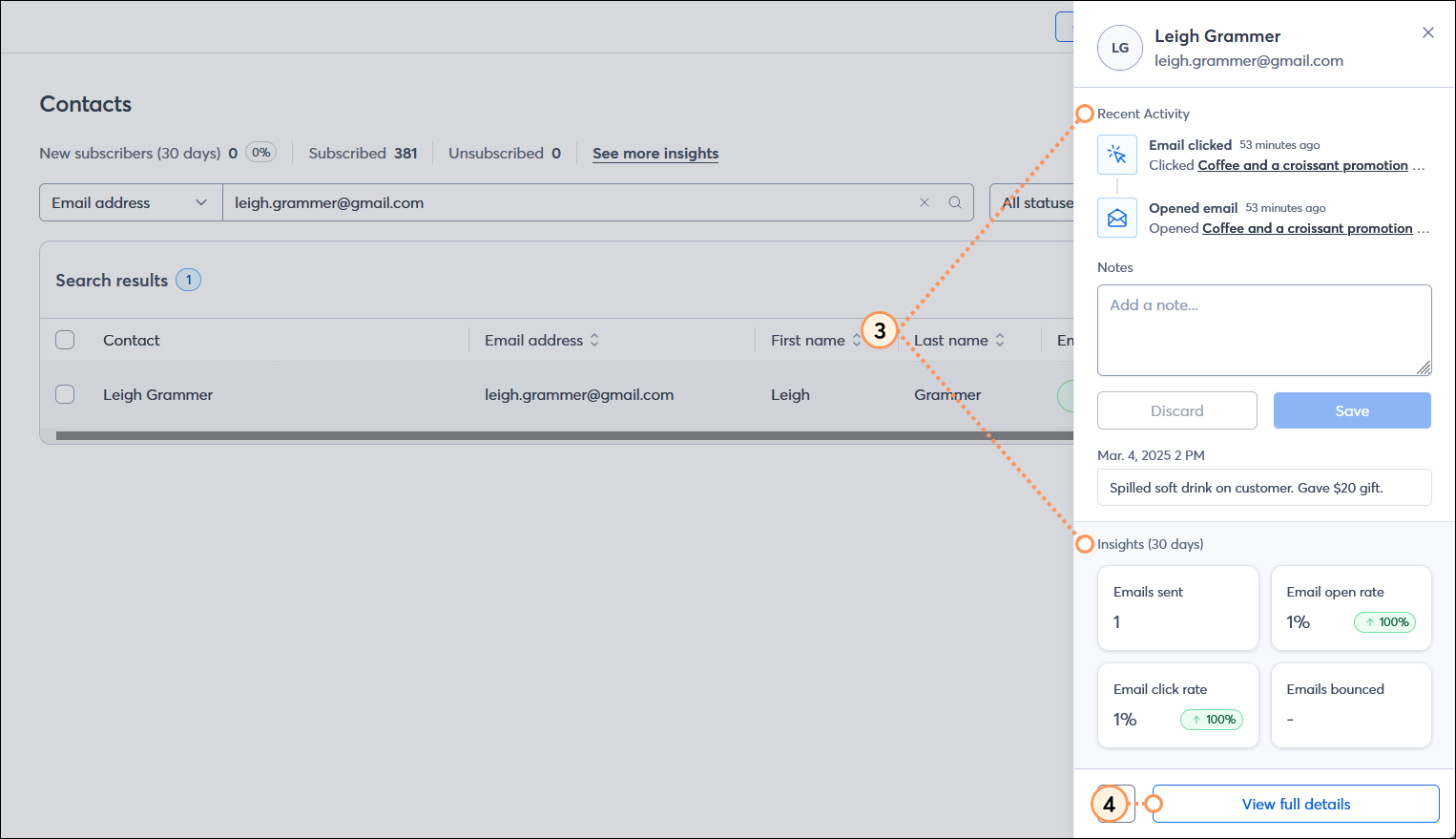
  3. From the contact panel, you can review the most recent activity and insights from the past 30 days:
  • Recent activity - This shows you the last two actions your contact made. The full list of actions is available from within the contact's record (see step 5).
  • Insights (30 days) section - This shows you a high-level overview of how many email messages were sent to the contact, the rate at which emails were opened, the link click rate for emails, and the number of bounced emails for your contact over the past 30 days. For additional information about what these rates are and how they're calculated, please see:
  1. Click the View full details button in the lower right-hand corner of the panel.

    Contacts page with contact panel expanded, Recent activity section with email open and email click information, Insights (30 days) section with Emails sent, Email opens rate, Email click rate, and Emails bounced metrics, and View full details button

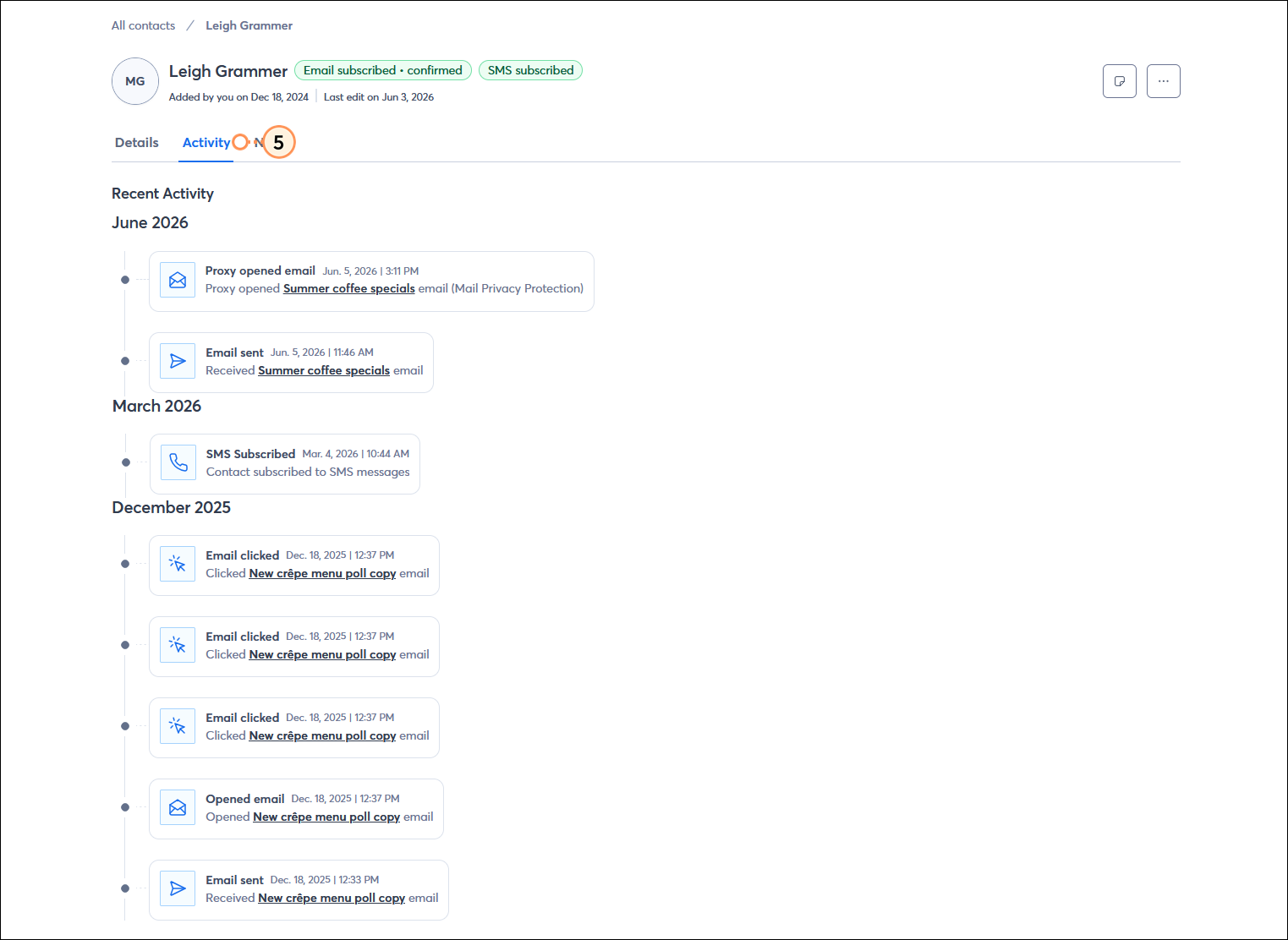
  2. Click the Activity tab to see your contact's activity broken down by month. You can see:
  • The date and time the contact subscribed for or unsubscribed from email marketing.
    Note: Unsubscribe information is available for activity through the email footer and not if a contact is manually unusbscribed or imported as an unsubscribed contact.
  • The date and time an email was sent to the contact.
    Note: Clicking on the email name opens the Email Details page in a new browser tab, so you can review the email content and reporting information.
  • The date and time the contact opened an email.
    Note: Don't be alarmed if you see multiple opens of the same email in a short span of time. Some inboxes have preview panes, and if a contact even briefly views the email in the preview pane while scrolling through their inbox, it causes the tracking pixel to display and counts it as an open.
  • The date and time the contact clicked on a link in the email.
  • If an email bounced after sending it to the contact.

    Contact record with Activty tab selected and email send, open, and link click activity


Bar chart iconDid you know? The reporting and engagement history for contacts that unsubscribe stays in your account. If an unsubscribed contact resubscribes through one of our sign-up tools, the engagement history picks up where it left off.


Make use of your activity data

So what do you do with all that engagement activity? Here are a few examples:

  • Reward the most active subscribers - You may notice that some of your contacts open every email! Give them even more reason to keep engaging with you by sending them emails that reward their behavior. This could be anything from exclusive coupons and special promotions to early access. Our segmentation tools make it easy to target these contacts too!
  • Force a little engagement - Send a Confirmed Opt-in Email to your least engaged contacts to make sure they still want to be a part of your list. You won't be able to send to them until they respond, but don't worry about losing contacts because they're dragging down your open rate.
  • Create targeted content for your least active subscribers - If engagement started out great but has since gone stale, try creating more targeted and interactive content to re-engage your contacts. These contacts need to be reminded about the benefits of being part of your contact list!
  • Remove inactive subscribers - Sending to bounced email addresses or contacts that never open isn't helping your engagement! Take some time to clean up your list and remove unwanted contacts.


Blue Ribbon IconBe a better marketer: Want to learn even more about how to re-engage your contacts? Check out these tips to increase your open rate.


Questions?

Ask the Community

Did this article answer your question?


Constant Contact Logo

Copyright © 2026 · All Rights Reserved · Constant Contact · Privacy Center