We're making it easier to get around Constant Contact with a brand new left navigation. Not all accounts have that change yet, so if your navigation looks different from our articles, that's why–but everything from the top can now be found on the left!

Email and Digital Marketing
How can we help you?
Search our help articles, video tutorials, and quickstart guides

You've got this. You've got us. Search our Knowledge Base to quickly find answers to your questions.

Search for an individual contact or group of contacts

Article: 000034610
Updated: October 23, 2025

Search for a contact by name or email address, or search for multiple contacts across multiple lists that share similar contact information, like city or company name

Use the Search feature to find a specific contact, or group of contacts, based on their email address or email domain, first or last name, job title, company, city, state, ZIP code, or any custom fields that you've created. The search is a "starts with" search that looks for matches across all of your lists, and ignores a contact's status.
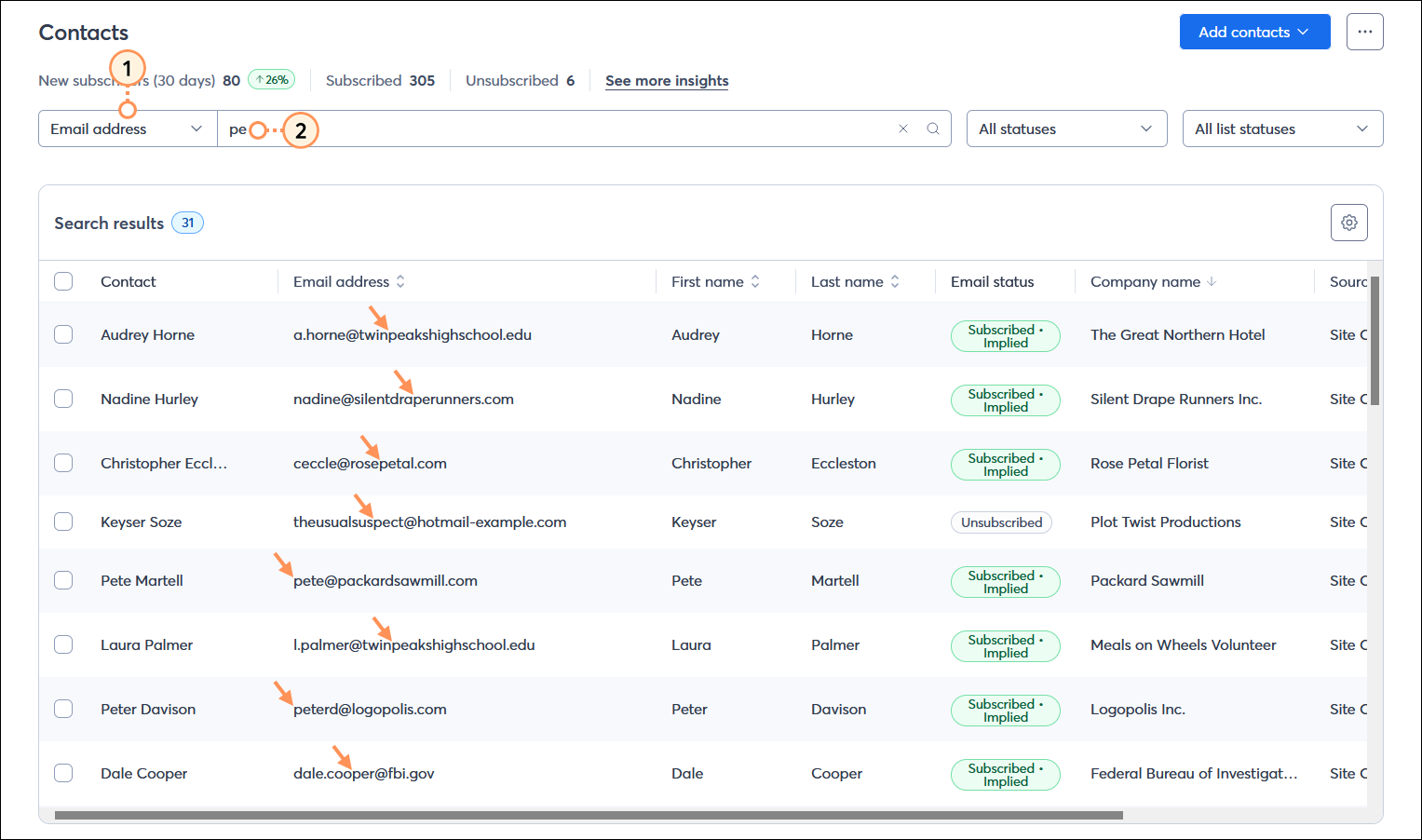
  1. From the Contacts page, click on the menu to the left of the Search field to select a criterion from the drop-down menu.
  • Email address
  • First name
  • Last name
  • Job title
  • Company name
  • City
  • State/Province
  • Zip/Postal Code
  • SMS number
  • Custom field
  1. Enter your search term or a few characters into the Search field and then hit Enter. The search looks within the whole criteria, so you get results that start with or contain your search term or character string. For example, you can choose the "Email address" option and search for a partial domain, like "gmail" or even "gm."
    Note:  The default "Name or email" option looks for an exact match of the characters you enter at the start of a name or email address and doesn't return results with characters in the middle.

    Contacts page with Search criteria drop-down menu and email address option selected, Search field, and search results


Now that you have your search results, there are several different actions you can take: 


Clock IconSave Time: If you find yourself doing the same search over and over, try using our segmentation tools instead! You can create a segment based on the contact details and custom fields you have on file for your contacts, or based on their engagement activity, and then add the segment to a contact list. The segment is saved and can be refreshed so that you've always got the most current group of contacts that meet your search criteria.


Questions?

Ask the Community

Did this article answer your question?


Constant Contact Logo

Copyright © 2025 · All Rights Reserved · Constant Contact · Privacy Center