We're making it easier to get around Constant Contact with a brand new left navigation. Not all accounts have that change yet, so if your navigation looks different from our articles, that's why–but everything from the top can now be found on the left!

Email and Digital Marketing
How can we help you?
Search our help articles, video tutorials, and quickstart guides

You've got this. You've got us. Search our Knowledge Base to quickly find answers to your questions.

View and edit the contact record for an individual contact

Article: 000033117
Updated: October 29, 2025

View and change the contact information or contact details associated with an individual contact

The details matter! The more information you have included in the contact record, the better you know the contact, and the more you can personalize your emails for them; contact information can be included in the body of your emails and in your subject lines, and can also be used to segment your contact list!
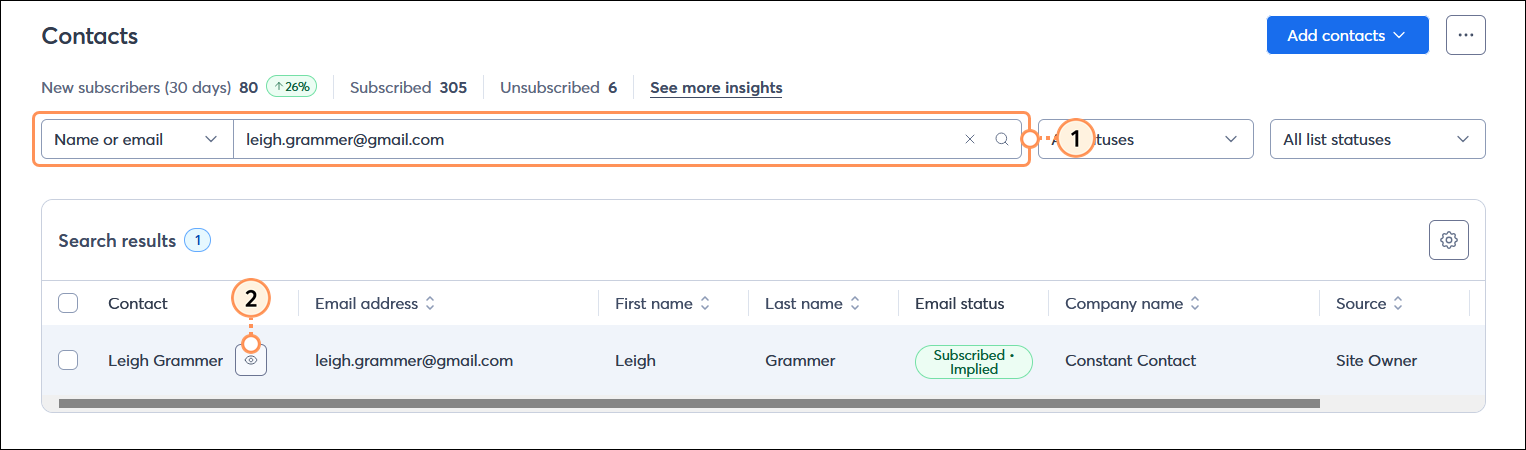
  1. From the Contacts page, search for the contact you want to review.
  2. Place your cursor over the contact's name and click the Preview (eye icon) button.

    Contacts tab, Contacts tab selected, Search field and search results, contact menu expanded, and View option

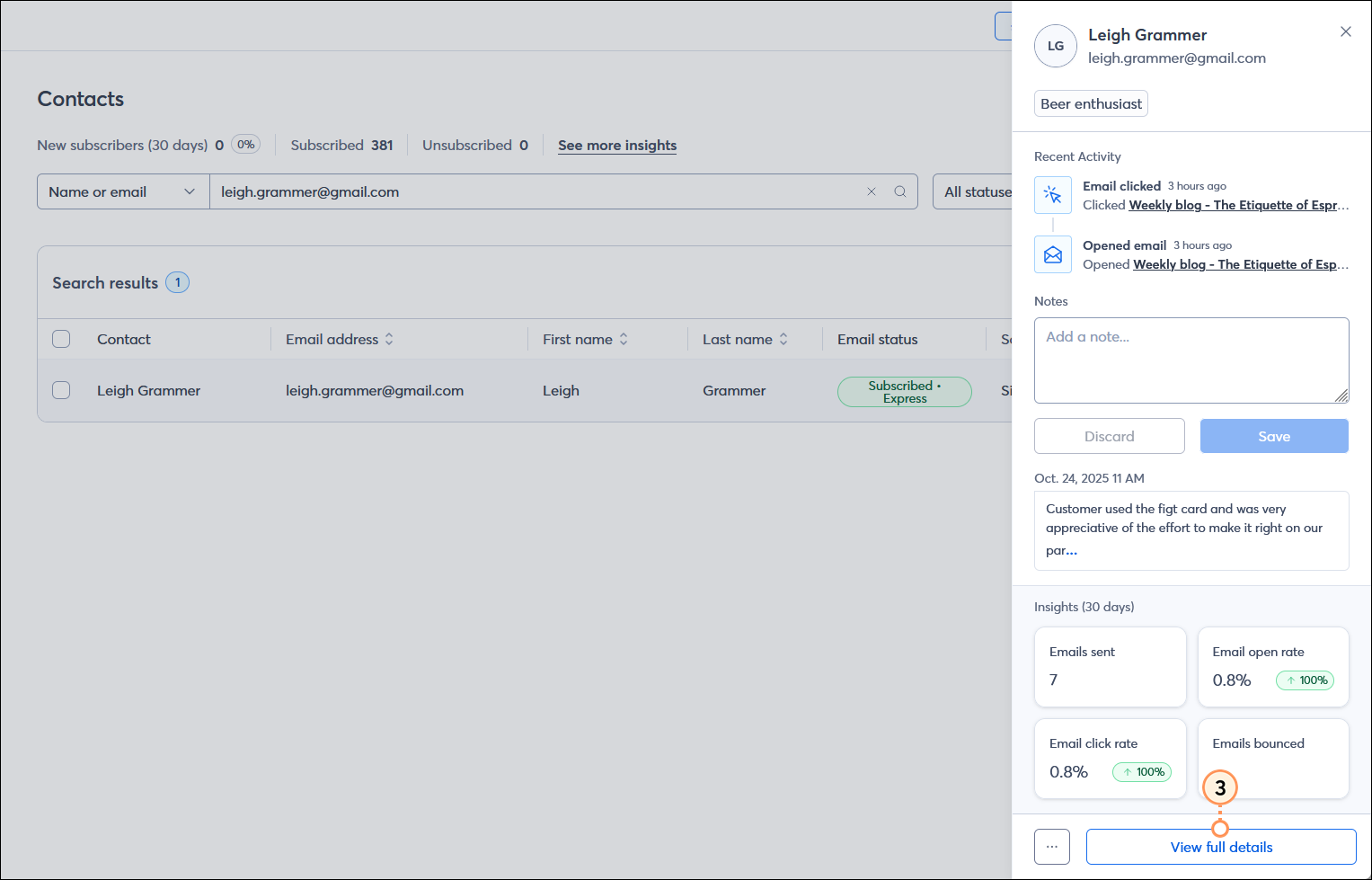
  3. From the panel on the right-hand side of the page, click the View full details button.

    Contact Details overlay with Details tab selected, Campaign channels, Basic details, Lists, and Tags information, and Edit Contact button

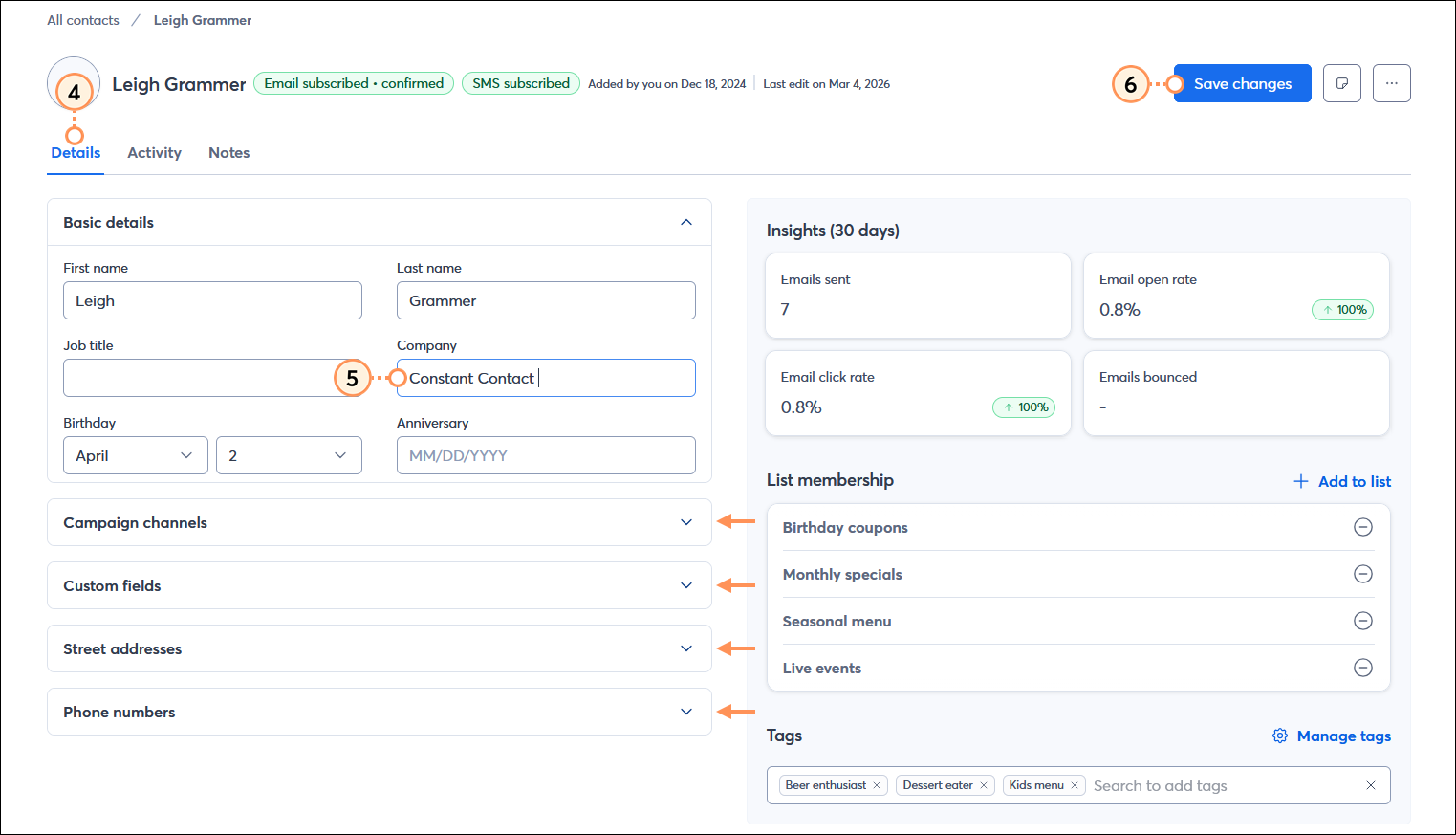
  4. From the Details tab, you can view and edit:
  • Basic Details - You can view and edit your contact's first and last name, job title, company name, birthday, and anniversary date at any time.
  • Campaign channels - You can view your contact's email address, email status, SMS phone number, and SMS status. The email address field is editable unless the contact has provided express permission through the confirmed opt-in process (the Confirm Opt-in email or the Reconfirm Opt-in email). If a confirmed contact has a new email address, you need to create a new contact instead. You can add an SMS phone number and consent date, but if the contact opted in through a sign-up form or text to join, these fields aren't editable.
    Note: The advanced email permissions must be enabled in your account settings to see implied or express permission in the Email status option.
  • Tags - You can view all the tags assigned to your contact, or edit the tags to create, add, or remove them.
  • Street addresses - You can include a work address, home address, and "other" address. All of the fields for all three address types are editable at any time.
  • Insights (30 days) - You can view the number of emails sent, the email open rate, the email click rate, and the number of bounced emails over the past 30 days. These fields update automatically based on your contact's activity.
  • List membership - You can view all the lists your contact is a part of and add or remove lists.
  1. Place your cursor over a field and click the pencil icon to edit it. If the pencil icon isn't visible, the field isn't editable.

    Contact record with Details tab selected, Basic details section expanded with edit options visible, Campaign channels expanded, Tags section expanded, Custom fields, Street addresses, and Phone numbers sections collapsed with expand controls, Insights section, and List membership section

Make sure to round out the full picture of your contact by clicking the Activity tab and Notes tab too!


Light Bulb IconDid you know? You can give your contacts a chance to update the information that you have on file for them by including the "Update Profile" link in your email footer. Any time a contact clicks the link, they can make updates and add new information for you.


Questions?

Ask the Community

Did this article answer your question?


Constant Contact Logo

Copyright © 2025 · All Rights Reserved · Constant Contact · Privacy Center