Email and Digital Marketing
How can we help you?
Search our help articles, video tutorials, and quickstart guides

You've got this. You've got us. Search our Knowledge Base to quickly find answers to your questions.

Add and manage notes for an individual contact

Article: 000039889
Updated: October 24, 2025

Add unique customer insights or sales notes to a contact's record, and view, edit, or delete notes after they're created

When you need to store a little bit more information about one of your contacts, just add a note to their contact record. It's a great way to track where customers are in your sales funnel or add valuable insights about your customers and supporters.
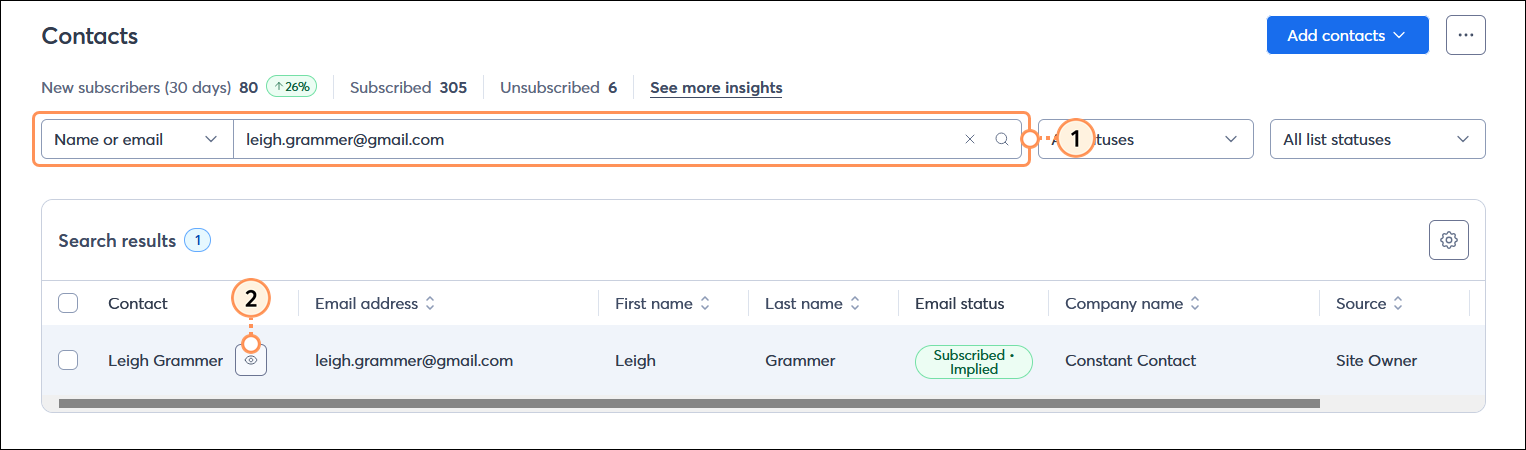
  1. From the Contacts page, search for the contact you want to edit.
  2. Place your cursor over the contact's name and click the Preview (eye icon) button.
    Note: Clicking the contact's name brings you directly into their contact record (see step 5).

    Contacts page with Search field and search results, and contact with Preview button

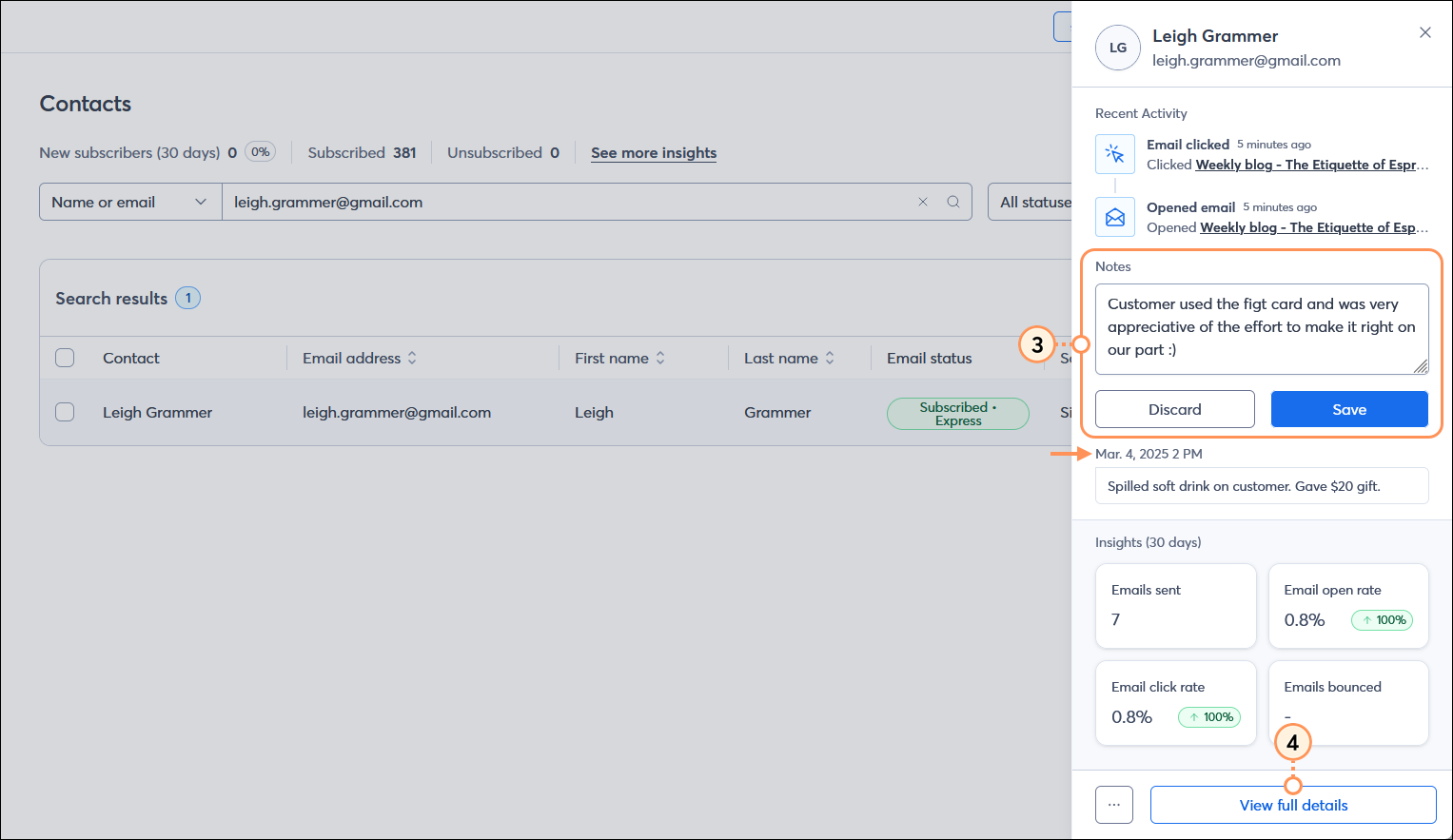
  3. Enter your content into the Notes field and click the Save button. You can create up to 150 notes for each contact, and each note can have up to 2,000 characters.
    Note: If your contact already has notes in their contact record, the last note that was created appears below the Save button.
  4. Click the View full details button to further manage your notes.

    Contacts page with contact panel expanded, Notes section with Note field and Save button and previous note, and View full details button

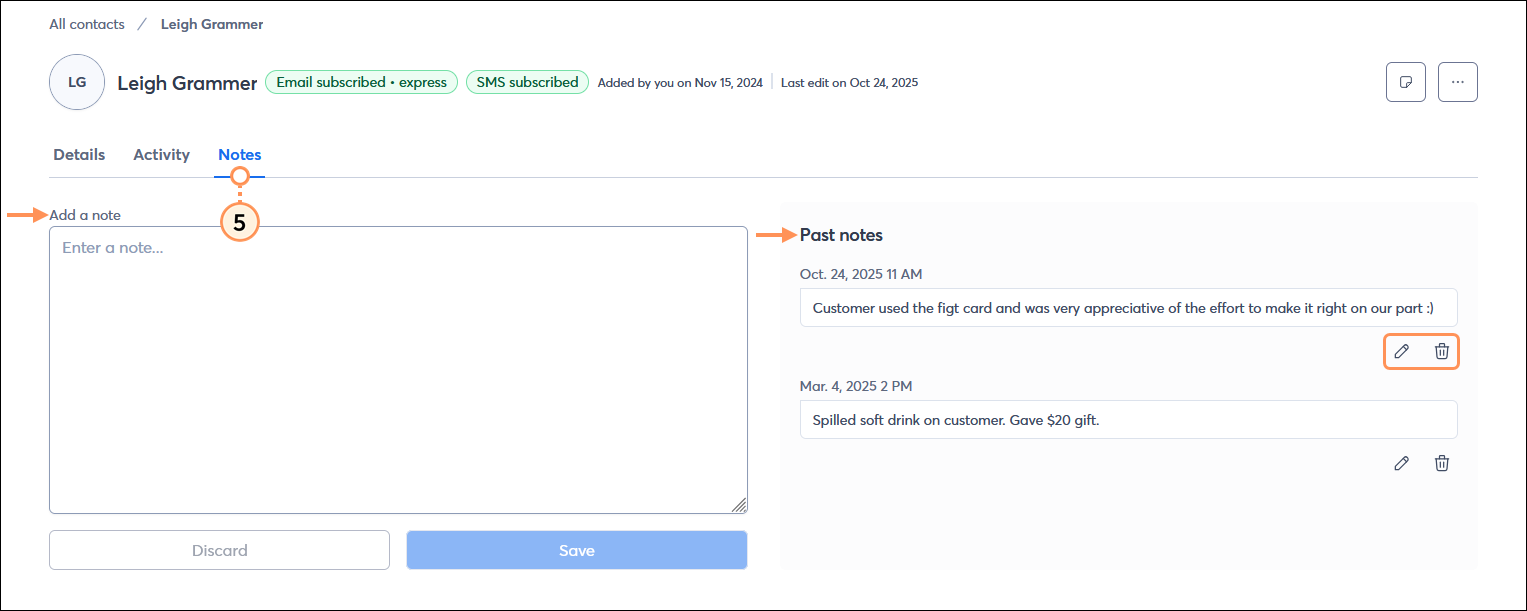
  5. Click the Notes tab.

    Contact record with Notes tab selected, Add a note field and Past notes section with Edit (pencil) icon, and Delete (trash can) icon 

  6. You can add a new note, or in the Past notes section, click the:
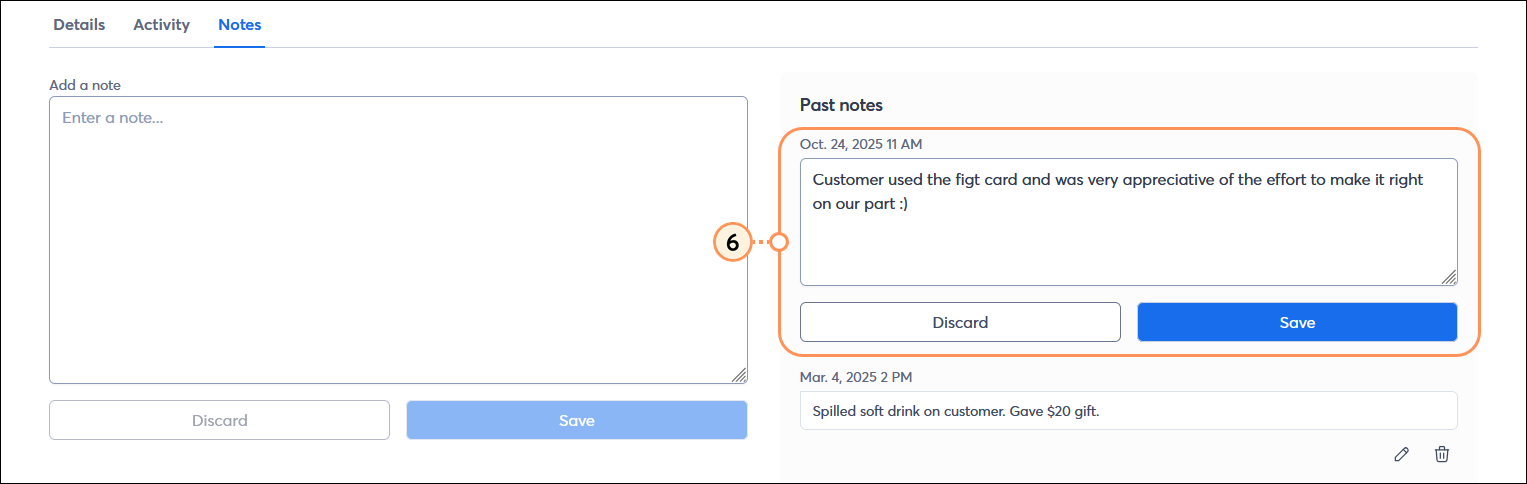
  • Pencil icon - This lets you edit the content of a note. Click the Save button when finished.

    Contact record with Notes tab selected, Past notes section with edit option enabled, and Note field with Save button

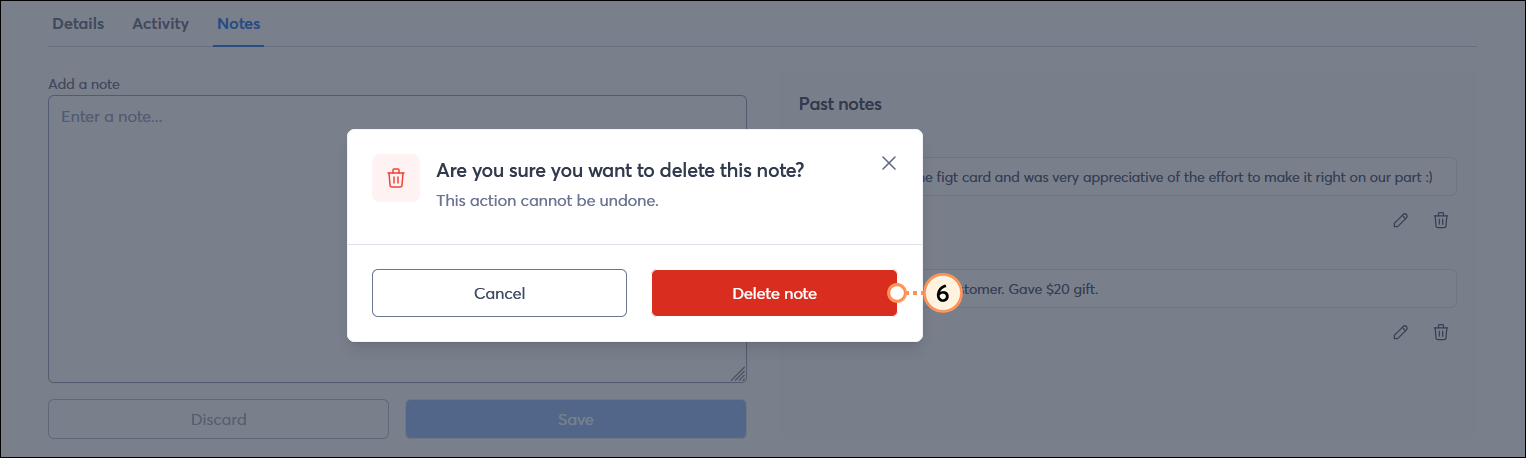
  • Trash can icon - This lets you delete a note. Click the Delete note button to confirm the action.

    Are you sure you want to delete this note overlay with Delete note button


Light Bulb IconDid you know? When you export your contacts, you can choose what information you want to export, including your notes!


Questions?

Ask the Community

Did this article answer your question?


Constant Contact Logo

Copyright © 2026 · All Rights Reserved · Constant Contact · Privacy Center