We're making it easier to get around Constant Contact with a brand new left navigation. Not all accounts have that change yet, so if your navigation looks different from our articles, that's why–but everything from the top can now be found on the left!

Email and Digital Marketing
How can we help you?
Search our help articles, video tutorials, and quickstart guides

You've got this. You've got us. Search our Knowledge Base to quickly find answers to your questions.

Add or remove tags from multiple contacts

Article: 000039072
Updated: October 23, 2025

Select multiple contacts and add or remove existing tags, or create a new tag to apply to the group

Tags are labels you can add to contacts, even if they're on different lists, that help you segment your audience. If you've created all your tags ahead of time, it's quick and easy to apply them to groups of contacts as needed. However, new tags can also be created simultaneously when you add them to your contacts. Just select the contacts you want to tag and make the tags as you go. Tags are also easy to remove when they are no longer applicable.


Light Bulb IconDid you know? If you have a large number of contacts that need to be updated with tags, you can update them all at the same time by importing a file with a "Tags" column.


Add or remove tags from a group of contacts

You can create up to 500 unique tags within your account, and each tag has a maximum limit of 255 characters.
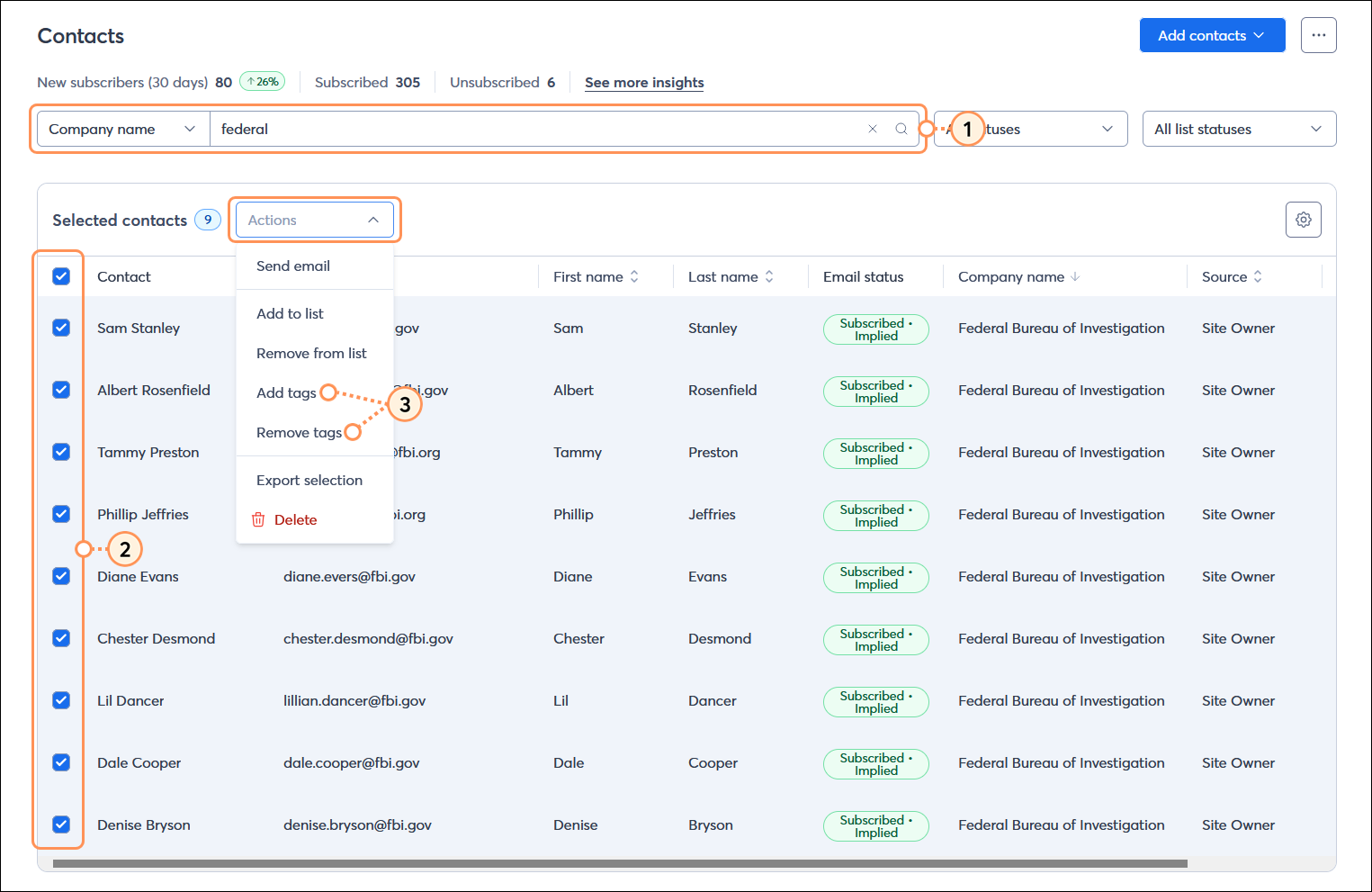
  1. From the Contacts page, search for the contact or group of contacts you want to edit.
  2. Select the contacts you want to update from the search results.
  3. Click Actions > Add tags or Remove tags.

    Contacts page with Search criteria menu and Company name option selected, Search field, All contacts table with search results and all contacts selected, and Actions drop-down menu expanded with Add tags and Remove tags options

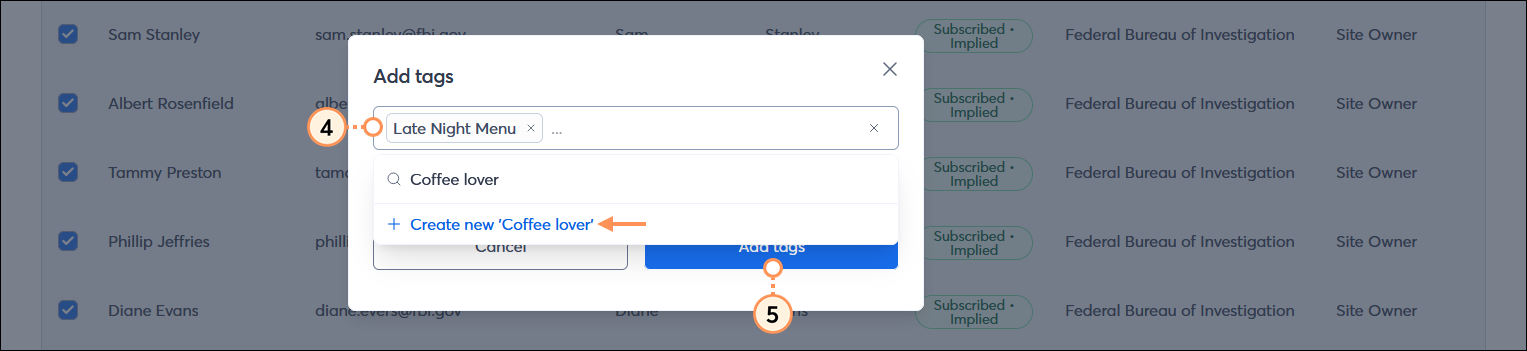
  4. Select a tag from the drop-down menu, or enter a couple of characters into the Search tags field to narrow your tag options.
    Note: If you want to create a new tag, type in the name of your new tag and select the "+Create new [tag name]" option from the drop-down menu. The new tag is now also available to add to any of your contacts.
  5. Click the:
  • Add tags button

    Add tags overlay with Tags field with tag selected, and Create new tag option, and Add tags button visible behind the tag drop-down menu

  • Remove tags button

    Remove tags overlay with Tag field and tag selected, and Remove tags button


Use tags to segment your contacts

Tags are an easy way to get started with contact segmentation! Segmenting your contacts into targeted groups allows you to deliver the right content to the right contacts at the right time.


Questions?

Ask the Community

Did this article answer your question?


Constant Contact Logo

Copyright © 2025 · All Rights Reserved · Constant Contact · Privacy Center