We're making it easier to get around Constant Contact with a brand new left navigation. Not all accounts have that change yet, so if your navigation looks different from our articles, that's why–but everything from the top can now be found on the left!

Email and Digital Marketing
How can we help you?
Search our help articles, video tutorials, and quickstart guides

You've got this. You've got us. Search our Knowledge Base to quickly find answers to your questions.

Create a list from tagged contacts

Article: 000006062
Updated: November 5, 2025

Select all the contacts with a specific tag and add them to a new or existing contact list

Clock IconSave time: When you create and send an email, you can choose to filter your lists by tags and either send to or exclude contacts with a tag. No need to move them to a new list first!


Tags help you segment your list into sub-groups of contacts within a list or across multiple lists. Tagged contacts can be added to a contact list at any time, and you can create a new list just for them or add them to an existing list. Your choice!
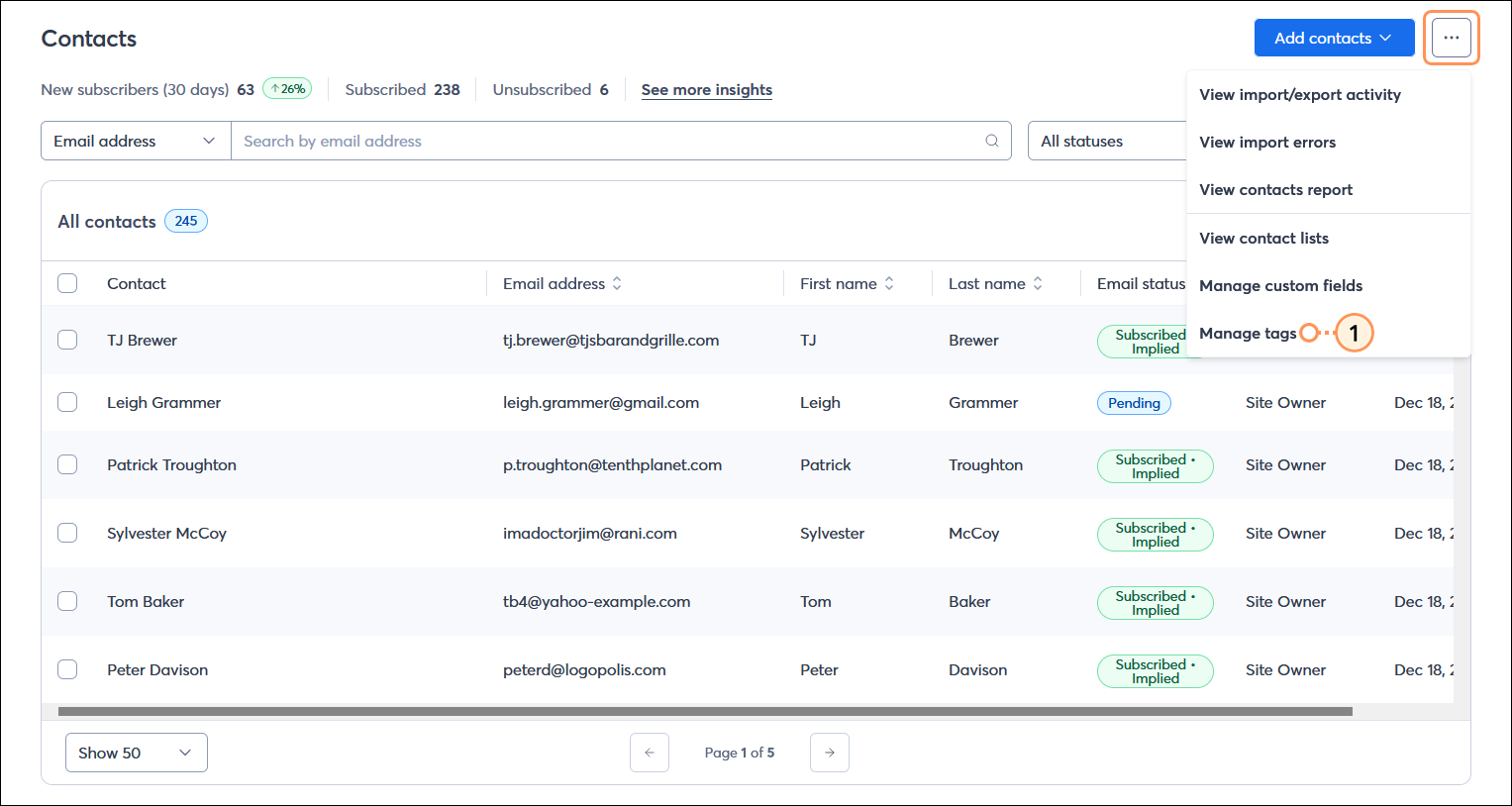
  1. From the Contacts page, click the button with the three dots in the upper right-hand corner and select the "Manage tags" option.

    Contacts page with page menu expanded and Manage tags option selected

  2. In the All tags table, click on the name of the tag you want to view.

    Tag view page with Contact option selected and Select all contacts option

  3. Select the "Contact" box, and if you have multiple pages of contacts, click the "Select all [number] contacts" option.

    Manage tags page with All tags table and tag name

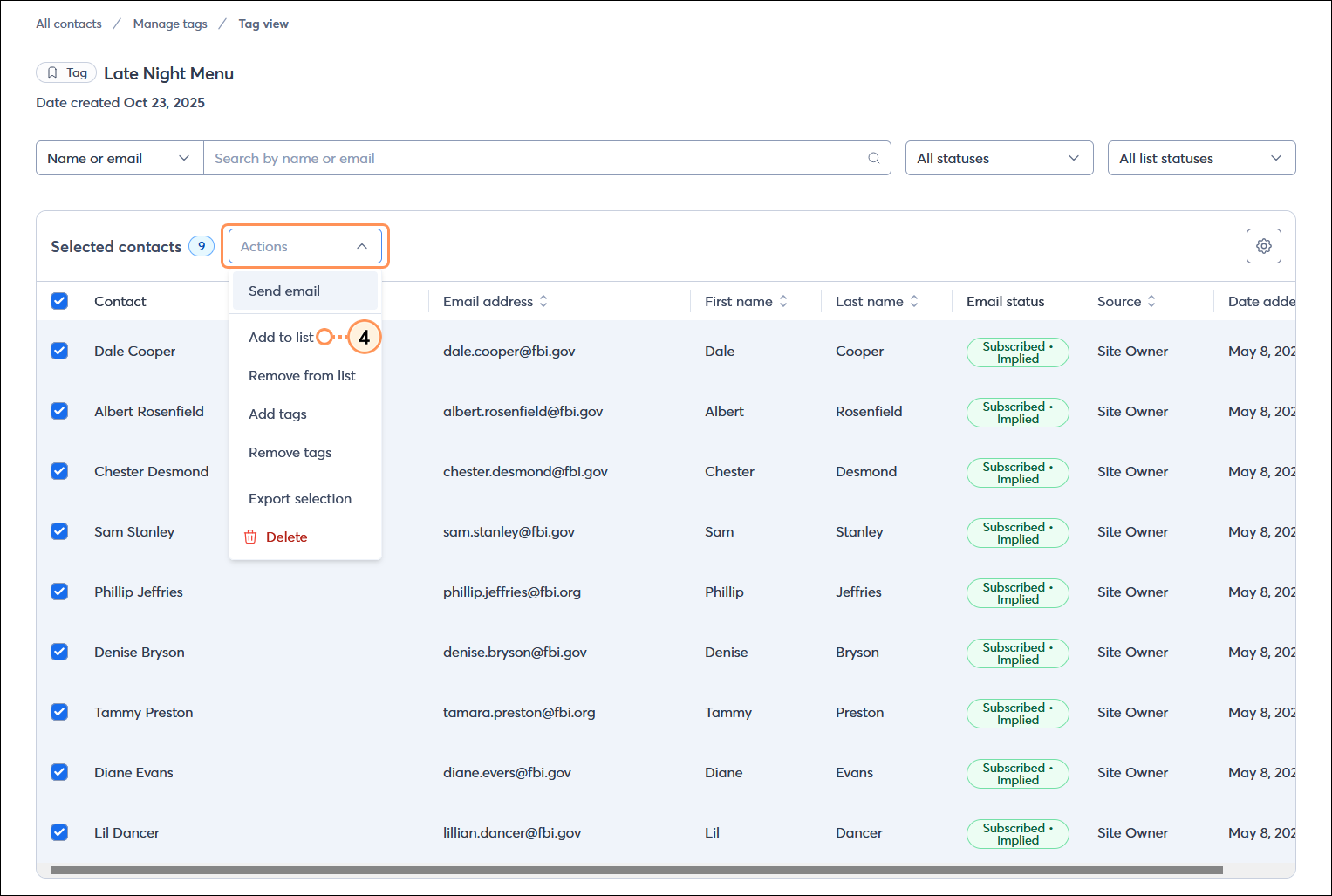
  4. Click Actions > Add to list.

    Manage tags page with all contacts selected and Actions menu expanded with Add to list option selected

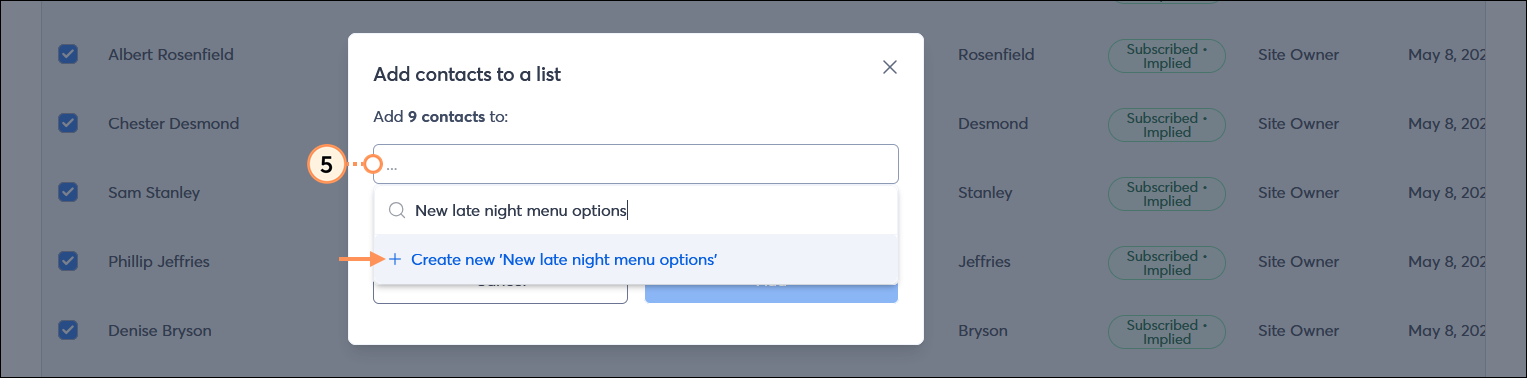
  5. Click anywhere in the Search lists fields and enter the name of the new list you want to create, then select the "+ Create new [list name]" option from the drop-down menu to create it.

    Add contacts to a list overlay with list field with new list name and create list option visible in drop-down menu

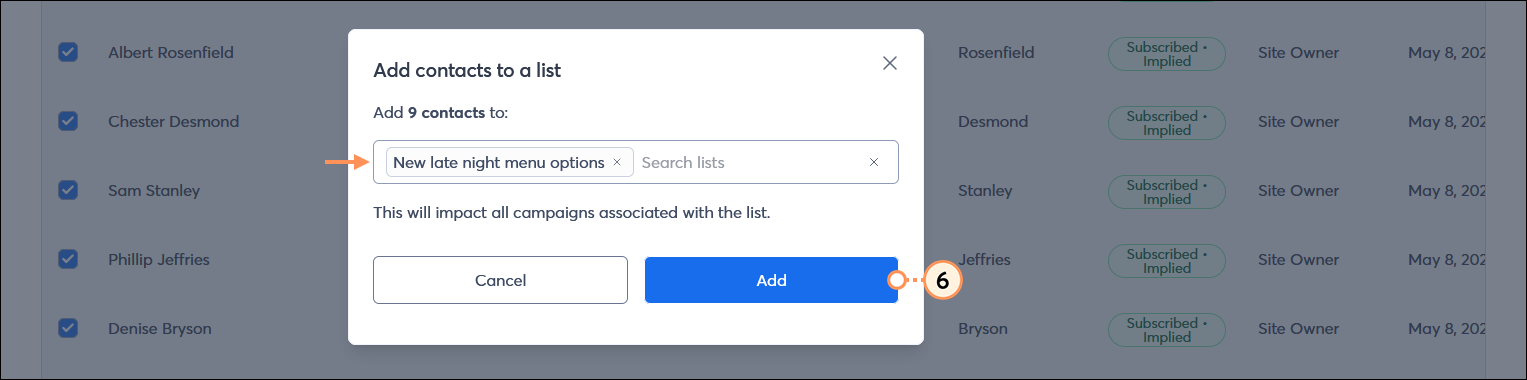
  6. Click the Add button.

    Add contacts to a list overlay with list field and new list created, and Add button

    Repeat these steps for each tag with contacts you want to add to the list. Once your tagged contacts are added to the list, you can engage with them by sending an email with targeted and personalized content to the list or, if your contacts have opted into SMS marketing, you can also send an SMS message to the list too.


    Questions?

    Ask the Community

    Did this article answer your question?


    Constant Contact Logo

    Copyright © 2025 · All Rights Reserved · Constant Contact · Privacy Center