Email and Digital Marketing
How can we help you?
Search our help articles, video tutorials, and quickstart guides

You've got this. You've got us. Search our Knowledge Base to quickly find answers to your questions.

Import a list of unsubscribed contacts from another provider

Article: 000033118
Updated: October 9, 2025

Upload a file of unsubscribed contacts from a different email marketing service into Constant Contact to prevent accidental mailings

Light Bulb IconDid you know? Before you import your file, prevent import errors by making sure your file is formatted so Constant Contact can recognize all the information.


Contacts are considered unsubscribed if they opt out by clicking the "unsubscribe" link in one of your emails or ask not to receive your mailings in some other way. If you're moving from another email marketing service and have a list of unsubscribed contacts, or you've been keeping track of them on your own, it’s important to add them to your Constant Contact account. This keeps you compliant with the CAN-SPAM Act and prevents you from accidentally sending unwanted emails if the contact is accidentally included on your contact list.
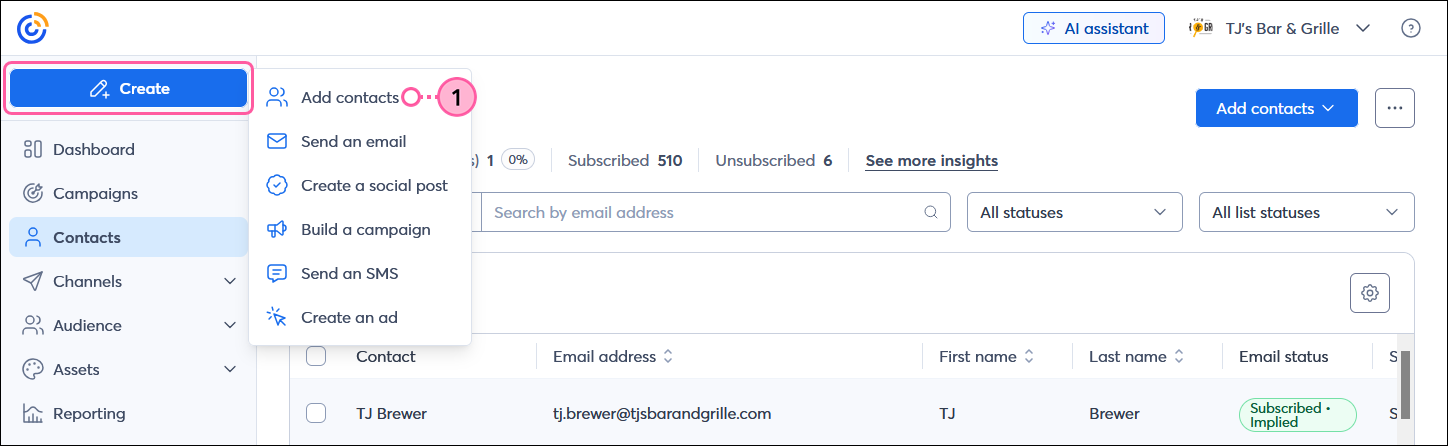
  1. In the menu on the left-hand side, click Create > Add contacts.

    Left-hand menu with Create button and menu expanded, and Add contacts option selected

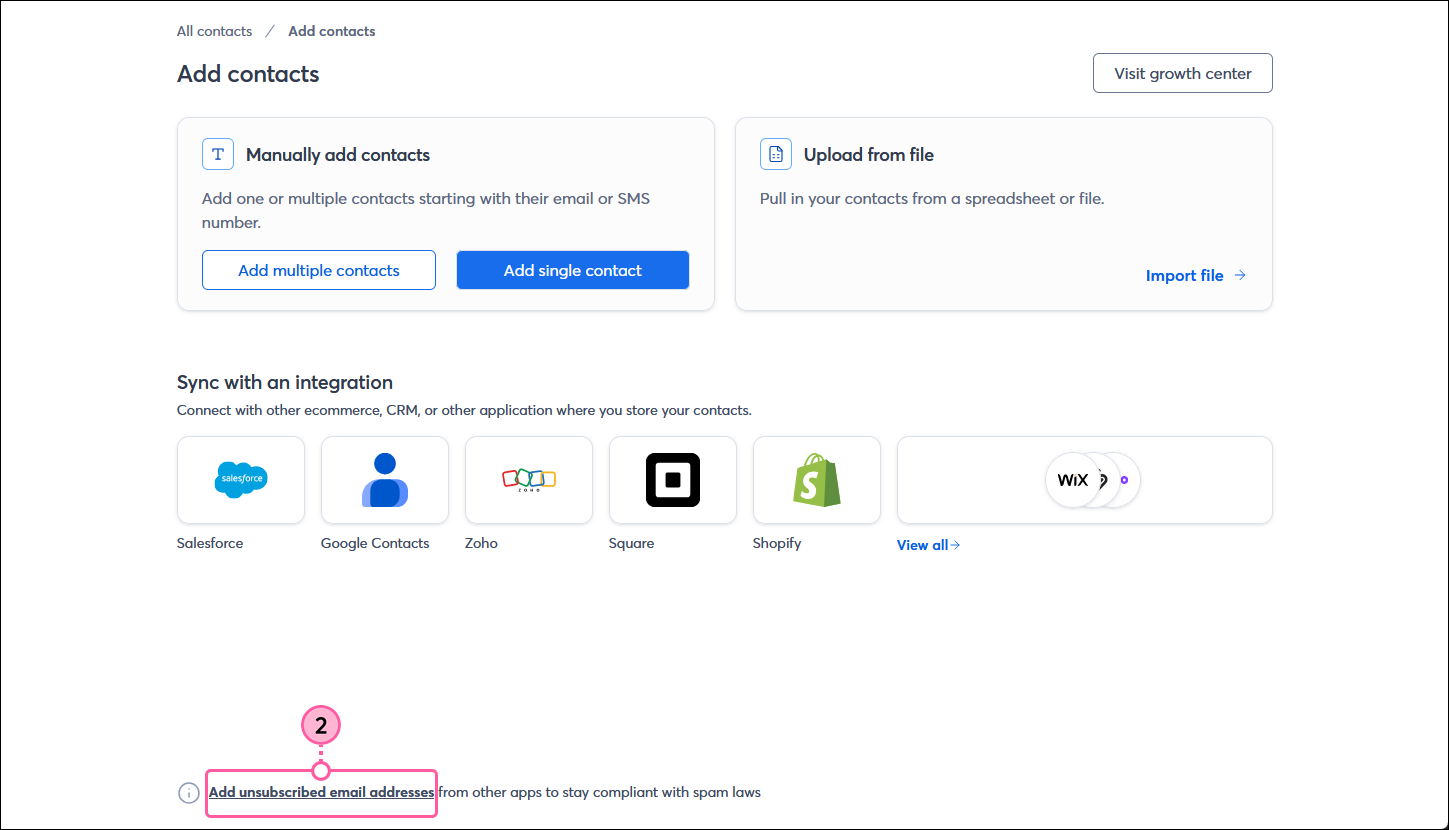
  2. At the bottom of the Add contacts page, click the "Add unsubscribed email addresses" link.

    Add contacts page with Add unsubscribed email addresses link

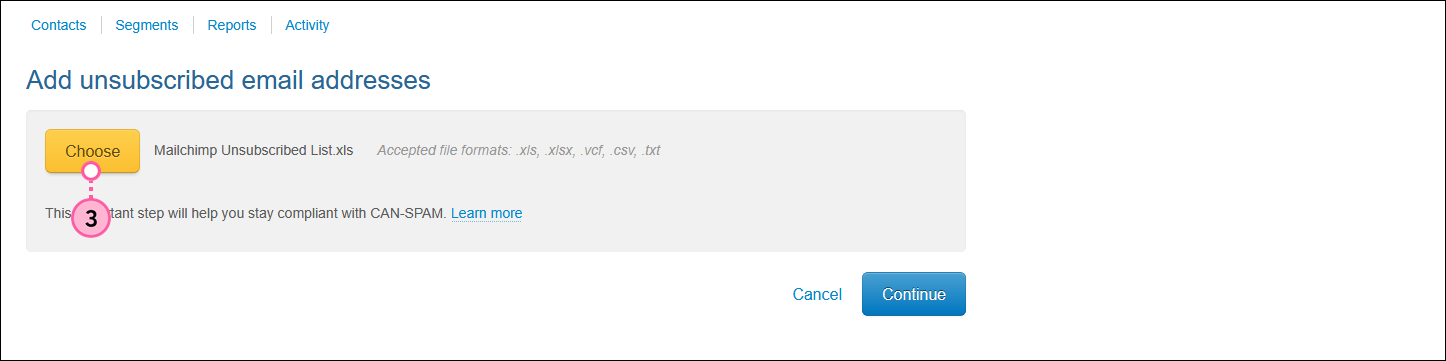
  3. From the Add unsubscribed email addresses page, click the Choose button.

    Add unsubscribed email addressses page with Choose button

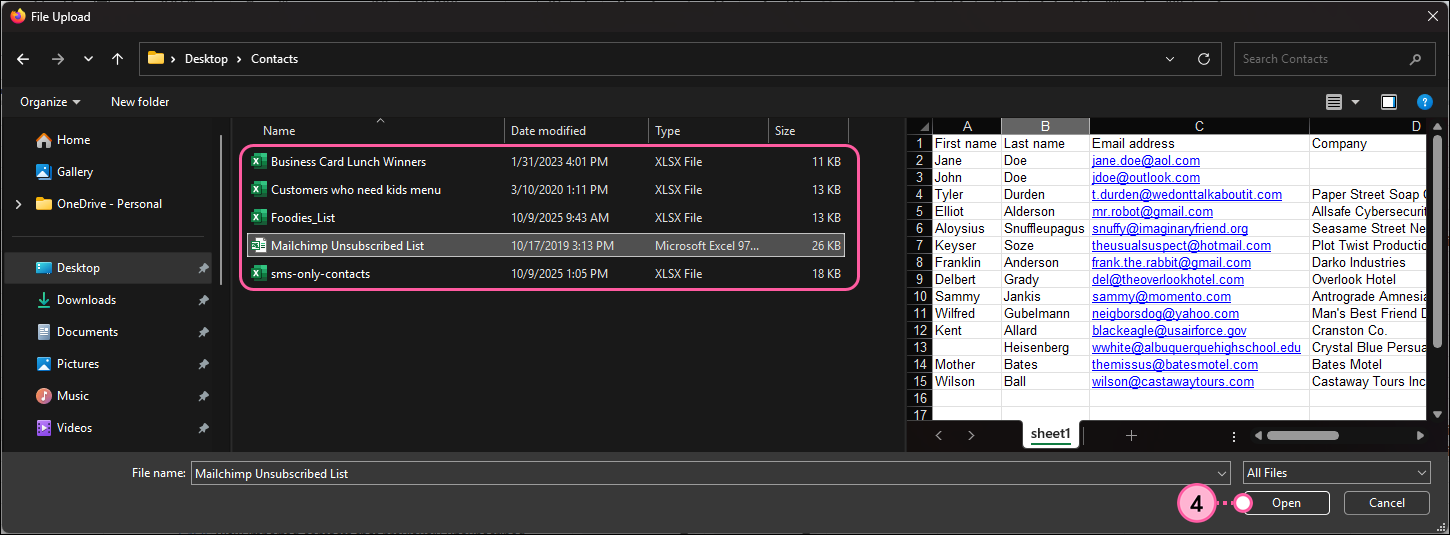
  4. Depending on your computer, use File Explorer or Finder to select the file or spreadsheet you want to import.

    File explorer with unsubscribed contact list file selected and Open button

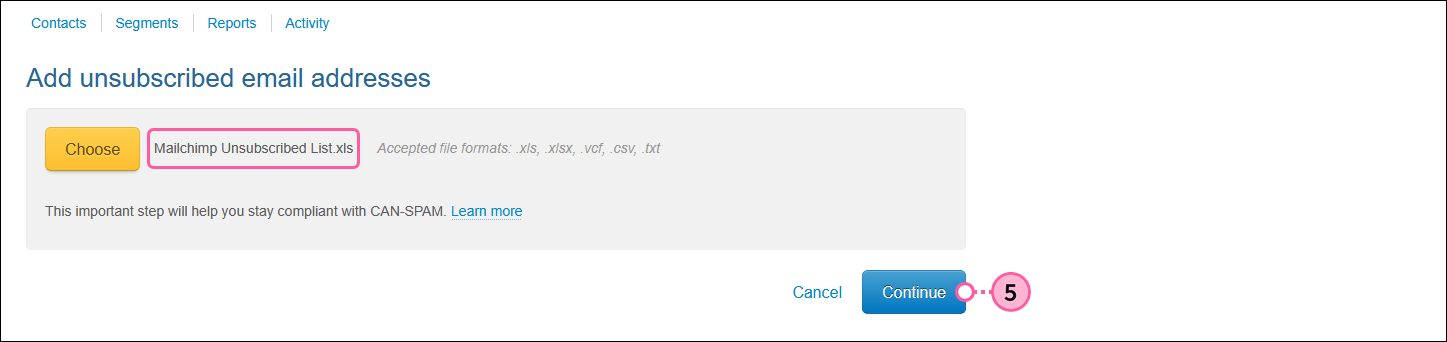
  5. Click the Continue button.

    Add unsubscribed email addresses page with file selected, and Continue button

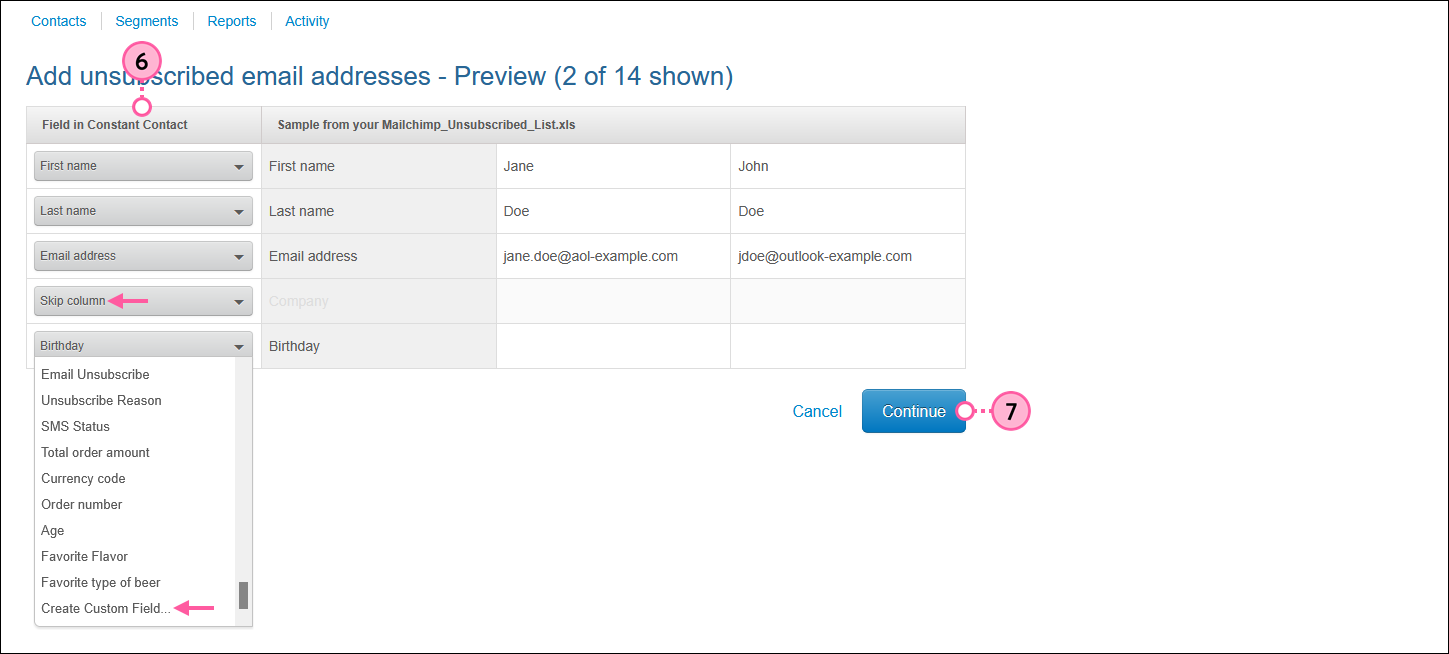
  6. Review the sample of contact information from your list to make sure the Constant Contact fields match the column headings from your file. To change the column headings, click on the drop-down menu in each row to select a new one. Select "Skip Column" if you don't want to import a column of information. If you don't see the correct heading on the list, select "Create Custom Field" to create a new one.
    Important: It's a violation of our Terms of Service to store Sensitive Information in a custom field. Please see our Terms of Service for additional information on Sensitive Information.
  7. Click the Continue button.

    Add unsubscribed email addresses Preview page, fields in Constant Contact heading options with Skip column option selected and Create Custom Field option, and Continue button

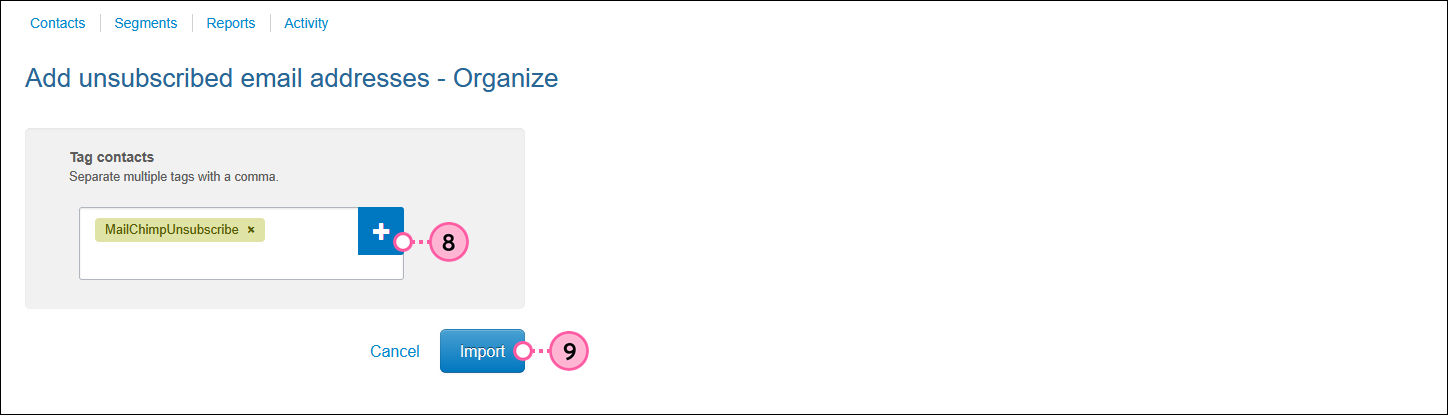
  8. (Optional) If you want to filter your unsubscribed contacts by the reason they unsubscribed or by the email platform they originally unsubscribed from, add a tag to all the contacts you're importing.
  9. Click the Import button.

    Add unsubscibed email addresses - Organize page with Add a tag field and Import button

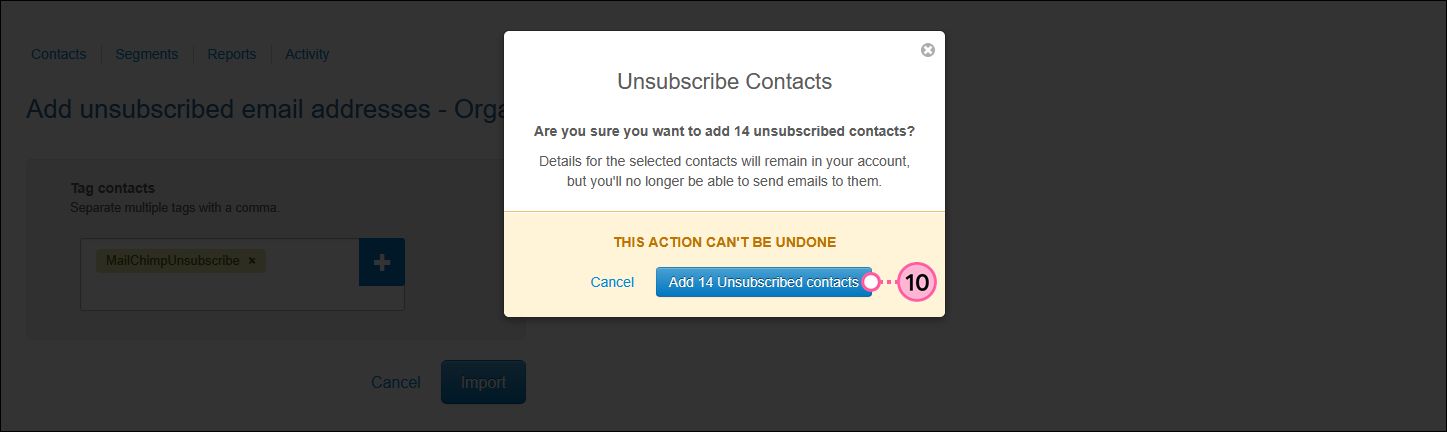
  10. Click the Add Unsubscribed contacts button.

    Unsubscribed Contacts overlay and Add # Unsubscribed contacts button

Once a contact has an "Unsubscribed" status, you won't be able to send emails to them. However, if an unsubscribed contact later rejoins your mailing list through any of our sign-up tools, you can start sending emails to them again.


Permission to Send IconGet permission: Using sign-up forms ensures that you receive and document express consent from your contacts, which satisfies Constant Contact's email permission policy as well as GDPR and CASL regulations.


Questions?

Ask the Community

Did this article answer your question?


Constant Contact Logo

Copyright © 2026 · All Rights Reserved · Constant Contact · Privacy Center