Tags are a powerful tool to help you segment your contact list. Tags can be applied to contacts that aren't on the same list, and then you can filter your contacts by tag to group them together for targeted email or SMS communications; your contacts don't move from the lists they're already assigned to.
An automation path can be used to apply or remove tags to your contacts automatically as they complete a specific step in your path. Here's how it works:
 | Save time: You can't create new tags from within the path builder, so make sure to create any new tags you want to assign to your contacts before you add the 'Add or remove a tag' action to your automation path. |
An 'Add or remove a tag' contact action can be added anywhere in your path after the trigger step, and you can have multiple tag steps in your path.
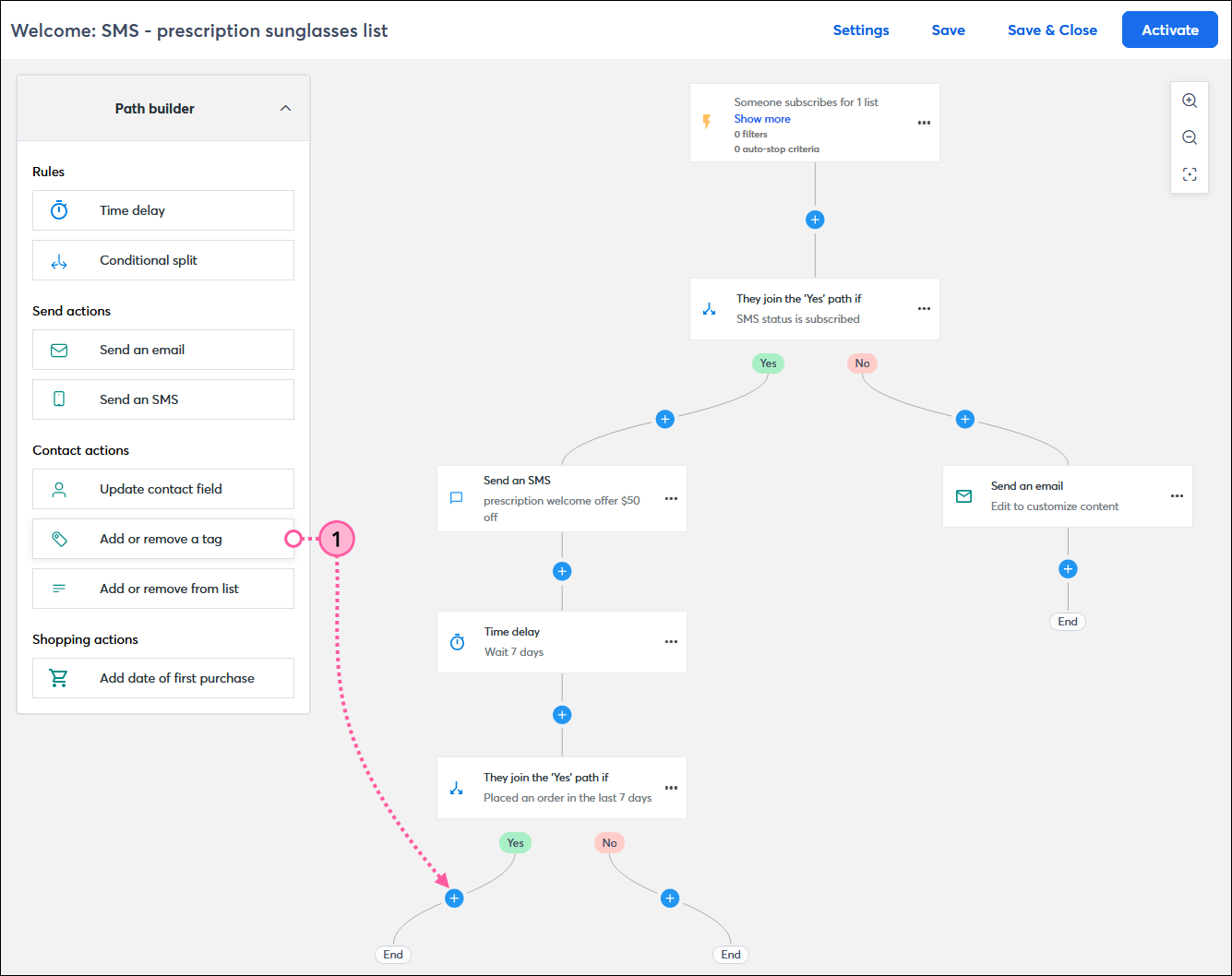
It's that easy! Repeat the steps for each 'Add or remove a tag' step you want to add to your path. An 'Add or remove a tag' step can also be dragged anywhere there’s a plus sign if you want to change its location in the path.
All it takes is a quick edit to select the tag you want to associate with the step:
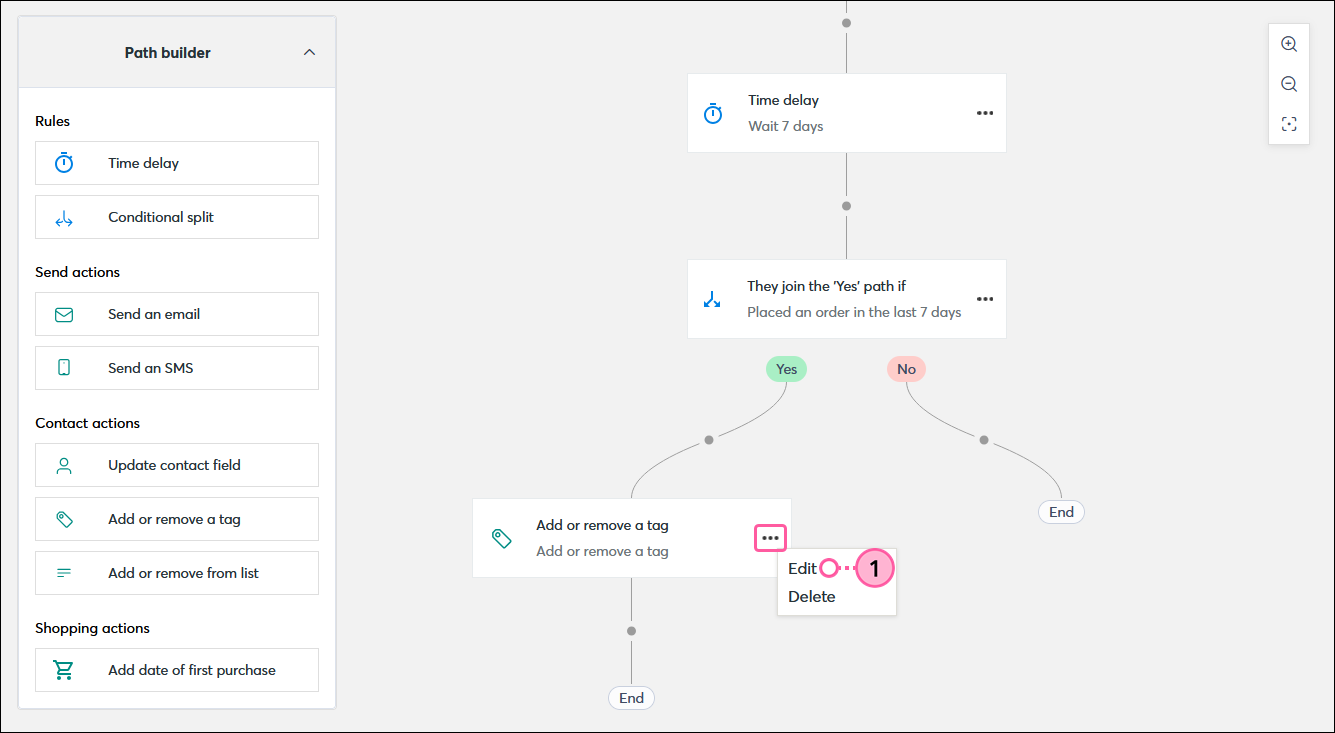
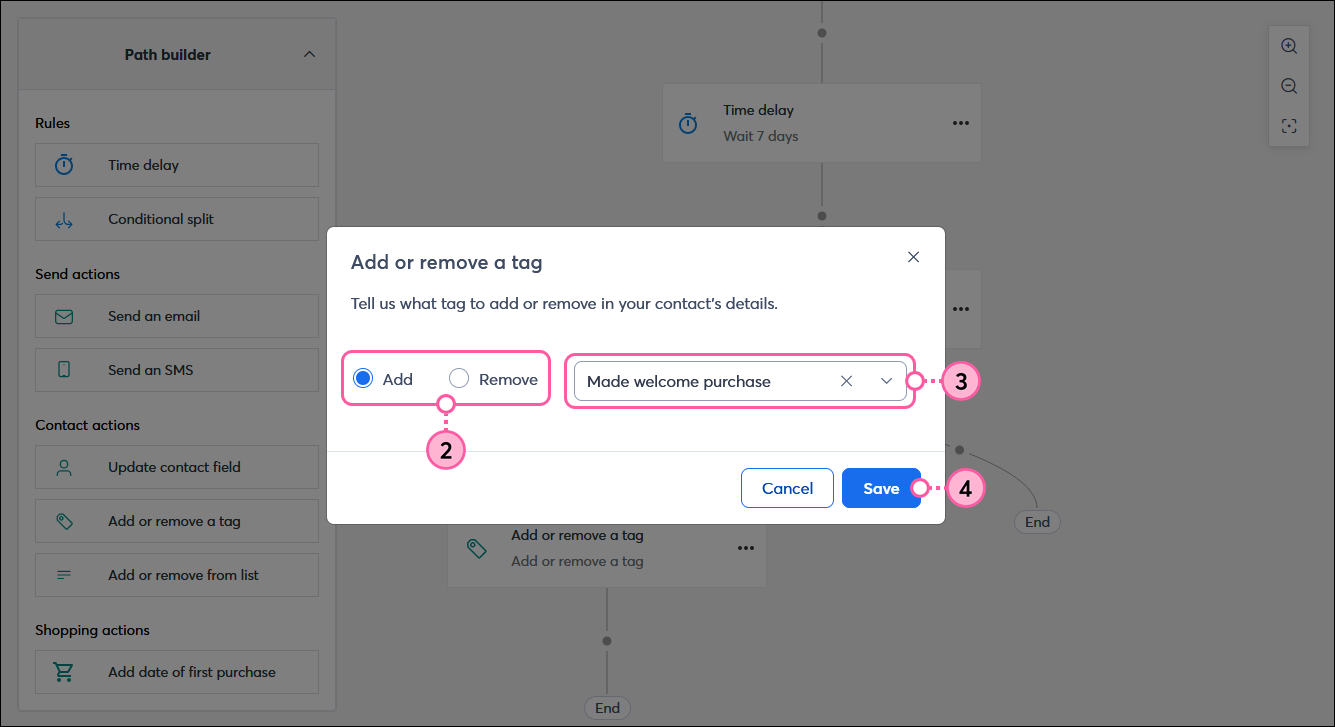
Once your automation path is activated, the tag is automatically added or removed from the contacts that reach the step in your path.
 | Did you know? Your automation path can be edited at any time after it has been activated. However, if you make changes to the 'Add or remove a tag' step, the changes only apply to contacts who reach the step going forward and don't apply to contacts who have already completed the step. |
A step can be deleted from your path at any time. When deleted, any new contacts who start your path, or contacts who have started the path but haven't yet reached the deleted step, follow the new path and won't notice any changes. Contacts who were on the step when it is deleted move to the next step in the path.

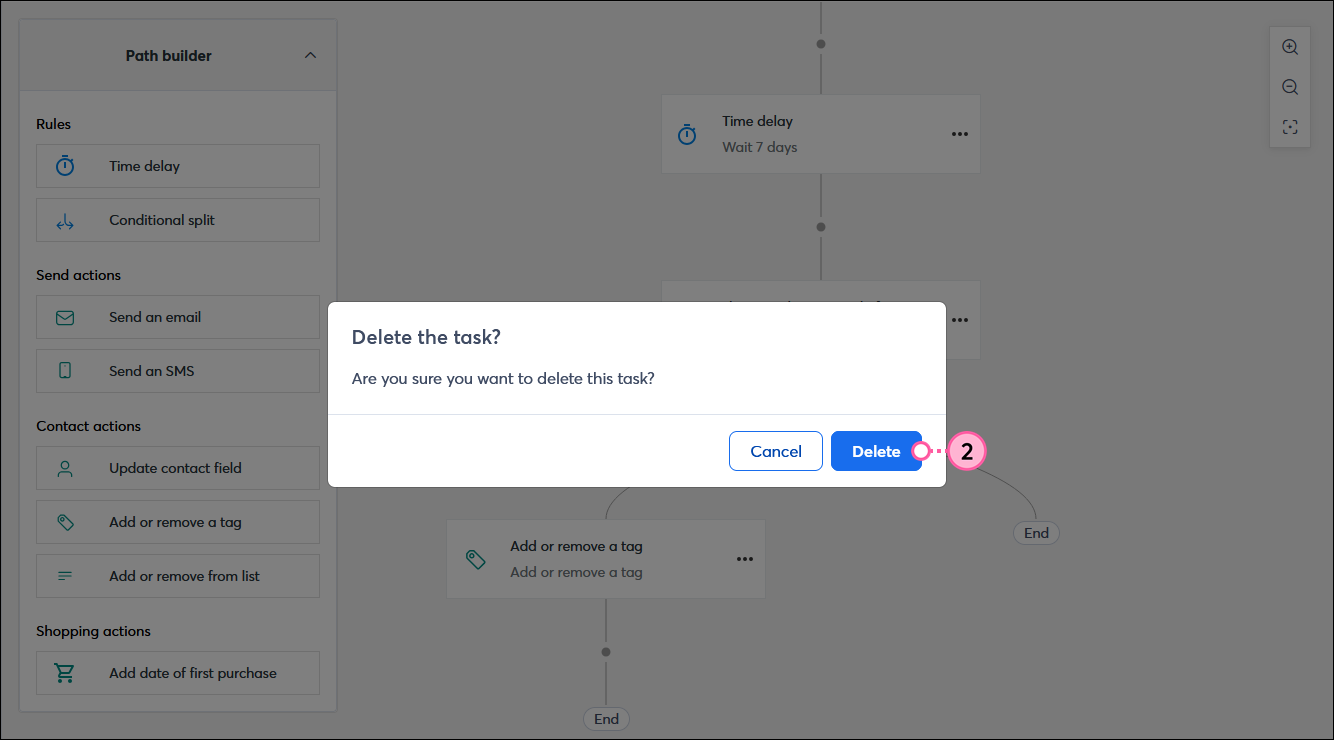
Deleted steps can't be restored, but you can always drag a step back into a path to recreate it, if necessary.
Now that you have some tagged contacts, here are some tools you can use within your Constant Contact account:
Copyright © 2026 · All Rights Reserved · Constant Contact · Privacy Center