Email and Digital Marketing
How can we help you?
Search our help articles, video tutorials, and quickstart guides

You've got this. You've got us. Search our Knowledge Base to quickly find answers to your questions.

Schedule and send an email in the Constant Contact mobile app

Article: 000024398
Updated: February 19, 2026

Schedule your campaign and receive a push notification when it sends


Access campaigns

Email drafts can be scheduled, sent, unsent, or resent from the Campaigns section in the mobile app. 

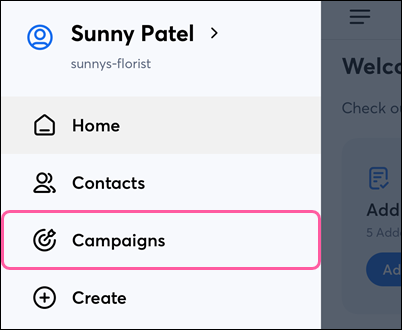
On Android, from the Menu icon Menu, tap Campaigns.

 Menu with Campaigns option
 

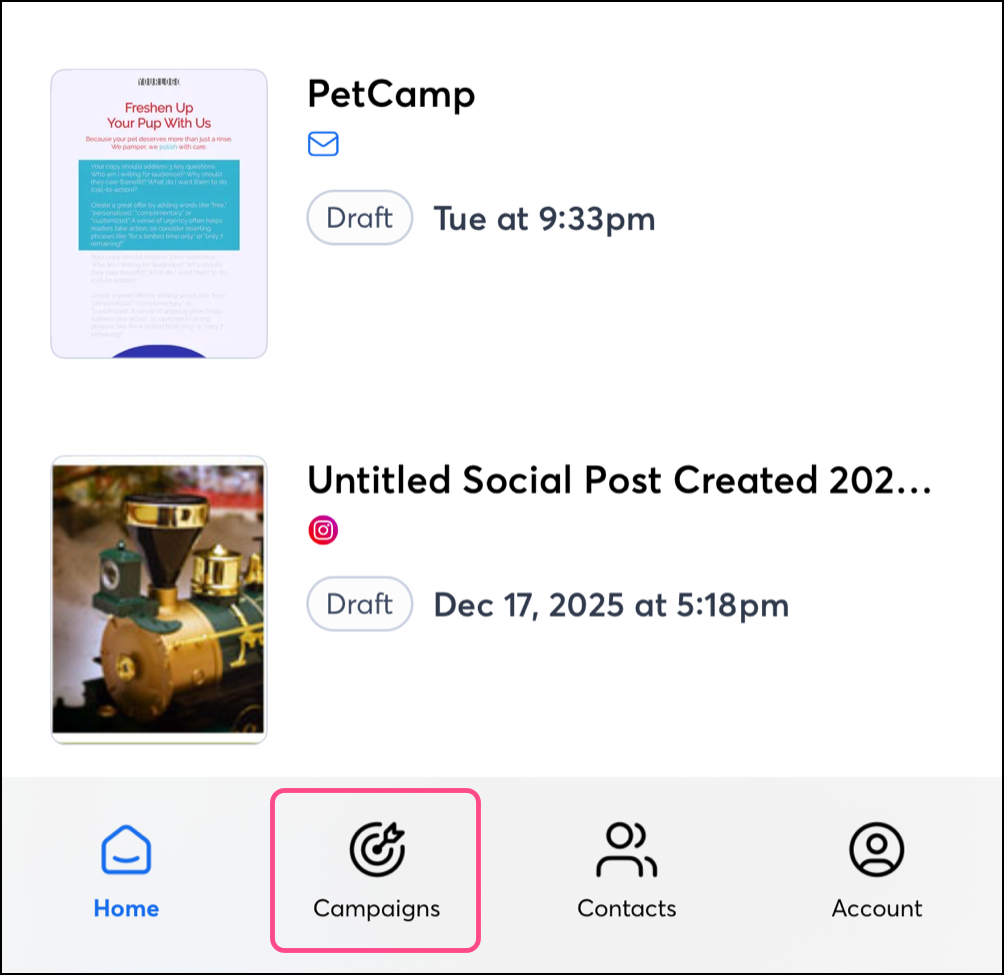
On iOS, tap Campaigns in the navigation menu at the bottom of the screen. 


Schedule a draft to send now or later

On Android or iOS, complete the following steps in Campaigns to schedule and send an email:
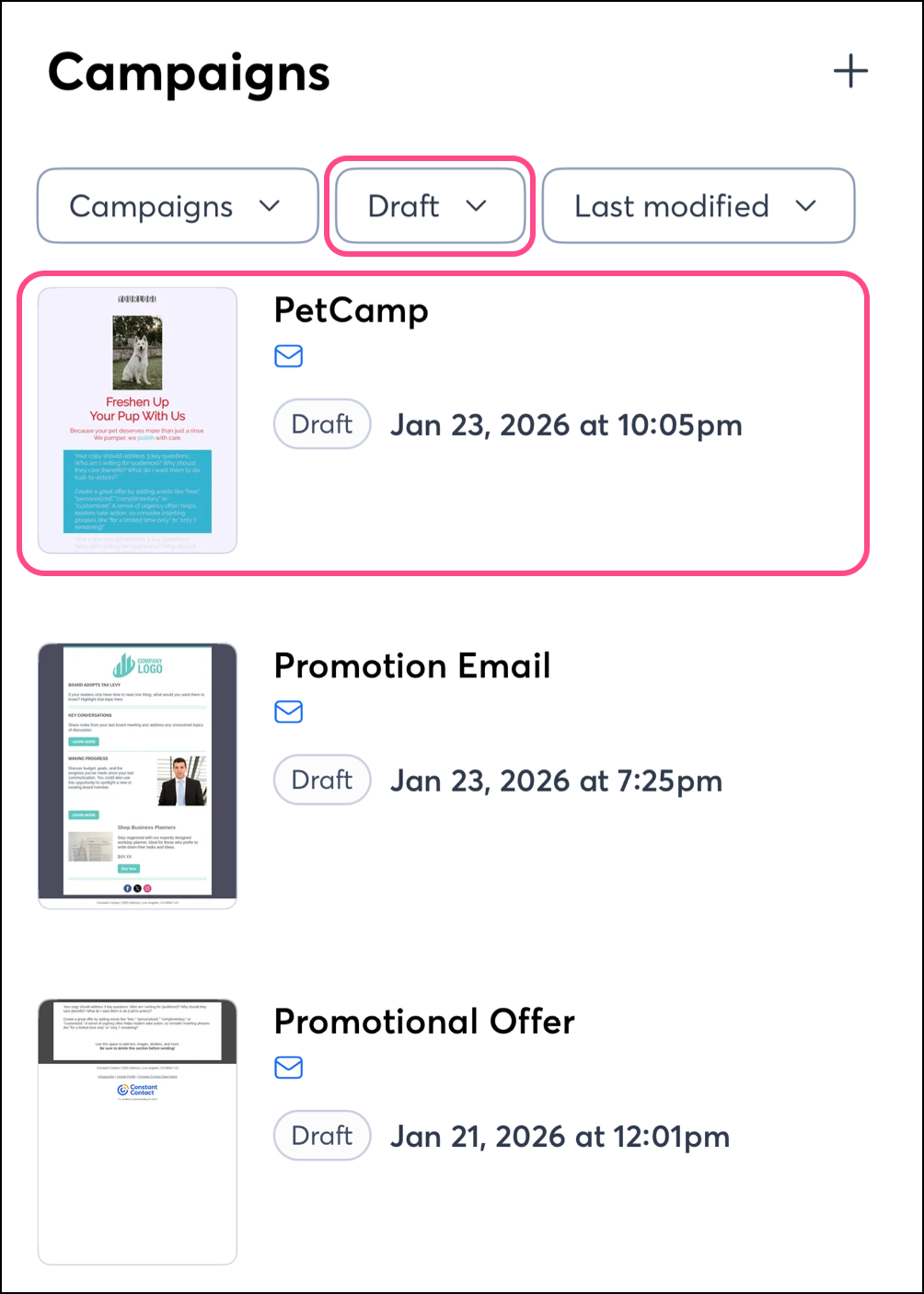
  1. (Optional) Tap Status > Draft at the top of your screen. 
  2. Tap on the campaign you want to send. 


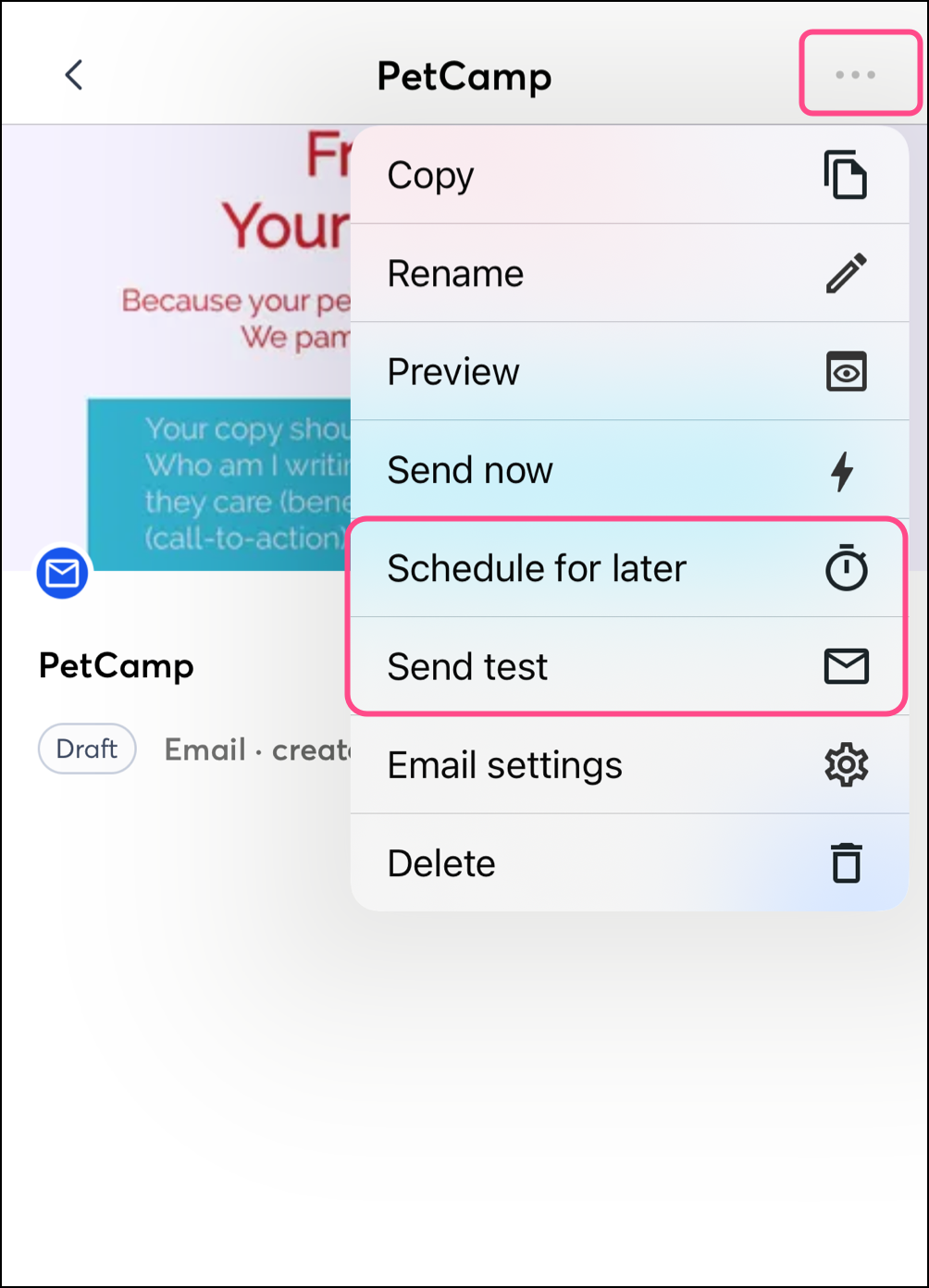
  3. Tap the three dots in the upper-right and tap Send now or Schedule for later


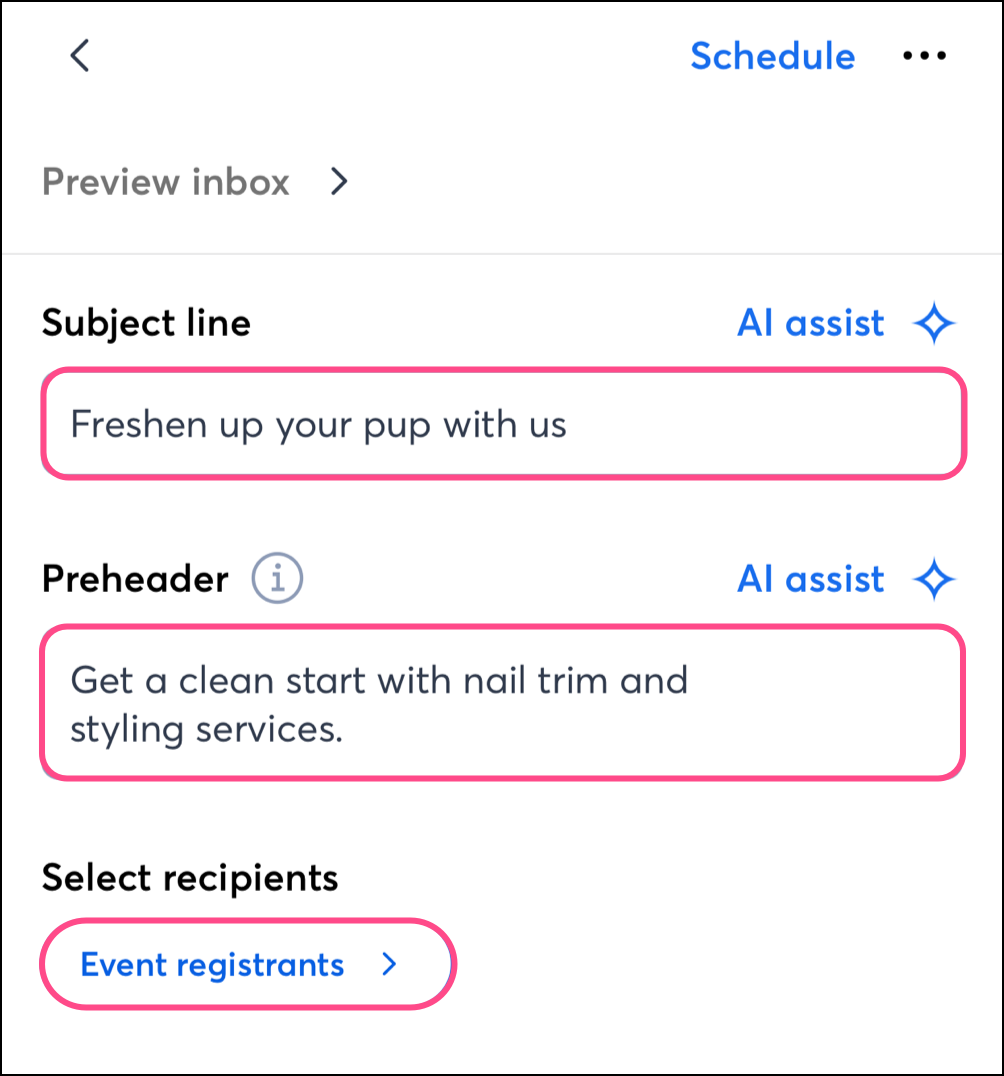
  4. Tap to edit your subject line. 
  5. Tap to edit your email preheader.
  6. Tap the Select recipients option, then choose whether to send to a contact list or a segment.


  7. If you chose:
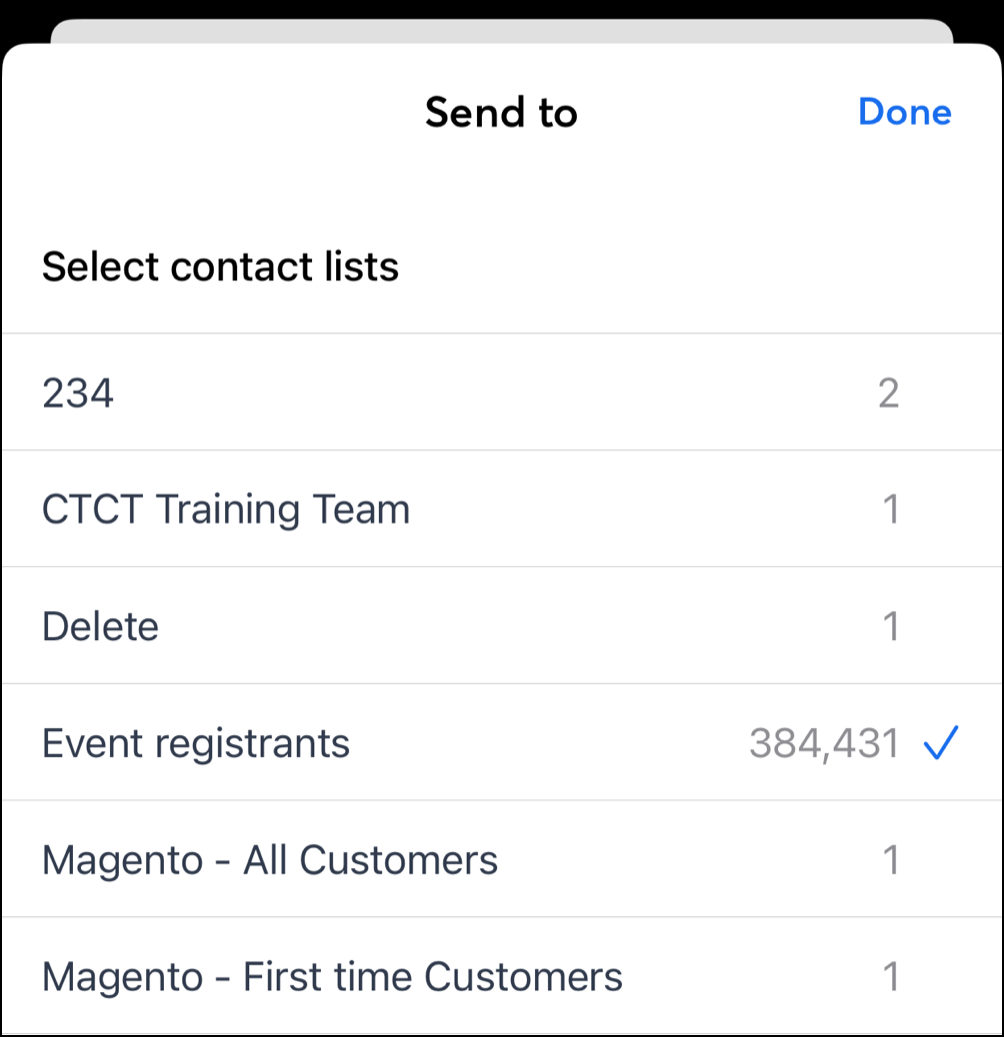
  • Contact lists - Tap the lists you want to send to and then tap Done.
  • Segment - Tap on the segment you want to send to.


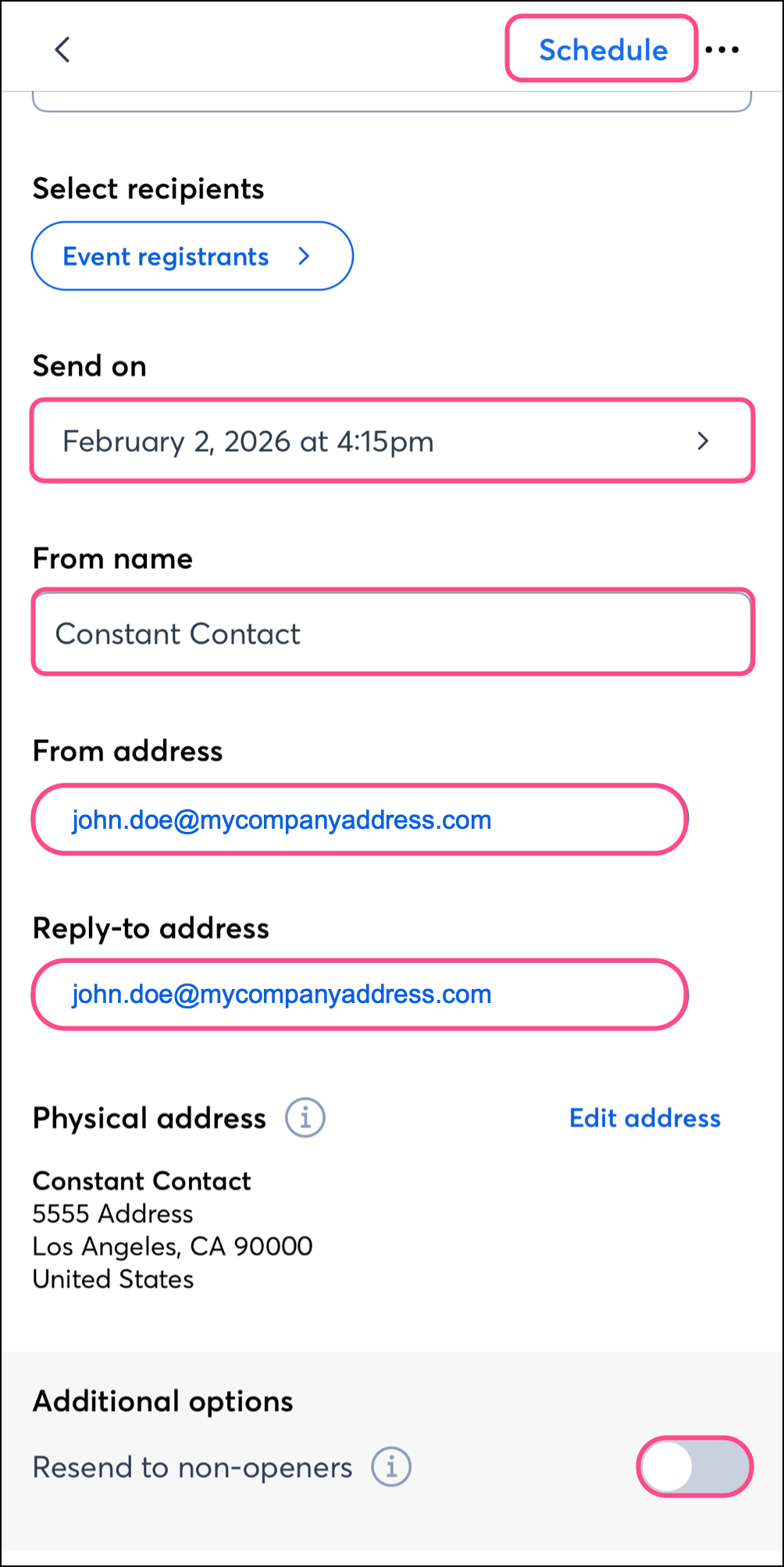
  1. If you choose to schedule your email for later, choose a date and time to send it.
  2. Confirm your From name, From email, and Reply to email address.
  3. (Optional) Tap the Schedule Resend toggle to schedule your email to automatically resend to the contacts who don't open it.
  4. Tap Schedule or Send now in the top-right of your screen.


exclamation point iconImportant: Send times reflect the device's current time zone.

 If you choose to allow push notifications on your mobile device, you'll receive an alert when your email has been sent.


Unschedule a scheduled email

If you need to stop a scheduled email from sending and it hasn't been sent yet, you can unschedule it. On Android or iOS, complete the following steps in Campaigns to unschedule an email.
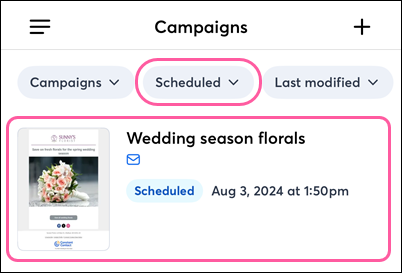
 

  1. (Optional) Tap Status Scheduled at the top of your screen. 
  2. Tap on the campaign you want to unschedule.

    Campaigns dashboard with Scheduled filter and campaign selected
     
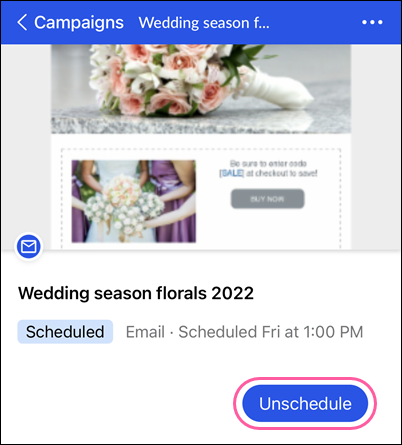
  3. Tap Unschedule

    Scheduled email details page with Unschedule button


Resend a sent email

You can choose to resend an email to contacts who didn't open or receive the original. On Android or iOS, complete the following steps in Campaigns to resend an email:
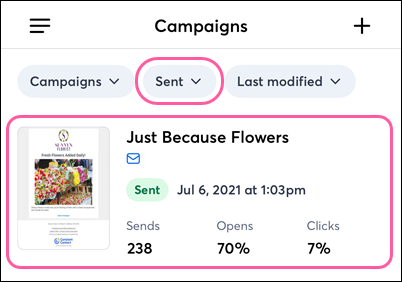
 

  1. (Optional) Tap StatusSent at the top of your screen.
  2. Tap on the campaign you want to resend.

    Campaigns dashboard with Sent status filter and campaign selected
     
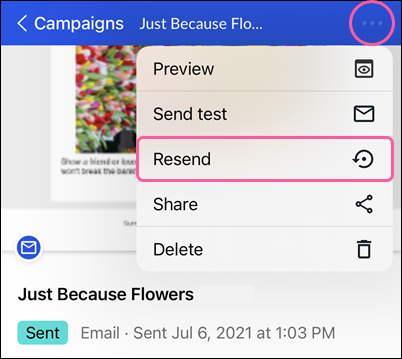
  3. Tap the three dots in the upper-right and tap Resend.

    Sent email details page with drop-down and Resend option


Questions?

Ask the Community

Did this article answer your question?


Constant Contact Logo

Copyright © 2026 · All Rights Reserved · Constant Contact · Privacy Center