Once you've finished customizing your email, checked for errors, previewed it, and sent a test version to check for content and design errors, it's time to send it to your contacts. You can choose to send it immediately or schedule it for a future date and time, up to a year in advance. If you add more contacts to your list before the scheduled date, they'll also receive your email!
Review your plan and user role: Some features, such as scheduling for later and resending to non-openers, are not available in all Constant Contact plans. If you don’t have full access, you may need to upgrade your plan. If you are a Campaign Creator, you do not have access to schedule or send emails. The Account Owner or an Account Manager will need to follow these steps to send the email instead.
Getting to the Schedule page
If you’re currently working in the email editor:
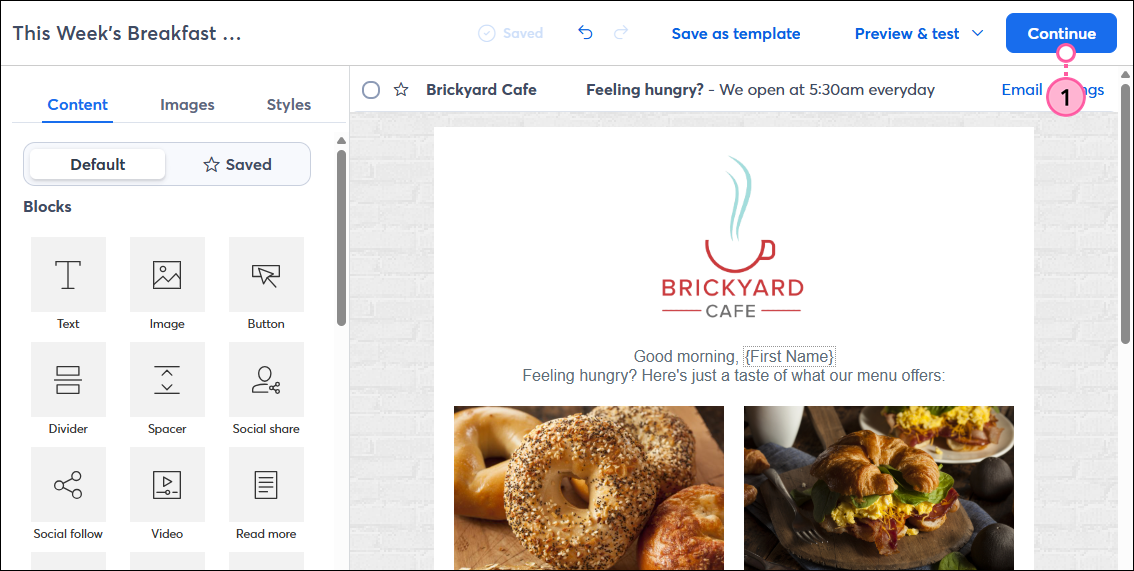
- Click the Continue button in the upper-right to access the schedule page.
If you’re coming from your Constant Contact dashboard:
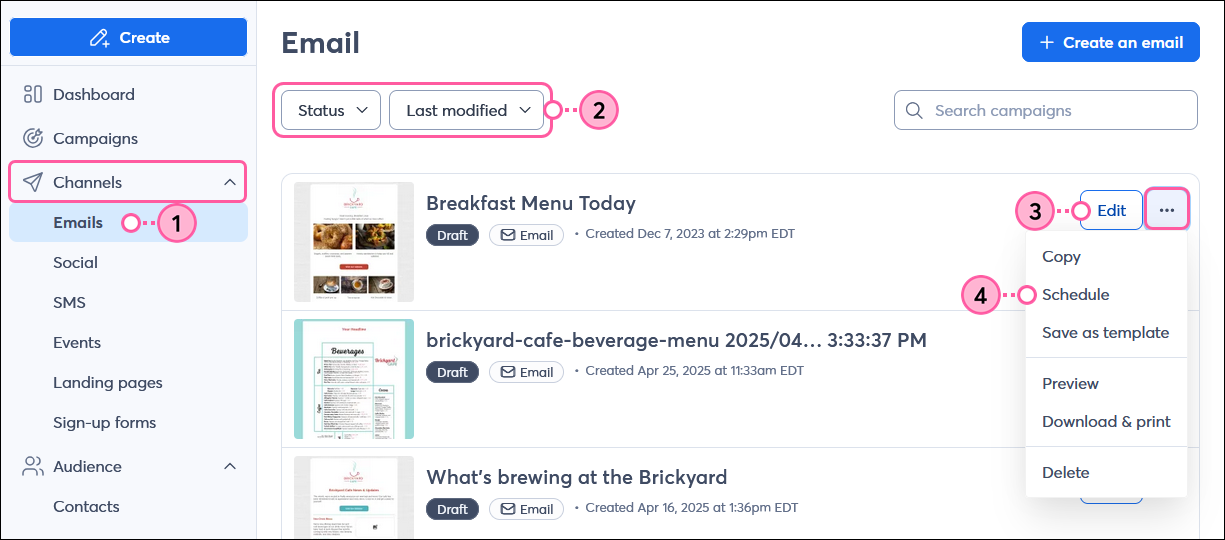
- In the left-hand menu, click Channels > Emails.
- (Optional) Use the filters to help narrow your search.
- If you want to make any edits or review your email one more time before scheduling, click the Edit button to the right of the email.
- If you’re ready to schedule to send, click the three dots to expand the menu and select Schedule from the drop-down.
Scheduling your email to send
Once you’re on the Schedule page, follow these steps to send your email:
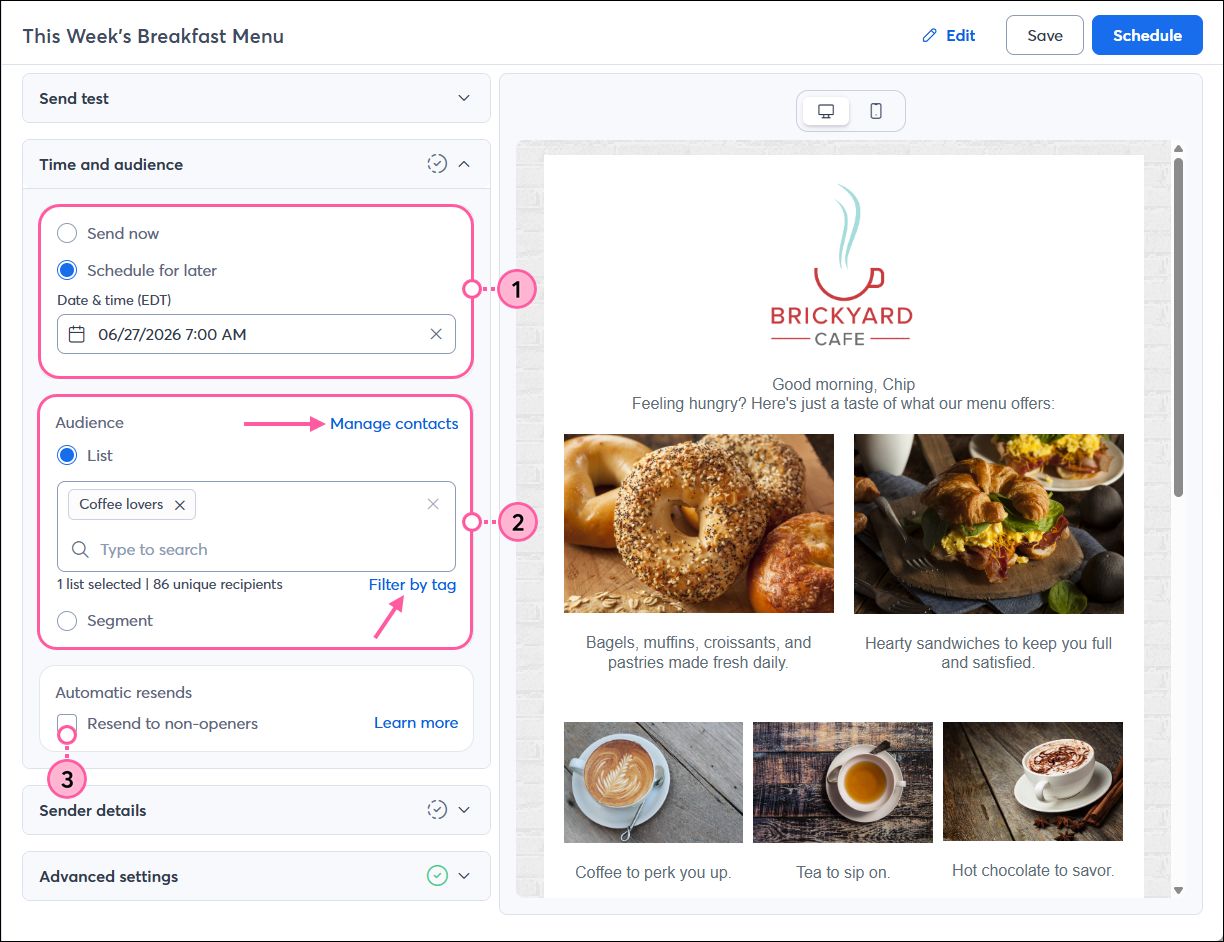
- In the Time and audience section, choose when you want to send:
- Send now - To immediately begin sending your email. Please note that an email may take up to 30 minutes to send, depending on the size of your list. You'll be prompted to confirm your selection to prevent any accidental sends.
- Schedule for later - To enter a future date and time to send your email, up to a year in advance.
- In the Audience section, select the recipients for your email:
- Lists - Select one or more lists. If a contact is on more than one list, they only receive the email once. If needed, click the "Add new contacts" link (if available) to add individual email addresses directly to an existing list, or click the "Manage contacts" link to add contacts to a list or create a new list from the Contacts page, then return to the schedule page when you're ready.
- Segment - Select the Segment option if you want to send your email to contacts who share similar interests or behaviors, then choose the segment you want to use from the drop-down. The segment automatically refreshes when your email is sent, ensuring you're sending only to contacts who currently meet its criteria. Click “Manage contacts” to create a new segment or edit an existing segment, and return to the schedule page when you're ready.
- (Optional) Check the box to automatically resend your email to those who don't open it.
Note: The option to resend to non-openers is not available if you choose to run a subject line A/B test.
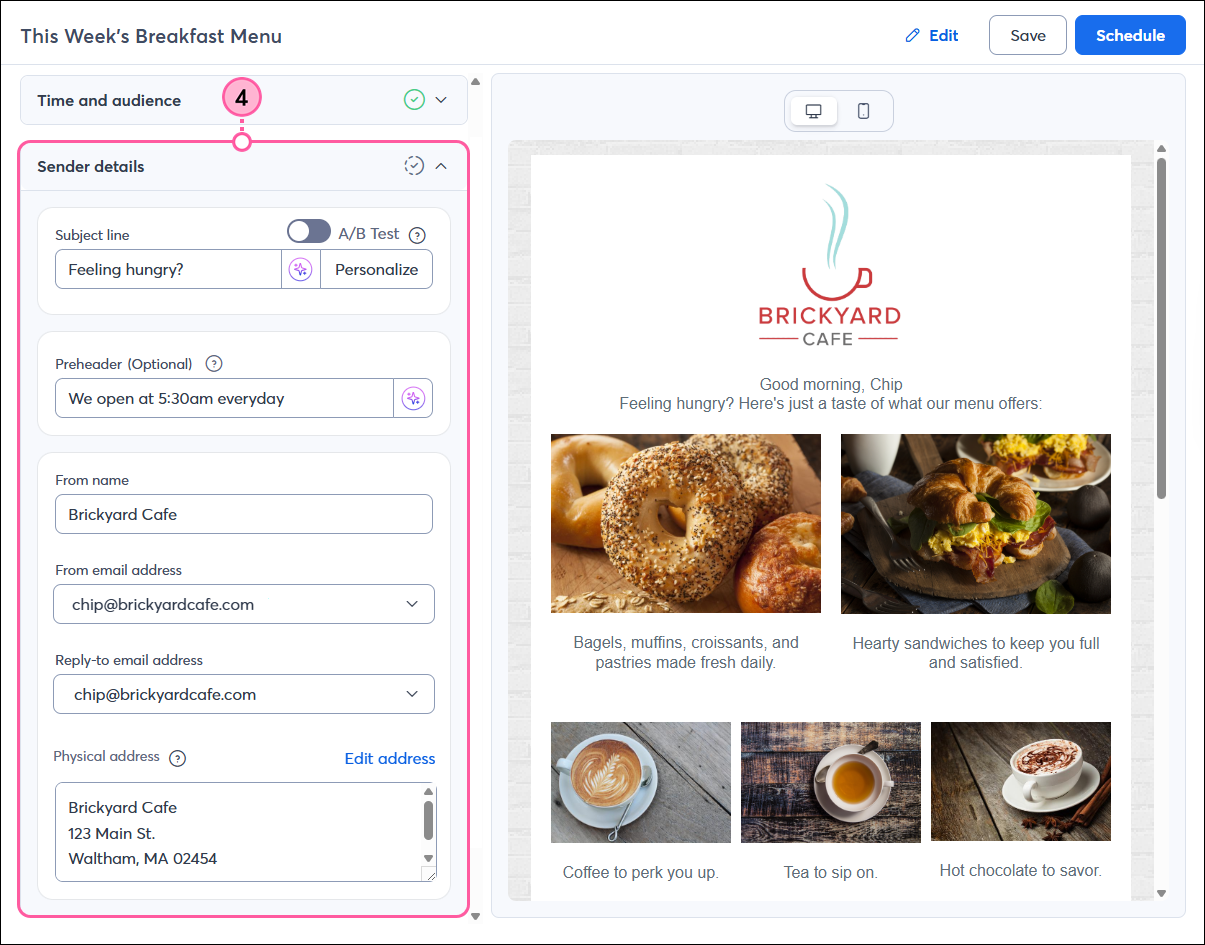
- Click to expand the Sender details section to review and update your:
- Subject line - This is the first thing your contacts see and can be what makes them decide whether to open your email. Consider personalizing your subject line or adding an emoji to give it more impact! Depending on your email plan, you can click the sparkle icon to get some subject line suggestions, or A/B test two different subject lines to see which performs better.
- Preheader - This supports your subject line. Depending on your email plan, you can click the sparkle icon to get some preheader suggestions.
- From name - This should be a name your contacts will recognize, such as your organization name, personal name, or a combination of both.
- From email address - This helps your contacts' email clients determine whether your emails are valid or should be sent to the spam folder. We recommend using a custom domain to best represent your organization. To verify a new email address to use, select "Add another email" from the drop-down.
Note: If you don’t have your own domain or haven’t self-authenticated it, your “From” email address will be rewritten using our shared ccsend.com domain. This ensures your emails continue to be delivered to your contacts. - Reply-to email address - This receives replies from your contacts if they respond to your email. Make sure it's an email account that you check regularly.
- Physical address - This displays in your email footer and is legally required to comply with the CAN-SPAM Act. If you don’t have a physical location, you can use a valid PO box. If you need to change the address, click Edit address.
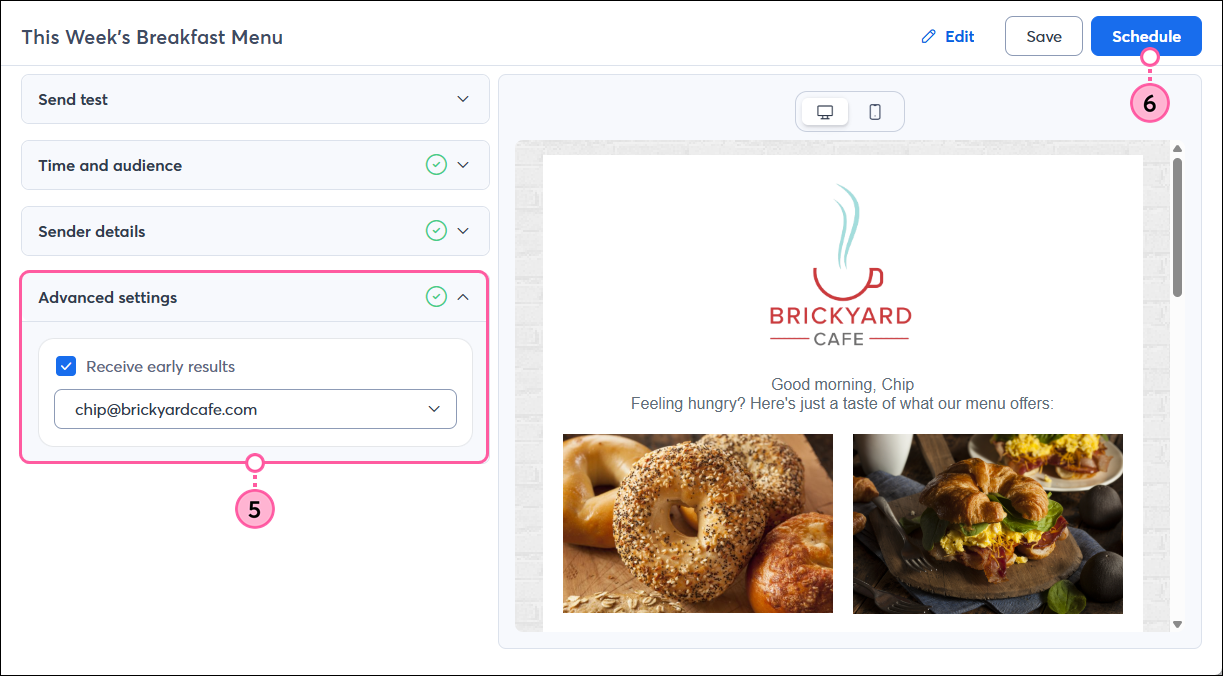
- (Optional) If you want to receive an email letting you know how your email performed in the first 48 hours, click to expand the Advanced settings section, check the Receive early results box, and select a verified email address from the drop-down to receive the early results email.
- When you're ready, click the Send now or Schedule button, either in the upper-right or lower-right corner of the screen.
Note: If you're not ready to schedule your email, you can click the Save or Save as draft button. This will retain all of your email content, audience, sender details, and advanced settings selections.
Be a better marketer: Help extend the reach of your email by sharing it on your social media pages after it's sent!
Once your email has been sent, give your contacts time to open it, then check the results to see how it's performing.
Troubleshooting delivery issues
If a contact tells you they aren't receiving your email and they aren't on your bounce list, ask them to check their spam folder. If the email isn't in the spam folder, ask your contact to add your "From" email address to their email account or security program. Please note there are also some "role" email addresses (like admin@ or info@) that Constant Contact never sends to.