Email and Digital Marketing
How can we help you?
Search our help articles, video tutorials, and quickstart guides

You've got this. You've got us. Search our Knowledge Base to quickly find answers to your questions.

Create an email

Article: 000005851
Updated: March 27, 2026

Select an email template and customize it with your branding and content

Light Bulb IconDesign tip: Before you get started, give our BrandKit a try! You can scan your website to import your logo and brand colors and create a theme that's applied to a collection of templates for you.


Ready to create a new email? It's as easy as choosing an email template and customizing it with your content and branding! We have hundreds of mobile-responsive templates to choose from, designed to look great on smartphones and tablets, as well as traditional desktop and laptop computers.


Desktop instructions:


Mobile web instructions:


Megaphone IconNot sure where to start with marketing? Check out our free Getting Started webinar series!


Create a new email and select a template


  1. Click ChannelsEmails.
  2. Click the + Create an email button.

    Marketing channels menu expanded with Email option selected, Email dashboard with + Create an email button 
     
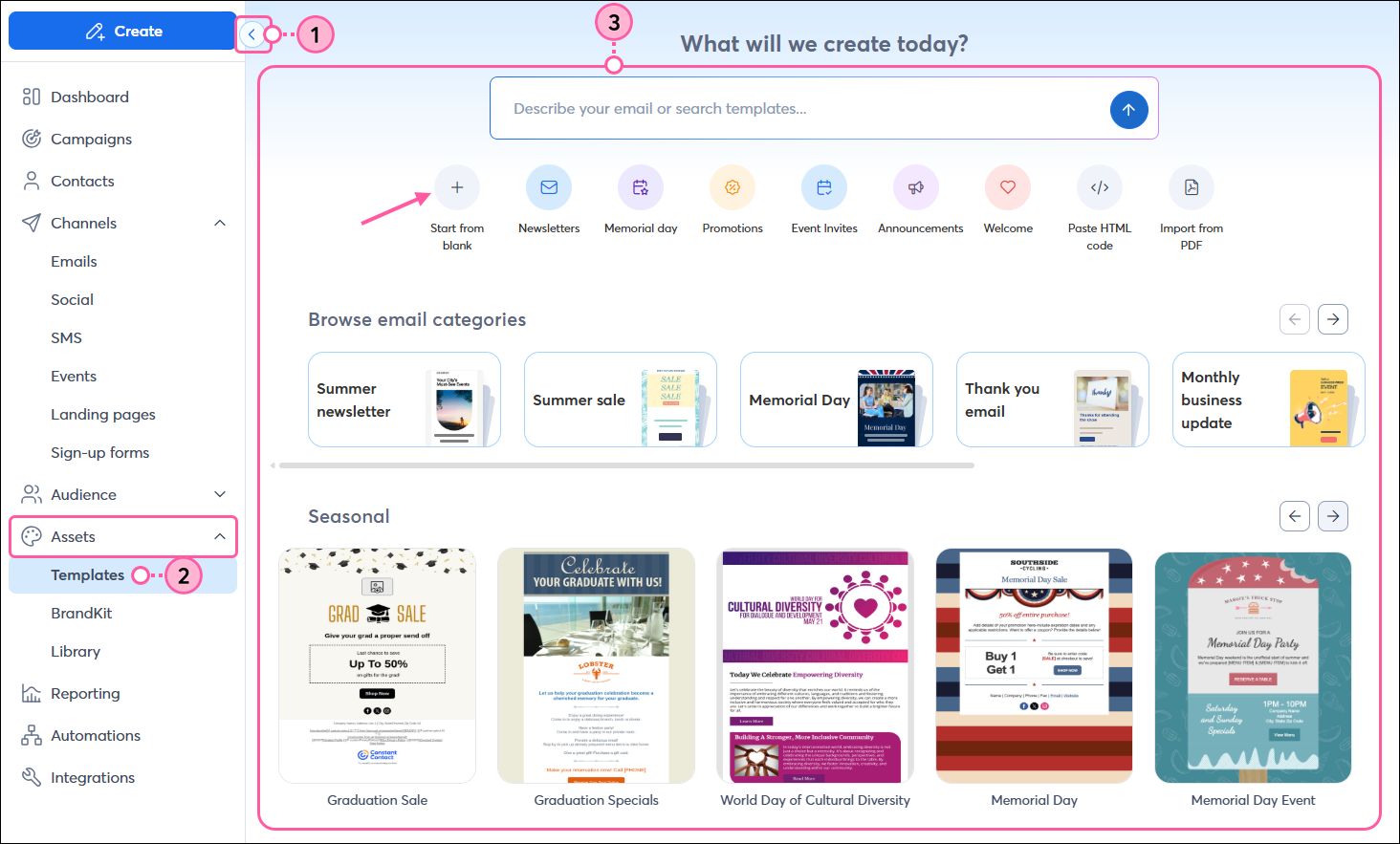
  3. You have lots of template options to choose from. To get a closer look before making a selection, simply hover over the thumbnail and click Preview. When you find one you want to use, click Select to start customizing. 
    Tip: Use the Search field or filters to help you find a template based on a keyword, purpose of the email, season or holiday, or the industry you're in. 

    Choose a template with All templates tab selected, Branded template thumbnail with Select and Preview options, and Search field, Start from blank option, Convert from PDF option, and Build with HTML option
     
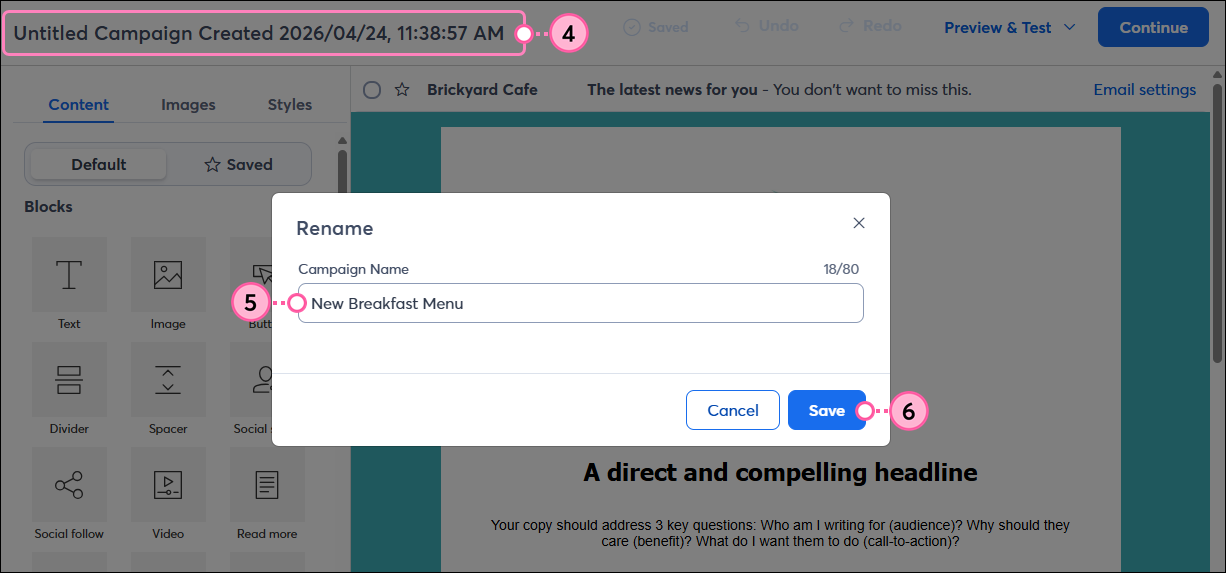
  1. Click on the name of the email in the upper left-hand corner of the editor to change the name of your email.
  2. Enter a unique name in the Campaign Name field that you’ll easily recognize in your account later. Your contacts don't ever see this name.
  3. Click the Save button to return to the email editor.

    Email editor with Campaign name feild, Rename overlay with Campaign Name field and Save button
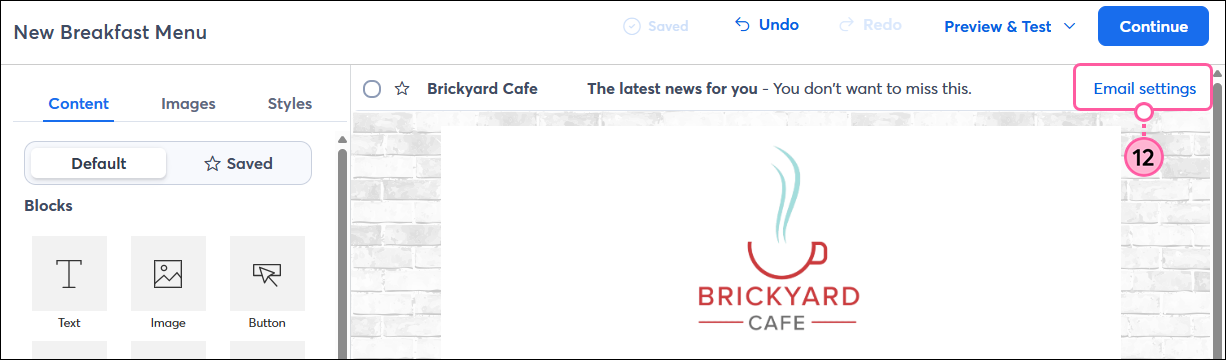
  1. Click on the email header to edit your email settings.
  2. Customize your subject line, preheader, and "From name," and select your "From" and "Reply-to" email addresses. Then click the Save button to return to the email editor.

    Email editor with Email Settings overlay with Subject field with emoji and Personalize options, Preheadr field, From Name field, From address drop-down menu, Reply to address drop-down menu, and Save button


Use the Build tab to customize your email

Light Bulb IconDesign tip: Sending shorter emails with a clear call to action to a targeted audience can improve overall email engagement. Our AI content generator can help you, too!


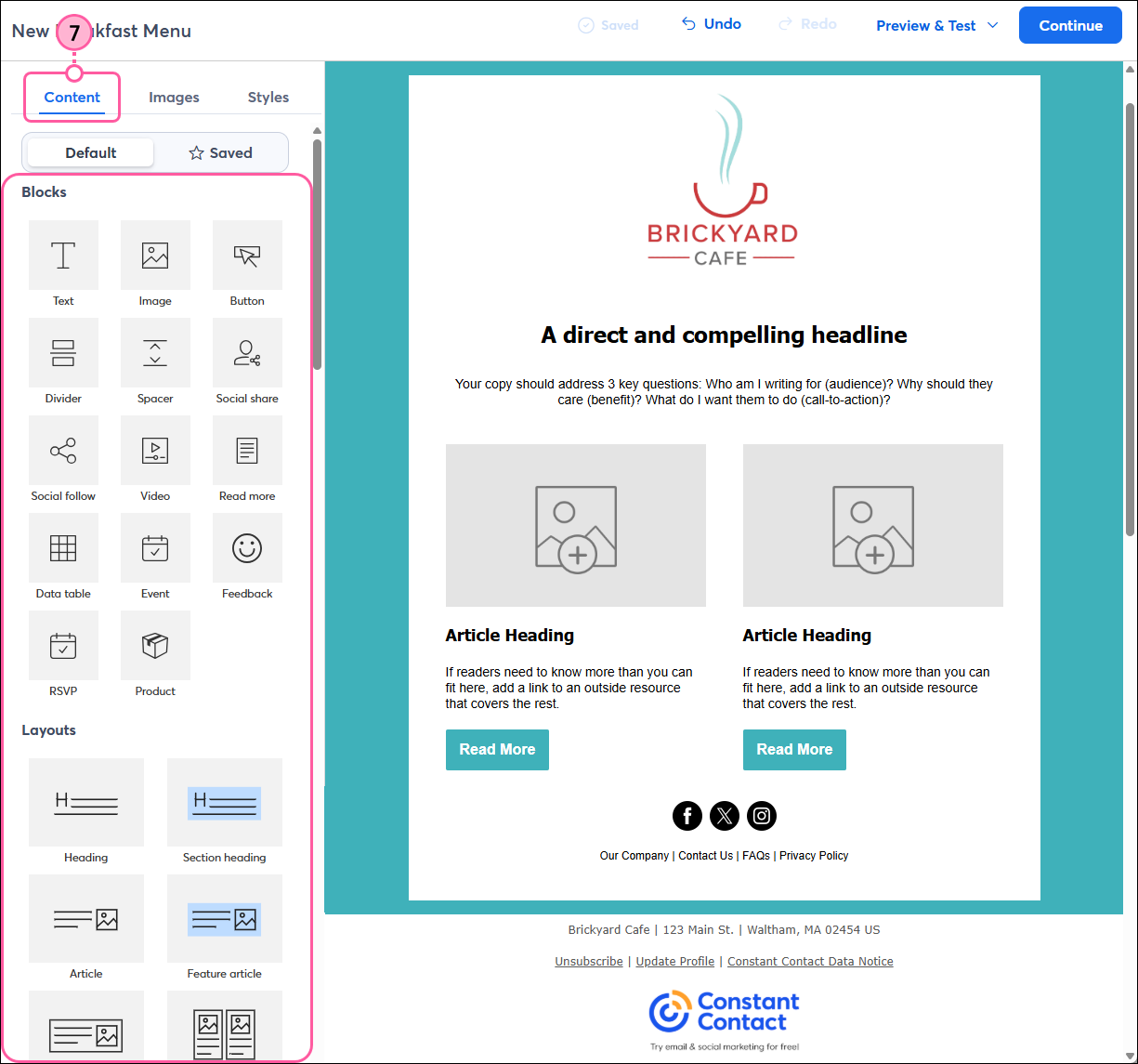
The Build tab is where you'll find all the blocks, layouts, and sections you can use to customize the look of your template. Blocks and layouts can be used on their own, or you can group them together within sections. You can also move individual blocks anywhere in your template (in and out of layouts and sections), while layouts and sections can be moved above and below other blocks, layouts, or sections.

  1. Click the Build tab. 
  2. Use the Blocks section to add individual elements to your email.
  1. Use the Layouts section to add pre-built groups of blocks to your email. Layouts with a highlight color indicate that a background color is applied to certain areas of the layout.
  1. Use Sections to create a container that groups blocks and layouts together into a single unit.
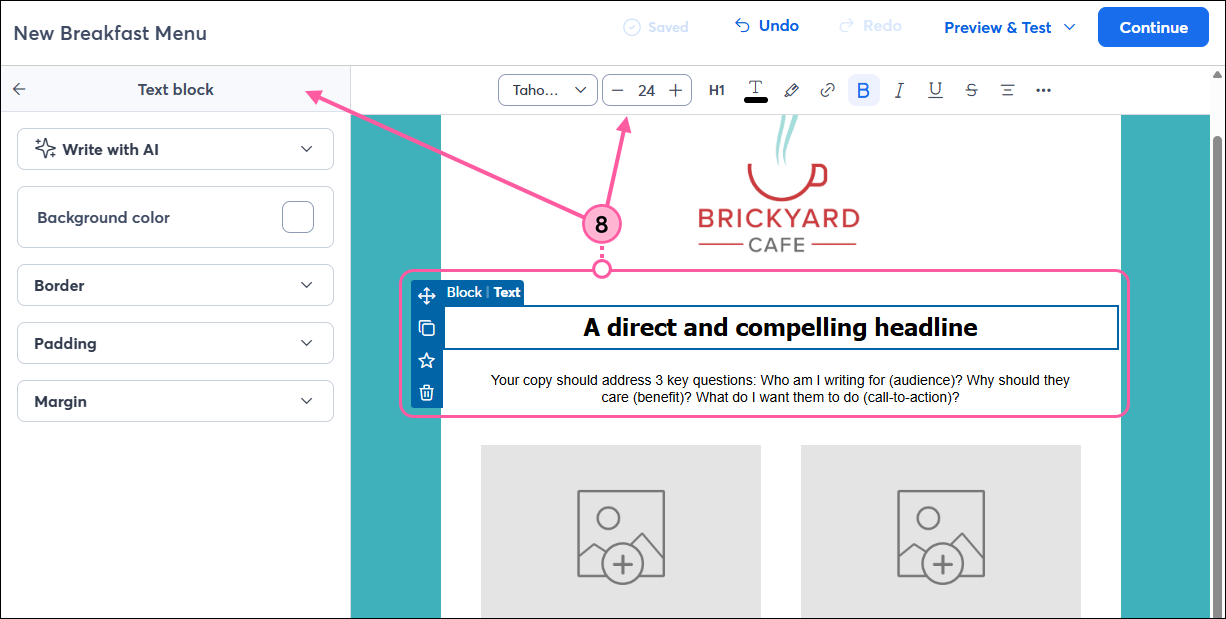
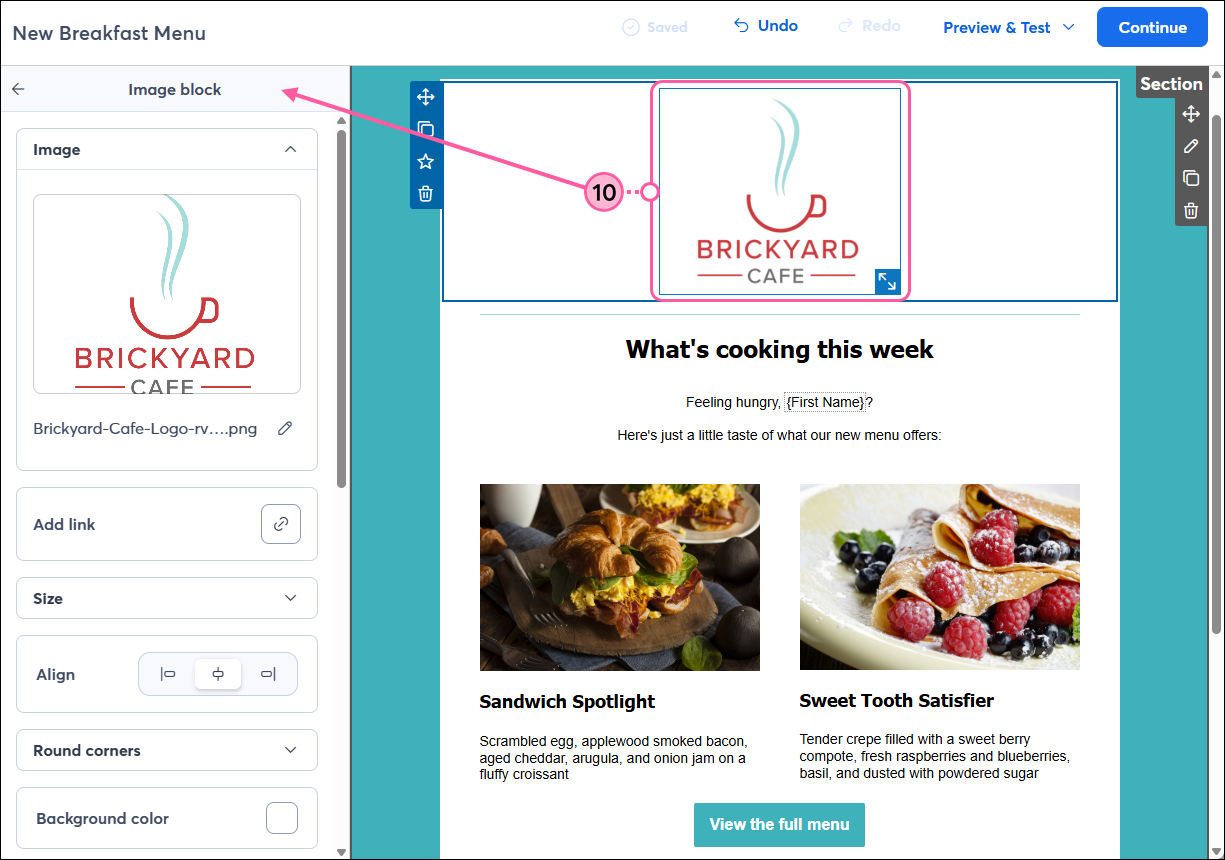
  1. Click anywhere on a block to open its editing options, which open at the top of the editor or on the left-hand side. You can change the alignment, add links, or make other customizations unique to the block.


Add and edit images using the Images tab

Light Bulb IconDesign tip: Want to make your pictures pop out of your email? Check out these tips for giving your images visual impact.


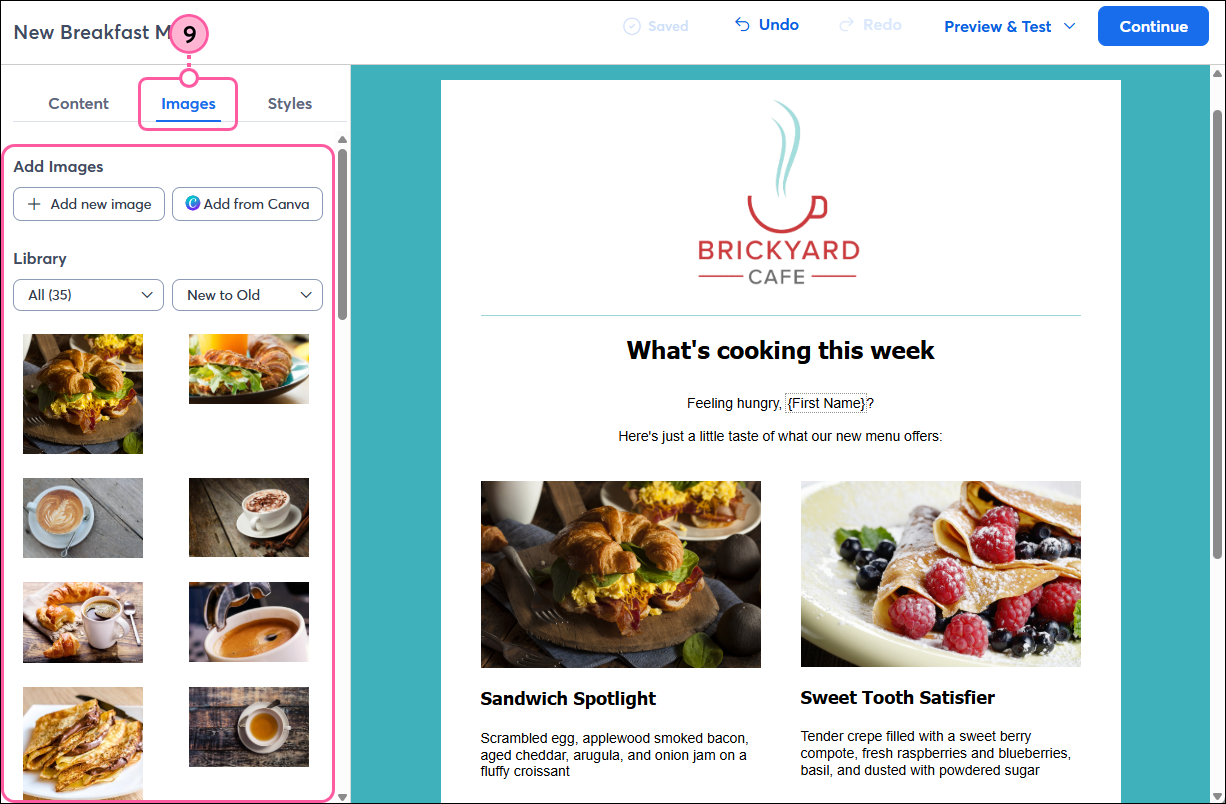
The Images tab is where you can find all the images in your Library, access editing tools to crop images or add filters, access your Canva account, find free stock images, or purchase stock images through Shutterstock, and import images from Facebook.

  1. Click the Images tab. From here you can:
  1. Place your cursor in the lower-right corner of any image in your layout to expose the resize tool
  2. Click on any image to expand the Image panel and:


    Make your branding consistent using the Design tab

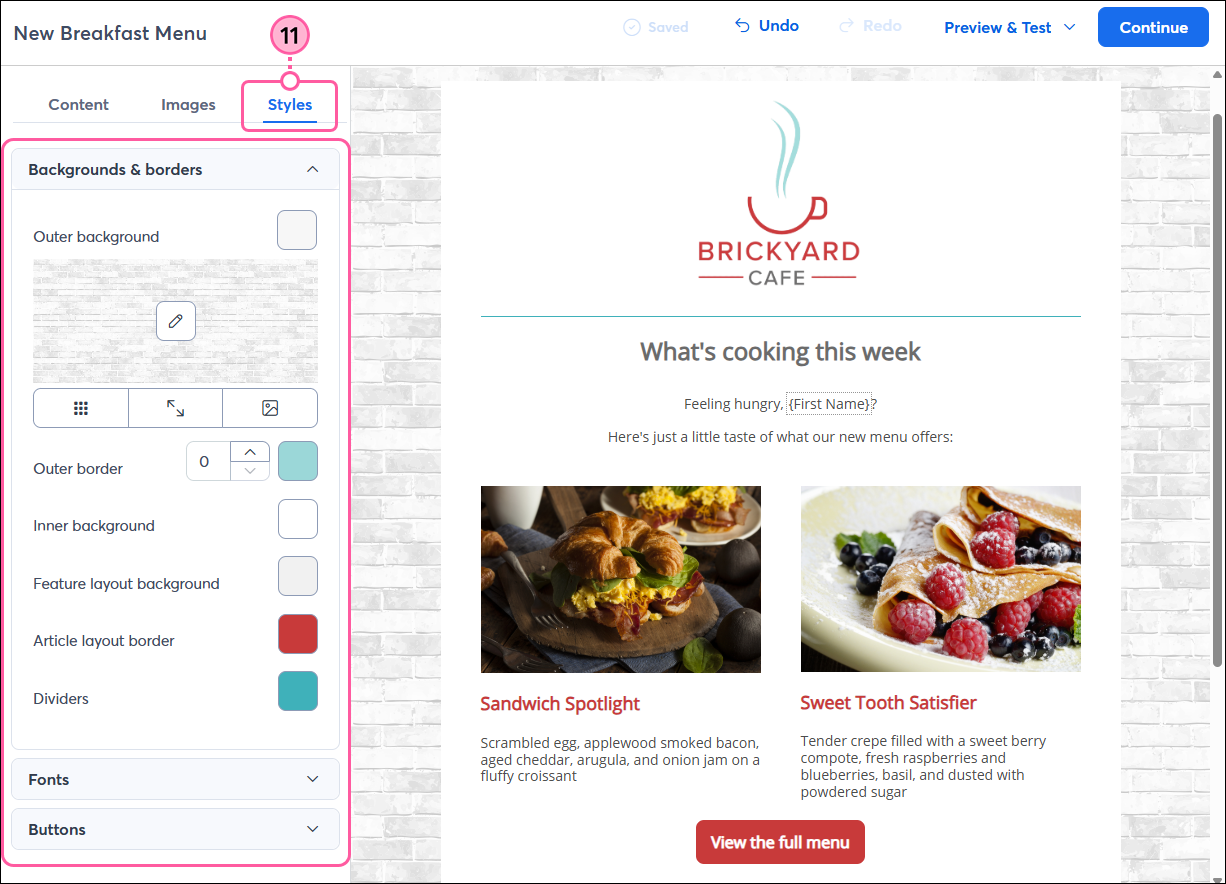
    The Design tab is where you can apply branding colors, font styles, link colors, and button styles across your entire template to keep everything uniform. Placing your cursor over a font or color option lets you preview what it will look like throughout the entire template before you click to select it.

    Light Bulb IconDesign tip: If you style text, choose a button color, or select the background color for an individual block, that block gets ignored when you apply global styles through the Design tab. We recommend making selections from the Design tab first, then fine-tuning individual blocks afterward to save time by avoiding manual adjustments to multiple blocks.


    1. Click the Design tab.
    2. Click Backgrounds & Borders to expand the menu to:
    1. Click Fonts to expand the menu to apply styles to all the text in your template:
    • Choose the font, text size, and colors
    • Choose link colors and emphasis styles (bold, underline, italic)

      Email editor with Design tab selected and Fonts menu expanded

    1. Click Buttons to expand the menu to apply styles to all the buttons in your template:
    • Select a button color.
    • Select the font, text size, and color for the button text.
    • Choose a radius to give your buttons a rounded or square look.
    • Select a border color.
      Note: If you apply a border color and it isn't visible in your template, make sure the border is enabled for each button in your template.

      Email editor with Design tab selected and Buttons menu expanded


    Get ready to send your email

    Support IconJoin the conversation: First time designing an email? Our Community can help! Just submit your email to the "Campaign Feedback" forum for some honest feedback before you send it out to your contacts.


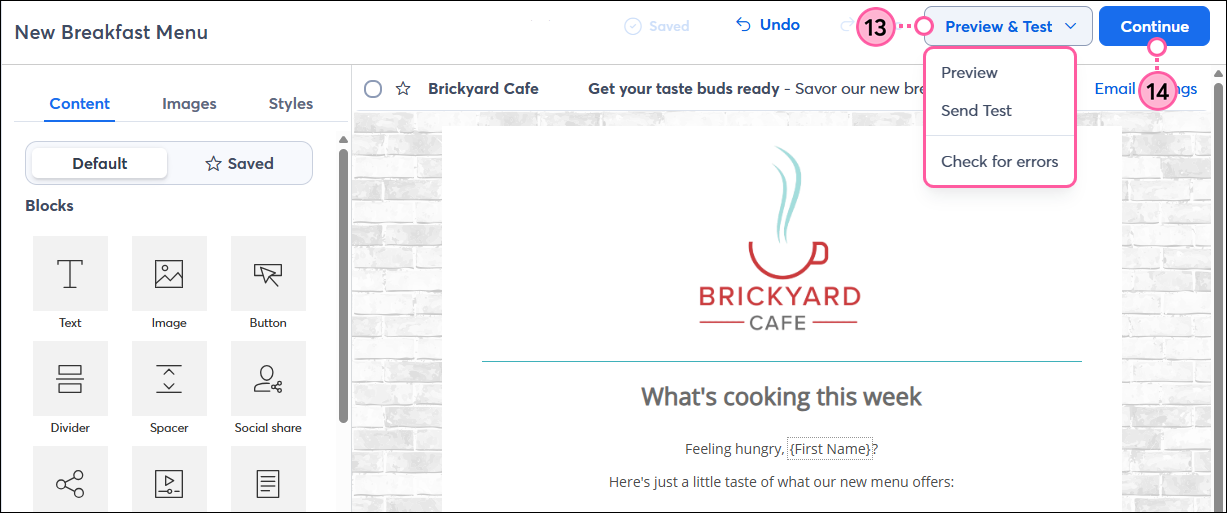
    Now that your email content is complete, we recommend taking a little time before you send to make sure your content is error-free and has a lower chance of ending up in the spam folder:

    1. Click Preview & Test to expand the drop-down menu and select:
    1. Once you're ready to schedule your email to send to your contacts, click the Continue button.

      Email editor with Preview and Test drop-down menu expanded and Continue button


    Create and edit an email (mobile web)

    If you’re using Constant Contact on your mobile device's web browser (versus your desktop computer or Constant Contact's mobile app), it’s easy to create, edit, and schedule an email:
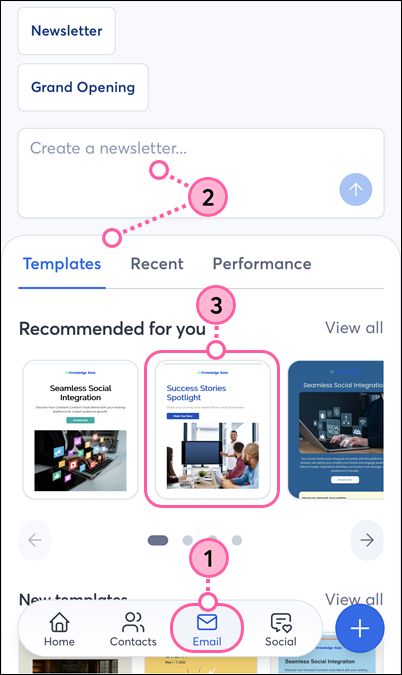
    1. From the menu, tap Email.

      Constant Contact on mobile browser, menu expanded with Email option selected

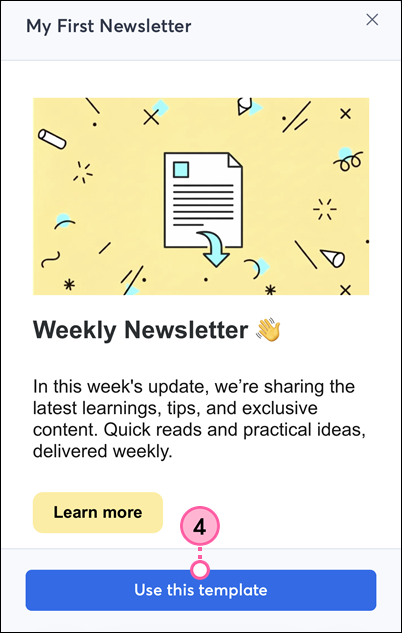
    2. Tap Create email to start with a generic Weekly Newsletter template, or scroll through our template options.

      Constant Contact on mobile browser, Email hub page with Create Email button and template options

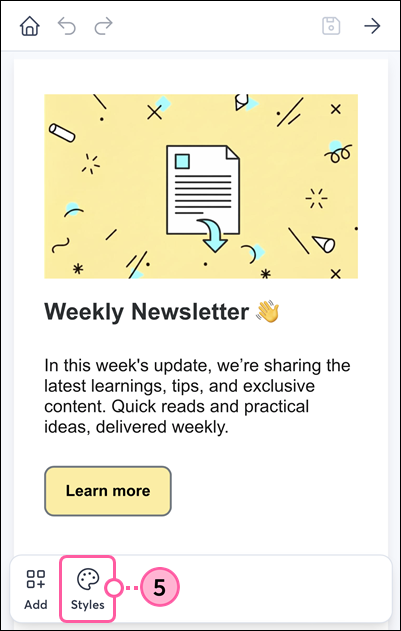
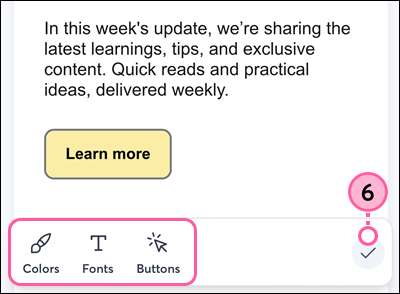
    3. Tap the paintbrush icon to customize the template background, font, and button styles. 
      Tip: You can also customize the colors of individual text blocks and buttons (see steps 9 and 10).
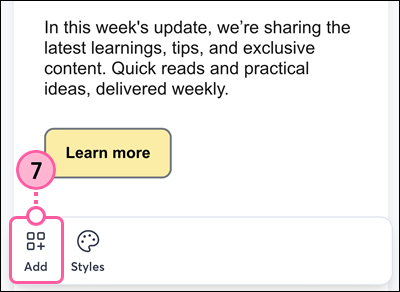
    4. Tap the plus symbol to add an element to the template, such as a text block, image, or button.

      Mobile web email editor with paint brush and plus symbol buttons

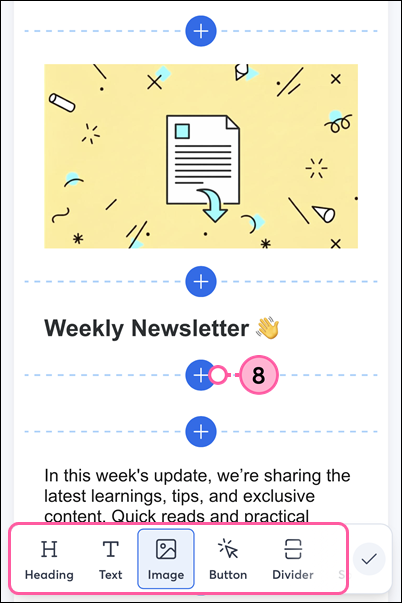
    5. From the menu at the bottom, select the element you want to add, then tap the plus symbol to choose where you want to insert it in the template. 
      Note: The blocks you’re able to insert are limited compared to the desktop email editor. Scroll to the right to see all available options for mobile web.

      Mobile web email editor with element options and plus symbols to insert

    6. Tap anywhere on the template to expand the different elements.

      Mobile web email editor template preview

    7. Tap on an element to edit it.
      Note: Some blocks are not editable in mobile web browsers and will need to be edited on a desktop.

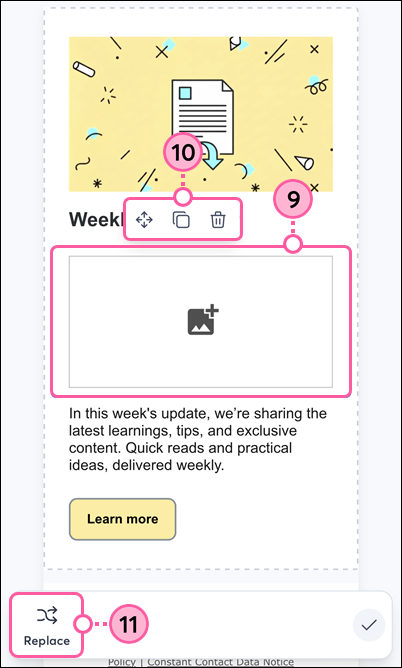
      Mobile web email editor, templated with elements expanded, and Image block selected

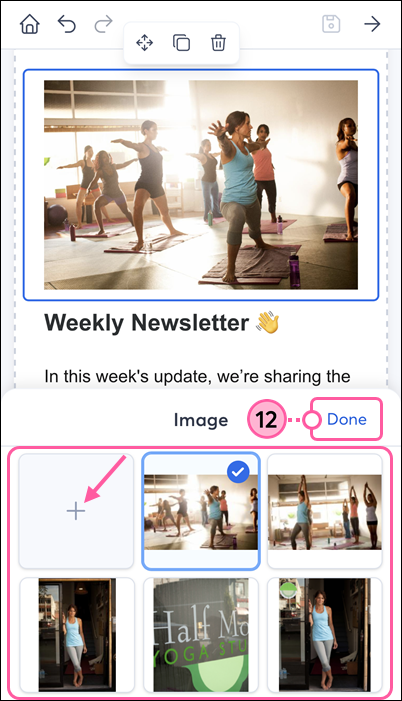
    8. For Image blocks, select an image from your Constant Contact Library, or click the plus symbol to take a new photo or select a photo from your device’s photo library or files.

      Mobile web email editor, Image block with plus symbol and Library photo selected

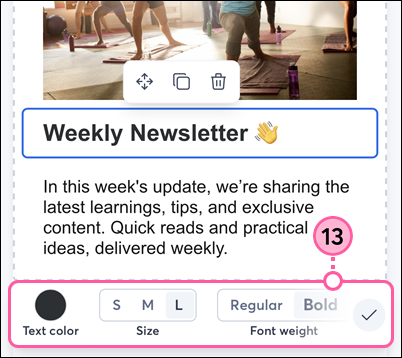
    9. For Text blocks, tap on the text to update the content, and use the design options to customize the text color, size, font weight, and alignment.

      Mobile web email editor, Text block, Tap to Edit text option, and text customization options

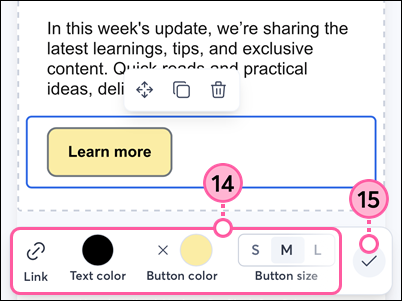
    10. For Button blocks, tap to update the text displayed on the button, enter the URL you want to direct your contacts to, and customize the text color, button color, button size, font weight, and button alignment.
    11. (Optional) Click the trash can icon to delete the element.
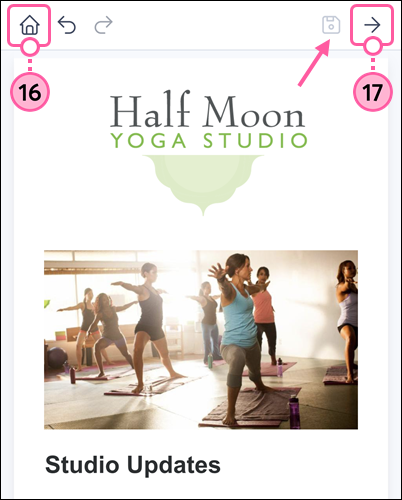
    12. When you’re finished editing an element, click the back arrow to return to editing your email.

      Mobile web email editor, Button block, Tap to Edit text option, URL field, and customization options, Back arrow, and Trash Can icon

    13. Click and drag the set of dots on the left to move an element up or down in your template.
    14. Click Collapse to return to the email preview.

      Mobile web email editor, drag icon, and Collapse button

    15. If you’re not ready to schedule your email to send, click Save to save your email draft. You can then navigate away from the email editor, and your draft will be available in your campaigns list to finish editing and schedule later.
    16. When you’re finished designing and ready to send, click Continue to select your contact lists, update your subject line and preheader, and schedule your email.

      Mobile web email editor with template preview, Save button, and Continue button


    If you want to customize your email design even further, you can edit it on a desktop.


    Light Bulb IconTip: If mobile is your preferred way to work, install the Constant Contact mobile app to easily create emails, share social posts, and manage your contacts all on the go!


    Want to learn more about creating an email? Watch our webinar:


    Learn more about marketing and Constant Contact through our free live webinars.


    Questions?

    Ask the Community

    Did this article answer your question?


    Constant Contact Logo

    Copyright © 2026 · All Rights Reserved · Constant Contact · Privacy Center