Email and Digital Marketing
How can we help you?
Search our help articles, video tutorials, and quickstart guides

You've got this. You've got us. Search our Knowledge Base to quickly find answers to your questions.

Resize an image in an email

Article: 000017769
Updated: January 22, 2026

Manually resize an image or set a specific size for an optimal look when viewed on both desktop and mobile

Once you've added an image to your email, you can proportionally increase or decrease the size by hand to set how you want it to look when your email is viewed on a desktop, or you can set a specific width and choose whether you want it to span the full width of the screen when the email is viewed on a mobile device.


Resize an image for optimal display on a desktop

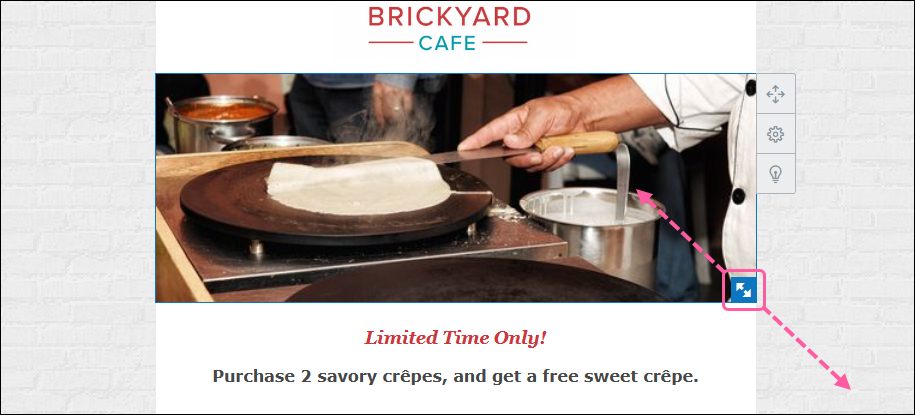
  1. Place your cursor over the image and click the arrows in the lower right-hand corner. Click and drag the corner out to increase the image size and in to decrease it.

    Image Re-size Drag Handle


design tipDesign tip: If you're seeing extra white space around your image and you want to get rid of it, you can remove the image padding. The background color of the block can also be changed, giving you additional styling options.


If your image isn't looking quite the way you want, try cropping it. Wide images work best as banner images because they retain more content when cropped.
 

Set image dimensions for optimal display on a mobile device

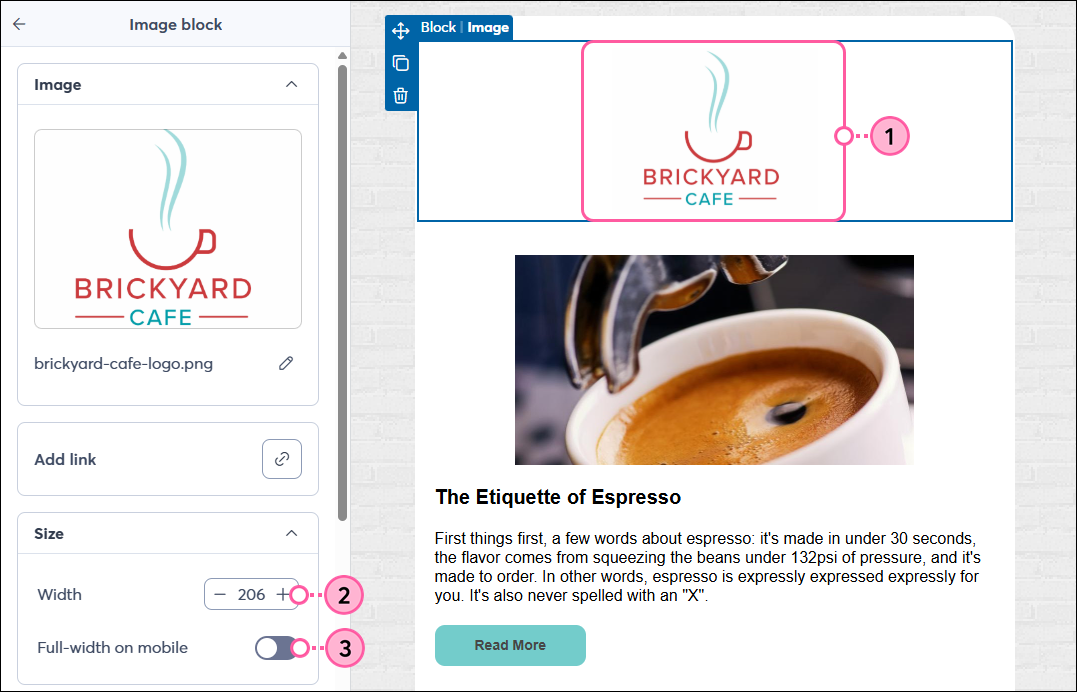
  1. Click on the image.
  2. From the panel on the left, adjust the width of the image. The height will change proportionally. 
    Tip: Choose a width of about 150–250 pixels if you would like the image to take up a third to a half of the mobile screen width.
  3. Click the toggle if you want the image to span the full width of the screen when viewed on a mobile device.

    Image selected and Image block panel


Now you can preview your email to make sure the image looks the way you want on both desktop and mobile:
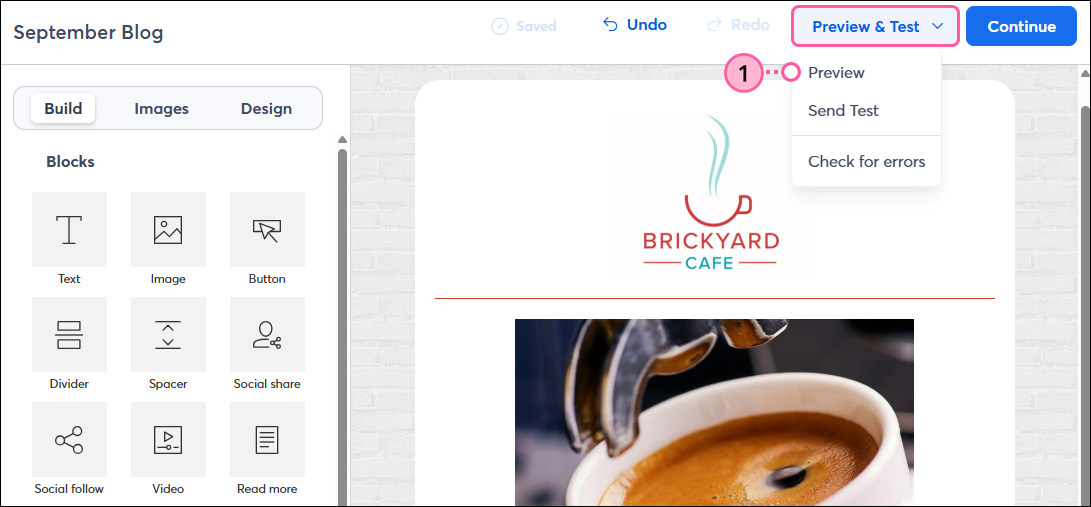
  1. Click Preview & Test > Preview.

    Preview & Test dropdown with Preview option
     
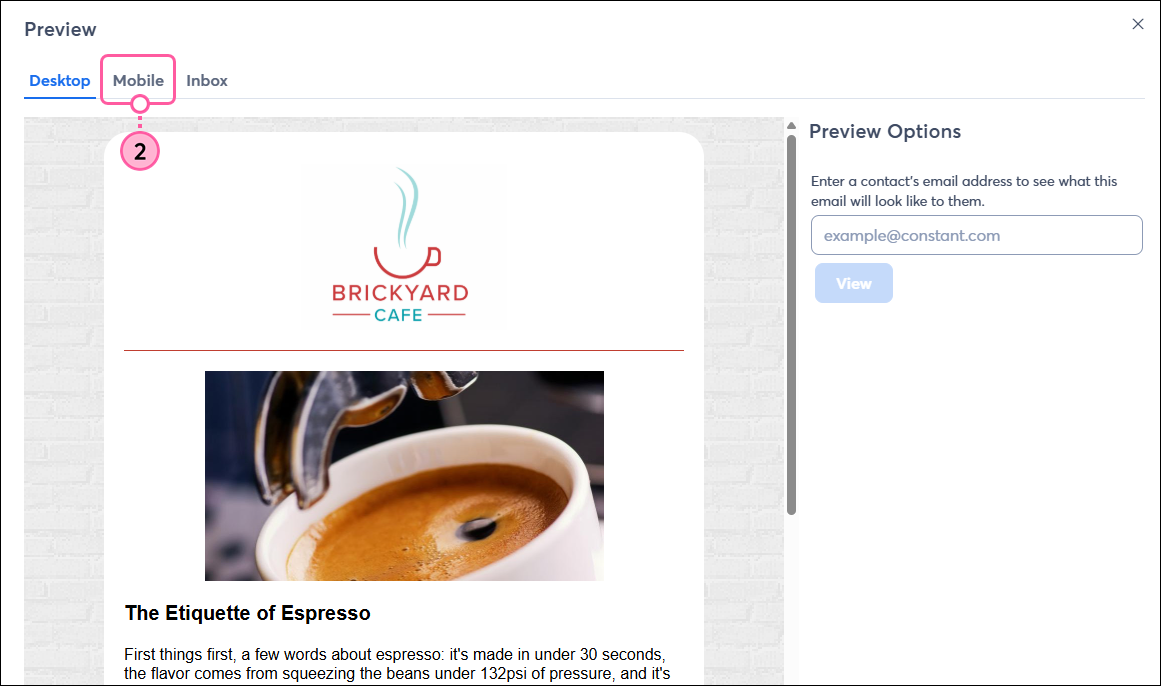
  2. Click the Mobile tab.

    Desktop Preview of email and Mobile tab
     

Make sure the image appears as intended when viewed on a mobile device.
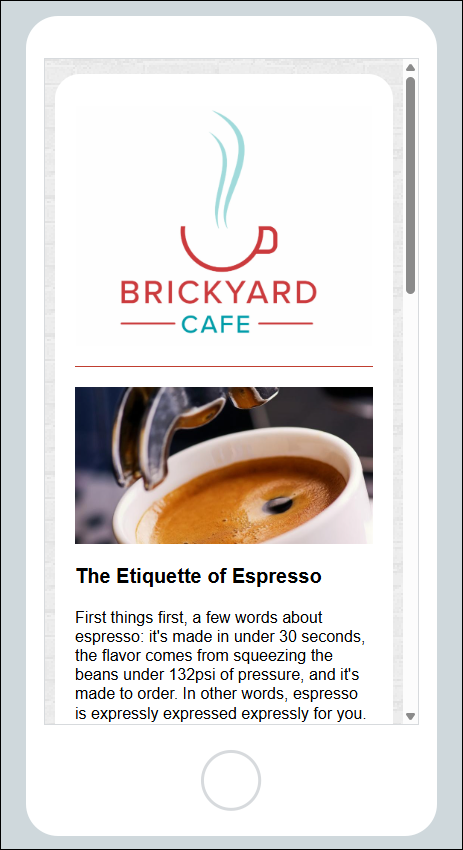
 

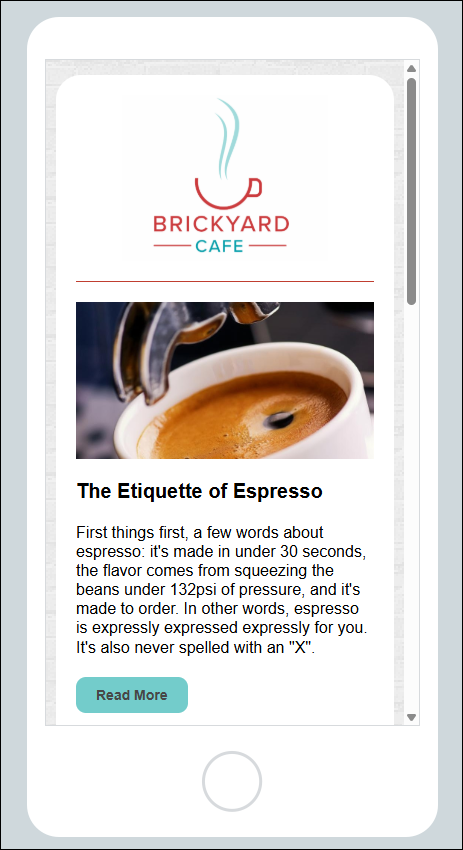
Preview of Email on Mobile Device with logo spanning full widthPreview of Email on Mobile Device with logo not spanning full width
The "Full width on mobile" toggle was turned on for the logo in this email, so it fills the width of the screen when viewed on a mobile device.  The "Full width on mobile" toggle was turned off for the logo in this email, so it maintains its dimensions and does not span the full width of the mobile screen. 


Questions?

Ask the Community

Did this article answer your question?


Constant Contact Logo

Copyright © 2026 · All Rights Reserved · Constant Contact · Privacy Center