We're making it easier to get around Constant Contact with a brand new left navigation. Not all accounts have that change yet, so if your navigation looks different from our articles, that's why–but everything from the top can now be found on the left!

Email and Digital Marketing
How can we help you?
Search our help articles, video tutorials, and quickstart guides

You've got this. You've got us. Search our Knowledge Base to quickly find answers to your questions.

Adjust the padding around an image in an email

Article: 000008352
Updated: October 24, 2025

Increase or decrease the amount of space around an image

Image padding gives you finer control over how much distance there is between images and the content that surrounds them.


Add padding around the entire image

Through the Image block panel, you can adjust the padding around any image in your email. You can even fine-tune the spacing on different sides of your image.
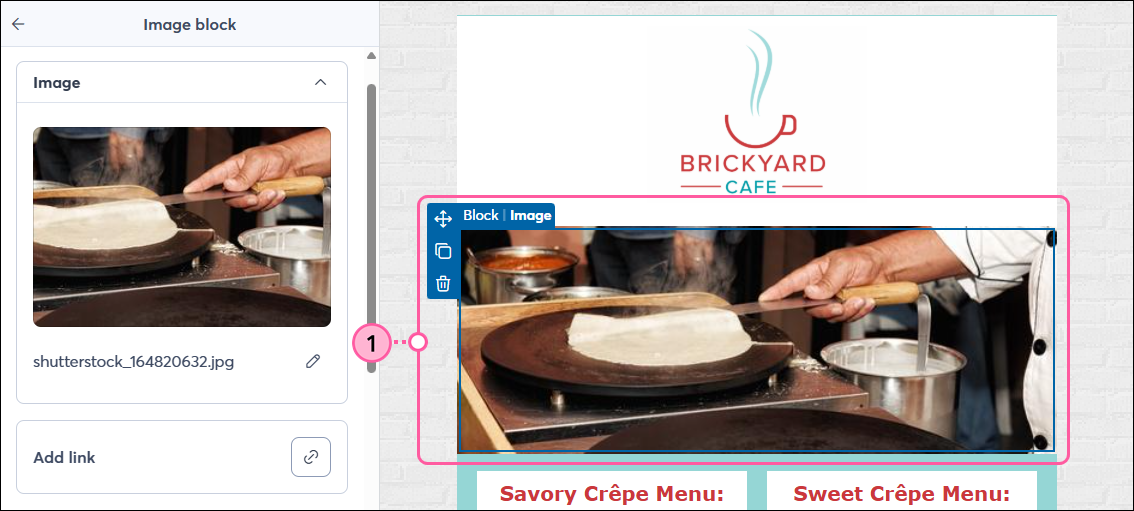
  1. Click on the image to open the left-hand panel.

    Email editor with image block selected
     
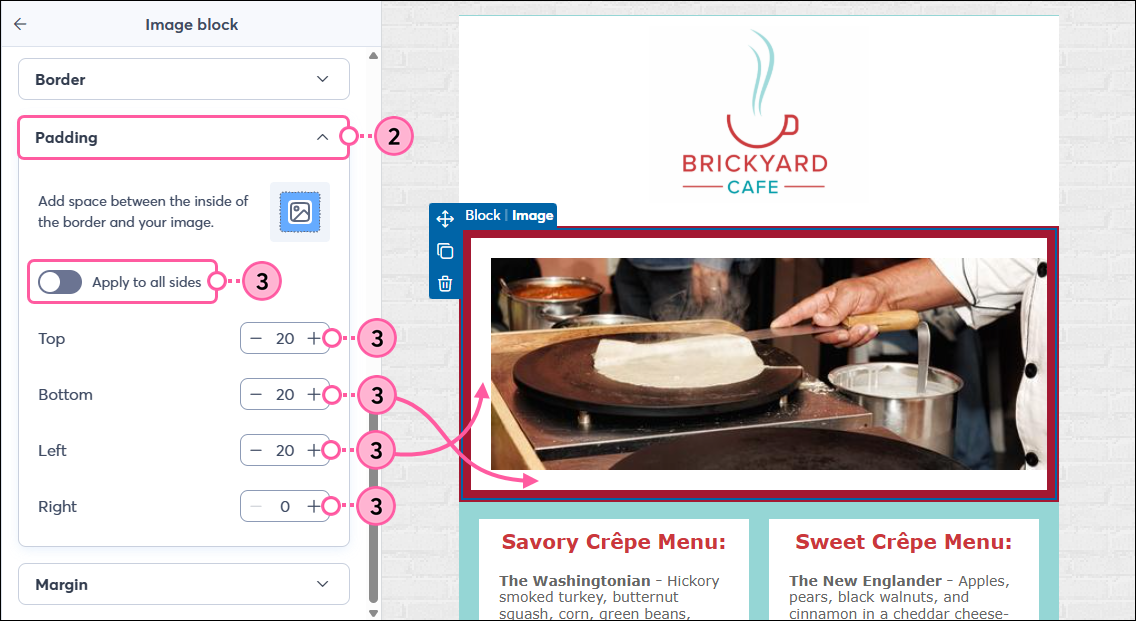
  2. If you added a border to your image and want to add padding between the image and border, scroll down to the Padding section and click to expand it if needed. 
  3. Click the toggle to apply the same amount of padding inside all sides of the image border, and choose the amount of padding you want, or adjust the padding inside the top, bottom, left, and right of the border.

    Email editor with Image block panel and Padding options
     
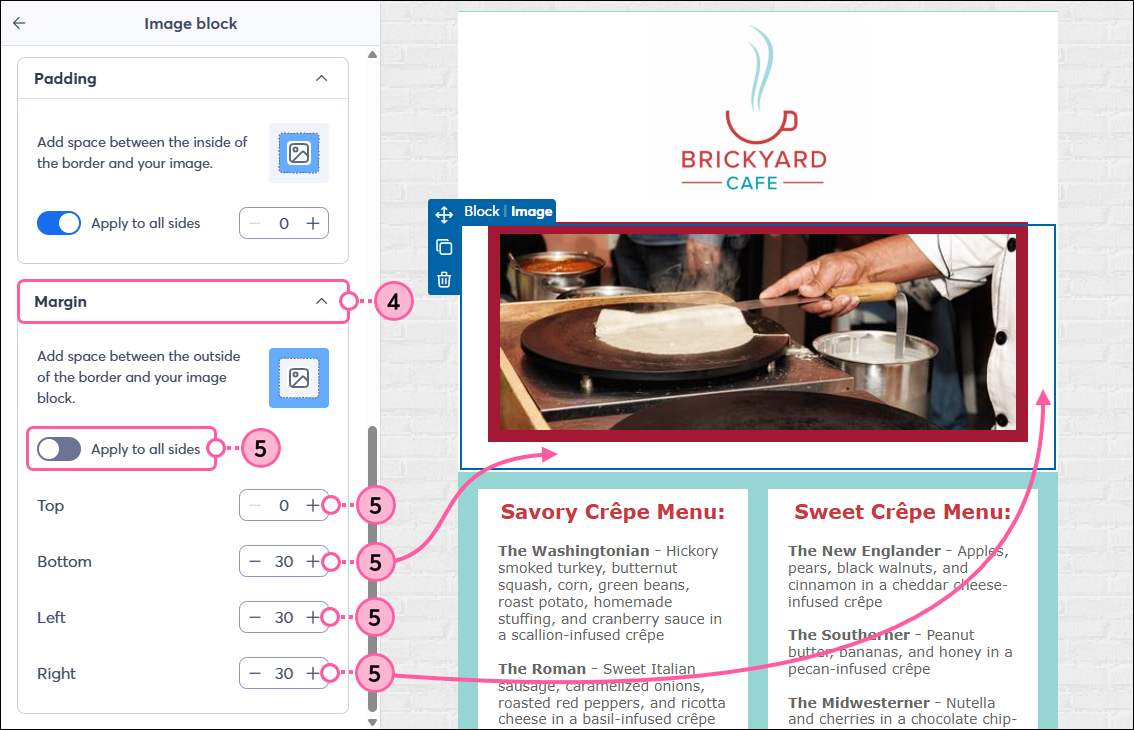
  4. To adjust the padding around the outside of your image border, scroll down to the Margin section and click to expand it if needed.
  5. Click the toggle to apply the same margins to all sides of your image and choose the amount of space you want, or adjust the margins for the top, bottom, left, and right.

    Email editor with Image block panel and Margin options
     
Light Bulb IconDesign tip: Adjusting the size of your image also adds or removes padding.


Add padding above or below an image using a Spacer block

Need a little more padding? For further adjustment, consider adding an adjustable spacer above or below the image to increase the padding even more. The background color of the spacer can also be changed.
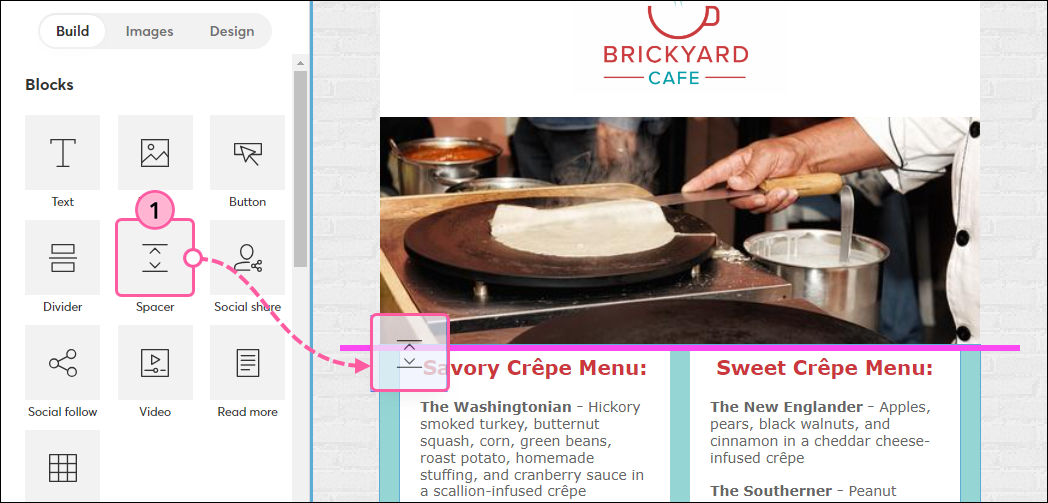
  1. From the Build tab, drag a Spacer into your template. Use the pink guideline to help you place it above or below your image.

    Email editor Build tab, with drag-and-drop-spacer below banner image, and guideline visible and stretched across the width of the template
     
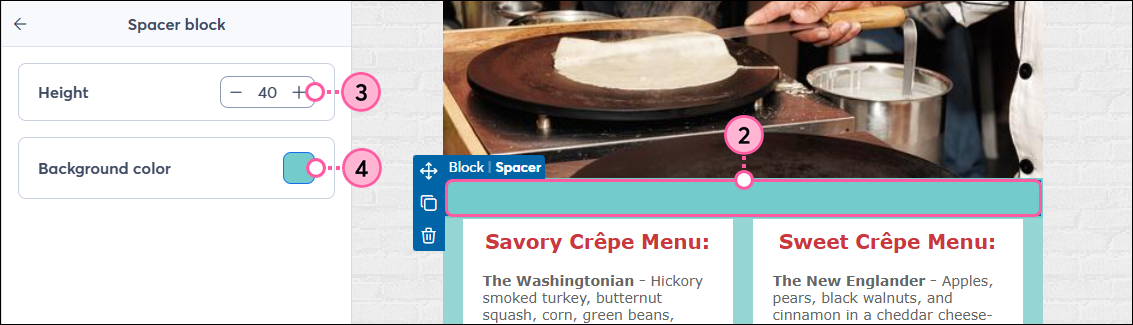
  2. Click on the spacer to open the left-hand panel.
  3. Adjust the Height to increase or decrease the thickness of the spacer.
  4. Click the Background color swatch and select a color from the Basic palette, or click Advanced to enter a specific HEX value. 

    Email template with spacer below banner image, and Spacer toolbar with thickness adjustment options


Questions?

Ask the Community

Did this article answer your question?


Constant Contact Logo

Copyright © 2025 · All Rights Reserved · Constant Contact · Privacy Center