Color is an important aspect of your email design, as the right color can showcase your branding or help convey the tone and mood of your email content. Colors can be applied throughout your entire template, or you can change the background colors of an individual block or layout, as well as text and buttons within a particular block to make them stand out further. If you create different sections in your email, you can also change the background and border colors within the section to highlight it.
 | Save time: Add your logo and brand colors to the BrandKit in your account, and they'll be easily accessible while you're editing your campaigns! |
Using the Styles tab to set colors for your backgrounds, borders, and dividers lets you apply them to your entire template. You can also manually change the color for an individual element through the controls for a particular block or layout, or through the customization options for a section.
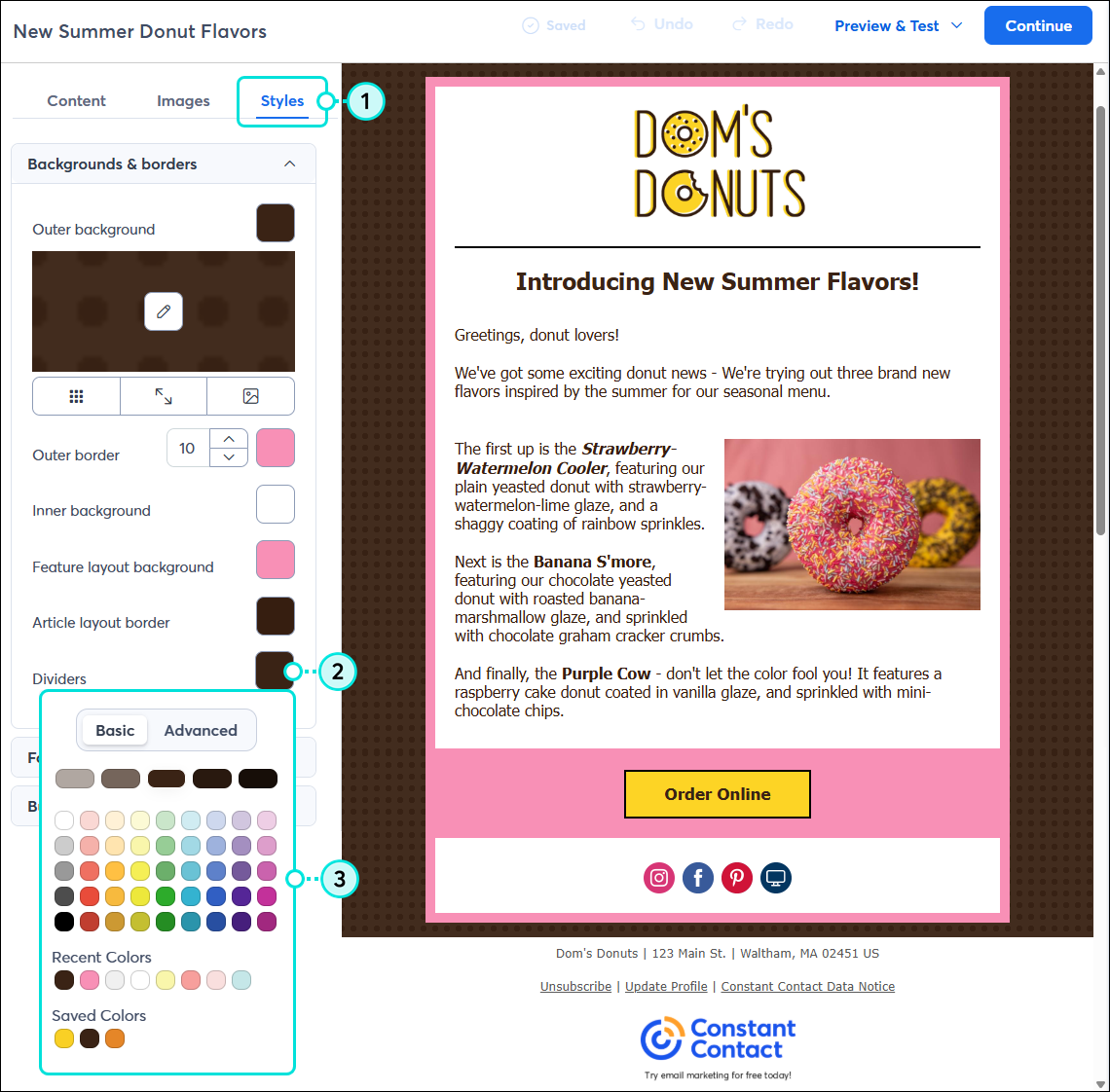
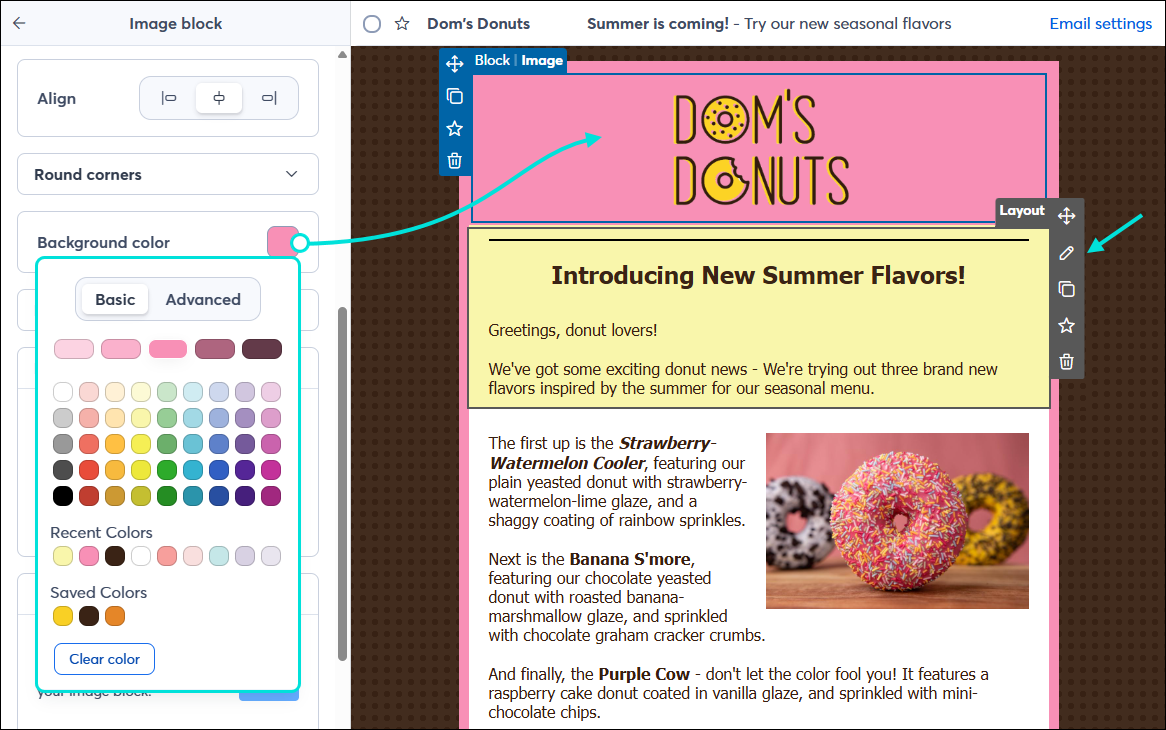
Even if you've changed the template colors on the Styles tab, you can still change the background color of an individual block or layout, or the color of a divider to make it stand out from the rest. Keep in mind that once you apply a background color through a block or layout's panel, the template colors on the Styles tab no longer apply to it.
 | Did you know? In addition to changing your outer background color, you can add a background image to the outer background, too. |
Using the Styles tab to set the colors for your text and links lets you apply them to your entire template.
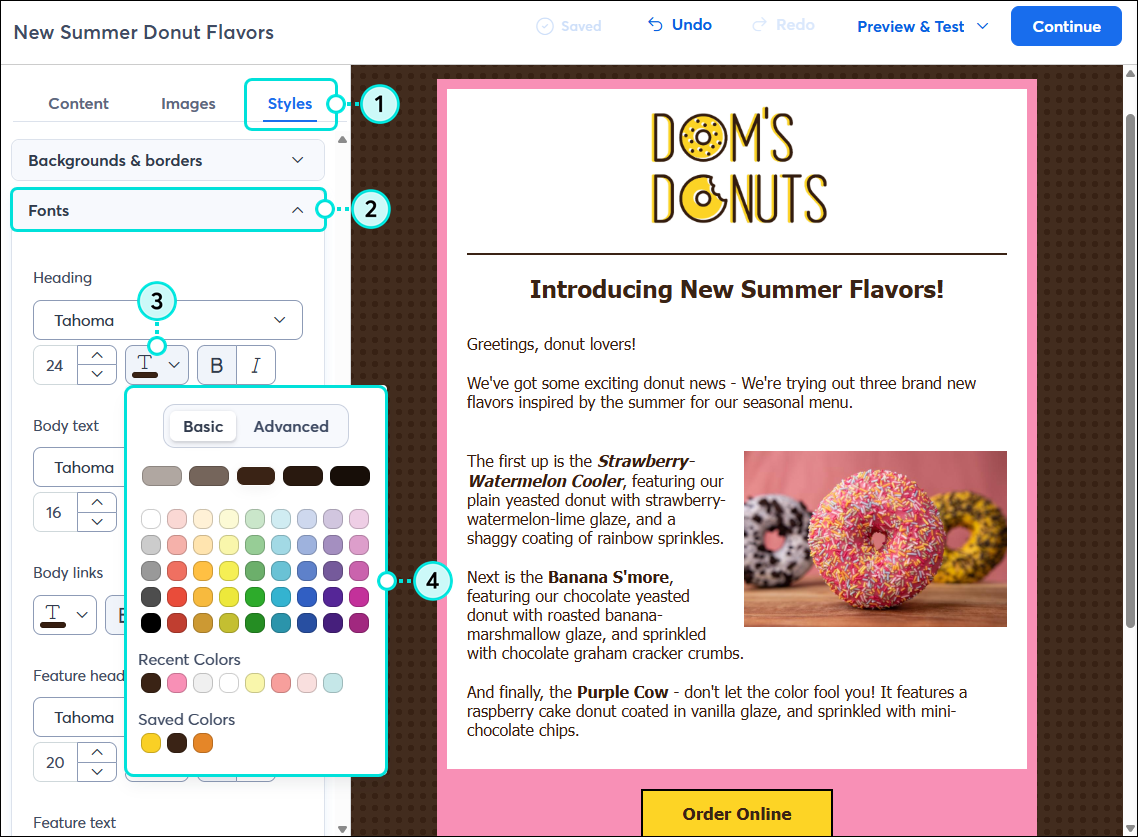
Even if you've changed the template-wide text colors on the Styles tab, you can still change the color of specific text or links to stand out from the rest. Keep in mind that once you apply a text color or styles through a Text block's toolbar (pictured below), the colors on the Styles tab no longer apply to it. 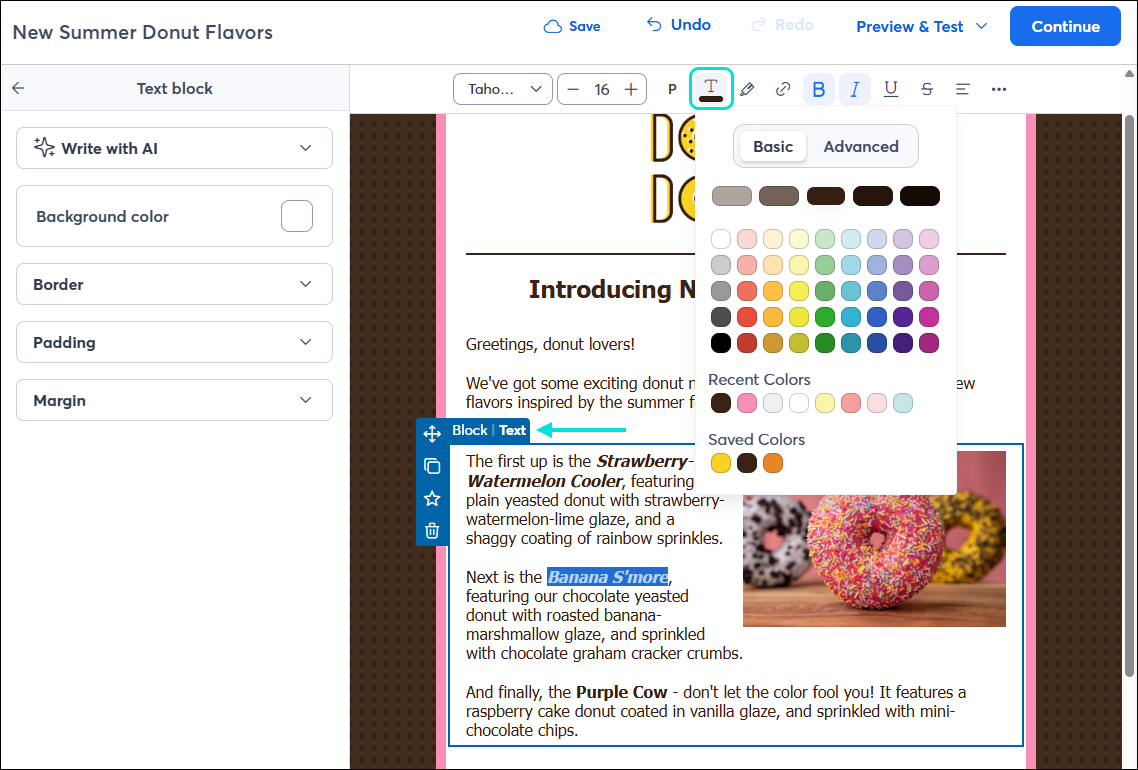
Using the Styles tab to set the colors for your buttons lets you apply them to all the buttons in your template.
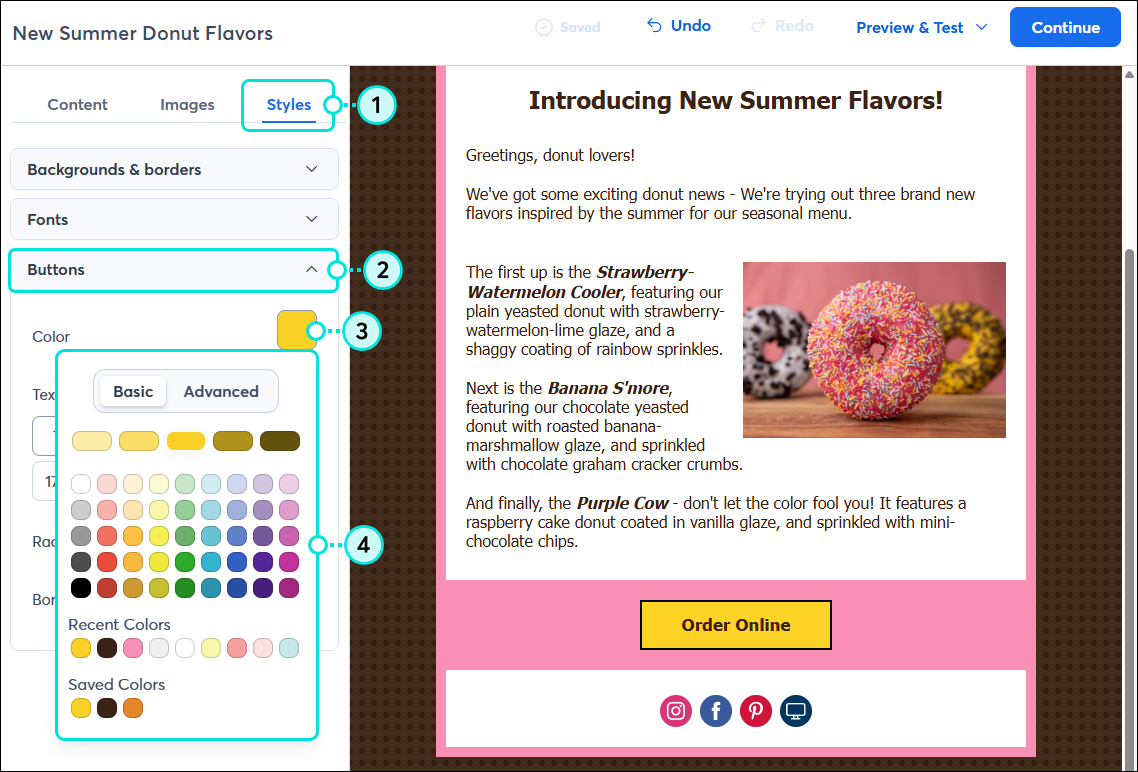
Even if you've changed the template-wide button colors on the Styles tab, you can still change the color of an individual button to make it stand out. Keep in mind that once you apply a color through the button's left-hand editing panel, the colors on the Styles tab no longer apply to it. 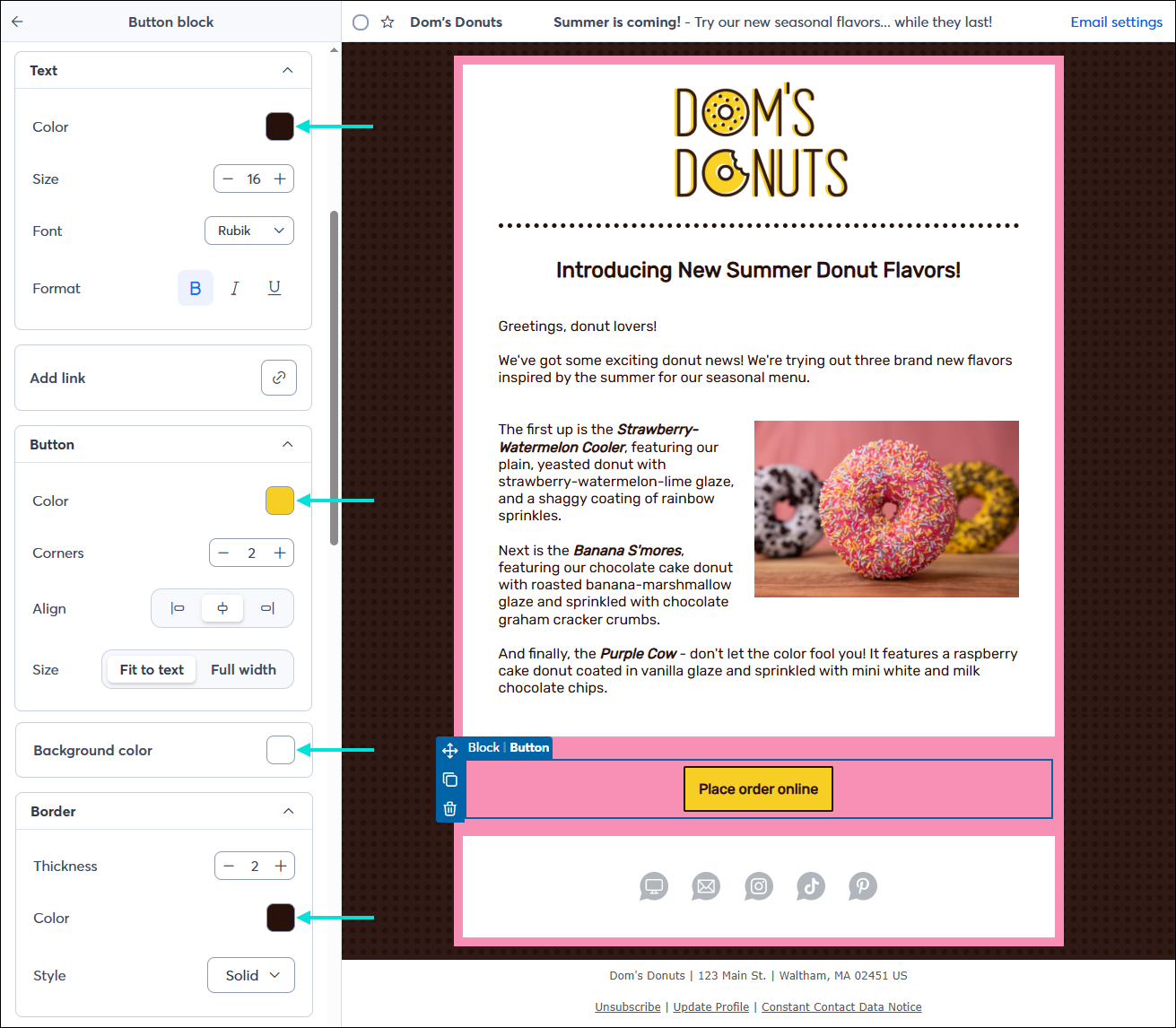
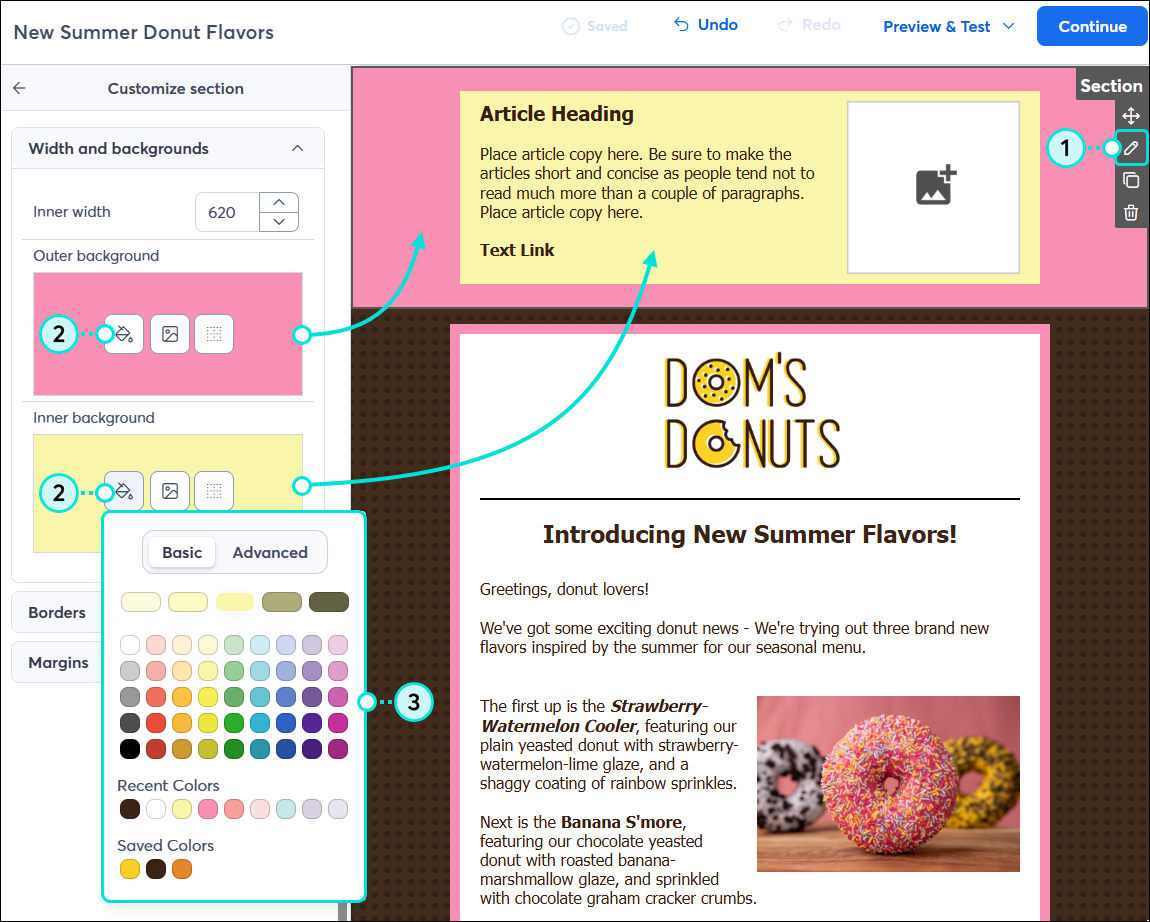
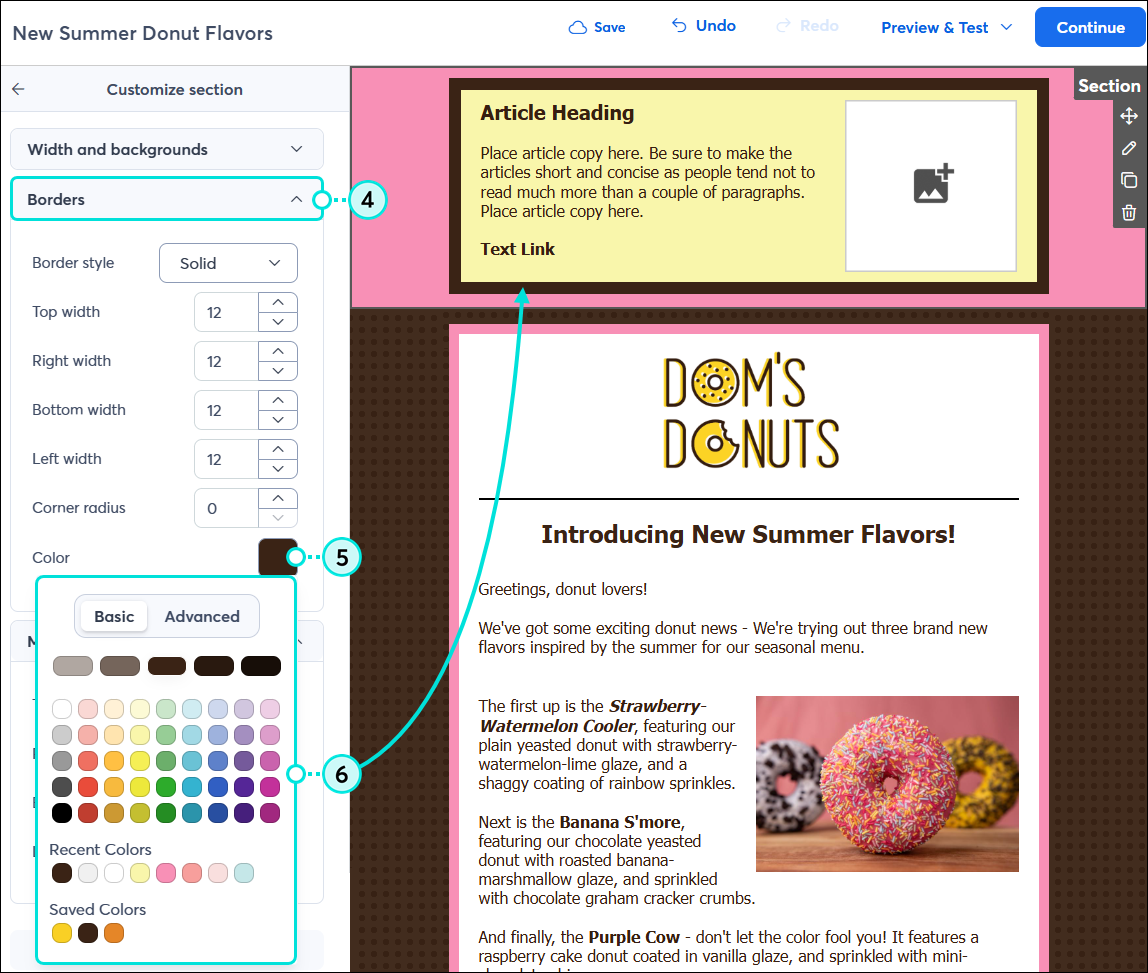
Each section in your email can have different background and border colors. Keep in mind that once you apply a color through the section, the colors on the Styles tab no longer apply to it.
Any links we provide from non-Constant Contact sites or information about non-Constant Contact products or services are provided as a courtesy and should not be construed as an endorsement by Constant Contact.
Copyright © 2026 · All Rights Reserved · Constant Contact · Privacy Center