Email and Digital Marketing
How can we help you?
Search our help articles, video tutorials, and quickstart guides

You've got this. You've got us. Search our Knowledge Base to quickly find answers to your questions.

Create an email

Article: 000005851
Updated: May 5, 2026

Select an email template and customize it with your content and branding

Light Bulb IconDesign tip: Before you get started, give our BrandKit a try! You can scan your website to import your logo and brand colors and create a theme that's applied to a collection of templates for you.


Ready to create a new email? It's as easy as choosing an email template and customizing it with your content and branding! We have hundreds of mobile-responsive templates to choose from, designed to look great on any device.


Desktop instructions:


Mobile web instructions:


Megaphone IconNot sure where to start with marketing? Check out our free Getting Started webinar series!


Create a new email and select a template


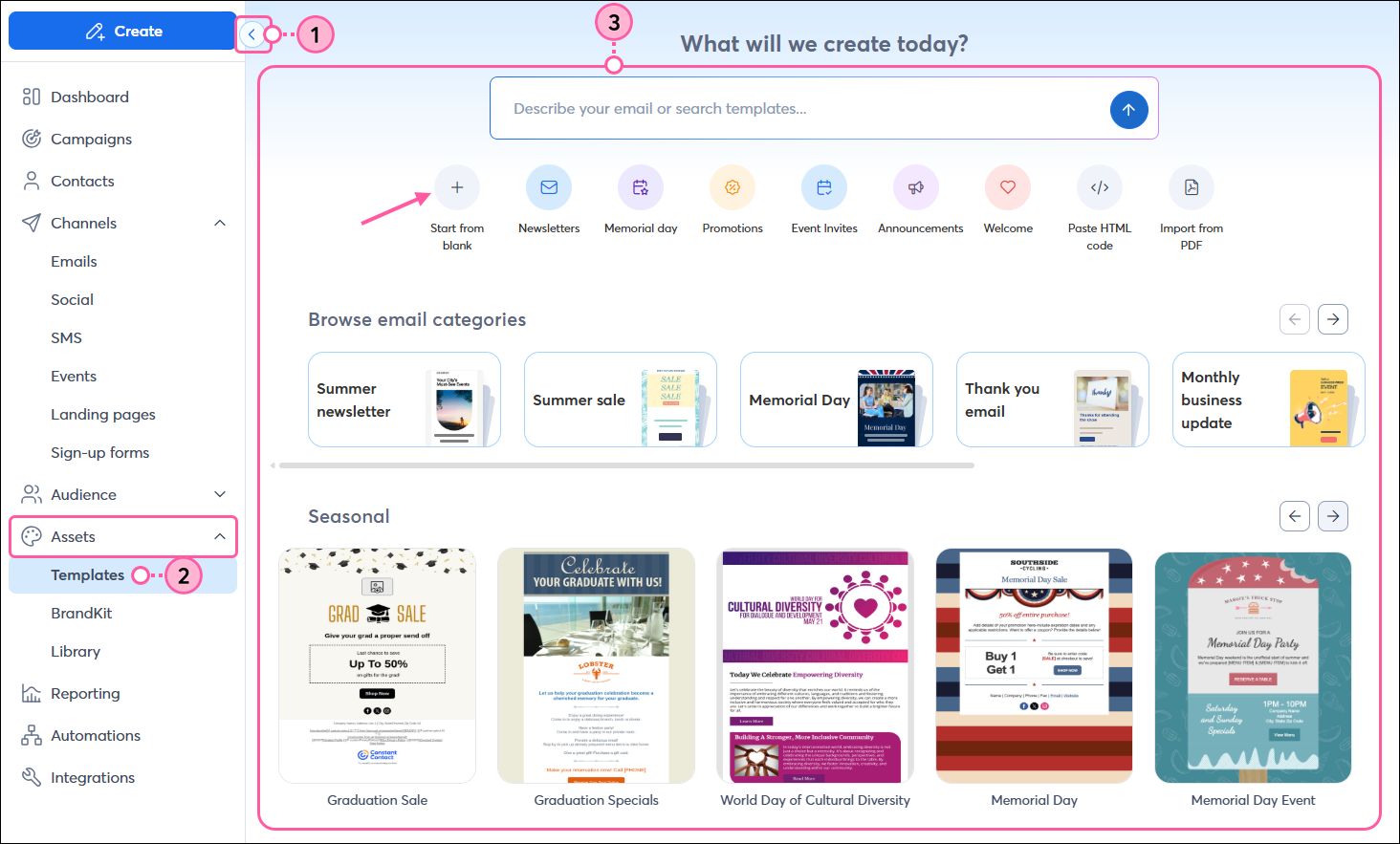
  1. Click ChannelsEmails.
  2. Click the + Create an email button.

    Marketing channels menu expanded with Email option selected, Email dashboard with + Create an email button

  3. Select an email template to customize.
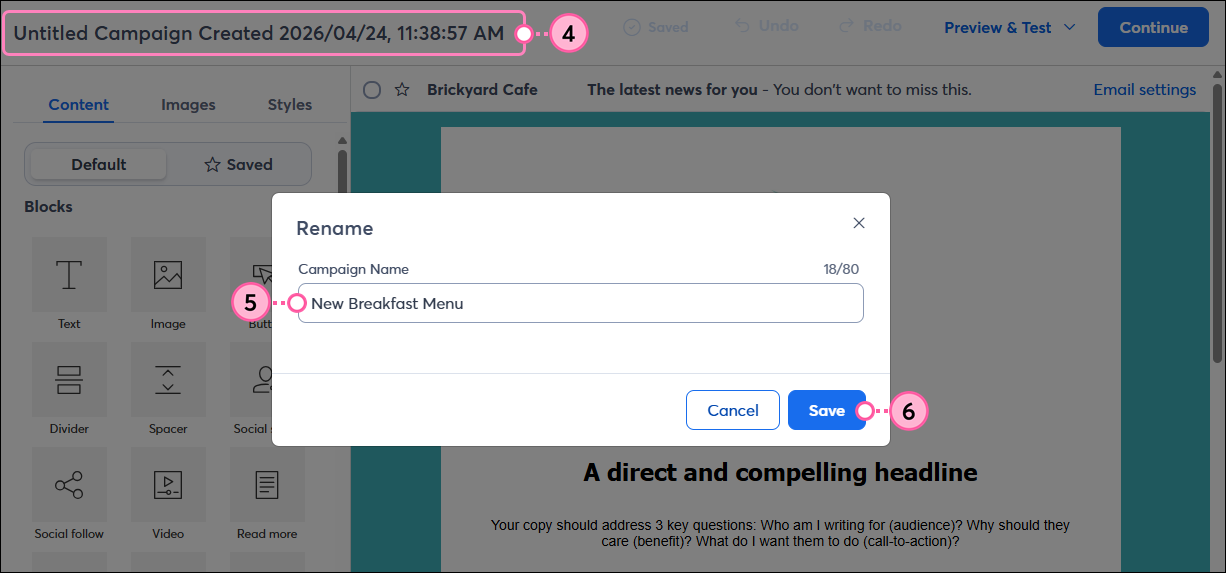
  4. Click on the email name in the upper-left to rename it.
  5. Enter a unique name in the Campaign Name field that you’ll easily recognize in your account later. Your contacts don't ever see this name.
  6. Click the Save button to return to the email editor.

    Email editor with Campaign name field, Rename overlay with Campaign Name field and Save button

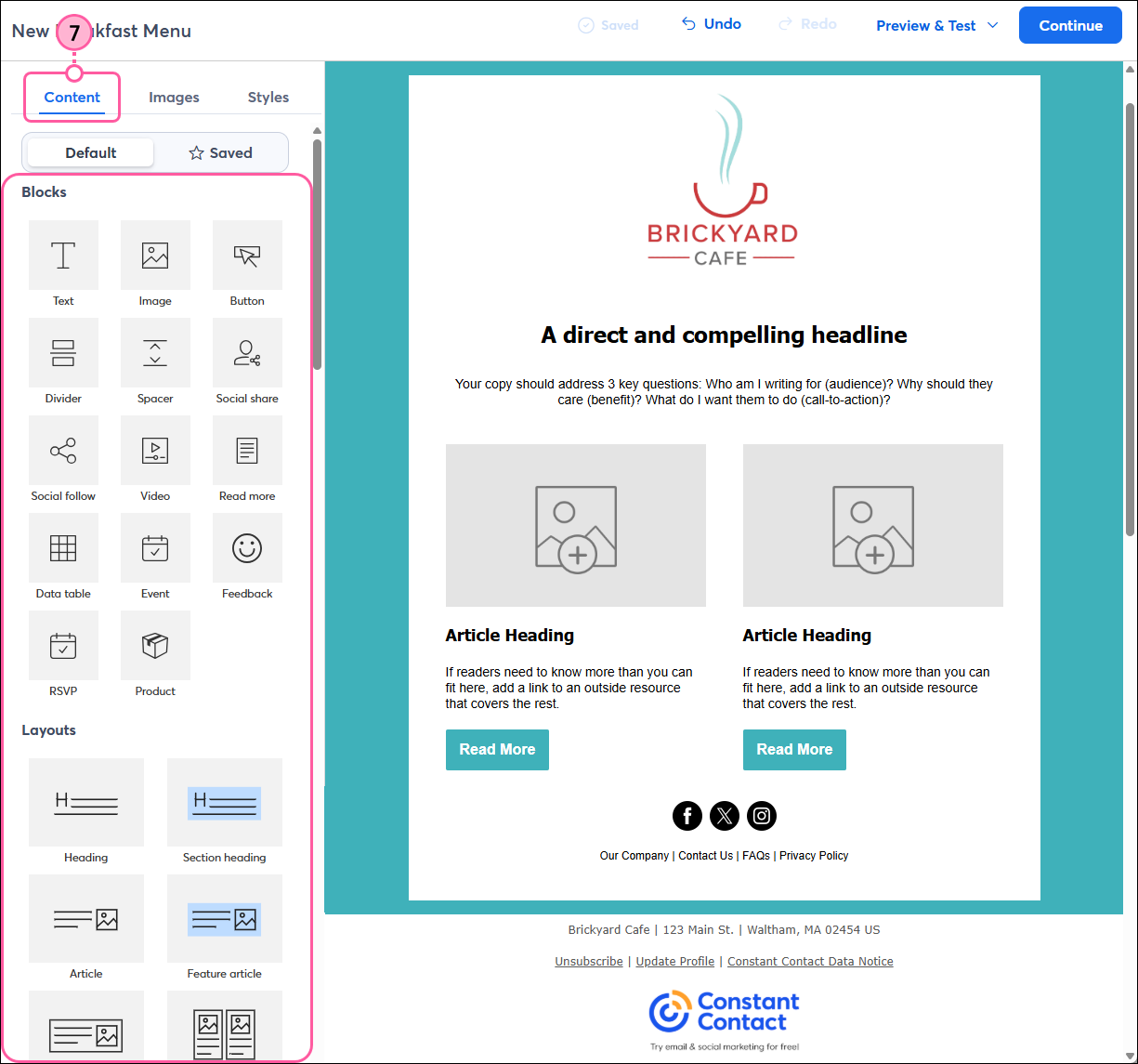
  7. If needed, click the Content tab to customize the look of your template using blocks, layouts, and sections. Just drag and drop the element you want into your template:
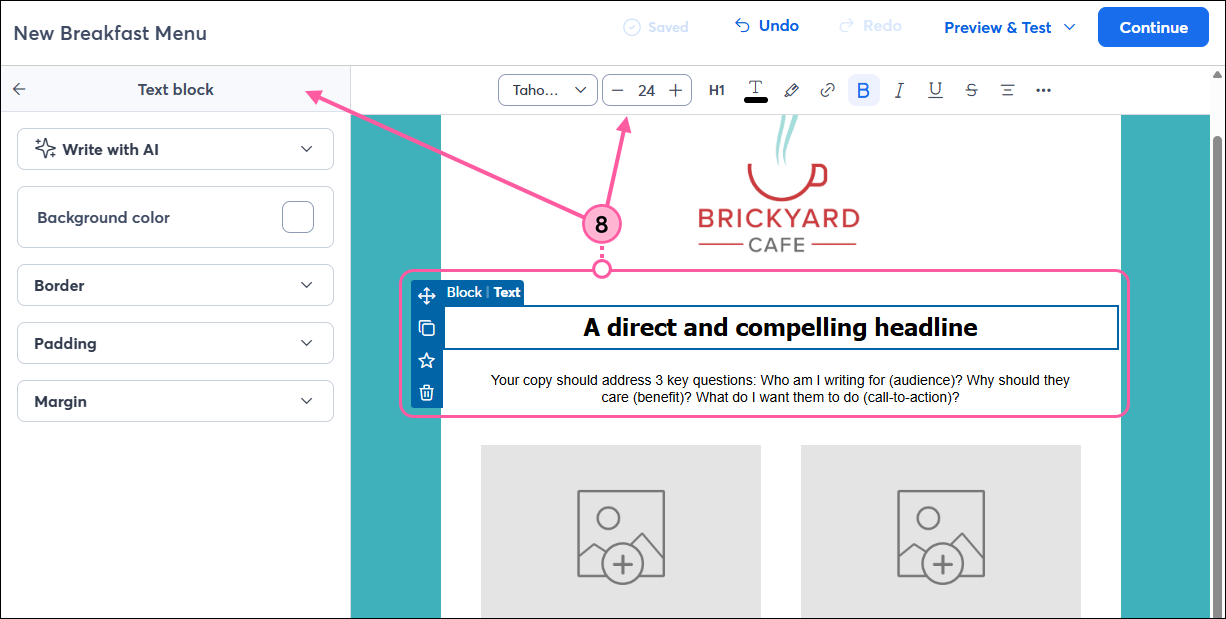
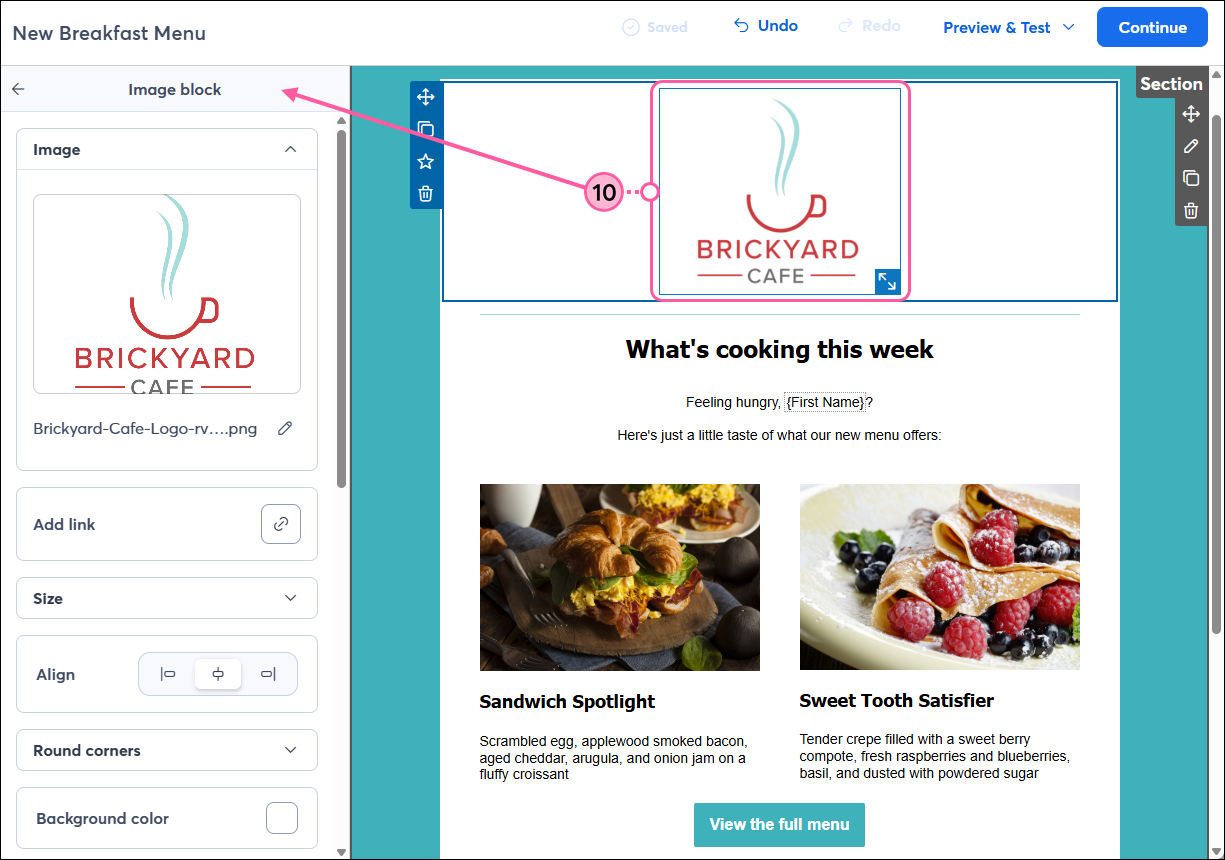
  1. Click anywhere on a block to open its editing options, which open at the top of the editor or on the left-hand side. You can change the alignment, add links, or make other customizations unique to the block.
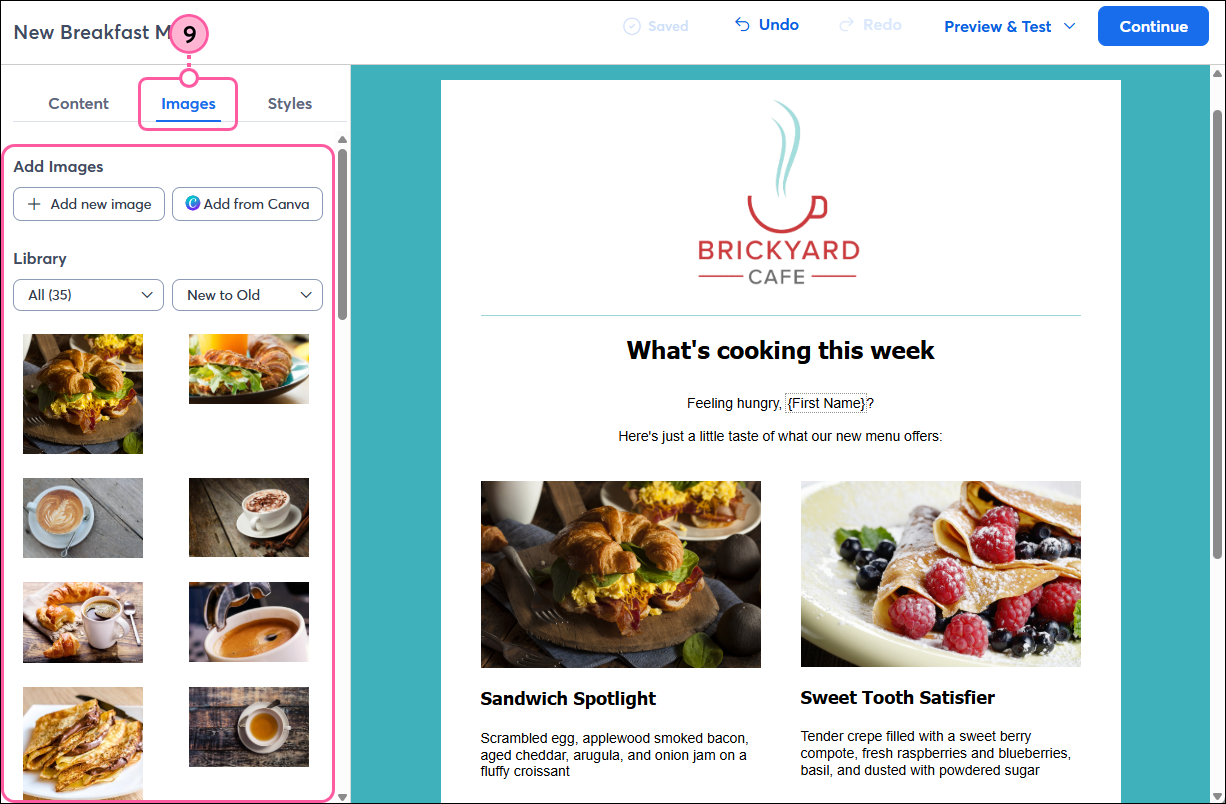
  1. Click the Images tab to:
  1. Click on any image to open the Image panel and:
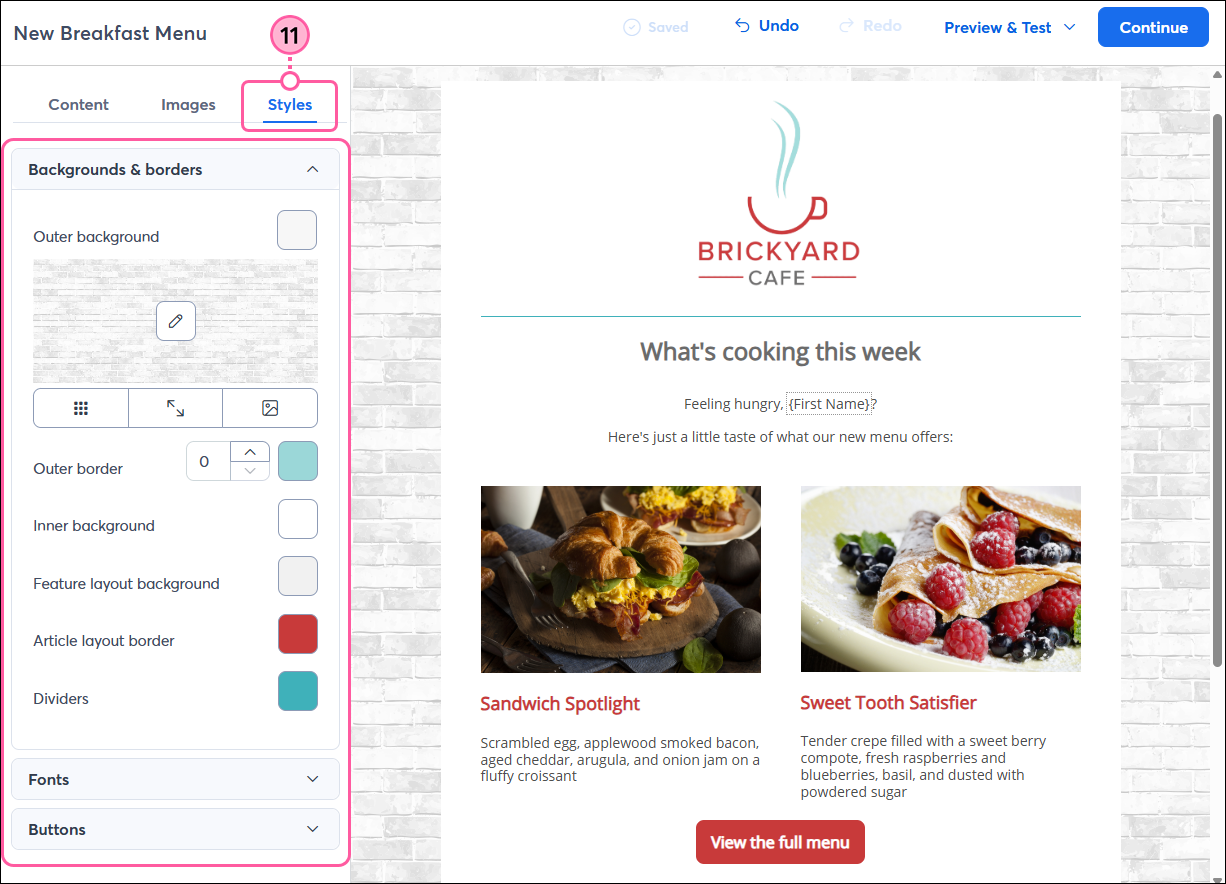
  1. Click the Styles tab to:
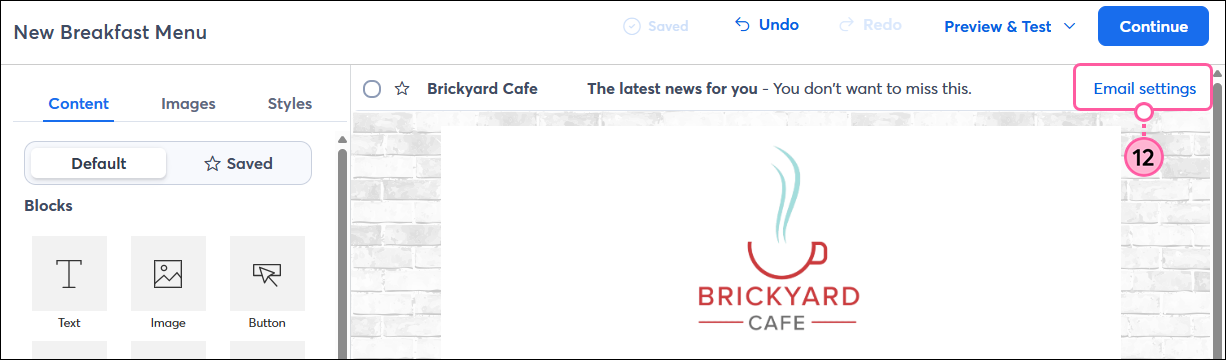
  1. Click "Email settings" to edit the email header.

    Email editor with Email Settings link
     
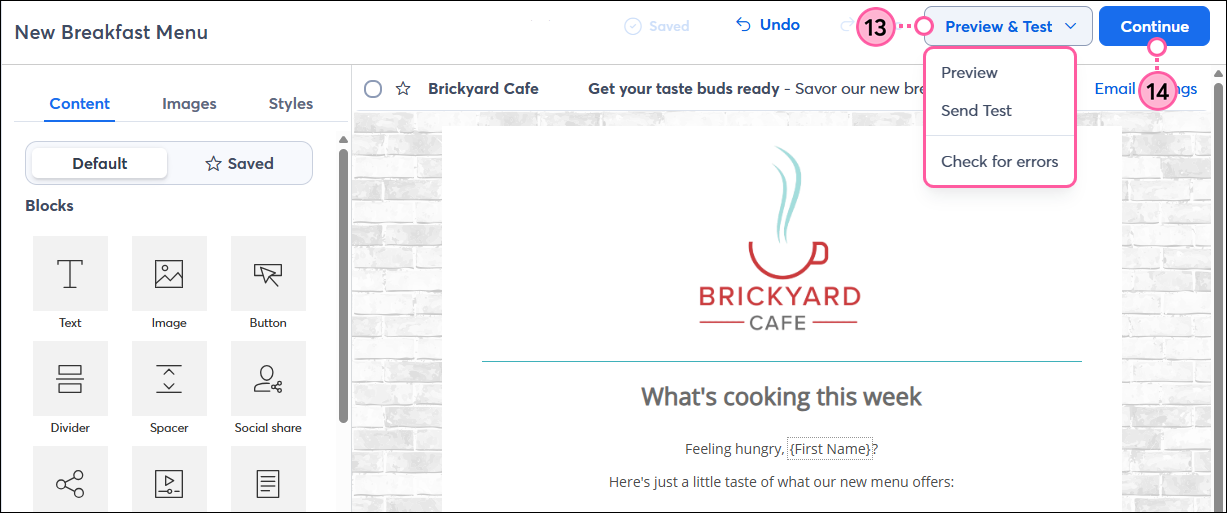
  2. When you're finished customizing your email, we recommend double-checking it before sending it to your contacts. Click the Preview & Test drop-down to:
  1. Once you're ready, click Continue to schedule your email to send to your contacts.

    Email editor with Preview and Test drop-down menu expanded and Continue button


Create and edit an email (mobile web)

If you’re using Constant Contact on your mobile device's web browser (versus your desktop computer or Constant Contact's mobile app), it’s easy to create, edit, and schedule an email:
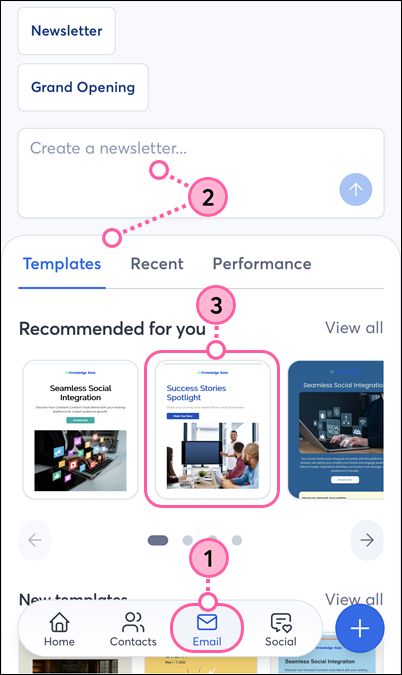
  1. From the menu, tap Emails.

    Constant Contact on mobile browser, menu expanded with Emails option selected

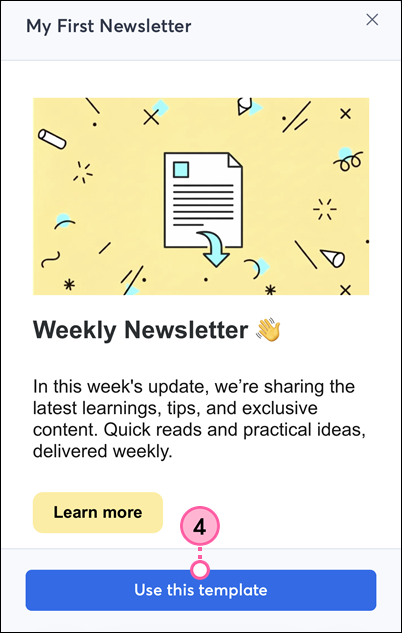
  2. Tap Create email to start with a generic Weekly Newsletter template, or scroll through our template options.

    Constant Contact on mobile browser, Email hub page with Create Email button and template options

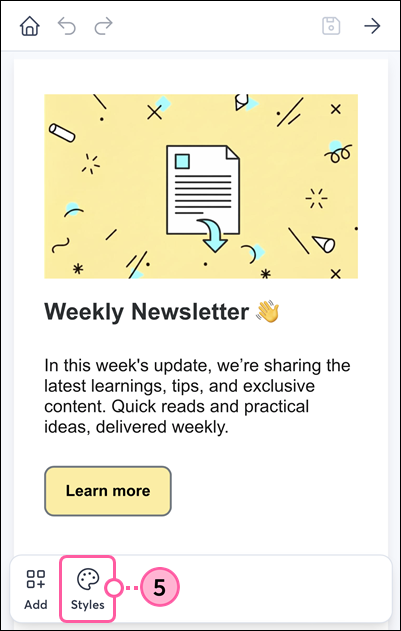
  3. From the bottom menu, tap the Styles icon to customize the template colors, font, and button styles. 
    Tip: You can also customize the colors of individual text blocks and buttons (see steps 11 and 12).

    Mobile web email editor with Styles icon in bottom menu

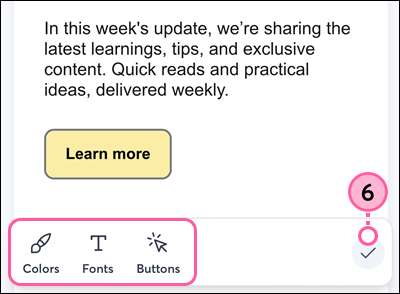
  4. Tap to edit the Colors, Fonts, and Buttons. When you’re finished with each, tap the check mark icon, then tap it again to return to editing your email.

    Mobile web email editor with Colors, Fonts, and Buttons options, and Check Mark icon

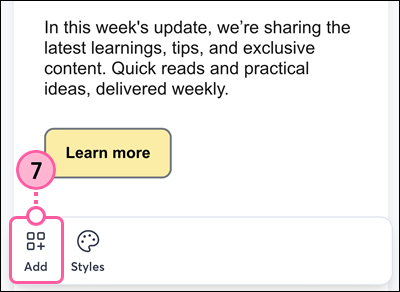
  5. Tap the Add icon to add an element to the template, such as a text block, image, or button.

    Mobile web email editor with Add icon in bottom menu

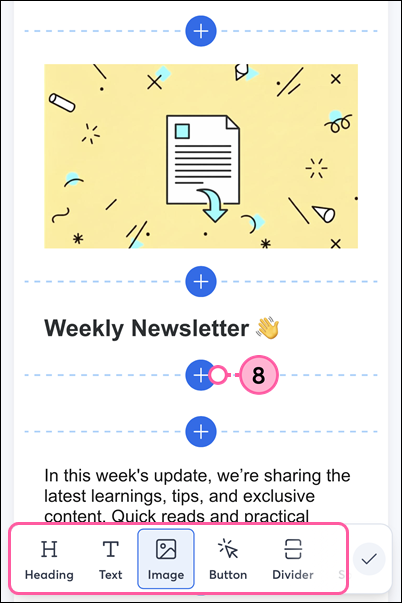
  6. Select the element you want to add, then tap Insert here to choose where you want to insert it in the template. 
    Note: The blocks you’re able to insert are limited compared to the desktop email editor. Scroll to the right to see all available options for mobile web.

    Mobile web email editor with element options and Insert Here options

  7. Tap on an element to edit it.
    Note: Some blocks are not editable in mobile web browsers and will need to be edited on a desktop.
  8. (Optional) Tap and drag the directional arrows to move the element up or down in your template, tap the copy icon to duplicate it, or the trash can icon to remove it completely.
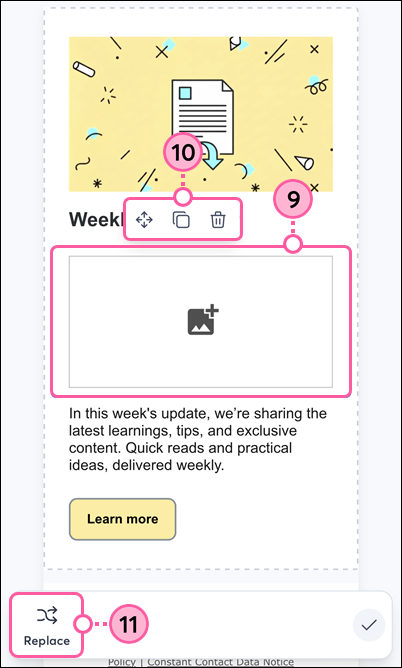
  9. For Image blocks, tap Replace to choose or change an image.

    Mobile web email editor, Image block selected, Move, Copy, and Delete icons, and Replace option

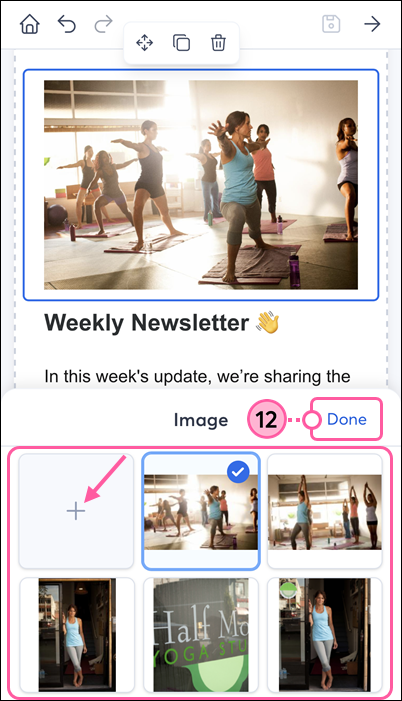
  10. Select an image from your Constant Contact Library, or tap the plus symbol to take a new photo or select a photo from your device’s photo library or files. Then tap Done.

    Mobile web email editor, Image block with plus symbol and Library photo selected, and Done option

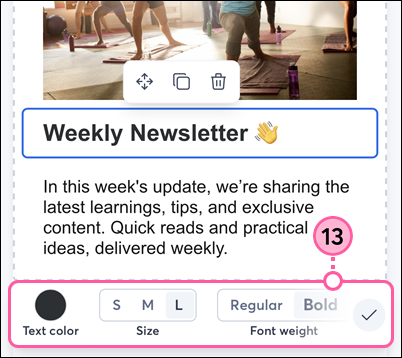
  11. For Text blocks, tap on the text to update the content, and use the design options in the bottom menu to customize the text color, size, font weight, and alignment. Scroll to the right to access all of the customization options.

    Mobile web email editor, Text block, and text customization options

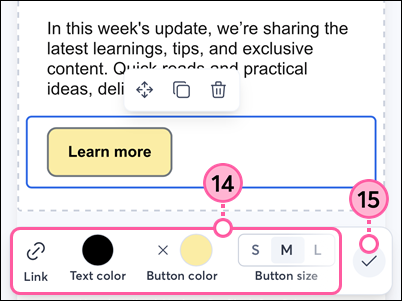
  12. For Button blocks, tap to update the text displayed on the button, tap the Link icon to enter the URL you want to direct your contacts to, and customize the text color, button color, button size, font weight, and button alignment. Scroll to the right to access all of the customization options.
  13. When you’re finished editing an element, tap the check mark to return to editing your email.

    Mobile web email editor, Button block, Link and customization options, and Check Mark icon

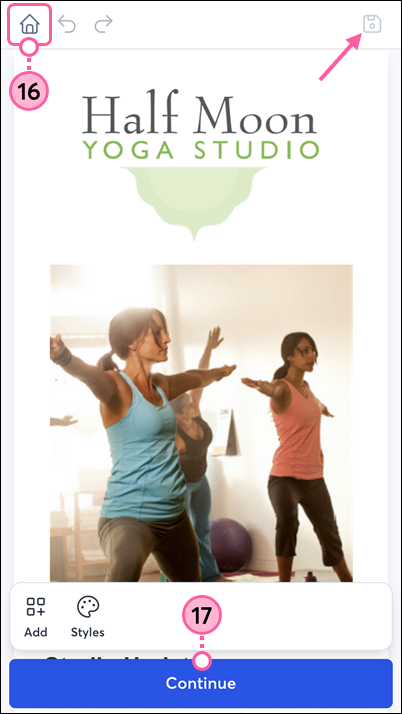
  14. If you’re not ready to schedule your email to send, tap the Save icon, if needed, to save your email draft. You can then tap the Home icon to exit the email editor, and your draft will be available in your campaigns list to finish editing and schedule later.
  15. If you’re finished designing and ready to send, tap the arrow in the upper-right to select your contact lists, update your subject line and preheader, and schedule your email.

    Mobile web email editor with template preview, Home icon and Save icons, and Arrow to continue


If you want to customize your email design even further, you can edit it on a desktop.


Light Bulb IconTip: If mobile is your preferred way to work, install the Constant Contact mobile app to easily create emails, share social posts, and manage your contacts all on the go!


Want to learn more about creating an email? Watch our webinar:


Learn more about marketing and Constant Contact through our free live webinars.


Questions?

Ask the Community

Did this article answer your question?


Constant Contact Logo

Copyright © 2026 · All Rights Reserved · Constant Contact · Privacy Center