We're making it easier to get around Constant Contact with a brand new left navigation. Not all accounts have that change yet, so if your navigation looks different from our articles, that's why–but everything from the top can now be found on the left!

Email and Digital Marketing
How can we help you?
Search our help articles, video tutorials, and quickstart guides

You've got this. You've got us. Search our Knowledge Base to quickly find answers to your questions.

Partners: View and manage your partnership accounts

Article: 000045180
Updated: October 13, 2025

View the list of managed and referred accounts under your partnership, view their status, add new accounts, and more

The My accounts tab is where you can easily manage the accounts that fall under your partnership. Here are all the tools and features you have at your disposal:


Search and filter accounts

When you open the My accounts dashboard, you're presented with a total list of all the accounts under your partnership. To make it easier for you to quickly find the accounts you need:
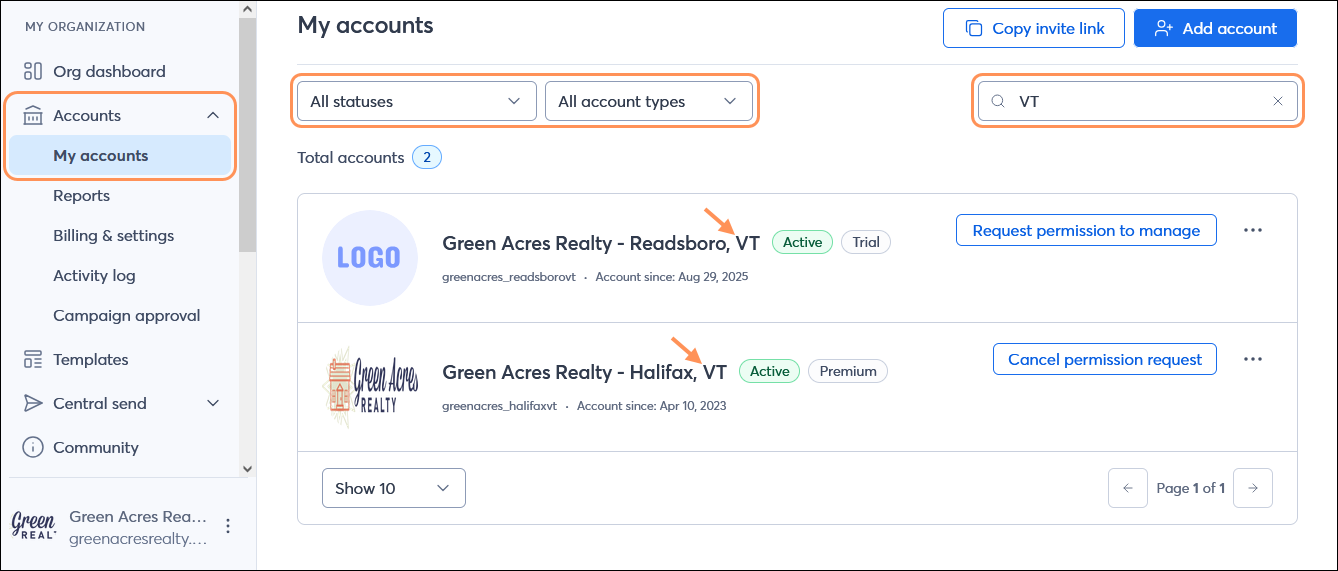
  • Use the Search field to find an account by name. Enter a letter or a couple of letters found within the name, or type an exact name. The search is very flexible!
  • Accounts are labeled with their status, but you can use the Account status drop-down menu to filter out the accounts with a specific status. Choose from:
  • Active
  • Trial - active
  • Trial - expired
  • Cancelled
  • Disabled - compliance
  • Disabled - balance due
  • Single Bill
  • Use the Account type drop-down menu to filter your accounts by managed or referred. Managed accounts have a visible label, but referred accounts don't.
  • Select the number of accounts you want to display per page for easier viewing.
  • Use the pagination at the bottom of the page to flip through multiple pages of accounts.

    MY ORGANIZATION menu with Accounts menu expanded and My accounts option selected, All statuses drop-down menu, All account types drop-down menu, and Search field with search results


View account information

When you're looking at your list of accounts, we make lots of information visible at first glance so you don't have to go hunting for it:
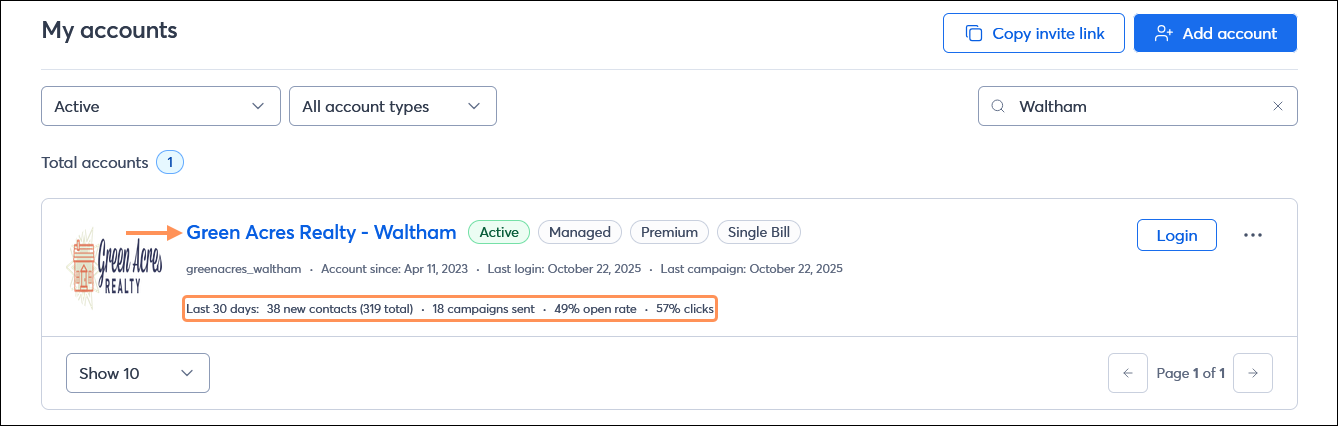
  • The account logo (if it's updated) in the sub-account's settings
  • The organization name
  • The account status and account type
  • The username for the account
  • The start date for the account
  • The date of the last login (managed accounts only)
  • The date of the last campaign created (managed accounts only)
  • Metrics for the last 30 days, including the number of new contacts, the number of campaigns sent, the open rate, and the click rate (managed accounts only)

    My accounts page with account displayed showing the organization name, the Active status, the Managed account type, the Premium plan type, and Single Bill, the account user name, Account since date, Last login date, Last campaign date, and Last 30 day statistics


Manage your accounts

Depending on the account status and type, there are different actions you can take:

Managed accounts

You have control over your managed accounts:

  • Log into an account that is active or in an active trial.
  • Copy campaigns from within an account to other accounts within your partnership. Learn more.
  • Manage the account details. Learn more.
  • Remove an account from managed status.
  • Add or remove Single Bill from a managed account. Learn more.

    My accounts page with Managed status selected and total accounts list, managed accounts with account menu expanded, and Login button


Referred accounts

You generate passive income from your referred accounts:
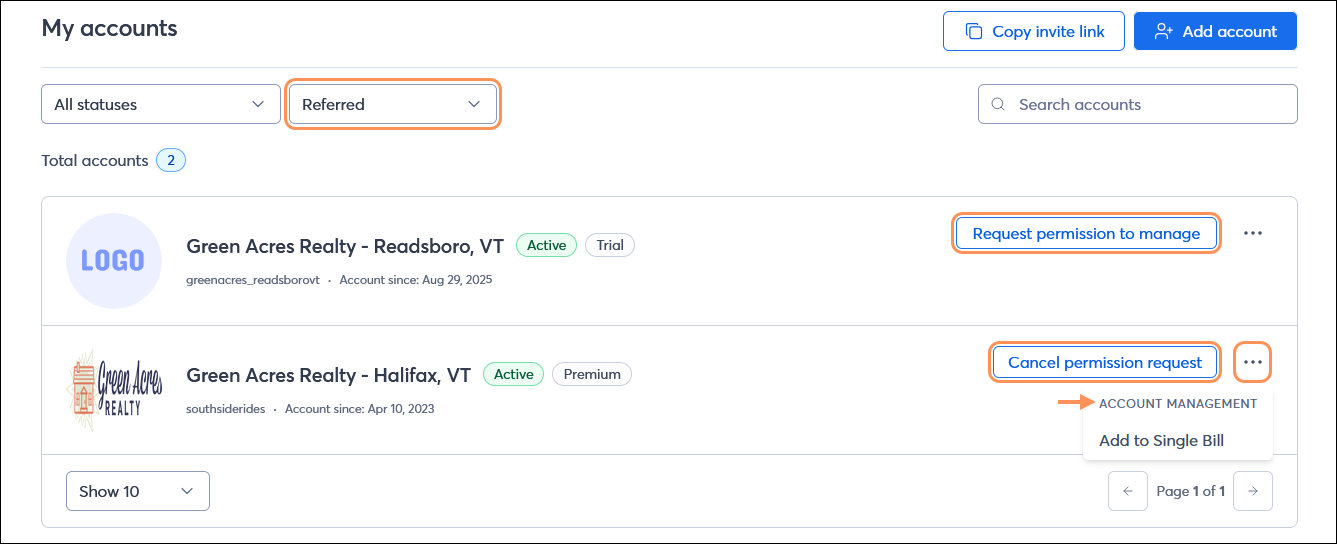
  • Request permission to manage a referred account. Learn more.
  • Cancel a permission request sent to a referred account.
  • Add a referred account to Single Bill. Learn more.

    My accounts page with Referred status selected and total accounts list, referred accounts with Request permission to manage button, Cancel permission request button, and referred account menu expanded with Add to Single Bill option


Add new accounts

There are two ways to add new accounts:
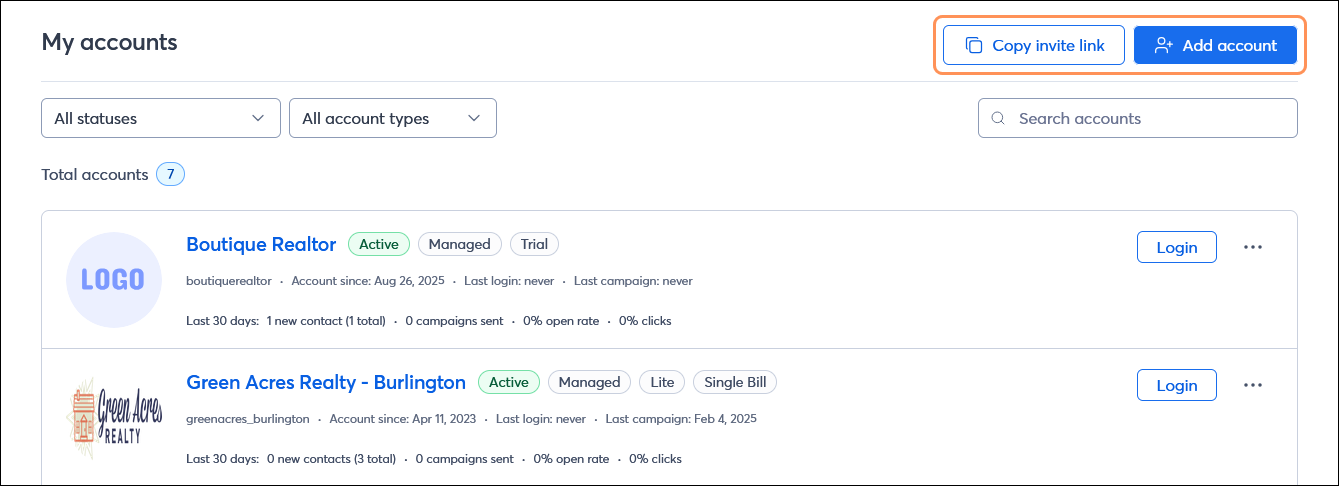
  • Managed accounts: Click the Add Account button in the upper right-hand corner to create an account. Learn more.
  • Referred accounts - Click the Copy invite link button in the upper right-hand corner and share your referral link with your prospect account. Learn more.

    My account page with Copy invite link button and Add account button in upper right-hand corner


Add People IconWant to grow your referral business? Our Refer-a-Partner program is an easy way to grow your business and generate passive income through your Constant Contact account!


Questions?

Ask the Community

Did this article answer your question?


Constant Contact Logo

Copyright © 2025 · All Rights Reserved · Constant Contact · Privacy Center