We're making it easier to get around Constant Contact with a brand new left navigation. Not all accounts have that change yet, so if your navigation looks different from our articles, that's why–but everything from the top can now be found on the left!

Email and Digital Marketing
How can we help you?
Search our help articles, video tutorials, and quickstart guides

You've got this. You've got us. Search our Knowledge Base to quickly find answers to your questions.

Partners: Create and manage list presets for Central Send Email and SMS campaigns

Article: 000048070
Updated: October 13, 2025

Select multiple lists from across multiple child accounts so that you can easily select a single list preset when sending a Central Send Email or SMS campaign

Add People IconIn need of multiple accounts? Our multi-account solution is designed for organizations seeking unique accounts for their various locations, departments, or users. Take advantage of bulk pricing, product features for brand control, customized onboarding, and more!


When you're ready to send centralized emails or SMS messages from your parent account to specific lists across multiple child accounts, you can save time by creating list presets. Just choose the lists within each child account that you want to group together, and then select the list preset when you're ready to send your Central Send Email or SMS campaign.


Exclamation Point IconImportant: In order to use Central Send, it has to be enabled on your partnership. If you are not seeing it enabled and would like to have it enabled, please reach out to our Partner Support Team.


Create a new list preset

You can create up to 10 list presets.

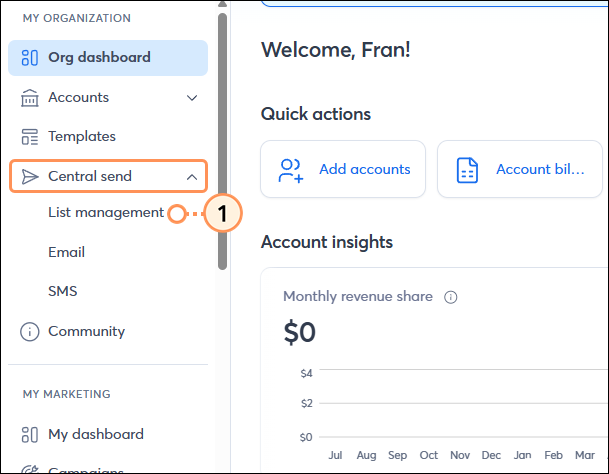
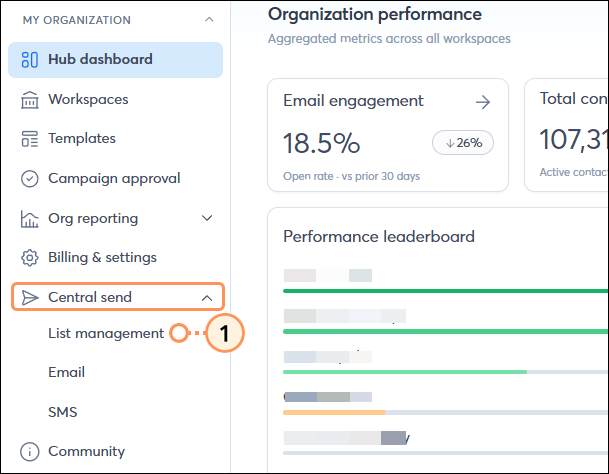
  1. In the MY ORGANIZATION menu on the left-hand side, click Central send > List management.
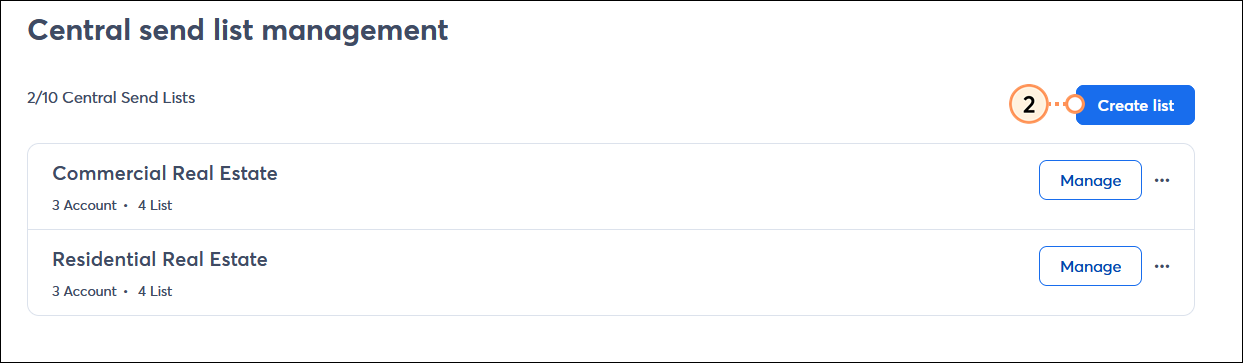
  2. Click the Create list button.

    MY ORGANIZATION meny with Central send menu expanded and List management option selected, and Central send list management page with Create list button

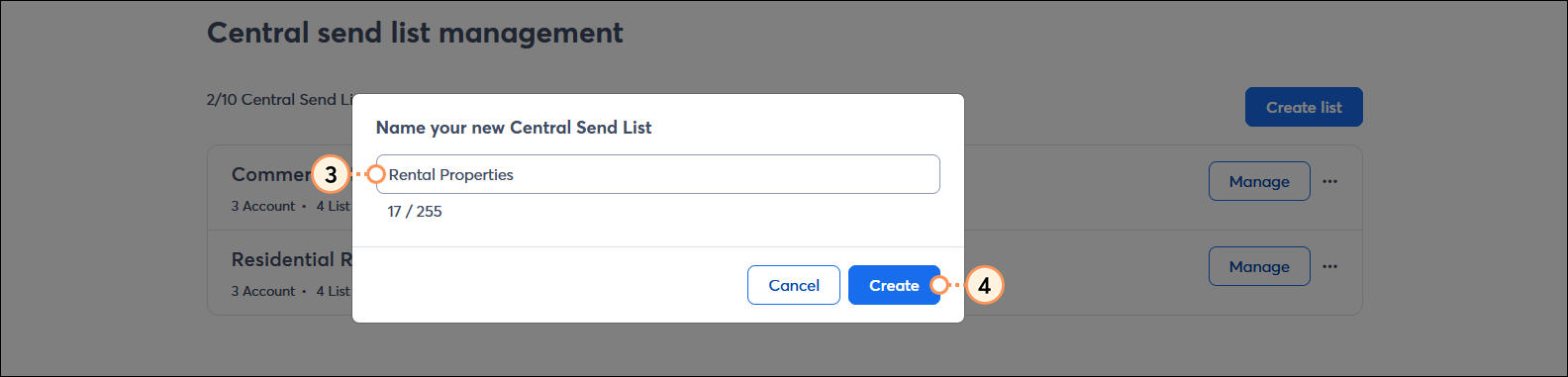
  3. From the Name your new Central Send list overlay, give your list a unique name. Your list name can have up to 255 characters.
  4. Click Create.

    Name your new Central Send List overlay with list name field and Create button

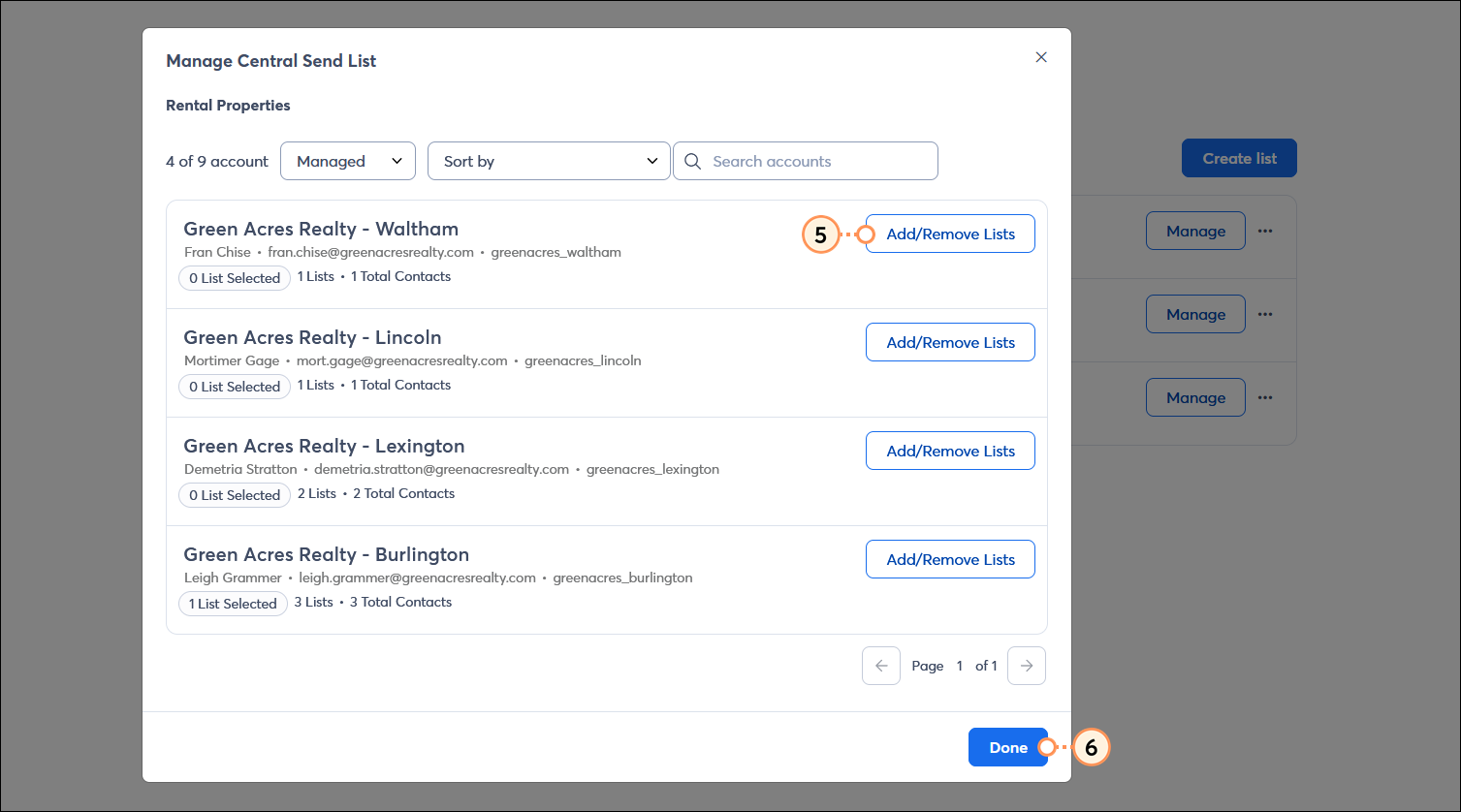
  5. Next to the child/sub account, click the Add/Remove Lists button to choose the list you want to add to the preset. (See full steps below.)
  6. Once all your lists are added to the preset, click the Done button.

    Manage Central Send List overlay with child account options and AddRemove List buttons, and Done button

When you're ready to send your Central Send Email campaign or Central Send SMS campaign, you can select a single preset or multiple presets.


Add or remove a list from a child/sub account to a list preset

Your Central Send list presets are flexible! New lists can be added to the preset from your child/sub accounts at anytime, and removing a list from a preset is just as easy.
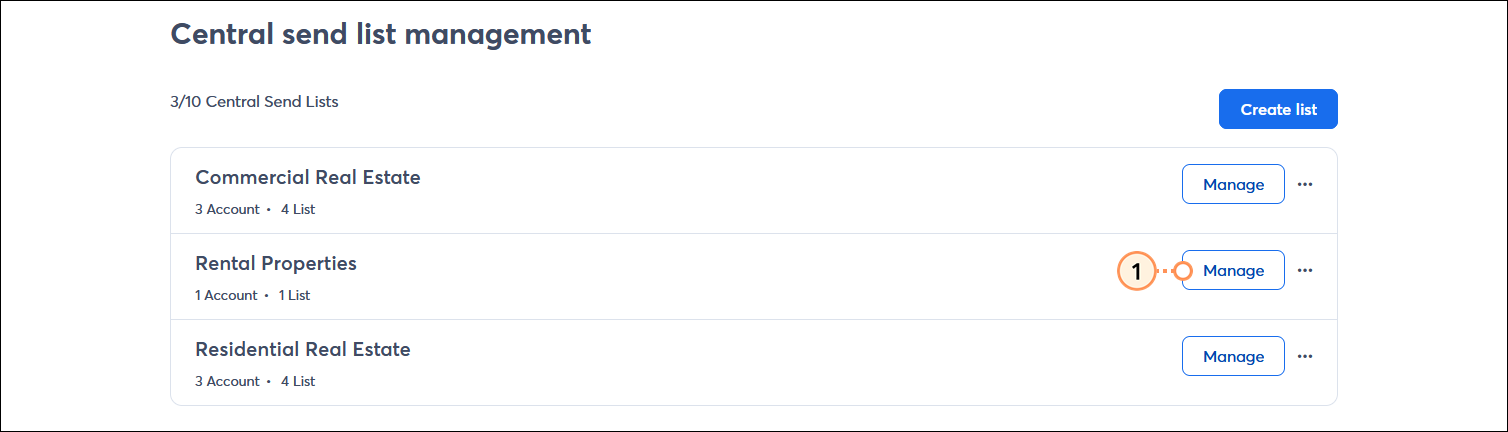
  1. Next to the Central Send List you want to update, click the Manage button.

    Central send list management page with Central Send list options and Manage button

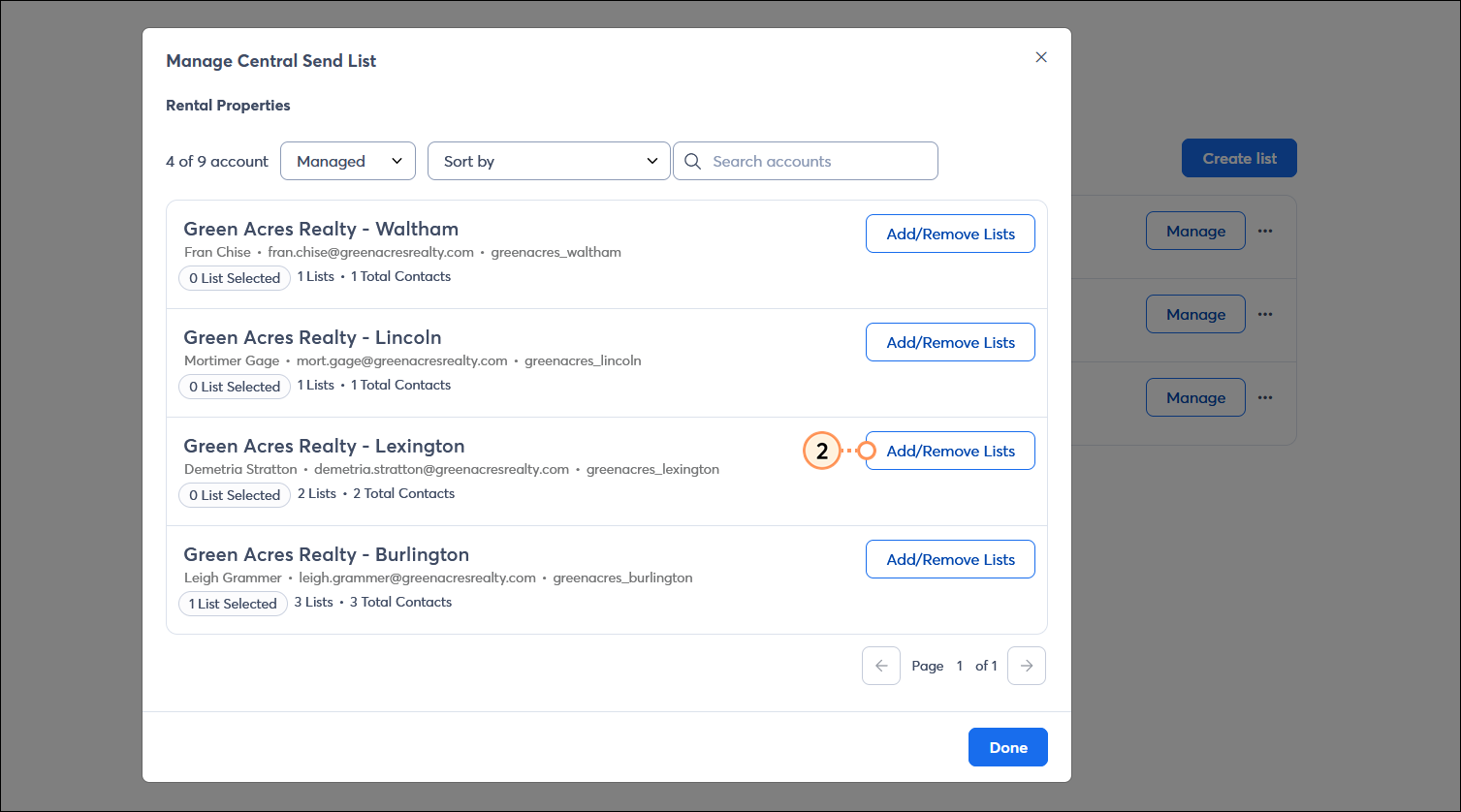
  2. Next to the child account, click Add/Remove Lists.

    Manage Central Send List overlay with child account options and AddRemove Lists button

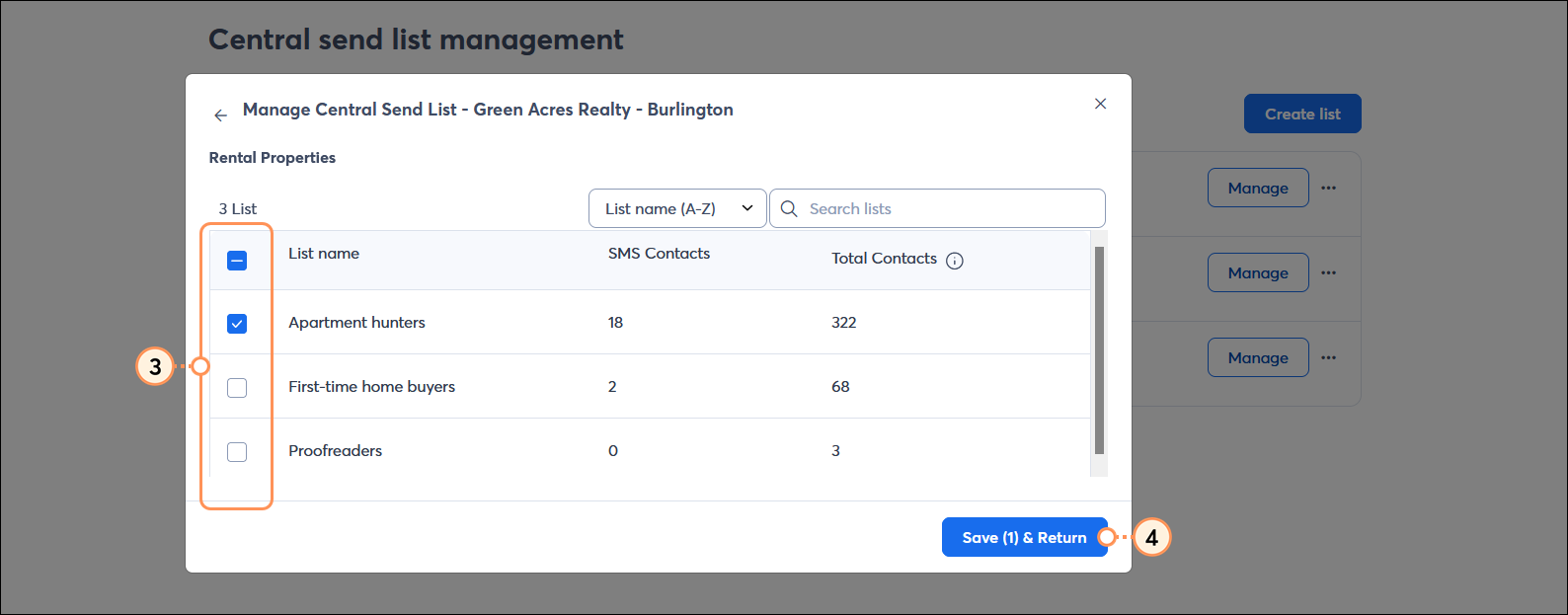
  3. Check the box next to a list to add it to your preset, or deselect the box to remove it.
  4. Click the Save & Return button.

    Manage Central Send List - Account Name overlay with list options, and Save & Return button 


Light Bulb IconDid you know? Please note that if you have conflicting list counts when reviewing the lists selected in a specific child account, the selected list(s) may have been deleted from within the child account after the Central Send list preset was created. This does not impact sending, as the deleted list will not be sent to. If you want to ensure the count remains consistent, make sure to either remove the list selection in the list preset before deleting the list, or you can recreate the Central Send list preset after the list has been deleted.


Rename or delete a list preset

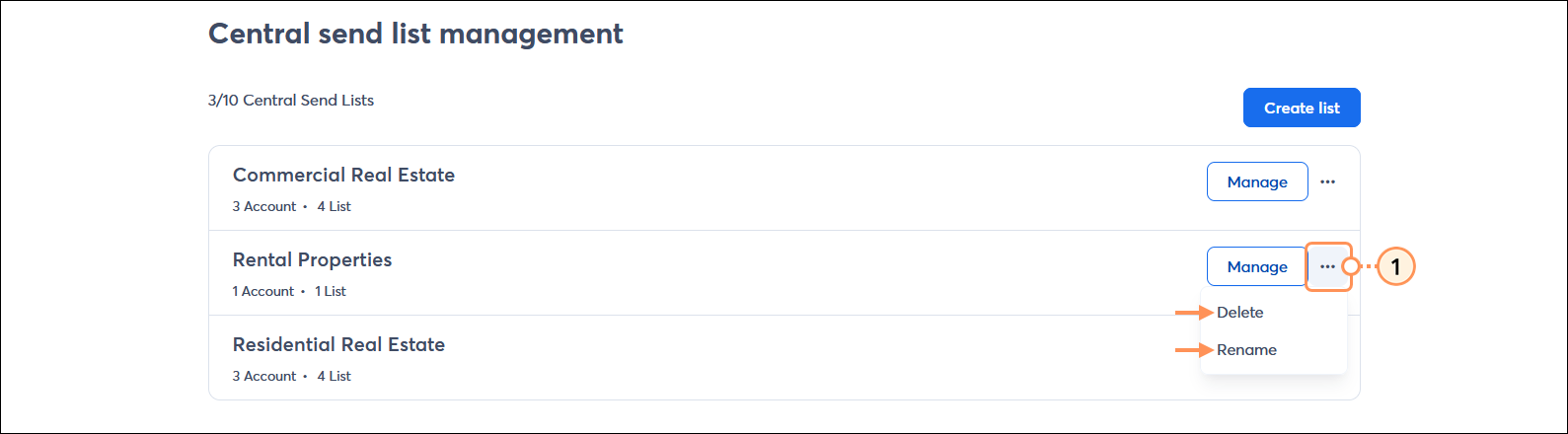
  1. Next to the Central Send List you want to update, click the three dots to expand the menu, and from the drop-down menu, select either:
  • DeleteClick the Delete list button to confirm the action. This only deletes the preset; the child account lists are unaffected.
  • Rename - Update the list name and click the Rename button. You have a maximum of 255 characters and the name must be unique.

    Central send list management page with list preset menu expanded and Delelte and Rename options


Questions?

Ask the Community

Did this article answer your question?


Constant Contact Logo

Copyright © 2025 · All Rights Reserved · Constant Contact · Privacy Center