 | In need of multiple accounts? Our multi-account solution is designed for organizations seeking unique accounts for their various locations, departments, or users. Take advantage of bulk pricing, product features for brand control, customized onboarding, and more! |
If you have an account that was once just a referral that now is looking for your services, you have the ability to change this account from a referred status to managed. You may also need to move an account to managed after moving an existing account into your partnership.
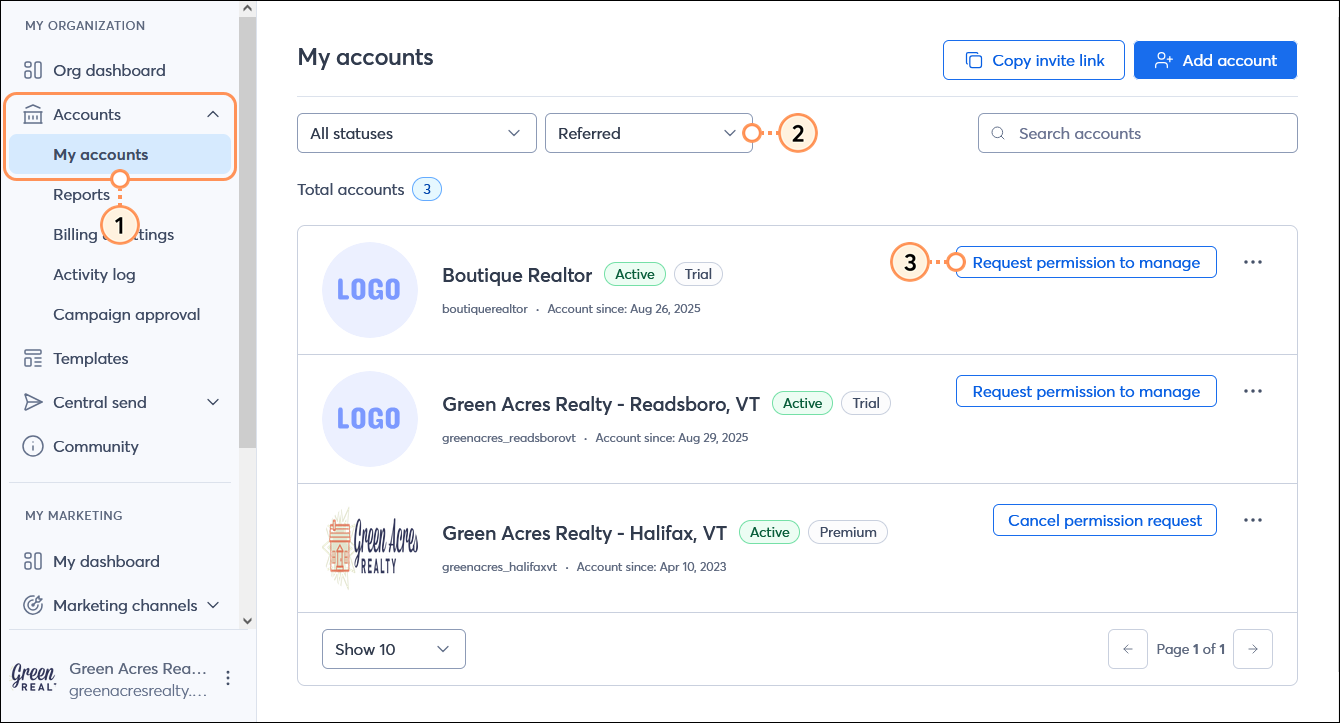
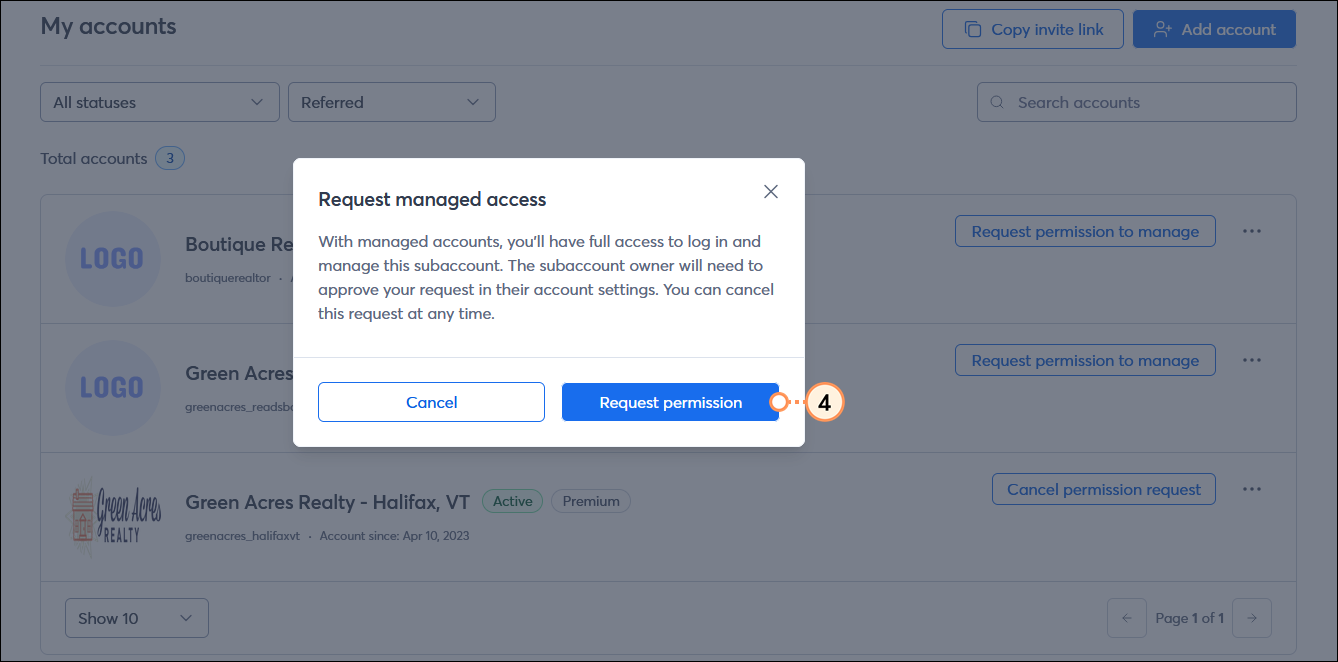
After you have requested access, the customer must grant you access to their account and can follow the steps in the article below:
 | Important: Please note that before clicking 'Confirm,' the customer sees a disclaimer message stating that this action will grant the partner full access to their account. We strongly recommend that you set the proper expectations with your customers ahead of time to avoid any confusion or misunderstanding. |
If you are moving an account to Referred, you can earn New Account Bonuses and revenue share if:
Constant Contact will not pay New Account Bonuses or revenue share if neither qualification is met. However, if you move an account to managed, you can earn New Account Bonuses and revenue share on all accounts moved under your partnership. An account in the managed category will earn revenue share even if it was moved beyond the window to earn a New Account Bonus.
Copyright © 2026 · All Rights Reserved · Constant Contact · Privacy Center