Email and Digital Marketing
How can we help you?
Search our help articles, video tutorials, and quickstart guides

You've got this. You've got us. Search our Knowledge Base to quickly find answers to your questions.

Transferring and taking over Constant Contact account ownership

Article: 000022447
Updated: May 29, 2026

Learn how to transfer account ownership from one user to another, and which steps the new user should take upon logging in as the account owner for the first time


did you knowImportant: If the current Account Owner has already left your organization and you're having trouble accessing the account or changing the ownership, please contact our Customer Support for assistance.


Keeping your Account Owner information up to date helps keep your account safe. If the person who owns your Constant Contact account is planning to leave the organization, it's a good idea to transfer ownership of the account to a new party before the old owner leaves for good. Once transferred, the new owner can log in and review/update certain items in the account. And if the new owner is a brand new user to Constant Contact, we have several resources to help get them up to speed,


Unsure who the current Account Owner is? Learn where to locate the name of the current Account Owner


Before you begin

To streamline the transfer process and prevent roadblocks, please review the following and take any necessary actions:


Have on hand

  • Account Owner credentials - The current Account Owner should log in and complete the transfer steps. If another user is taking these steps on behalf of the Account Owner, they should have the Account Owner's credentials on hand.


Make sure

  • When updating the Account Owner user email, it must be a verified email address. So be sure to verify the new owner's email before you get started.


If the new owner is an Account Manager/Campaign Creator

  •  If the new Account Owner is already an Account Manager or Campaign Creator in the account and wants to use their current username for their Account Owner role, they'll need to first change the username for their Account Manager/Campaign Creator user role before the Account Owner username is updated. Once they assume the Account Owner role, their previous user role can be deleted from the account.


Multi-factor Authentication (MFA) Handover

  • Timing is key when resetting MFA. When MFA is reset, the current owner is logged out immediately. If the new owner does not log in to set up their new MFA device at that time, the account can become inaccessible. Therefore, set aside time when resetting MFA, and make sure the new owner is ready to log in right away to set up their new MFA device.


For the current owner: Transfer account ownership to a new user

To transfer account ownership to a new user, the Account Owner should take the following steps, as ordered:


Update the profile details

Updating the profile details changes the name that appears in the upper-right corner of your account. Allow about 30 minutes, give or take, between when you make this change and when you see the new name displayed.
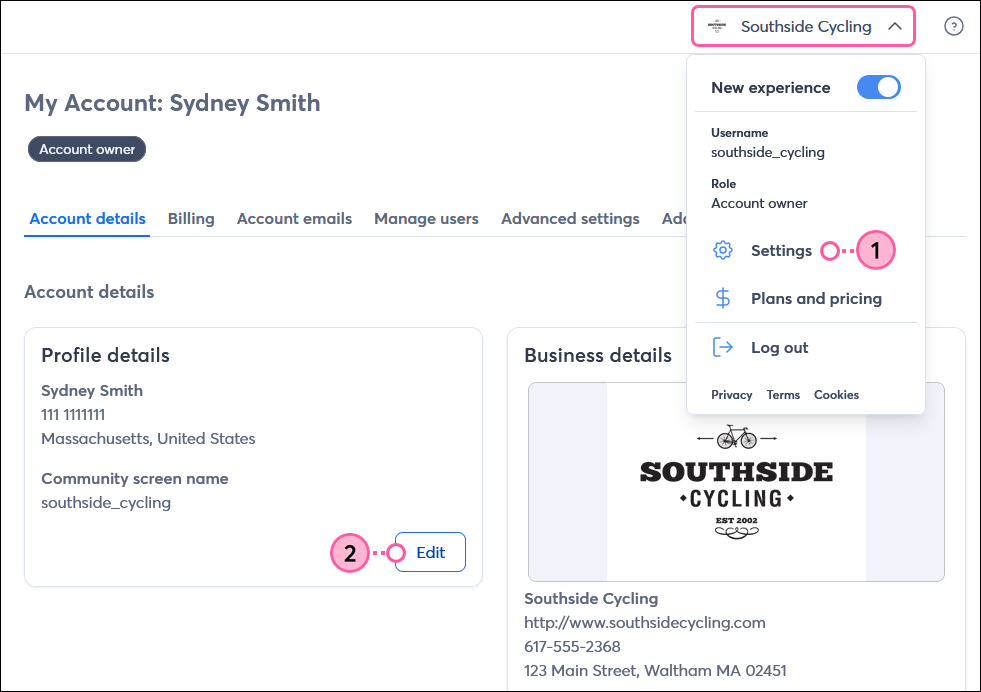
 

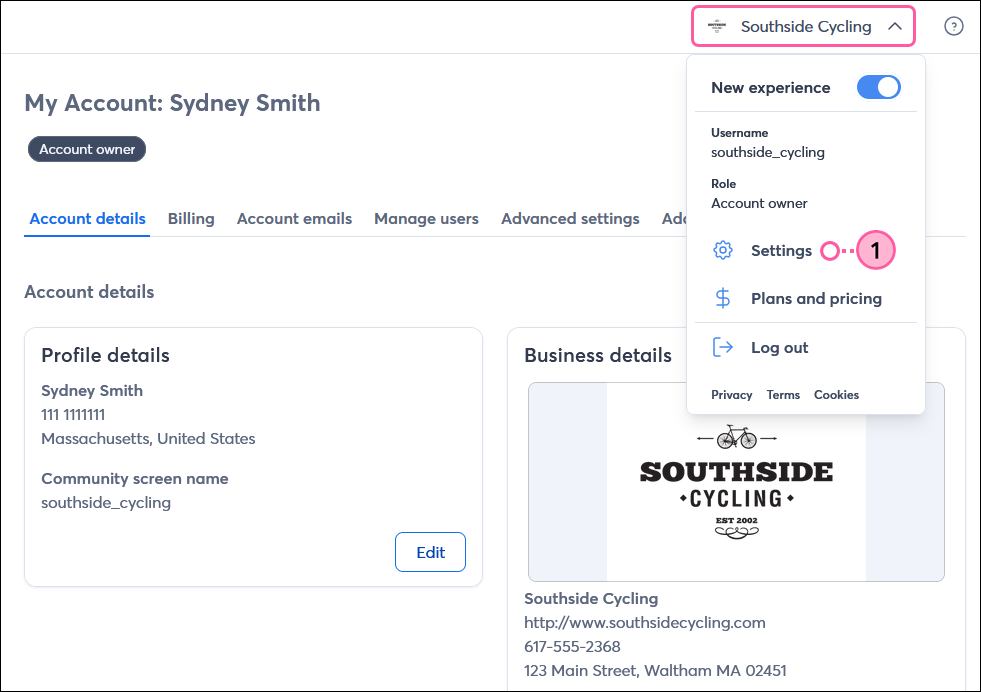
  1. Log in as the Account Owner. Then click the profile name in the upper right and select Settings.
  2. In the Profile details section, click Edit.

    Profile name with Settings option in drop-down

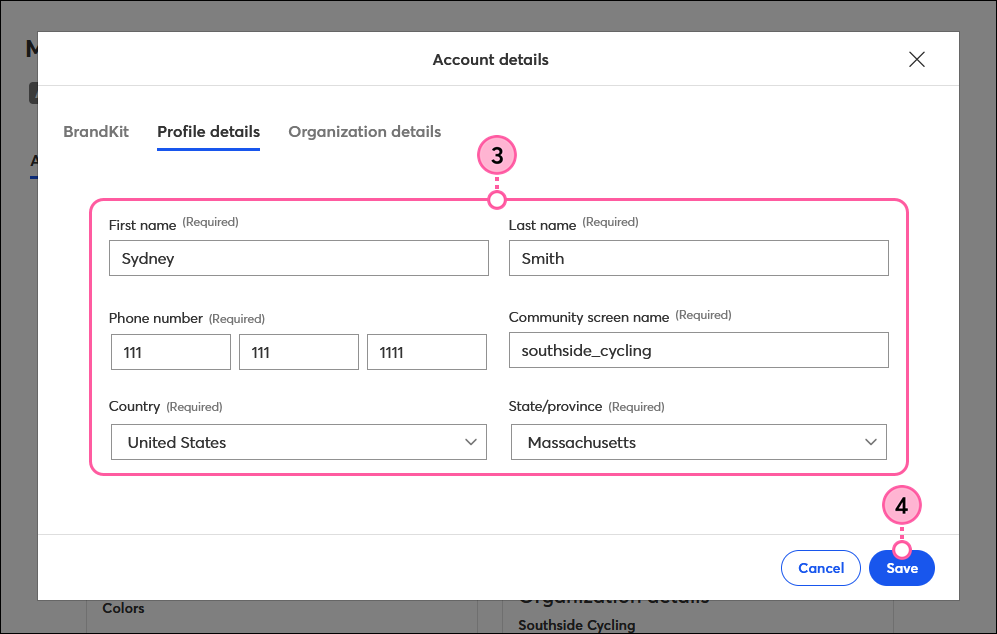
  3. Update the following for the new Account Owner:
  • Name
  • Phone number
  • Community screen name
  • Country
  • State/province
  1. Click Save.

    Profile detail fields and Save button


Update the user email and user name

Update the user email and, optionally, the user name. Please note that the user email is different than the user name.
  • User email - This is the email address that receives emails from Constant Contact regarding your account, including billing information and password reset emails.
  • User name - This is the login name you enter when signing in to Constant Contact. If the account User name is a personal name rather than your organization's name, it's a good time to change it, too. 


  1. Log in as the Account Owner. Then click the profile name in the upper right and select Settings.

    Profile name with Settings option in drop-down

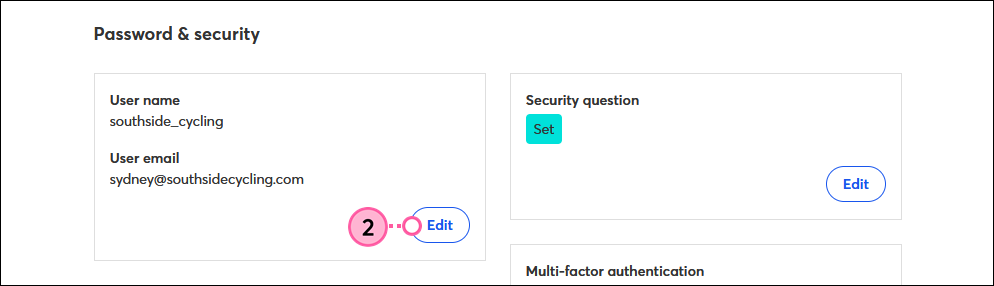
  2. In the User name and User email section, click Edit.

    Password and Security section, User Name and User Email section, and Edit button
     
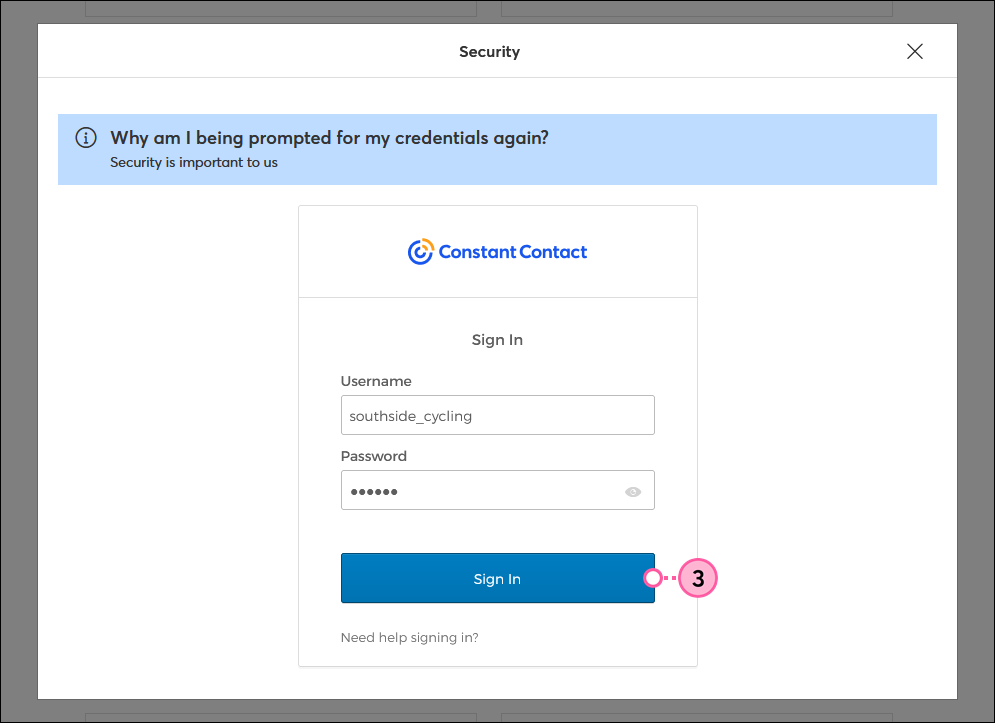
  3. If prompted, enter your current Constant Contact login credentials and click Sign In.

    Constant Contact login username and password, and Sign In button
     
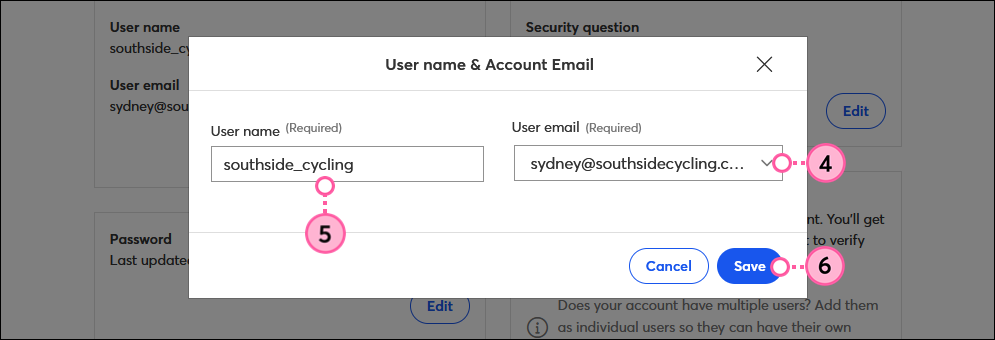
  4. Select the new Account Owner's verified email address from the User email drop-down.
  5. Optionally, enter a new User name.
  6. Click Save.

    User Email drop-down and Save button 
     

Once your user email is changed, you can delete the outdated verified email address on the Account emails tab.


Light Bulb IconDid you know? If your account is set up for multiple users, it's probably also a good time to review them to change or deactivate users.


Update the multi-factor authentication factor

Constant Contact is in the process of requiring Multi-factor authentication (MFA) for all accounts. If MFA has already been set up for the account, you can reset the secondary factors through your account settings. Once reset, you'll be logged out of the account, and the new owner will be able to select a new MFA factor on the next login.
  1. Log in as the Account Owner. Then click the profile name in the upper right and select Settings.

    Profile name with Settings option in drop-down

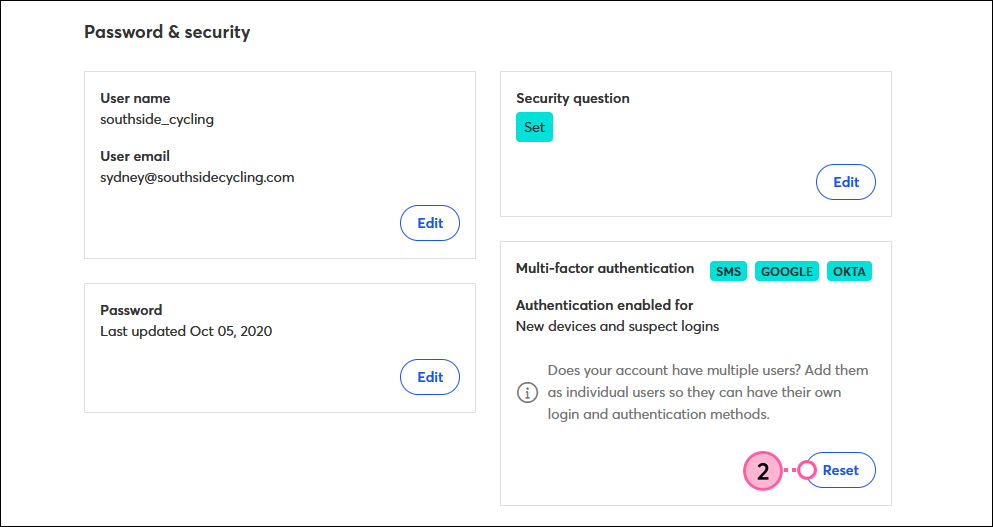
  2. Scroll down to the Multi-factor authentication section and click Reset.
     
    Password and Security section, Multi-Factor Authentication section and Reset button
     
  3. If prompted, enter your Constant Contact username and password, then click Sign in.

    Constant Contact login username, password, and Sign in button
     
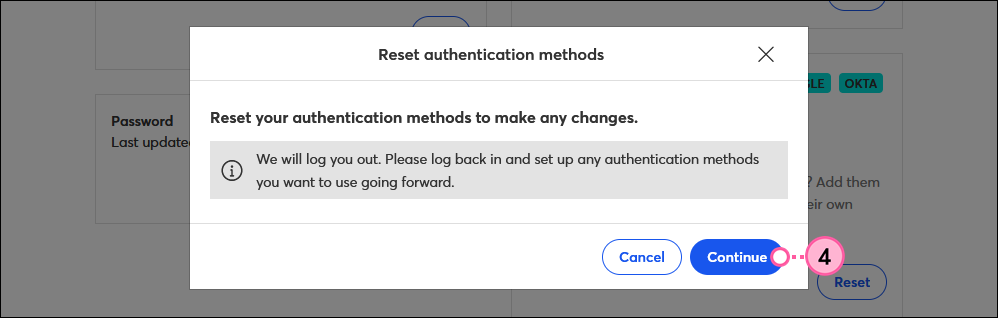
  4. Click Continue to reset your MFA factors and be logged out of the account.

    Logout confirmation and Continue button


When the new Account Owner logs back in, they'll be prompted to set up new secondary factors.


For the new owner: Take over an existing account as the new Account Owner

Once the previous Account Owner has taken the steps outlined in the section above, the new Account Owner should take the following steps, as ordered:


Reset the password

Changing your existing password is important for preventing unauthorized access to your account. After entering your Account Owner username, follow these steps to reset the password. Once the password has been reset, log in to the account using the new password.


Set up new secondary factors for MFA

Set up new secondary factors for MFA, if enabled for your account.


Change the security question

The security question adds an extra layer of security to your login beyond your password.
  1. Click the profile name in the upper right and select Settings.

    Profile name with Settings option in drop-down

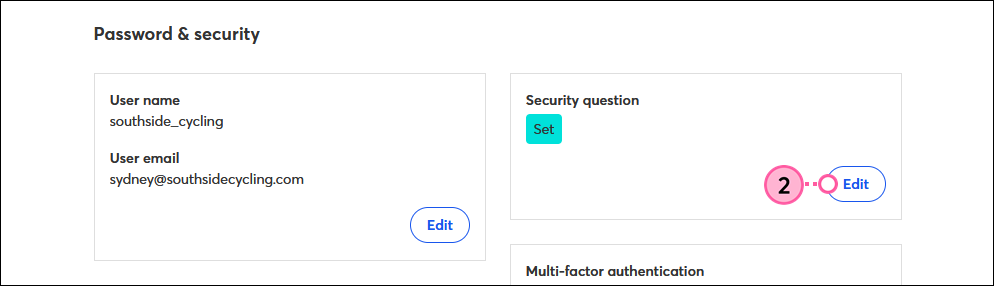
  2. In the Security question section, click Edit.

    Password and Security section, Security Question section, and Edit button
     
  3. Select a security question from the drop-down.
  4. Enter the answer to the question.
  5. Click Submit.

    Select Security Question drop-down, Answer field, and Submit button
     

If it's not already enabled, consider enabling multi-factor authentication for your account too! It adds an extra layer of security and helps prevent security breaches from phishing attacks involving stolen or weak login credentials.


Review the billing information

If the account was being paid for through a personal credit card or PayPal account that is no longer valid for the new Account Owner, it needs to be changed to prevent unwanted charges or disruptions in service:


Confirm settings

On the Account details tab, review the Profile details section to ensure all information has been updated properly. If anything needs to be changed, click the Edit button.
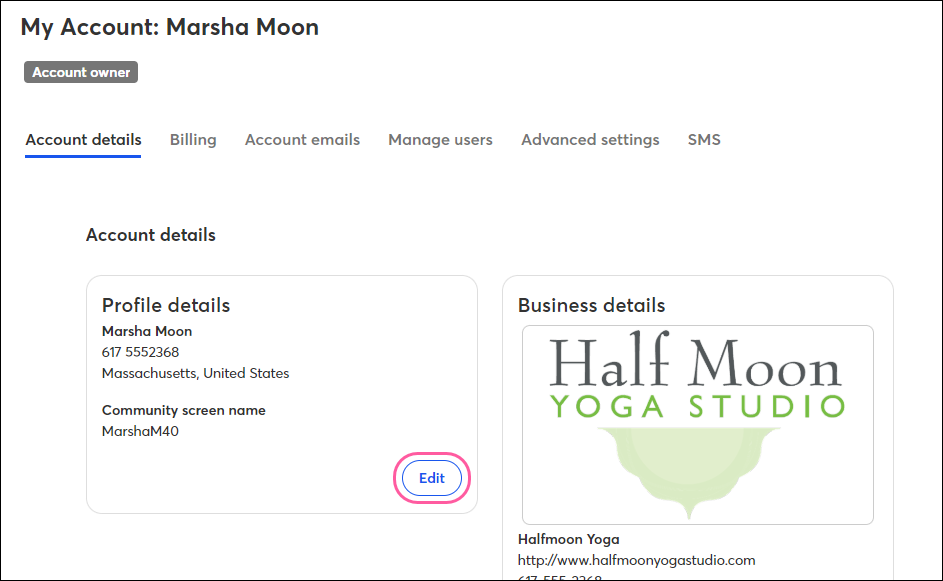

Account Details Profile Details Edit button


Light bulb iconLearn More: If you're a new user and need to get up to speed on how to use Constant Contact, we have plenty of resources to help you get there. Reviewing our QuickStart Guides is a great way to dive in! 


Questions?

Ask the Community

Did this article answer your question?


Constant Contact Logo

Copyright © 2026 · All Rights Reserved · Constant Contact · Privacy Center