 | Review your plan: This feature is not available in all Constant Contact plans. If you don’t have full access, you may need to upgrade your plan. |
Contacts don't open emails for a variety of reasons: they're too busy, your email got buried on a busy mailing day, or they might not find your subject line that interesting. The good news is that you can set your email to automatically resend to the contacts who didn't open it the first time, and tweak your subject line for them as well.
When scheduling your email to send:
 | Tip: Of all the contacts who will open your email, 89% open within the second day of receiving it, and 93% open by the third day. Waiting for the fourth day to resend ensures you're less likely to resend an email to someone who was already going to open, which could be seen as spam and result in complaints or unsubscribes! |
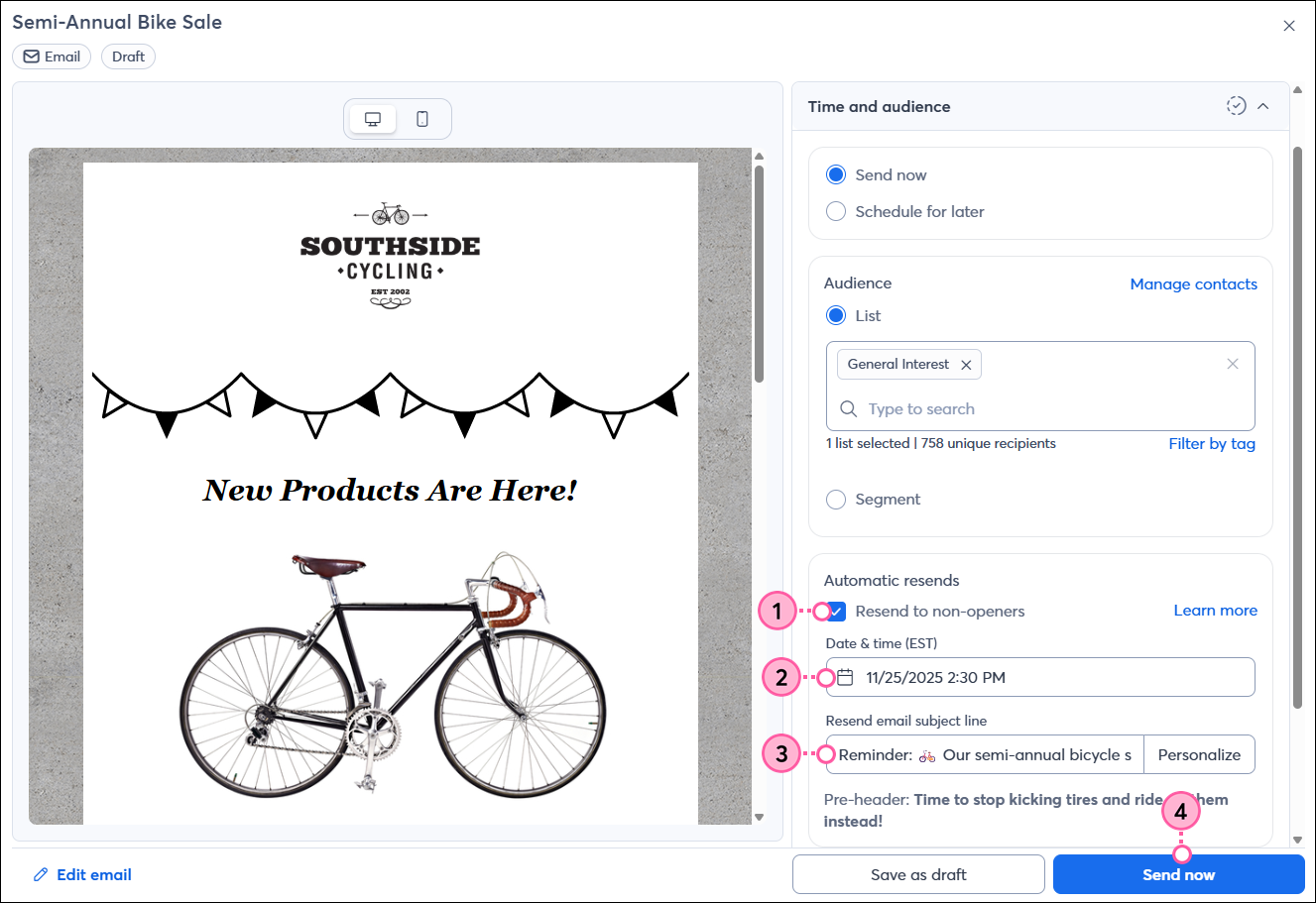
If you change your mind about resending to non-openers, you can cancel it any time before your chosen resend date. The Early Results email still sends with the original email, but you won't receive a second one when your email resends. Once your email is resent to the contacts who didn't open the original, you can view the results on the Email Details page. The results for your original and resend will be separated.
| Tip: Need help crafting an engaging subject line that helps reduce the number of emails you resend to non-openers? Start by looking over our best practices for writing a great subject line. Then try a Subject Line A/B Test with your next email and use the winning subject line as a guide for future emails. |
Copyright © 2026 · All Rights Reserved · Constant Contact · Privacy Center