Email and Digital Marketing
How can we help you?
Search our help articles, video tutorials, and quickstart guides

You've got this. You've got us. Search our Knowledge Base to quickly find answers to your questions.

Prevent an email from automatically resending to non-openers

Article: 000023728
Updated: December 2, 2025

Cancel an automatic resend to non-openers of a sent or scheduled email before its scheduled resend date

Resending an email to your non-openers is an opportunity to tweak your subject line and give your email a second chance to be opened. However, there may be times when you want to cancel the resend. As long as you cancel before the resend date you chose when you originally scheduled your email, you have time to change your mind.
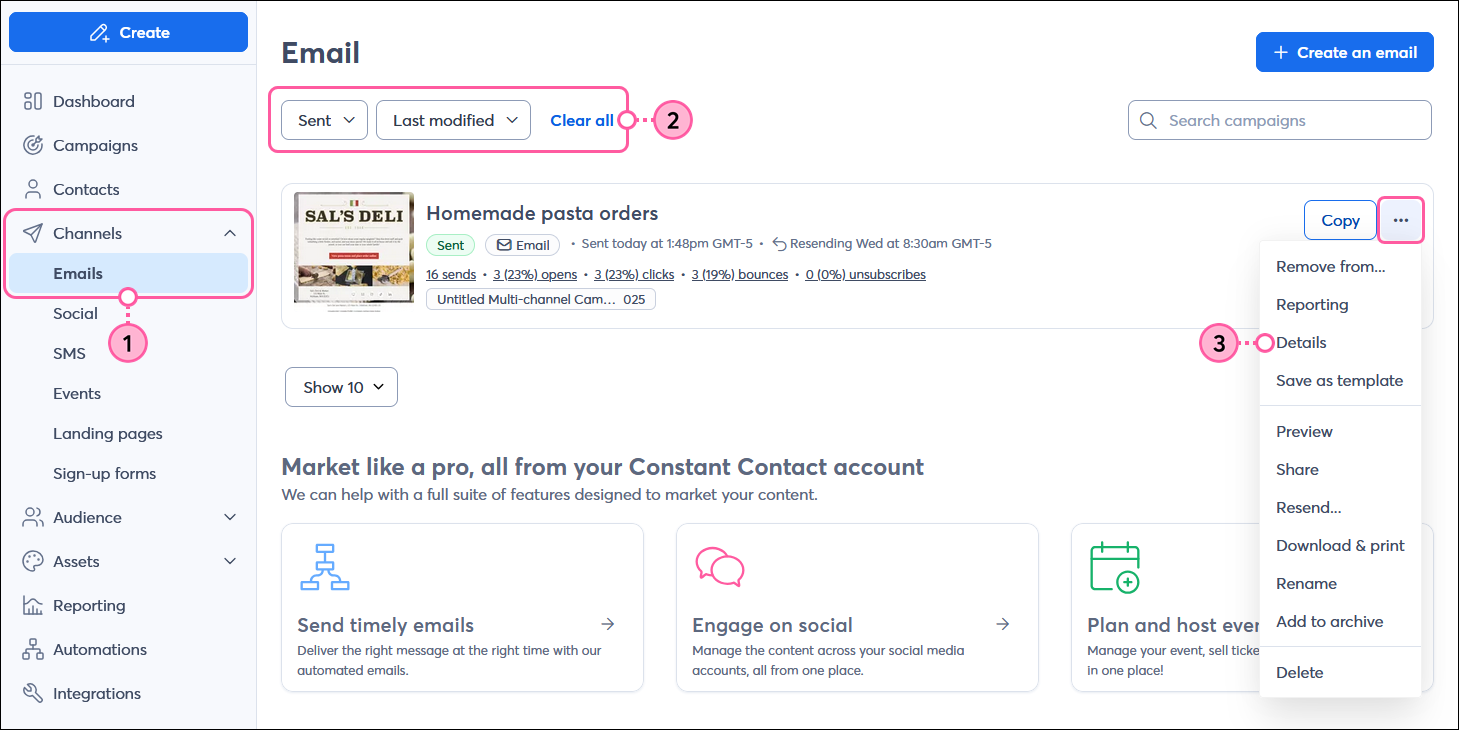
  1. In the menu on the left-hand side, click Channels > Emails.
  2. (Optional) To help narrow your search for the email you want to prevent from resending, click Status > Sent or Scheduled.
  3. Click the three dots next to the sent or scheduled email, and select the "Details" option.

    Channels menu expanded and Emails option selected, Email page with Status drop-down menu and Sent option selected, and sent email with menu expanded and Details option selected

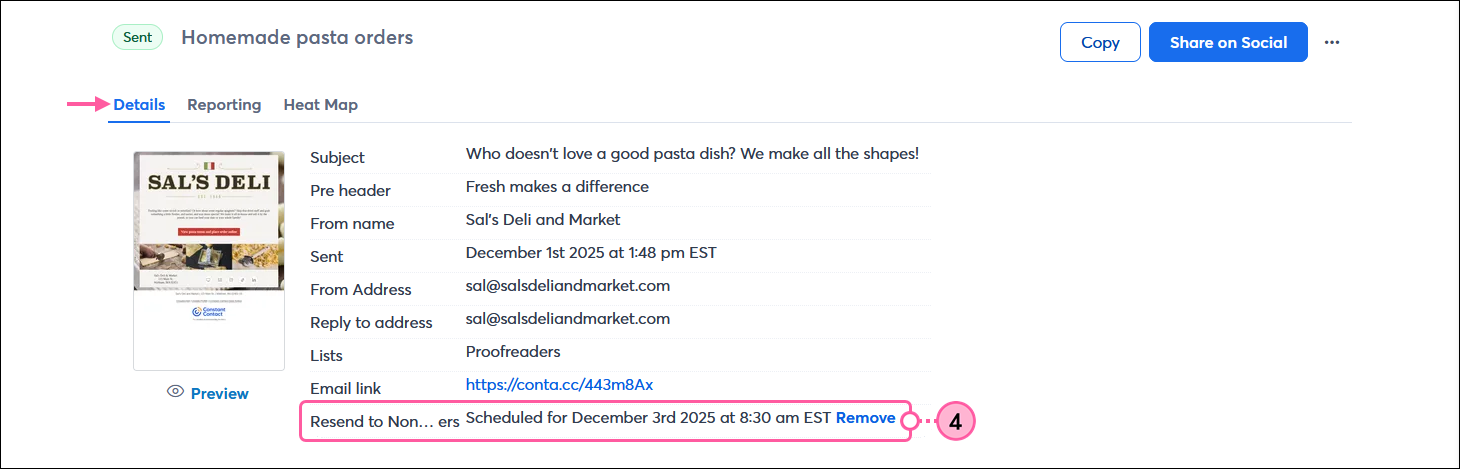
  4. Next to the Resend to Non-Openers row, click "Remove."
    If you don't see the Resend to Non-Openers row, the email isn't being resent to non-openers. Double-check to make sure you have the correct email.

    Email Details page with Details tab selected, and Resend to Non-Openers option with Remove link

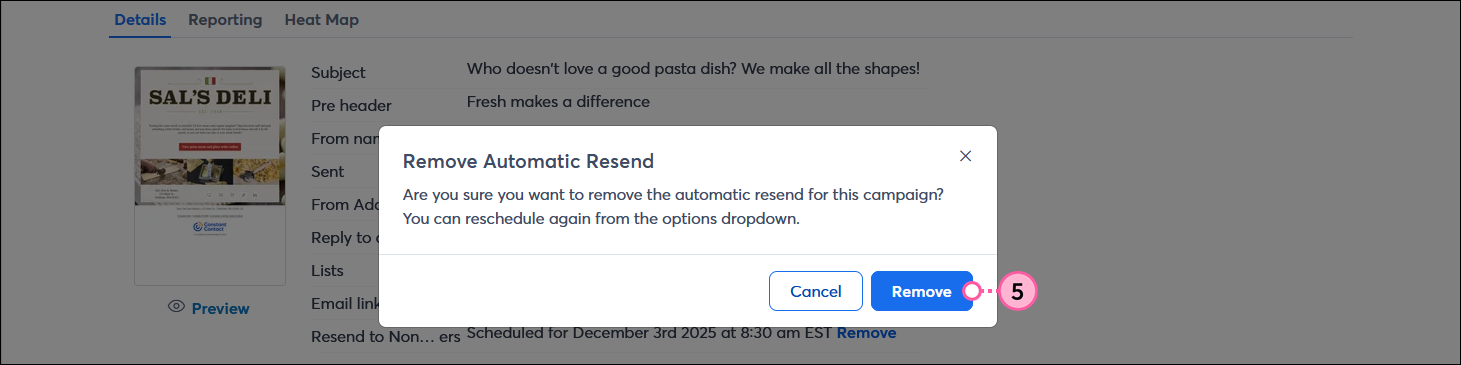
  5. From the Remove Automatic Resend overlay, click the Remove button to confirm the cancellation.

    Remove Automatic Resend overlay and Remove button

Your email won't be sent to your non-openers, but you can always check your reporting to see which contacts are the non-openers. If you later change your mind, you can manually reschedule your email to resend to your non-openers as long as the original send was within the past 10 days.


Questions?

Ask the Community

Did this article answer your question?


Constant Contact Logo

Copyright © 2026 · All Rights Reserved · Constant Contact · Privacy Center