Email and Digital Marketing
How can we help you?
Search our help articles, video tutorials, and quickstart guides

You've got this. You've got us. Search our Knowledge Base to quickly find answers to your questions.

View reporting for an email resent to non-openers

Article: 000023729
Updated: January 5, 2026

Compare the performance of an email's original send and the resend to non-openers and view the combined performance

Your instinct may be to write off non-openers as disengaged contacts, but you can actually increase your opens by getting your email back to the top of the inbox for these contacts. After resending your email, you can compare the opens and clicks of your original email with those generated by the resend, giving you a better sense of how engaged these contacts actually are. If your non-openers open the resent email, it can help with how you approach the subject line, timing, and list segmentation for future emails.


Megaphone IconBe a better marketer: Want to learn more about why you should resend your emails? Check out How Resending Email is Good for Business!


Steps to view original send, combined, and resend reporting

The reporting for an email that was automatically resent to non-openers is shown on the Email Details page with the reporting for the original send, and you have the choice of how you want the data to display:
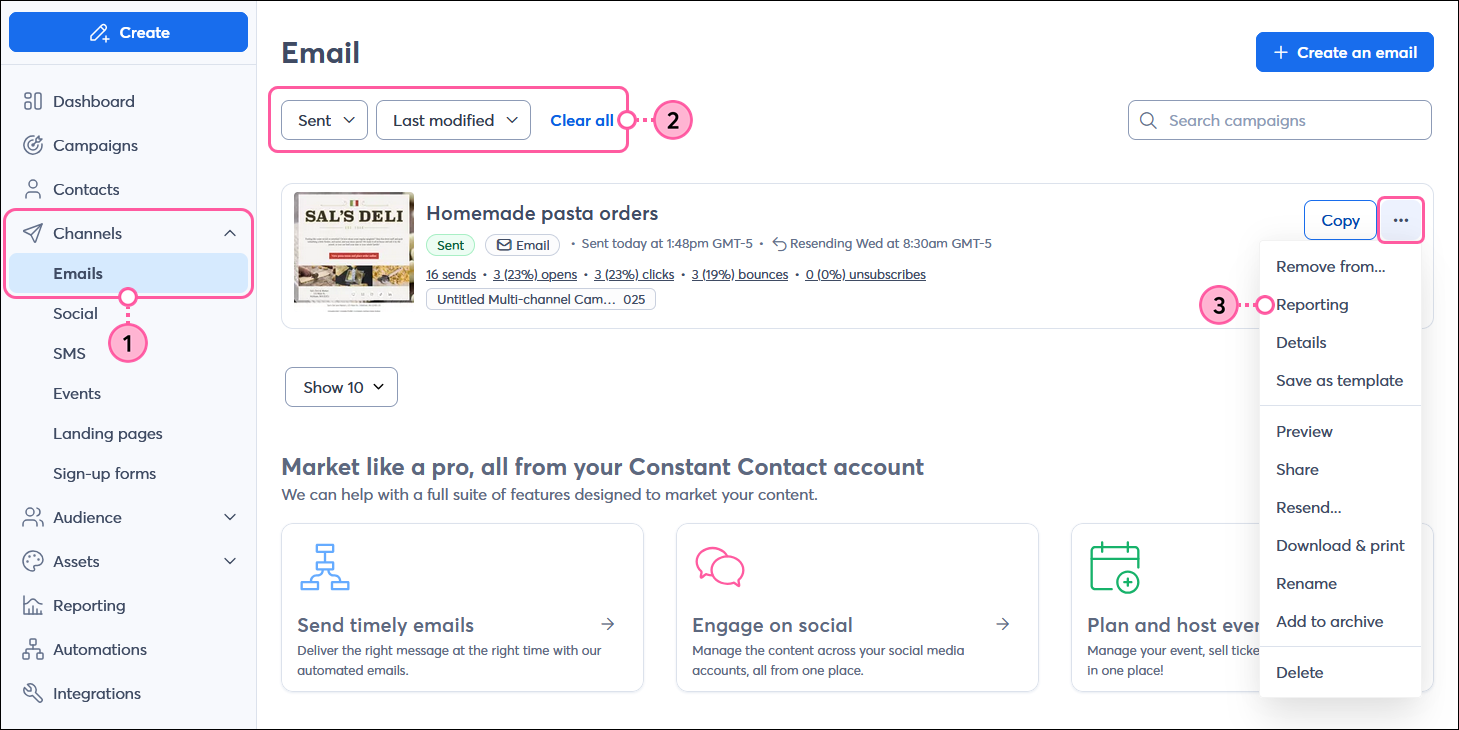
  1. In the menu on the left-hand side, click Channels > Emails.
  2. ((Optional) To help narrow your search for the email you want to prevent from resending, click Status > Sent.
  3. Click the three dots next to the sent or scheduled email, and select the "Reporting" option.

    Channels menu expanded with Emails option selected, Email page with Status drop-down menu with Sent option selected, Sent email with menu expanded and Reporting option selected

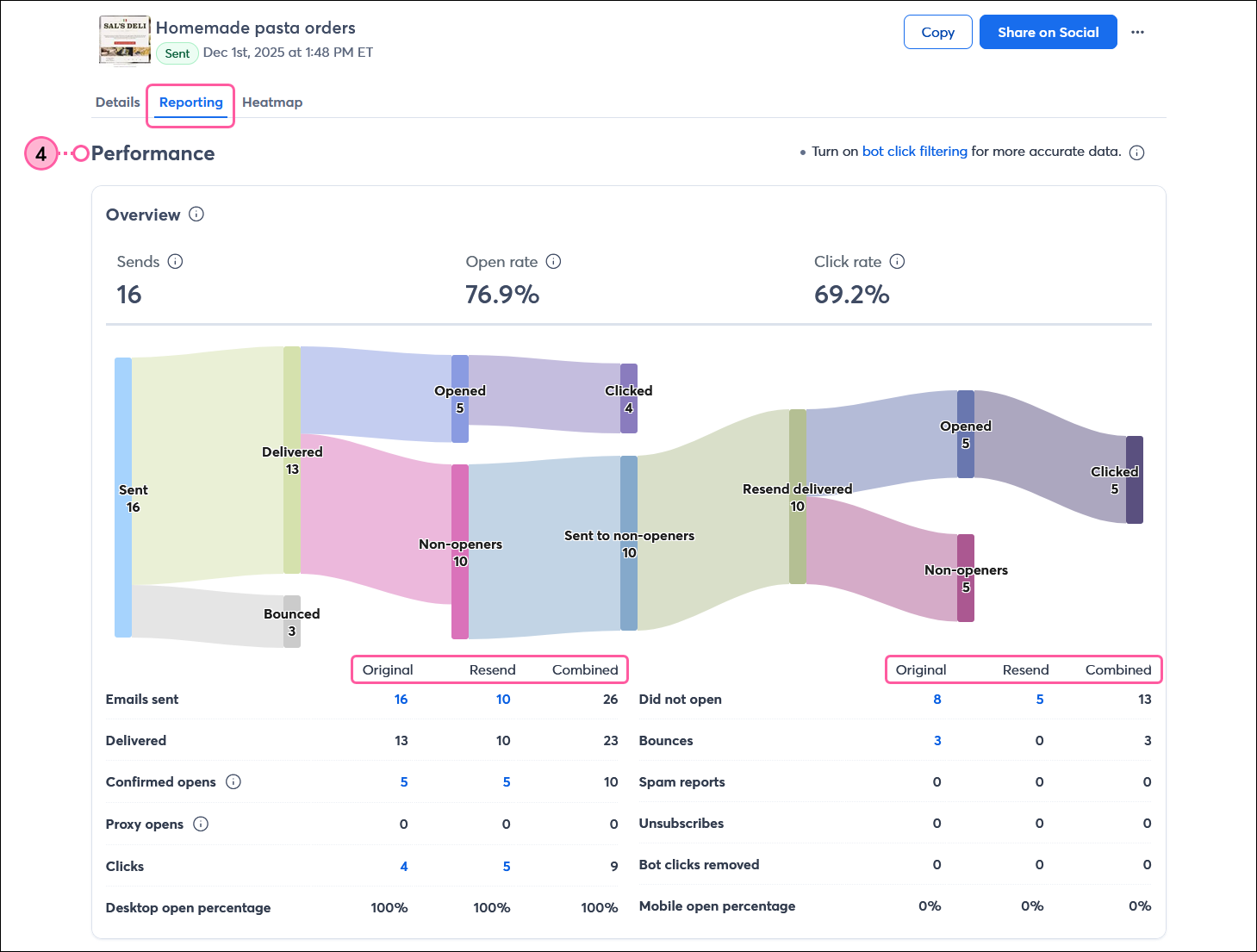
  4. In the Performance section, choose how you want to filter your results for the Overview, Engagement, and Audience sections by selecting either:
  • Combined - This changes your reporting to show the combined results from the original send and any resends that were performed. The totals in the reporting aren't clickable.

    Email details page with Reporting tab selected, Peformance section with Filter results by drop-down menu and Combined option selected 

  • Original send - This changes your reporting to show only the results from the original send for your email. The totals in the reporting are clickable.
    Note: If a contact ends up opening the original email after they received the resend, the open and click information is captured in the data for the original send, and the opens and click information is captured separately for the resend.
    Important: If you resent the email to new contacts (formerly QuickSend) or resent the email to the same list to reach the new contacts who joined your list after the original email was sent, their activity is tracked as part of the original send and not the resend.

    Email details page with Reporting tab selected, Peformance section with Filter results by drop-down menu and Original send option selected

  • Resend - This changes your reporting to show only the results from the email's resend. If you resent the email more than once, all of the results are combined here, but you can see the list of the individual resends in the History section at the bottom of the page. The totals in the reporting are clickable.

    Email details page with Reporting tab selected, Peformance section with Filter results by drop-down menu and Resend option selected


Tips for reducing the number of non-openers

If your open rates and resend open rates are low, there are a couple of things you can try to improve them:

  • Subject line - Writing an effective subject line is key to getting noticed in the inbox. If your subject line isn't performing well, you can create a Subject Line A/B Test to help improve your results.
  • List segmentation - When you send targeted content to the contacts who are most likely to be interested in that content, your open rates improve. By creating different segments of your contact list, you can customize your content, branding, and even send time for each segment.
  • Best time to send - You may be sending your email at a time when it gets buried in the inbox. Check your opens reporting for the day and time that saw the most opens and schedule your future emails based on that time.


Megaphone IconBe a better marketer: Want to learn more about improving your email engagement? Check out How to Create Email Content That Gets Results!


Questions?

Ask the Community

Did this article answer your question?


Constant Contact Logo

Copyright © 2026 · All Rights Reserved · Constant Contact · Privacy Center