If you sent an email with an RSVP block, you can find the RSVP responses in their own section on the Email Details page. Once you gather the responses, you can plan how you want to communicate with the contacts who answered or how to better engage with those who didn't respond.
View your RSVP answers
To see how your contacts responded to your RSVP block and see which contacts provided each response:
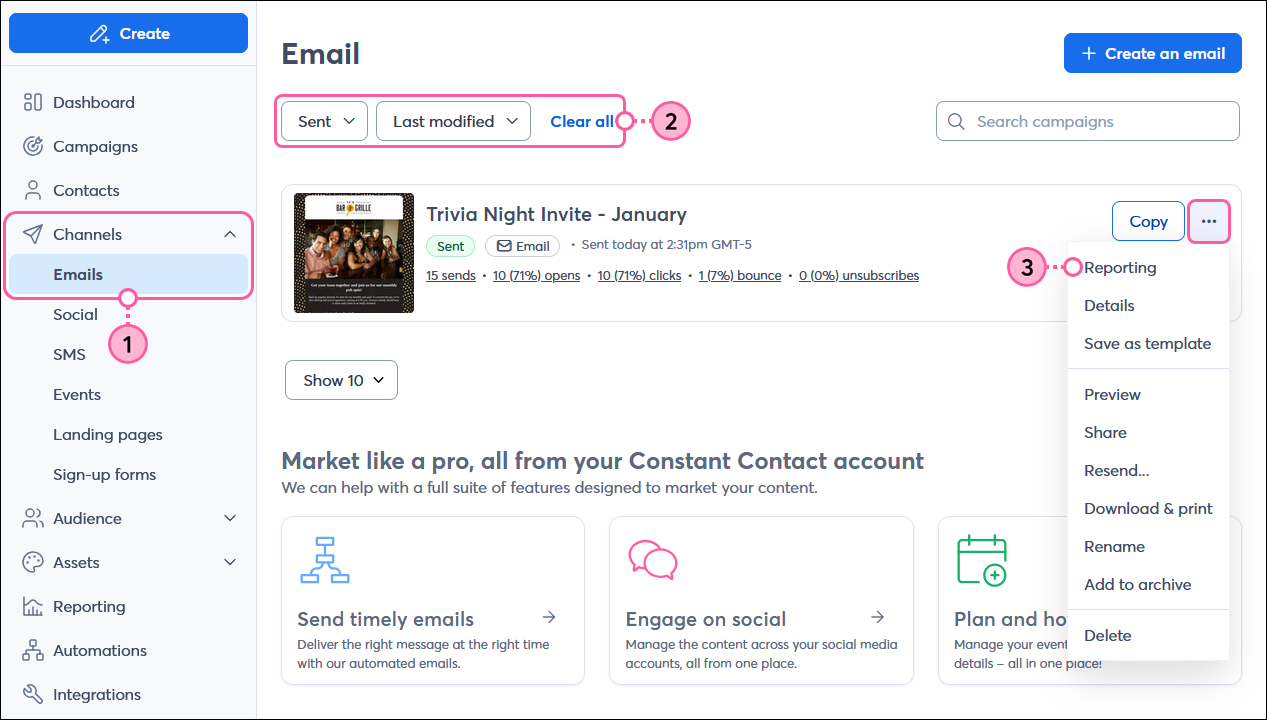
- In the menu on the left-hand side, click Channels > Emails.
- (Optional) Click Status > Sent, and select an option from the Sort By menu to help narrow your search.
- Click the three dots next to the email you want to view and select the "Reporting" option.
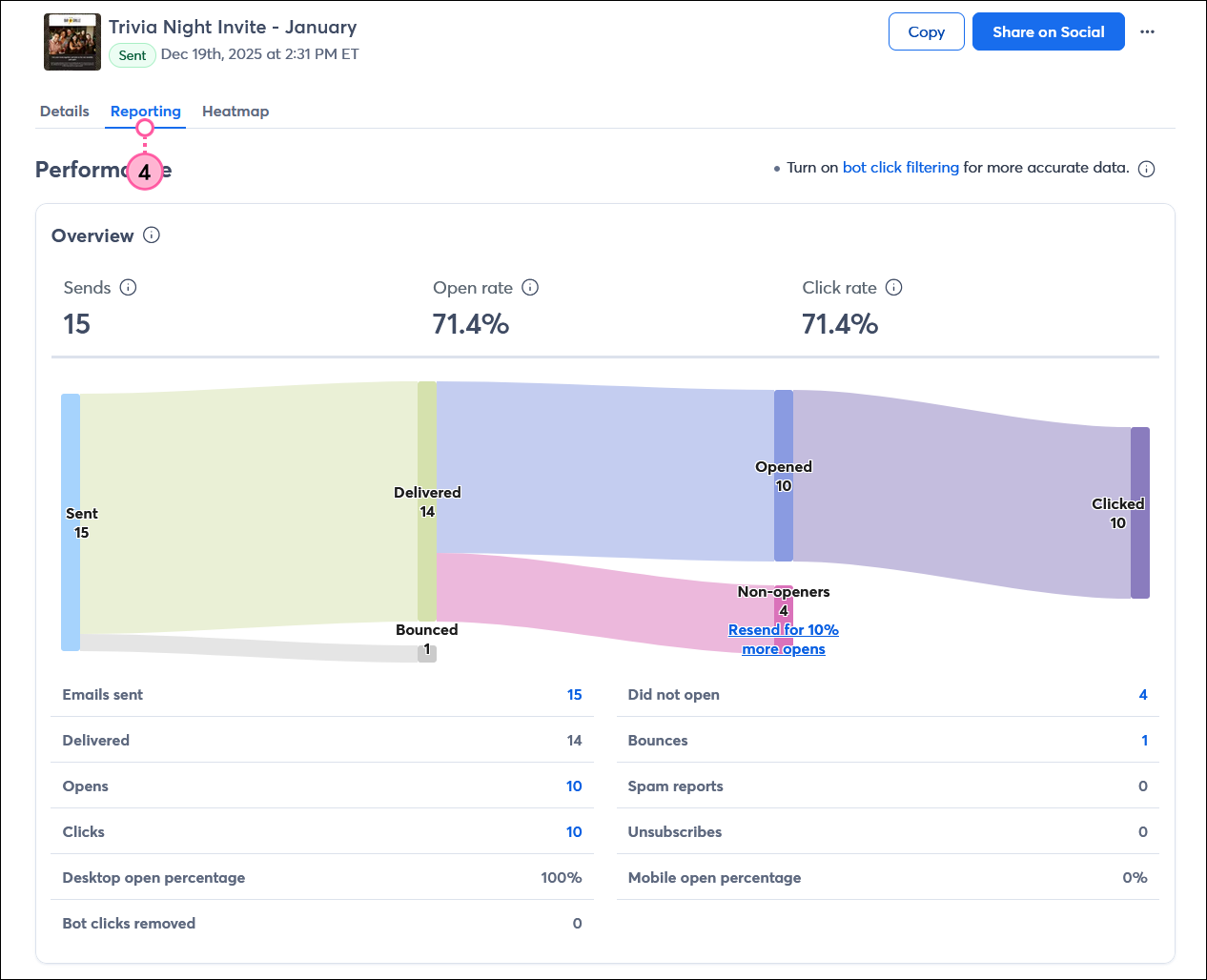
- On the Email details page, click the Reporting tab.
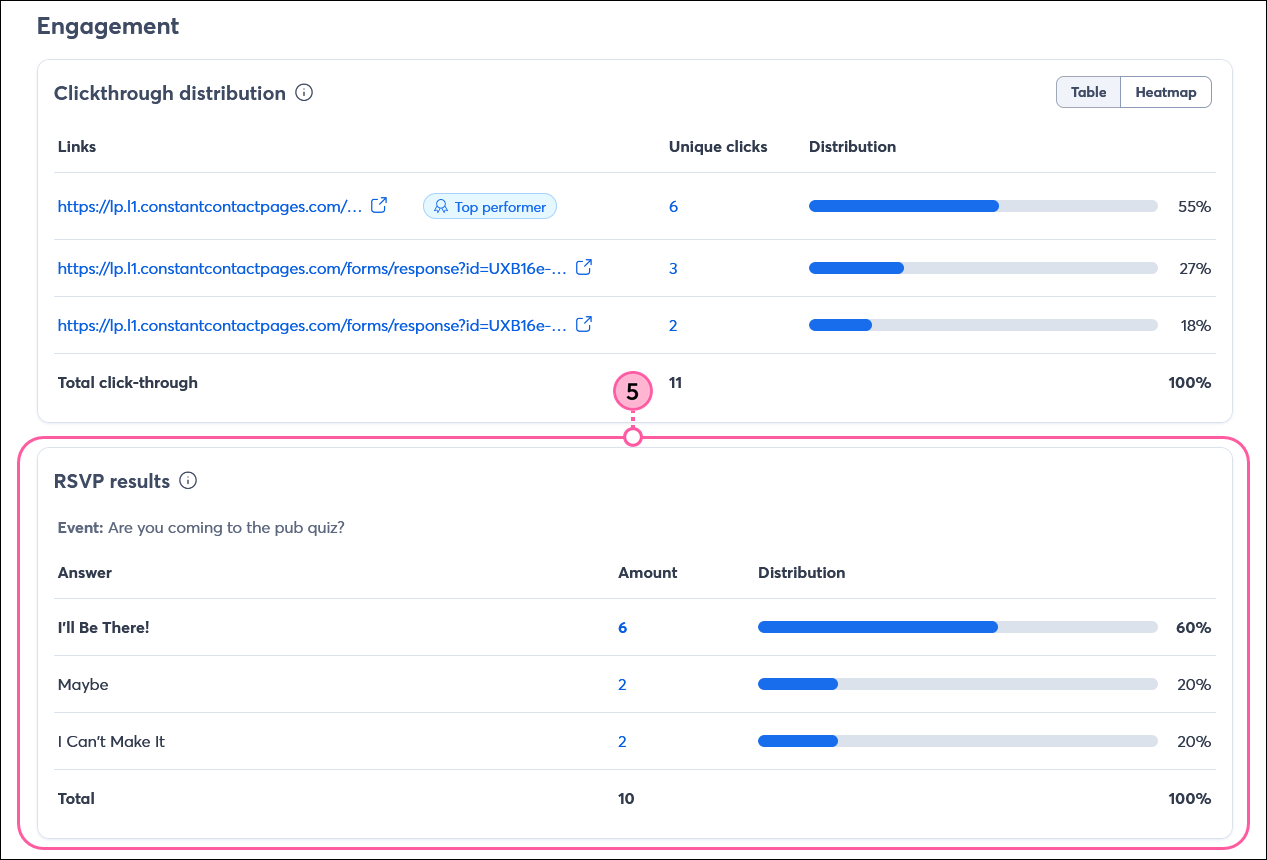
- Scroll down to the RSVPs section to view the:
- Answers - Each response option is listed in the order it appears in your email.
Note: The Clickthrough distribution section above the RSVP results section also includes the unique URLs for each of the RSVP answers in your email. The numbers don't always match because your contacts can change their minds and change their RSVP answer, which changes the Amount in the RSVP results table, but doesn't remove the original click from the Unique clicks column in the Links table. - Amount - This is the total number of unique clicks that each answer received. Clicking on any of the hyperlinked numbers shows you the specific contacts that provided each answer.
Note: You can add the contacts for each response to a list and send them targeted content to either follow up with more information about your upcoming event, try to entice the maybes, or send a "we'll see you next time" message to those who declined. - Distribution - The distribution is calculated by dividing the amount for each answer by the total number of answers. This tells you the rate at which each answer was selected.
Contacts can change their response up until the event, so you'll want to check the RSVP report periodically to ensure you have an up-to-date list of attendees.
Follow up with those who responded
Seeing your RSVP results is great, but taking action with those results is even better! After clicking on any hyperlinked number in the Amount column of the RSVP results section, you can add the contacts to a list of your choice and then send them customized content based on their answer selection.
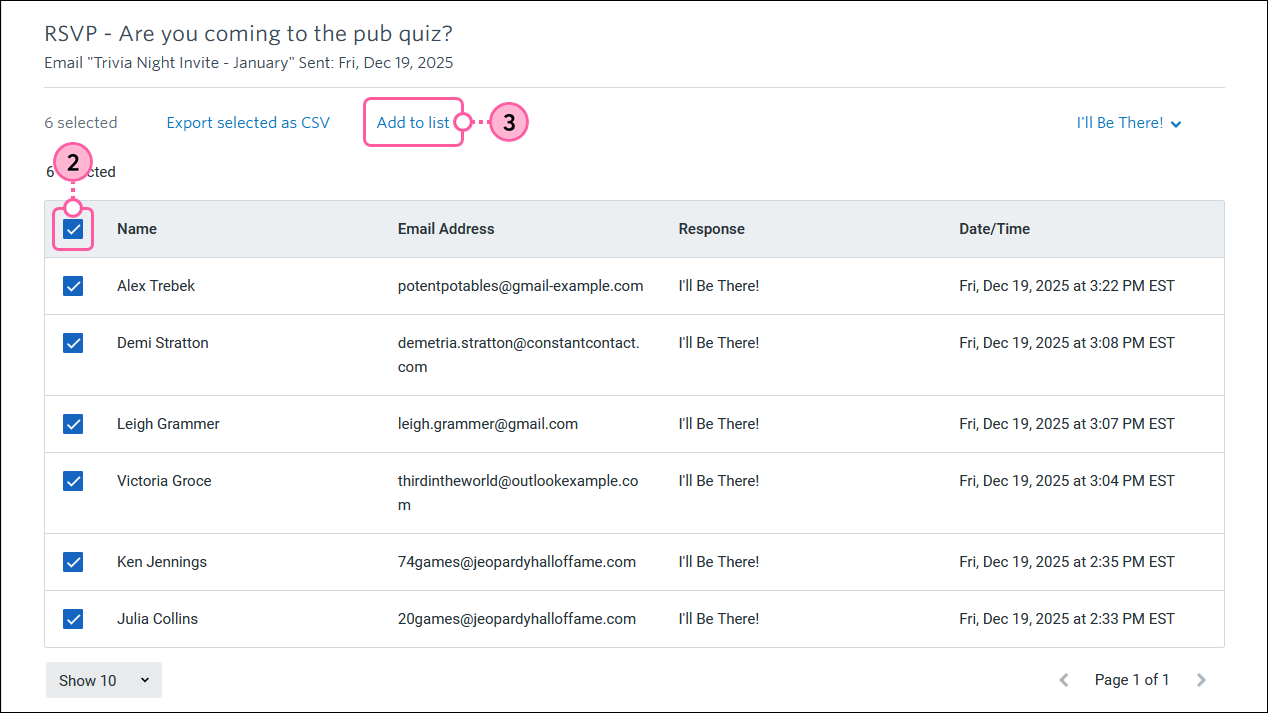
- (Optional) Click the drop-down menu on the right-hand side above the table to select an answer type.
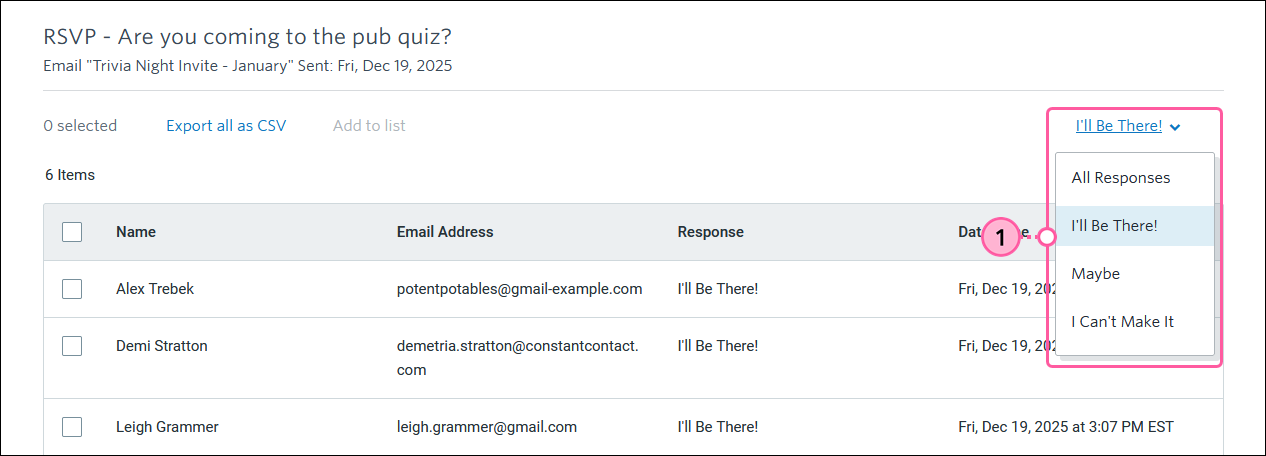
- Select all of the contacts.
- Click the "Add to list" option.
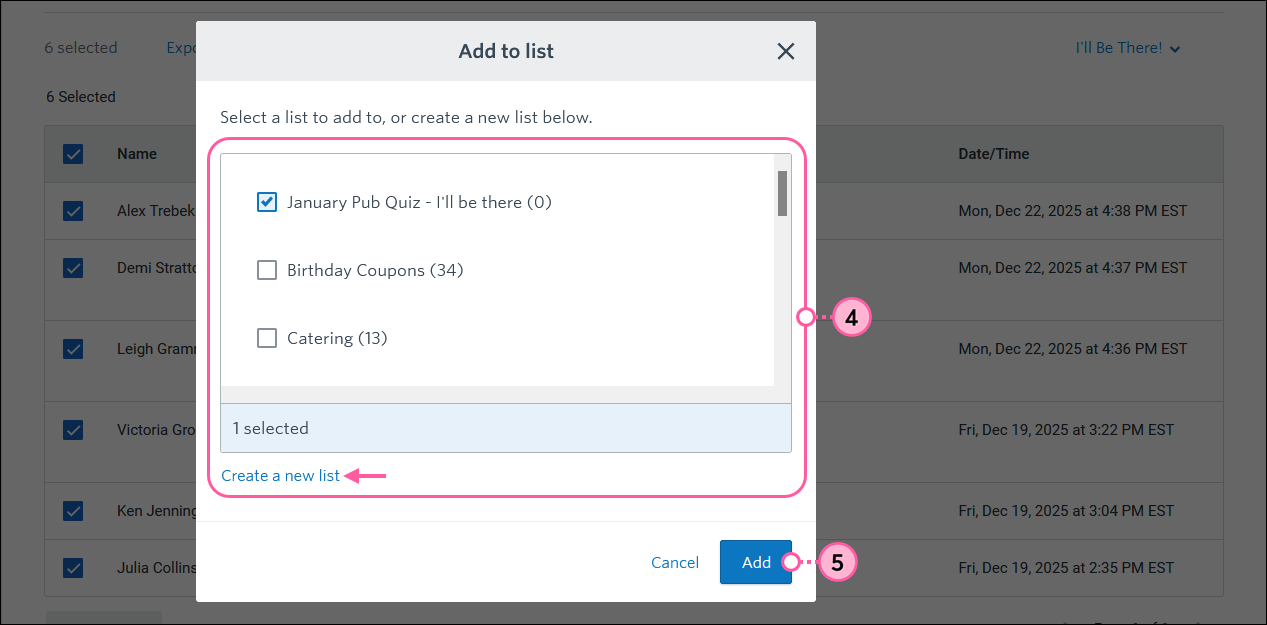
- In the Add to list overlay, select the list you want to add the contacts to or click the "Create a new list" option.
- Click the Add button.
Once you’ve added your different respondents to a list, here are some ideas for how to communicate with them:
- Create a list of the "yes" responders to check attendance, if necessary. If someone brings a friend, ask them to join your email list!
- Send a reminder email to the "yes" responders 1 or 2 weeks before your event.
- Send the “yes” and “maybe” responders an email with more information about the event, including details on any special activities, food, entertainment, speakers, parking, etc.
- Send the "maybe" responders an email asking them if they can make it after all. Is space filling up? Let them know!
- Send your "no" responders an email that says, "We're sorry you can't make it, but we'd love to see you at the next one!"
- Have a list of the "no" responders ready for the next time you're organizing an event. Maybe offer them an incentive to attend since they couldn't come last time.
 | Did you know? If you want to automate email responses to send based on which answer a contact provides, you can build a custom path with our Automation Path Builder for each answer. Select the "clicks the email link" trigger and select the URL for the response type; the URLs are listed in the order that they appear within your email when you select them from the drop-down menu. |
Try to re-engage non-responders
If there are contacts who never responded to your RSVP, it's a good idea to follow up with them again. An easy way to do this is to resend your RSVP email to the non-openers; these contacts may have missed your email or may not have been inspired to open by your subject line. You can automatically schedule a resend when you schedule an email to send for the first time, but if you didn't, don't worry! You can also manually resend the email after it's been sent.
 | Did you know? When you use our Resend to Non-Openers feature, you have the opportunity to modify your subject line to entice those who ignored it the first time to open it. |