| Administrators | ✓ | |
| Company Managers | ✓ | |
| Marketing Managers | ✓ | |
| Sales Managers | ✓ | |
| Salespersons | ✓ | |
| Jr. Salespersons | ✓ |
 | Tip: Are you looking for information about Constant Contact’s Email and Digital Marketing product? This article is for Constant Contact’s Lead Gen & CRM product. Head on over to the Email and Digital Marketing articles by clicking here. Not sure what the difference is? Read this article. |
Contacts can have multiple tags associated with them, which can make organizing them easier. For example, a contact can be a partner, vendor, or someone otherwise special to your business. Contact tags allow you to categorize those contacts using many different tags.
Consider that tags can be used to emphasize demographics. These demographics can include such information as location, revenue, or company size. You can add state or province tags to a contact so that you can have regional representatives keep in touch with them.
Also, tags can be entirely personal. You can tag contacts with personal information, like a birthday or sign-up anniversary. Tagging contacts with such information allows you to engage with more personal interactions, such as a special offer on their birthday or sign-up anniversary.
Note: You can import contact tags from another CRM or export tags from Lead Gen & CRM. Include your contact tags in a column (separated by commas) in your import file to map them to Lead Gen & CRM's 'Contact Tags' field. Read Import Tool Overview to learn more about the import process.
To set contact tags, do the following:
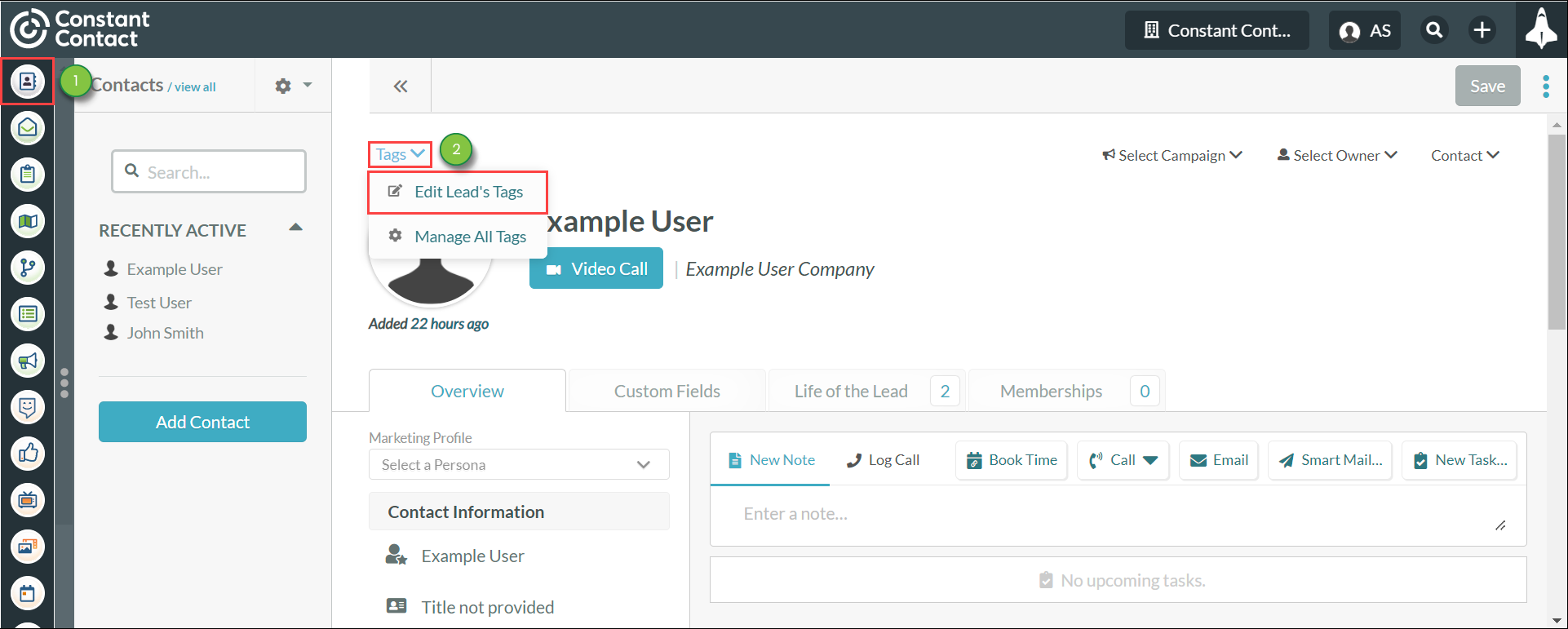
 Delete next to a tag to remove it.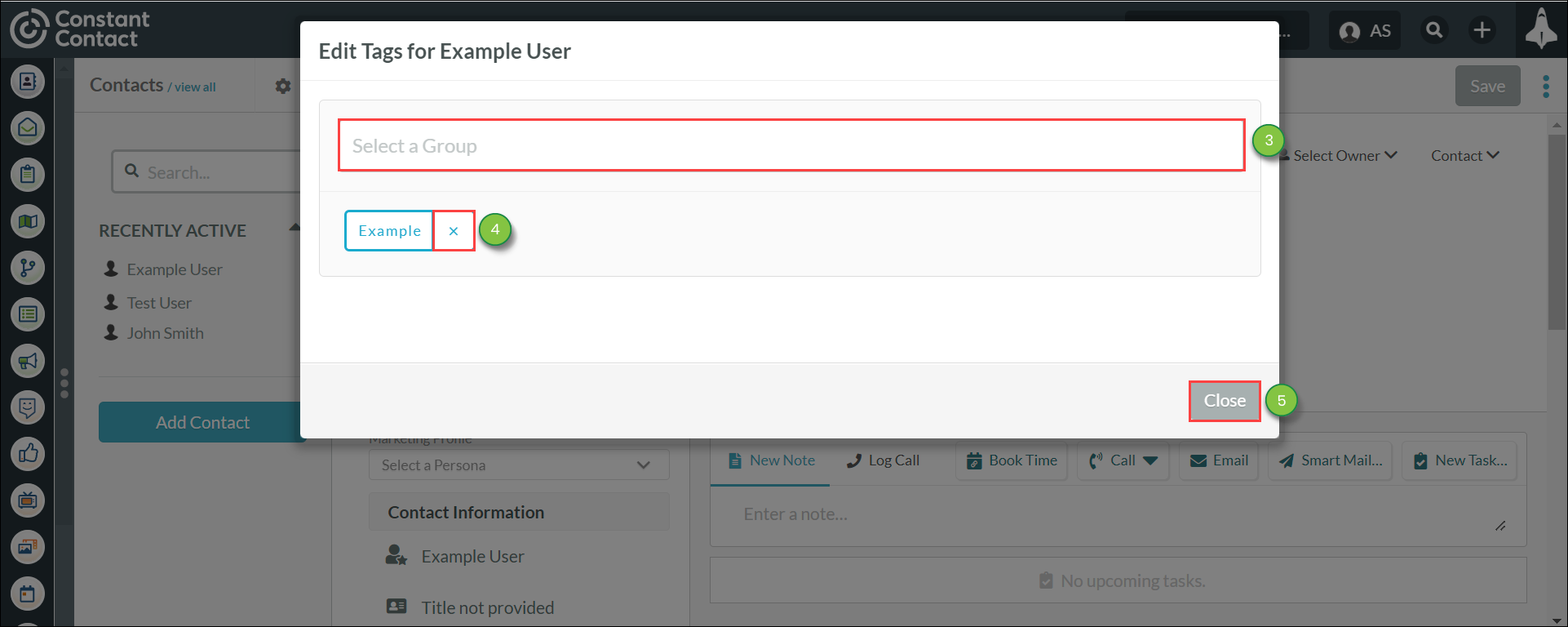
When adding or editing contact tags, be aware of the following:
Refer to Using the Tag Manager for information on creating, modifying, and using tags in Lead Gen & CRM.
If you have several contacts who would benefit from being set to the same tag, you can use the Contact Manager's bulk editing feature. Bulk editing allows you to edit information for several contacts at the same time.
To edit contact tags via bulk editing, do the following:
 selection checkbox next to the desired contacts' names.
 Edit Contact Tags.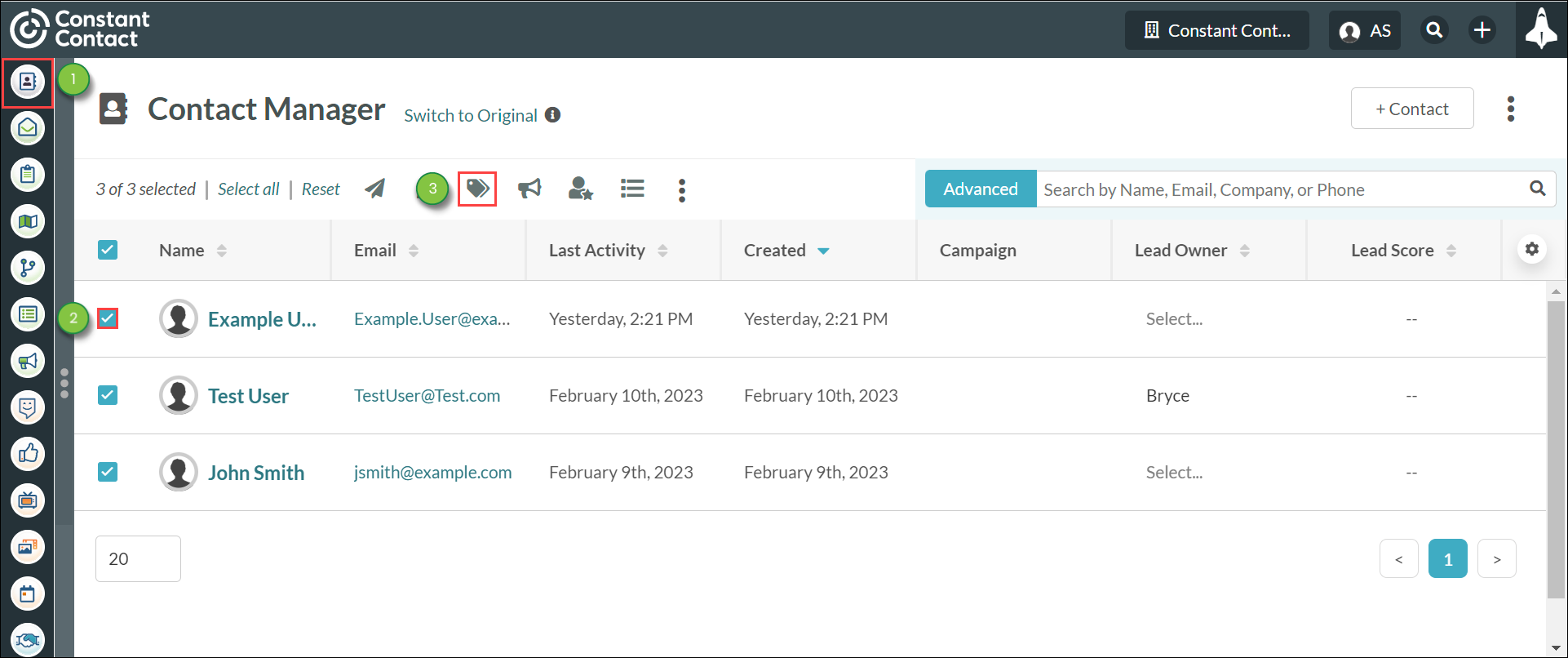

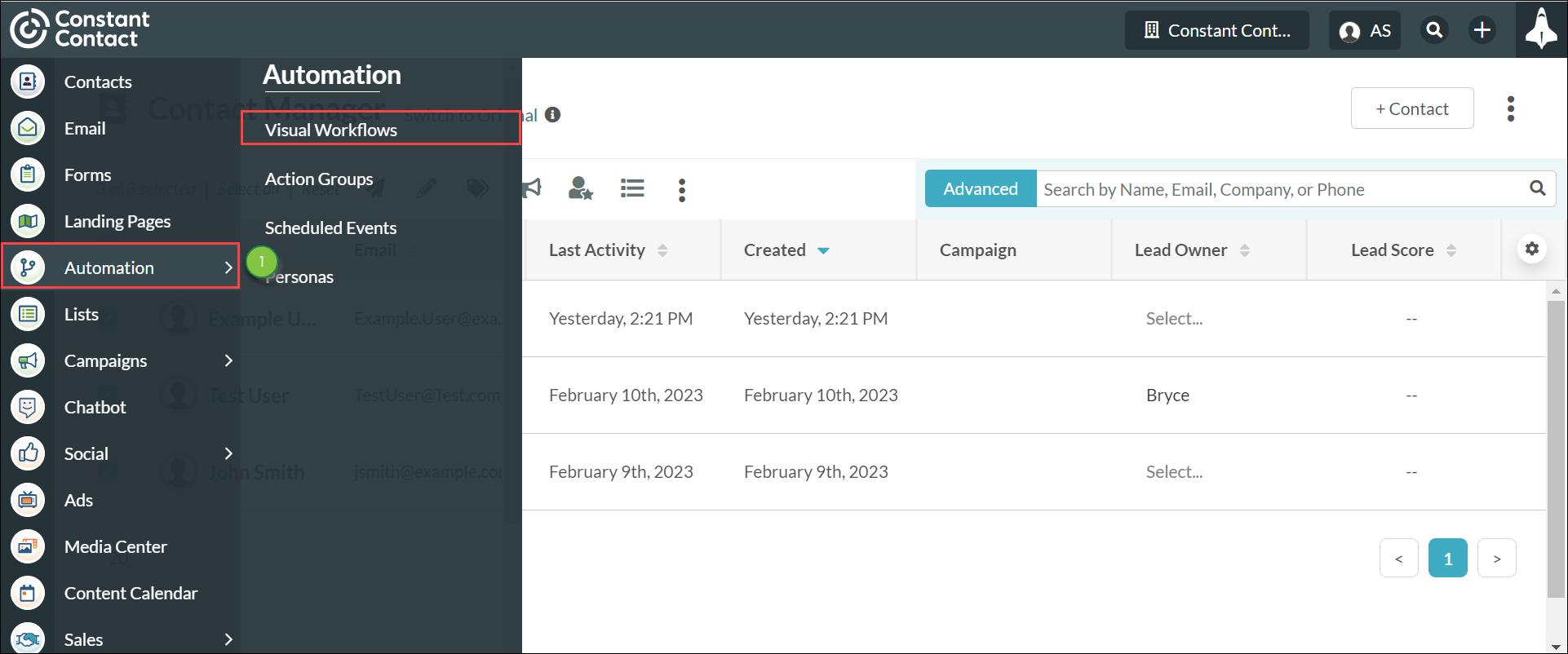
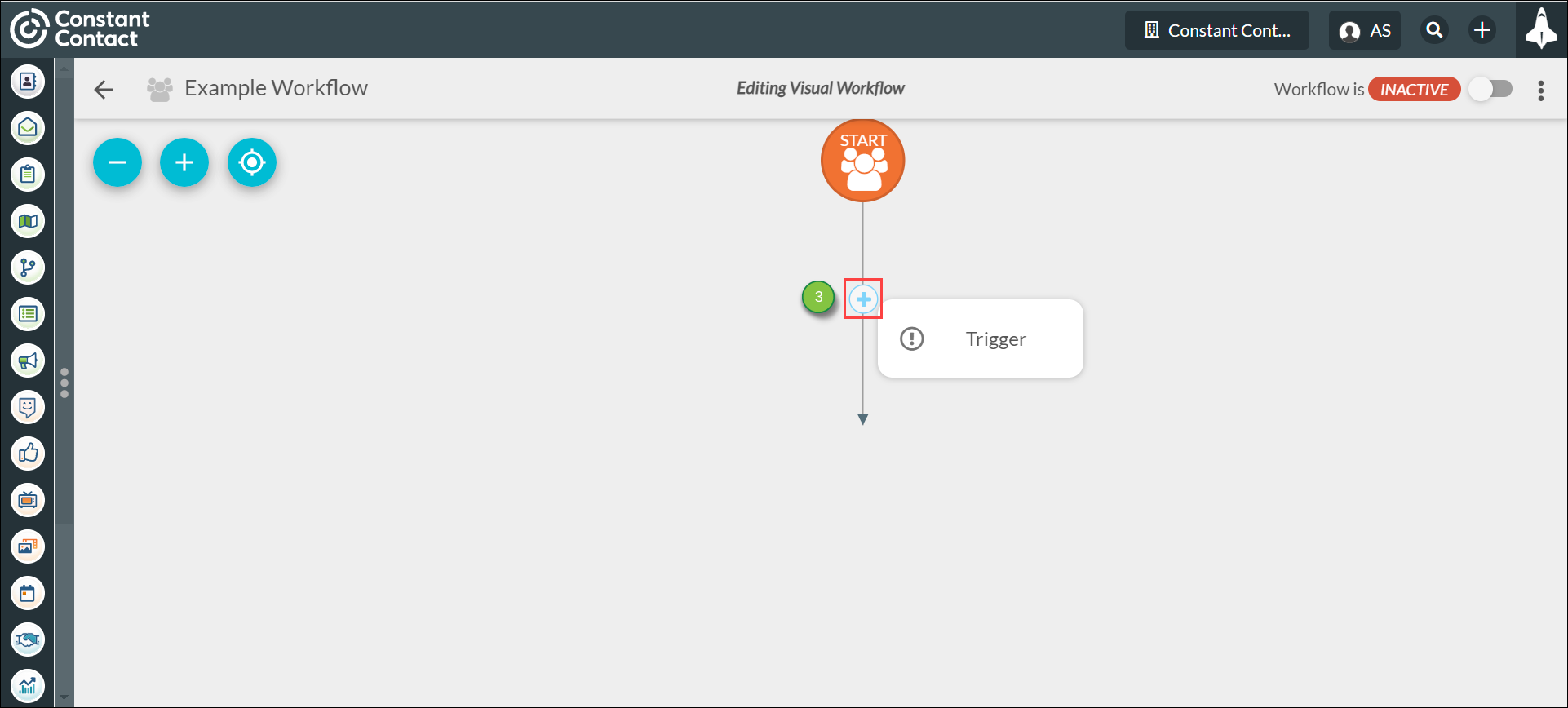
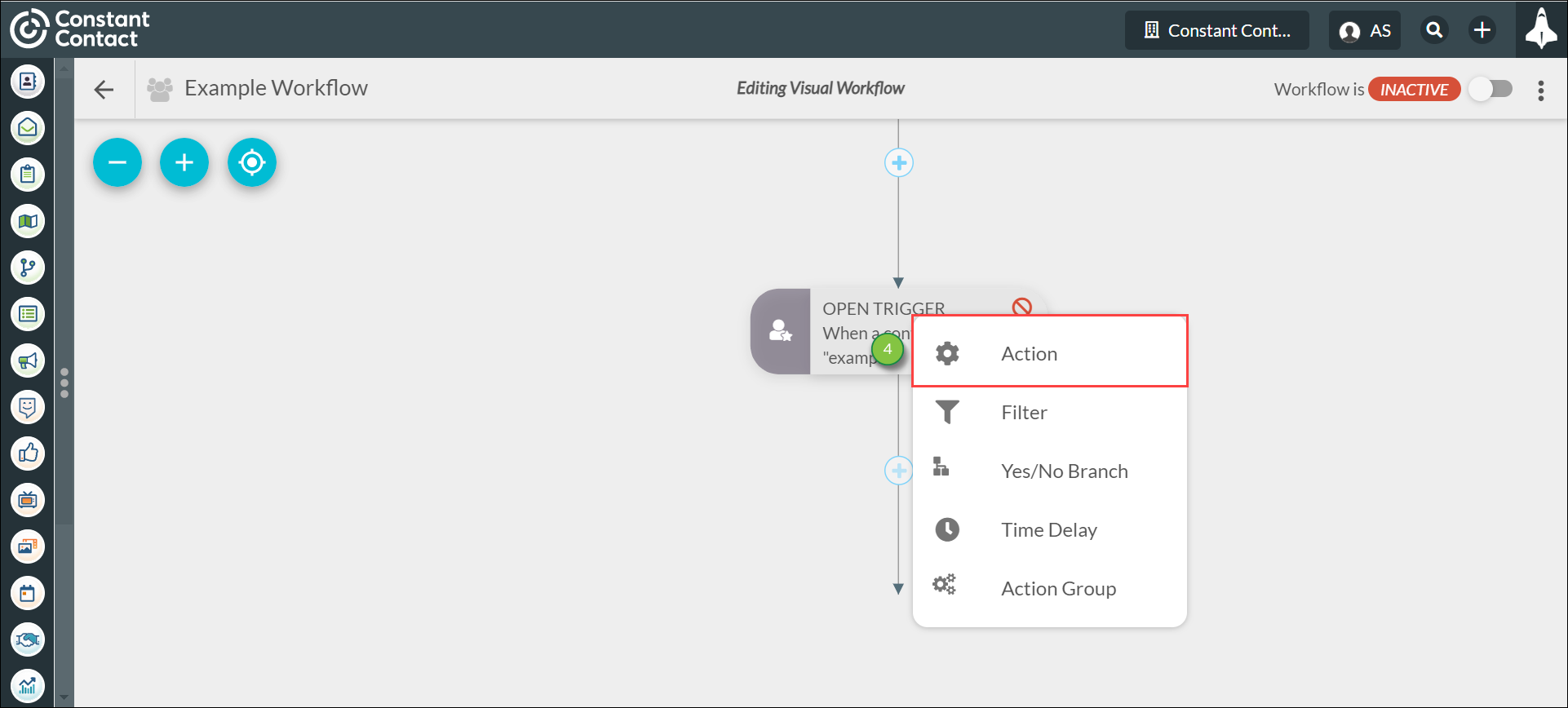
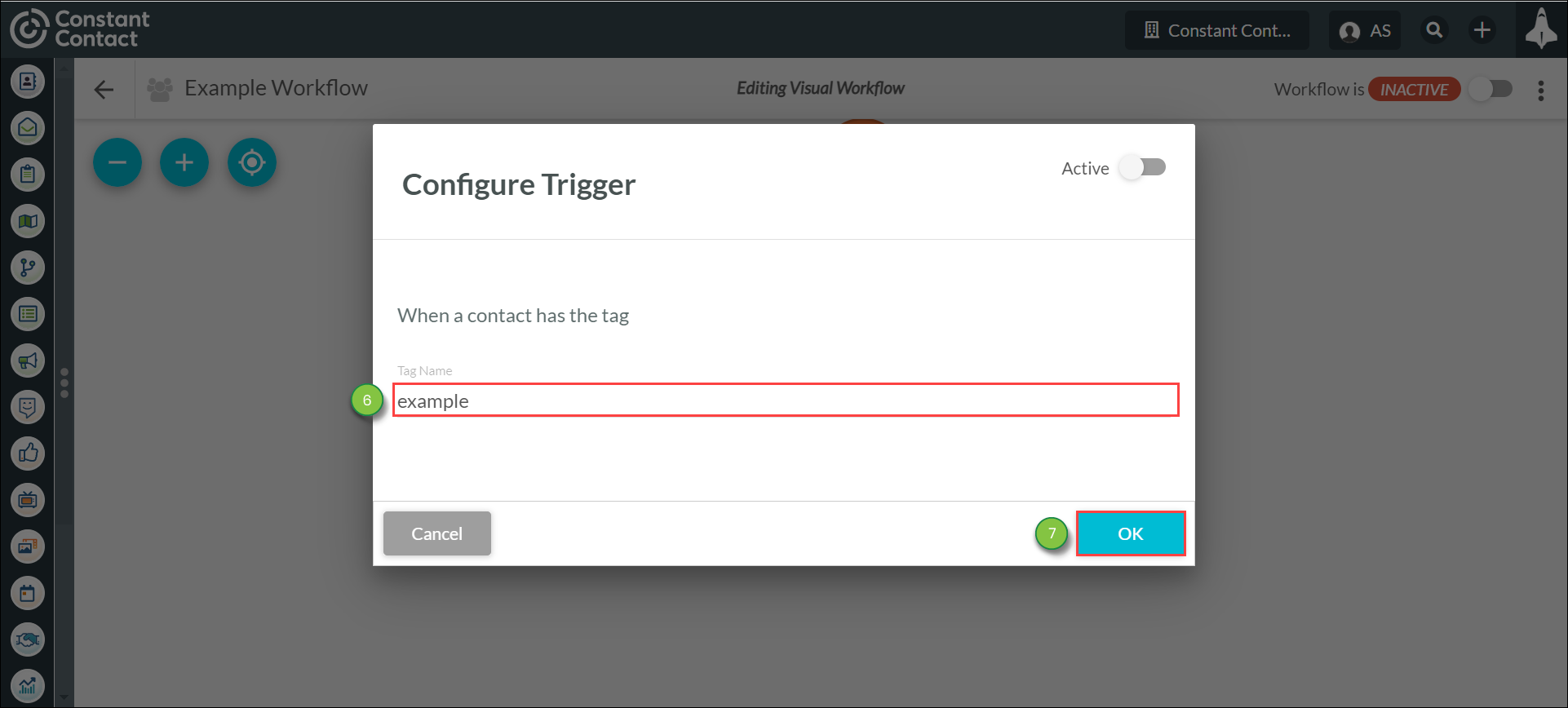
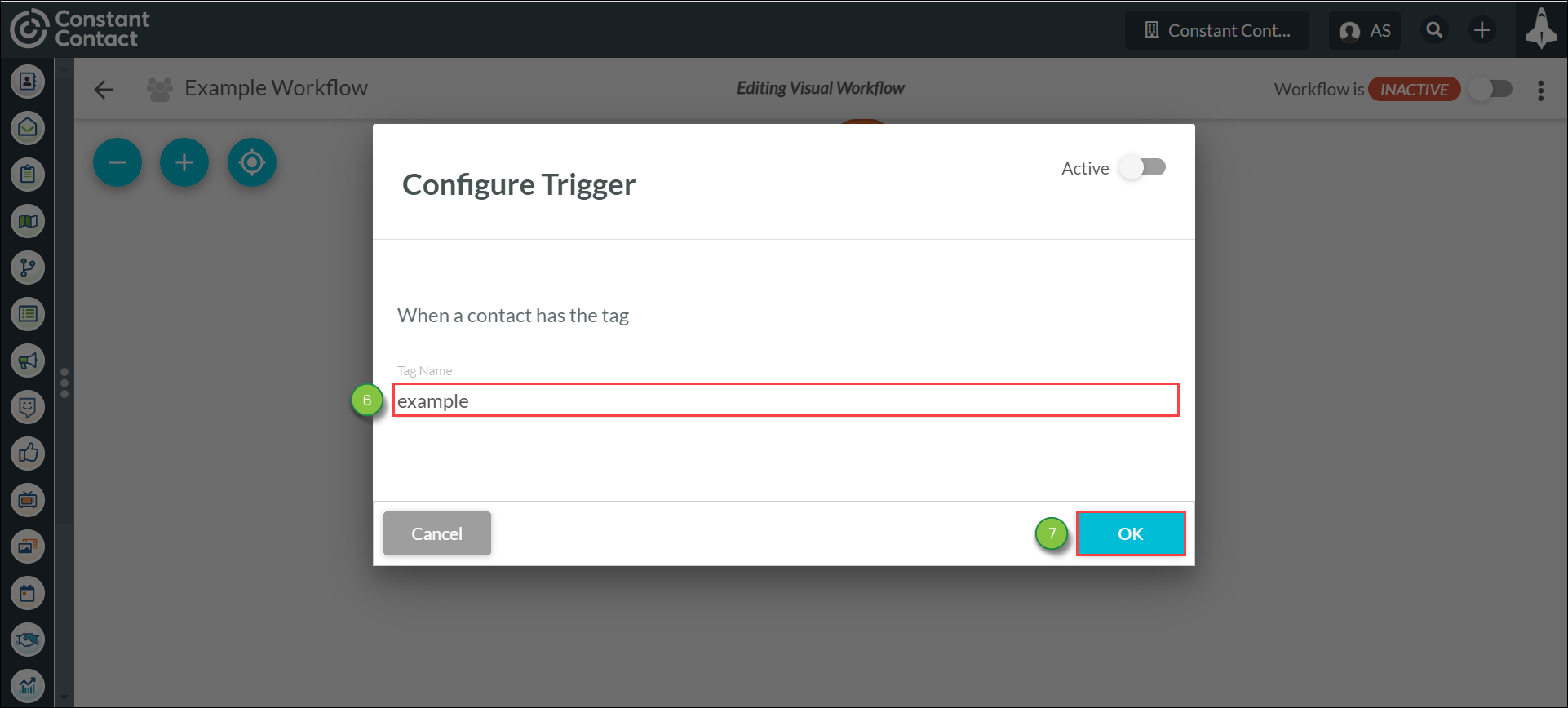
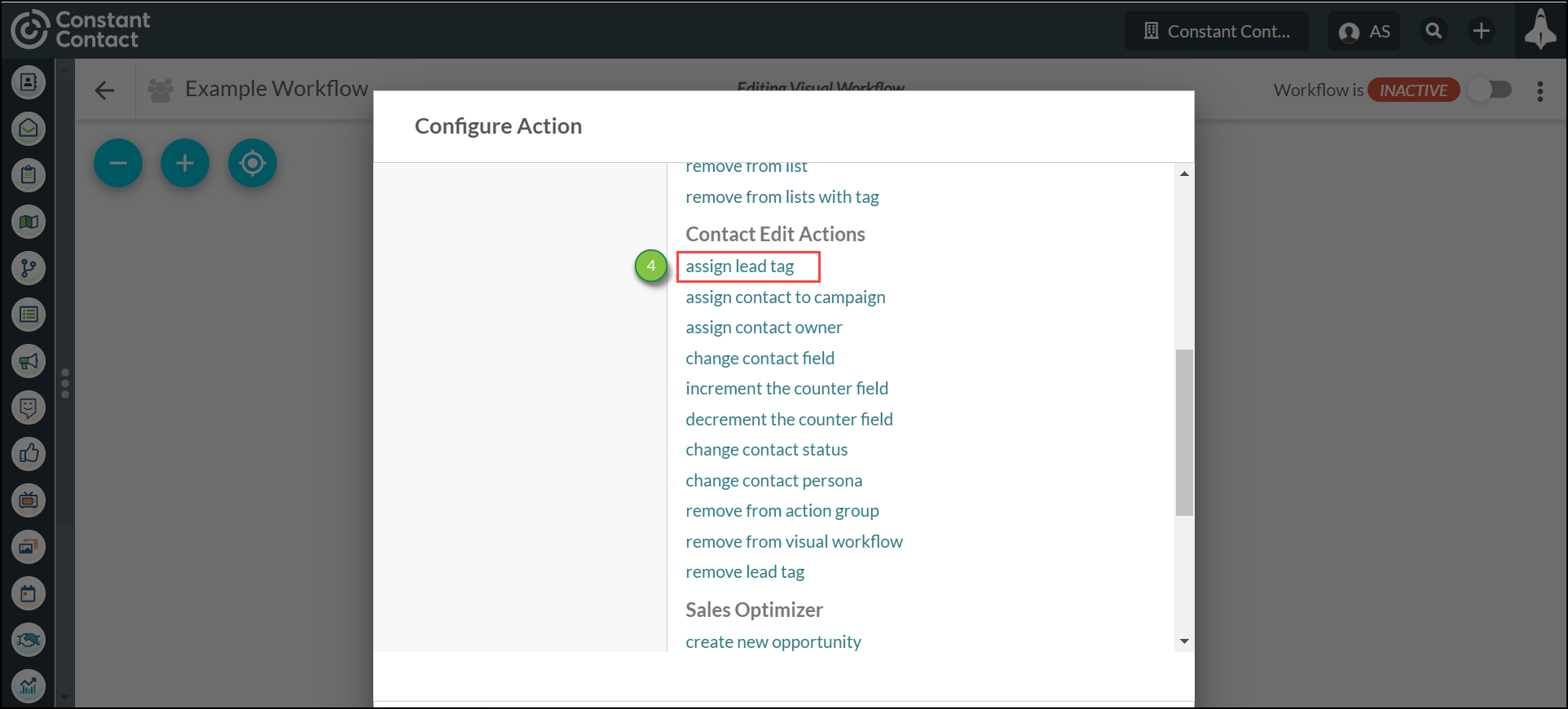
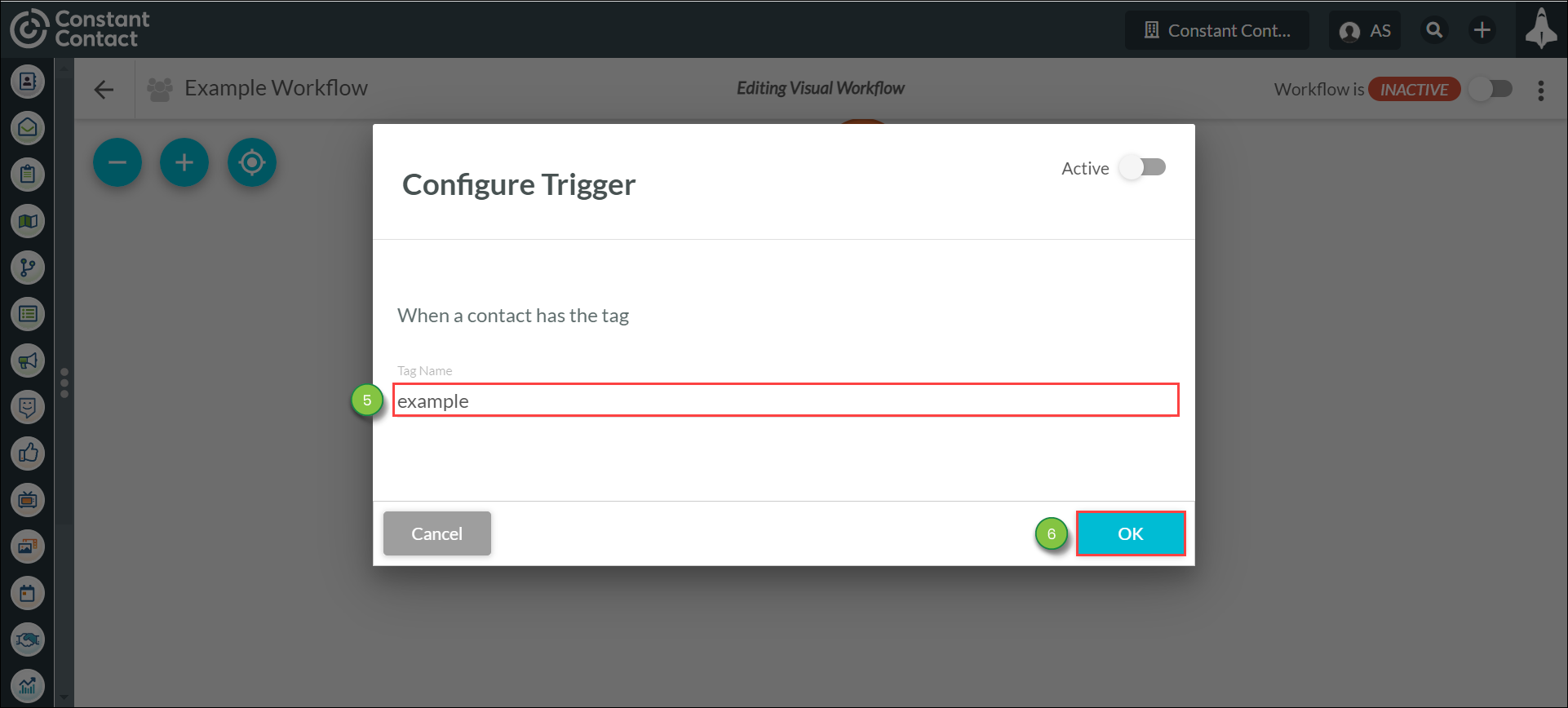
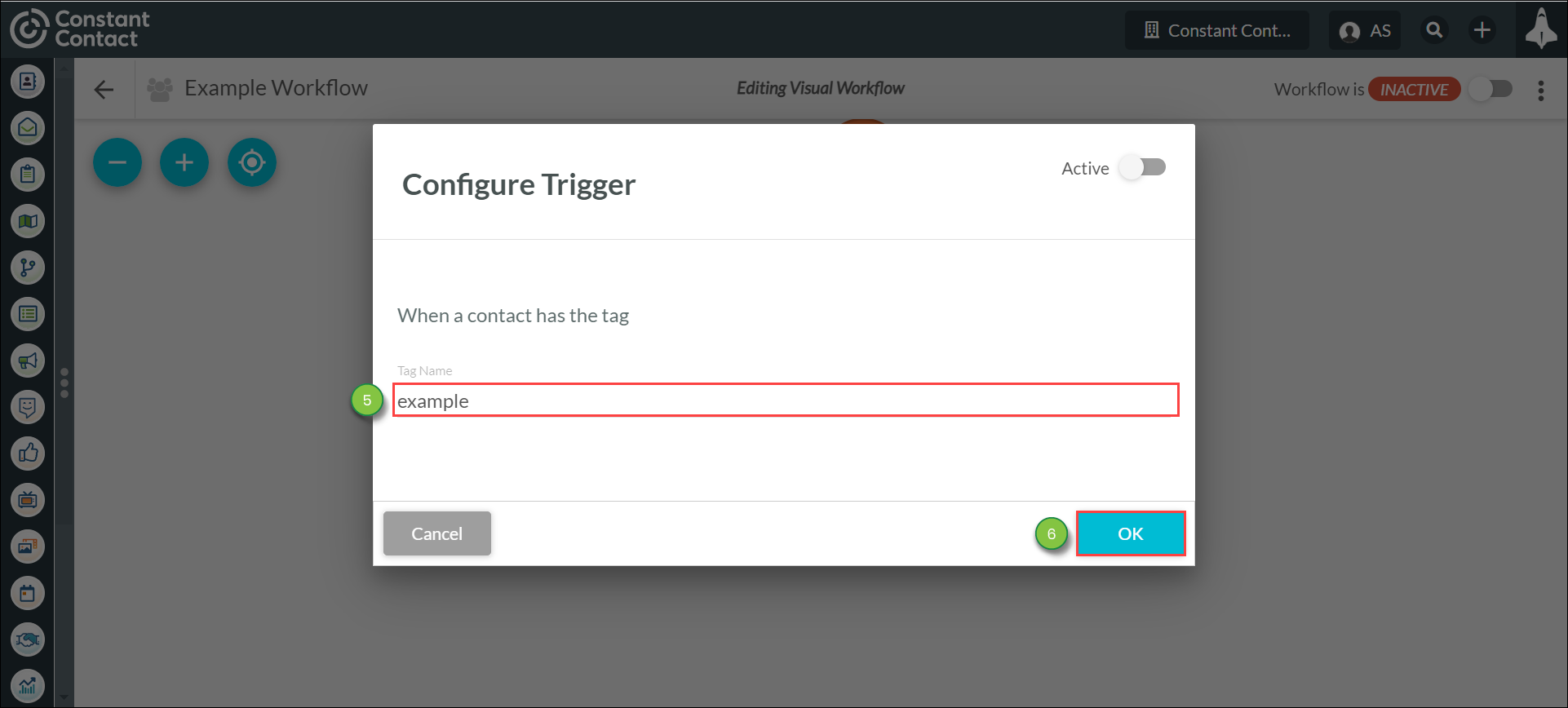
You can use contact tags to create a list or as a trigger in visual workflows. To use contact tags in visual workflows, do the following:
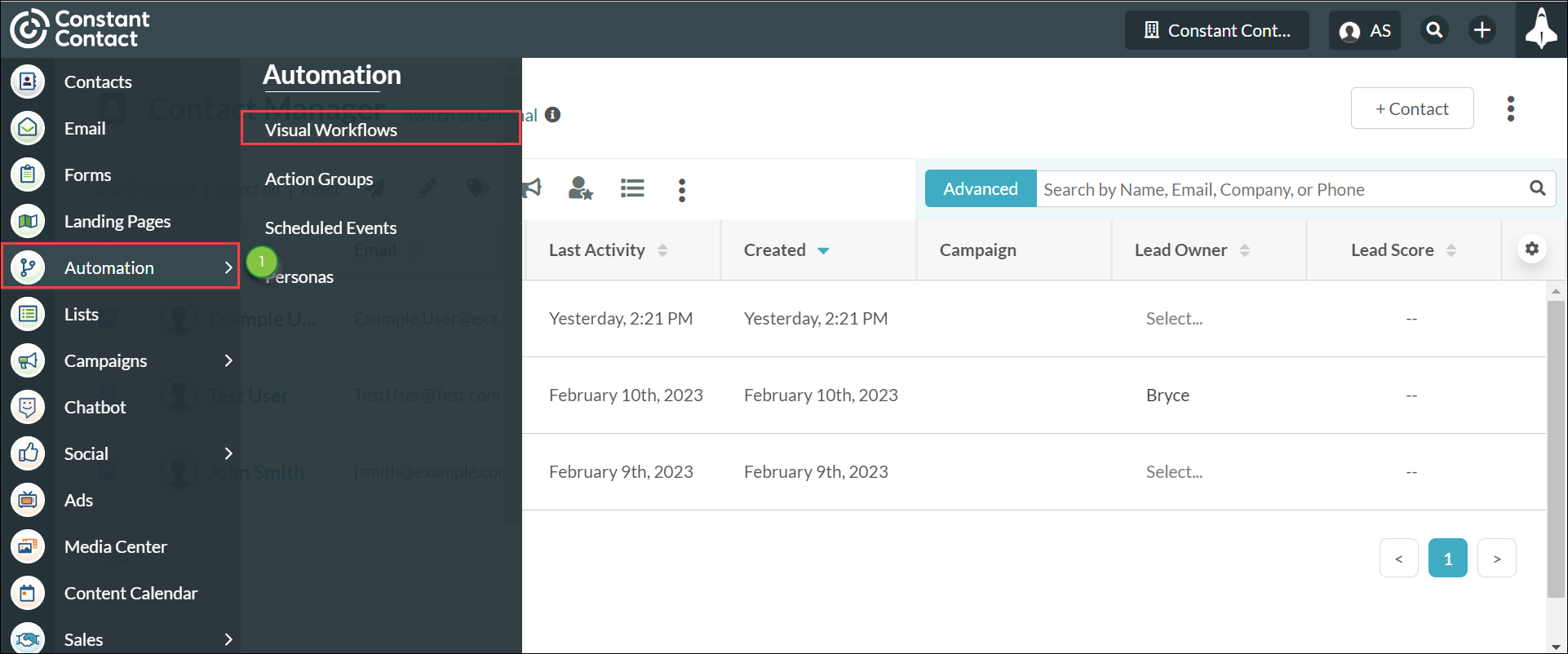
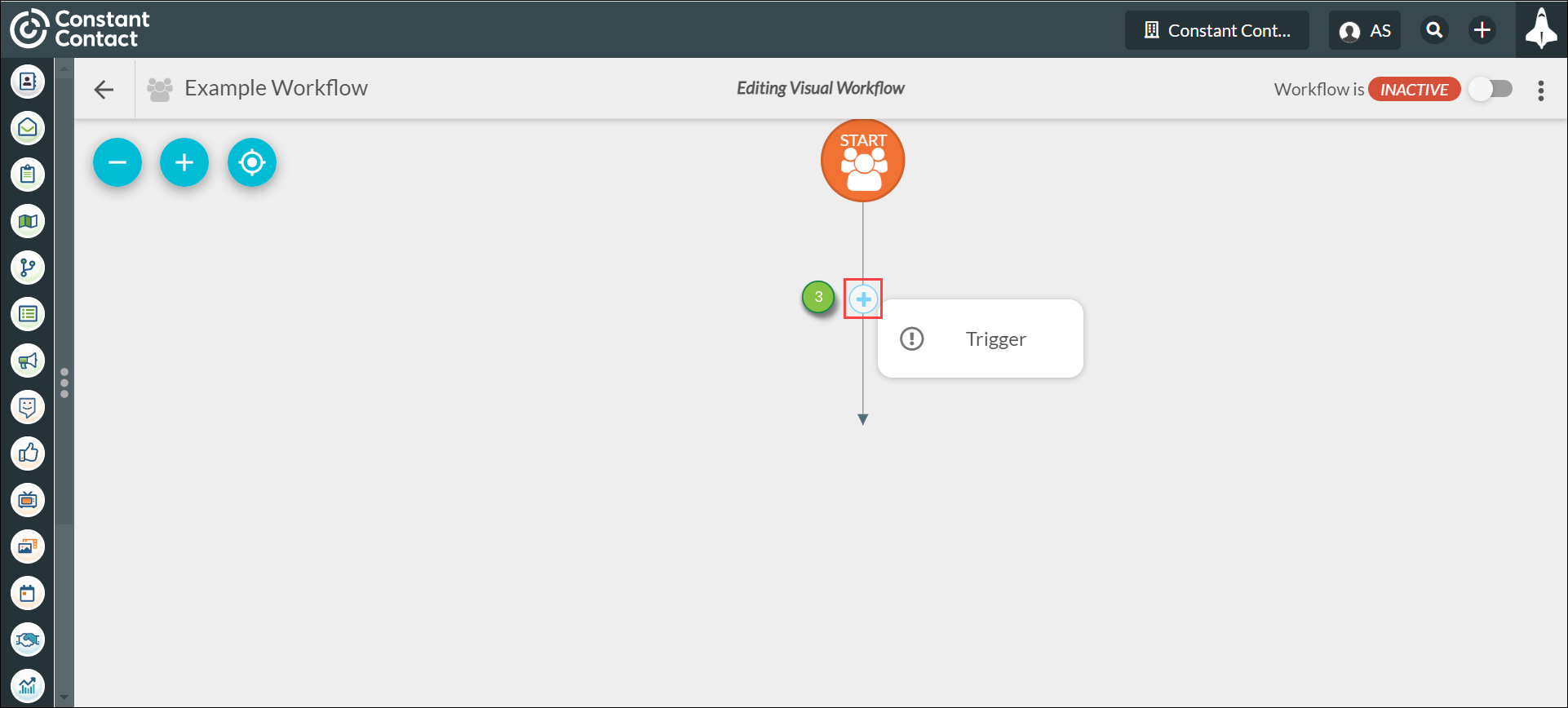
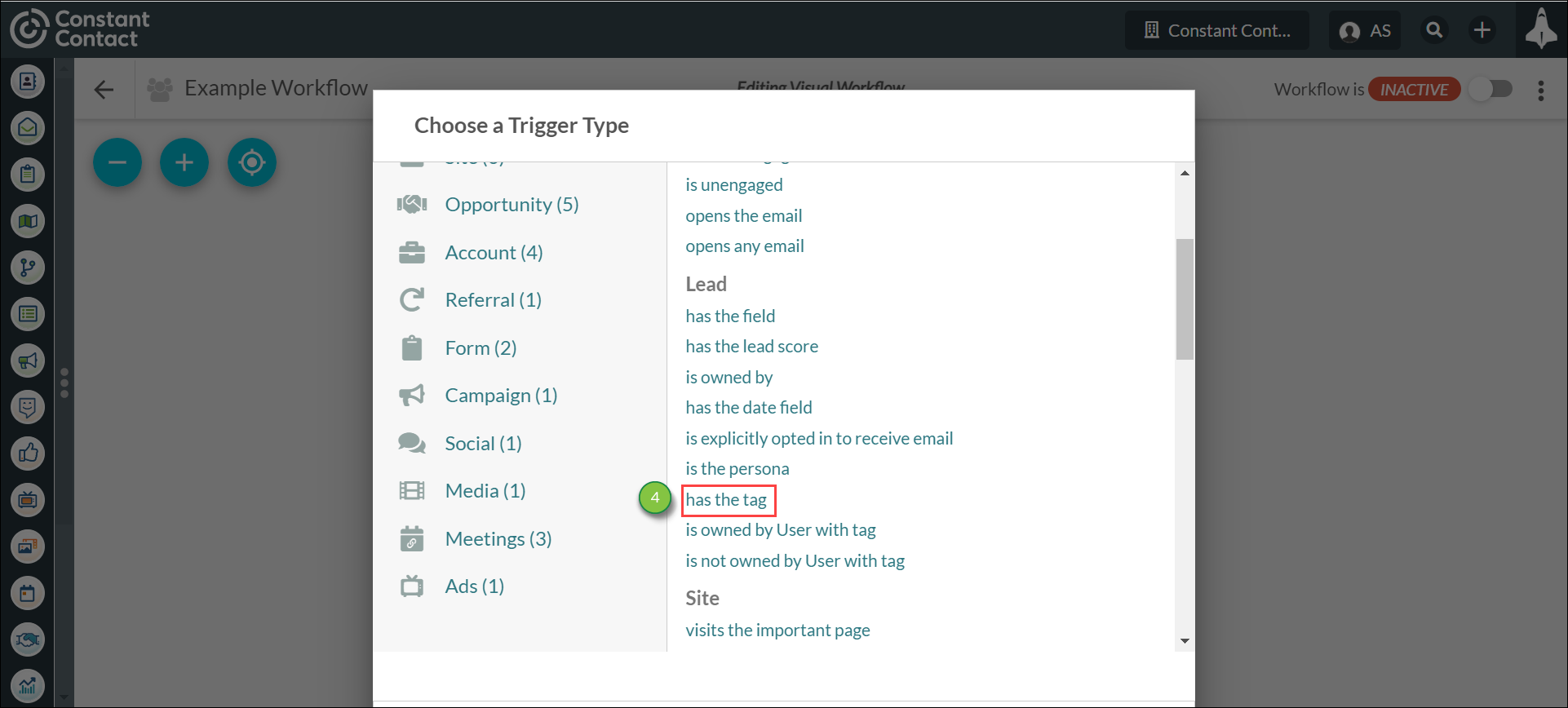
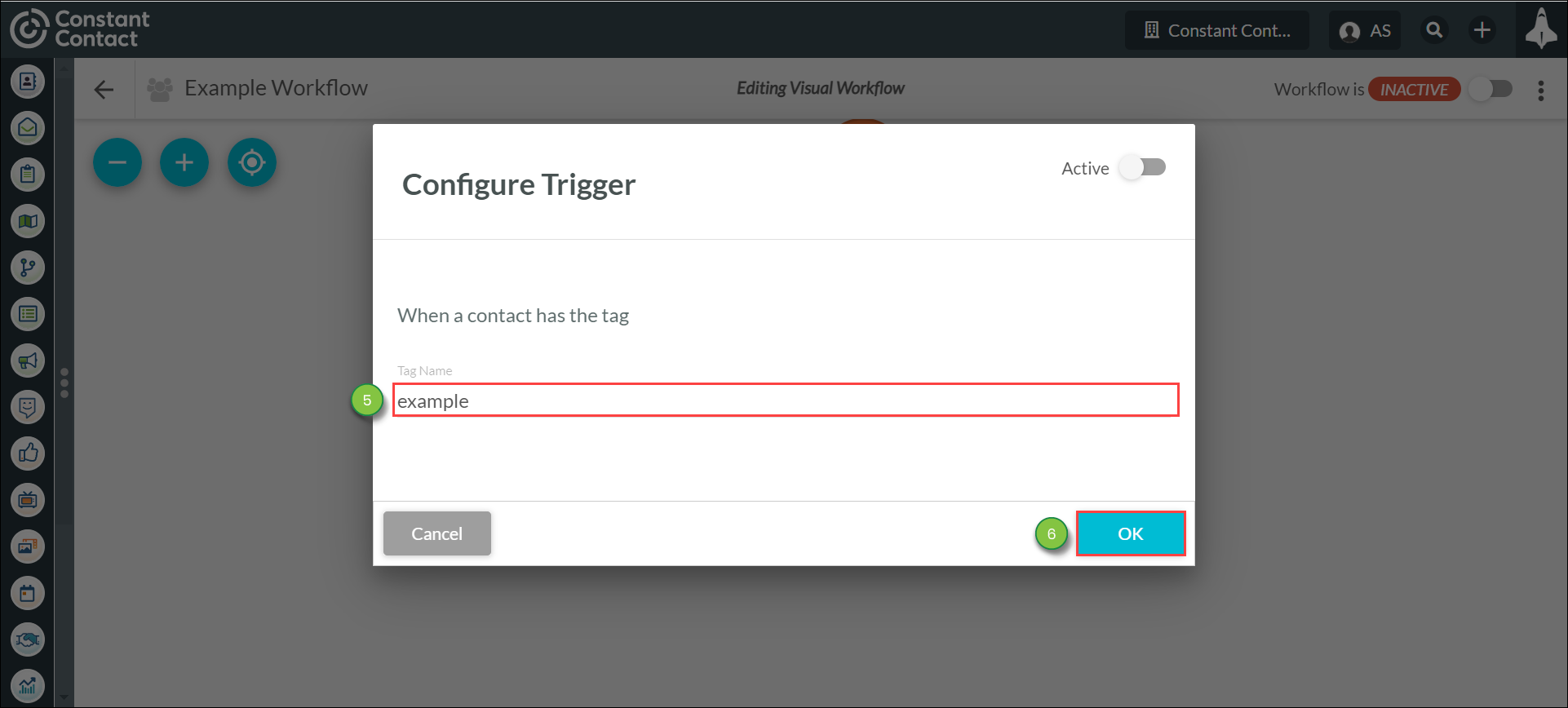
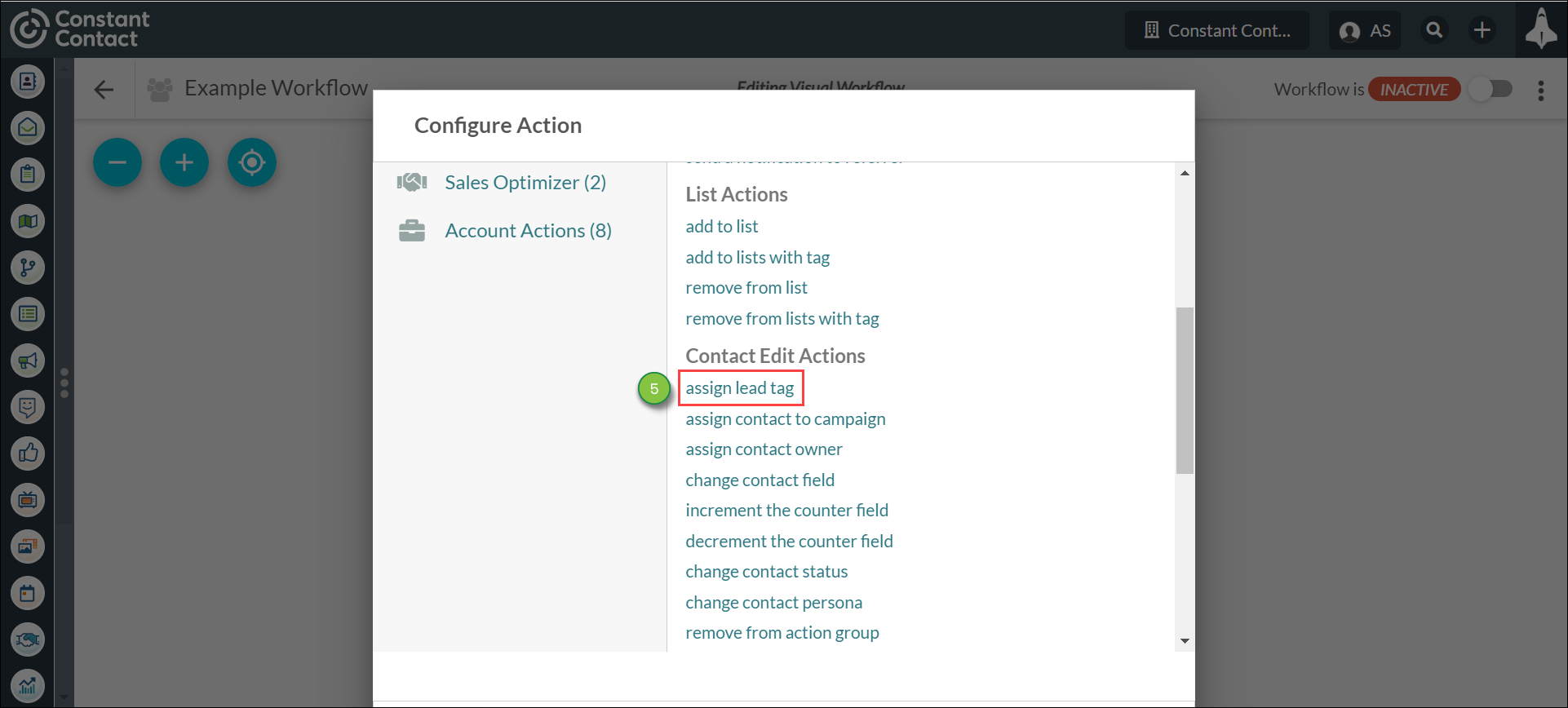
You can create a visual workflow to automatically set tags to contacts. This is done by way of a workflow action.
To assign tags to contacts in visual workflows, do the following:
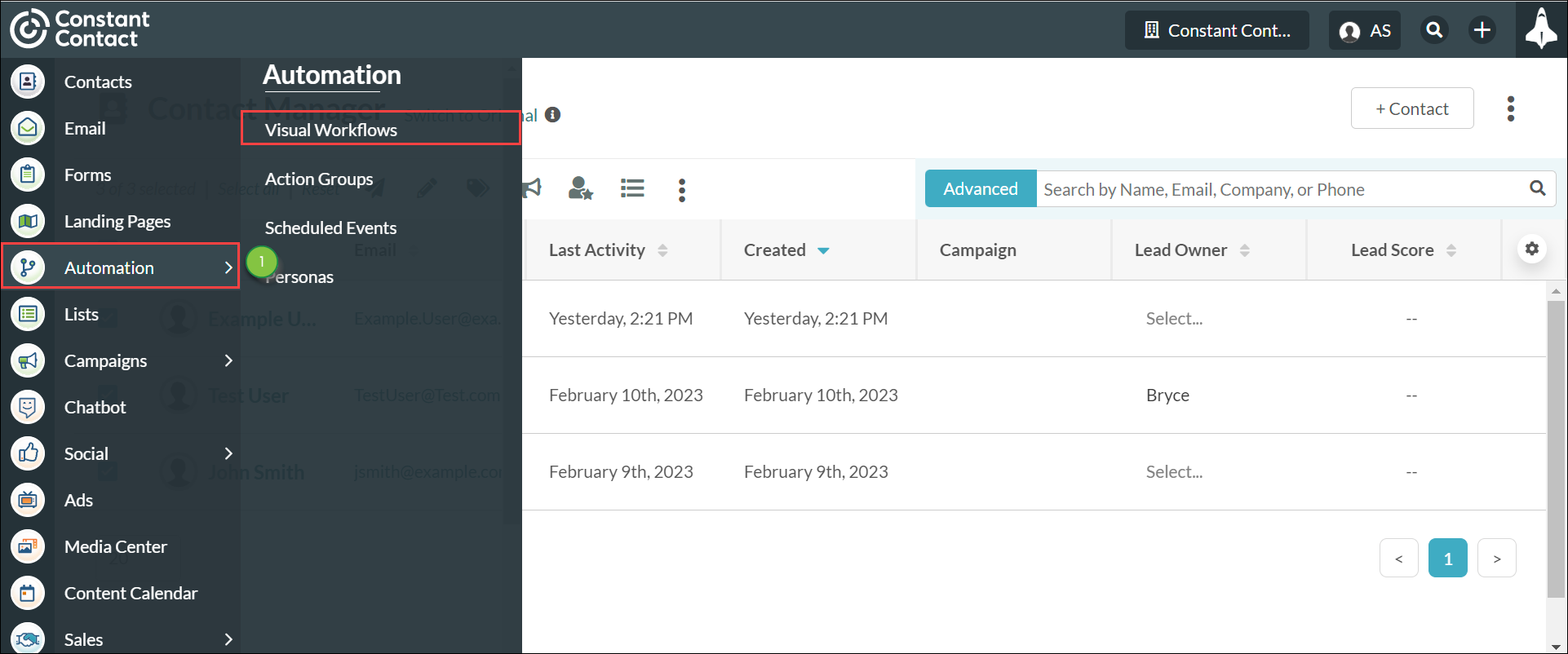
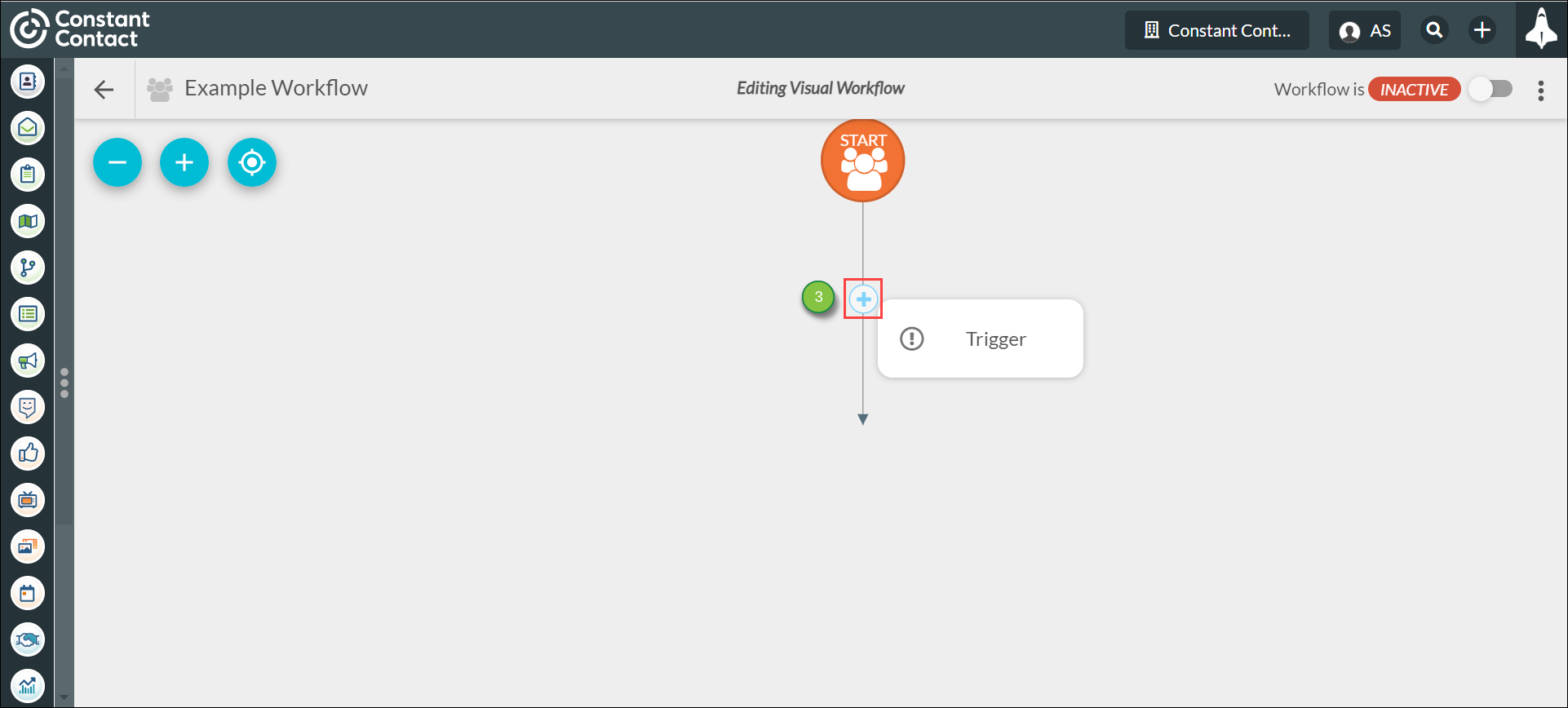
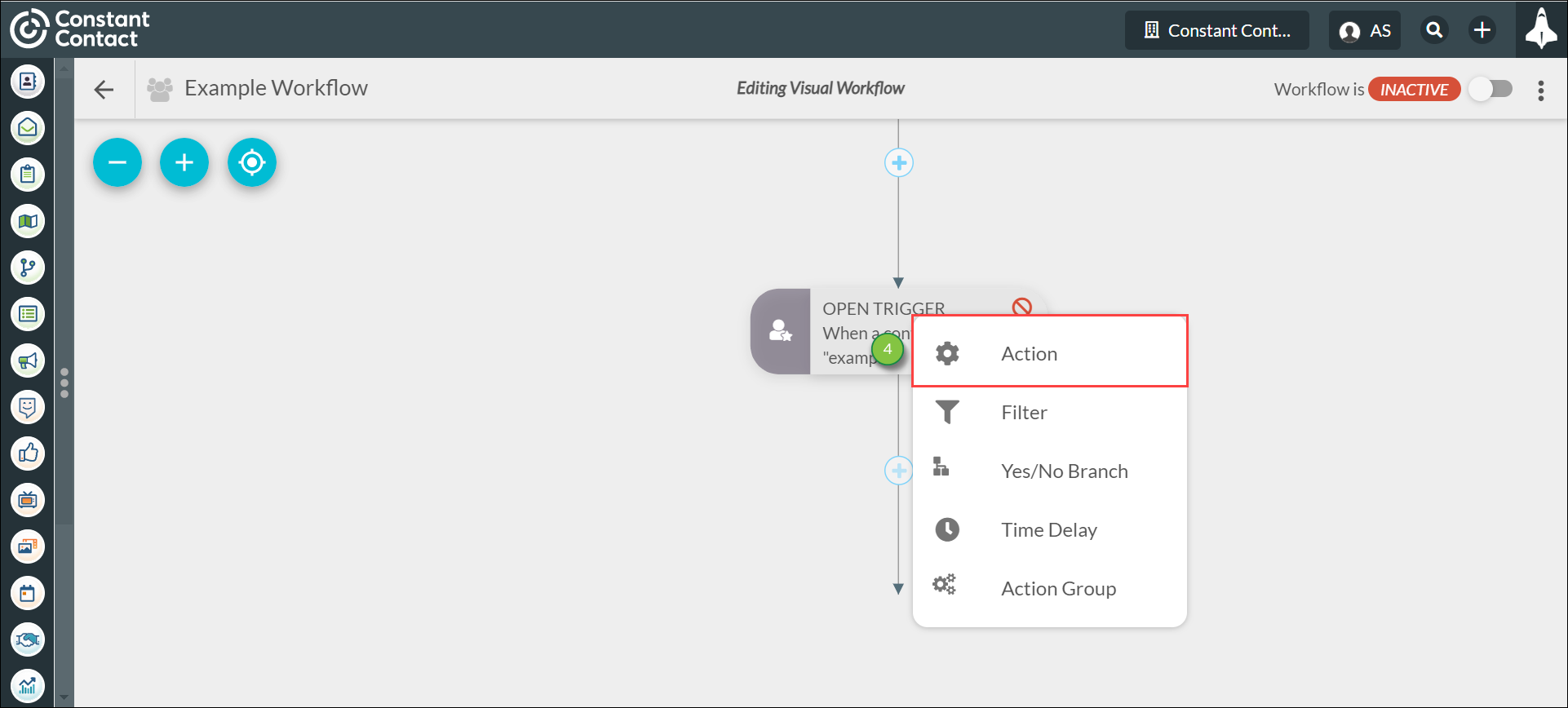
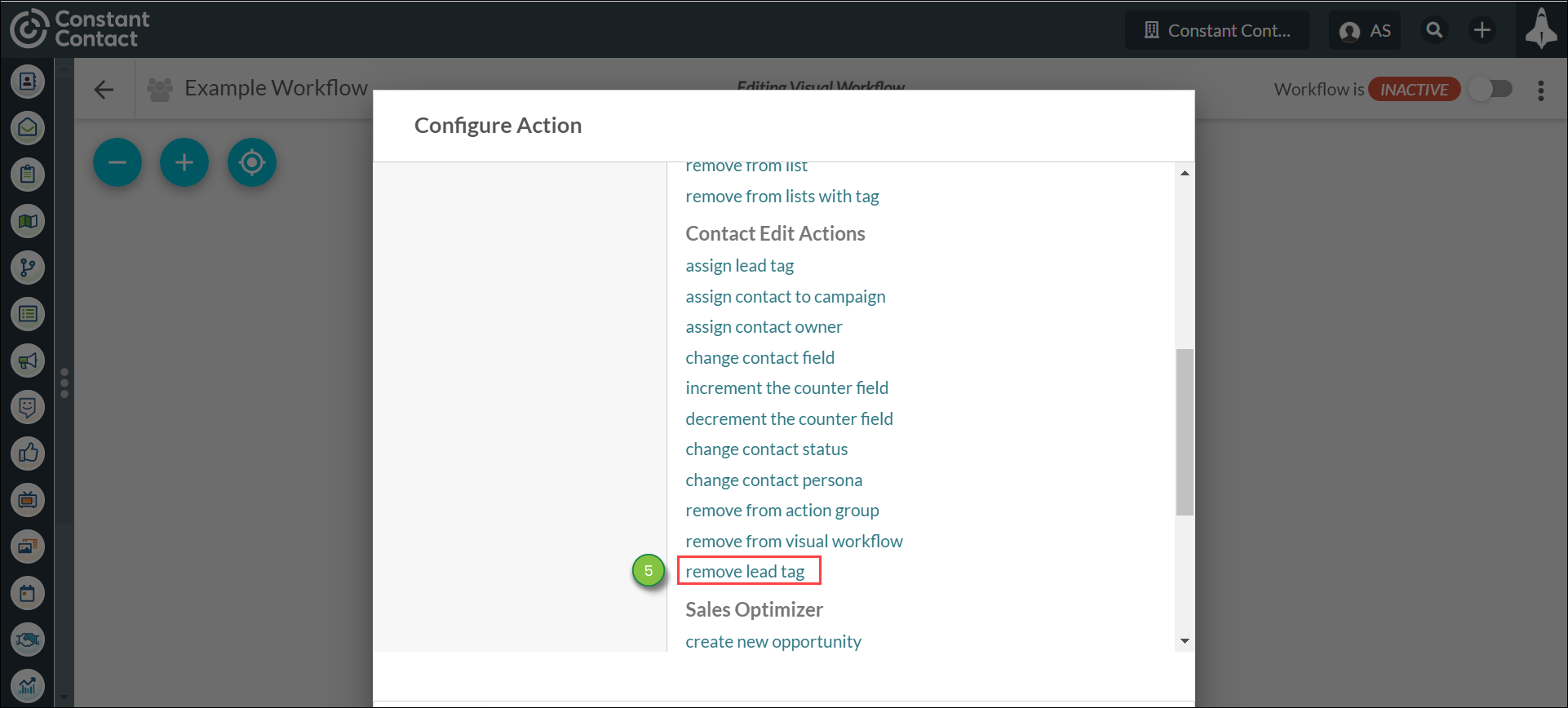
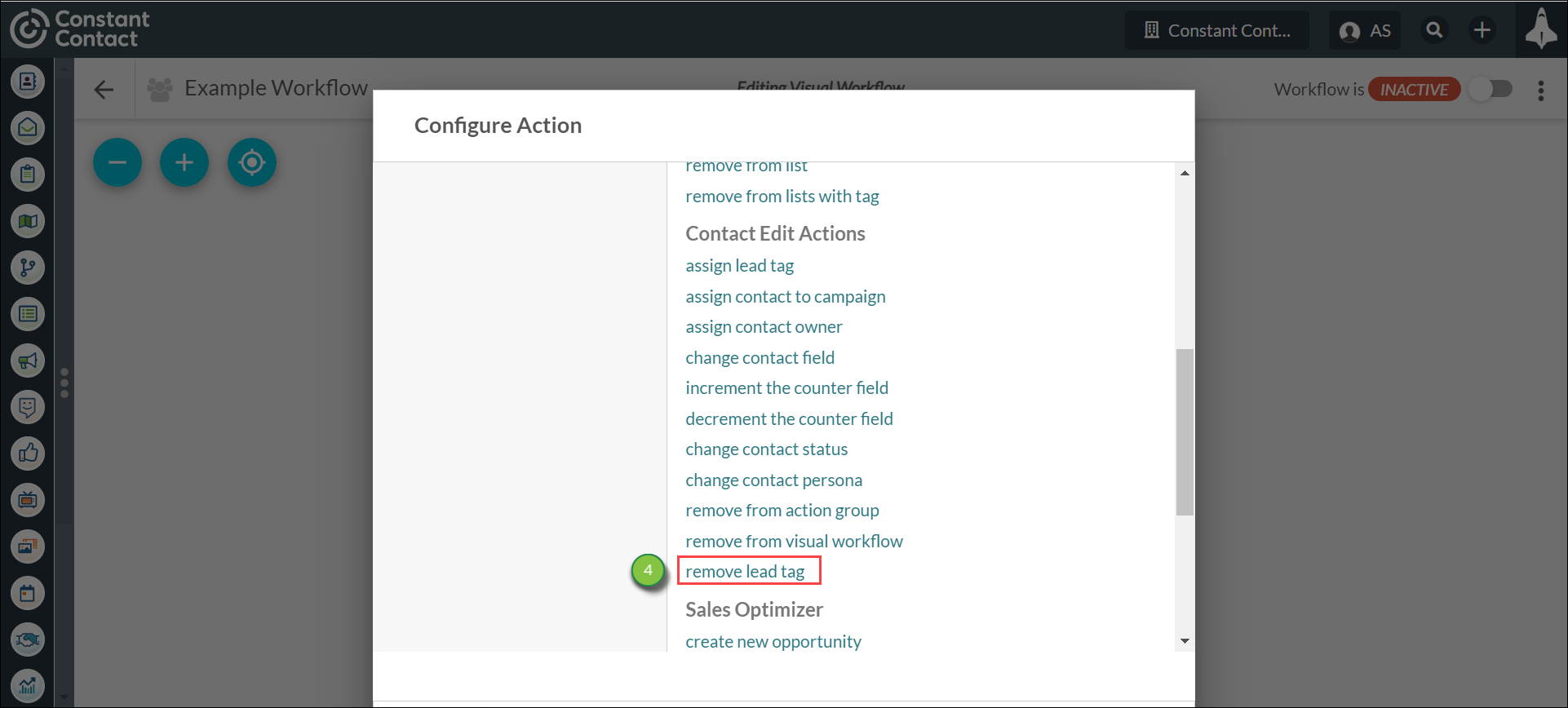
You can also remove previously assigned tags from contacts through visual workflows. This is done by way of a workflow action.
To remove tags from contacts in visual workflows, do the following:
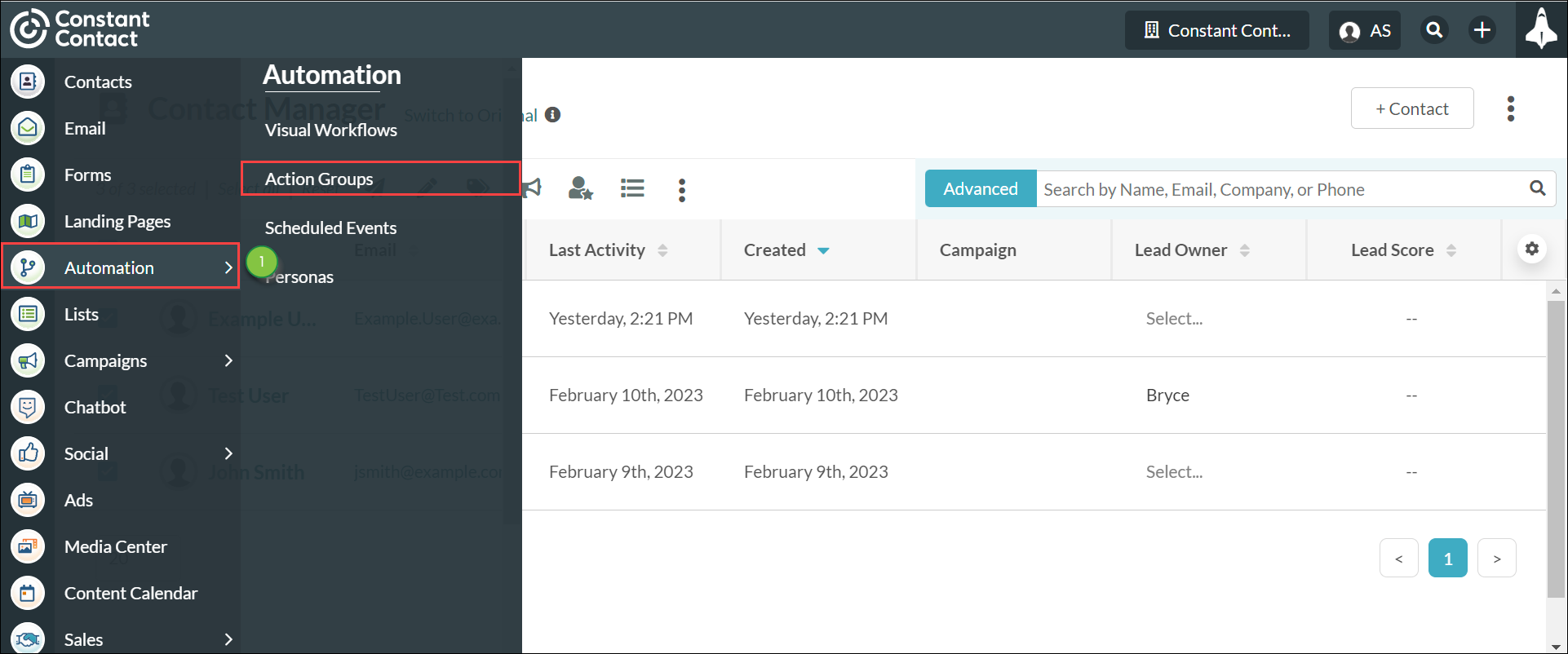
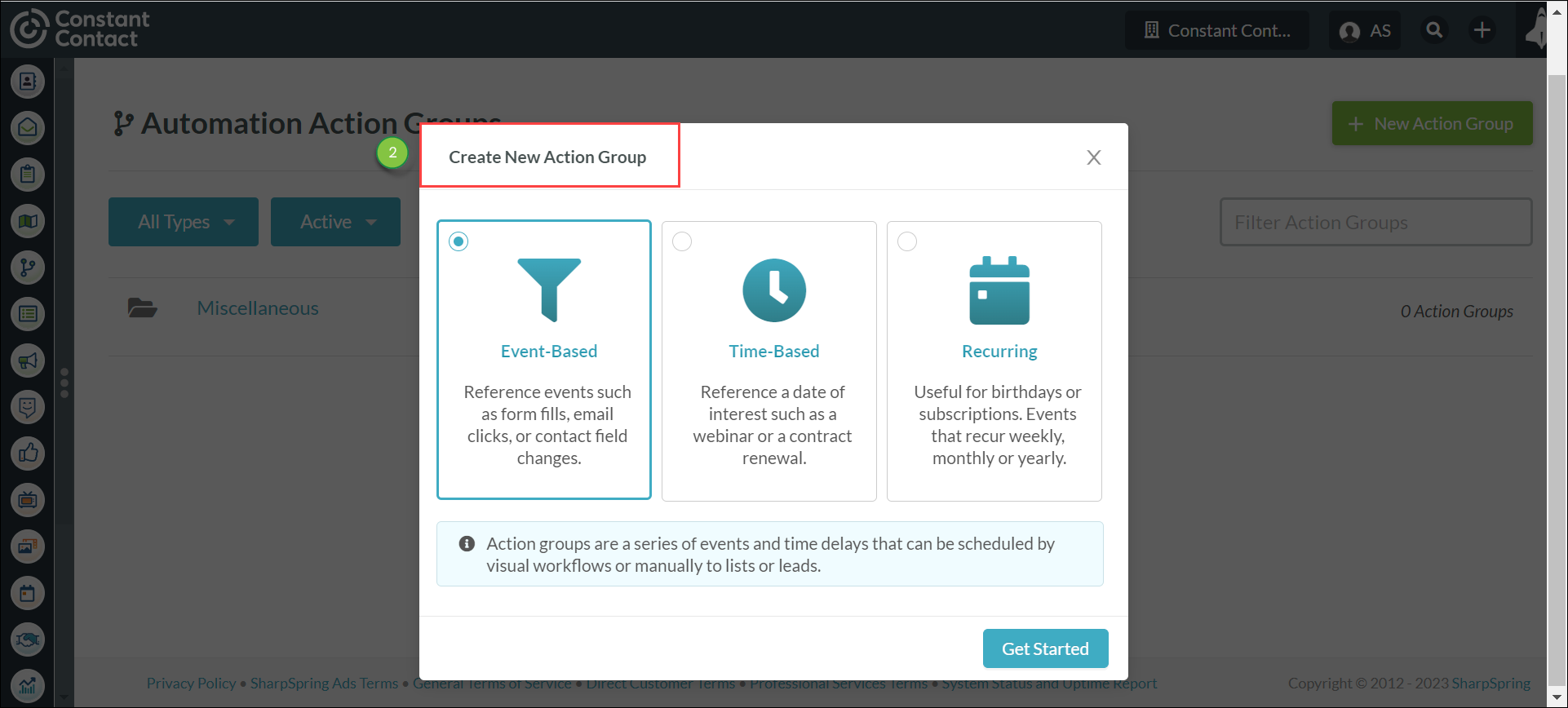
You can automatically add contact tags with action groups.
To assign tags to contacts in action groups, do the following:
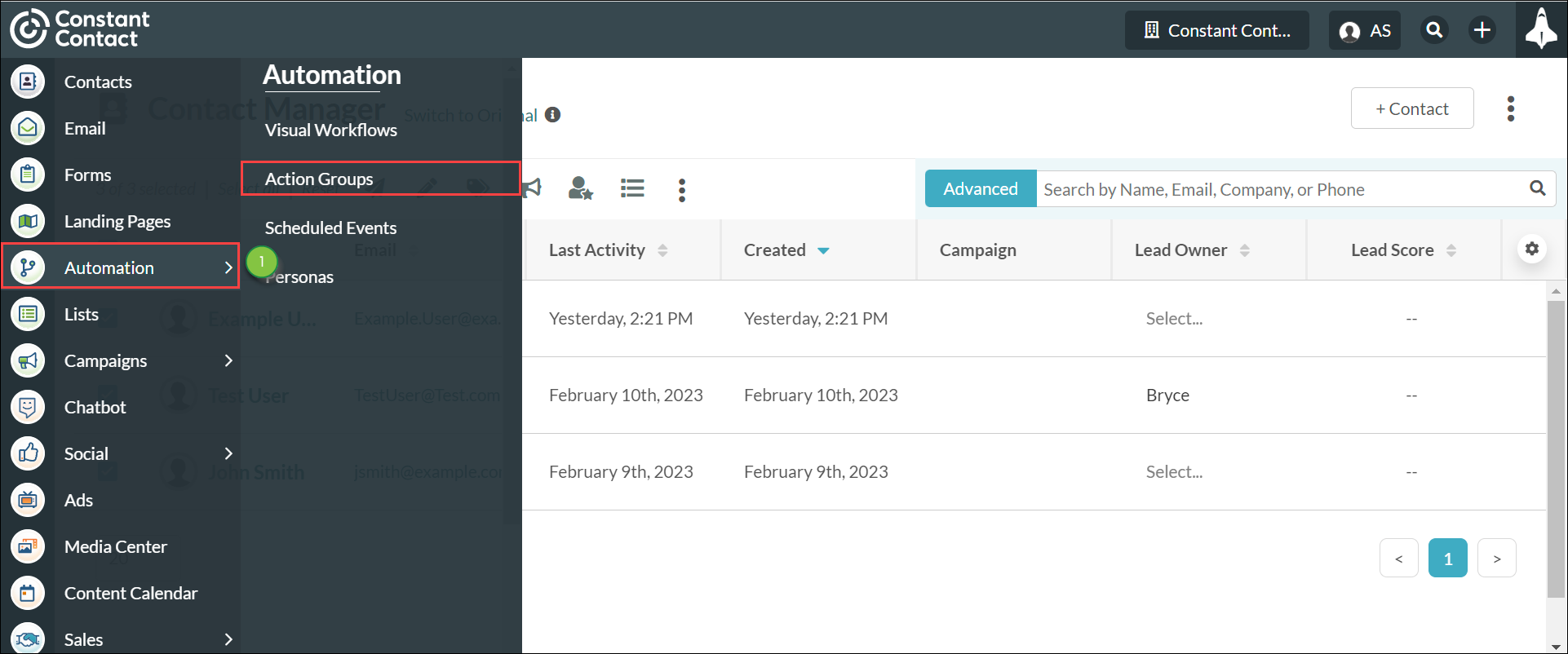
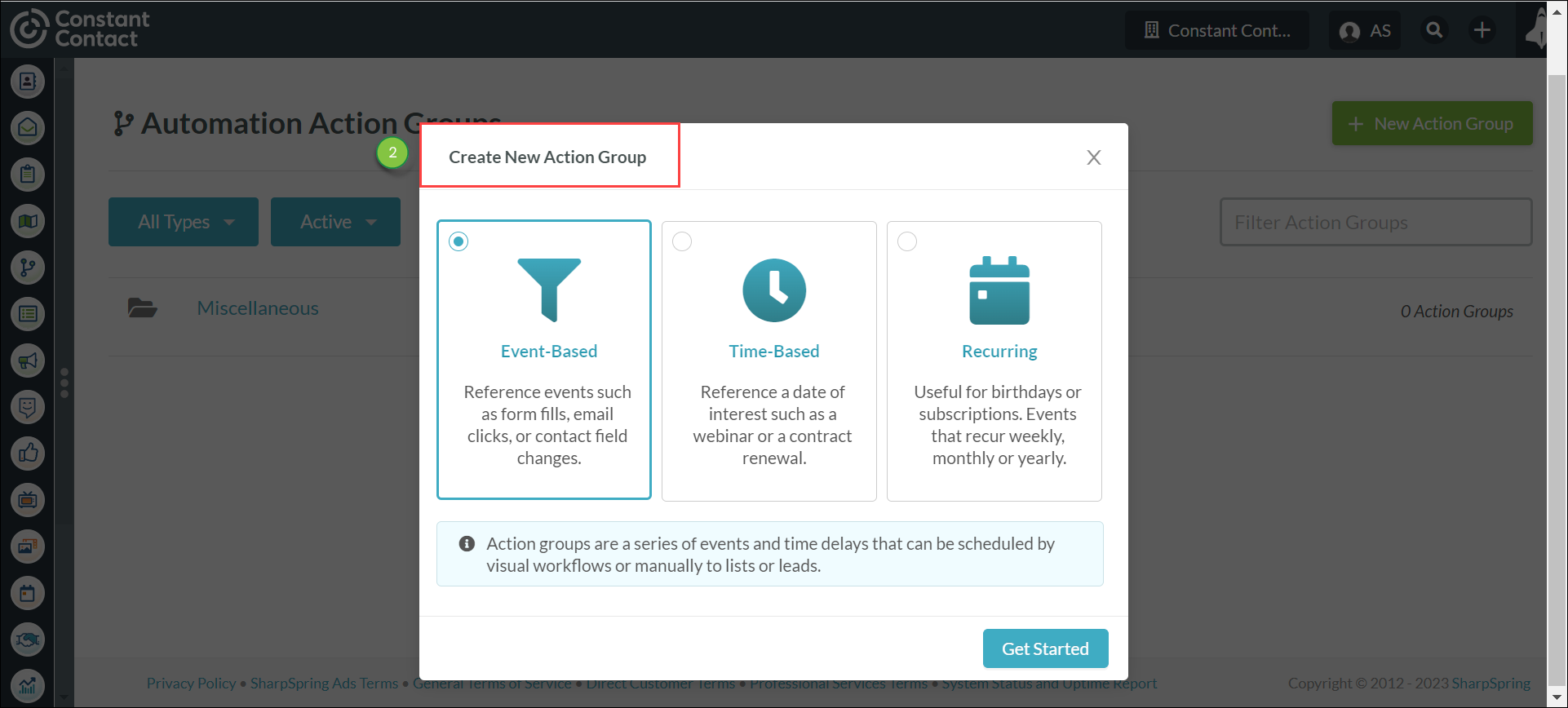
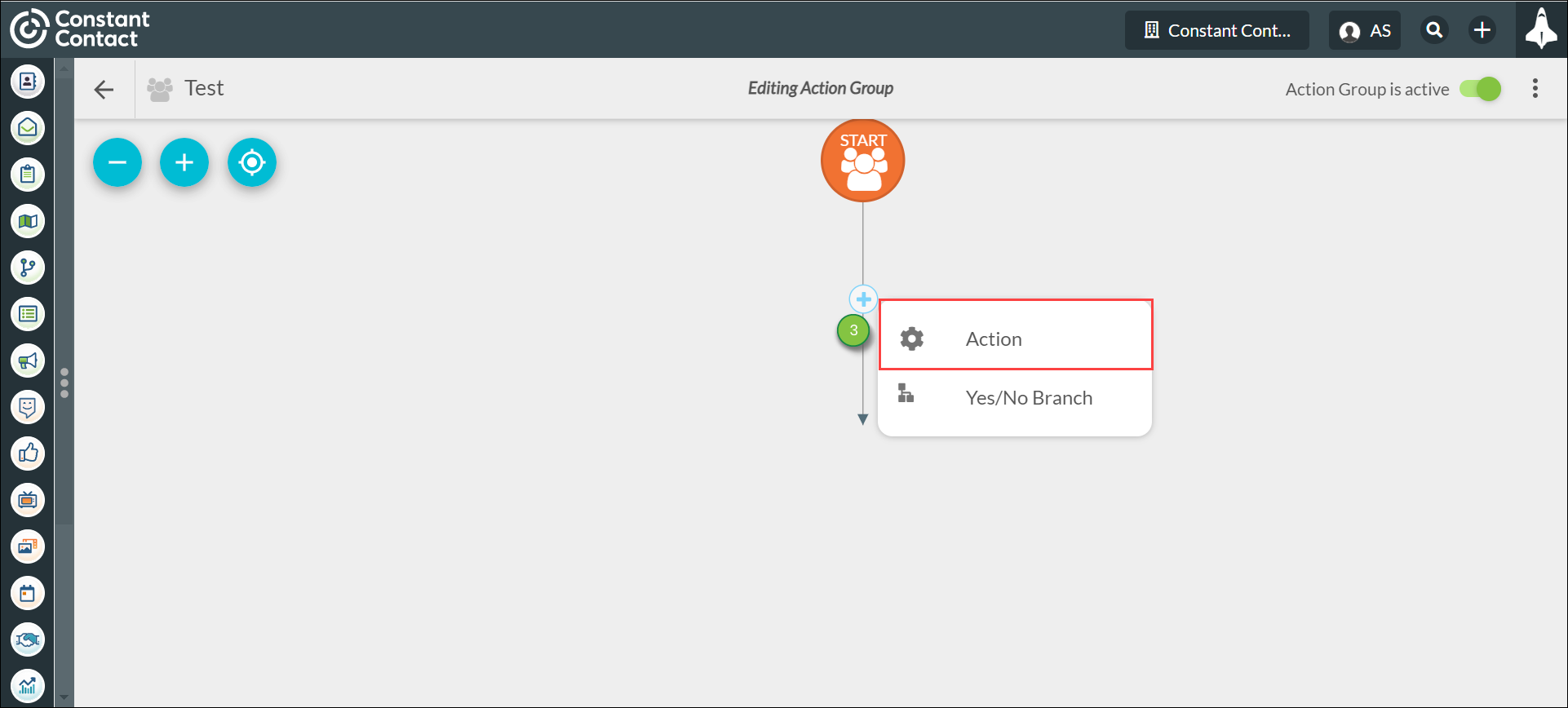
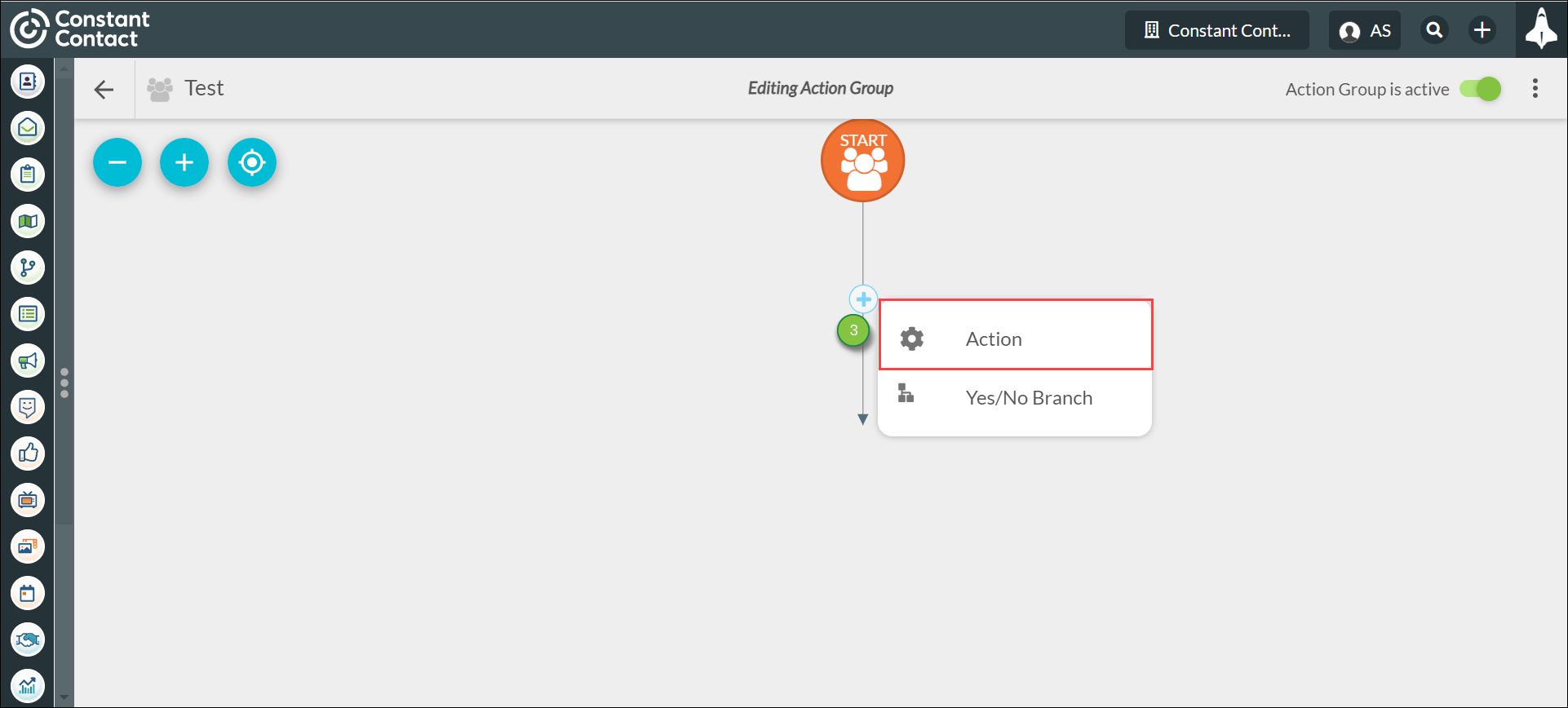
You can also remove previously assigned tags from contacts through action groups.
To remove tags from contacts in action groups, do the following:
Copyright © 2026 · All Rights Reserved · Constant Contact · Privacy Center