Lead Gen & CRM
How can we help you?
Search our help articles, video tutorials, and quickstart guides

You've got this. You've got us. Search our Knowledge Base to quickly find answers to your questions.

Creating User Group Tags

Article: 000050195
Updated: November 6, 2023

Lead Gen & CRM allows you to tag different teams by creating user group tags. Once you have created the groups, you can use them in action groups and in reporting.

 
Users:
Administrators 
Company Managers  
Marketing Managers  
Sales Managers  
Salespersons  
Jr. Salespersons  


Adding Tags

You can add group tags to users as necessary.

To add group tags to users, do the following:
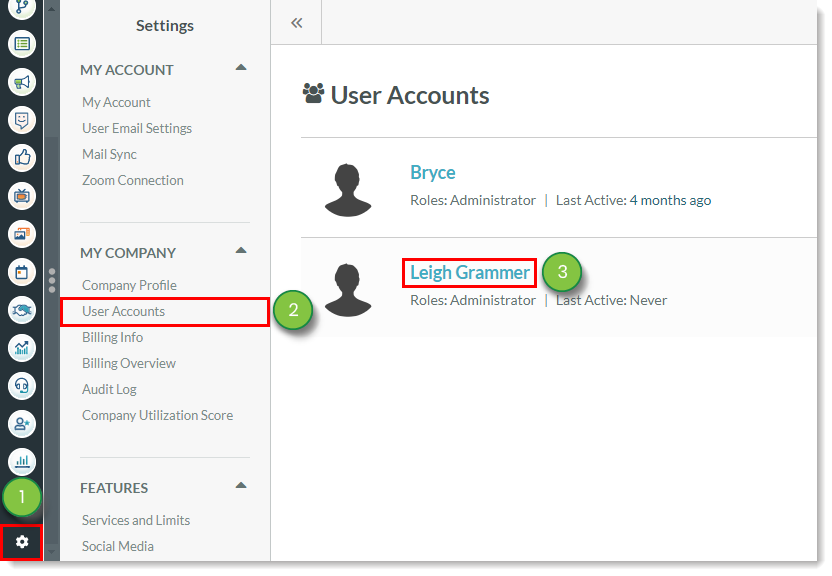
  1. Click Settings in the left toolbar.
  2. Click User Accounts, located under My Company in the left panel.
  3. Click the name of the desired user.

    Select User Account in Settings

    Click to enlarge.

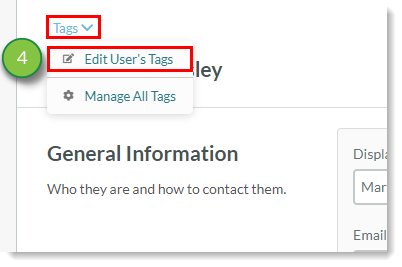
  4. Click Tags > Edit User's Tags.

    Edit User's Tags
     
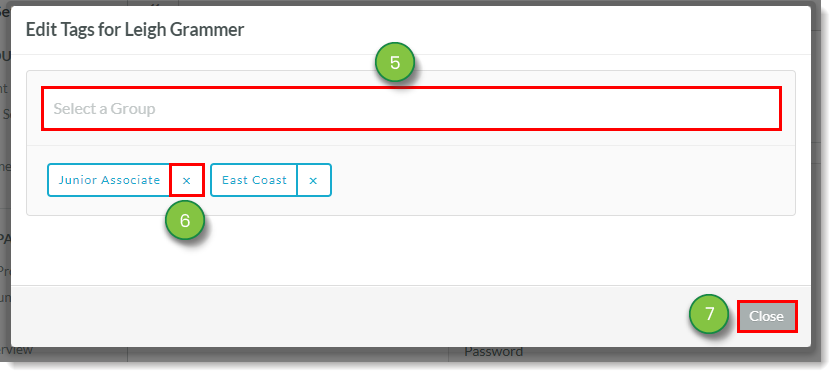
  5. Enter a tag name in the Select a Group field and repeat as necessary.
  6. Optionally, click  close.png  Remove to remove a tag.
  7. Click Close.

    Add and remove tags
     
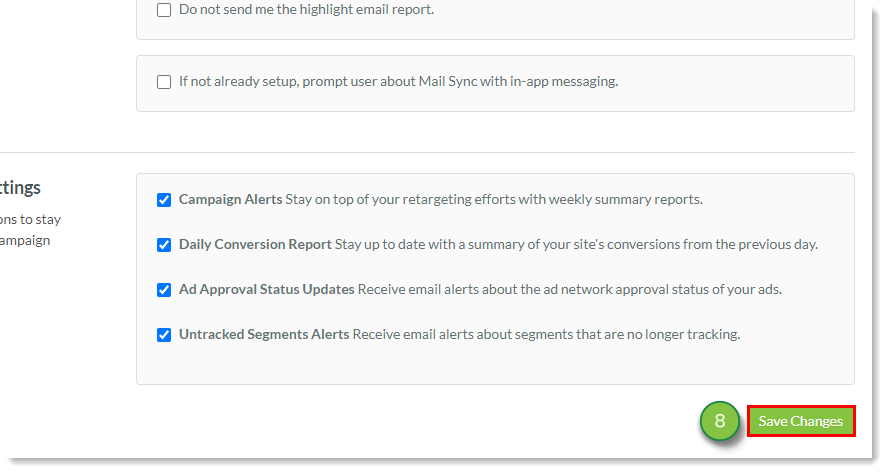
  8. Scroll to the bottom of the User's page and click Save Changes.

    Save Changes to User Account

When adding or editing user tags, be aware of the following:

  • Clicking Edit User's Tags will display all tags currently attributed to the contact.
  • Clicking the Select a group text box when it does not have text in it will display all tags across all users. 

Refer to Using the Tag Manager for more information on using tags in Lead Gen & CRM.


Using Tags in Sales Reports

You can tag sales reports.

To use tags in sales reports, do the following:
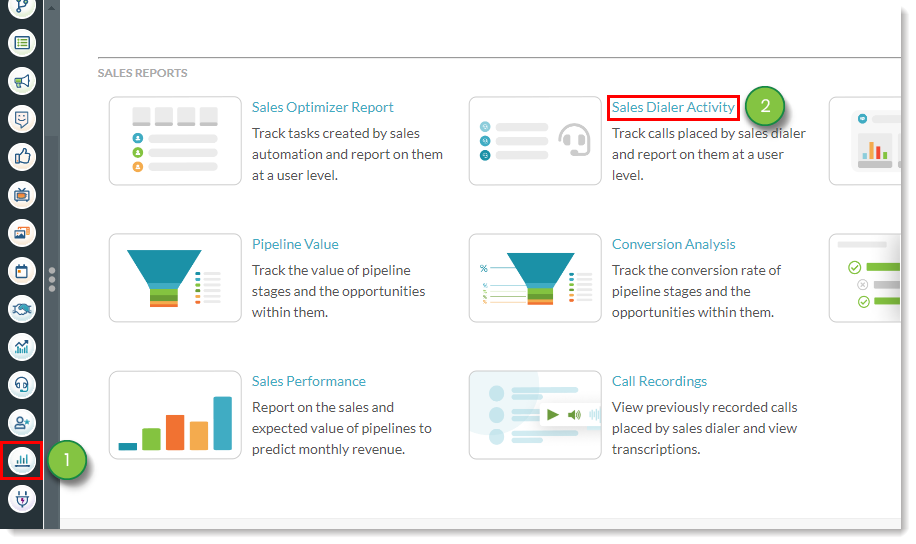
  1. Click Analytics in the left toolbar.
  2. Select one of the available sales reports.

    Select a Sales Report
     
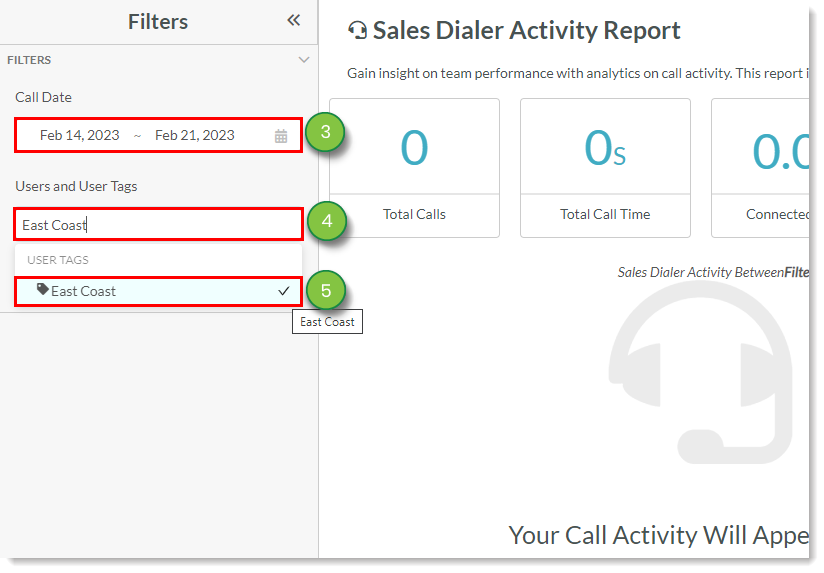
  3. Select a date range for the report.
  4. Click the Users and User Tags drop-down menu and enter the desired tag in the text box.
  5. Click on the desired tag.

    Select Report Date Range and Desired User Tags


Did this article answer your question?


Constant Contact Logo

Copyright © 2026 · All Rights Reserved · Constant Contact · Privacy Center