Images are essential to your email design; using the right image, sizing it correctly, and placing it in the right spot makes all the difference!
 | Save time: Before uploading images to your Library, check out our tips for making them look their best! |
Add an image from the Images tab
Images can be used as banners at the top of your email, to create a multi-column layout, aligned to one side of a text block, or even have text wrap around them. Each image in your Library can be customized using editing tools within the email editor—the design possibilities are endless! First, you have to get the image into your template:
- From within the email editor, click the Images tab.
- (Optional) Sort your images or choose a folder to narrow your search. You can also add new images to your Library from here.
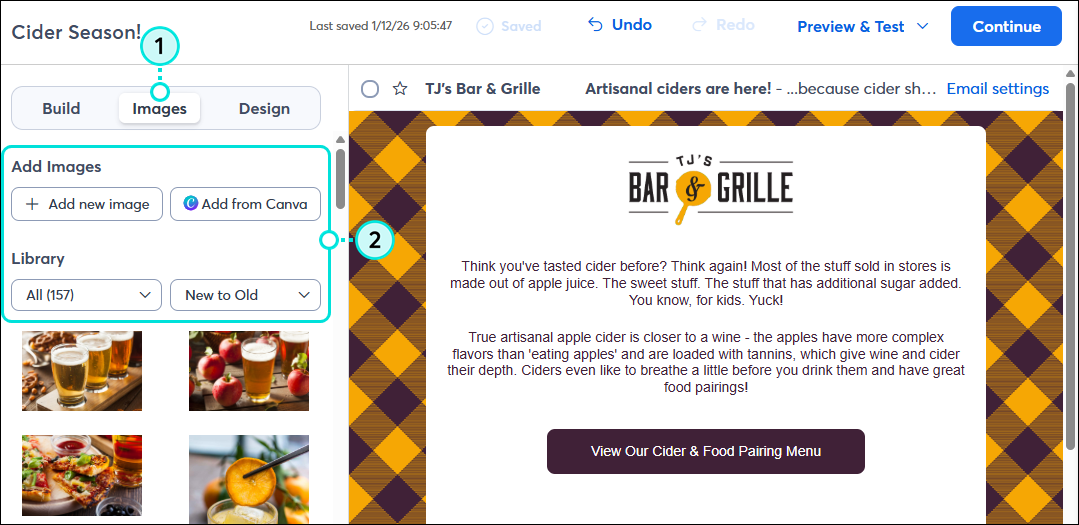
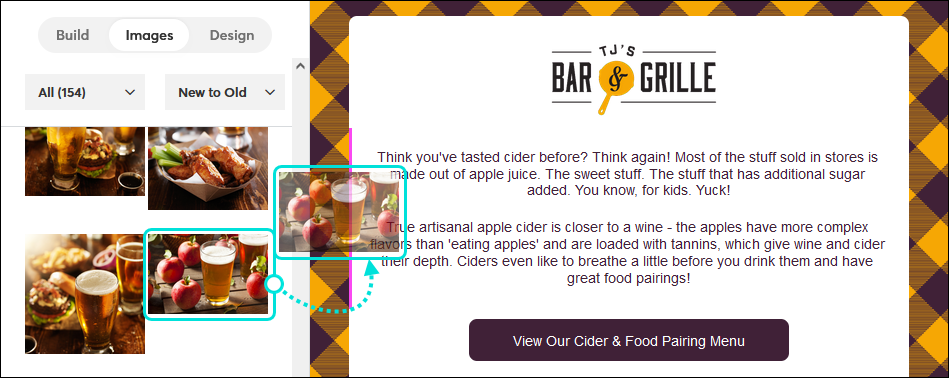
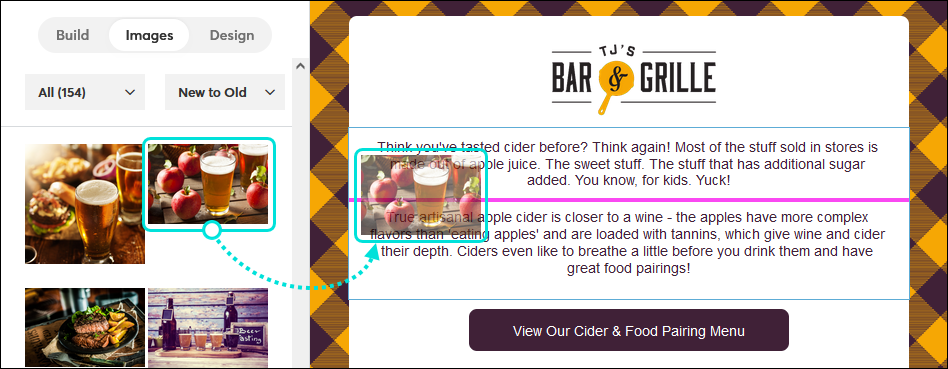
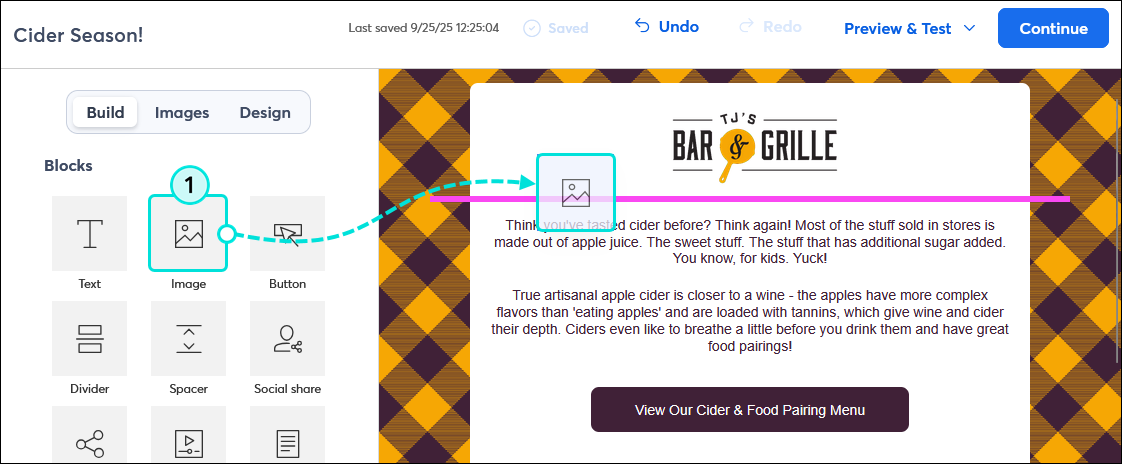
- Drag and drop the image you want to use into your email and use the pink guideline to help you place it. Don't worry—once the image is in your template, you can drag it to different locations.
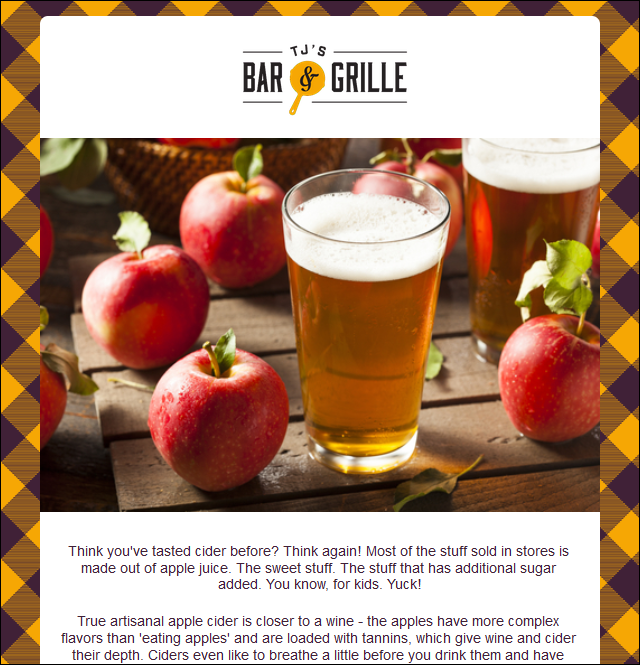
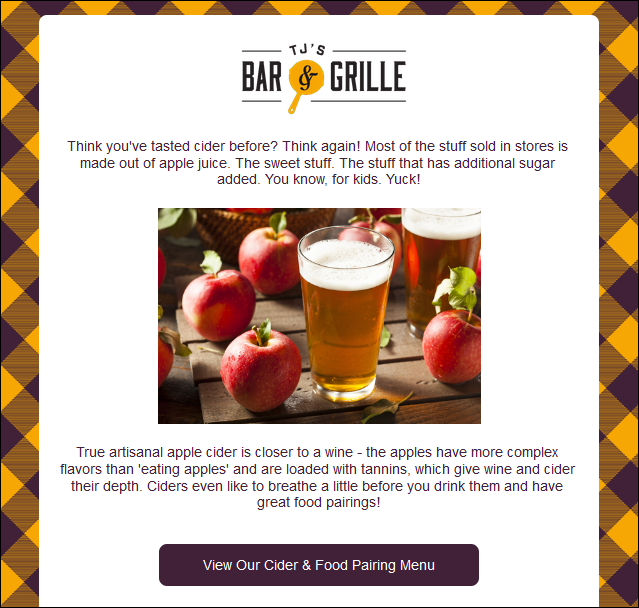
- Insert in a row (banner image) - When an image is inserted into its own row, it can be resized to span the entire width of the template or aligned so it's centered. If the image takes up too much space, you can crop it to decrease the height.
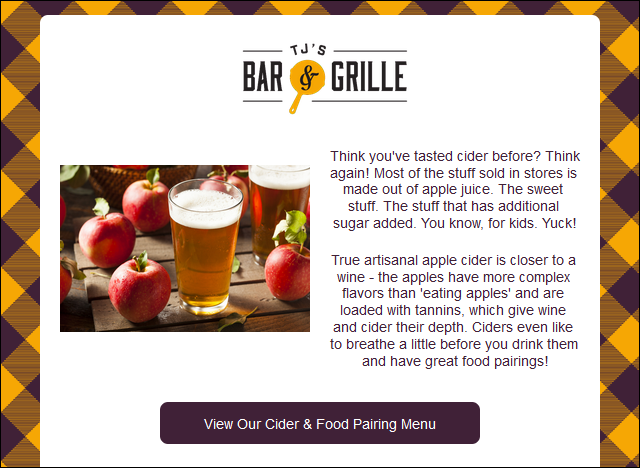
- Insert as a column - When an image is used to create a new column, other blocks can be added above or below the image to make the column longer. You can also use a two- or three-column layout to place images side by side.
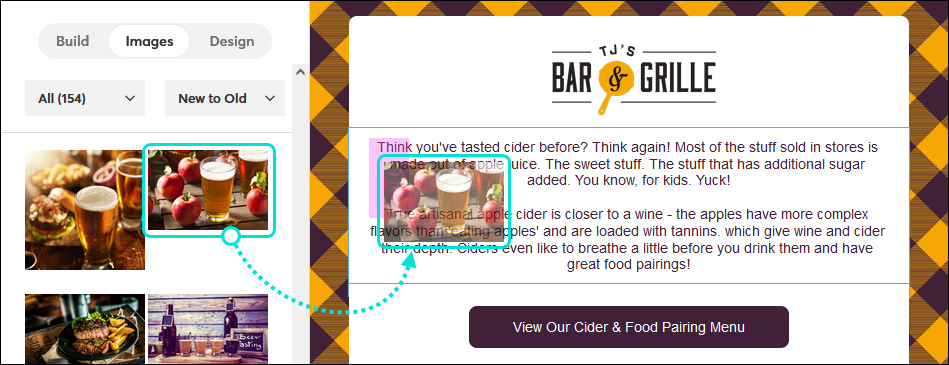
- Insert between blocks of text - To place an image between two paragraphs of text, each paragraph needs to be in its own block. If your text is in one block, copy the block and then delete the duplicate portion of text from each block before dragging your image between them. You can change the background color behind the image to make it look seamless, too.
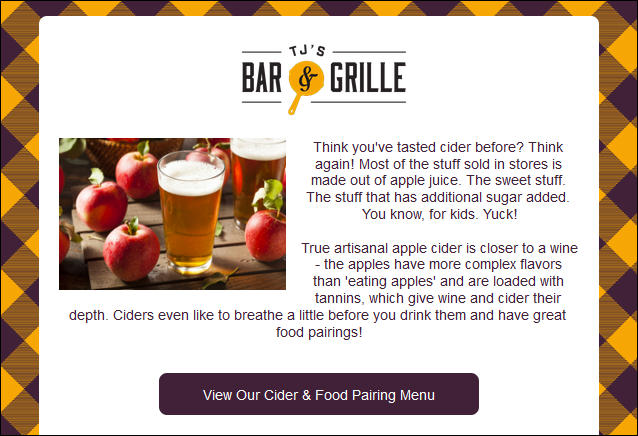
- Insert inside a text block (text wrapping) - If you want text to wrap around an image, you can insert the image inside a Text block. The more text you have, the more pronounced the text-wrapping becomes, but you can also resize your image to find the right balance.
Insert an Image block and choose an image or replace an existing image
When adding an image to your email, you can choose an existing image from your Library, upload a new one, import one from Canva or Facebook, or find one in the stock image gallery. Once selected, you can also use tools to edit them without leaving your email.
- If your template doesn't already have an image, drag an Image block from the Build tab. Use the guideline to help you find the right spot.
Note: Alternatively, you can click on any existing image or image placeholder in the template that you want to change and skip to step 3.
- Click anywhere on the Image block.
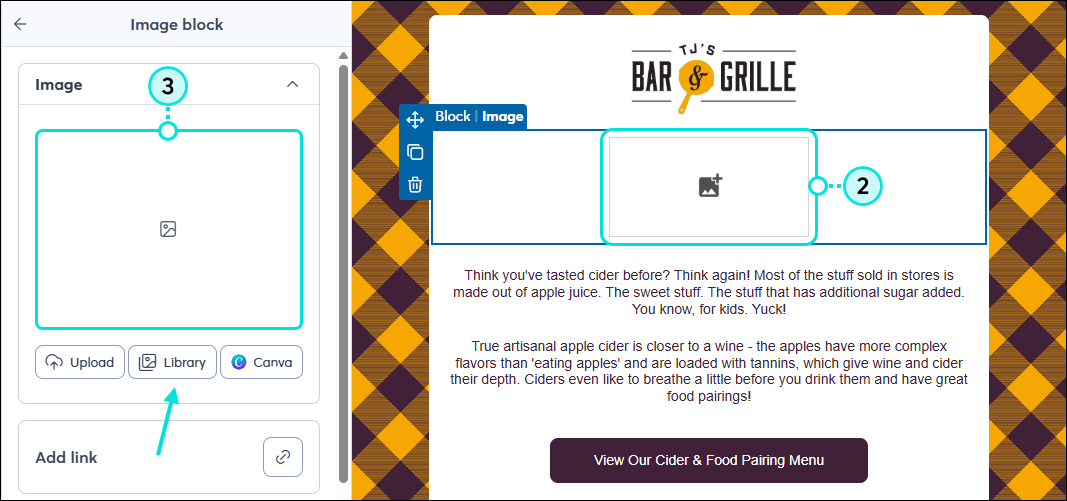
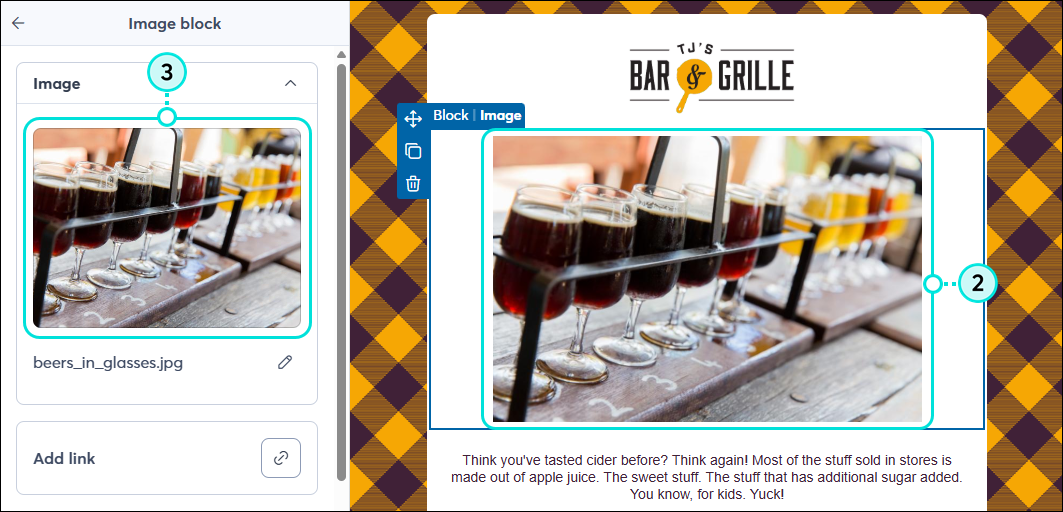
- From the panel on the left, click the image symbol or the current image to select a new one. If it’s an empty image block, you can also quickly jump to uploading a new image, selecting an image from your Library, or importing one from Canva.
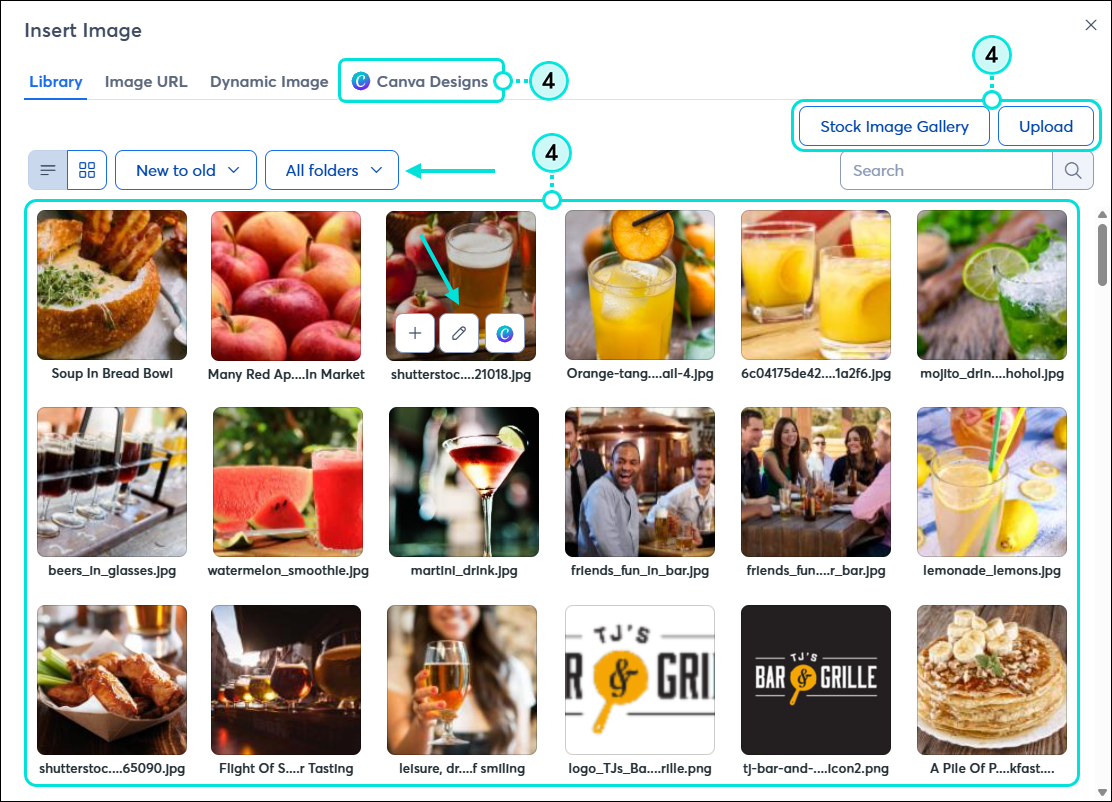
- From here, you have several options for selecting an image:
- Library - Choose an existing image from your Library. You can sort the images or look in the specific folders you've created to organize them. When you hover over the thumbnail, you can click the pencil or Canva icon to make edits to the image before adding it to your email, or click the plus symbol to insert it immediately.
- Stock Image Gallery - Click this button to browse the free and paid images from Shutterstock.
- Upload - Click this button to import a new image from your computer or Facebook account into your Library.
- Canva Designs - Click this tab to access your Canva designs or create a new one to insert into your email.
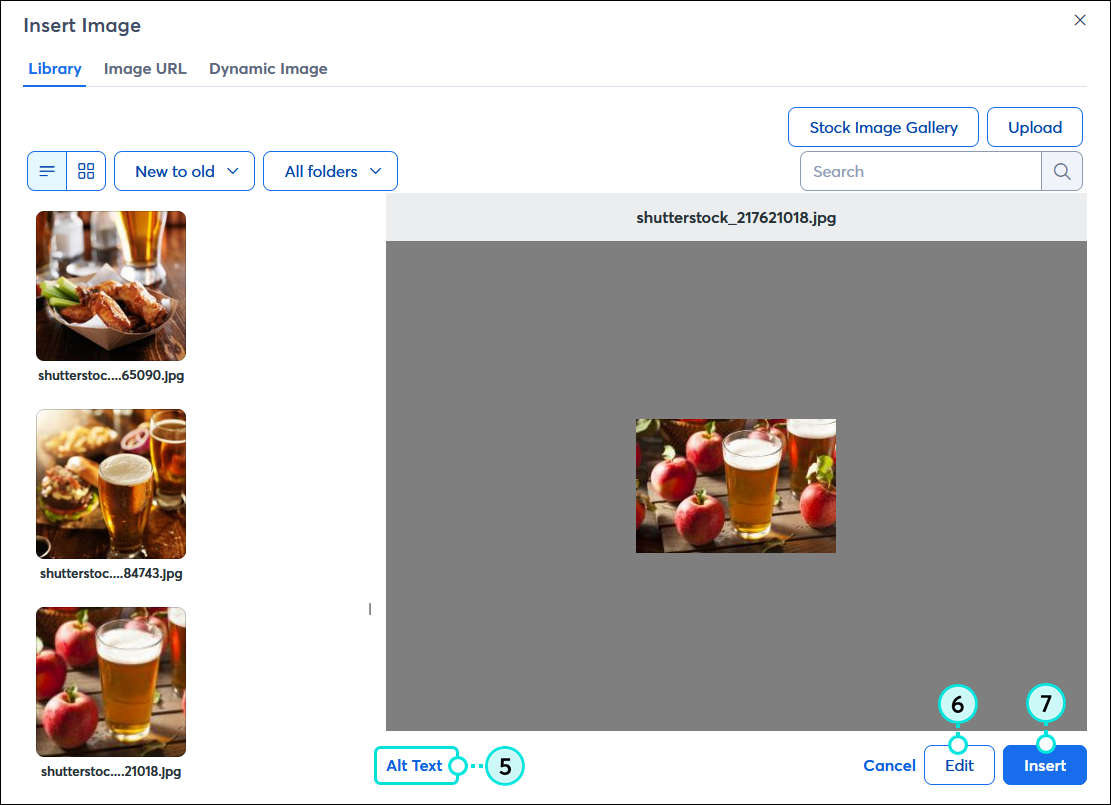
- Once selected, click the “Alt Text” link to edit the image description that displays for readers who can't see the images in your email.
- (Optional) Click Edit to use our image editing tools to crop it, add a border, lay text over it, etc.
- When you're done, click Insert.
Insert an image hosted elsewhere online using its URL
If you have images hosted online that are publicly viewable, such as on your website or on your own image server, you can paste the image URL into your email. If your images are hosted on a private server or require a password to access them, we recommend uploading them to the Library instead.
When choosing an image:
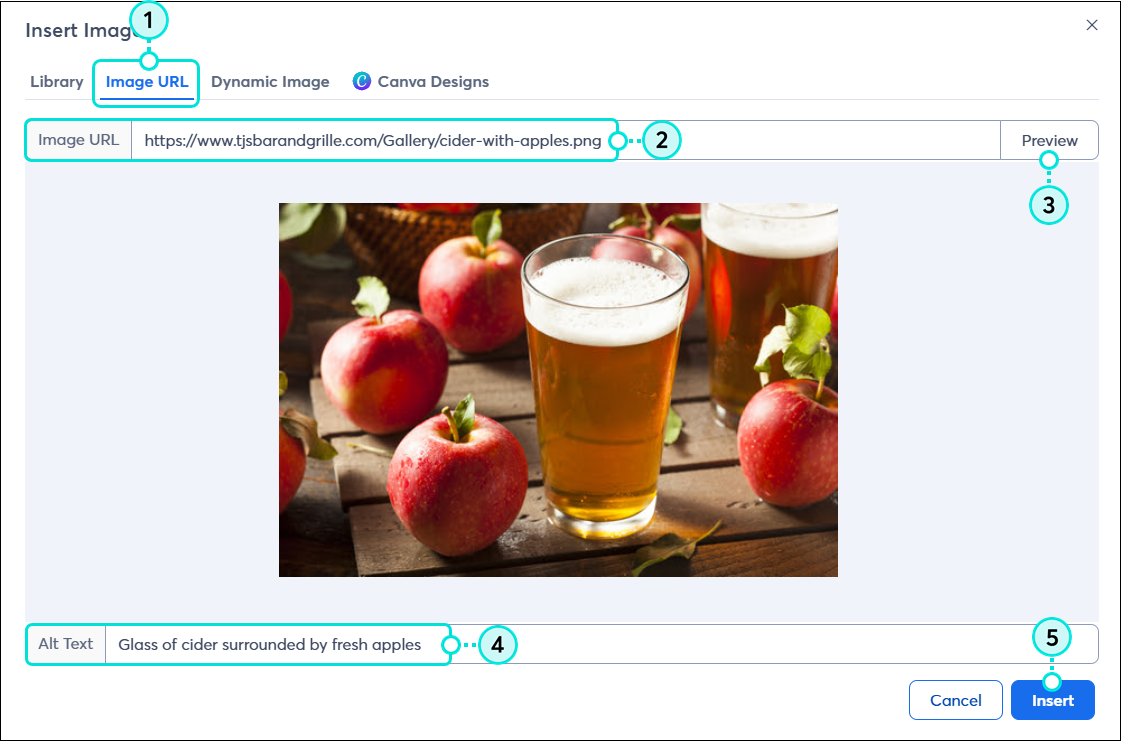
- Click the Image URL tab.
- Paste the link for your image into the Image URL field.
- Click Preview.
- Enter an image description into the Alt Text field.
- Click Insert.
Insert a dynamic image using a variable tag
A dynamic image is an image that is populated in your emails via a variable tag. Variable tags retrieve your logo or email signature image from its stored location within your Constant Contact account settings, rather than requiring you to insert it from your Library.
If you have a Partner account that uses Central Send emails, you can add a variable tag for the logo or signature image. When the emails are shared to your sub-accounts, it pulls the logo or signature image stored in each unique sub-account.
If you don't have a Partner account, you may have noticed that your logo or email signature image is automatically included in a template when you create an email. This is because the template already uses a dynamic variable tag, and you don't need to do anything further. These images can be changed like any other image in your template.
 | Tip: Dynamic images don’t just work with Account variables; they also work with Contact and Custom variables! Read our Insert dynamic links in an email article for more information on how you can use dynamic images. |
When choosing an image:
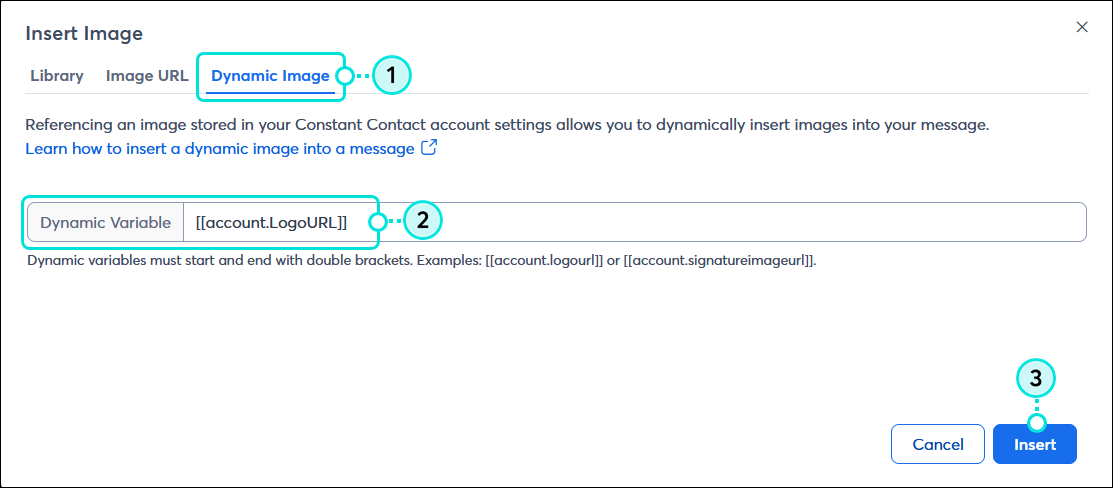
- Click the Dynamic Image tab.
- Add the variable code for your logo or email signature image into the Dynamic Variable field.
- Click Insert.
Delete an image
| Design tip: The images in your email are never set in stone! They can always be replaced, and you can use our editing tools to crop, add decorative borders, or layer text over the image, just to name a few. |
It doesn't matter what type of image you have, if it's a placeholder, or where your image is located in the email—it's the same process to remove an unwanted image:
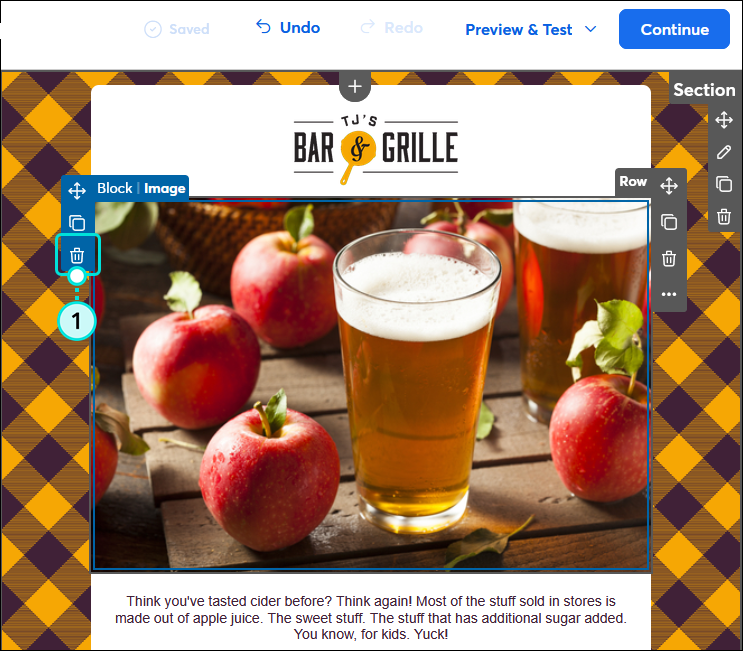
- Hover your mouse over the Image block and click the trash can icon in the left-hand menu.