 | Did you know? When creating your email, you can insert the Data Table block to create a simple table. |
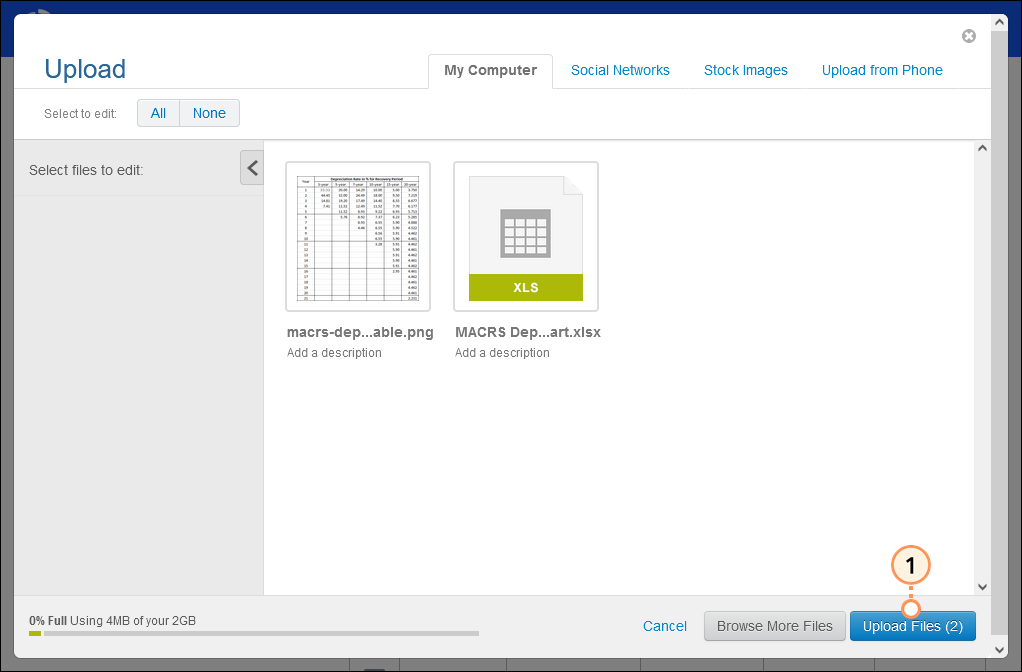
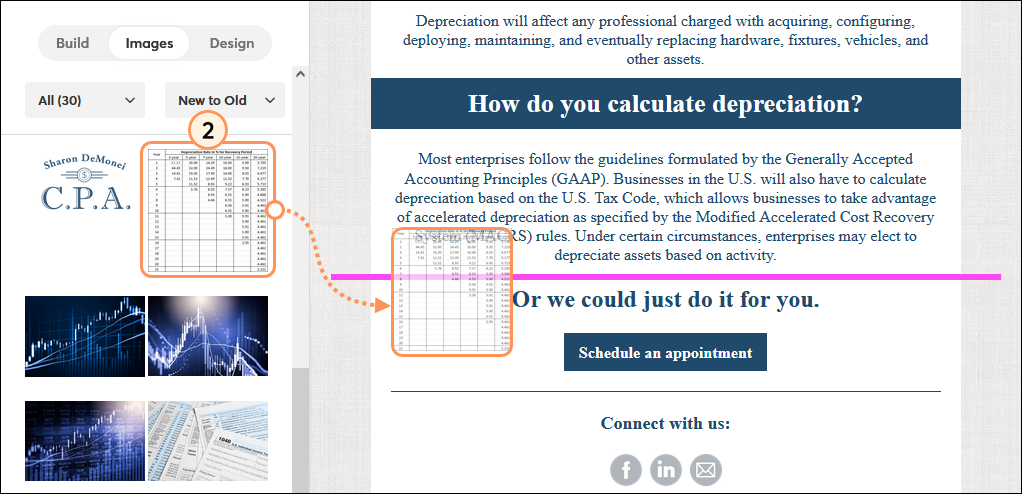
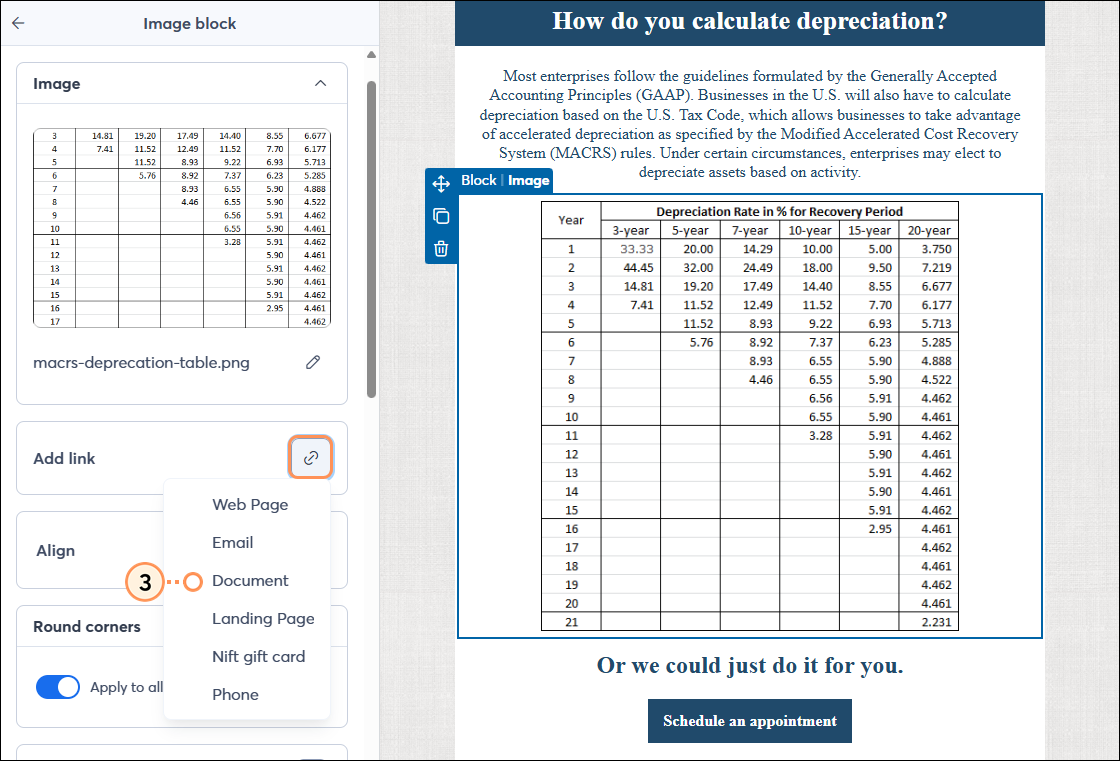
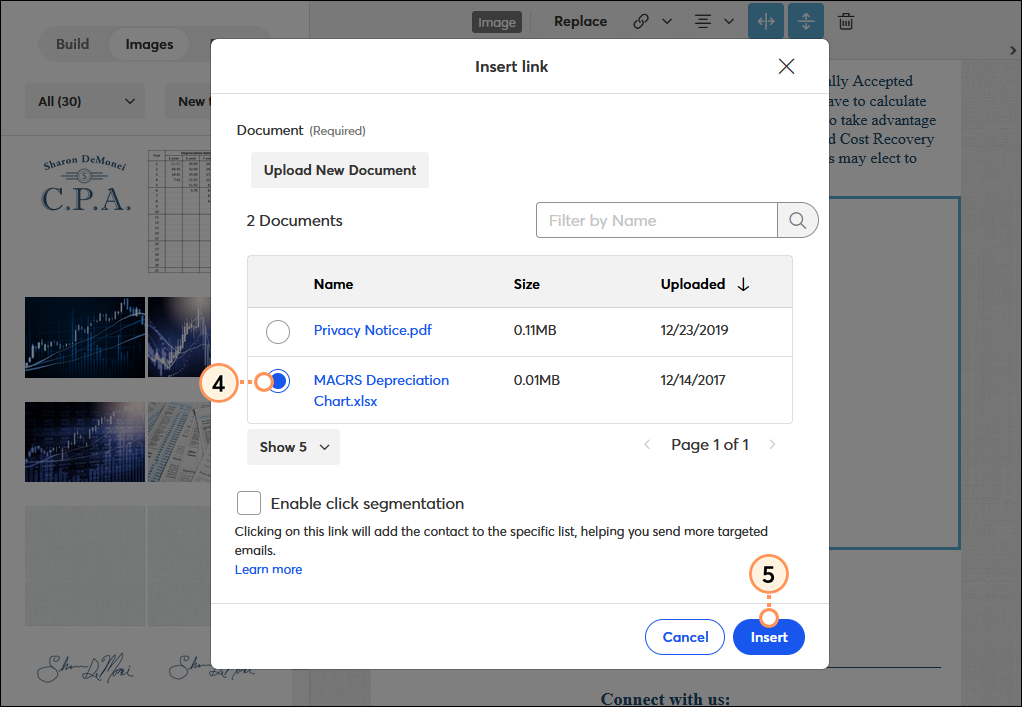
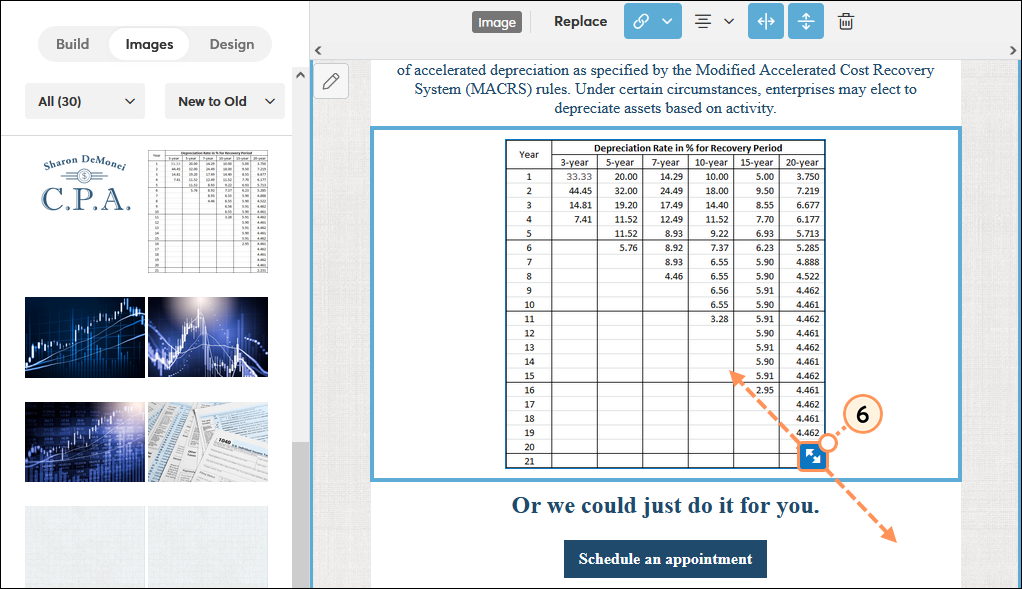
If you have a large or complex table, adding a thumbnail image of it will keep your email from looking cluttered or unbalanced. The image can be turned into a clickable link that points to a document version of the table stored in your Library, or that points to the full table hosted on your website.
To begin, save a full-size version of your table as a PDF, Excel spreadsheet, PowerPoint slide, or Word document. Then, take a screenshot of your table and save it as a JPG, PNG, or GIF.
 | Save time: The most efficient way to upload your table is as a PDF. When you import the PDF, an image of the first page is generated at the same time, so you don't have to take a separate screenshot to upload to your Library. |
Once you've finished updating your content, make sure to preview your email and send a test version for proofreading before sending it to your contacts.
If you're reusing your email for a new mailing, replacing the table thumbnail is done the same way you'd replace any other image in your email template.
Copyright © 2026 · All Rights Reserved · Constant Contact · Privacy Center