 | Save time: If you want your email design to match your landing page, you can create a new email directly from the Details page of your active Survey, Custom Landing Page, or Sign-up Landing Page. It automatically pulls the design and colors into your email and includes a button linked to your landing page. |
Once you've created a Survey Page, Sign-up Landing Page, or Custom Landing Page, you need to share it with your audience, and an email is a great way to spread the word!
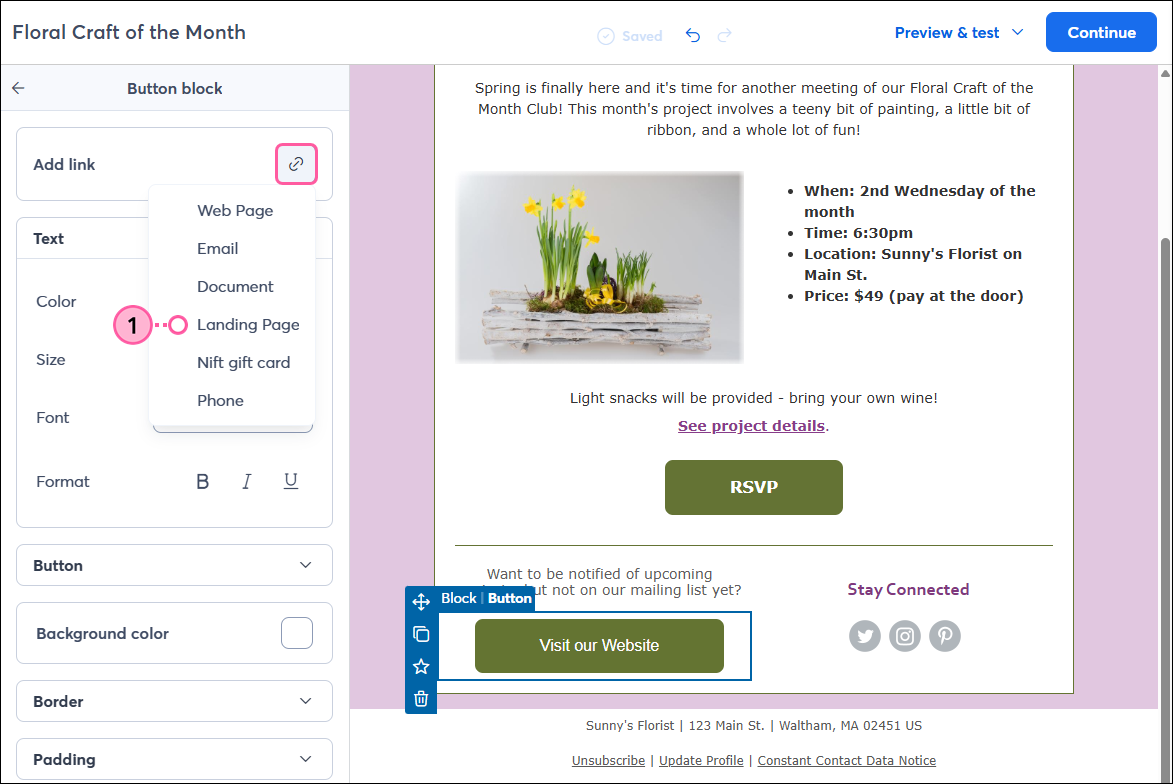
When adding a button or text link in your email:
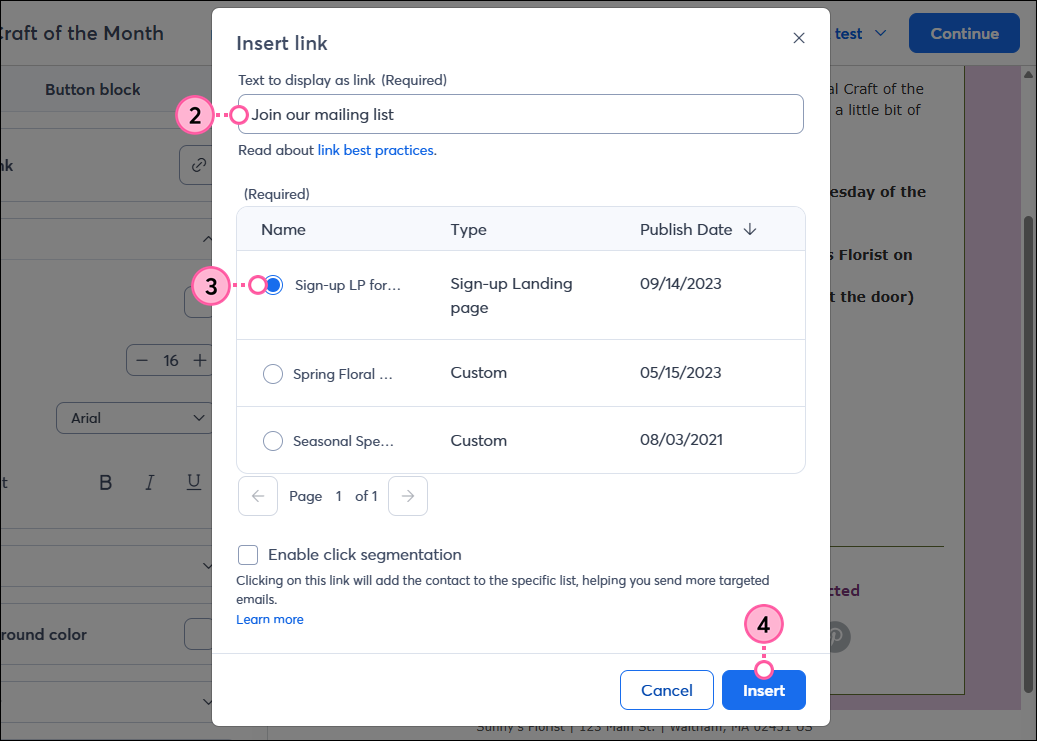
Please note that when inserting a Sign-up Landing Page into your email, you cannot test the sign-up form flow by previewing the email or sending yourself a test email. To properly test the flow of your Sign-up Landing Page, access the link from the Landing Page dashboard and copy/paste it into your browser.
When you're ready, send your email and give it a little time before checking the email reporting, tracking the conversions for your Sign-up Landing Page, viewing the engagement for your Custom Landing Page, or seeing the responses for your Survey Page. Don't forget to share your landing page on social media, too!
Copyright © 2026 · All Rights Reserved · Constant Contact · Privacy Center