Email and Digital Marketing
How can we help you?
Search our help articles, video tutorials, and quickstart guides

You've got this. You've got us. Search our Knowledge Base to quickly find answers to your questions.

Copy a landing page

Article: 000033014
Updated: October 22, 2025

Save time by copying a Sign-up or Custom Landing Page to reuse the content and design you've already created

Copying a Sign-up Landing Page or Custom Landing Page lets you reuse the text and style elements that you already created, so that you only have to make minor changes. It's great when you want to use different messaging or branding for different audiences.
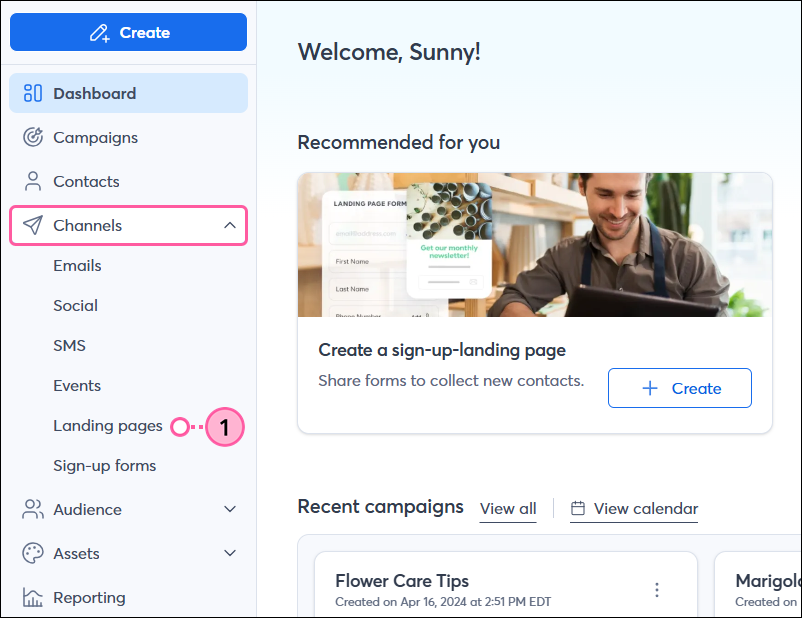
  1. Click Channels > Landing pages.

    Channels drop-down and Landing Pages option 
     
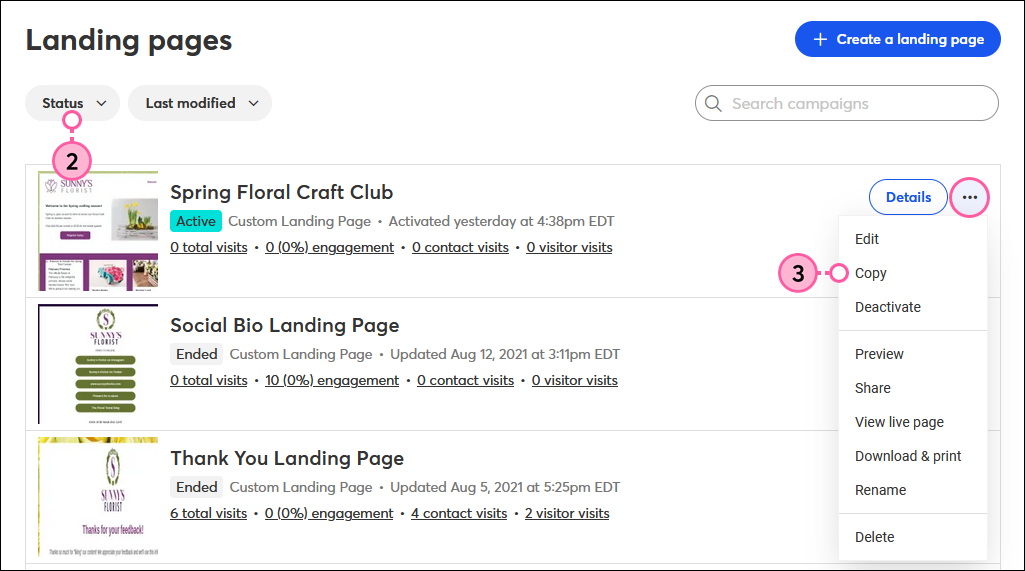
  2. (Optional) Use the Status filter to narrow your search.
  3. Next to the landing page, click the three dots and select Copy from the drop-down.

    Landing Pages page, Status filter, More Drop-down Menu with Copy Option
     
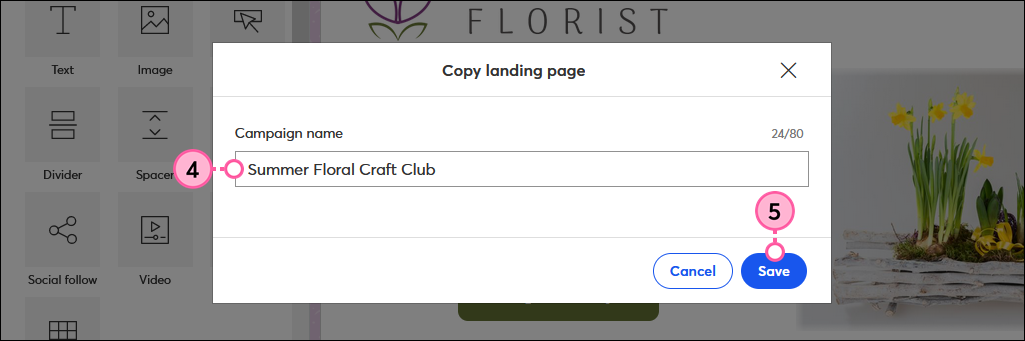
  4. Give your landing page a unique name so you can easily recognize it in your account later. Don't worry - your landing page visitors never see this name.
  5. Click Save.

    Campaign Name Field and Save Button
     

Once your landing page is copied, you can make edits and then activate it to start collecting sign-ups, selling goods and services, or sharing information.

Light Bulb IconDid you know? You can use a single landing page for a general audience, but by creating multiple landing pages, you can customize the messaging to be unique for targeting specific audiences. 


Questions?

Ask the Community

Did this article answer your question?


Constant Contact Logo

Copyright © 2026 · All Rights Reserved · Constant Contact · Privacy Center