If the person who owns your Constant Contact account plans to leave the organization, it's a good idea to transfer account ownership to someone else before they leave. Changing the Account Owner involves two phases: actions for the current Account Owner to hand over credentials, followed by actions for the new Account Owner to secure the account.
Unsure who the current Account Owner is? Learn where to locate the name of the current Account Owner.
What if the Account Owner has already left the organization?
If the previous Account Owner left without sharing their login credentials or completing Phase 1, please contact our Support team for assistance with transferring the account ownership.
Prerequisites before you begin
To streamline the transfer process and prevent roadblocks, please review the following conditions:
- Current Account Owner's login credentials - The current Account Owner should log in and complete the phase 1 transfer steps. If another user is taking these steps on behalf of the Account Owner, they should have the Account Owner's credentials on hand.
- Verified email address - The new Account Owner's email address must already be added and verified in the account before it can be selected as the new User email. Be sure to verify the new owner's email address before you get started.
- Account Manager/Campaign Creator user adjustment - If the new Account Owner is already an Account Manager or Campaign Creator in the account and they want to use their current username for their Account Owner user role login, they'll need to first change the username for their Account Manager/Campaign Creator user role before the Account Owner username is updated. You cannot assign the Account Owner role to a username that is already active under another role.
- Coordinated Multi-factor Authentication (MFA) handoff - Timing is key when resetting MFA. Resetting MFA immediately logs the current user out. If the new owner does not log in to set up their new MFA device at that time, the account can become inaccessible. Therefore, set aside time when resetting MFA, and make sure the new owner is ready to log in right away to set up their new MFA device.
Phase 1: Steps for the current Account Owner to take
To transfer account ownership to a new user, the current Account Owner should complete the following steps in this order:
Step 1: Update the profile details
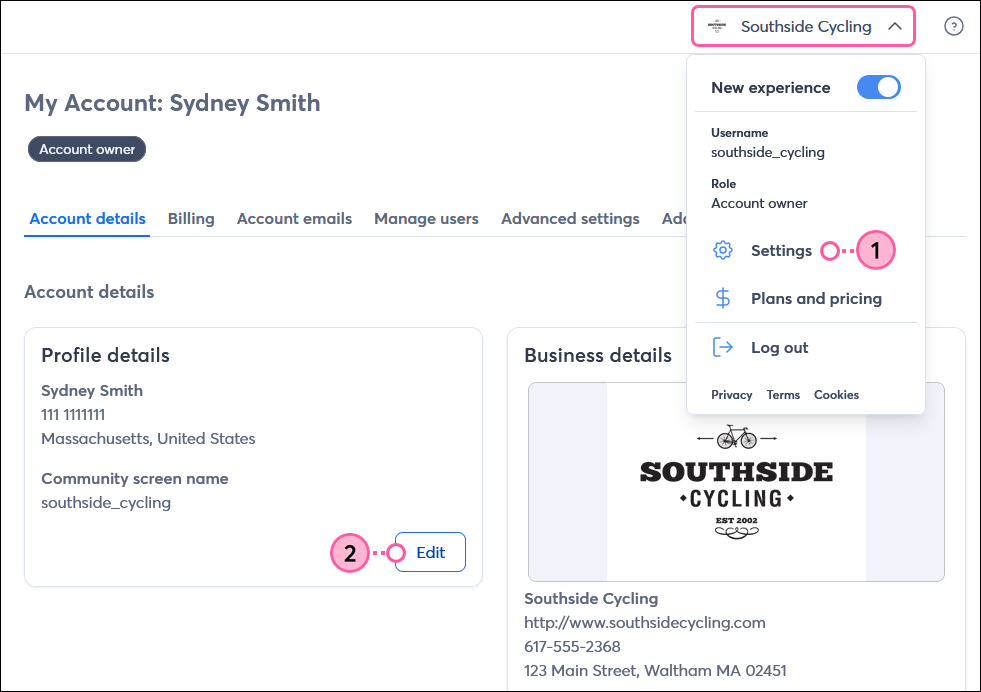
- Log in as the current Account Owner. Then click the profile name in the upper-right and select Settings.
- In the Profile details section, click Edit.
- Update the following fields for the new Account Owner:
- First and last name
- Phone number
- Community screen name
- Country
- State/province
- Click Save.
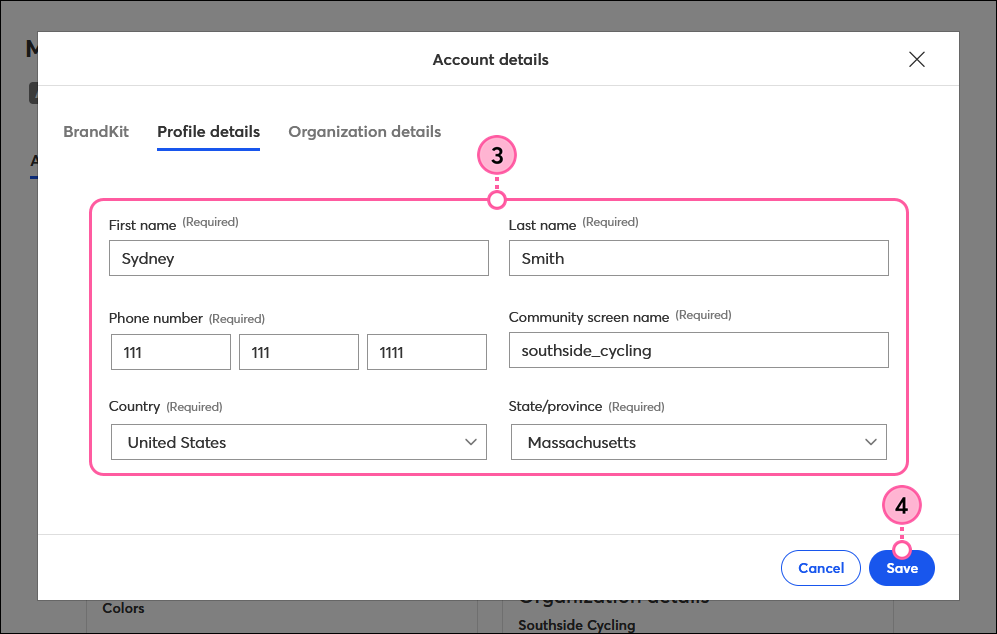
Updating the profile details also changes the name that appears in the upper-right corner of your account. Allow about 30 minutes, give or take, for the new name to display after changing it.
Step 2: Update the user email and username
Update the user email and, optionally, the username. Please note that the user email is different than the username:
- User email - This is the email address that receives emails from Constant Contact regarding your account, including billing information and password reset emails.
- User name - This is the login name you enter when signing in to Constant Contact. If the account username is a personal name rather than your organization's name, it's a good idea to change it now, too.
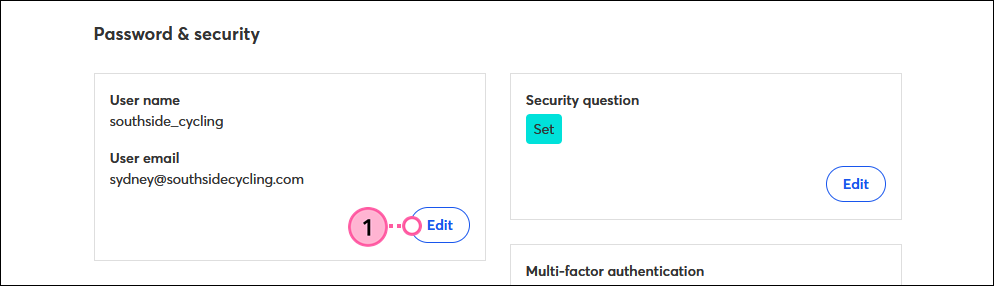
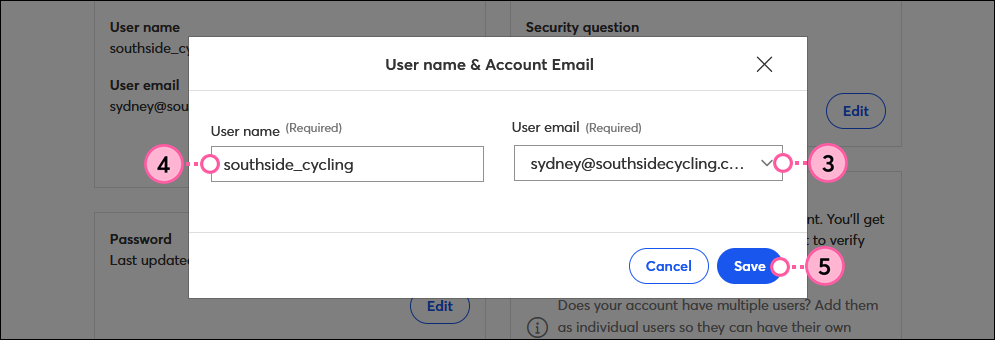
- From the settings page, scroll down to the User name and User email section, then click Edit.
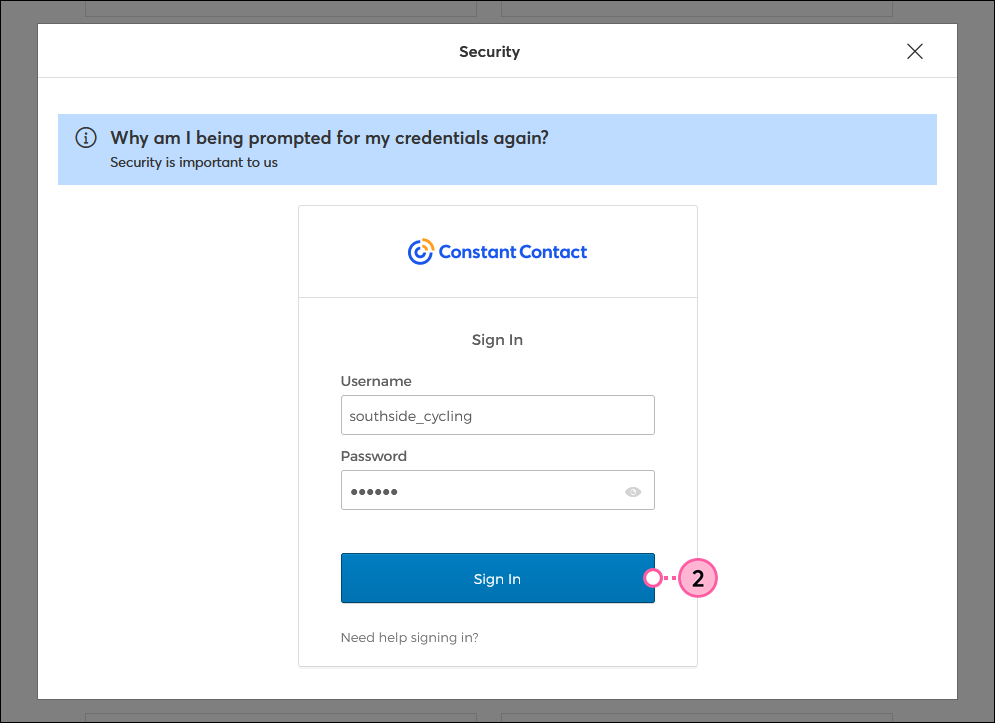
- If prompted, re-enter your current Constant Contact login credentials and click Sign In.
- Select the new Account Owner's verified email address from the User email drop-down.
- (Optional) Update the User name field if the existing username is personal to the departing Account Owner.
- Click Save.
Once your user email is changed, you can delete the outdated verified email address on the Account emails tab.
Step 3: Reset Multi-factor Authentication (MFA)
Important: Performing this step will immediately log you out of the account. Ensure the new Account Owner is ready to log in after this step.
If Multi-factor authentication (MFA) is enabled for the account, you can reset the secondary factors in your account settings. Once reset, you'll be logged out of the account, and the new owner will be able to select a new MFA factor on the next login.
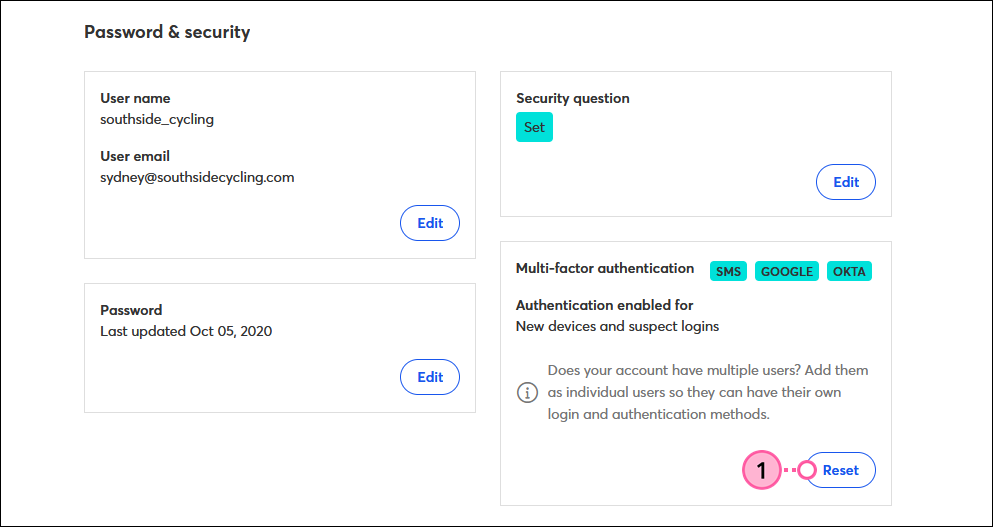
- In the settings, scroll down to the Multi-factor authentication section and click Reset.
- If prompted, re-enter your Constant Contact login credentials, then click Sign in.
- Click Continue to reset your MFA factors. You'll be logged out of the account.
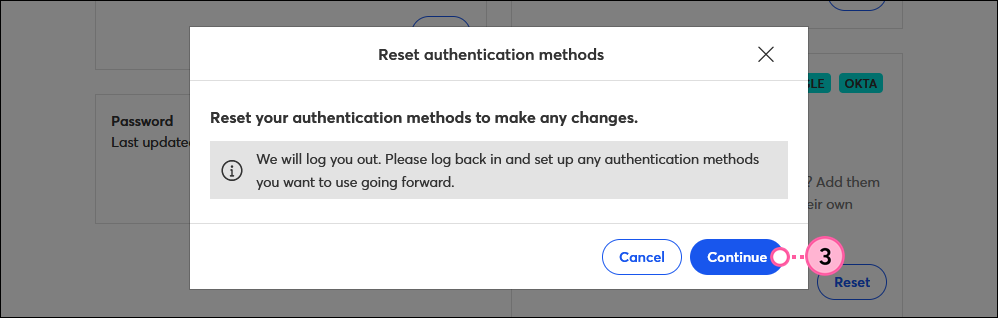
When the new Account Owner logs back in, they'll be prompted to set up new secondary factors.
Phase 2: Steps for the new Account Owner to take
Once the previous Account Owner has taken the steps outlined in the section above, the new Account Owner should complete the following steps in order:
Step 1: Reset the password
Changing your existing password is important for preventing unauthorized access to your account. After entering your new Account Owner username, follow these steps to reset the password.
- Go to the Constant Contact login page and click Forgot password?
- Enter the new Account Owner username and complete the password reset via the account email.
- Upon your first login with the new password, follow the on-screen prompts to set up your new secondary factors for MFA.
,
Step 2: Change the security question
The security question adds an extra layer of security to your login beyond your password.
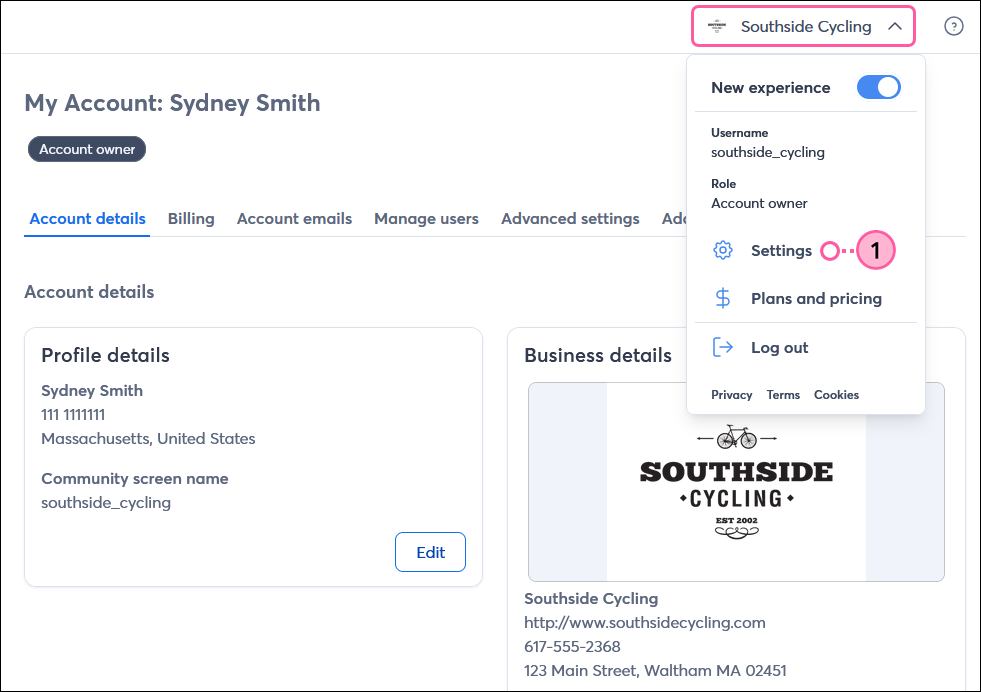
- Once logged in as the new Account Owner, click the profile name in the upper-right and select Settings.
- Scroll down to the Security question section and click Edit.
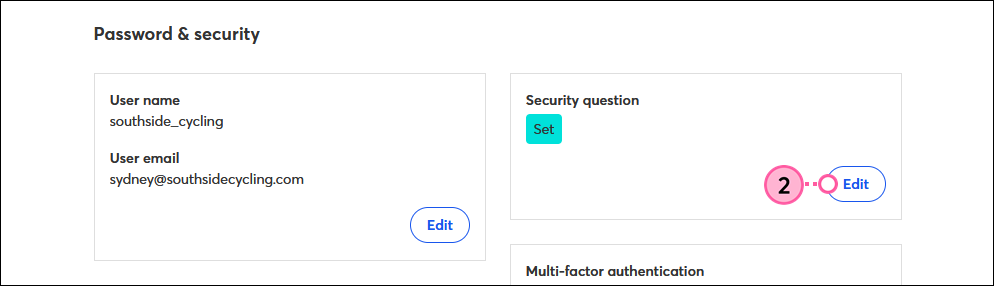
- Select a security question from the drop-down.
- Enter the answer to the question.
- Click Submit.

Step 3: Review the billing and profile details
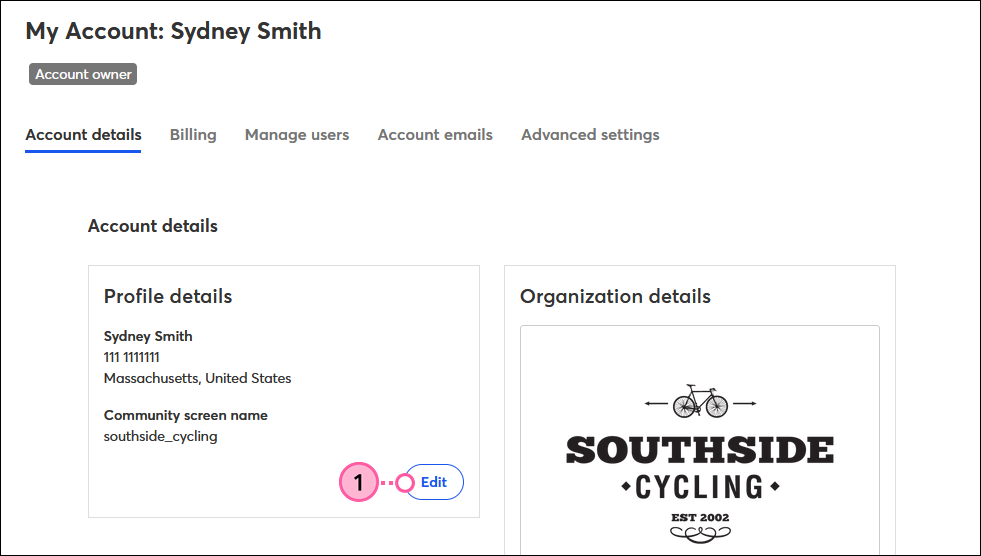
- On the Account details tab, review the Profile details section to ensure the information has been updated properly. If anything needs to be changed, click the Edit button.
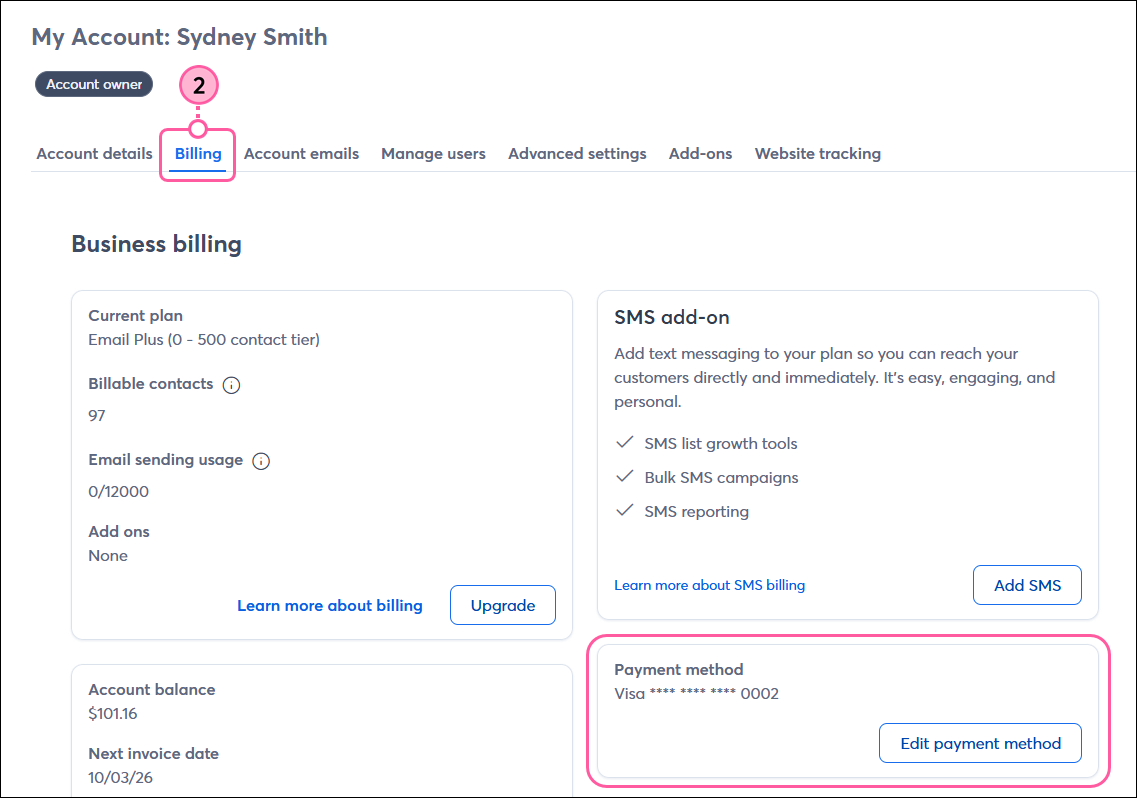
- Go to the Billing tab to review and update the payment method if it’s an old or personal credit card to prevent unwanted charges or service disruptions.
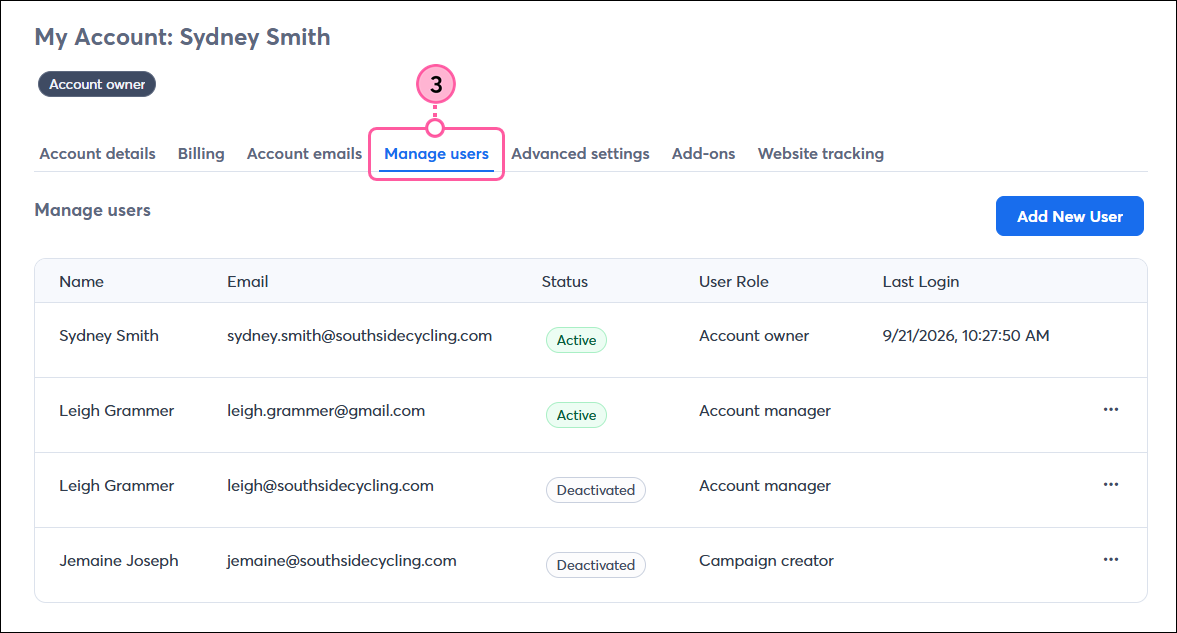
- Go to the Manage users tab to remove or deactivate any outdated users.
 | Learn More: If you're a new user and need to get up to speed on how to use Constant Contact, we have plenty of resources to help you get there. Reviewing our QuickStart Guides is a great way to dive in! |