Email and Digital Marketing
How can we help you?
Search our help articles, video tutorials, and quickstart guides

You've got this. You've got us. Search our Knowledge Base to quickly find answers to your questions.

Pay for your account with a direct bank debit

Article: 000055193
Updated: March 25, 2026

Use a US bank account to pay for your Constant Contact account

Exclamation point iconNote: This payment method is not currently available to all customers.


Pay for your Constant Contact subscription by automatically withdrawing funds for the recurring payments from your checking or savings account via ACH (Automated Clearing House) direct debits.

Note: Only US bank accounts are accepted, and the ACH payments may take up to 4 business days to process.


You can set up a US bank account for your payment method when upgrading from a trial to a paid account or when changing your email plan:
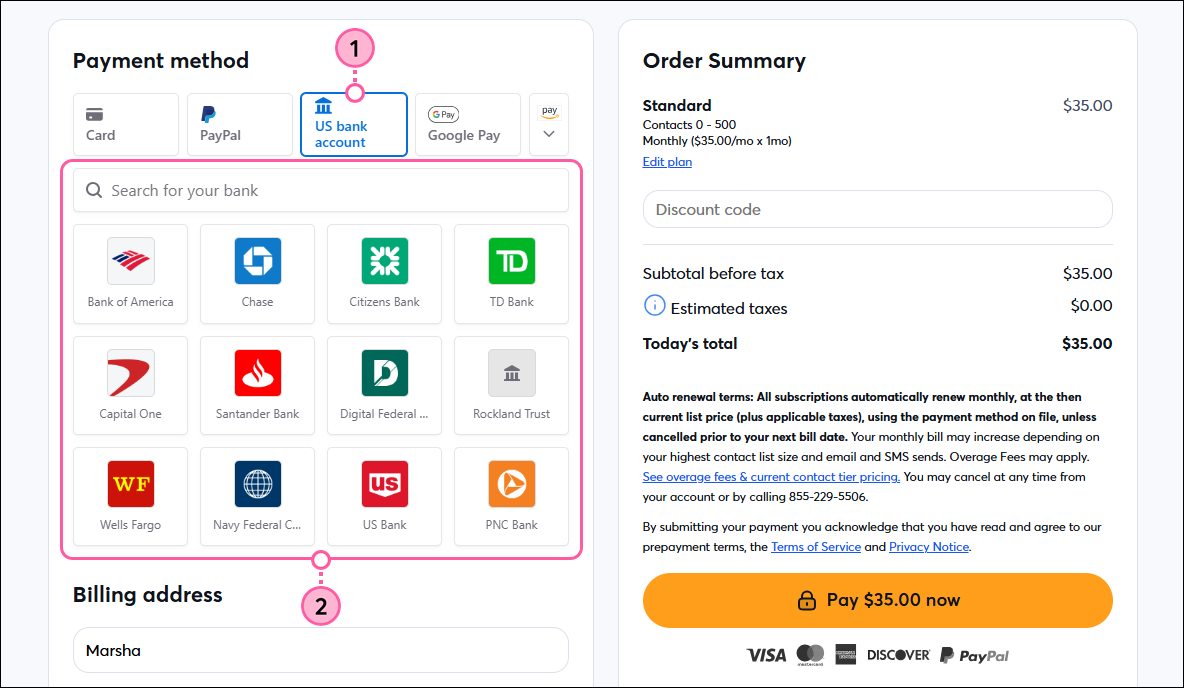
  1. On the payment method screen, select the US bank account option.
  2. Select or search for your bank.

    Checkout page, Payment Options section, US Bank Account option selected, search field and bank options

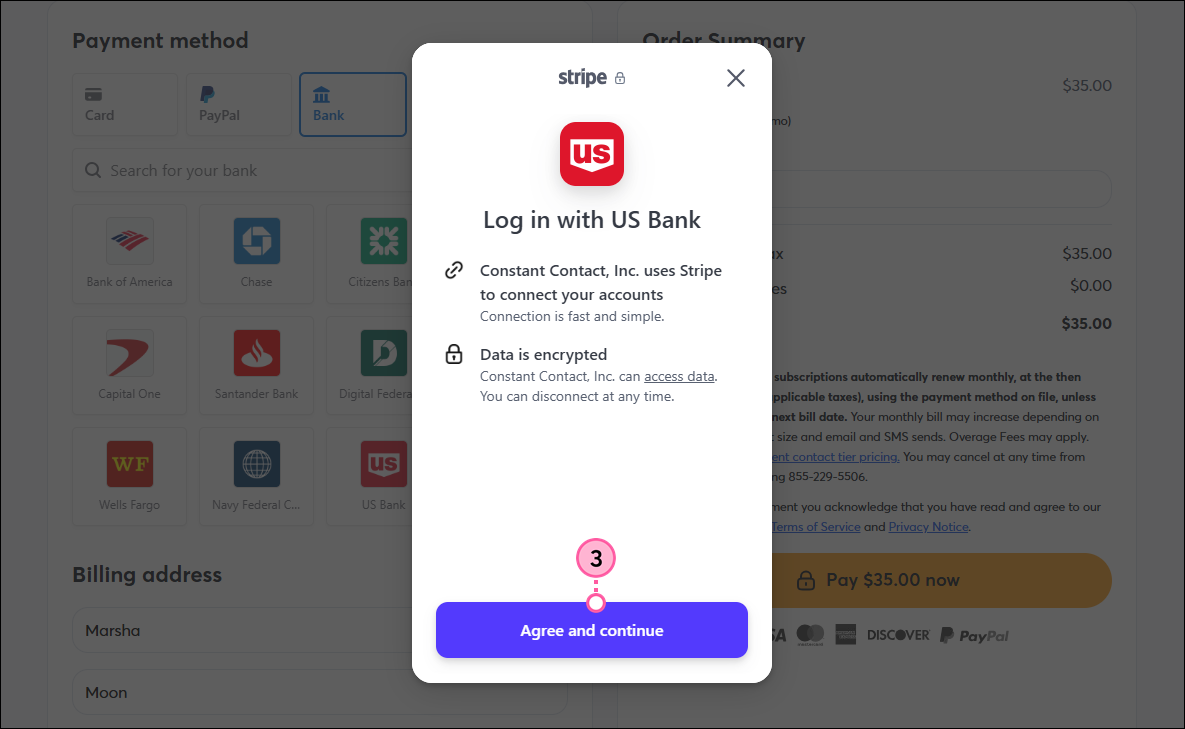
  3. Click Agree and continue.

    Log in with Bank pop-up with Agree and Continue button

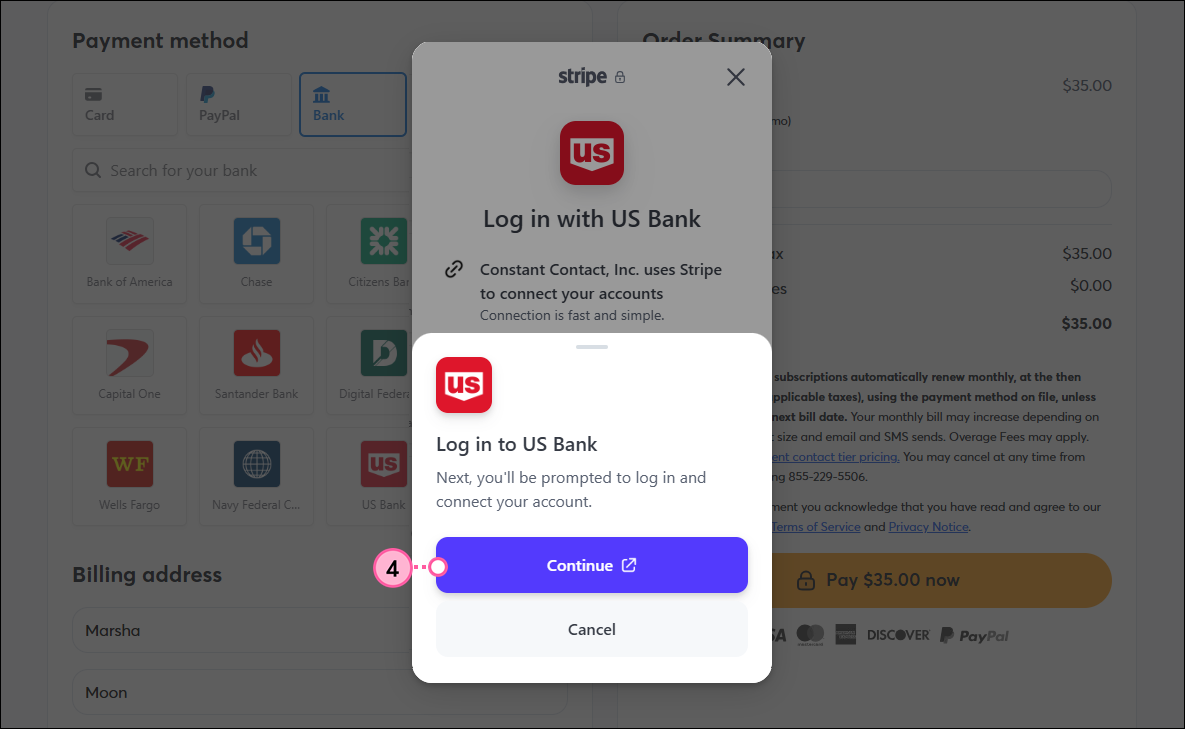
  4. Click Continue.

    Log in to Bank pop-up and Continue button

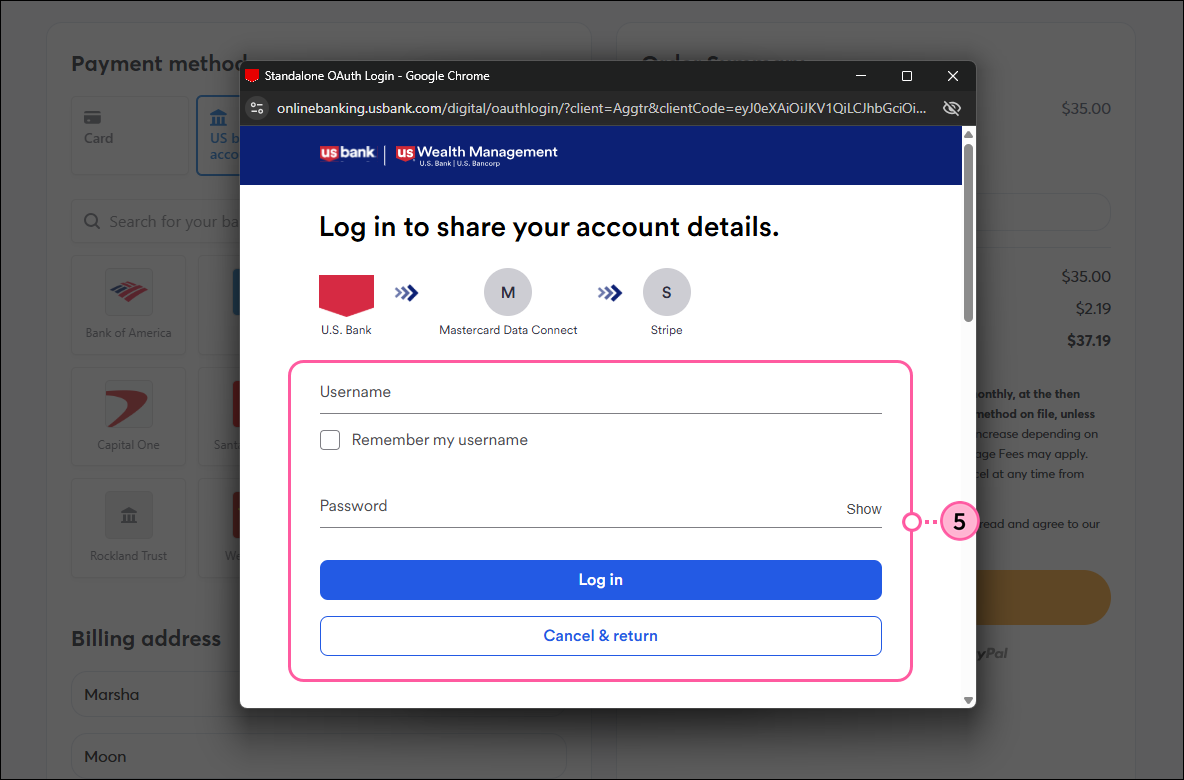
  5. Log in to your bank account.

    Bank login fields

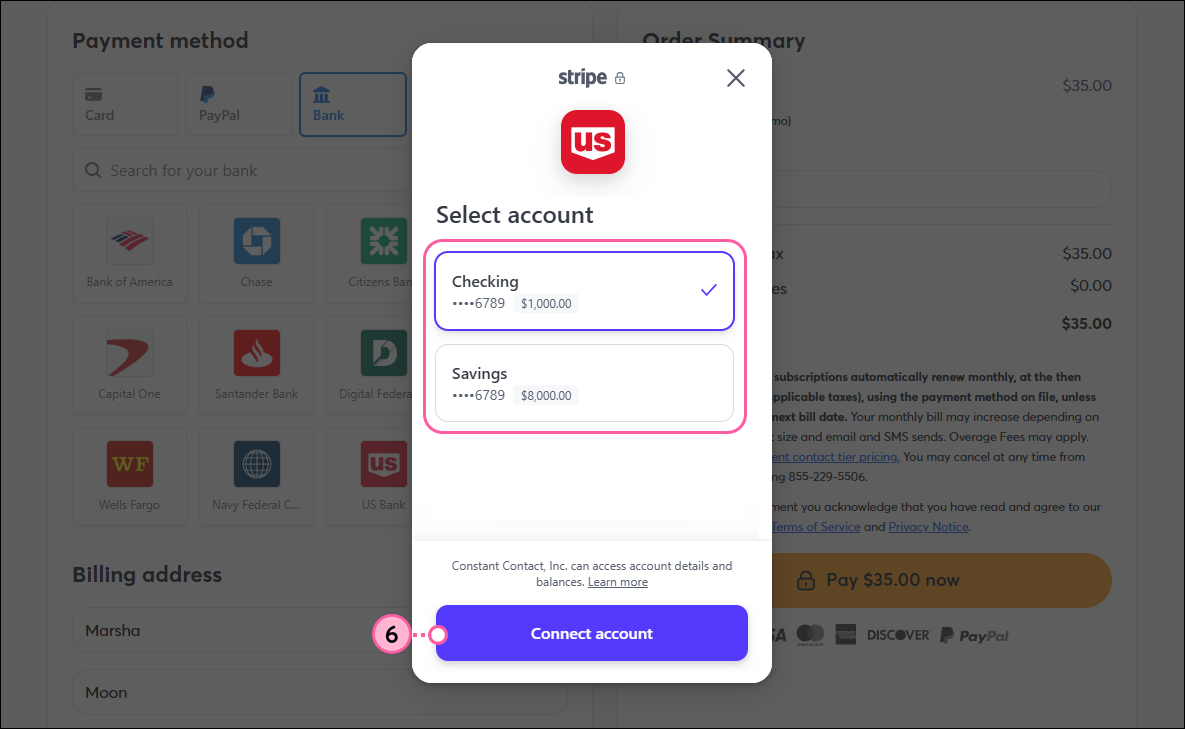
  6. Select the account you want to draw payments from and click Connect account.
    Note: The steps to connect your bank account will vary depending on the bank.

    Select bank account pop-up and Connect Account button

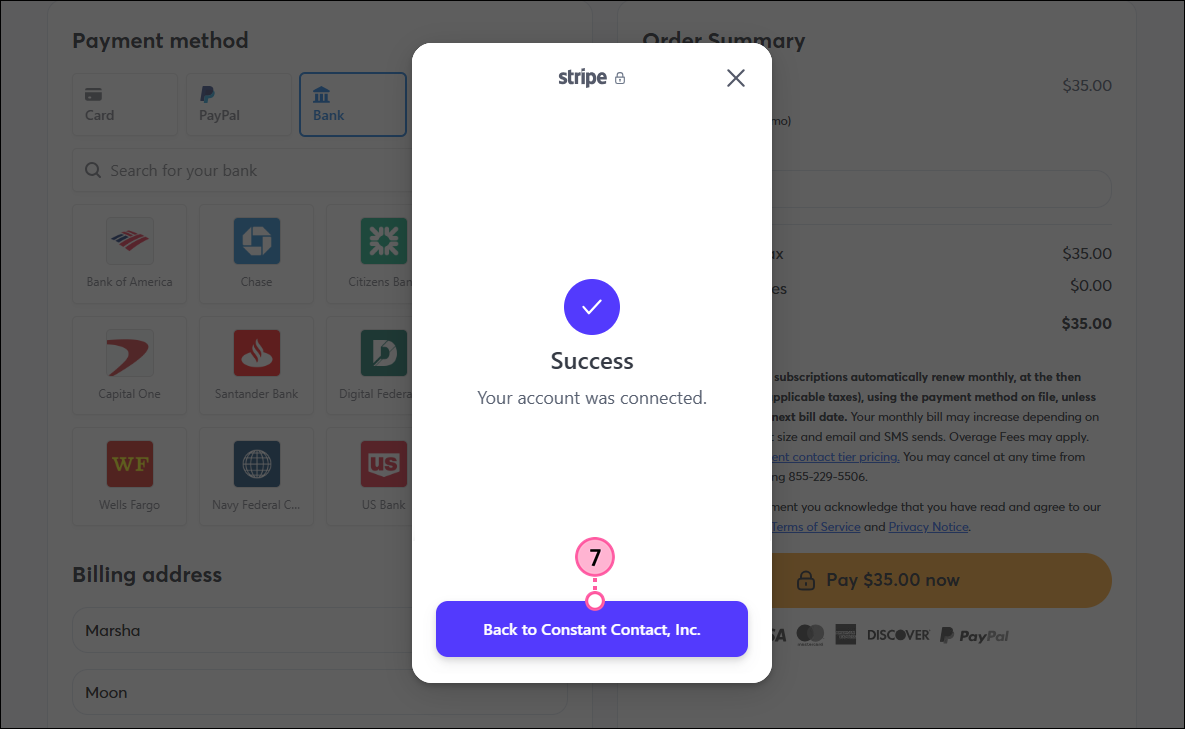
  7. Click Back to Constant Contact, Inc.

    Bank account connected Success message and Back to Constant Contact button

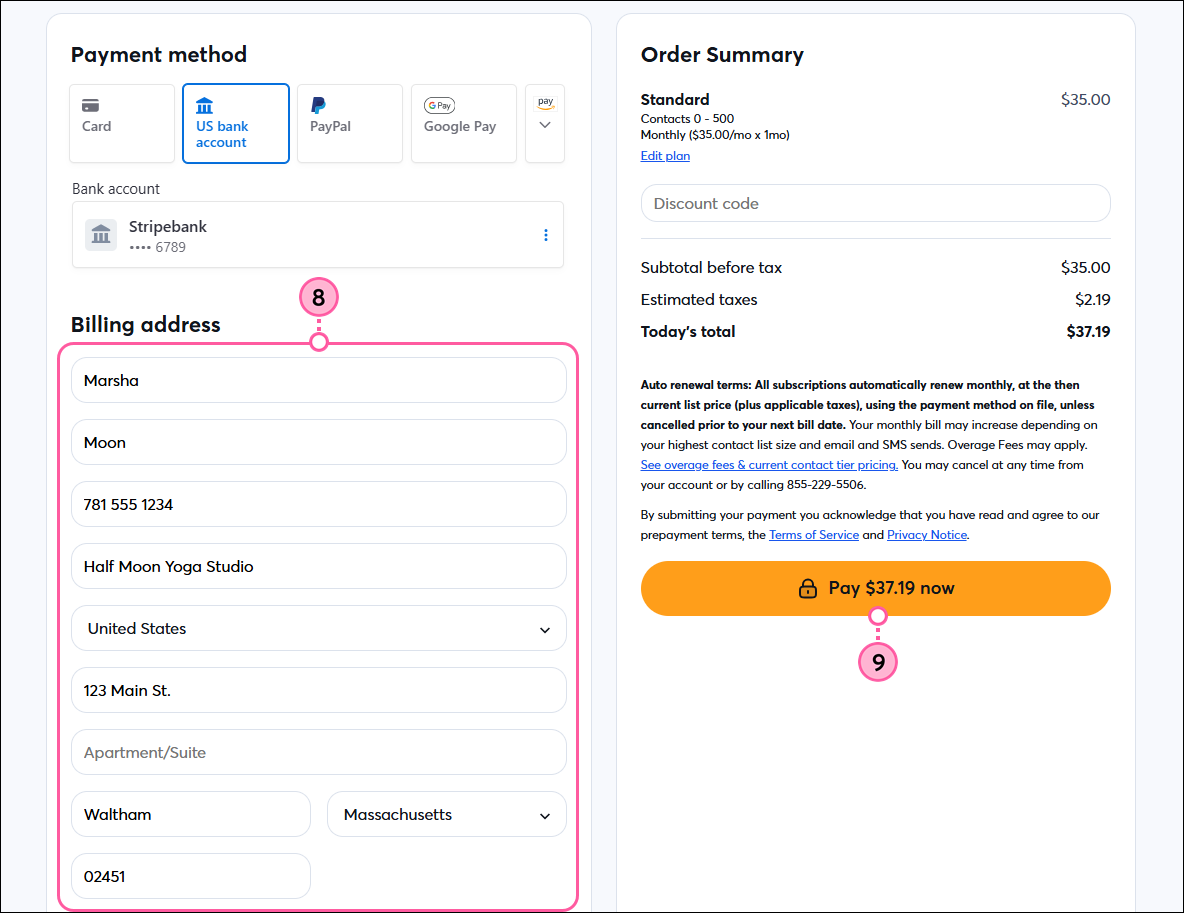
  8. Enter or update your billing address.
  9. Review the terms, then click Pay now.

    Checkout page, Bank account connected, Billing Address fields, and Pay Now button

Note: Unlike credit cards, it can take up to 4 business days for an ACH payment to be fully processed, but you’ll have access to your Constant Contact account and all features within your selected plan right away.


Questions?

Ask the Community

Did this article answer your question?


Constant Contact Logo

Copyright © 2026 · All Rights Reserved · Constant Contact · Privacy Center