Email and Digital Marketing
How can we help you?
Search our help articles, video tutorials, and quickstart guides

You've got this. You've got us. Search our Knowledge Base to quickly find answers to your questions.

Change or update your payment method

Article: 000005781
Updated: April 24, 2026

Update your credit card information to keep your account in good standing and avoid credit card failures

Exclamation Point IconImportant: In order to update your billing information, you must be logged in as the account owner and be logged into your account through a web browser on a computer or mobile device. Billing information isn't accessible through our mobile app.


You can change your payment method or update the credit card used to pay for your account at any time in your account settings. If your account was deactivated due to a credit card failure, a failed e-check payment, or an invalid PayPal account, update your payment method to reactivate it.


Light Bulb IconDid you know? A valid payment method must be on file at all times. You can't add more than one credit card to your account or delete a credit card entirely from the account; you can only update it to a different card. If you want to remove the credit card from the account entirely, please have a new payment method ready and contact our Billing Department.


Update your credit card information

If you need to update the credit card information or use a different credit card for your payment method:
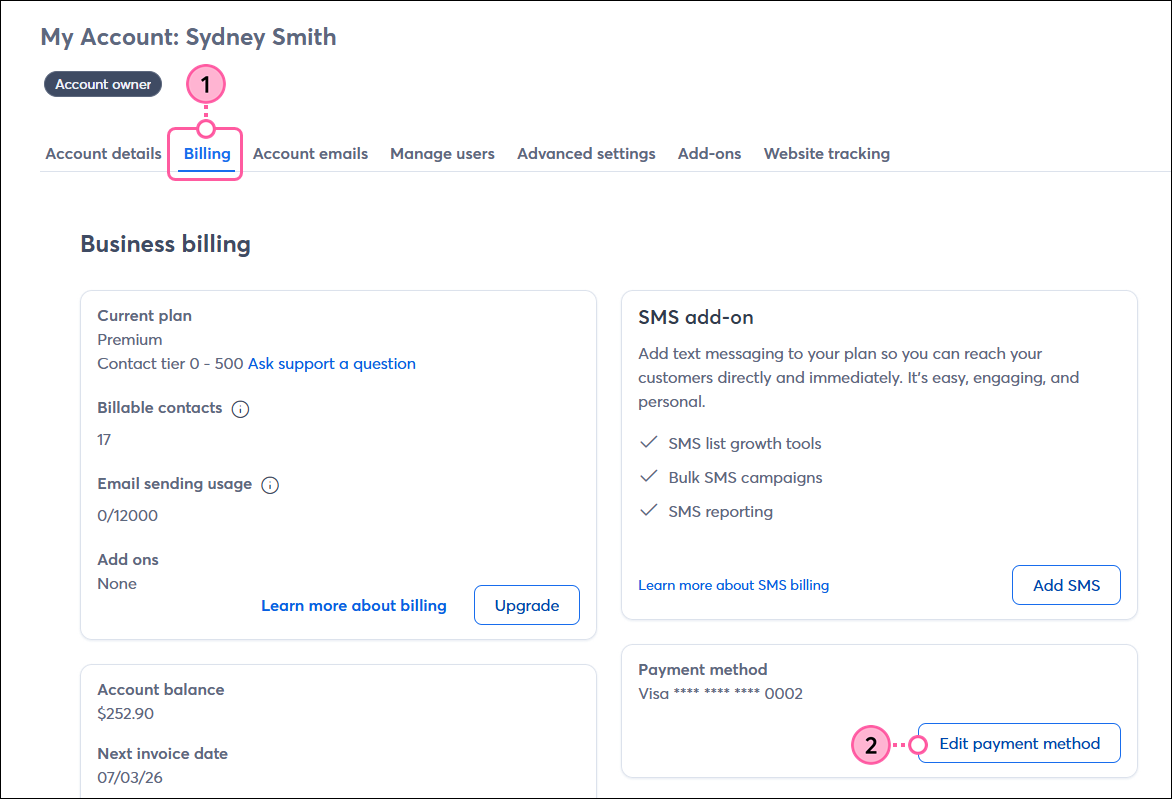
  1. From your account settings, click the Billing tab.
  2. Scroll down to the Payment method section and click the Edit payment method button.

    My account page with Billing tab selected, Payment Method section, and Edit Payment Method button

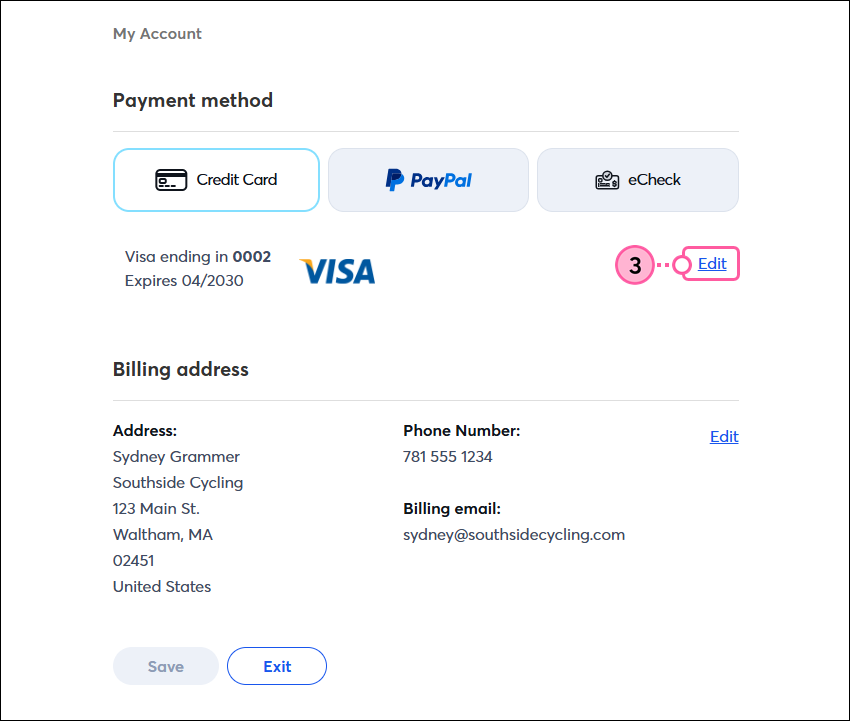
  3. In the payment method section, click the "Edit" option.
    Important: If your account looks different than what's shown below, please refer to this article instead.

    My account page with Payment method section, and Edit link

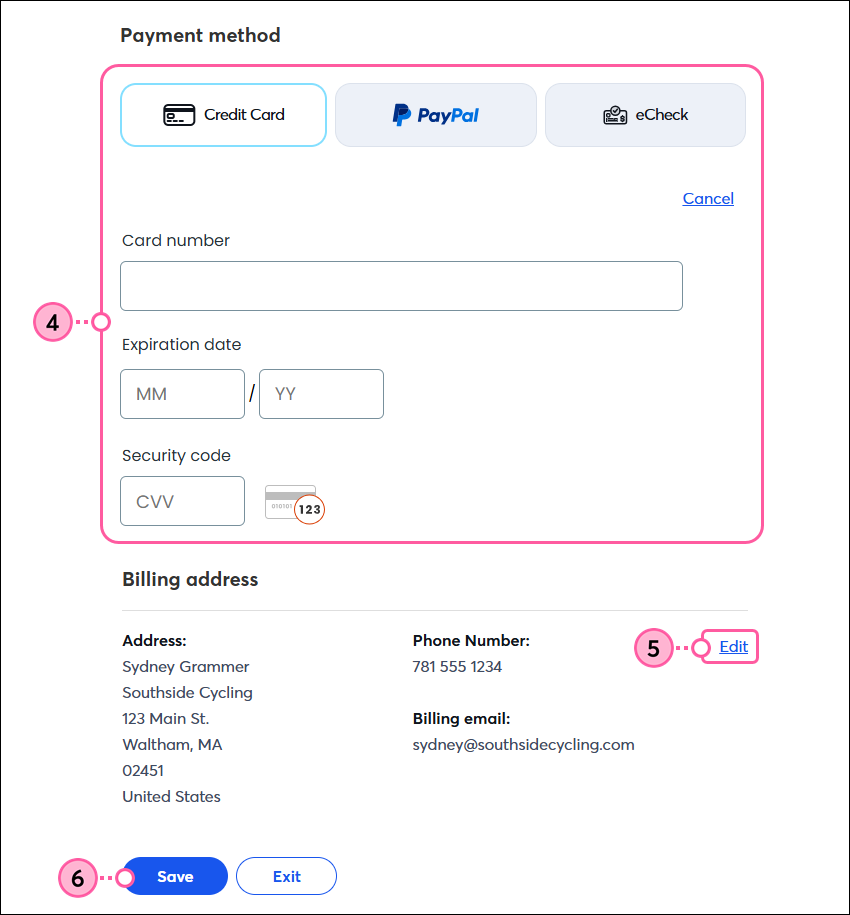
  4. In the Payment method section, enter your credit card information into the fields, or select a different payment method to use.
  5. In the Billing address section, make sure your billing address, phone number, and email address are correct. If necessary, click the "Edit" option to make changes.
  6. Click the Save button.

    My account page with payment method section, payment options with Credit Card option selected and Card number, Expiration date, and Security code fields, Billing address section with Edit option, and Save button

Now that you've updated your payment method, you can print or email the invoice for your record-keeping.


Update an expired or invalid payment method

If you have a past due balance on your account because your payment method has expired or is no longer working:
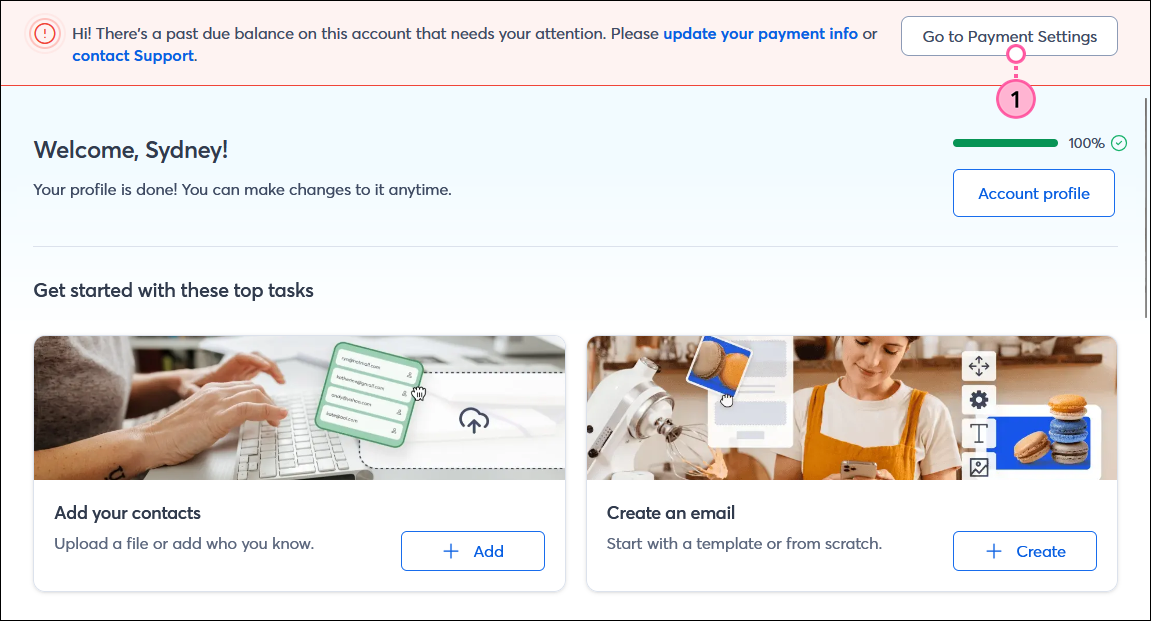
  1. Click the Go to Payment Settings button in the banner at the top of your account.

    Dashboard with Past Due Balance banner and Go to Payment Settings button

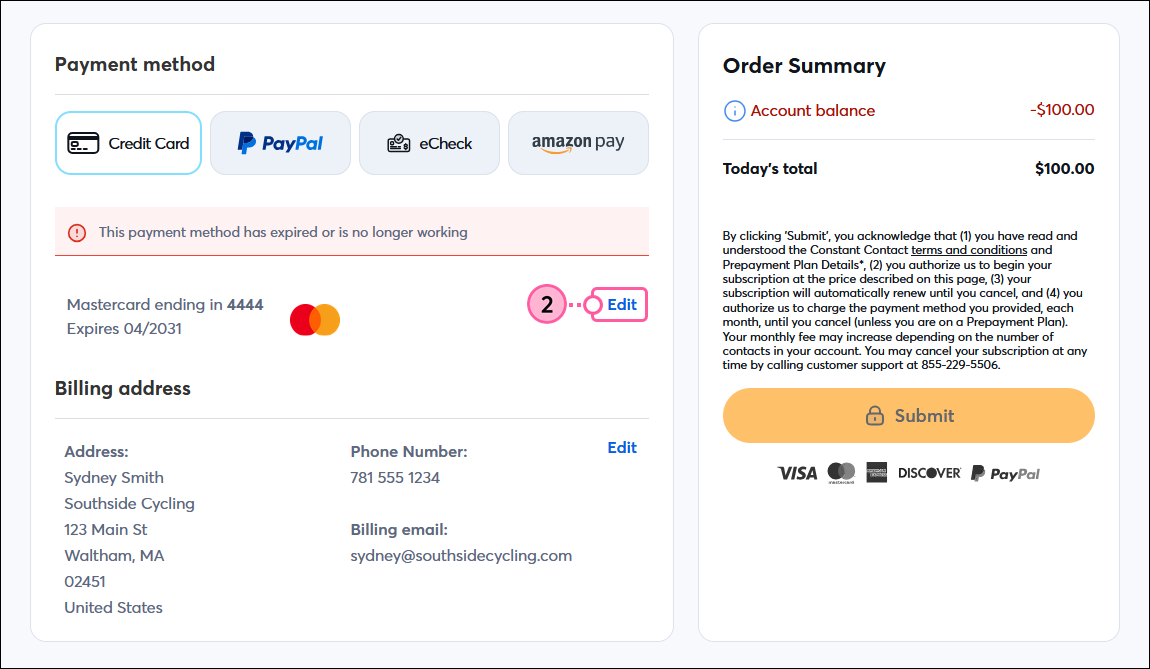
  2. In the Payment method section, click the Edit button.

    Payment Method, Credit Card option, Edit

  3. Enter your credit card information in the fields, or select a different payment method to use.
  4. In the Billing address section, make sure your billing address, phone number, and email address are correct. If necessary, click the "Edit" option to make changes.
  5. When you’re finished, click the Submit button.

    Save Credit Card and Billing Address Info

Now that you've updated your payment method, you can print or email the invoice for your record-keeping.


Questions?

Ask the Community

Did this article answer your question?


Constant Contact Logo

Copyright © 2026 · All Rights Reserved · Constant Contact · Privacy Center