Email and Digital Marketing
How can we help you?
Search our help articles, video tutorials, and quickstart guides

You've got this. You've got us. Search our Knowledge Base to quickly find answers to your questions.

View, print, or email your billing statements

Article: 000005933
Updated: January 9, 2026

Get a hard copy of your account invoice by printing it or emailing it to any email address

In your account settings, you can view your billing information and activity, as well as print or email past invoices. Printing out an invoice makes budgeting and storing easy, while emailing allows you to quickly send it to a colleague for review. 
 

If you're looking for the W-9 form for tax purposes, click here.
 

    Note: If you're an Account Manager or Campaign Creator, you won't have full access to the account settings and billing information.  
     

    1. Access your account settings.
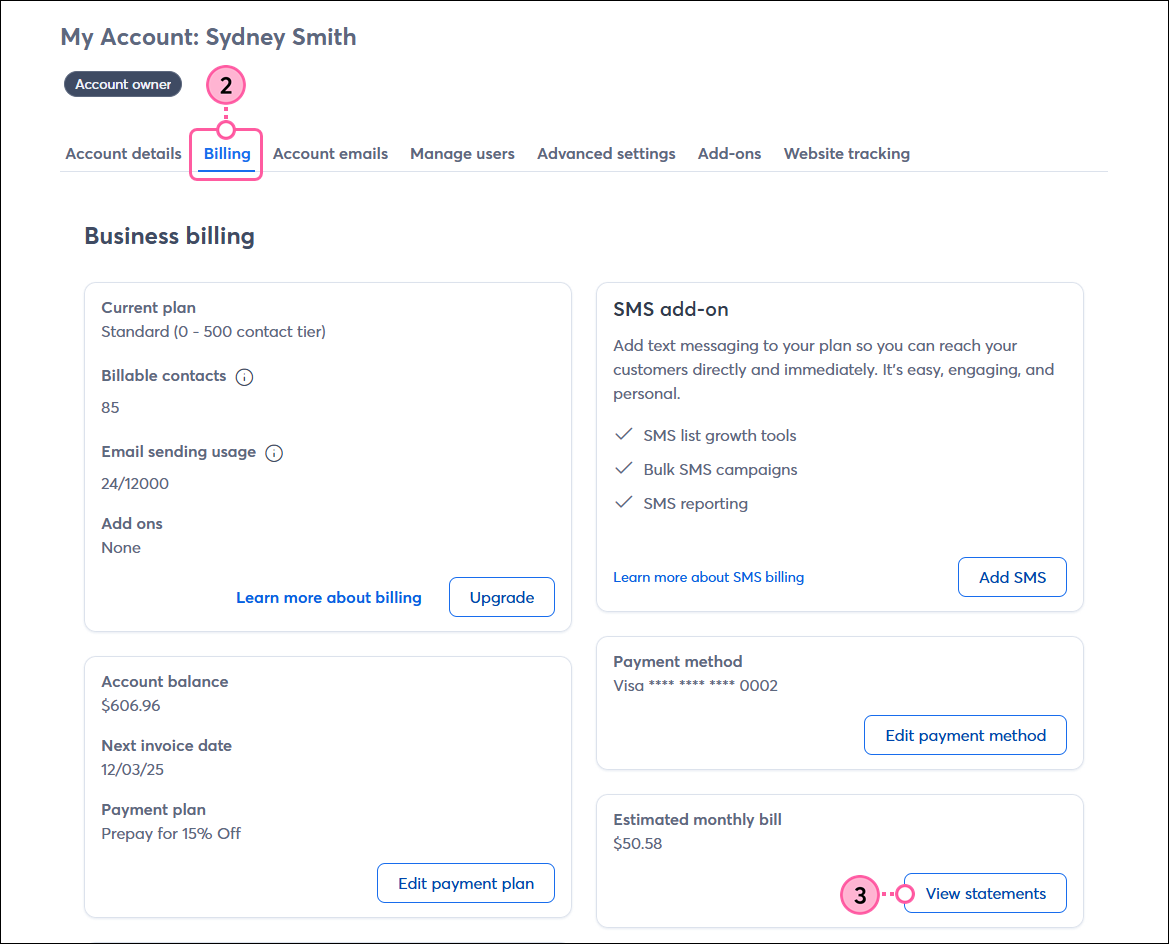
    2. Click the Billing tab to see your plan and payment information.
    3. To see your invoices and billing activity, click View statements.

      Billing tab and View Statements button
       
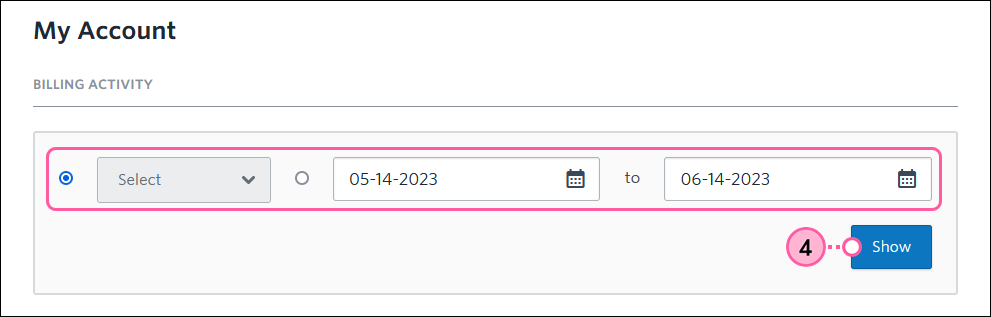
    4. Select a time period from the drop-down menu or a specific date range using the calendars to see the activity from that timeframe, then click Show.
       
      Light Bulb IconTip: To find and print a single invoice from a previous month, use the calendar drop-downs to select the dates within that particular month.

      Exclamation point iconNote If your account looks different than what's shown below, please refer to this article instead.

      Billing Activity timeframe and Show button

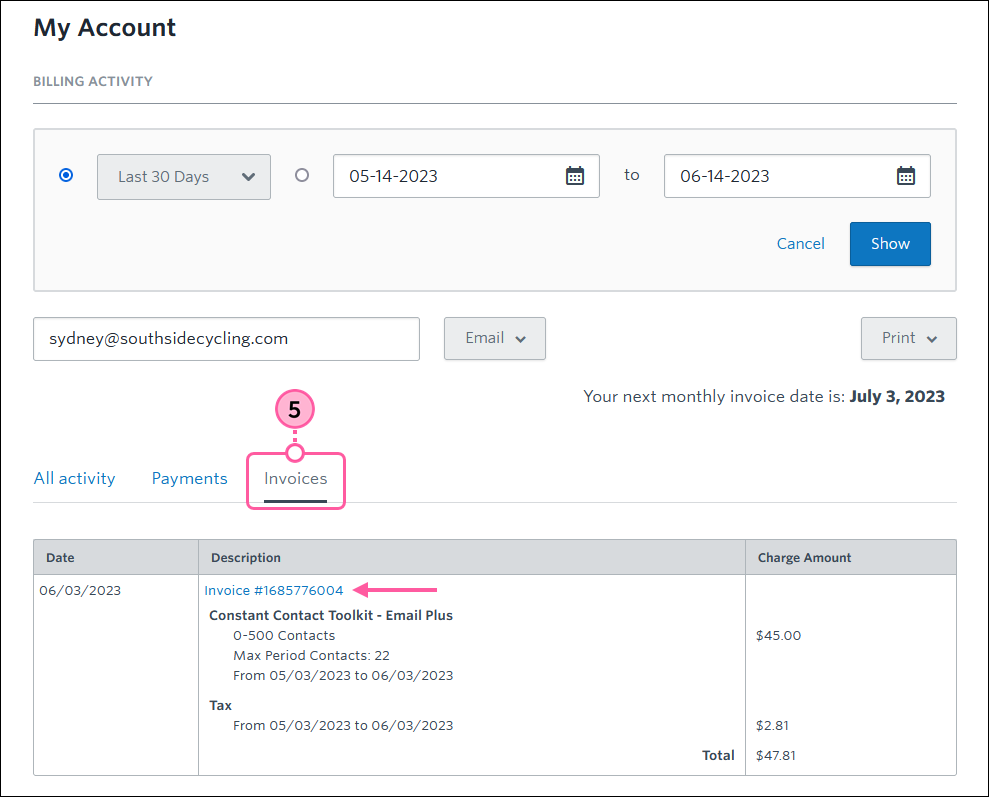
    5. (Optional) Click Invoices and click on an invoice number to view its details

      Invoices tab and invoice selected with details expanded

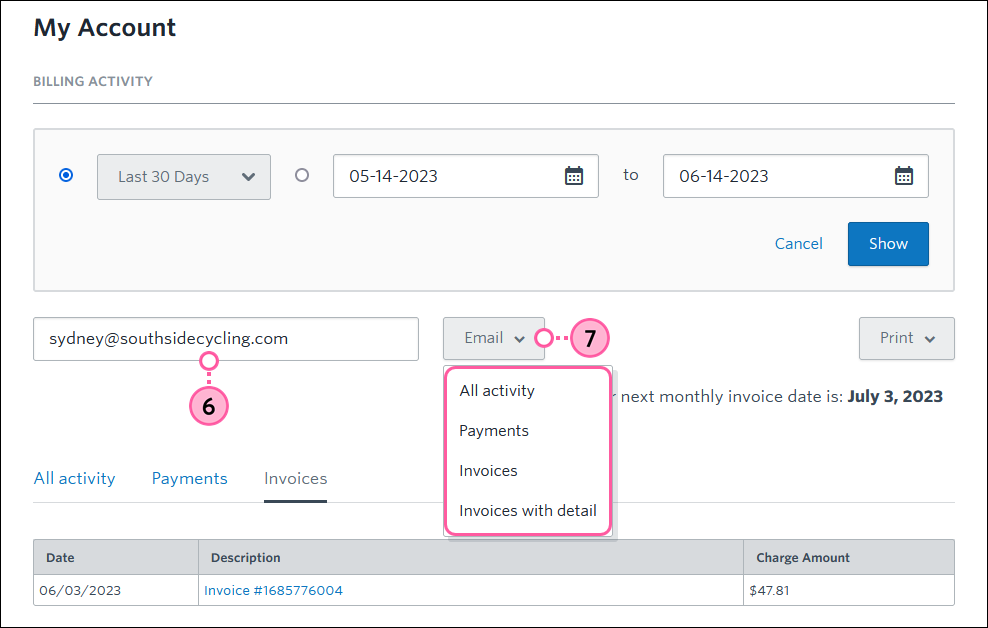
    6. To email an invoice to someone, enter an email address of your choosing in the field.
    7. Click Email and select what you'd like to email: All activity, Payments, Invoices, or Invoices with detail.

      Email Address field and Email dropdown options

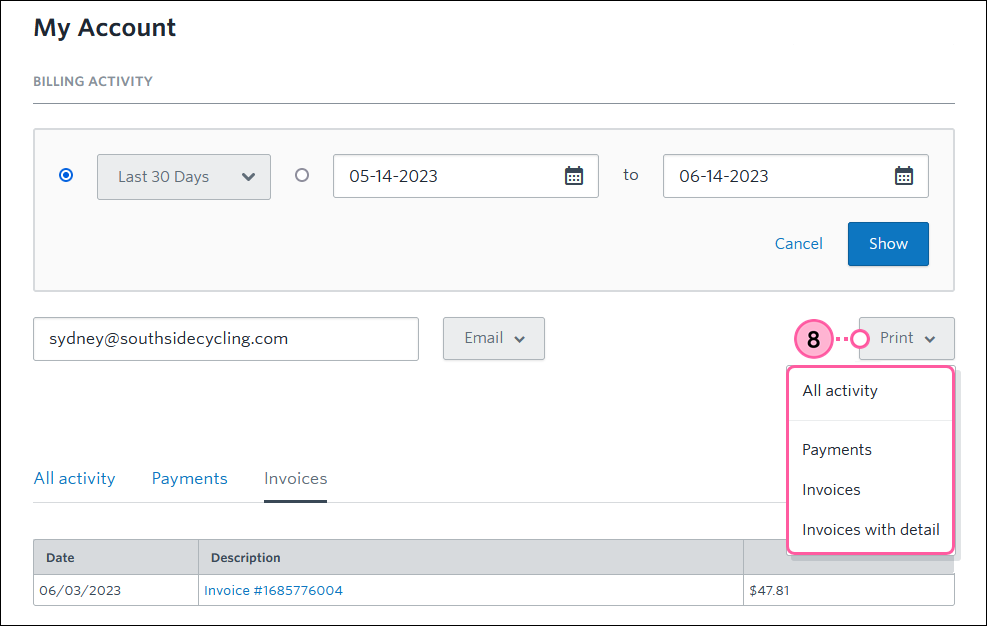
    8. To print a hard copy of an invoice, click Print and then select what you want to print: All activityPayments, Invoices, or Invoices with detail.

      Print dropdown options
       
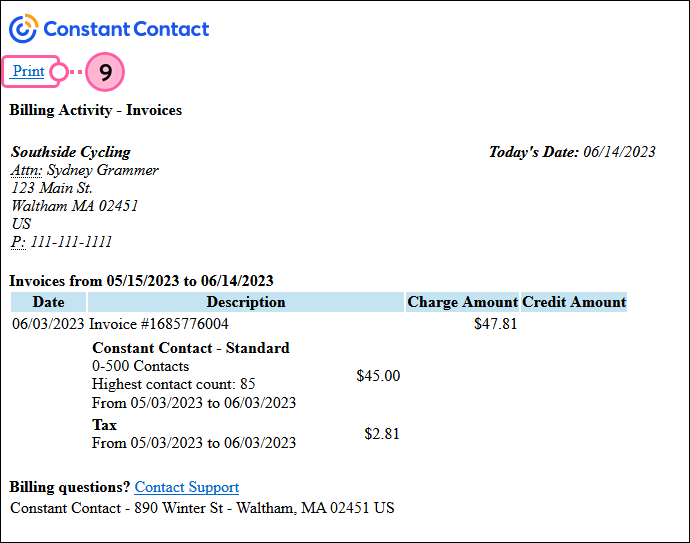
    9. A new window will open with the information you want to print. Click Print

      Print invoice

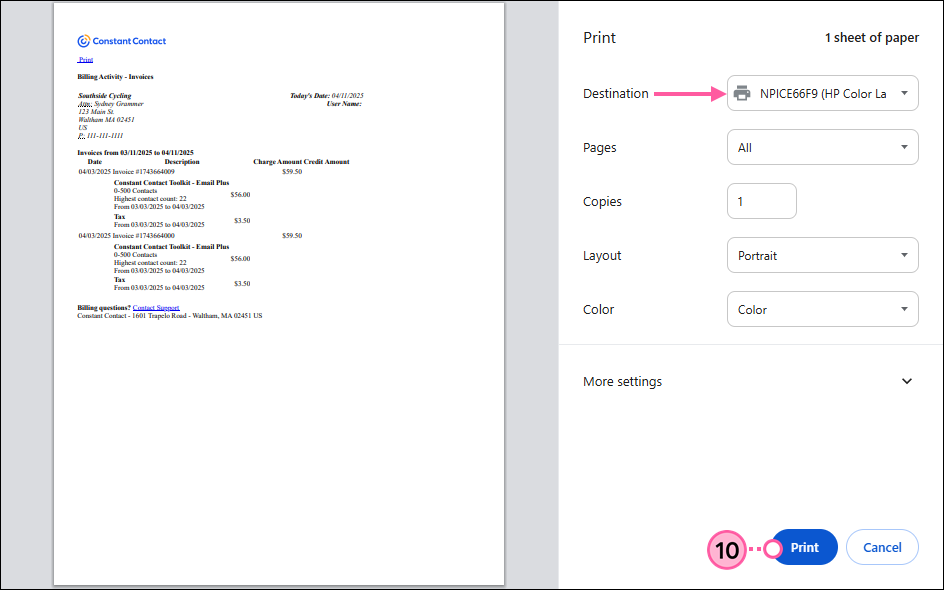
    10. Select the printer you want to use and adjust the print settings accordingly. Then click Print.
      Note: To download and save the invoice as a PDF, select that option from the "Destination" drop-down and click Save.

      Print options


    Questions?

    Ask the Community

    Did this article answer your question?


    Constant Contact Logo

    Copyright © 2026 · All Rights Reserved · Constant Contact · Privacy Center