Email and Digital Marketing
How can we help you?
Search our help articles, video tutorials, and quickstart guides

You've got this. You've got us. Search our Knowledge Base to quickly find answers to your questions.

View and download your billing statements

Article: 000054799
Updated: January 20, 2026

Download your account invoice or payment receipt to save or print

In your account settings, you can view your billing information and activity, and download past invoices and receipts.

If you're looking for the W-9 form for tax purposes, click here.
 
Note: If you're an Account Manager or Campaign Creator, you won't have full access to the account settings and billing information.  
 

  1. Access your account settings.
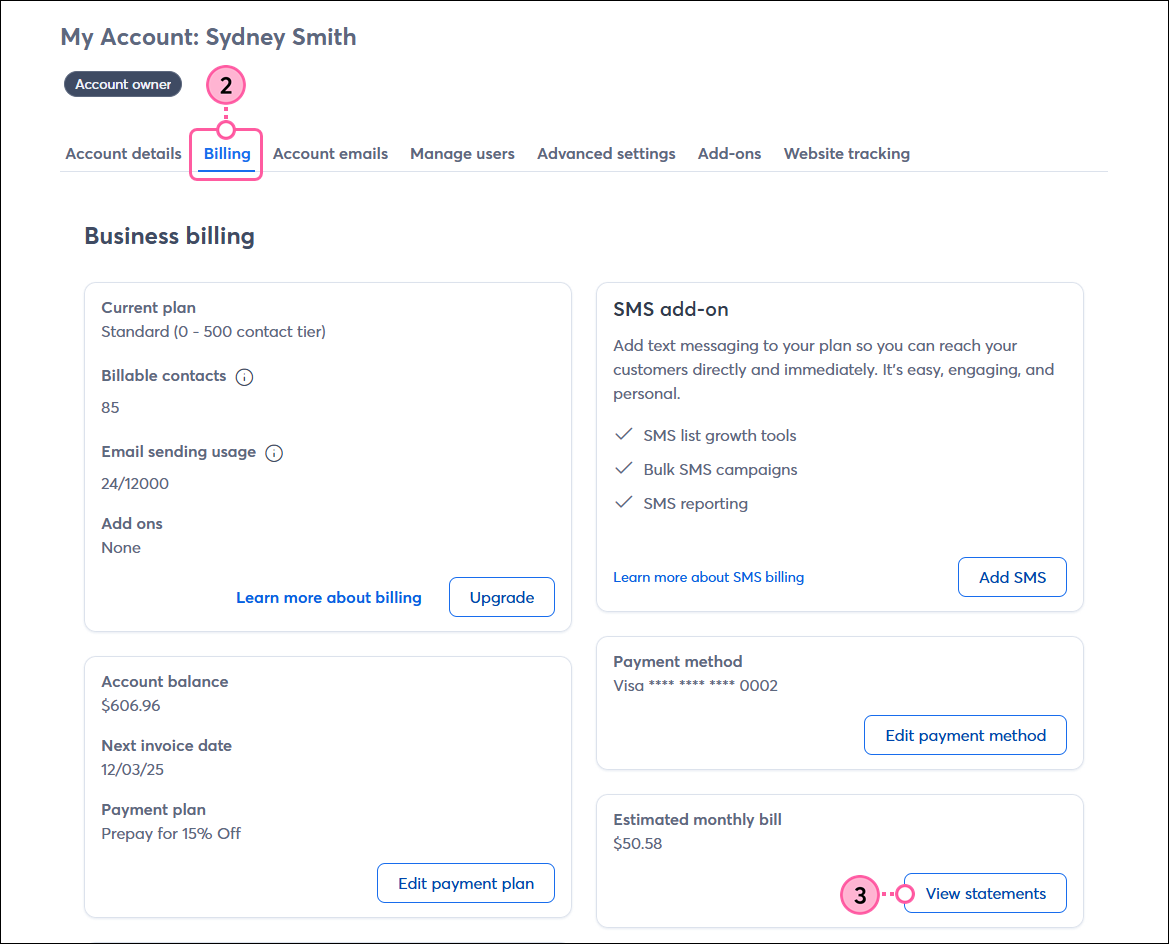
  2. Click the Billing tab to see your plan and payment information.
  3. To see your invoices and billing activity, click View statements.

    Account settings, Billing tab, Estimated monthly bill section, and View Statements button

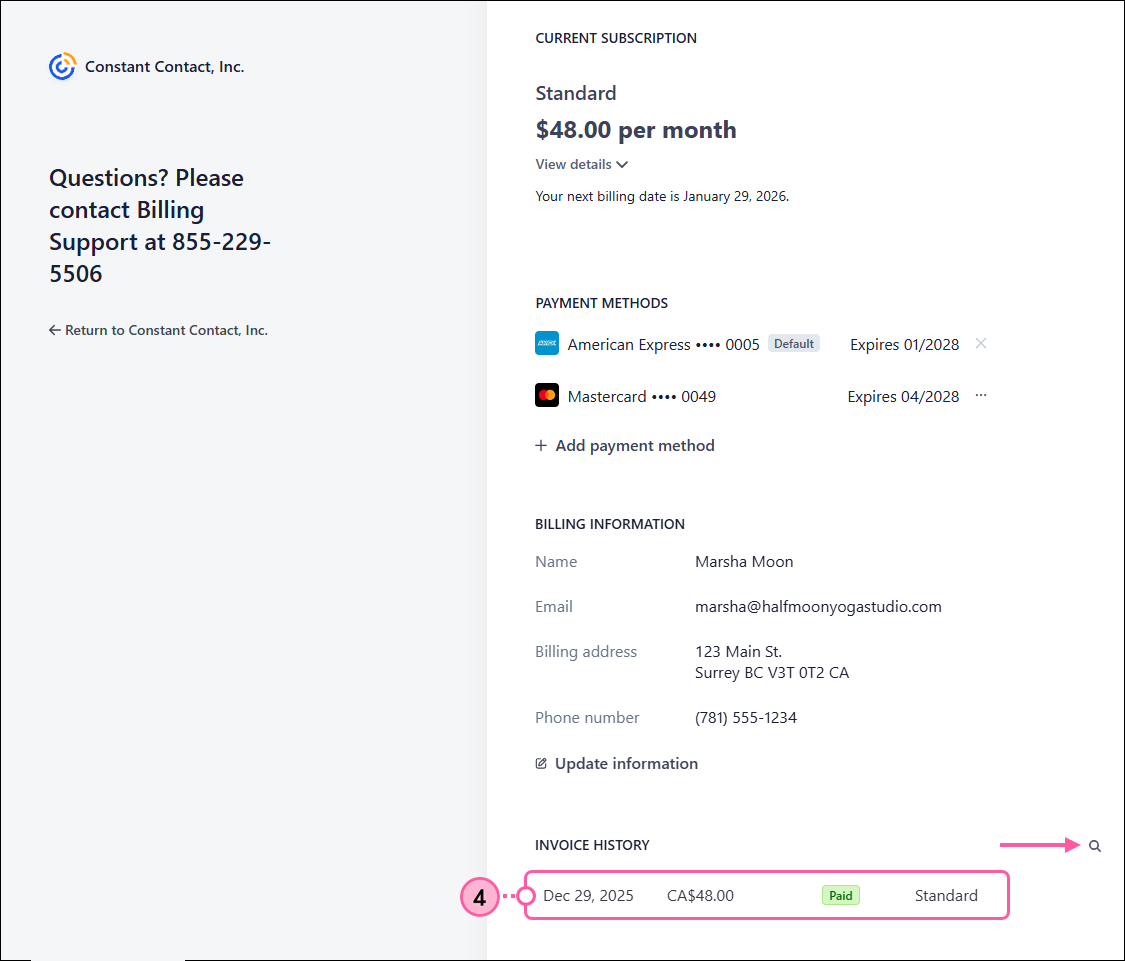
  4. Scroll down to the Invoice History section, then click an invoice to view its details. To filter your invoices, click the magnifying glass.

    Exclamation Point IconNote: If your account looks different than what's shown below, please refer to this article instead.

    Stripe dashboard with Invoice History section, magnifying glass, and invoice selected

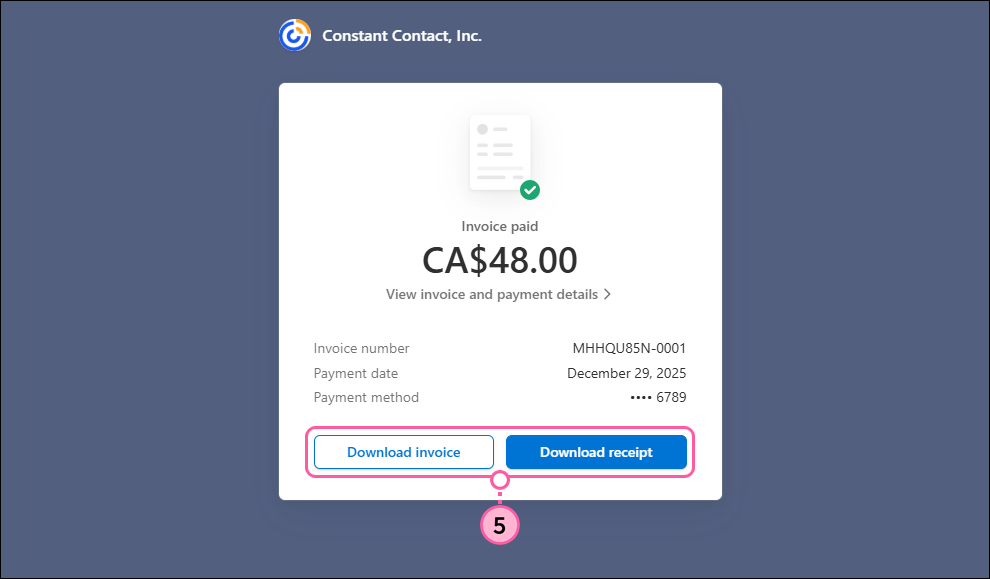
  5. Click Download Invoice to download a PDF of your invoice, or click Download Receipt to download a receipt of your payment.

    Constant Contact invoice details with Download Invoice and Download Receipt buttons

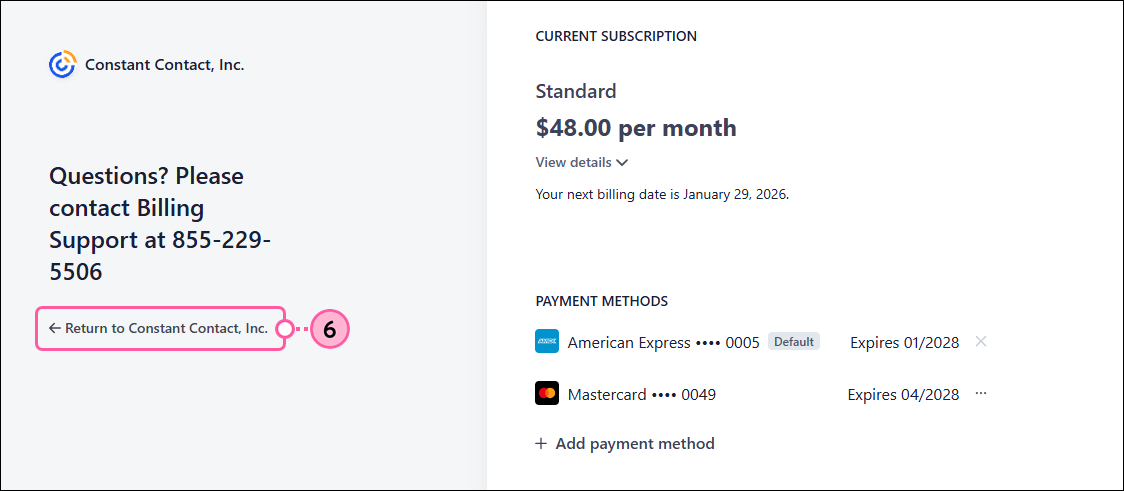
  6. Close the window when you're finished, then click "Return to Constant Contact" to return to your account.

    Stripe dashboard with Return to Constant Contact link


Questions?

Ask the Community

Did this article answer your question?


Constant Contact Logo

Copyright © 2026 · All Rights Reserved · Constant Contact · Privacy Center