Email and Digital Marketing
How can we help you?
Search our help articles, video tutorials, and quickstart guides

You've got this. You've got us. Search our Knowledge Base to quickly find answers to your questions.

Delete a single-channel campaign

Article: 000005680
Updated: July 31, 2026

Remove outdated and unused single-channel campaigns from view by applying the "deleted" status

Tired of clutter? Clean out your outdated and irrelevant campaigns by moving them into the "deleted" status. Deleting a campaign isn't permanent; it removes unwanted campaigns from view, so you can't see them unless you filter your campaigns by the "deleted" status.


Light Bulb IconDid you know? When you need to delete a multi-channel campaign, you can delete the whole thing or keep the individual campaigns.


Campaign statuses that can or can't be deleted

The status of your campaigns matters! If you're running into issues when deleting a campaign, check its status and take the appropriate action so that you can delete it.

Campaigns statuses that can be deleted:

  • Email drafts, sent emails, and emails in an error status. Sent emails aren't recalled and are visible in your contacts' inboxes until they decide to delete them.
  • SMS message drafts, sent messages, and messages in an error status. Sent SMS messages aren't recalled and are visible to your contacts until they decide to delete them.
  • Social post that are saved as drafts, scheduled, or posts in an error status. A scheduled social post can be unscheduled for editing until it arrives at its scheduled send date/time.
  • Sign-up or custom landing pages that are in draft, are active, are inactive, or have ended.
  • Surveys drafts, or surveys that are active, inactive, or have ended.
  • Events that are saved as drafts, have ended, or have been canceled.
  • Automations that are saved as drafts, are inactive, or have ended.
  • Legacy automated email series that are saved as drafts or have ended.
  • Deactivated or paused Facebook and Instagram ads and lead ads, or ads saved as drafts.


Campaign statuses that can't be deleted, and what to do about them:


Changes caused by deleting a campaign

Light Bulb IconDid you know? Deleting a campaign isn't permanent! You can view deleted campaigns and restore them at any time.


Before you delete a campaign, be aware that:
  • Reporting is deleted - Putting a campaign in the deleted status also deletes the reporting from your account. If you want to keep the reporting, consider moving the campaign to a folder instead. Restoring a campaign also restores the reporting.
  • The filename remains in use - Each campaign must have a unique file name. If you want to reuse the file name in use by a deleted campaign, consider renaming the campaign before you delete it. You can also restore a campaign, rename the file, and then delete it again.
  • The permanent URL for the campaign is broken - If you shared the URL for a campaign through a social post or copied and pasted the URL to live somewhere on the web, the link breaks when the campaign is deleted. Consider replacing or removing the URL from your social media posts or elsewhere online before deleting the campaign. Restoring the campaign restores the link.
  • The copy function is disabled - Deleted campaigns can't be copied. Restoring the campaign allows you to make a copy, and you can even delete it again afterward.


Steps to delete a single campaign or multiple campaigns

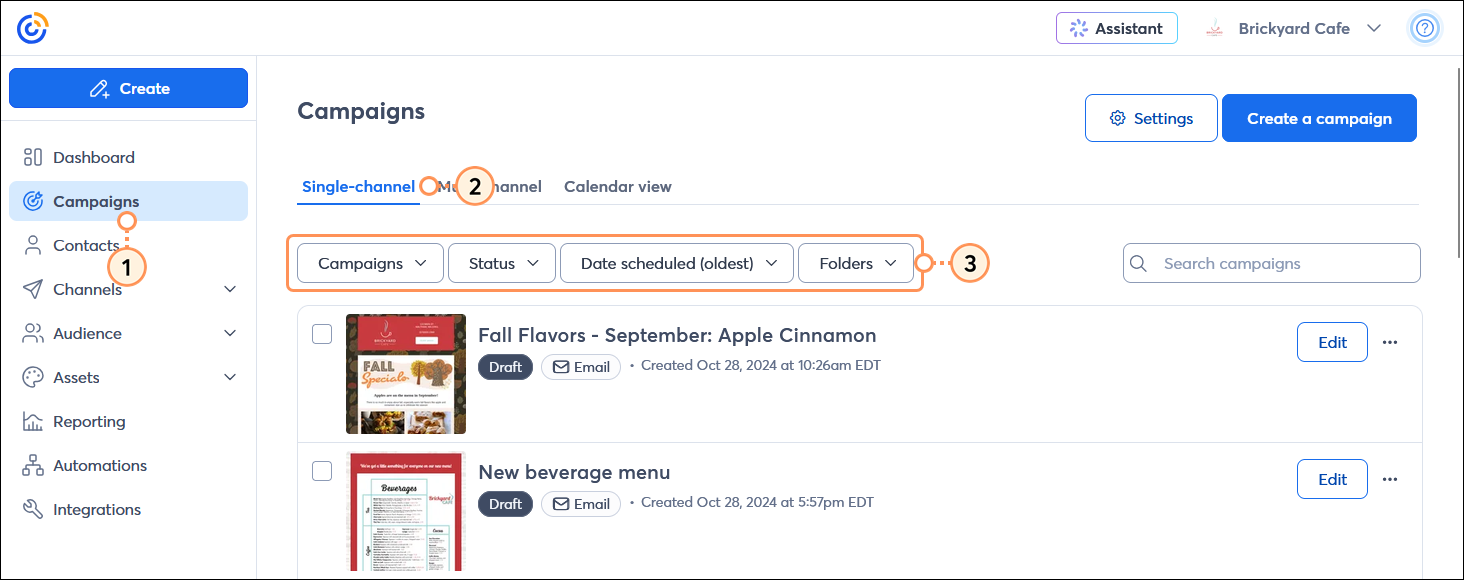
  1. From the menu on the left-hand side, click the Campaigns option.
  2. Click the Single-channel tab.
  3. (Optional) Use the filters to help narrow your search.

    Left-hand menu with Campaigns option selected, Campaigns page with List view tab selected, Campaigns, Status, Sort by, and Folders drop-down menus, and list of relevant campaigns

  4. To delete:
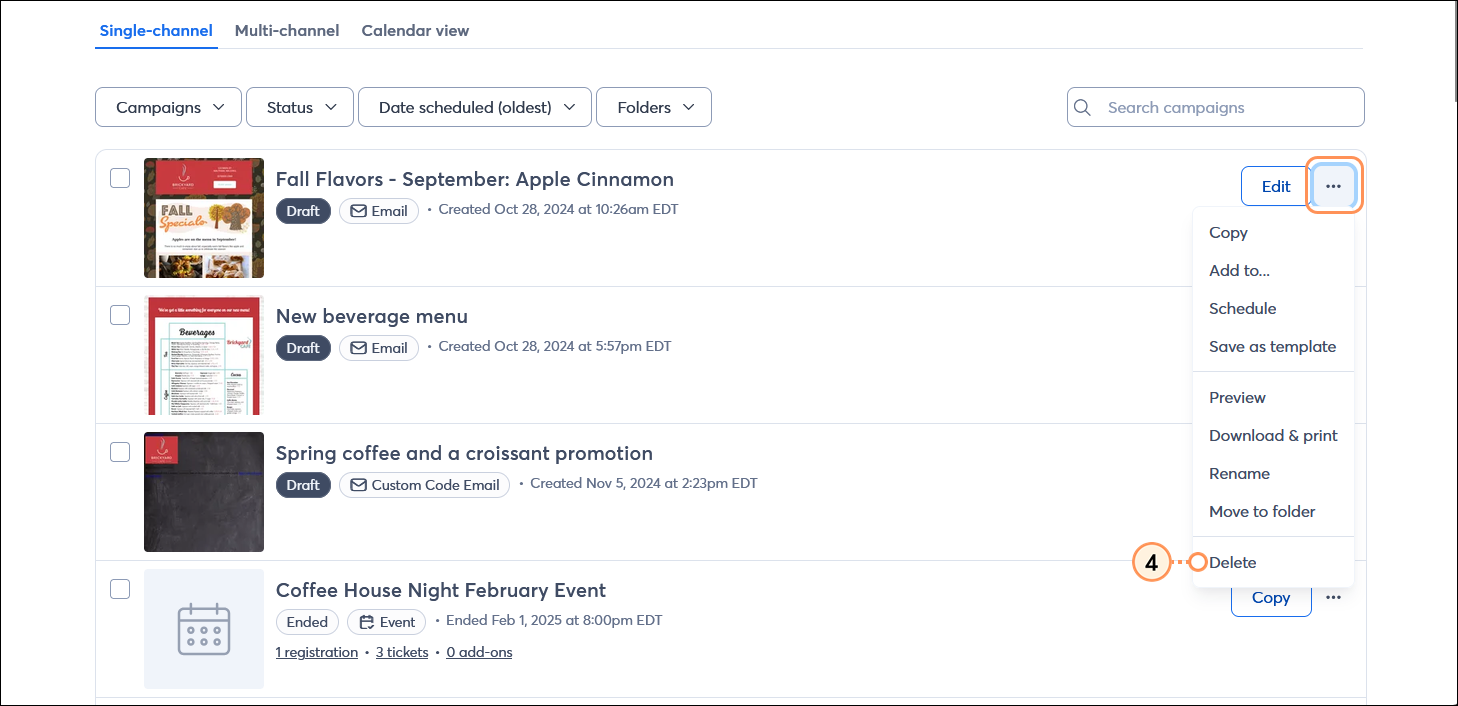
  • One campaign - Click the three dots next to the campaign and select the "Delete" option.

    Campaigns page with campaign menu expanded and Delete option selected

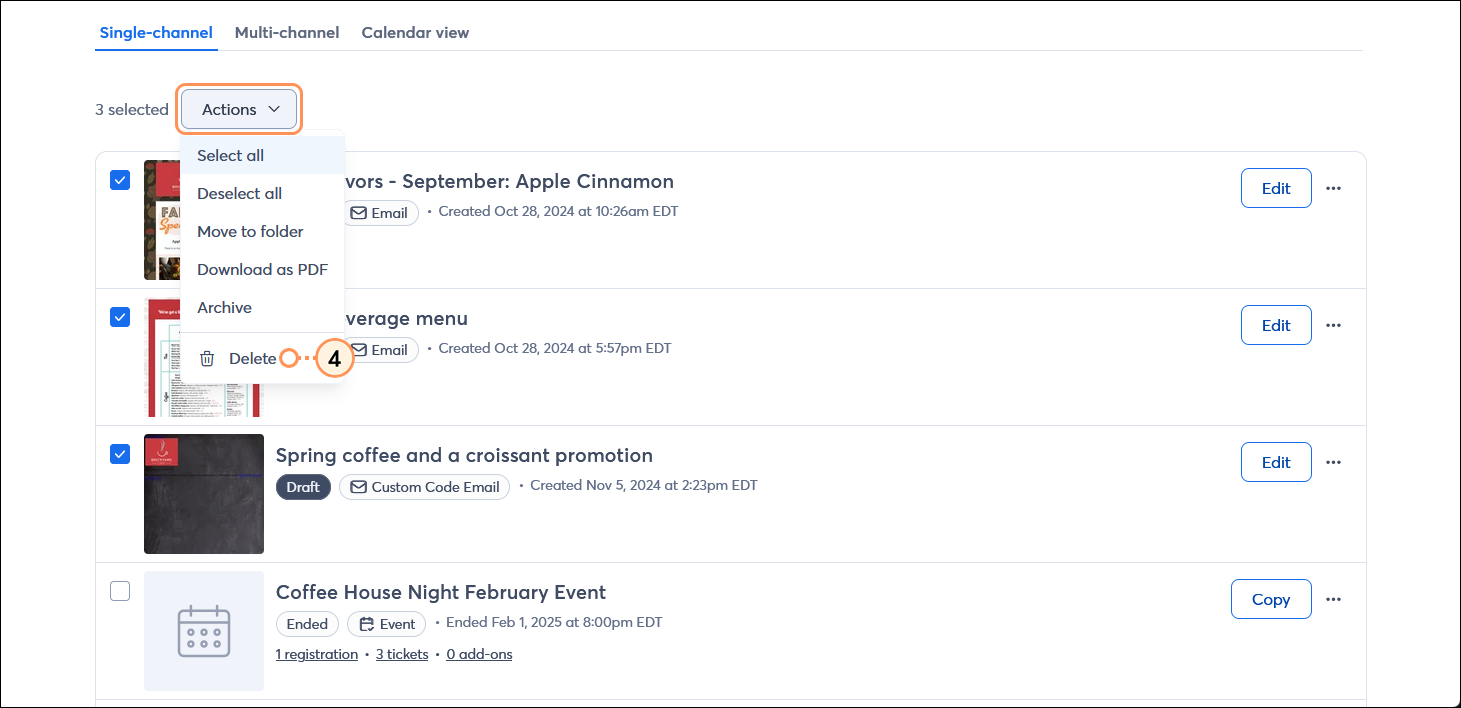
  • Multiple campaigns - Select the campaigns you want to complete, then click Actions > Delete.

    Campaigns page with multiple campaigns selected and Actions drop-down menu expanded with Delete option selected


Light Bulb IconDid you know? You can delete emails and social posts through the Constant Contact Mobile App, too.


Questions?

Ask the Community

Did this article answer your question?


Constant Contact Logo

Copyright © 2026 · All Rights Reserved · Constant Contact · Privacy Center