Email and Digital Marketing
How can we help you?
Search our help articles, video tutorials, and quickstart guides

You've got this. You've got us. Search our Knowledge Base to quickly find answers to your questions.

View and restore a deleted campaign

Article: 000005748
Updated: July 31, 2026

View a list of deleted campaigns and restore a campaign to copy it or change its filename

Deleting a campaign isn't permanent, and sometimes you need to restore a deleted campaign to continue editing it, copy it, access its reporting, change its filename, or fix a broken link. The process is very easy to do:
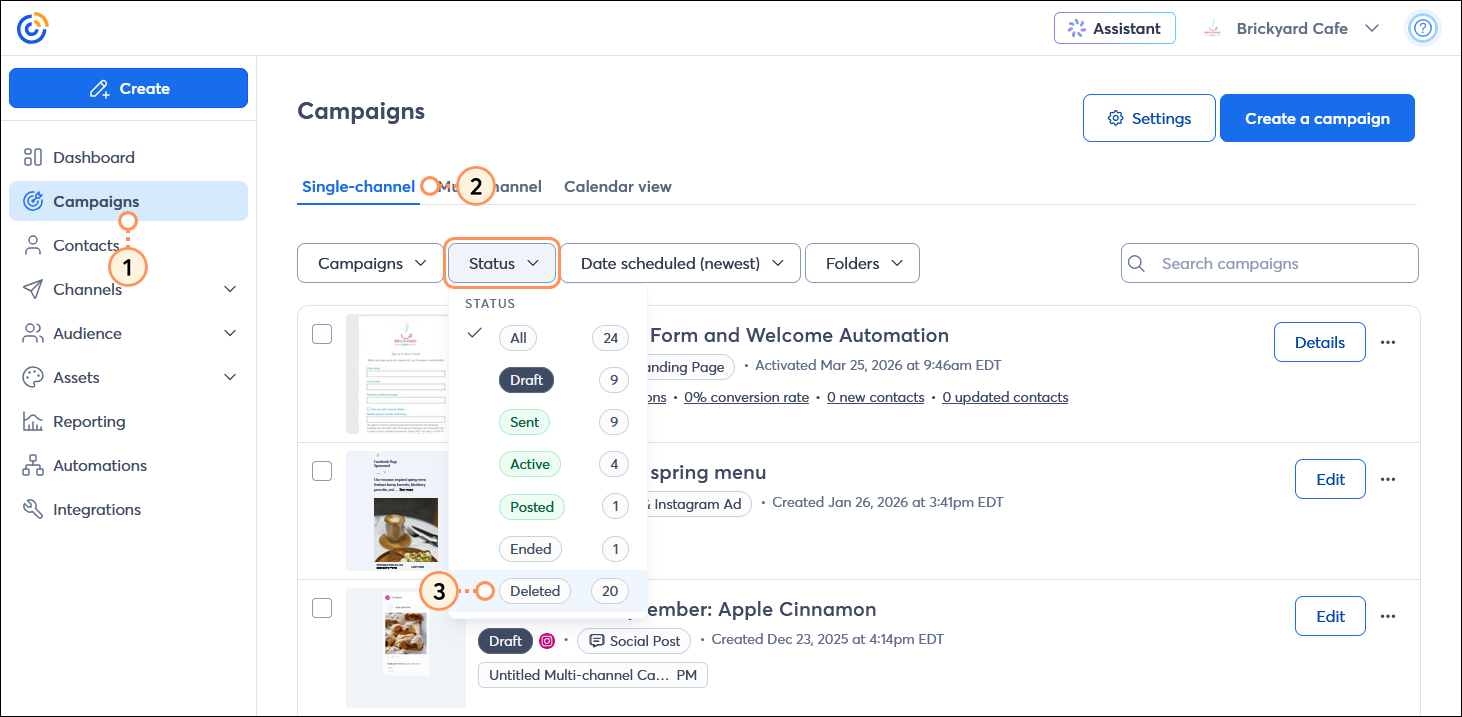
  1. From the menu on the left-hand side, click the Campaigns option.
  2. Click the Single-channel tab.
  3. Click Status > Deleted. You can also use the additional "Campaigns" and "Sort by" filters to narrow your search.

    Left-hand menu with Campaigns option selected, Campaigns page with Single-channel tab selected, Status drop-down menu expanded with Deleted option selected

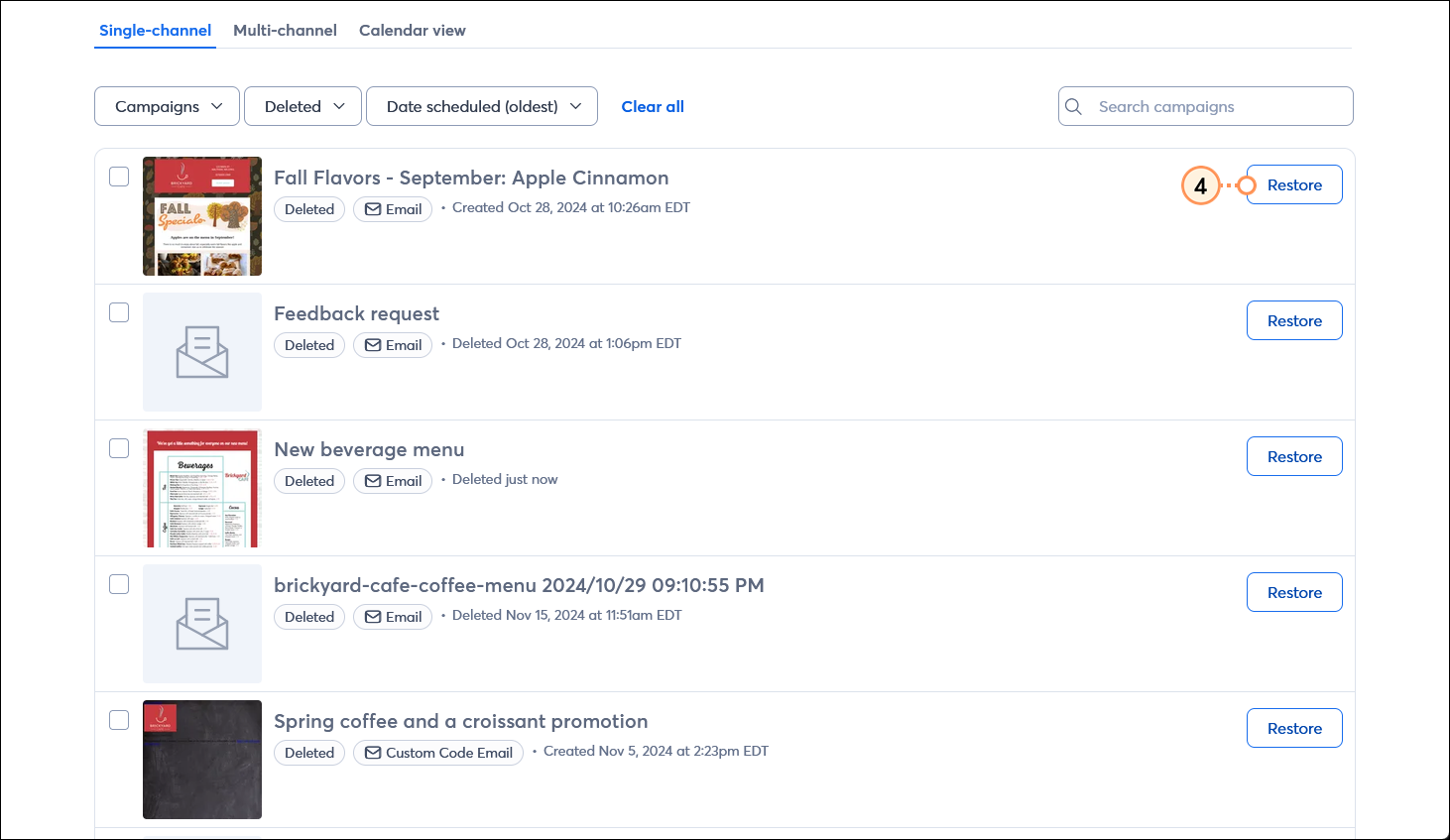
  4. Next to the campaign you want to restore, click the Restore button.

    Campaigns page with Single-channel tab selected, deleted campaign with Restore button

Restored campaigns can be treated like any other campaigns, and you can move them into a folder or delete them again, too.


Questions?

Ask the Community

Did this article answer your question?


Constant Contact Logo

Copyright © 2026 · All Rights Reserved · Constant Contact · Privacy Center