Email and Digital Marketing
How can we help you?
Search our help articles, video tutorials, and quickstart guides

You've got this. You've got us. Search our Knowledge Base to quickly find answers to your questions.

Import your Canva images into your Constant Contact Library

Article: 000045157
Updated: January 23, 2026

Save your Canva designs directly in your Constant Contact Library to insert in your campaigns later


If you create graphics in Canva, you can seamlessly access them right from Constant Contact, as well as create new designs to import into your Library for use later in your emails, social posts, and landing pages.


Light bulb iconTip: If you've created an email in Canva that you want to use in a Constant Contact email, export it from your Canva account, then import it into Constant Contact.

Import a Canva design into your Library

You can quickly connect your Canva account to Constant Contact, access your most recent designs, and select designs to import from the Library tab:
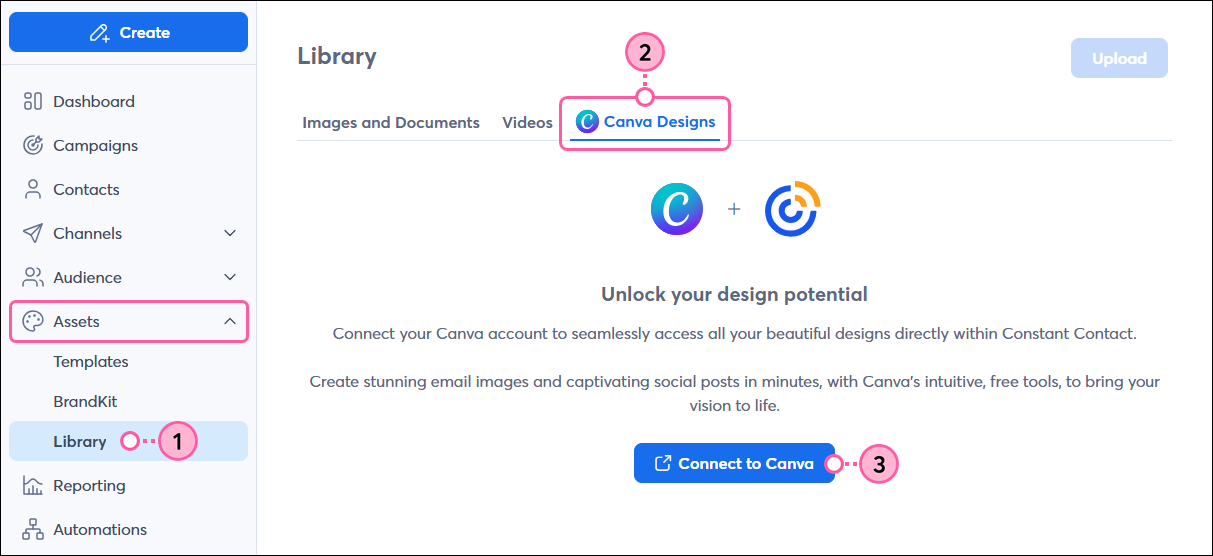
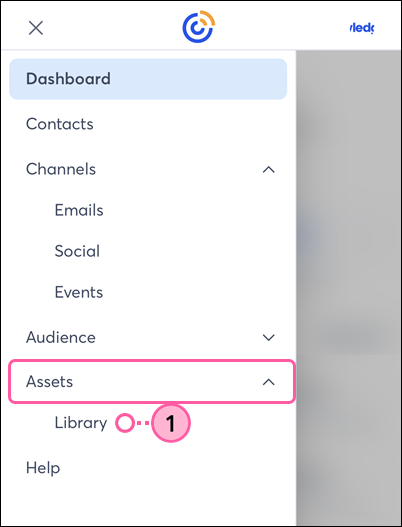
  1. Click Assets > Library.
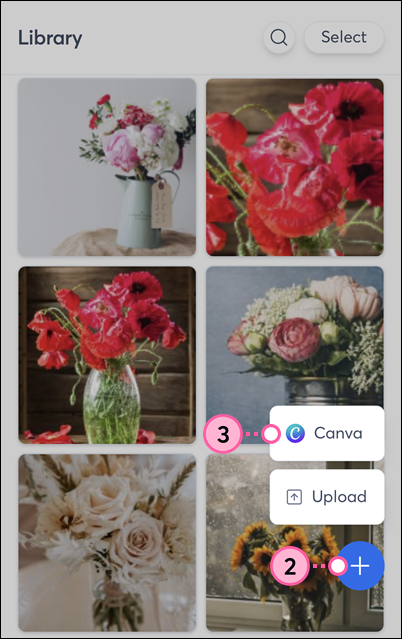
  2. Click the Canva Designs tab. 
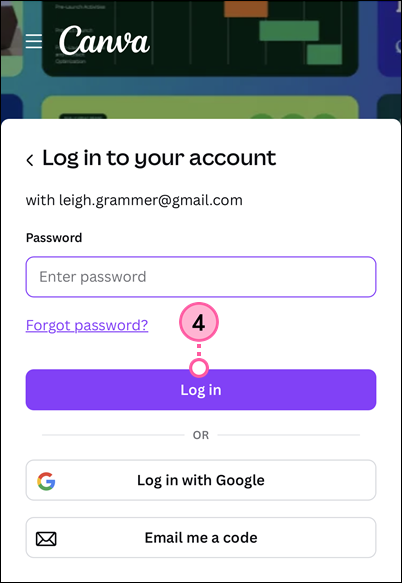
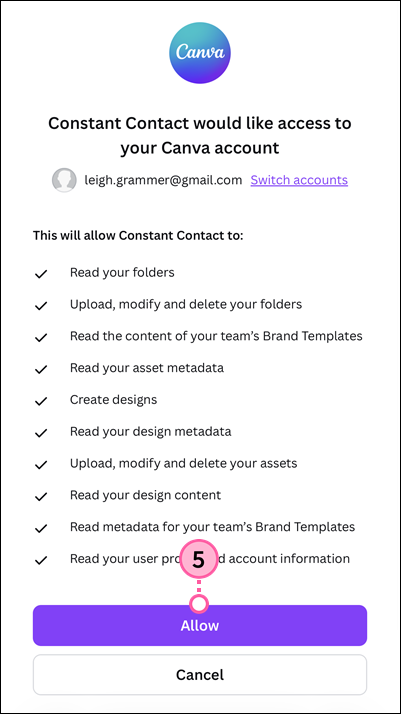
  3. If you haven't already connected your Canva account, click Connect to Canva to do so.

    Left navigation with Library tab selected, Canva Designs tab, and Connect to Canva button
     
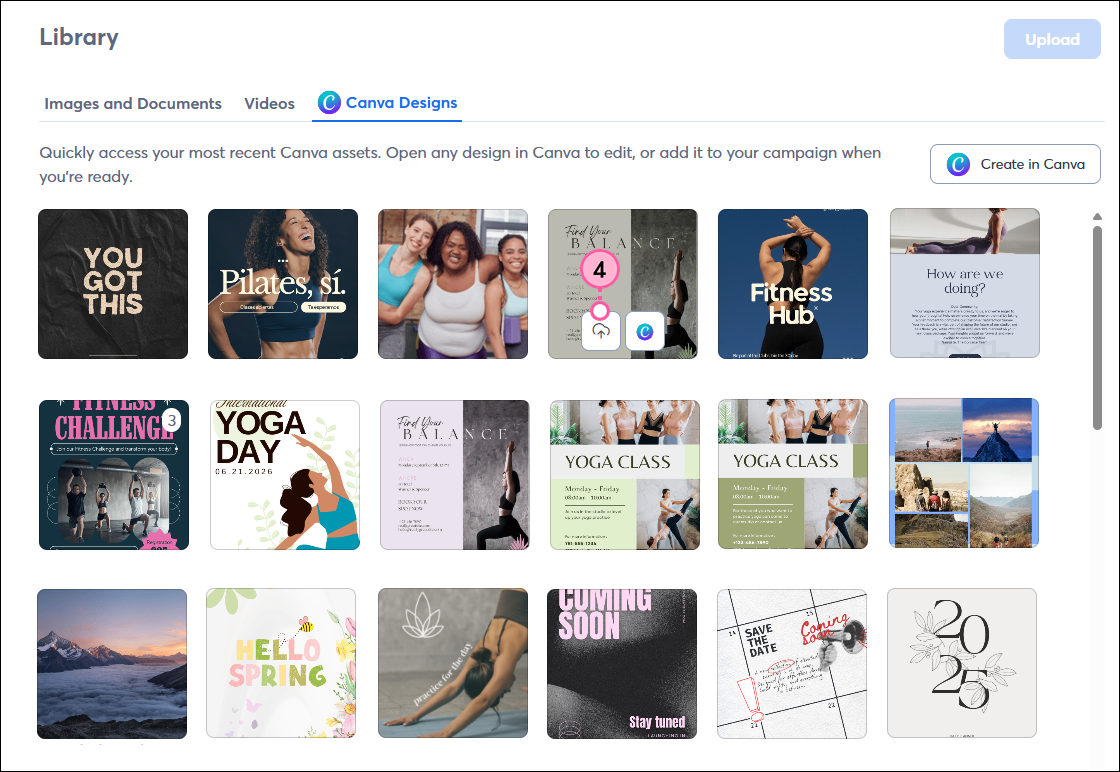
  4. Once connected, you’ll have access to your most recent Canva designs. Click on one to add it to your Constant Contact Library.

    Constant Contact Library, Canva Designs tab and assets to select
     
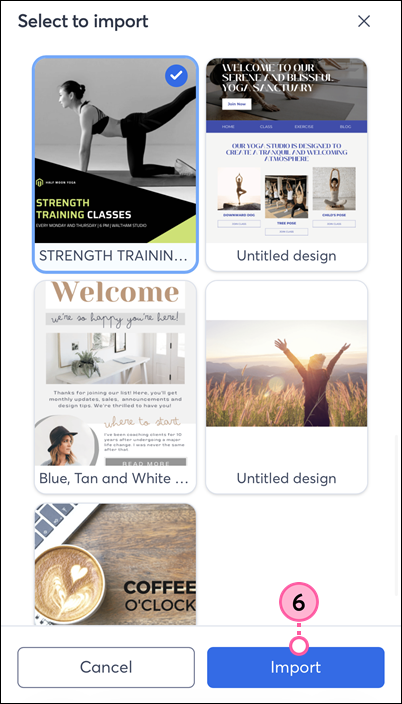
  5. Click Import.

    Canva design selected and Import button

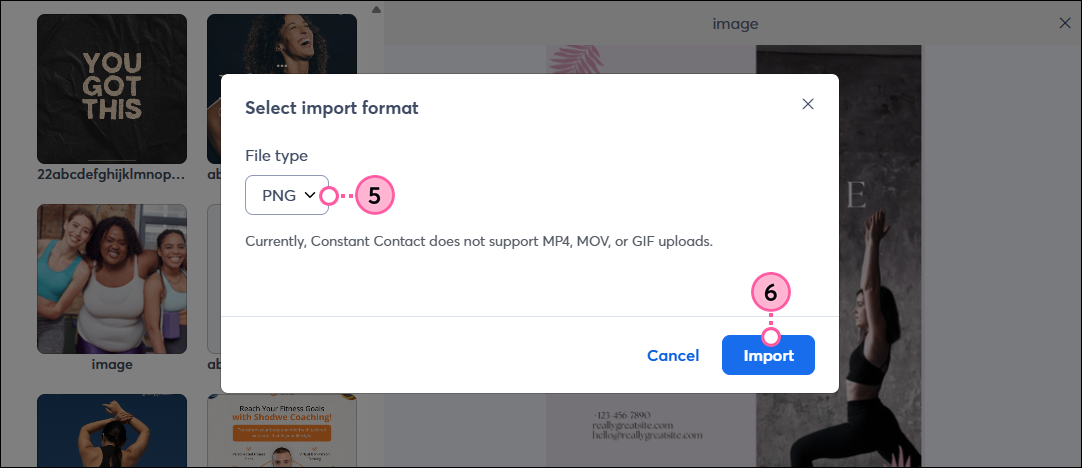
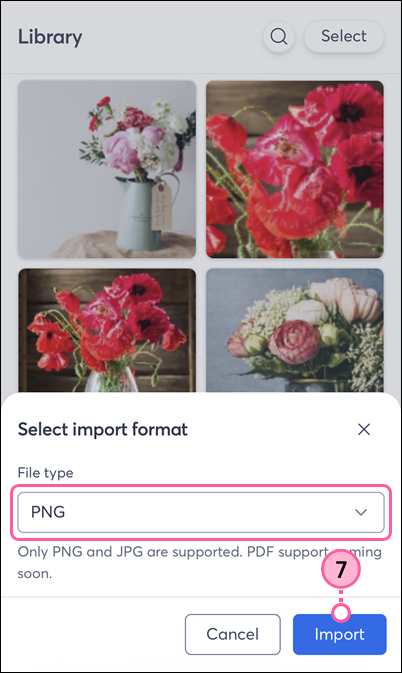
  6. From the drop-down, select the file type you want your design to be imported as—PNG, JPG, or PDF. 
  7. Click Import.

    Select Import Format pop-up with file type drop-down and Import button
     
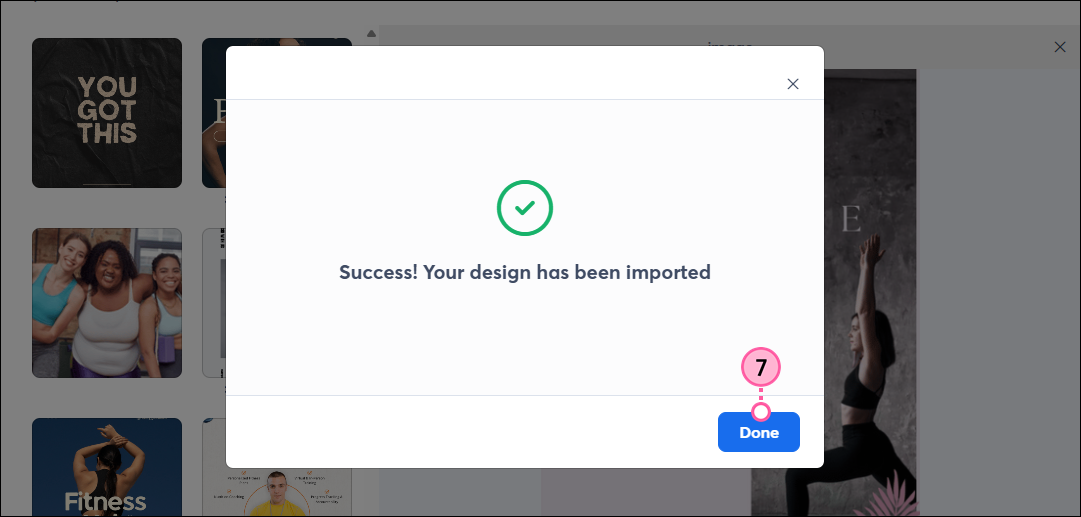
  8. Click Done.

    Canva design imported success message and Done button


Your design will be saved in your Constant Contact Library on the Images and Documents tab, where you can customize it further using our image editor or Canva, and it will be available to use in your campaigns.
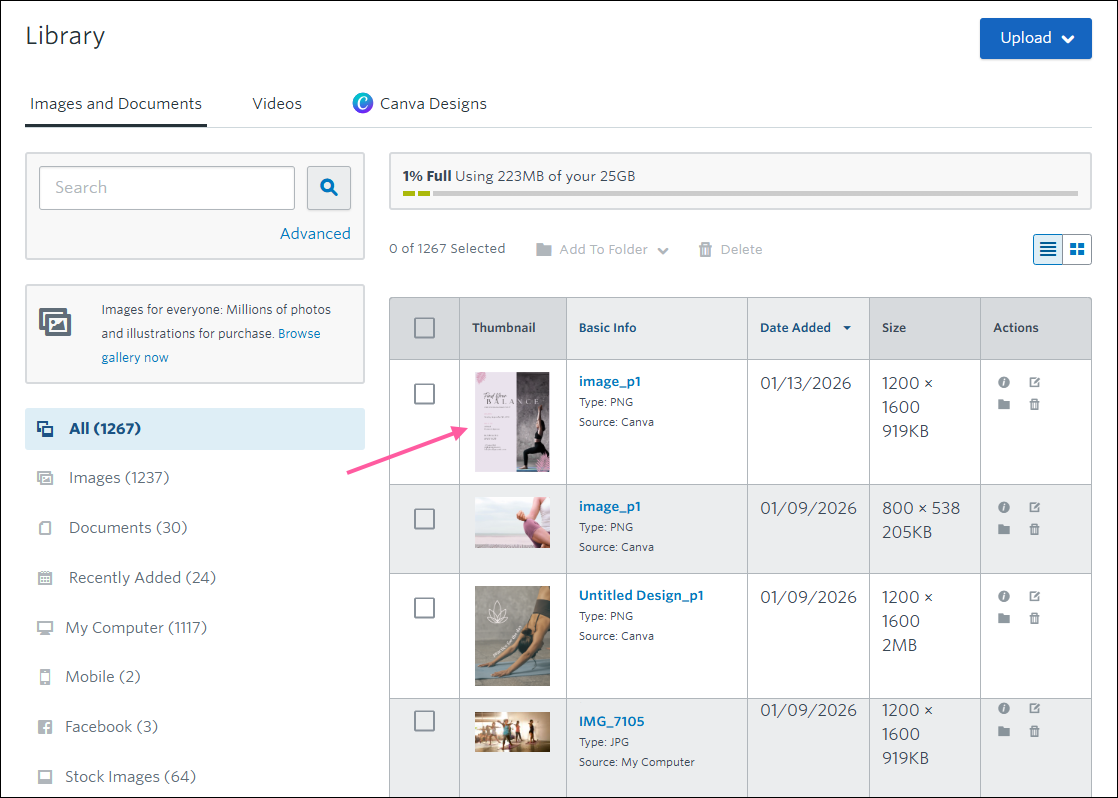

Constant Contact Library with Canva design saved on Images and Documents tab


Create a new design to import

You can also quickly access the Canva editor right from Constant Contact to create a new design and import it into your Library.
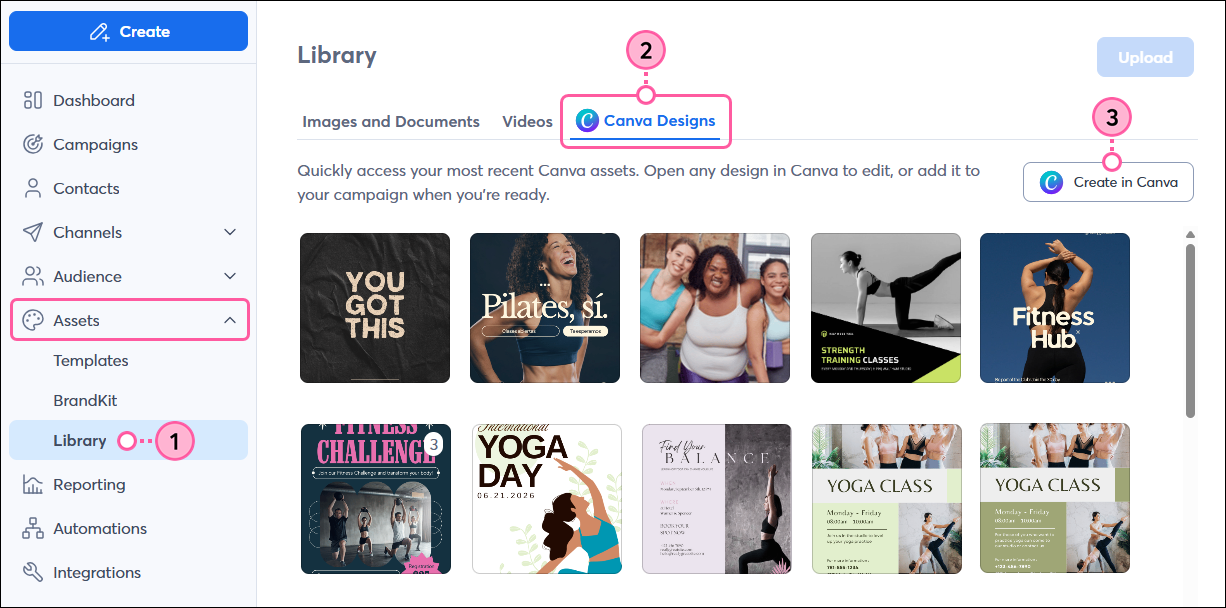
  1. Click Assets > Library.
  2. Click the Canva Designs tab.
  3. Click Create in Canva.

    Left navigation with Library tab selected, Canva Designs tab, and Create in Canva button

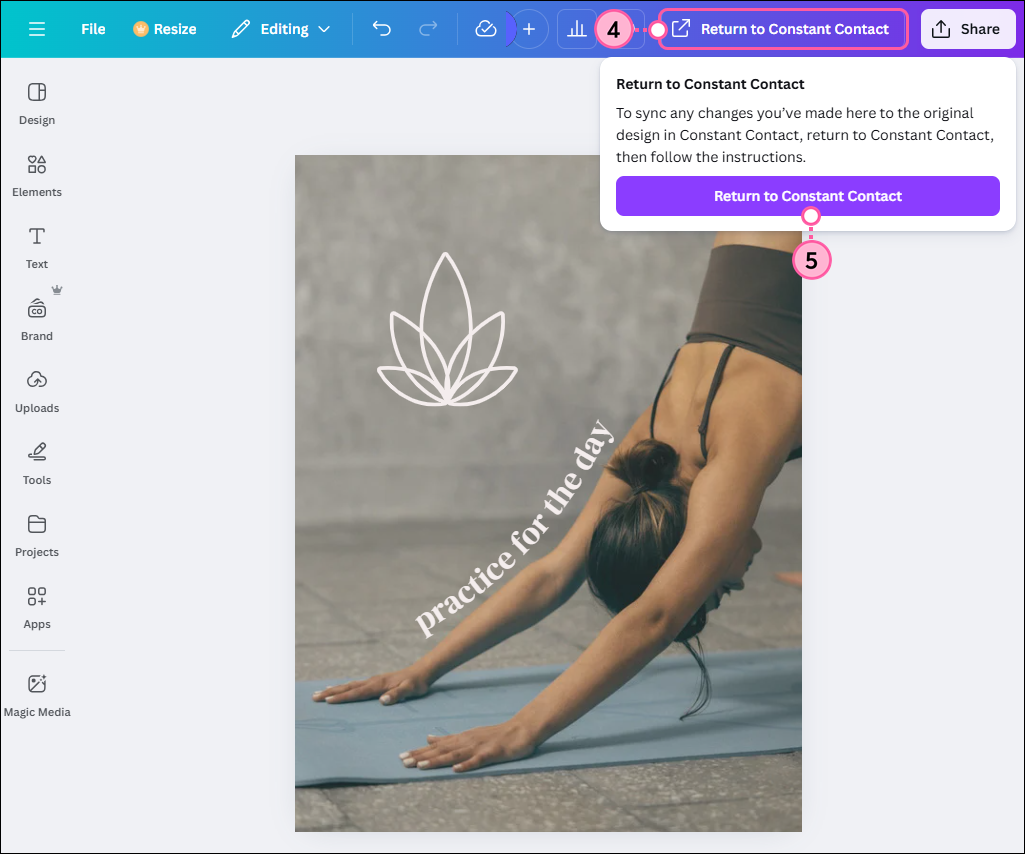
  4. Create your graphic, then click the Return to Constant Contact button in the upper-right when you’re done.
  5. Click Return to Constant Contact from the drop-down to import your design into your Constant Contact Library.

    Canva editor with design created, Return to Constant Contact button and drop-down

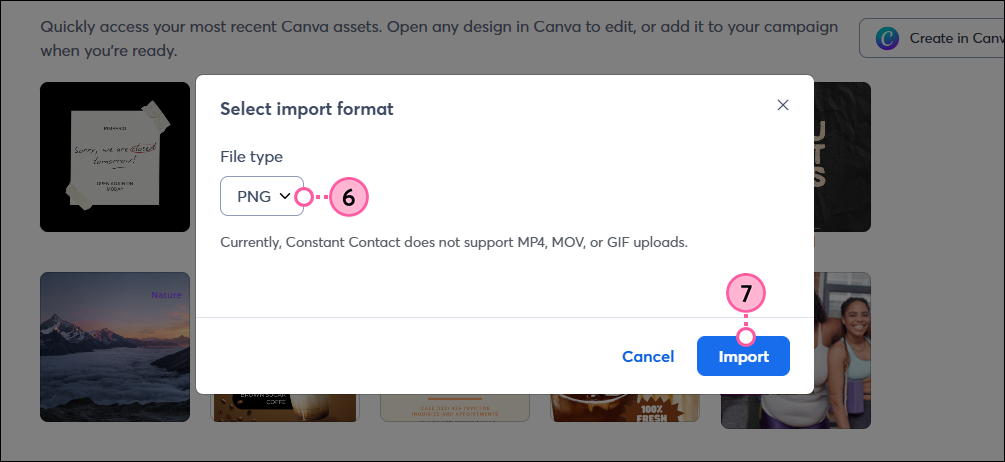
  6. From the drop-down, select the file type you want your design to be imported as—PNG, JPG, or PDF. 
  7. Click Import.

    Select Import Format pop-up with file type drop-down and Import button

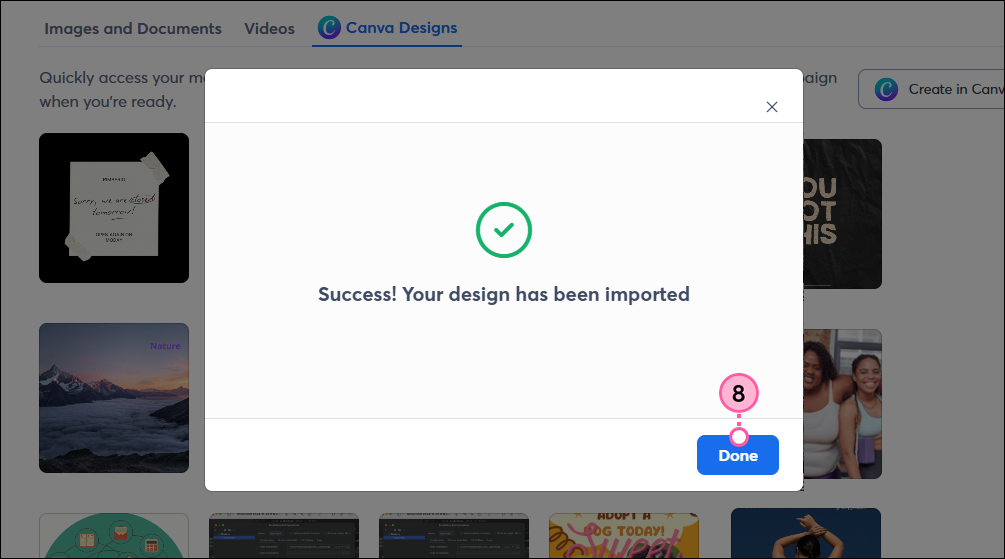
  8. Click Done.

    Canva design imported success message and Done button


Your design will be saved in your Constant Contact Library on the Images and Documents tab, where you can customize it further using our image editor or Canva, and it will be available to use in your campaigns.
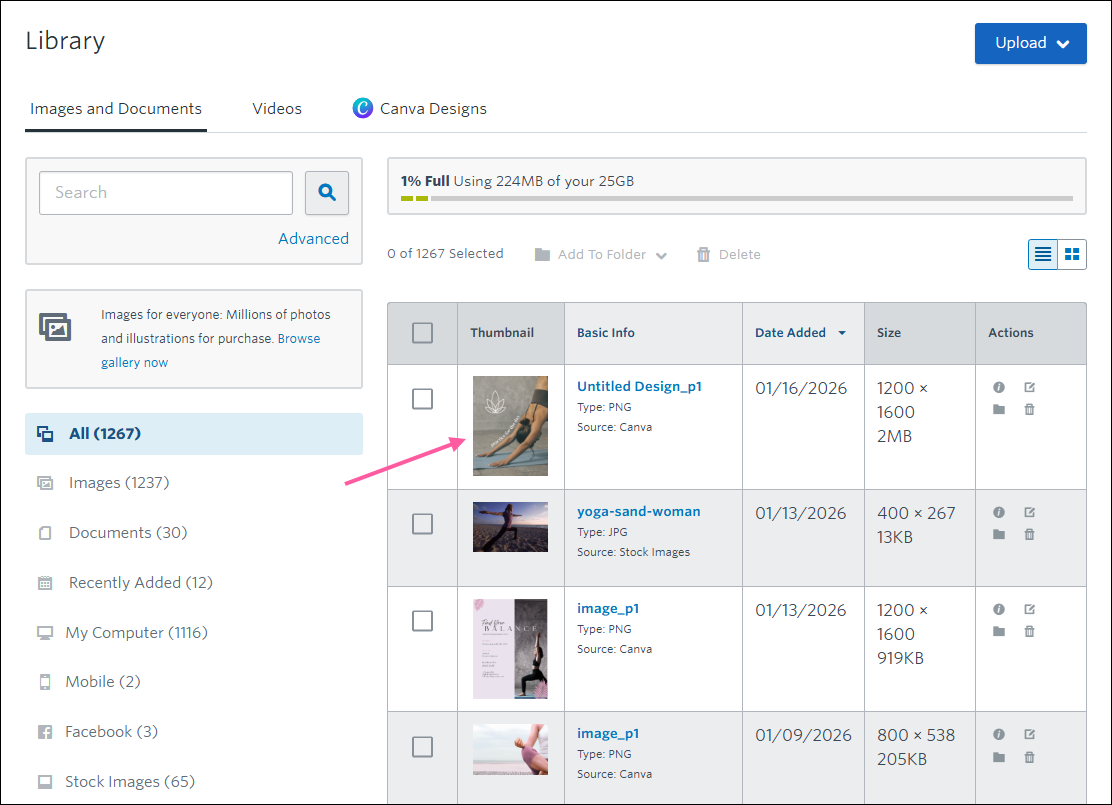

Constant Contact Library with Canva design saved on Images and Documents tab


Questions?

Ask the Community

Did this article answer your question?


Constant Contact Logo

Copyright © 2026 · All Rights Reserved · Constant Contact · Privacy Center