Email and Digital Marketing
How can we help you?
Search our help articles, video tutorials, and quickstart guides

You've got this. You've got us. Search our Knowledge Base to quickly find answers to your questions.

Send a Canva-designed email with Constant Contact

Article: 000055175
Updated: April 16, 2026

Use an email you created in Canva to send to your contacts

If you use Canva to create graphics and emails, you can now design a full email in Canva and then export it to your Constant Contact account to send it to your contacts! Your design is imported as an HTML email, ensuring the layout, formatting, and images remain intact. Once sent, you’ll be able to track the reporting like you would any other email created and sent from Constant Contact.


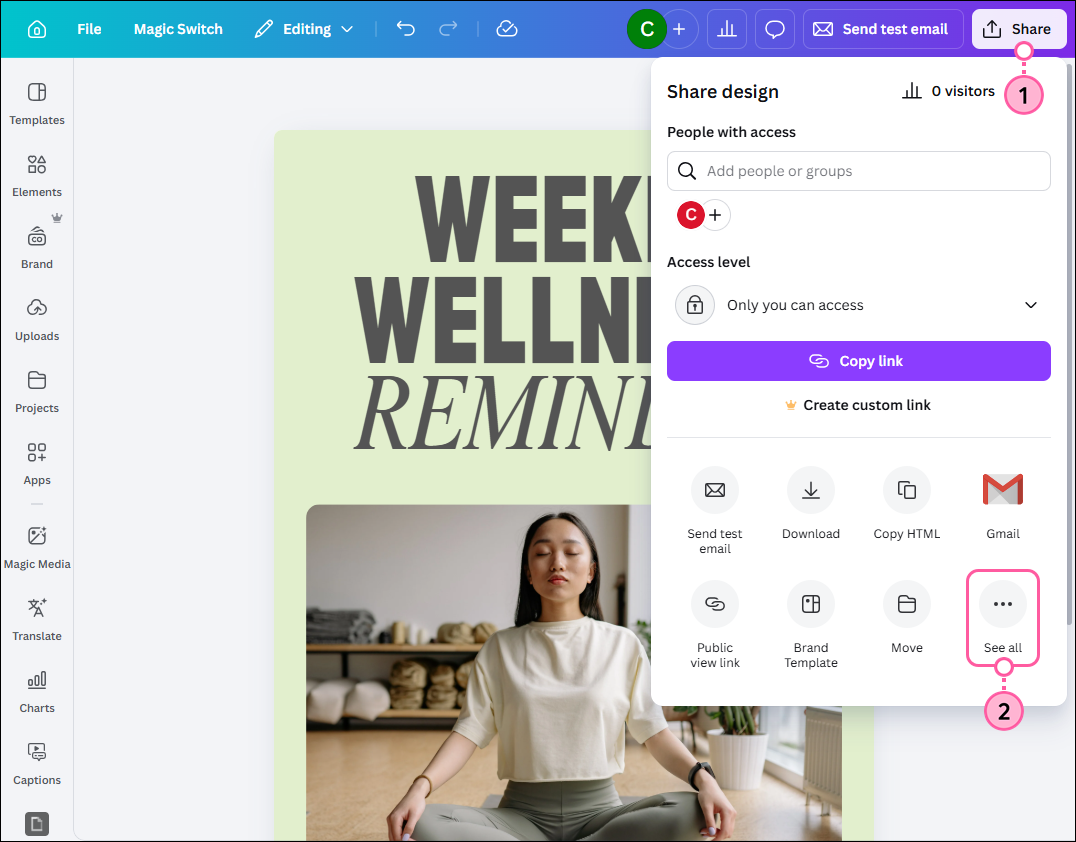
  1. When you’re finished designing your email in Canva, click Share.
  2. From the drop-down, click See all.

    Canva editor with email designed, Share button, and See All option in drop-down

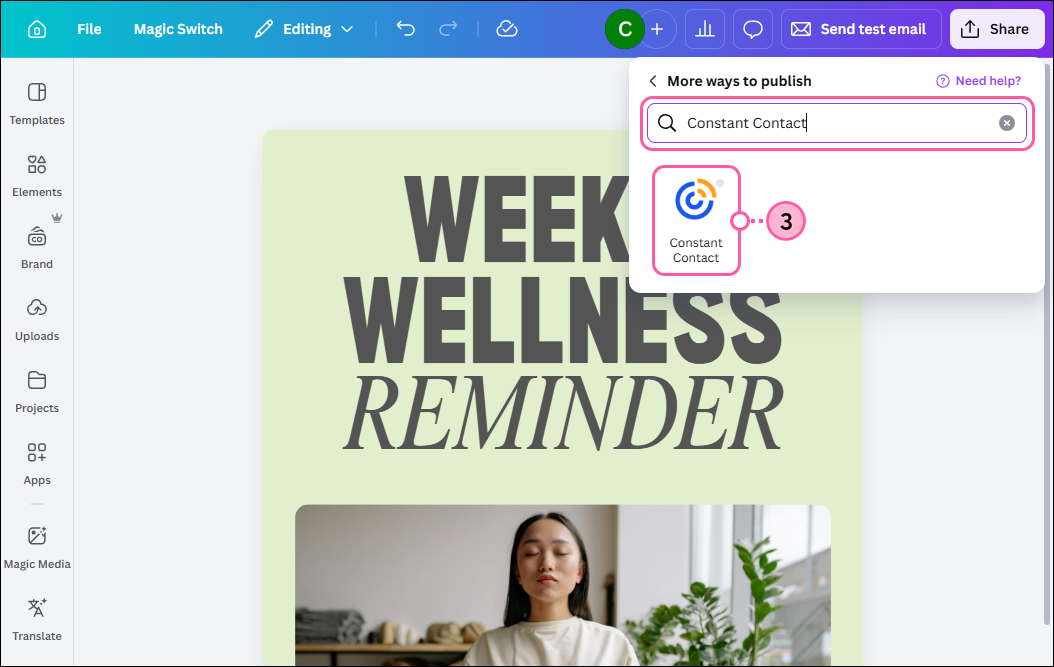
  3. Search for “Constant Contact” and then select the Constant Contact app.

    Share drop-down with search field and Constant Contact app selected

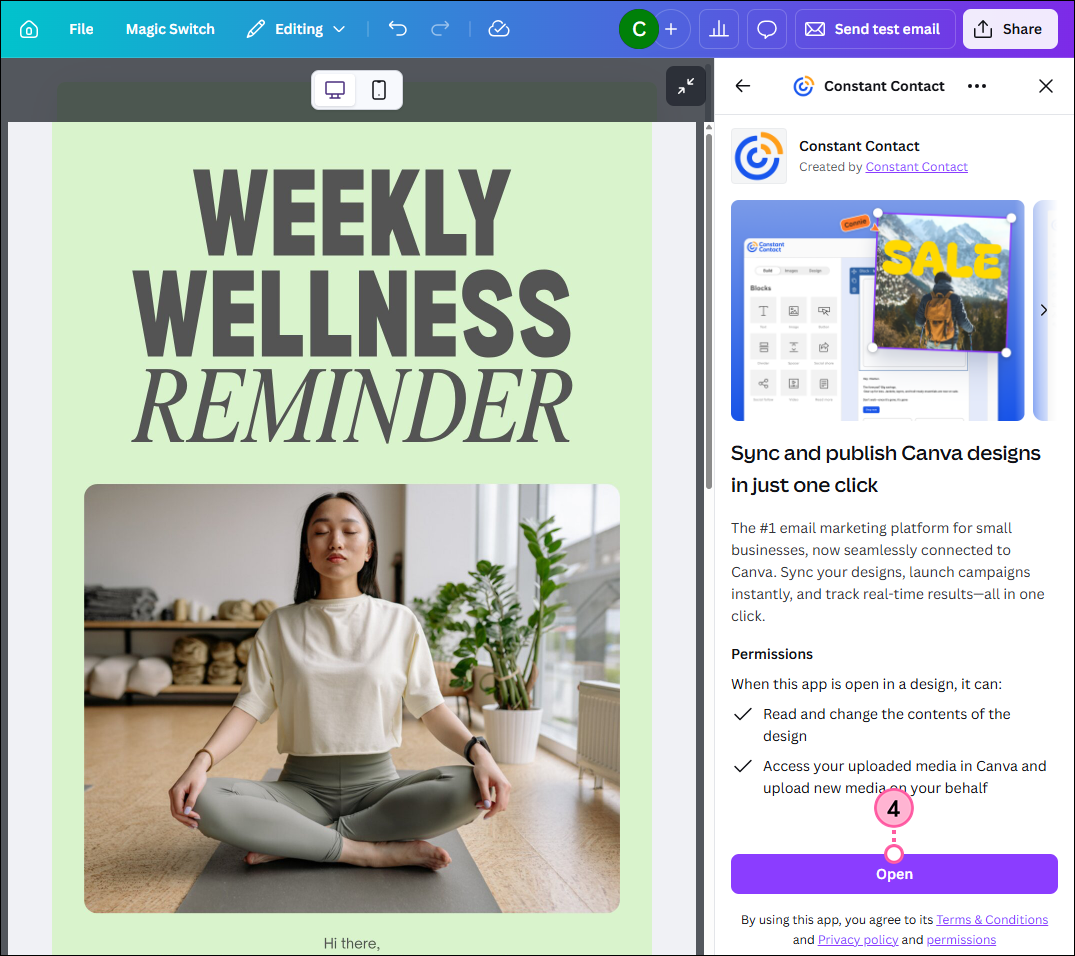
  4. Click Open.

    Constant Contact app info with Open button

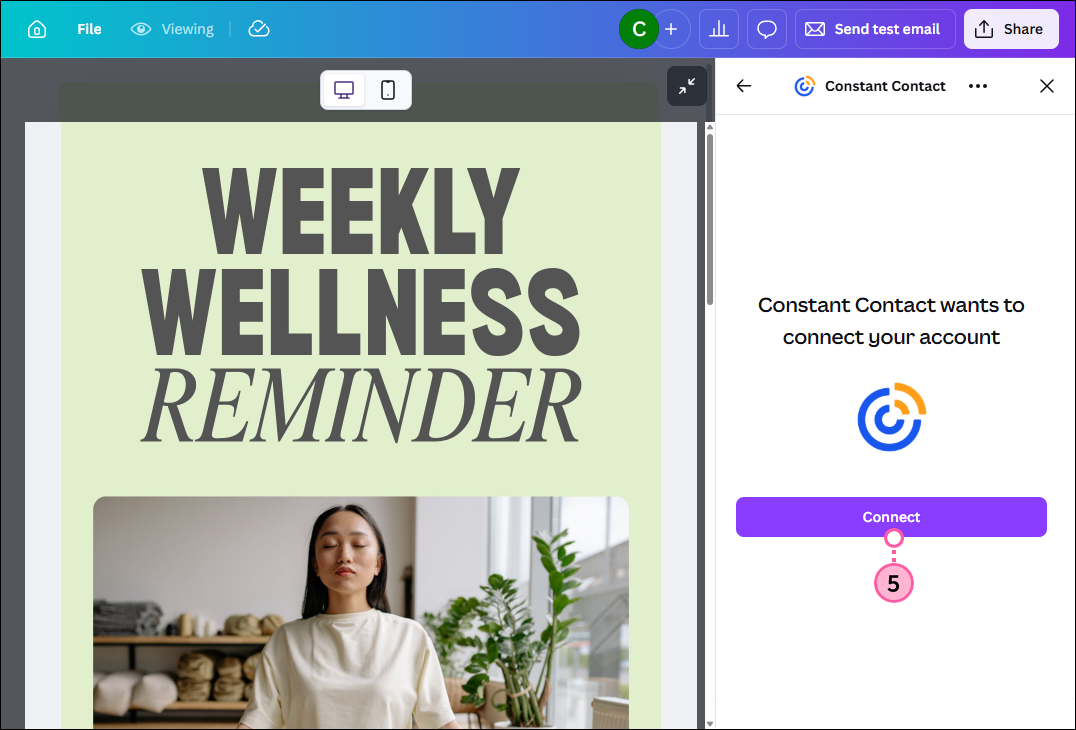
  5. Click Connect.

    Constant Contact app Connect button

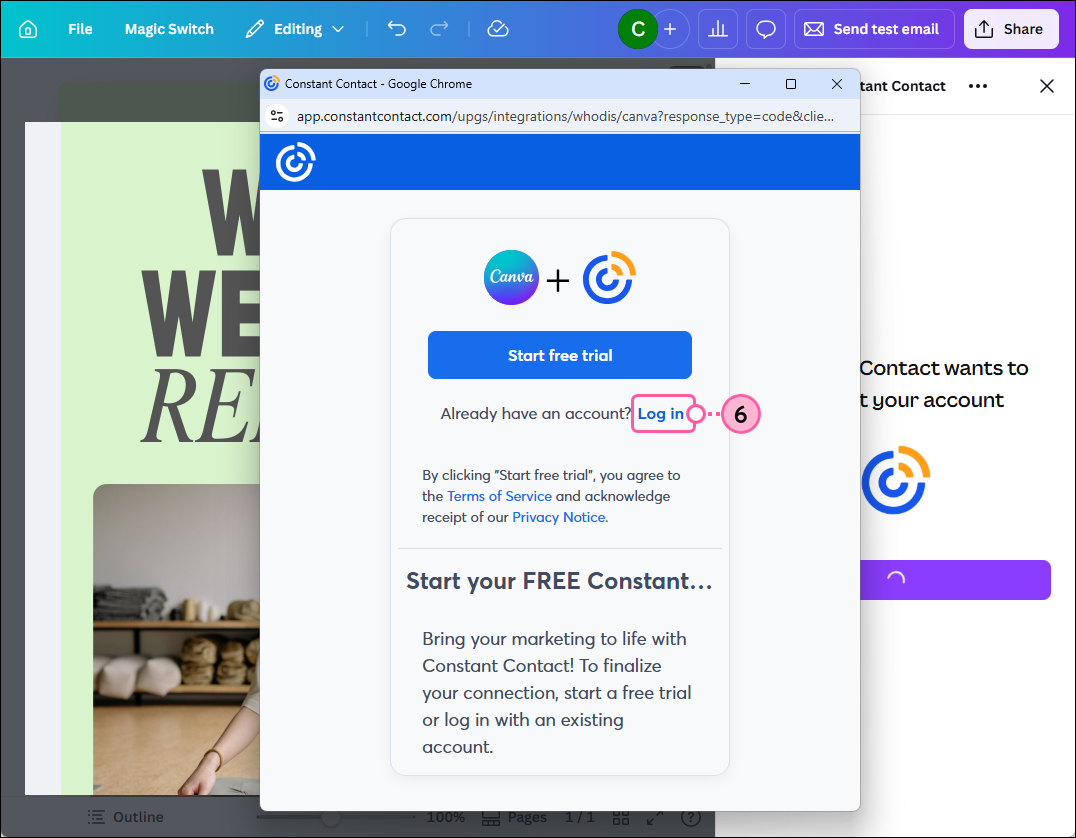
  6. Click Log in.

    Connect Constant Contact to Canva with Log in link

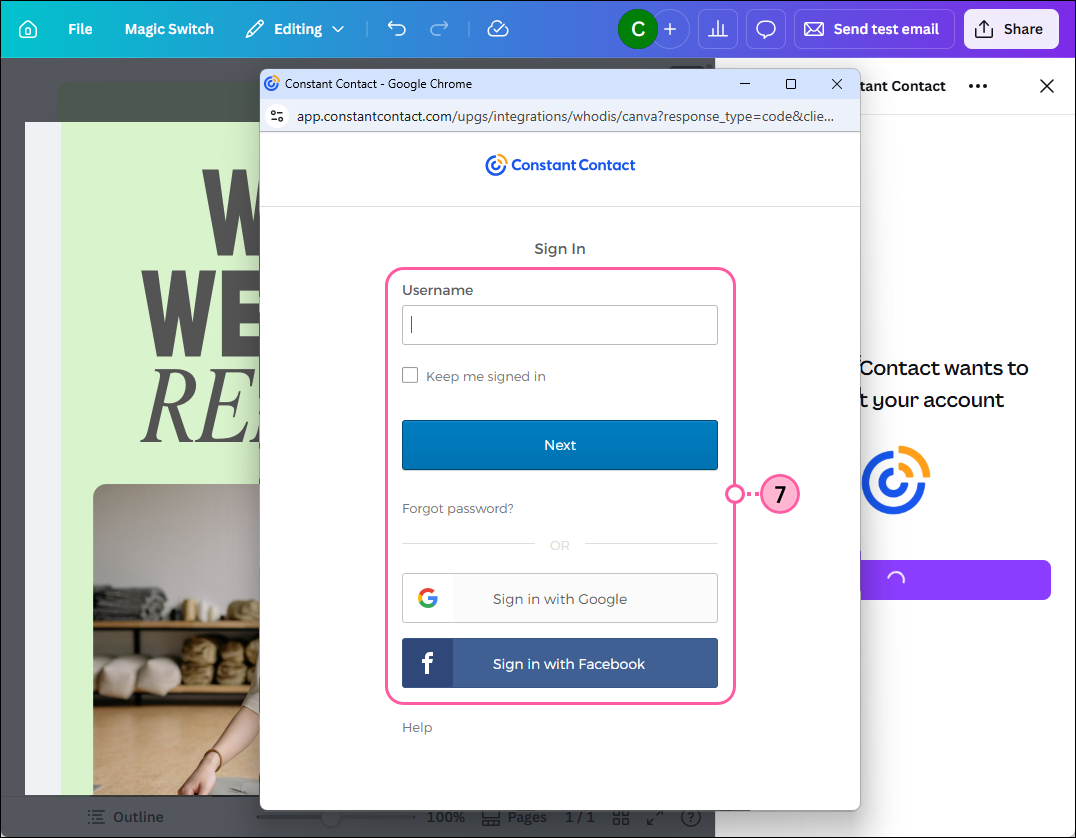
  7. Log in to your Constant Contact account.

    Constant Contact login screen

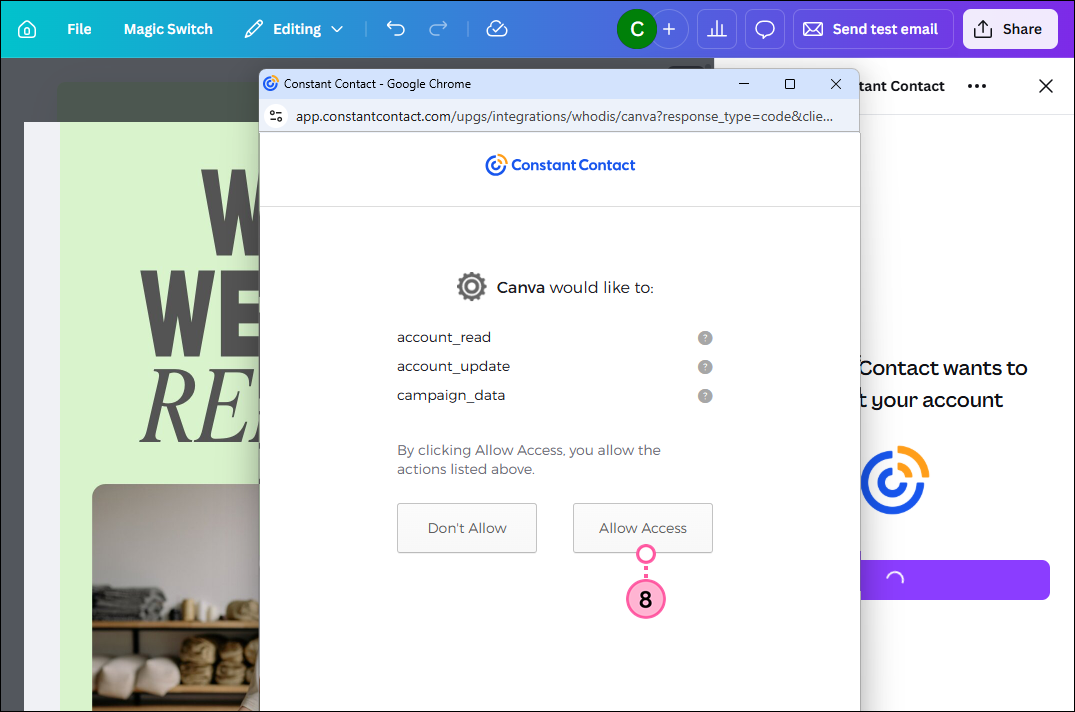
  8. Click Allow Access to grant Constant Contact permission to access your Canva account.

    Allow Access button

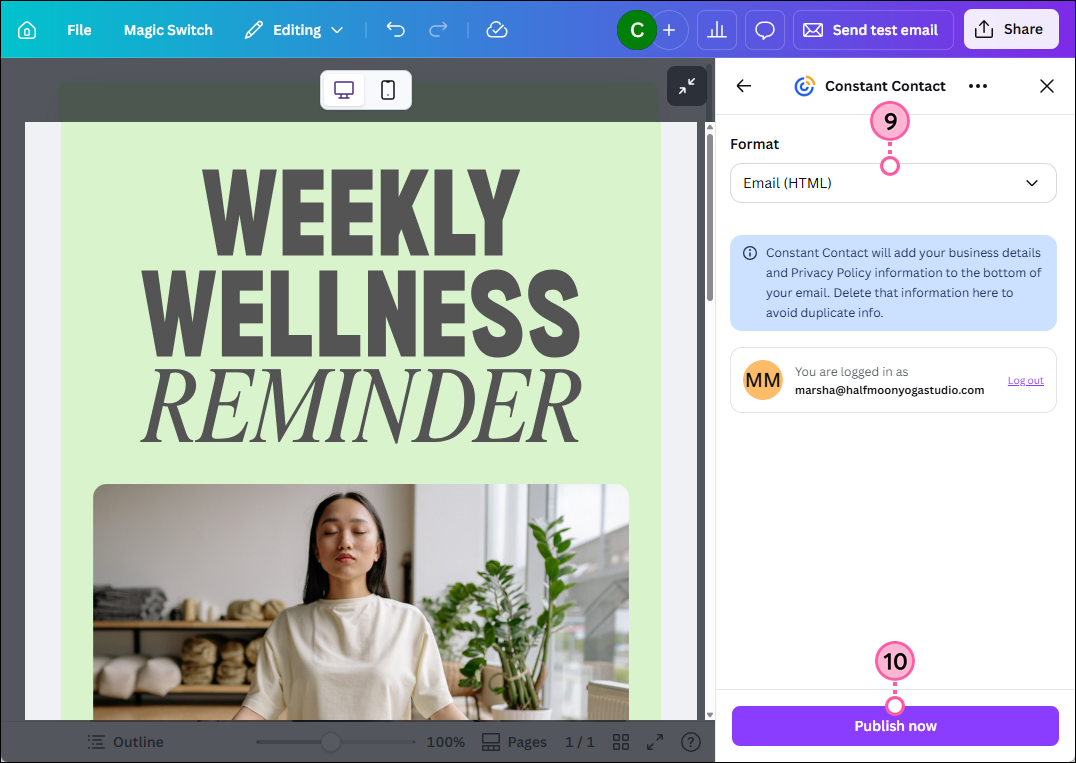
  9. Click Publish now. Your email design will be saved to your Constant Contact account as an HTML email. 
    Note: If you make any edits to your design in Canva after publishing it to Constant Contact, you’ll need to publish the email again to save the updated version as a new email draft.

    Publish Now button

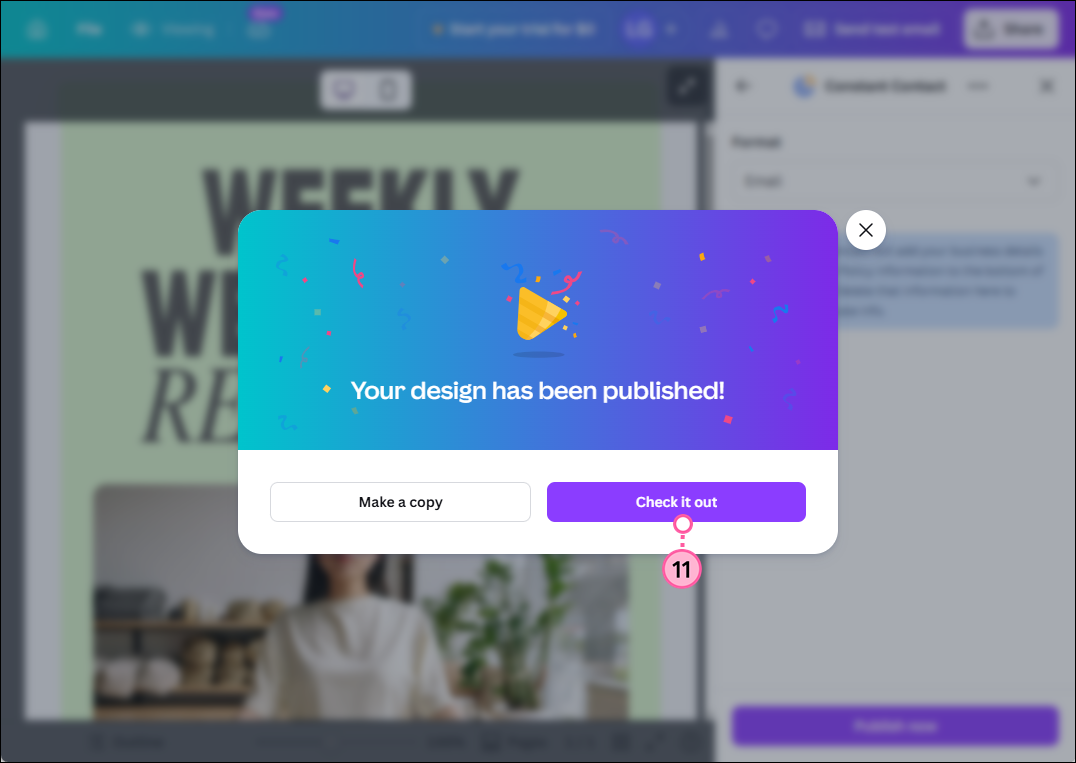
  10. Click Check it out to schedule your email.

    Design published success message and Check it Out button

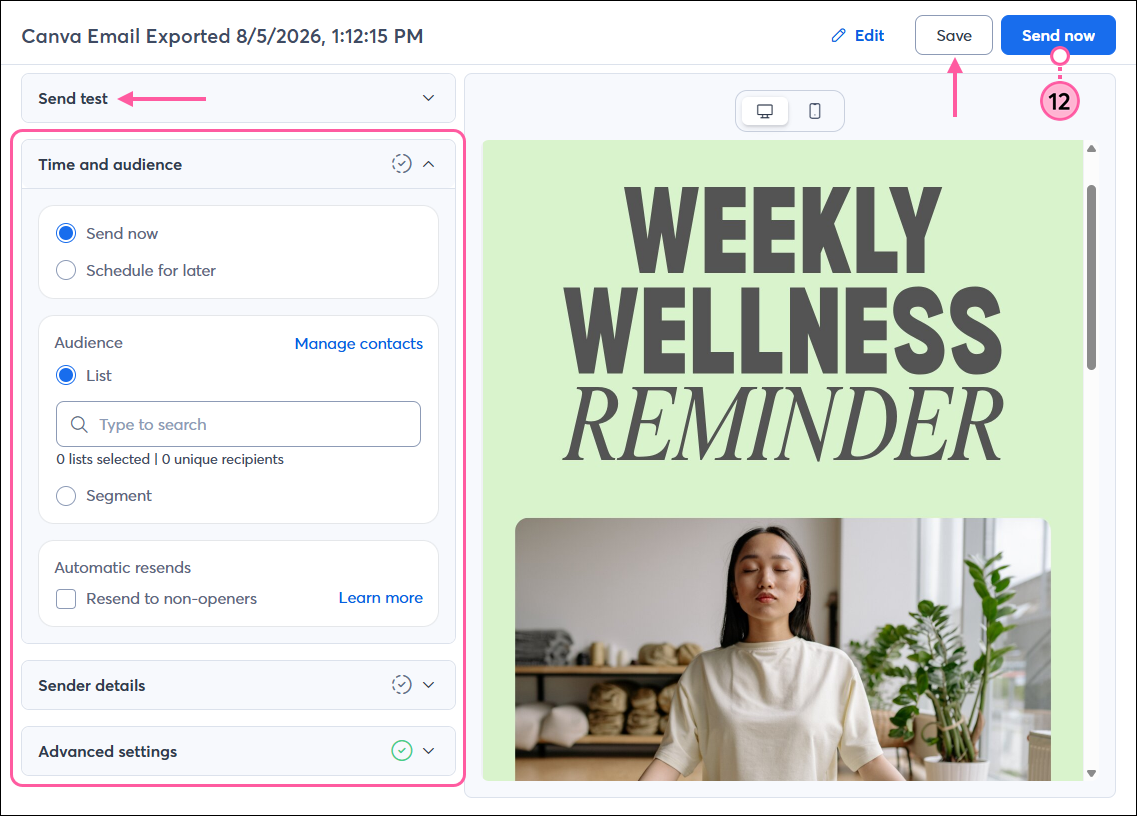
  11. Choose when you want to send your email, select the contact lists or segment you want to send to, update your subject line and preheader, and confirm your “From” name and email address. Then click Schedule or Send now. If you’re not ready to schedule yet, you can click Save as draft
    Tip: Be sure to send a test version of your email before sending it to your contacts to make sure it looks how you want.

    Email schedule page with Send Now button


Your email will be saved to your Campaigns list. If you’re comfortable working with HTML, you can edit the email further using our custom code editor before sending to your contacts. Once sent, you’ll be able to track the reporting from your Constant Contact account like any other email.
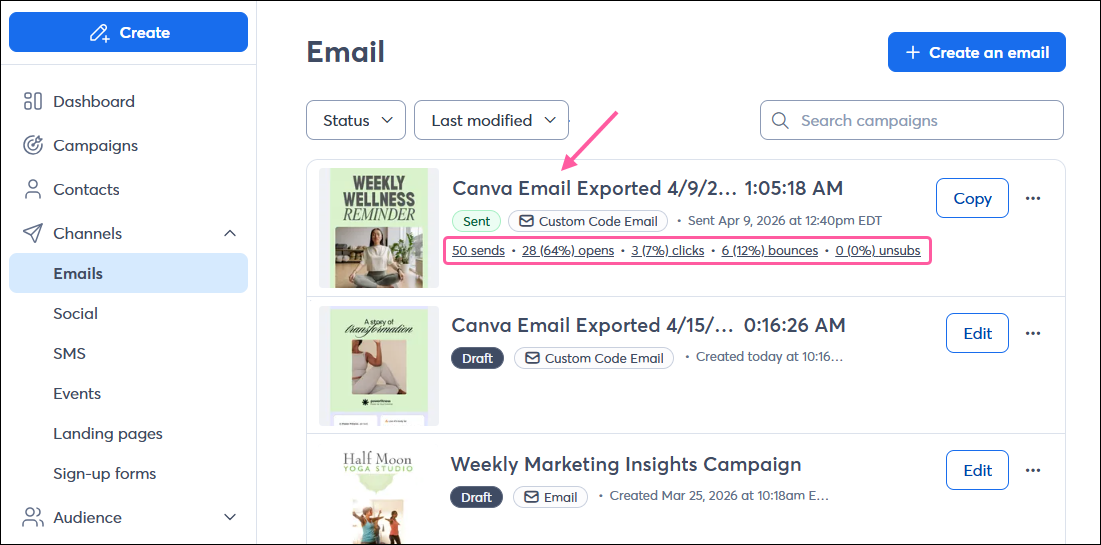
Emails page with sent Canva email and reporting stats


Questions?

Ask the Community

Did this article answer your question?


Constant Contact Logo

Copyright © 2026 · All Rights Reserved · Constant Contact · Privacy Center