Email and Digital Marketing
How can we help you?
Search our help articles, video tutorials, and quickstart guides

You've got this. You've got us. Search our Knowledge Base to quickly find answers to your questions.

Copy a list or segment

Article: 000032811
Updated: June 3, 2026

Create a new contact list by copying the contacts from an existing list, or create a new segment by copying the criteria from an existing segment

Copying saves you time! If you want to use an existing list or segment as a jumping-off point for creating a new one, it's easy to make a copy and then make further customizations to it. When a list is copied, all of the contacts on the original list are included on the new list. When a segment is copied, the original criteria are included in the new segment, but contacts aren't added until the segment is saved, and the contacts who meet the criteria are pulled in.
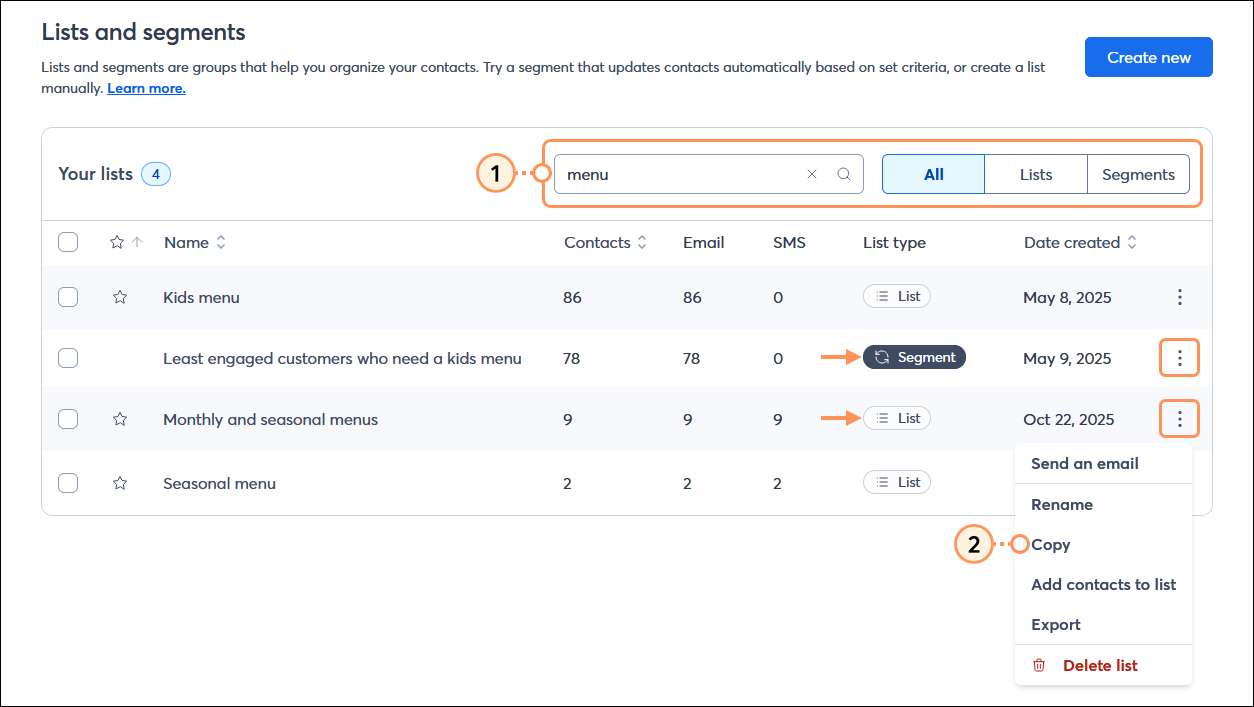
  1. From the Audience > Lists and segments page, enter the name of the list or segment you want to copy into the Search field.
    Tip: If you have a large number of lists and segments, further narrow your search by selecting either Lists or Segments next to the Search field.
  2. Click the three dots next to the list or segment to expand the menu and select the "Copy" option.

    Lists and segments page with List type menu expanded and All list types option selected, and Search field with search term entered

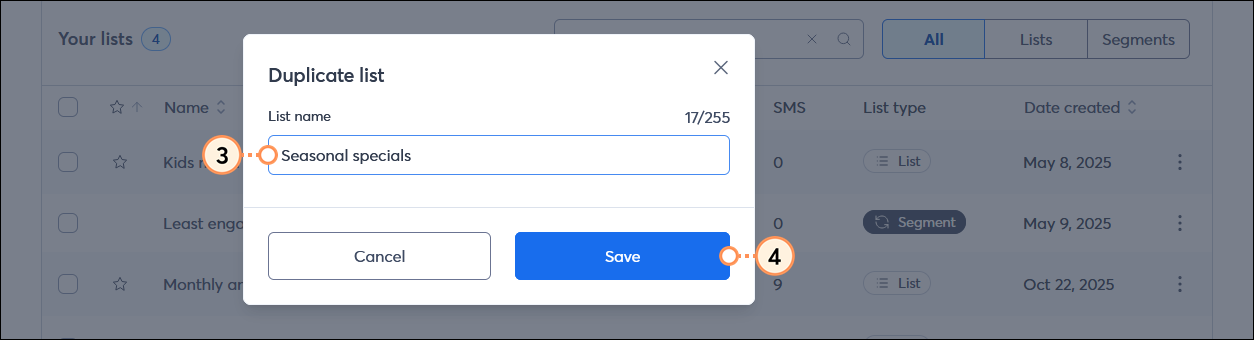
  3. From the Duplicate list or Duplicate segment overlay, enter a unique name for your list or segment. The new name can have up to 255 characters. No two lists or segments can share the same name, but a list and a segment can use the same name.
    Note: By default, the original name of your list or segment is included with the word "Copy" added to the end to help you move quickly; lists and segments can be renamed at any time after they're created.
  4. Click the Save button.

    Duplicate segment overlay with Segment name field and original segment name with Copy at the end, and Save button

Once your list or segment is copied, you can add more contacts to your list or edit the criteria for your segment to make it unique from the original.


Questions?

Ask the Community

Did this article answer your question?


Constant Contact Logo

Copyright © 2026 · All Rights Reserved · Constant Contact · Privacy Center