Once you've created a segment you can always edit it so that you're capturing just the right amount of contacts. Complex filter combinations work better if you have a large number of contacts in your account. When you have a smaller contact list, keep your filters simple so you don't end up filtering your segment down to zero contacts.
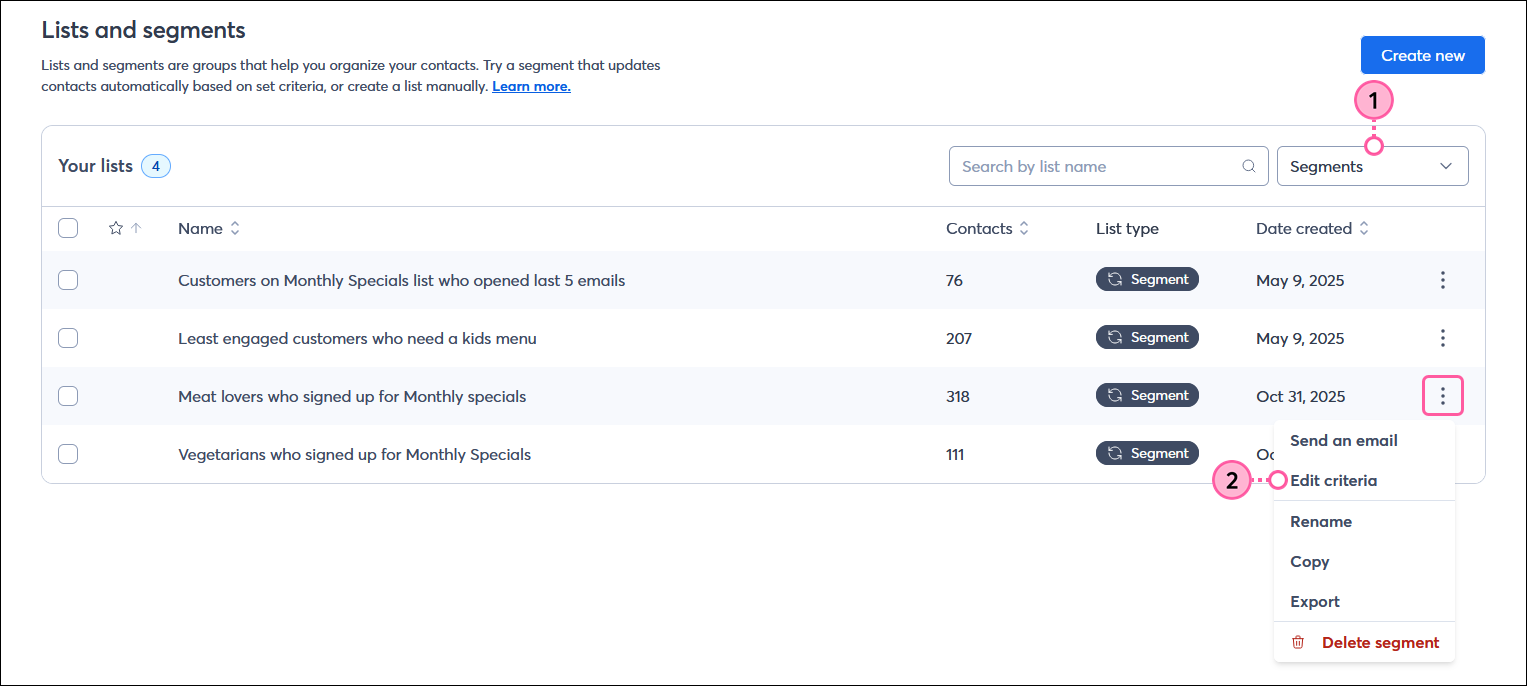
From the Segment Builder you're able to add or remove criteria or make changes to existing criteria. Review the list of contacts that is returned based on your updated filters and make sure you're capturing the audience you're expecting. You can edit your filters as many times as you need until you find the right mix for your segment.
 | Important: If you’ve previously added your segment to a contact list, be sure to add it again, or create a new list after you're finished editing the segment. This ensures your list is updated with any new contacts that meet your updated criteria and that contacts who no longer meet your criteria are removed. |
Copyright © 2026 · All Rights Reserved · Constant Contact · Privacy Center