 | Important: Contact copying must be enabled by a Constant Contact support agent. Please reach out to our Teams and Partner Support for assistance. |
Our contact copy feature allows a parent account to easily copy one or more contact lists into the managed target/subaccounts of their choosing. There's no need for manual export and import, and by copying, you can ensure the accuracy of contact data within each account.
Copy one or more contact lists from a primary account to target/subaccounts
Check the status of copied lists
 | Did you know? In addition to copying contact lists, you can copy campaigns and share/copy an automation path from a primary account into target/subaccounts. You can also copy a campaign from a subaccount to other subaccounts. |
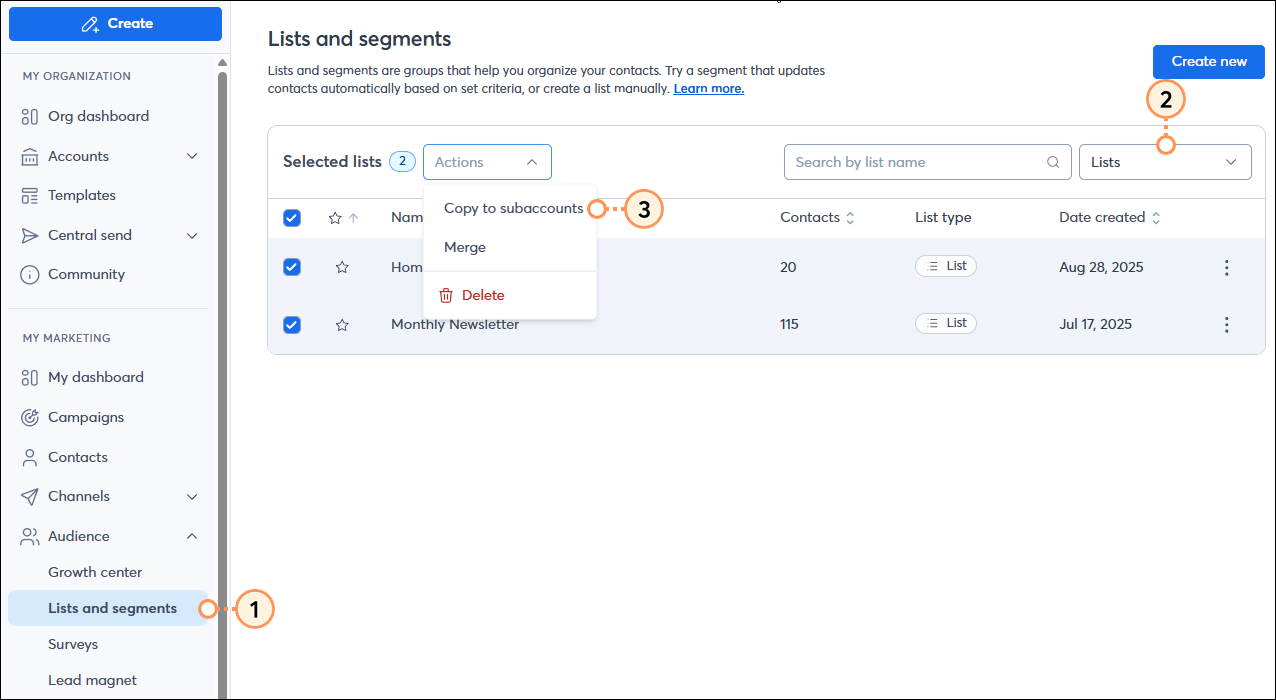
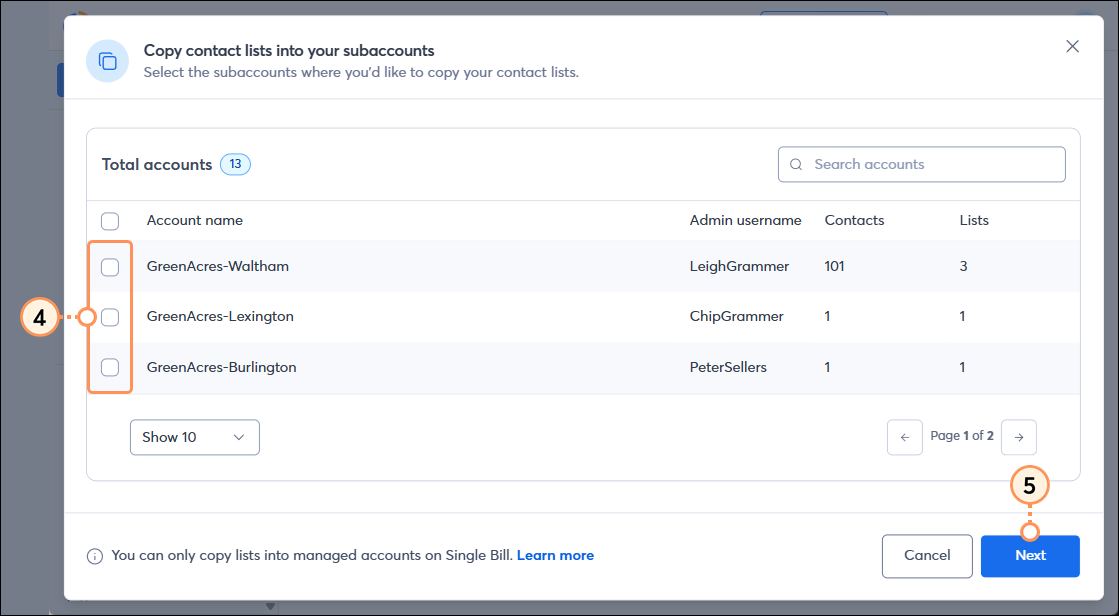
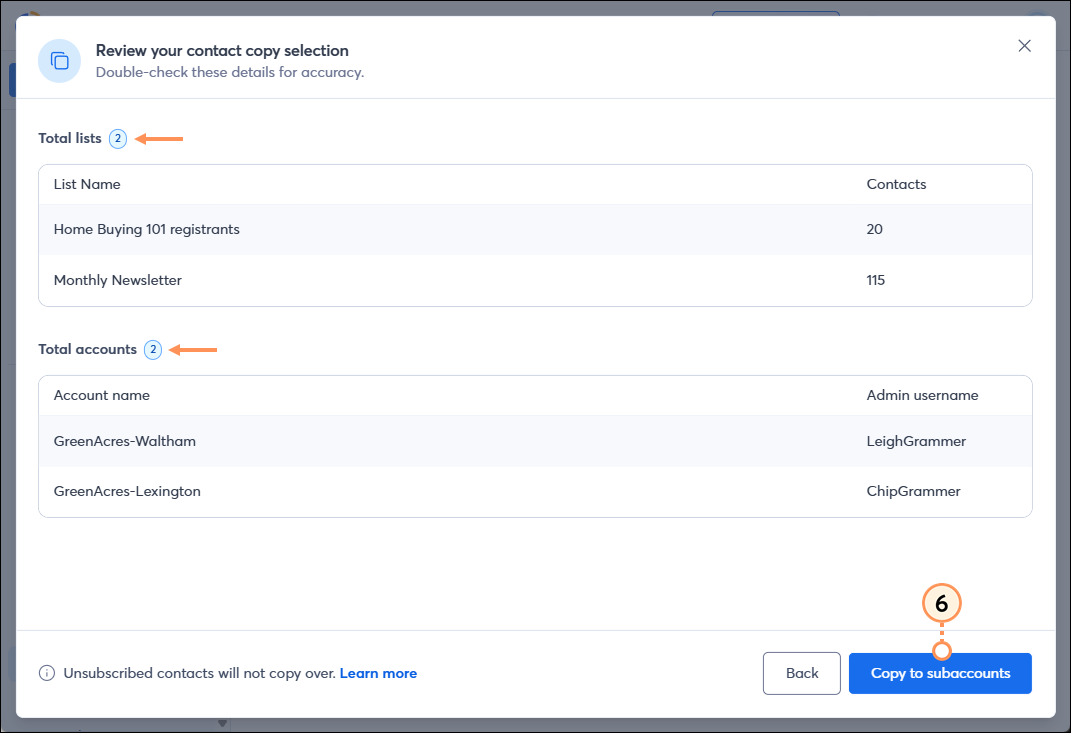
The full copy job consists of an export from the primary account and import(s) into the target/subaccount(s). To check the status of a copied list, first check the export in the primary account, and then impersonate into each target/subaccount to verify the status of the import. The Export indicates that the export completed from the primary account, but it does not mean that the imports were completed in each of the target/subaccounts.
| Important: Please avoid importing contacts while an import job is in progress, to prevent import errors. |
Check on the status of a copied list export within the contacts import/export activity log:
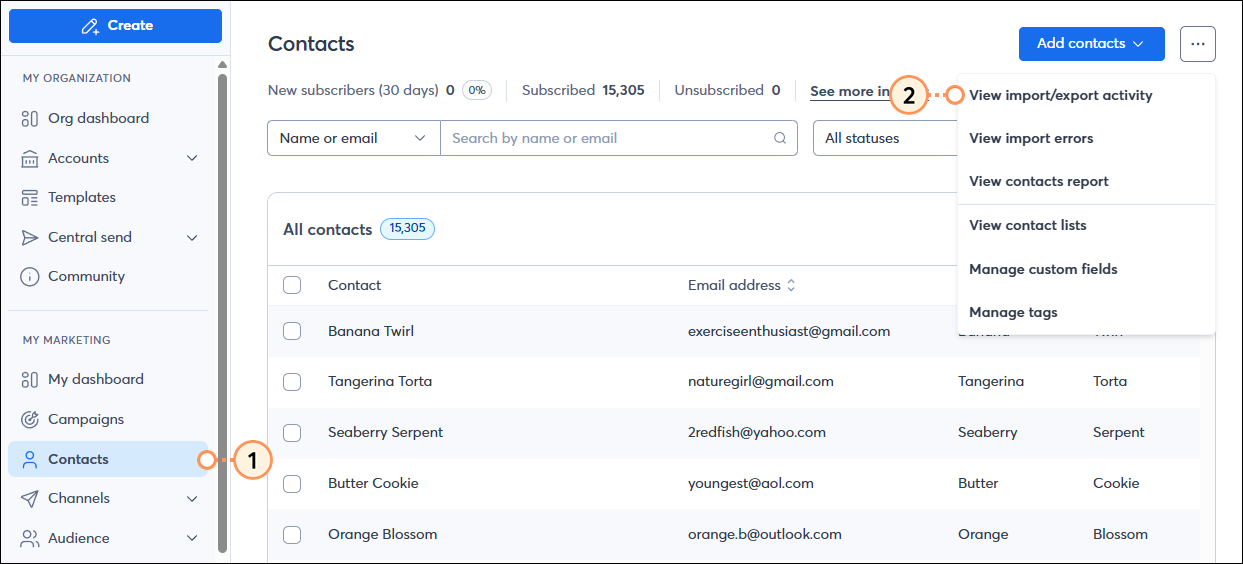
You will see the export listed with the activity type "Export contacts", along with its current status.

To see the status of the contact list import, impersonate into a subaccount, go to the Import/Export Activity Log following the same steps outlined above, and view the import status.
Can multiple copies run simultaneously?
No, only one copy can run at a time to prevent conflicting and inconsistent copied data.
What happens to unsubscribed contacts?
Unsubscribed contacts copy over as unsubscribed.
What about contacts in “awaiting confirmation" status?
These are considered unsubscribed and will copy over as unsubscribed.
Can I copy a segment?
No, only lists can be copied into target/subaccounts. Though you can create a segment, then add all the contacts from the segment to a list and share that list with your target/subaccount.
Do SMS contacts copy over?
Yes, but the target/subaccount cannot send SMS messages to these contacts unless they have the SMS add-on.
What happens if I copy a contact that already exists in the target account?
If the contact already exists in the target account, all fields will be updated except the contact state. For example, if the existing contact in the target account is unsubscribed and you copy a version of that contact that is marked as subscribed, the contact will remain unsubscribed. All other fields will still update normally.
Copyright © 2026 · All Rights Reserved · Constant Contact · Privacy Center